TL;DR:
- An AI computer for music production combines powerful hardware such as an NVIDIA RTX 4090 GPU, sufficient RAM and fast storage to keep AI-driven tools running smoothly. A balanced system, including CPU, GPU, RAM and storage, prevents bottlenecks and significantly improves workflow. Local AI processing increases, reducing reliance on cloud services and increasing privacy.
An AI computer for music production is a purpose-built machine that combines powerful hardware to run complex AI applications and heavy audio workloads smoothly. As a musician or studio owner, you want a system that not only runs your DAW smoothly, but also processes AI-driven plugins, voice models and generative tools without lag. The right choice of AI computer components, from GPU to NVMe storage, determines whether your workflow runs smoothly or crashes at the most critical moment. In this guide, I4studio explains step-by-step how to put together an AI workstation that is a perfect fit for your production studio.
What hardware is essential for putting together an AI computer?
The GPU is the core of any AI computer for music production. For heavy AI tasks such as running local voice models or deep learning plugins, preferably choose an NVIDIA RTX 4090 or RTX 5090, both with at least 24GB of VRAM. The AMD Instinct MI350P is an alternative for professional PCIe-based AI processing, although it is less common in studio environments. More VRAM means you can run larger models locally without having to go to the cloud.
The CPU deserves just as much attention. The AMD Ryzen AI Max PRO 400 series combines CPU, GPU and NPU in one chip with up to 192GB of shared memory, which greatly facilitates running heavy AI models. The Zen-5 architecture in this series provides a strong balance between AI inference and audio rendering. For a classic desktop setup with separate GPU, an AMD Ryzen 9 or Intel Core i9 is a solid choice.
Memory, storage and motherboard
DDR5 ECC RAM is the standard for professional AI workstations. At least 64GB is recommended for AI workflows combined with a DAW such as Ableton Live, Logic Pro or Pro Tools. For fast NVMe SSD storage, a PCIe Gen4 or Gen5 NVMe drive of at least 2TB ensures real-time loading times of samples and AI models without hiccups.
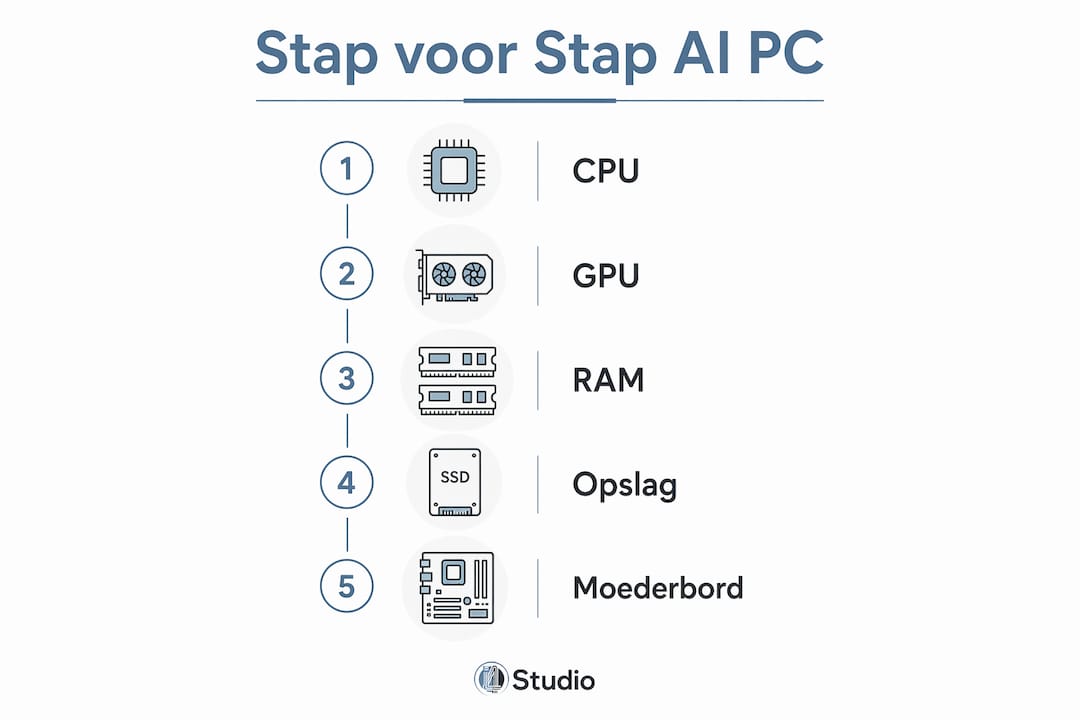
The motherboard determines how much room you have for expansion. Choose a board with enough PCIe Gen5 lanes, especially if you are considering a multi-GPU setup. Multi-GPU setups require motherboards with enough PCIe Gen5 lanes to avoid bottlenecks and ensure optimal dataflow. An X670E or Z890 platform offers the most flexibility here.
Listed below are the essential components:
- GPU: NVIDIA RTX 4090 or RTX 5090 (minimum 24GB VRAM) for AI inference and audio rendering
- CPU: AMD Ryzen AI Max PRO 395 or Ryzen 9 9950X for heavy multitasking
- RAM: 64GB to 128GB DDR5 ECC for stable AI workflows
- Motherboard: X670E or Z890 with PCIe Gen5 and multiple M.2 slots
- Storage: 2TB PCIe Gen4/5 NVMe SSD as primary drive, supplemented by a secondary drive for samples
- Power Supply: Minimum 1000W 80+ Gold PSU, for multi-GPU setups 1600W
- Cooling: 360mm AIO or high-quality air cooling for stable temperatures under load
Pro-tip: Focusing too heavily on a top-tier GPU while the motherboard or storage is underpowered leads directly to bottlenecks and reduced performance. Rather, buy a slightly less powerful GPU and invest the difference in faster storage and more RAM.
How do you put together an AI PC step by step?
Good preparation saves a lot of time and frustration. Prepare all components on an antistatic surface and provide a Phillips screwdriver, cable ties and an antistatic wrist strap. Read through your motherboard’s manual before you begin, as the order of installation varies from platform to platform.
Steps 1 through 4: housing, motherboard and CPU
- Housing Preparation: Remove the side panels and mount the standoffs in the appropriate positions for your motherboard size (ATX or E-ATX). Ensure good airflow by having at least two intake fans at the front and one or two exhaust vents at the back or top.
- Motherboard installation: Insert the I/O shield, place the motherboard on the standoffs and screw it in place. Connect the front panel cables as described in the manual.
- CPU insertion: Remove the protective cap from the socket, carefully lay down the CPU without using force and lock the mechanism. Apply thermal paste and mount the cooler.
- Install RAM: Insert the DDR5 modules into the recommended slots (refer to the manual for dual-channel configuration). Press them firmly until the latches click.
Steps 5 through 8: GPU, PSU and initial startup
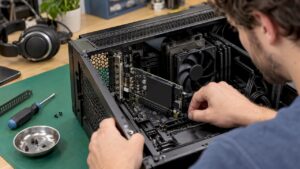
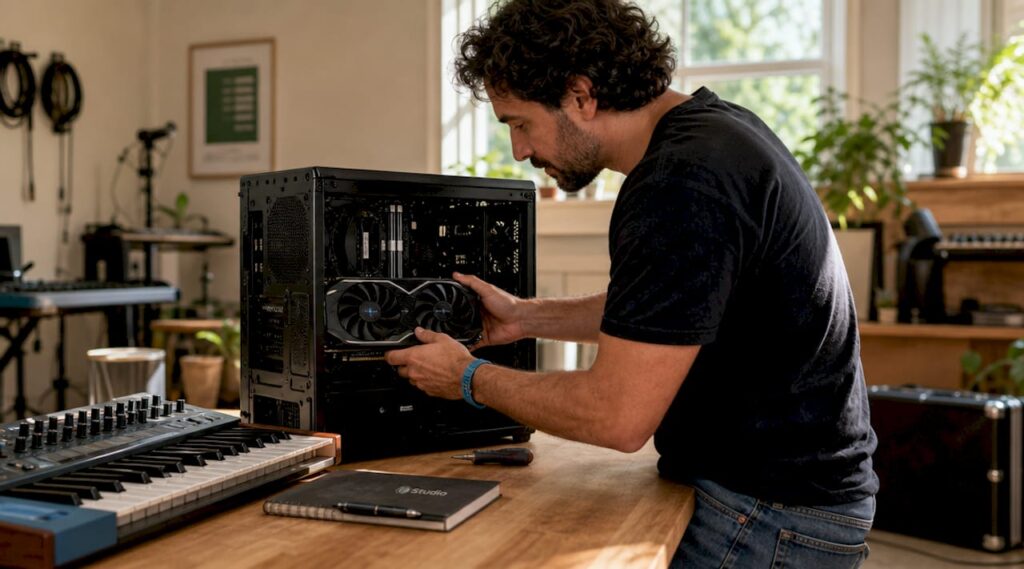
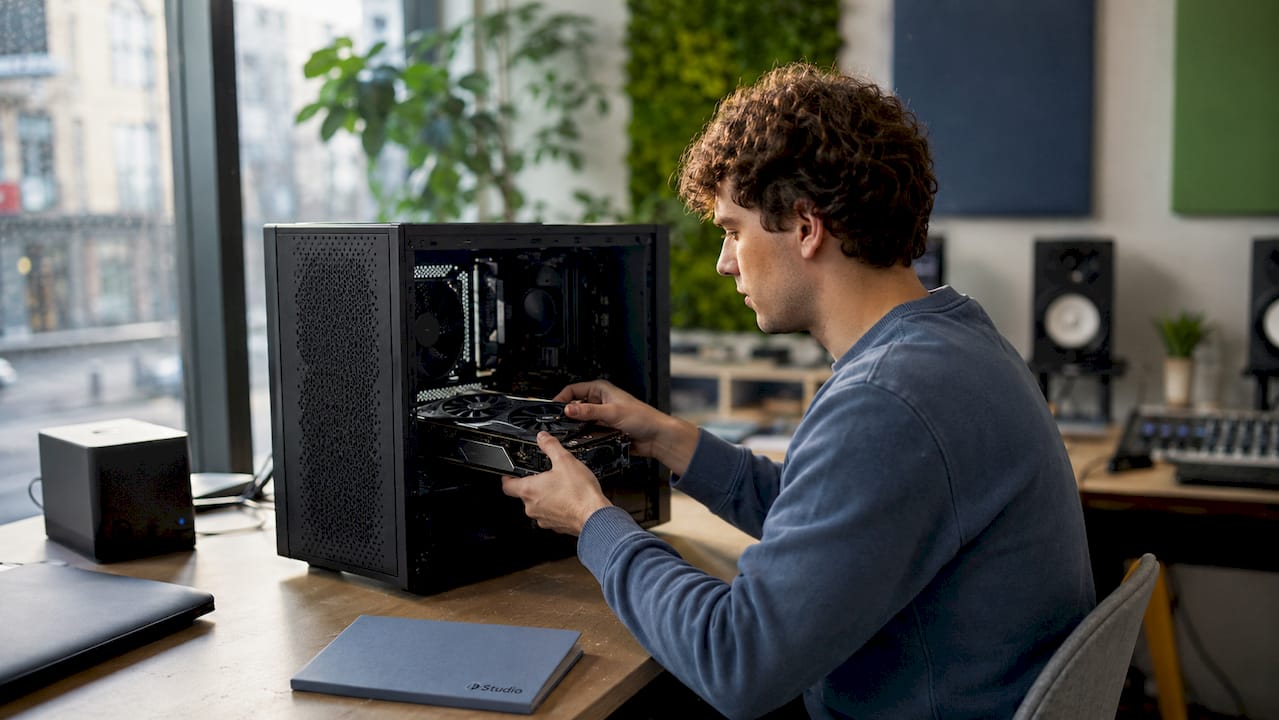
- GPU insertion: Remove the appropriate slot covers from the case and slide the GPU into the top PCIe x16 slot. Press the card firmly until the latch clicks.
- PSU mounting and connection: Mount the power supply in the space provided. Connect the 24-pin ATX cable, CPU power cable and GPU power cables. GPU power cables must be fully pressed in with an audible click to prevent overheating and damage.
- BIOS and drivers: Boot the system, go to the BIOS and check that all components are recognized. Set XMP/EXPO for the RAM. Then install Windows 11 Pro, followed by the latest chipset and GPU drivers from AMD or NVIDIA.
- System check: Check temperatures with HWiNFO64 or HWMonitor after initial startup. Run a short stress test with Prime95 and FurMark to confirm that cooling and power supply are stable.
Pro-tip: Improperly securing the 12V-2×6 power cable of the GPU leads to overheating and system failure. Always check that you hear the click and that the cable is not loose before booting the system.
Before the first startup, also check the following:
- Are all power cables fully connected?
- Is the RAM in the recommended slots correctly?
- Is the CPU cooler properly mounted and connected to the correct header?
- Are all SATA or NVMe drives recognized in the BIOS?
What AI software do you use in your music studio?
Hardware is only as good as the software running on it. For music production, there are now dozens of AI tools available that take advantage of powerful local hardware. The trend is clearly shifting toward local AI processing on desktops rather than reliance on the cloud. That means less latency, more privacy and no subscription fees for cloud computing power.
Popular AI applications for music studios include:
- iZotope RX 11: AI-powered audio restoration tools for removing noise, clicks and background noise
- Steinberg SpectraLayers Pro: Spectral editing with AI separation of voices and instruments
- LANDR Mastering: Automatic mastering via AI, also as a plugin in your DAW
- Moises App (local version): Separation of voices and instruments based on deep learning
- Open source models such as Demucs (Meta AI): Running voice separation models locally via Python or a GUI wrapper
- Qwen and DeepSeek: Open source language models that you can deploy locally for text-based tasks such as song lyric generation or project management
To run larger models locally, you need compatible AI frameworks. CUDA (for NVIDIA GPUs) and ROCm (for AMD GPUs) are the two dominant platforms. Tools such as Ollama, LM Studio and Open WebUI make it easy to run open source models such as Qwen or DeepSeek locally without in-depth programming knowledge. Learn more about local AI software on the I4studio Web site.
The combination of a powerful GPU with sufficient VRAM and fast NVMe storage determines how big models you can run locally. An RTX 4090 with 24GB VRAM can handle models up to about 13 billion parameters smoothly. If you want to run larger models, a multi-GPU setup or the AMD Ryzen AI Max PRO with shared memory is a better choice.
What does a custom AI computer for music studios cost?
The investment in an AI workstation varies greatly depending on component choice. Professional AI platforms start at around $3,999 as of Q2 2026 for entry-level models. That’s the starting point for systems that can handle serious AI tasks. Gamer AI hybrids start from around 2,000 EUR, but these are less suitable for heavy studio workflows.
| Configuration | Typical price | Suitable for |
|---|---|---|
| Entry-level AI studio PC (RTX 4070, 32GB RAM, 1TB NVMe) | €2,000 to €2,500 | Light AI plugins, DAW, voice separation |
| Mid-range workstation (RTX 4090, 64GB RAM, 2TB NVMe) | €3,500 to €5,000 | Heavy AI models, multiple plugins simultaneously |
| High-end AI workstation (RTX 5090, 128GB RAM, multi-NVMe) | €6,000 to €10,000+. | Local LLMs, multi-track AI mastering, generative AI |
| NVIDIA DGX Station (Windows) | On demand | Models up to 1 trillion parameters locally |
The GPU, CPU and RAM are the three biggest cost factors. An RTX 5090 alone costs more than €2,000. Professional AI computers require a rational investment tailored to the usage scenario. Customization prevents overconfiguration or underconfiguration, which saves significantly in the long run.
A custom build is more financially attractive than an off-the-shelf model once you have specific requirements. Off-the-shelf workstations often contain components that are not optimal for audio AI workflows. Understanding more about studio equipment budgeting will help you plan the total investment, including acoustics and peripherals.
Pro-tip: Check out the benefits of a custom PC for creative professionals if you’re unsure between a custom build and a standard workstation. Flexibility in component selection makes all the difference for long-term use.
Key insights
A balanced AI computer for music production requires GPU, CPU, RAM and storage tuned to each other, with no one component slowing down the rest.
| Item | Details |
|---|---|
| GPU is the core | Choose at least an NVIDIA RTX 4090 with 24GB VRAM for serious AI tasks in the studio. |
| Balance prevents bottlenecks | A strong GPU combined with slow storage or little RAM does not yield better performance. |
| Local AI is gaining ground | Local processing offers less latency, more privacy and no cloud costs for music production. |
| Cable installation is critical | GPU power cables must click audibly to prevent overheating and failure. |
| Customization pays off | A custom build tailored to your workflow is cheaper and better than a generic workstation. |
My take on AI computers in the modern recording studio
What I notice in practice is that many musicians and studio owners make the mistake of focusing their budget on one spectacular component, usually the GPU, while leaving the rest of the system behind. I have seen systems with an RTX 4090 paired with a slow SATA SSD and 32GB of RAM. The result: the GPU is constantly waiting for data. That’s a waste of money.
The shift to local AI processing is, in my opinion, the most important development for studio owners in 2026. You no longer depend on an Internet connection or a cloud subscription to use AI tools. Models like Demucs or local LLMs for lyrics work just run on your own machine, quickly and privately.
What I also see coming is the use of agent-based AI in the studio. Think of an AI assistant that automatically analyzes your mix, suggests EQ adjustments and performs those tasks in your DAW without you doing each step manually. That requires hardware that is not only powerful, but also stable under prolonged load. Cooling and power supply are then no longer an afterthought.
My advice for musicians embarking on their first AI PC: start with a balanced mid-range build, learn how the software works, and then scale up. An RTX 4090 with 64GB of RAM and a fast NVMe drive will get you a long way. The studio computer build for producers guide from I4studio is a good starting point if you want to get into the technical details.
– harold
Customizing your AI computer with I4studio
I4studio specializes in custom studio PCs for musicians and studio owners who know exactly what they need, and for those who still want to figure it out. Whether you’re looking for an entry-level AI workstation or a high-end machine for local LLMs and AI mastering, I4studio thinks with you from component selection to after-sales support.
Check out the studio PC configurations for 2026 for concrete examples of builds tailored to music production and AI applications. Not sure what direction you want to go yet? The decision aid which studio PC suits you will help you find the right configuration in a few steps. I4studio delivers not only hardware, but also the advice that ensures that your system works well on day one and grows with your studio in the long run.
FAQ
What is an AI computer for music production?
An AI computer for music production is a purpose-built machine with powerful GPU, CPU and sufficient RAM to run AI-driven plugins, voice models and generative tools locally alongside a DAW.
What GPU do I need for AI applications in the studio?
An NVIDIA RTX 4090 with 24GB VRAM is the most common choice for serious AI tasks in music studios. For larger models, an RTX 5090 or a multi-GPU setup is recommended.
How much RAM do I need for an AI workstation?
At least 64GB of DDR5 RAM is recommended for an AI workstation that also runs a DAW. For heavy AI models combined with multiple plugins simultaneously, 128GB is the better choice.
What does a professional AI studio computer cost?
Professional AI platforms start at around $3,999 for entry-level models in 2026. In practice, a well-balanced mid-range studio AI PC will cost between €3,500 and €5,000.
Is a custom build better than an off-the-shelf AI workstation?
A custom build is better suited to your specific workflow and avoids over- or underconfiguration. Off-the-shelf workstations often contain components that are not optimal for audio AI applications.