TL;DR:
- A studio PC is purpose-built for light to heavy audio and video production, with hardware that ensures low latency and stability. Key components include a powerful CPU, at least 32 GB of DDR5 RAM and fast NVMe storage, complemented by correct BIOS and Windows settings. For optimal performance, a dedicated PCIe USB card and a network card such as the Intel I225-V is recommended.
A studio pc is a purpose-built computer for audio and video production, where every hardware choice directly affects sound quality, latency and work speed. Concrete studio pc examples like the i4 ultra and the i4 thunderbolt clearly show what the right specifications are for your workflow. Whether you produce music in Ableton, create orchestral soundtracks in Cubase or edit video in Adobe Premiere Pro, the hardware determines how smoothly it goes. This article compares current systems, explains key components and provides practical advice for each situation.
1. What hardware components determine the performance of a studio PC?
The performance of a studio PC is determined by five core components. Each component has a specific role in processing audio and video without interruptions or delays.
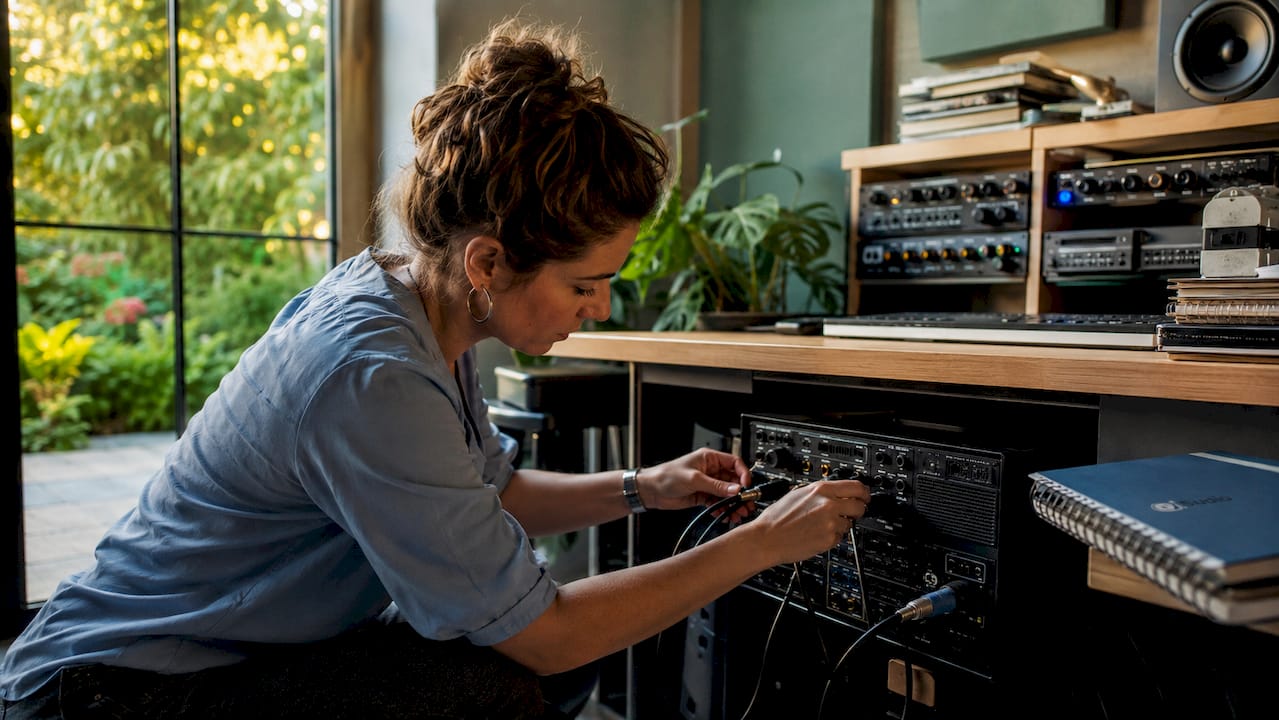
Processor (CPU)
The CPU is the heart of any studio computer. For heavy music production with 80 or more tracks, you need at least a processor with 10 to 14 cores. Intel Core Ultra processors of the 200 series offer a good balance between single-core speed for DAW plug-ins and multi-core capability for parallel processing.
Working Memory (RAM)
At least 16 GB of RAM is the lower limit for light production. For heavy projects with many software instruments, such as a full orchestral template in Spitfire Audio or EastWest, 32 GB of DDR5 is the standard. DDR5 offers higher bandwidth than DDR4, which is noticeable when loading large sample libraries.
Storage (SSD and NVMe)
Fast storage is not a luxury but a requirement. An NVMe SSD reads data up to 10 times faster than a regular SATA SSD. Preferably use two drives: one for the operating system and DAW, one for project files and samples.
Graphics card (GPU)
For pure audio production, an entry-level GPU is sufficient. Video editing in DaVinci Resolve or After Effects benefits greatly from GPU acceleration. Plugins such as iZotope RX also use GPU power for spectral analysis.
- At least 16 GB RAM, preferably 32 GB DDR5
- NVMe SSD as primary drive, minimum 1 TB
- CPU with high single-core clock speed for DAW plug-ins
- Dedicated video
- Intel I225-V network card for minimal DPC latency
Pro-tip: Never buy a studio PC without checking which USB controller drives the audio interface. A dedicated PCIe USB card prevents conflicts with other devices and lowers latency significantly.
Compact desktop for home studio
A homebuilt or custom desktop with an Intel Core i7 or Ryzen 7, 32 GB DDR5, a 2 TB NVMe and a dedicated GPU such as the NVIDIA RTX 4060 offers the best value for money for home producers. I4studio builds custom systems like this, tailored to your DAW and workflow.
High-end workstation for heavy production
For orchestral film music or 4K video production with multiple GPU tasks, a system with an Intel Core Ultra 9 or AMD Threadripper, 64 GB of RAM and multiple NVMe drives is the right choice. These configurations start around $3,500 and allow for future expansion.
Pro Tip: Choose Windows 11 Pro over Windows 11 Home if you work professionally. Windows 11 Pro offers better compatibility with DAW software such as Pro Tools and gives more control over updates that can disrupt your production sessions.
3. How do you optimize a studio PC for minimal latency?
Powerful hardware does not guarantee low latency. DPC latency problems often stem from power-management and interrupt handling. The solution always starts with software and OS settings, not new hardware.
Follow these steps to optimize your studio PC:
- Disable C-states in the BIOS. C-states are energy-saving sleep modes for the CPU. They reduce power consumption but cause small delays when waking up. For real-time audio processing, they are a source of problems.
- Set the Windows power plan to “High Performance. The default power plan shuts down the CPU at low load. This causes erratic performance during recording sessions.
- Deactivate sleep mode and screen saver. A system that goes into sleep mode halfway through a recording is unusable. Turn off all power management options completely.
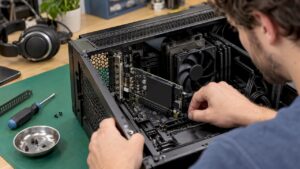
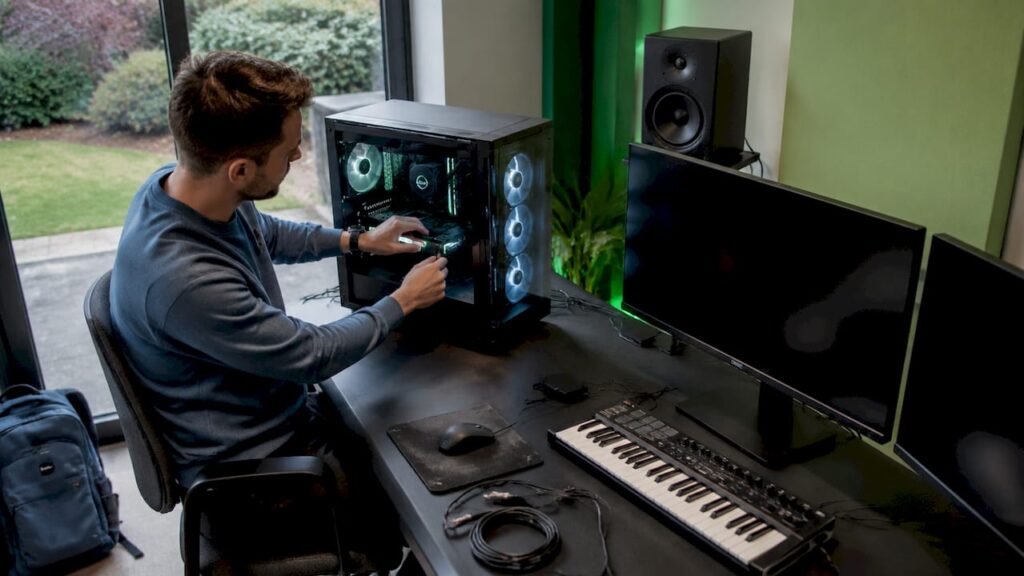
- Use a dedicated PCIe USB card for your audio interface. Built-in USB controllers share bandwidth with other devices. A separate PCIe USB card gives the audio interface its own channel.
- Choose the appropriate network card. DPC latency is 60% caused by network adapters. Intel I225-V network cards significantly outperform Realtek or Killer variants for audio stability.
- Set the DAW buffer size correctly. According to Paul Maunder, latency in Pro Tools depends heavily on the hardware buffer size. A lower buffer gives less latency but demands more from the CPU. Start at 128 samples for recording and increase to 512 or 1024 for mixing.
- Remove unnecessary drivers and background programs. Any driver that is active can cause interrupts. Remove drivers from devices you are not using.
Common pitfall: manufacturers buy a powerful new computer but forget to adjust BIOS and Windows settings. The result is audio drop-outs and crackling despite expensive hardware. Driver and OS tuning is always step one.
4. Which studio PC configuration suits your workflow?
The right studio PC configuration depends entirely on what you make and how you work. A home producer making beats in FL Studio has different needs than a sound engineer recording orchestral sessions with 64 microphones.
Small home studio
For light to moderate production, such as songwriting, beatmaking or podcasting, a system with an Intel Core i5 or Ryzen 5, 16 GB of RAM and a 1 TB NVMe SSD will suffice. Software like Ableton Live Intro or GarageBand runs smoothly on this. The i4 silver is a good choice if desk space is limited.
Professional recording studio
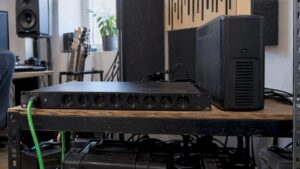
Mixes with 80 or more tracks and video editing in Adobe Premiere Pro require a system with at least 32 GB of RAM, a CPU with 12 or more cores and two NVMe drives. A rackmount system like the I4 thunderbolt fits seamlessly into a professional studio setup alongside patchbays and outboard gear.
Mobile or compact solution
Not every studio has space for a full tower. All-in-one systems and compact mini-PCs are suitable for small spaces. With compact systems, pay attention to cooling: an overheated CPU throttles and causes instability during long sessions.
- Home studio: Core i5/Ryzen 5, 16 GB RAM, 1 TB NVMe
- Semiprofessional: Core i7/Ryzen 7, 32 GB RAM, 2 TB NVMe
- Professional: Core Ultra 9 or Threadripper, 64 GB RAM, multiple NVMe
- Rackmount: Power PC1 or similar for studio integration
- Starter i4 Starter or silver
Pro-tip: Always buy a little more RAM than you think you need now. Sample libraries grow quickly, and upgrading afterward takes more time and money than choosing 32 GB instead of 16 GB right away.
Also consider future-proofing. A system with free PCIe slots, extra RAM slots and a powerful power supply will allow you to upgrade later without replacing everything. I4studio advises on the right form factor for your situation with each custom build.
Key insights
The ideal studio PC combines a powerful CPU with at least 32 GB DDR5, fast NVMe storage and correctly configured BIOS and Windows settings for stable, latency-free audio and video production.
| Item | Details |
|---|---|
| CPU and RAM are the basics | Choose at least a Core Ultra 5 with 32 GB DDR5 for professional production. |
| NVMe storage is mandatory | Use two NVMe drives: one for the system, one for projects and samples. |
| BIOS and Windows settings. | Disable C-states and power management for stable, latency-free performance. |
| Network card determines latency | Intel I225-V network cards significantly reduce DPC latency compared to Realtek. |
| Form factor follows workflow | Choose rackmount for professional studios, all-in-one for compact workstations. |
What I have learned after years of studio pc consulting
I see it regularly: someone invests €2,000 in a powerful computer, installs Pro Tools or Ableton, and immediately suffers from crackling and drop-outs. The hardware is excellent. The problem is in the settings. BIOS is still set to default, the Windows power plan is set to “Balanced,” and the audio interface hangs from a USB port it shares with an external hard drive and a webcam.
What I always advise: treat a studio PC as a tool, not an office computer. An office computer may occasionally run an update or go into sleep mode for a while. A studio PC may not. Every setting that saves energy costs you latency. Every driver you don’t need is a potential source of interference.
The other point I want to pass along: don’t buy a system based on specifications on paper. Look at the overall configuration. A system with a fast CPU but a slow network card and a shared USB controller will perform worse in the studio than a slightly less powerful system that is properly tuned. The best audio PC is the one that is right as a whole, not the one with the highest clock speed.
Finally, invest in expandability. I’ve seen too many manufacturers bogged down after a year because their system doesn’t have an extra RAM slot or a free PCIe port for a better USB controller. Buy smart, buy with room for growth.
– harold
Find your studio pc at I4studio
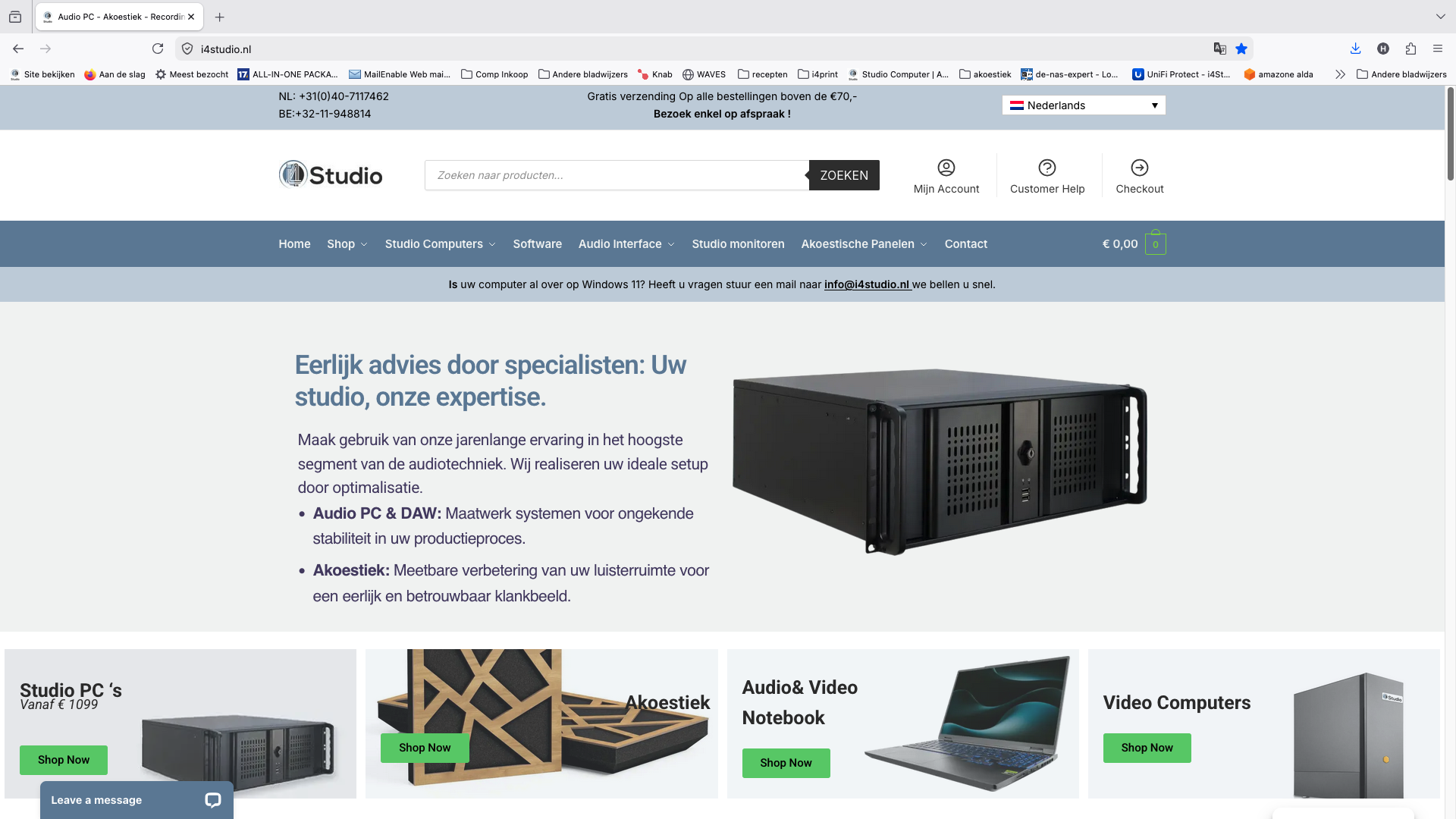
I4studio specializes in custom build studio PCs tailored to your specific workflow, whether you produce music, edit video or run a professional recording studio. Each system is configured with the right BIOS settings, Windows optimizations and hardware choices for minimal latency and maximum stability. Check out the studio PC configurations and find the system that fits your situation. Do you have questions about what specifications you need? I4studio gives personal advice so you know exactly what you’re buying.
FAQ
What exactly is a studio PC?
A studio PC is a computer assembled specifically for audio and video production, with an emphasis on low latency, stable performance and compatibility with DAW software such as Pro Tools, Ableton and Cubase.
How much RAM do I need for music production?
For light production, 16 GB of RAM is sufficient. For heavy projects with large sample libraries or multiple software instruments, 32 GB of DDR5 is the recommended standard.
Why does my audio sound bad despite a powerful PC?
Audio drop-outs and crackling often come from incorrect BIOS and Windows settings, not insufficient hardware. Disable C-states, set the power plan to high performance, and use a dedicated PCIe USB card for your audio interface.
What is the difference between a rackmount and an all-in-one studio PC?
A rackmount system such as the i4 thunderbolt fits in a 19-inch rack alongside other studio equipment and is ideal for professional recording studios. Which network card is best for a studio pc?