TL;DR:
- Many musicians think that only a faster processor will yield better recordings, but the right hardware, settings and peripherals are just as important. A good audio PC requires at least 16 GB of RAM, a processor with high single-core performance and an external audio interface for stable, low-latency sound quality. Optimization of Windows settings and the right peripherals largely determine your success in music production.
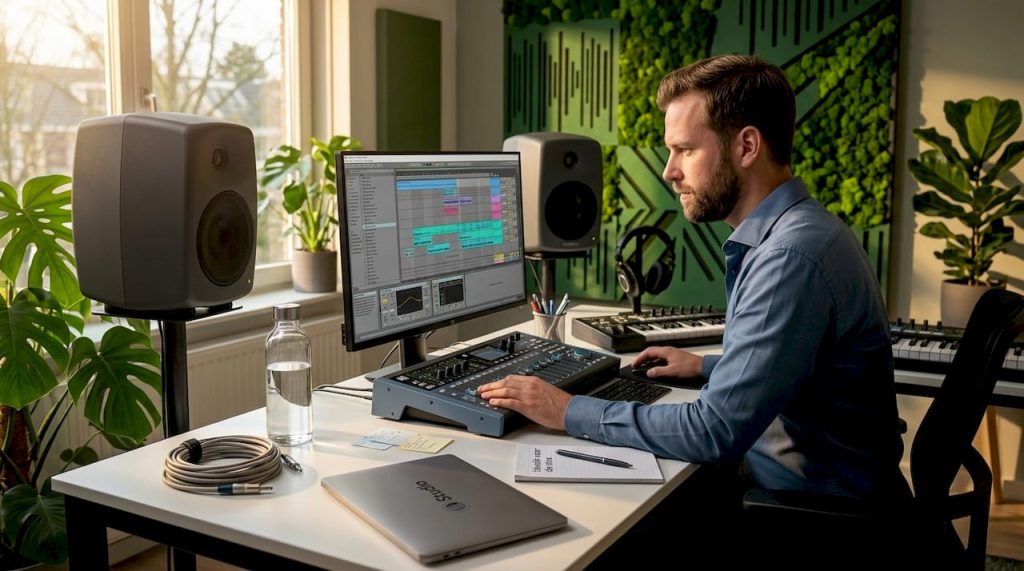
Many musicians think that a faster processor automatically produces better recordings. That’s not true. The best audio PC is not a matter of buying the most expensive specs, but of the right combination of hardware, settings and peripherals. Whether you’re setting up a home studio for mixing and mastering, or doing video and audio post-production, this guide explains exactly what to look for. We cover hardware requirements, Windows optimizations, the choice between desktop and laptop, and the peripherals that make all the difference.
Table of contents
- What makes a PC suitable as the best audio PC for music production?
- Optimize windows settings for a glitch-free audio experience
- Comparison of desktop and laptop audio PCs for diverse studio needs
- Essential peripherals and audio interfaces for the best audio PC experience
- Practical tips for long-term stability and optimal use of your audio PC
- The indispensable role of external audio interfaces over pure PC specs
- Find the best studio pc and peripherals at i4studio
- Frequently Asked Questions
Key Insights
| Item | Details |
|---|---|
| Minimum hardware requirements. | A good audio PC has at least 16GB of RAM and a powerful multi-core CPU for smooth audio processing. |
| Windows optimization | Settings such as High Performance power plan and core parking disable improve stability and reduce glitches. |
| External audio interfaces | Always use a quality audio interface for low latency and more professional sound quality than onboard audio. |
| Desktop versus laptop | Desktops offer better cooling and expandability; laptops are more economical when portability is needed. |
| Practical stability tips | Avoid USB power saving and limit background processes to minimize disturbances during long sessions. |
What makes a PC suitable as the best audio PC for music production?
Most people look at the processor first. Logical, but not the whole story. For a good audio PC configuration, every link in the chain counts, from motherboard to power supply.
RAM: more is better, but 16 GB is the minimum
Windows PCs for music production need at least 16 GB of RAM in combination with an Intel i5/i7 or equivalent. In practice, you find that as soon as you run 15 or more plugins simultaneously, 16 GB already becomes tight. For complex orchestral templates or heavy mixing sessions, 32 GB or 64 GB is a lot more comfortable.
Macs with Apple Silicon use unified memory, so 16 GB on a Mac often feels more than 16 GB on Windows. On Windows, the system doesn’t share memory between CPU and GPU in the same way, so you’re more likely to run into limits. Take that into account in your hardware requirements for music production.
Processor: stable clock speed wins over pure core numbers
More cores are useful for rendering and video, but for real-time audio processing, single-core performance counts the most. A DAW (Digital Audio Workstation) such as Ableton Live, Pro or Pro Tools does not always distribute the load evenly among all the cores. A processor with high single-core clock speed and good thermal stability performs better than one with twelve slow cores.
Sound card versus audio interface
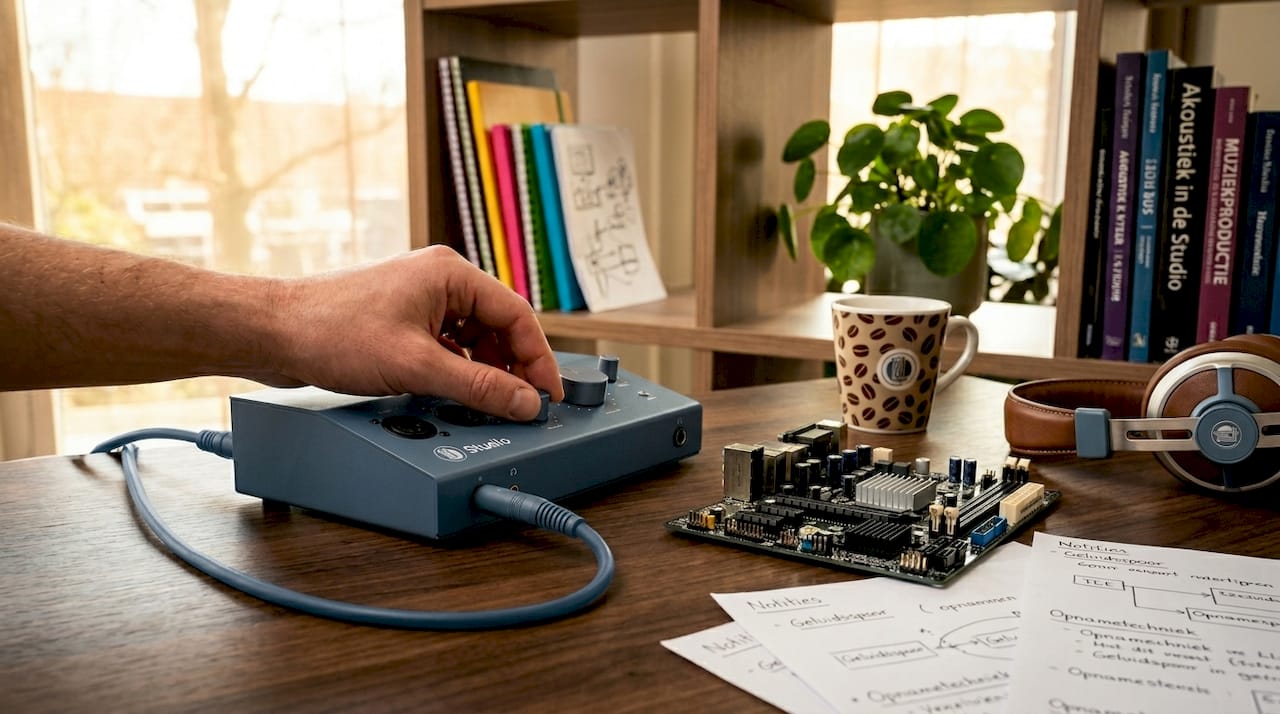
Your motherboard’s onboard sound card is designed for general use, not professional audio. The drivers are generic, latency is high and noise is noticeable in recordings. An external audio interface solves this. That one brings its own, optimized ASIO drivers (ASIO stands for Audio Stream Input/Output, a protocol for low latency audio transport on Windows) and delivers more stable, cleaner signals.
Cooling and quiet operation
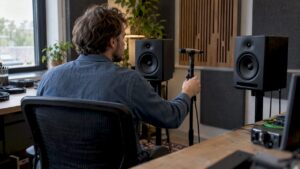
Fan noise is the enemy of every recording studio. A hard drive rattling or a CPU cooler running at full speed will be reflected in your recordings when working with microphones. Opt for quiet cooling solutions and consider an SSD as your primary drive. SSDs are not only faster, they also don’t make any noise.
In summary, these are the basic hardware requirements for a good audio PC:
- At least 16 GB of RAM (32 GB recommended for heavy projects)
- Intel Core i7/i9 or AMD Ryzen 5/7 with high single-core performance
- SSD as system drive and project drive
- External audio interface with ASIO drivers
- Silent cooling, preferably water cooling or large, slow fans
- Stable power supply with enough wattage for expansions
Optimize windows settings for a glitch-free audio experience
Hardware alone is not enough. Windows by itself is not configured for real-time audio. Default settings cause interruptions, dropouts and crackling noises in your mix. Fortunately, most problems can be solved with a few targeted adjustments.
The High Performance power plan and disabling core parking prevent up to 90% of audio glitches. That’s no small gain. Here are the steps to follow for a stable audio PC configuration on Windows:
- Set the power management to High Performance. Go to Control Panel, Power Management and choose the “High Performance” scheme. This prevents Windows from lowering the CPU clock speed at times when your DAW needs extra computing power.
- Turn off core parking. Core parking is a Windows feature that temporarily “parks” inactive CPU cores to save power. During audio processing, you want all cores to be immediately available. Disable this through the registry settings or a tool such as Process Lasso.
- Turn off all visual effects. Go to System Properties, Advanced, Performance and choose “Adjust for best performance.” Transparency effects and animations consume GPU resources that are better used for your DAW.
- Remove USB power saving. Go to Device Manager, open each USB Root Hub, click on Power Management and uncheck “The computer may disable this device to save power.” This will prevent Windows from disconnecting your audio interface during a session.
- Install manufacturer-specific ASIO drivers. Always use the ASIO drivers that come with your audio interface, not the generic Windows drivers. If you don’t have an external interface, ASIO4ALL is a temporary solution, but not a replacement for a real interface with its own drivers.
Pro-tip: Create a separate Windows user profile purely for audio production. In it, turn off all background programs, notifications and updates. That way you’ll always start in a clean, optimized environment with no surprises in the middle of a session.
Find more detailed steps in our windows audio optimization tips for Windows 11.
Comparison of desktop and laptop audio PCs for diverse studio needs
The question “desktop or laptop?” depends entirely on how you work. Both have serious advantages and disadvantages that directly affect your sound quality, workflow and budget. Read more about the choice in our overview of desktop versus laptop for studio use.
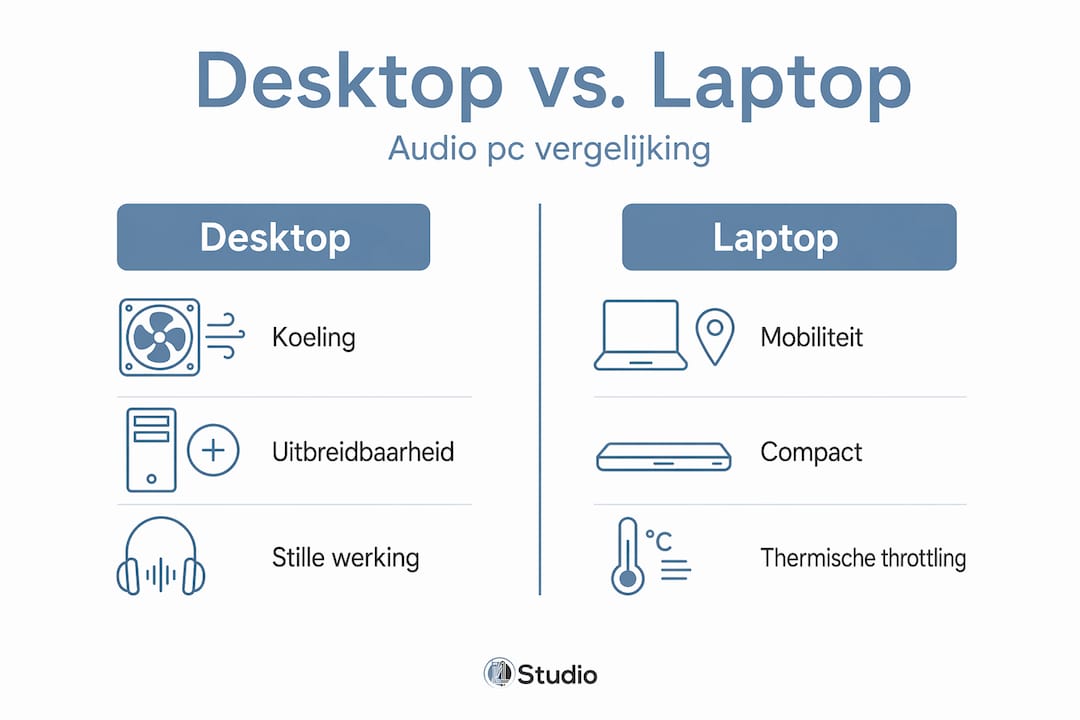
| Criterion | Desktop | Laptop |
|---|---|---|
| Cooling | Excellent, water cooling possible | Limited, thermal throttling under heavy load |
| Noise level | Quiet to make with good cooling | Fan runs on high more often |
| Expandability | High (additional RAM, PCIe cards, multiple drives) | Low to moderate |
| Portability | No | High |
| Price/Performance | Better for equal specs | Higher additional cost for cooling and compactness |
| Lifetime | Longer due to replaceability of parts | Shorter, more difficult to upgrade |
| Suitable for | Fixed home studio, heavy projects | Mobile producers, live performances |
Water cooling reduces noise in recording studios, while desktops offer better cooling options than laptops anyway. This is a practical benefit that you hear directly in your recordings.
For a permanent home studio, a desktop is almost always the better choice. You have more control over sound levels, you can install more RAM as your projects grow, and you can add PCIe cards for additional functionality. A laptop is ideal if you regularly work on location, produce live, or simply don’t have space for a full desktop setup.
Some additional points to consider:
- With laptops, an external audio interface is even more important, as internal sound cards in laptops are usually even less suitable for professional use than those in desktops.
- Thermal throttling is a real risk in laptops: when the processor gets too hot, it automatically lowers its clock speed. This can cause problems in the middle of a render or mix session.
- A water-cooled desktop in a good enclosure can run virtually silent, which is ideal if your computer is in the same room as your microphones.
Essential peripherals and audio interfaces for the best audio PC experience
You can have the fastest PC in the world, but without the right peripherals, sound quality lags behind. This is the component that many musicians under budget for, even though it makes the most difference in the daily workflow.
Audio interfaces are essential for serious music production and surpass onboard audio in quality and stability. This is true for both recording and monitoring.
These are the peripherals you should seriously consider for an optimal audio setup PC:
- External audio interface with low latency. Choose an interface with stable ASIO drivers and enough inputs and outputs for your setup. Two inputs are enough for singer-songwriters, but for band recording or complex setups, you’ll need more channels. Check out our guide on audio interfaces and peripherals for more details.
- Monitoring controller. A monitoring controller lets you quickly switch between listening positions (studio monitors, headphones, external systems) without touching the levels in your DAW. This is time-saving and protects your ears during unexpected volume spikes.
- Studio controllers and MIDI controllers. Physical knobs and faders give you more control over your mix than a mouse. Many producers work faster with a MIDI controller than purely through the screen.
- Compatibility with your DAW. Not every interface works equally well with every DAW. Always check that the drivers are compatible with your version of Windows and your particular DAW, especially after major updates.
- Firmware and driver updates. Keep your interface firmware and drivers up-to-date. Manufacturers regularly release updates that fix stability issues or improve latency.
Pro-tip: Don’t buy the cheapest interface you can find. A low-quality interface produces noise, has unstable drivers and causes more frustration than a cheap PC ever would. Rather invest in a reliable interface from an established manufacturer than in extra RAM you may never need.
Practical tips for long-term stability and optimal use of your audio PC
A well-configured audio PC is an investment. You protect that investment through regular maintenance and smart habits. Many producers experience problems that are completely preventable with a few simple adjustments.
Disabling USB power saving and deactivating unnecessary startup programs reduces disruptions during extended sessions. These are the practical steps that keep your workflow stable:
- Use USB hubs without power saving. Cheap USB hubs sometimes automatically activate power saving, which can break your audio interface. Choose active, powered USB hubs for professional peripherals.
- Limit background processes via Task Manager. Open Task Manager at startup and check which programs start automatically. Antivirus, cloud services and update managers can all steal CPU resources at the wrong time. Disable anything you don’t need during a session.
- Schedule updates outside of production sessions. Windows updates and driver updates can reboot or temporarily slow down your system. Disable automatic updates during active work periods and deliberately schedule them at times when you are not producing.
- Provide a dust-free work environment and good ventilation. Dust in the case increases the temperature of your components, leading to throttling and a shorter lifespan. Clean your PC with compressed air every three to six months.
- Back up your projects regularly. A hard drive or SSD can fail without warning. Use an external drive or cloud service for automatic backups of your project folders. Loss of a project due to a disk failure is avoidable.
- Use separate disks for system and projects. Install Windows on one SSD and store all your audio files and projects on a second drive. This prevents system activity from interfering with your audio stream and makes backups easier.
These habits take little time but prevent the most common problems producers encounter after months or years of use.
The indispensable role of external audio interfaces over pure PC specs
Here’s something we see time and again at i4studio: a musician invests thousands of dollars in a powerful PC, but pairs it with a cheap or outdated audio interface. The result is disappointing sound and frustrating latency, while the PC itself performs just fine.
Matt McCracken argues that audio interfaces master key audio functions better than onboard sound cards and are crucial for serious music sessions. That’s not a sales pitch, that’s practice.
An interface with stable drivers and low latency does more for your sound quality than a $100 CPU upgrade. The interface determines how clean your signal comes in, how low the delay is between playing and hearing, and how stable your system remains during long sessions. A slow or unstable interface causes dropouts, crackling noises and synchronization problems that no PC upgrade will fix.
This doesn’t mean that PC hardware doesn’t matter. A slow processor or too little RAM limits how many plugins you can run at once. But the order of priorities is different than most people think. First a good interface, then enough RAM, then a fast processor.
The best approach is a total solution where interface and PC are matched. Choose an interface whose drivers are stable on your version of Windows, that is compatible with your DAW, and that has enough inputs and outputs for your current and future setup. Combine that with a PC that has enough room to grow. Check out our advice page on the importance of audio interfaces for specific recommendations.
The musicians who are most satisfied with their setup are not those with the most expensive PC. They are those who have consciously chosen to have a good balance of all components.
Find the best studio pc and peripherals at i4studio
Now that you know what to look for and what optimizations make the difference, we’d love to help you put together your ideal studio PC. At i4studio, we build custom studio PCs configured specifically for musicians and audio professionals, with the right hardware, cooling and settings for your workflow.
Whether you’re looking for studio PC advice for a permanent home studio or need a complete overview of studio PC components, we’re thinking with you. From processor to audio interface, from enclosure to acoustic treatment. Also check out our offer for audio interface solutions and find out which combination best suits your projects and budget.
Frequently Asked Questions
What is the minimum amount of RAM I need for an audio PC?
Windows PCs require at least 16 GB of RAM, but 32 GB is recommended once you are working with heavy plugins, large sample libraries or multiple instrument tracks.
Why is an external audio interface important?
An external audio interface delivers better sound quality and lower latency than onboard audio, which is essential for professional recording and a stable mix workflow.
How do I avoid glitches while mixing on Windows?
Set the power plan to High Performance, disable core parking and turn off USB power saving. These three adjustments prevent up to 90% of audio glitches on Windows.
Should I choose a desktop or laptop for my audio PC?
A desktop offers better cooling, more expansion options and is quieter to make, while a laptop is portable but has more limited cooling options and throttles faster thermally under heavy loads.