Choose your controller based on your primary task, not on brand or price. If you’ll mainly be mixing, you’ll want a fader bank with motorized faders and scribble strips. If you work live or build beats in Ableton, a pad matrix is the logical choice. If you use a lot of plugins and synths, a keyboard controller with encoders is preferable. If you have limited space or mainly record, a compact controller with one or two faders will suffice.
That’s the key to making any good decision when choosing a DAW controller: first determine your workflow, then look at the specifications.
The four main categories at a glance:
- Faderbank — for those who mix and write automation every day, and find the mouse their biggest frustration.
- Pad controller — for live performance, clip launching, and beatmaking in Ableton or similar software.
- Keyboard controller with encoders — for sound design, synth programming, and plugin editing with both hands.
- Compact or single-fader unit — for recording sessions, small studios, or as a second controller alongside a larger system.
Use the checklist later in this article to evaluate specific models based on your budget and space before making a purchase decision.
Key insights
The best DAW controller isn’t the most expensive or the best-known one, but the one that’s tailored precisely to your primary task: faders for mixing, pads for performance, and encoders for sound design.
| Item | Details |
|---|---|
| Choose based on the task, not the brand | Fader bank for mixing, pad matrix for live performances/Ableton, keyboard controller for sound design. |
| The protocol guarantees nothing | Mackie MCU/HUI is widely supported, but fader and display quality determine the actual experience. |
| Manufacturer software adds depth | Systems such as SSL 360° offer multi-DAW mapping that universal protocols cannot match. |
| Always test the controls in person | Play back automation and move faders and pads in real time before you buy; specifications alone aren’t enough. |
| Heavy-duty workflows require more than just a controller | For multi-DAW setups or large sample libraries, I4studio builds custom studio PCs that can handle the load. |
Table of contents
- Choosing a DAW Controller: Which Category Fits Your Needs?
- Comparing the selection criteria that really matter when choosing a DAW controller
- Mackie MCU, EuCon, and Manufacturer Software: What Do They Mean for You?
- Buying Checklist: How to Test and Buy a DAW Controller Without Regrets
- When is a controller not enough, and do you need more?
- Verified Sources and Technical References
- What Most DAW Controller Buying Guides Overlook
- Choose your new controller and the system that goes with it at I4studio
- Frequently Asked Questions
Choosing a DAW controller: Which category is right for your needs?
Each category of controller solves a different problem. Anyone who doesn’t realize this ends up buying a fancy device that speeds up the wrong task.
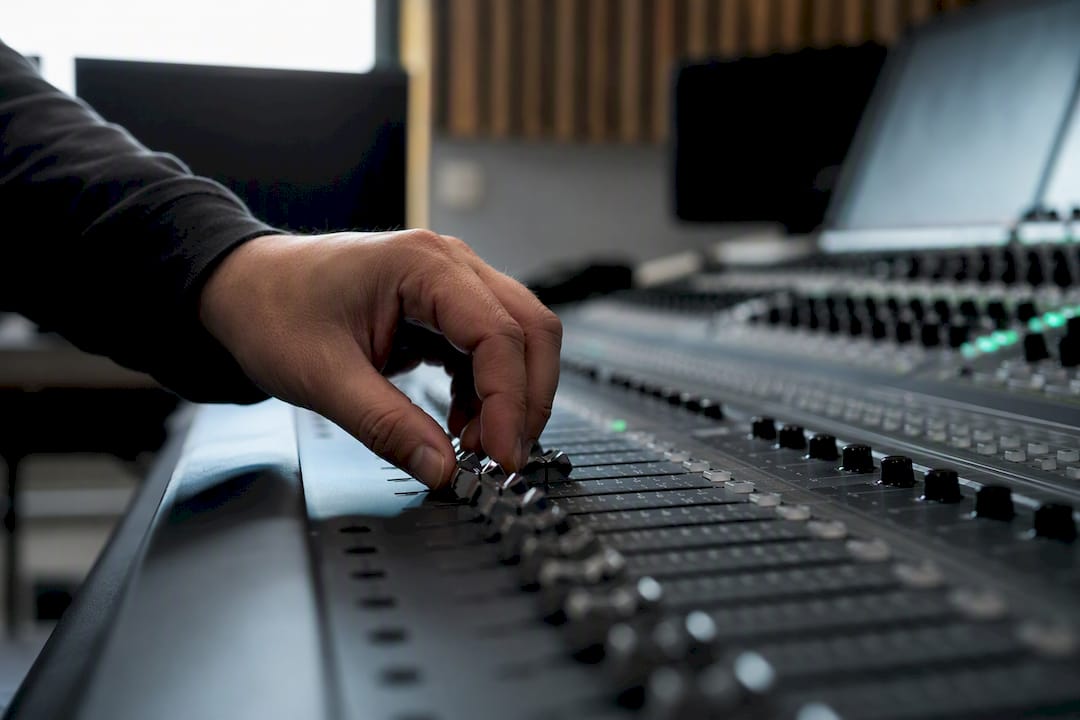
Fader banks are built around motorized faders that make automation both visual and tactile. You can see and feel a change in volume as it plays back, rather than dragging a mouse over a small slider on your screen. For those who mix regularly, this saves hours per project: track navigation, gain staging, and writing automation are significantly faster with physical faders than with a trackpad. Ergonomics is also a factor that’s often underestimated. Spending hours drawing precise volume curves with a mouse puts strain on your wrist; faders move naturally with your hand.
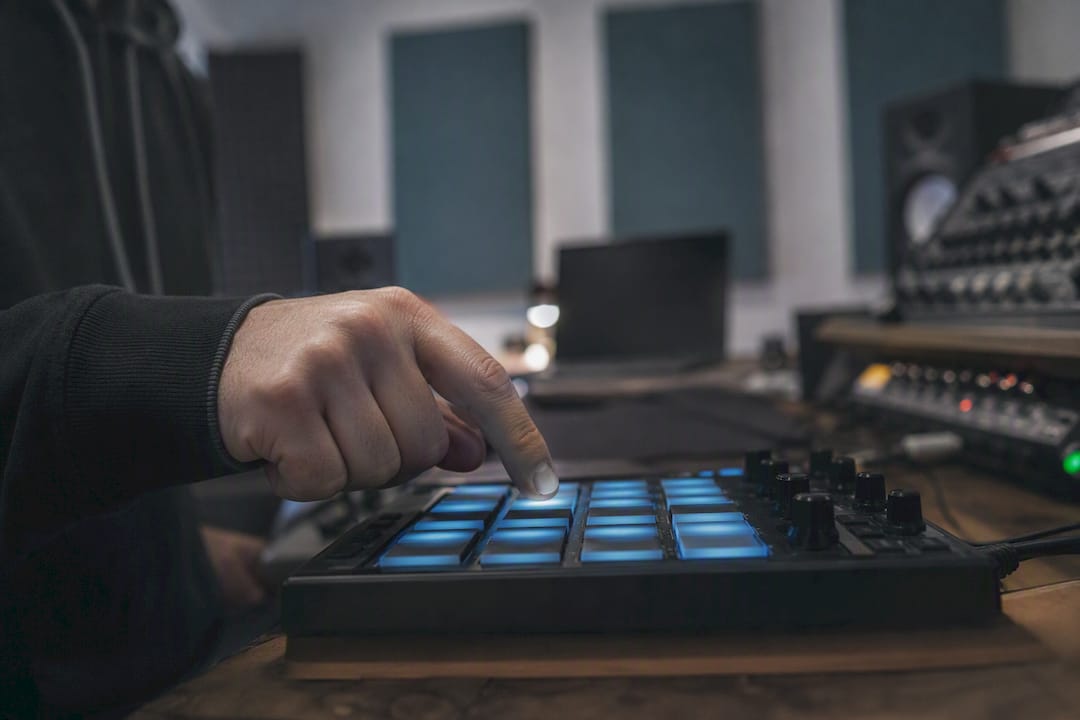
Pad controllers are all about something else: expressive playing and quickly switching between loops, samples, and clips. In Ableton Live or similar software, you use pads to trigger clips, play drum patterns, and control performance elements in real time. Some models support MPE (MIDI Polyphonic Expression), which lets you assign pressure, tilt, and velocity to each pad individually. This is useful for anyone who wants to play expressive basslines or melodic patches without having to program everything afterward. The downside: pad controllers aren’t great for mixing. You can simulate faders using touch strips, but they lack the precision of a real motorized fader.
Keyboard controllers with encoders are designed for sound design and plugin editing. The combination of a keyboard and a set of rotary knobs (encoders) lets you directly adjust synth parameters, filters, and effect settings without having to dig through menus. For producers who spend a lot of time building patches or programming orchestral VSTs, this is the category that saves the most time. The downside: most of these controllers have few or no faders, so they aren’t very useful for mix automation.
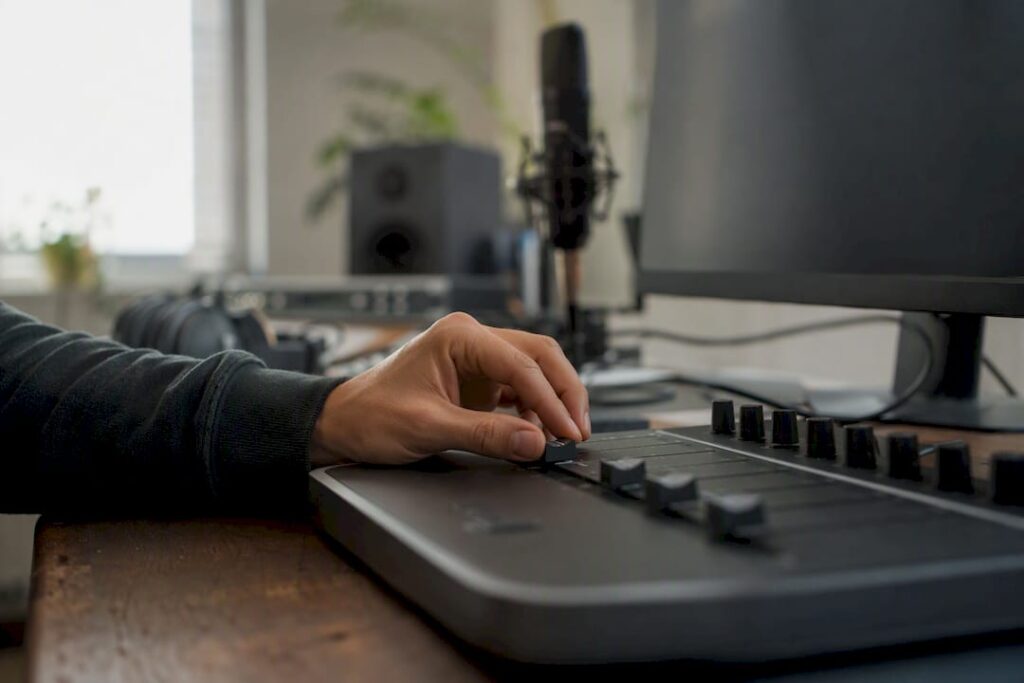
Compact and single-fader units are the quiet workhorses of smaller studios. They take up little desk space, are light enough to carry to another location, and are sufficient for simple recording tasks such as transport control and a single master fader. The fader quality is generally lower than on larger models, and the limited set of controls means you’ll have to switch between functions more often. For those looking for a second, supplementary controller to complement a larger system—or for those who literally have no room for a full fader bank—this is a sensible interim solution.
Experience shows that most producers end up using a combination: a fader bank for mixing, supplemented by a compact pad unit for quick ideas. This isn’t an unnecessary luxury; it’s exactly how workflows differ in practice depending on the stage of production.
Comparing the selection criteria that really matter when choosing a DAW controller
The specifications on a product page don’t tell you much about how a controller feels during your daily sessions. If you try to compare DAW controllers based solely on hard numbers, you’re missing half the story.
DAW integration is the first hurdle. Native support means that the manufacturer has built specific mappings for your software, with correct labels on scribble strips and direct access to plugin parameters. The Mackie Control (MCU/HUI) protocol is supported by almost every DAW, but the protocol standard does not guarantee a good user experience. The quality depends heavily on how the manufacturer implements that standard in displays and faders. EuCon, Avid’s protocol, typically offers deeper integration within Pro Tools and larger Avid environments, but has little value outside that ecosystem.
Key considerations when evaluating a controller:
- Tactile feel of the faders: Do they feel smooth and consistent, or do they stick during rapid movements?
- Display quality: Are the track names and values on the scribble strip legible, even in low light?
- Buttons and encoders: Do they have a distinct click or stop, or do they feel loose and wobbly?
- Connectivity: Is the controller USB class-compliant, so you don’t need additional drivers on Windows or macOS?
- iPad and tablet compatibility: relevant if you want to use a second screen as a control layer.
- Firmware update policy: Does the manufacturer release updates regularly, and is there active community support?
Build quality matters more than most buyers realize. Two controllers with identical specifications can feel completely different, simply because one manufacturer invests in longer fader travel and sturdier potentiometers. Comparative reviews of popular DAW controllers show exactly this pattern: models with motorized faders and good scribble strips consistently perform better during mixing, while pad-based units excel in live performance scenarios.
Pro tip: Always ask in the store if you can play a track with automation while following the faders. That way, you can immediately feel whether the motorized faders move smoothly or respond with a delay—something you can never tell from a product photo.
Expandability is the final piece of the puzzle. Some fader banks are modular: you buy a base unit with eight faders and expand it later with additional fader banks as your project grows. That’s also where the price takes a jump. Motorized faders, high-quality displays, and rugged enclosures cost manufacturers significantly more to produce than static potentiometers and a simple LED screen, and that difference is immediately reflected in the retail price.
Mackie MCU, EuCon, and manufacturer software: What do they mean for you?
Protocols may sound technical, but their practical impact is simple: they determine how well your controller communicates with your software, and how much effort you have to put in to get it working.
Mackie Control and HUI form the common language that almost every DAW understands. Virtually every controller you buy in the Netherlands or the rest of Europe supports this protocol in one form or another. The limitation lies not in the protocol itself, but in its implementation: some manufacturers build a superficial HUI layer that only controls transport buttons and volume, while other brands offer full mapping with plugin parameters and pan settings.
EuCon, the protocol behind Avid’s proprietary controllers, offers a clear advantage if you work primarily in Pro Tools or in large studios where multiple workstations need to be connected to each other. Outside of that context, it offers little in the way of additional benefits compared to MCU.
Vendor-specific software takes it a step further. SSL 360°, the software behind models such as the SSL UF8, enables deeper parameter mapping than a universal protocol could ever offer, and also supports multiple DAWs simultaneously through separate software layers. This means you can switch between, for example, Pro Tools and Ableton without having to reconfigure the controller—something that’s often more difficult with a pure MCU implementation.
How can you test this before you buy it?
- Download the driver and control panel from the manufacturer in advance and check whether your DAW version is supported.
- Request a demo session at the store or directly from the manufacturer, specifically using the software you use.
- Go through the spec list for your own DAW: exactly which protocols does it support, and what features would you miss with a superficial implementation?
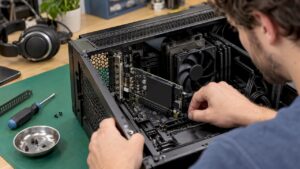
This is relevant for people with large sample libraries or multiple active DAWs running at the same time, because it’s not just about the controller. On that scale, the question of which studio PC fits your workflow becomes just as important as the controller itself: a powerful machine prevents lag when multiple DAW instances and plugin layers are running simultaneously.
Buying Checklist: How to Test and Buy a DAW Controller Without Regrets
A good purchase doesn’t start with comparing models, but with clearly defining your own needs. Follow these steps in order.
- Define your workflow and your top three must-haves. Write down what you spend 80% of your time doing: mixing, building beats, programming plugins, or recording. Then choose up to three features you can’t do without, such as motorized faders, MPE pads, or plenty of encoders.
- Be realistic about your budget. Entry-level models without motorized faders are typically in the lowest price range and are suitable as a first controller or as an add-on. Models with motorized faders and extensive displays require a significantly higher budget, precisely because those components are more expensive to manufacture. If you’re torn between an entry-level and a mid-range model, consider buying a used unit from between these two categories.
- Test the tactile feel, not just the features. Play back an automation track, move the pads rapidly in succession, and check that the encoders turn smoothly without any play. Stores with demo setups or music trade shows are ideal for this; much of the hesitation about a purchase disappears as soon as you actually hold a controller in your hands.
- Carefully review the compatibility documentation. Check to see if your exact DAW version is on the supported list and whether the manufacturer has released any firmware updates recently. A controller that hasn’t received an update in two years poses a risk if a DAW update causes it to function slightly differently.
- Make a conscious choice between new and used. New devices come with a full warranty and the latest firmware; used models are cheaper but require a check for hum, wear on the potentiometers, and whether all original accessories are still included.
Pro tip: If you’re torn between two models, always ask about the store’s return policy. A controller that feels perfect in the store might feel just a little different at home, in your own chair and at your own desk.
When it comes to the physical setup itself, it helps to check out practical tips for an efficient studio layout beforehand, so your controller, monitors, and screen are at the right distance and height. If you want to tackle your monitoring setup in addition to the controller, choosing the right monitor controller for your studio is a logical next step.
When is a single controller not enough, and do you need more?
A controller solves the control problem, not the processing power problem. With large sample libraries, multiple active DAW instances, or a studio serving multiple clients, you’ll often run into another limitation: your system can no longer keep up with the load, no matter how well your controller is mapped.
Think of a producer who works with orchestral sample libraries and has three plugin instances open at the same time for mixing. Or a hybrid live/studio performer who needs to switch between Ableton and a separate recording environment during a set without any audio glitches. Or a commercial mixing studio that switches daily between client projects in different DAWs, where wait times on loading screens literally cost money. In each of these scenarios, it’s not the controller that freezes—it’s the underlying computer.
I4studio builds custom studio PCs specifically designed for this type of workload: enough cores and RAM to run multiple DAW instances and plugin layers simultaneously, without the faders on your controller becoming useless due to a system that can’t keep up. This also includes advice on the acoustic aspects of the studio, because a perfectly mapped controller is of little use in a room with poor reflections.
A controller speeds up your performance. A system that can’t handle the load actually slows you down right when it matters most: during a recording or a live set.
The process at I4studio begins with advice on your workflow and equipment, followed by a custom configuration tailored to the DAWs and plugins you actually use, rather than a standard package that just happens to be available.
Verified sources and technical references
- Wikipedia — Human User Interface Protocol: background on the Mackie Control/HUI protocol and the variety of hardware implementations.
- MuziekMixenMasteren — Popular DAW controllers: a comparative overview of fader banks versus pad controllers by use case.
- MidiShop — Korg nanoKONTROL 2 vs. Devine EZ-Creator Fade: a comparison of compact controllers for mobile setups.
What Most DAW Controller Buying Guides Overlook
Most comparisons focus on specifications: number of faders, number of pads, encoder resolution. That’s not wrong, but it’s not where most disappointment stems from. Buyers get stuck on something much simpler: a controller that looks perfect on paper but doesn’t quite feel right in the hand or doesn’t quite work well with their specific DAW version in practice.
The conventional wisdom that “more features are better” often backfires. A pad controller with ten extra buttons you never use isn’t an upgrade—it’s a distraction on your desk. It’s more important to first refine your workflow and only then look at devices, rather than the other way around.
One thing we at I4studio are very clear about: the controller is never the whole story. We regularly see producers endlessly comparing two nearly identical controllers, when their real bottleneck is an outdated system that crashes after three plugin instances. First, physically test your equipment; then take a critical look at what your computer and acoustics can actually handle. That’s the order that makes all the difference.
Choose your new controller and the system that goes with it at I4studio
When choosing a DAW controller, you’ll eventually run up against the limits of your own system—and that’s exactly where I4studio sets itself apart from a typical online store that only sells hardware.
I4studio not only supplies studio equipment and accessories, but also helps you figure out the computer and acoustics that will really let your controller perform at its best. If you’re planning to purchase a fader bank or pad matrix for a workflow involving multiple DAWs or large sample libraries, it’s worth checking right away whether your system can handle it. Check out Specific Studio PC Configurations for Music Production and see which setup is right for your tax situation, or ask for advice via Which studio PC is right for your workflow? to have a custom configuration put together. If you’re still unsure about the purchase, I4studio’s warranty policy the assurance that you’re not stuck with the wrong choice. If you also want to improve your keyboard skills alongside your new controller, then a course like Playing on the computer keyboard take a practical approach to that.
Frequently Asked Questions
What is the difference between a V1 and a V2 controller?
This typically refers to successive generations of a specific model, with the V2 version usually offering improved sound quality, faster protocol support, or more advanced display features than the original version. Check the manufacturer’s specific list of changes for each model, as the exact improvements vary by product line.
What are the best controllers?
There’s no single “best” controller—only the best choice for your workflow. If you’re mixing, you’ll benefit from a fader bank with motorized faders and scribble strips, while those who perform live or build beats will benefit more from a pad matrix with fast clip launching.
What is the best DAW for beginners?
For beginners, DAWs with an easy-to-use interface and plenty of built-in presets often work best, but the choice depends heavily on the genre and your budget. More important than the DAW itself is whether your controller supports native mapping for the software you ultimately choose.
What’s the best MIDI controller?
Here, too, it depends on your needs. For sound design and synth programming, a keyboard controller with enough encoders is the most useful, while beatmakers will get more out of a pad controller with velocity-sensitive pads and, ideally, MPE support.
Should I buy an inexpensive DAW controller if I’m just starting out?
An inexpensive, compact controller is a great starting point as long as it fits into your current workflow, even if it lacks motorized faders. If your system is reaching its limits with multiple DAWs or resource-intensive projects, it makes more sense to look into a custom-built studio PC first rather than a more expensive controller.
Recommendation
- Choosing the Right Monitor Controller for Your Studio
- Comparing DAW Computers: What to Look for When Choosing a Studio Workstation – https://i4studio.nl/
- Best Computer for DAW: A Guide for Producers and Studios – https://i4studio.nl/
- Best Laptops for DAWs: A Guide for Music Producers and Audio Professionals – https://i4studio.nl/