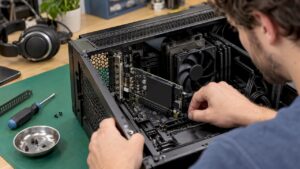
The CPU is the central brain of your video editing software. Clock speed determines how smoothly you can scrub through the timeline, while the number of cores dictates how quickly demanding tasks like rendering and exporting are handled. Without a processor that matches your workflow, you’ll pay the price in wait times, glitches, and crashes at the most inopportune moments.
The CPU’s role in video editing involves more than just processing power. Here’s an overview of what the processor actually does in your workflow:
- Timeline responsiveness: A higher clock speed ensures smooth scrubbing and real-time playback without lag.
- Rendering and exporting: More cores speed up multithreaded tasks such as exporting a 4K timeline with multiple effect layers.
- Effect processing—including color correction, encoding, and transitions—places a heavy load on the CPU, especially if the GPU does not provide hardware acceleration.
- Multitasking: Keeping multiple applications open at the same time—such as your editing software alongside a browser or audio mixer—requires a sufficient number of cores and threads.
- Stability during long renders: A processor that remains thermally stable delivers consistent performance for hours on end.
A well-balanced CPU is the foundation of any solid video editing setup. The rest of the hardware builds on that foundation.
Which CPU specifications are most important for video editing?
A processor’s cores and threads determine how many tasks it can handle simultaneously. More cores mean more parallel processing power, which is immediately noticeable when exporting long projects or working with multiple video tracks. Threads double this effect: using Hyper-Threading, a single core executes two threads at the same time, further increasing rendering throughput.

Clock speed works differently. A higher clock frequency speeds up tasks that run on a single thread, such as playing back the timeline or applying a single effect. For smooth scrubbing through 4K footage, a high clock speed is just as important as a high number of cores.
For 1080p video editing, a CPU with 6–8 cores is sufficient. If you’re working with 4K or more demanding workflows with many effect layers, a processor with 8–16 cores is preferable. The balance between single-core and multi-core performance is key here: some editing software benefits more from higher clock speeds, while others benefit more from more parallel cores.
Specifications to consider when making your choice:
- Number of cores: enough cores for 1080p and 4K video editing, respectively, depending on the workflow.
- Clock speed: preferably above 3.5 GHz for smooth real-time processing.
- Threads: Hyper-Threading or SMT improves rendering efficiency.
- Cache: A larger L3 cache speeds up repeated operations on the same data.
- TDP and cooling: A higher TDP requires better cooling to ensure stable performance.
- Memory Support: DDR5 compatibility ensures future-proofing and higher memory bandwidth.
Pro-tip: Thermal throttling is a sneaky problem. As soon as your CPU gets too hot, it automatically reduces its clock speed to protect itself. During a long rendering session, this can significantly increase the export time without you immediately noticing it. Invest in good cooling, even if your processor doesn’t seem to “need” it.
How do the CPU, GPU, and RAM work together in your video editing workflow?
A powerful CPU alone isn’t enough. The way the processor, graphics card, and RAM work together determines whether your workflow runs smoothly or freezes at the most critical moment.

The GPU handles real-time effects and hardware acceleration. Examples include color correction in DaVinci Resolve, playing back effect layers in Adobe Premiere Pro, and accelerated exporting via hardware encoders such as NVENC. Without a capable graphics card, all this work falls back on the CPU, which immediately impairs timeline responsiveness.
RAM determines how smoothly you can navigate through your project. For 4K video editing, a minimum of 32 GB is recommended, while 16 GB is sufficient for 1080p. DDR5 memory offers up to 50% more bandwidth than DDR4, which is noticeable when working with large media files and multiple layers. Insufficient RAM causes stuttering during playback and slows down the loading of previews.
The CPU will stall without sufficient support from the RAM and GPU. A 16-core processor will perform well below its potential if the RAM is insufficient or the graphics card does not handle the effects processing. Each component enhances the others.
Functions by component in the workflow:
- CPU: exporting, encoding, effects without GPU acceleration, timeline responsiveness.
- GPU: real-time playback, color correction, hardware-accelerated export, AI editing tools.
- RAM: access to media files, preview generation, multitasking between applications.
- NVMe SSD: fast access to source files and intermediate renders.
How do you choose the right CPU for your video editing needs?
The right choice depends entirely on what you create and how you work. A YouTuber who edits 1080p vlogs has different needs than a colorist who processes 4K RAW footage on a daily basis.
Intel and AMD both offer powerful processors for video editing, but with different strengths. Intel excels in single-core performance, which is beneficial for smooth timeline playback and software that relies on higher clock speeds. AMD Ryzen processors offer more cores and threads at a competitive price, making them ideal for heavy rendering and large projects.
For professional video editing, the Intel Core i7/i9 and AMD Ryzen 7/9 series are the standard choices due to their balance of cores, threads, and clock speed. Those running extremely demanding multi-threaded workloads may want to consider AMD Threadripper.
Desktop CPUs have a clear advantage when it comes to long-duration renders: better cooling, higher TDP limits, and more room for upgrades. Laptops offer mobility, but their processors are thermally constrained. During long export sessions, mobile processors throttle more quickly, which reduces effective performance.
Selection criteria for choosing a CPU:
- Resolution of your projects: 1080p requires 6–8 cores, while 4K and higher require 8–16 cores.
- Software Optimization: Check whether your editing software performs better on Intel or AMD.
- Budget: AMD generally offers more cores per euro, while Intel delivers higher clock speeds.
- Desktop or laptop: Choose a desktop for stable, long-term performance, or a laptop for mobility with some trade-offs.
- Future-proofing: Choose a platform that supports DDR5 and PCIe 5.0 for a longer lifespan.
- Compatibility: Check whether the motherboard supports the selected processor and the desired RAM type.
You can find more technical guidelines for building your system in the I4studio hardware recommendations.
What I4studio Is Learning from CPU Optimization in Video Editing Workflows
At I4studio, we build custom PCs specifically for creative professionals. What we see time and time again is that the processor is rarely the only bottleneck, but it’s always the linchpin around which everything revolves.
Effective CPU optimization goes hand in hand with cooling, sufficient RAM, and good software support. A powerful processor that thermally throttles during a long render delivers less performance than a slightly less powerful processor that remains stable at full speed. Water cooling or a high-quality air cooler isn’t a luxury for processors with a high TDP—it’s a necessity.
We’ve also noticed that many editors aren’t making full use of their CPUs because the GPU isn’t handling the effects processing. Make sure hardware acceleration is enabled in your editing software. In Adobe Premiere Pro and DaVinci Resolve, this makes a noticeable difference in timeline responsiveness.
Practical optimization tips:
- Enable hardware acceleration in your editing software so that the GPU can take some of the load off the CPU.
- Use proxies when editing 4K or higher-resolution footage to reduce the load on the CPU during the editing process.
- Close background programs during rendering to make the CPU capacity fully available.
- Monitor your CPU temperature using tools such as HWMonitor to detect throttling early on.
- Choose the right cooling solution when purchasing: a processor with a high TDP requires active cooling that is designed for that purpose.
- Balance your system: a fast CPU with too little RAM or a weak GPU won’t deliver a proportional improvement in performance.
If you’re looking for a custom-built PC that balances all these components, I4studio can help.
What CPU developments are relevant to video editing?
Processor technology is constantly evolving, and the advancements of recent years are directly relevant to video editors.
Hybrid architectures, such as Intel’s combination of performance cores and efficiency cores, make it possible to run demanding rendering tasks on the powerful cores while background processes are handled by the efficiency cores. This increases overall throughput without causing a proportional increase in power consumption.
AMD’s 3D V-Cache technology stacks additional cache on top of the processor, which reduces latency during repeated operations on the same data. For editing software that makes intensive use of the cache—such as in complex effect chains—this results in noticeably improved responsiveness.
Integrated AI processing units, also known as NPUs, are increasingly being incorporated into modern processors. Editing software is beginning to utilize these units for tasks such as noise reduction, automatic color correction, and object recognition. The ASUS ProArt PX13 with AMD Ryzen AI Max+ 395 is an example of how the CPU and memory work together in a Unified Memory architecture to eliminate bottlenecks when working with large media files.
DDR5 memory support is now standard on modern platforms. The higher memory bandwidth offered by DDR5 is immediately noticeable when working with 4K and 8K images. Anyone building or buying a system now would be wise to choose a platform that takes full advantage of DDR5.
What are the system requirements for each level of video editing?
Hardware requirements for video editing vary widely, depending on the type of project and the software used.
Entry-level (1080p, hobbyist): A quad-core processor with a clock speed above 3 GHz, 16 GB of RAM, and an entry-level GPU are sufficient for basic editing and color correction. The budget for such a system is typically between €800 and €1,500.
Semi-professional (1080p to 4K, content creator): For this, you’ll need a 6–8-core processor—preferably an Intel Core i7 or AMD Ryzen 7—combined with 32 GB of RAM and a GPU with at least 8 GB of VRAM. Fast NVMe storage isn’t just an option at this level—it’s a requirement. Budget: €1,500 to €2,500.
Professional (4K and higher, production studio): an Intel Core i9 or AMD Ryzen 9 with 12 or more cores, 32–64 GB of RAM, and a GPU with 12–24 GB of VRAM. For extremely demanding multi-threaded workloads, AMD Threadripper is a serious option. Budget: €2,500 to €4,000 and higher.
Software also has its own requirements. Adobe Premiere Pro and DaVinci Resolve publish minimum and recommended specifications that serve as a starting point. DaVinci Resolve relies heavily on GPU power for color correction, while Premiere utilizes both the CPU and the GPU. Final Cut Pro is available exclusively on macOS and is optimized for Apple Silicon.
You can find a complete overview of recommended configurations by level on the I4studio configuration page.
Does your CPU work well with your video editing software?
Not every processor performs equally well in every editing environment. CPU compatibility with video editing software is essential: some programs are optimized for multi-core processing, while others benefit more from higher single-core speeds.
DaVinci Resolve distributes the workload evenly between the GPU and CPU, but relies heavily on the graphics card for color correction and effects. A powerful CPU paired with a weak GPU will yield poorer results here than a balanced system. Adobe Premiere Pro uses both the CPU and GPU and takes advantage of Intel Quick Sync for accelerated export. Final Cut Pro is exclusive to macOS and utilizes Apple’s proprietary chip architecture, in which the CPU and GPU work together as a single unit.
Compressed video formats such as H.264 and H.265 place a heavy load on the CPU during decoding. If you work with these types of source files, a processor with strong single-core performance and support for hardware-accelerated decoding is an advantage. RAW formats and ProRes put less strain on the CPU but place greater demands on storage and RAM.
Always check the recommended system requirements for your editing software before choosing a processor. The combination of software optimization and hardware ultimately determines the actual performance in your specific workflow.
Key insights
The CPU determines the speed and stability of your video editing workflow: clock speed affects timeline responsiveness, cores determine rendering speed, and proper cooling keeps both running smoothly.
| Item | Details |
|---|---|
| Cores and Clock Speed | Use 6–8 cores for 1080p and 8–16 cores for 4K workflows. |
| Cooling Prevents Loss | Thermal throttling reduces the clock speed during long renders; invest in active cooling. |
| RAM Requirements by Level | 16 GB is sufficient for 1080p; for 4K, a minimum of 32 GB is recommended. |
| Balancing the CPU and GPU | A powerful CPU won’t perform to its full potential without a capable GPU and sufficient RAM. |
| Software Compatibility | Check whether your editing software performs better on Intel or AMD before making your choice. |
Frequently Asked Questions
Which CPU is best for video editing?
For professional video editing, the Intel Core i7/i9 and AMD Ryzen 7/9 series are the standard choices because of their balance of cores, threads, and clock speed. The best choice depends on your software, resolution, and budget.
How many cores do I need for video editing?
For 1080p video editing, a CPU with 6–8 cores is sufficient; for 4K and more demanding workflows, a processor with 8–16 cores is preferable.
What GPU do I need for video editing?
For 1080p, at least 8 GB of VRAM is recommended; for 4K and intensive color correction, you’ll need 12–24 GB of VRAM. NVIDIA GeForce RTX cards are popular because of their broad software support and powerful hardware encoders.
What are the minimum requirements for a laptop used for video editing?
A laptop for video editing needs at least a 6-core processor, 16 GB of RAM, and a dedicated GPU for 1080p projects. Keep in mind that mobile processors throttle thermally faster than desktop versions during long rendering sessions.
How does RAM affect performance during video editing?
RAM determines how smoothly you can scroll through the timeline and how quickly previews are generated. For 4K editing, a minimum of 32 GB is recommended; DDR5 memory offers up to 50% more bandwidth than DDR4, which is noticeable when working with large media files.