TL;DR:
- The right hardware, especially CPU, GPU, RAM and storage, is crucial for smooth video editing.
- A desktop offers more power, expandability and better cooling than a laptop for professional workflows.
- Systems must be regularly evaluated and modified due to rapid technological changes and new software requirements.
Many studios invest in expensive software, high-quality monitors and premium plug-ins, but underestimate the impact of the right computer configuration. Even the fastest creative workflow stalls if the hardware isn’t right. A slow render, choppy playback on 4K footage or a crash in the middle of a session: these are recognizable frustrations that you can avoid with the right machine. In this article, we explain step by step which components make the most difference, what the optimal balance is between CPU (processor), GPU (graphics card), RAM (working memory) and storage, and how to choose between a desktop and a laptop.
Table of contents
- Why does video editing need a powerful computer?
- Which hardware components are most important?
- Desktop or laptop: which works best for your studio?
- Practical tips for buying and putting together your video editing computer
- Why most studio councils are behind in 2026
- Instantly arrange the best setup for your studio
- Frequently asked questions about computers for video editing
Key Insights
| Item | Details |
|---|---|
| Balance in hardware | A good video editing computer has a balanced combination of CPU, GPU, RAM and fast storage. |
| CPU and GPU working together | Strong CPUs with many cores and a modern GPU are crucial for smooth 4K/8K workflows. |
| Don’t focus on brands | Both the latest AMD and Intel processors offer top performance for video editing. |
| Consider expandability | Choose a system that remains easily expandable in terms of memory and storage. |
Why does video editing need a powerful computer?
Video editing is one of the most demanding tasks you can put a computer through. It’s not just about playing images, but about simultaneously processing raw video data, color applications, effects layers and audio tracks. That demands a lot from every component in your system, simultaneously and continuously.
There are three different processes that put a heavy load on hardware. Real-time playback requires your system to play video smoothly during editing, without lag or hiccups. This is already demanding at 1080p, but at 4K RAW material or 8K footage, it becomes a real burden. Rendering (processing effects and color corrections to a timeline) is intensive on both the CPU and GPU. And exporting, which involves converting the final product to a deliverable format, requires maximum processing power over long periods of time.
In 4K and 8K editing, both components, processor and graphics card, are equally important. A weak link means a bottleneck that slows down your entire workflow.
What makes modern video editing extra taxing? Effect packages such as color grading in DaVinci Resolve, motion graphics in Adobe After Effects, or noise reduction in plug-ins like Neat Video, require enormous computing power. Also, using multiple video streams simultaneously (multicam editing) and working with high bitrates significantly increases the strain on your system.
- 4K video requires at least four times as much processing power as 1080p
- 8K video again demands four times as much as 4K
- RAW formats (such as BRAW, REDCODE or ArriRAW) are uncompressed data and maximally heavy on the system
- Color grading with LUTs and nodes in DaVinci Resolve doubles GPU load
For more insight into what your specific workflow requires, check out the video editing requirements and specs relevant to your situation.
Pro-tip: Invest in a balanced system rather than just a top processor. A blazing-fast CPU combined with too little RAM or a slow hard drive will produce less results than a balanced whole. Each component must be able to keep up with the others.
Now that you know that right hardware is indispensable, it’s essential to understand which components make the difference. And there is one big difference that is immediately noticeable when you choose the right computer: you work faster, less stressed and produce better results.
Which hardware components are most important?
Now that it’s clear why power is needed, let’s zoom right in on the individual components. Each has its own role in your video editing system, and each deserves a conscious choice.
1. The processor (CPU).
The CPU is the brain of your system and determines how fast editing tasks are performed. In video editing, it’s not just about clock speed (GHz), but also and especially the number of cores (cores). More cores means that your system can process multiple tasks simultaneously.
For professional 4K and 8K workflows, high-core count processors such as the AMD Ryzen 9 9950X or Intel Core Ultra 9 285K are the standard recommendation in 2026. These chips combine high clock speeds with 16 to 24 cores, which is ideal for software such as Adobe Premiere Pro and DaVinci Resolve.
What you keep an eye on with a CPU:
- Core count: at least 8 cores for 4K, preferably 16 or more for heavy workflows
- Clock speed: high boost frequencies help with single tasks
- Generation: newer generations offer more efficient architecture and better codec support
2. The graphics card (GPU).
The GPU (graphics processing unit) has taken on an increasing role in video editing. Programs such as DaVinci Resolve and Premiere Pro make intensive use of GPU acceleration via CUDA (NVIDIA) or OpenCL (AMD). This speeds up effects, color corrections and exporting considerably.
What is important with the GPU is not only the computing power, but also the VRAM (video memory on the card). For 4K editing at least 8GB VRAM is recommended, for 8K or heavy color work preferably 12GB or more.
3. RAM (working memory).
RAM is the temporary storage your system uses during operations. Insufficient RAM means that your system starts to “swap”: temporary files are then put on the slower disk, which slows down your workflow noticeably.
For professional 4K video editing, at least 32GB of RAM is the standard. Are you working with 8K, multicam, or complex compositing? Then 64GB or 128GB is no luxury.
4. Storage
Fast storage is essential for working smoothly with large video files. An NVMe SSD (Non-Volatile Memory Express, a fast type of solid-state drive) as the primary work drive provides read and write speeds of 3,000 to 7,000 MB per second. By comparison, a regular hard drive achieves 100 to 200 MB per second.
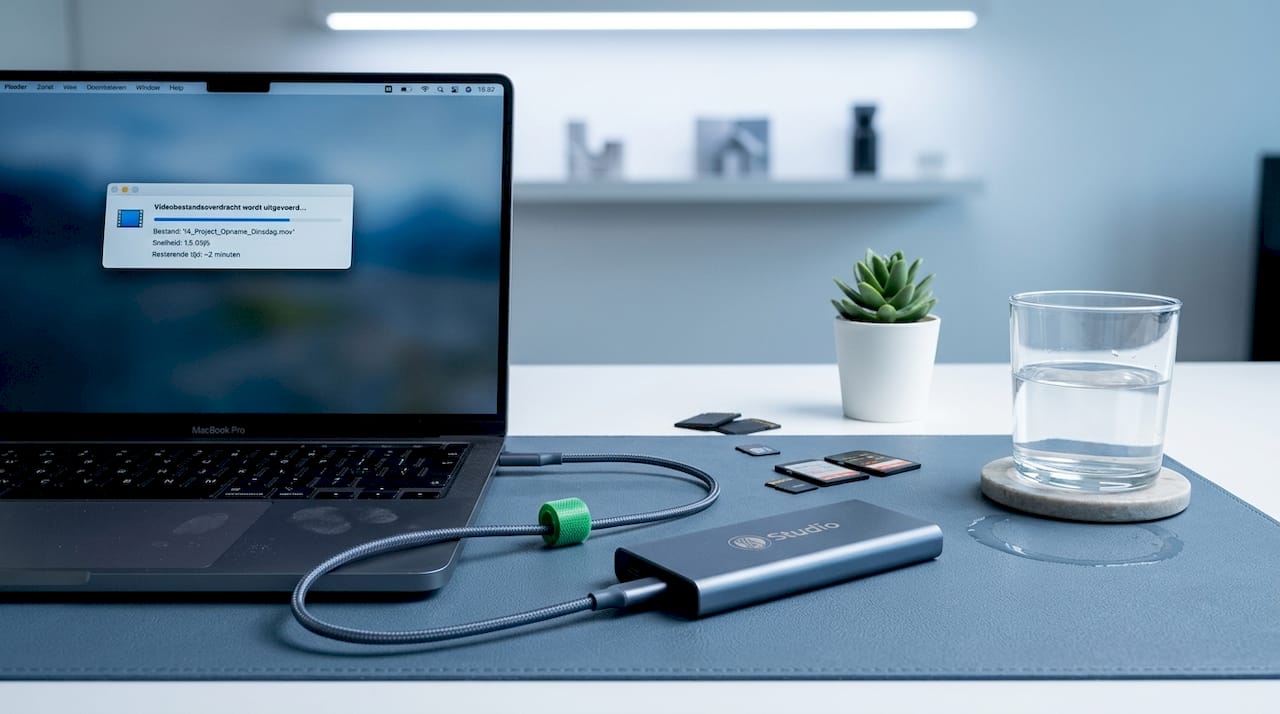
Always store your active projects on an NVMe SSD. Use a traditional HDD as an inexpensive archive for completed material.
Comparison table: impact by component on video editing
| Component | Impact on workflow | Minimally recommended | Ideal for 4K/8K |
|---|---|---|---|
| CPU | Very high | 8 cores, 3.5GHz+ | 16+ cores, latest generation |
| GPU | High | 6GB VRAM | 12GB+ VRAM, CUDA/OpenCL |
| RAM | High | 16GB | 64GB or more |
| NVMe SSD | High | 500GB, 3,000 MB/s | 2TB+, 5,000 MB/s+ |
| HDD (archive) | Low | Optional | 4TB+ for archiving |
Pro-tip: For RAM, always choose two identical bars in dual channel configuration. This doubles the effective memory bandwidth and gives your system noticeably more breathing room, especially during heavy operations.
For a complete overview, check out the system requirements for 4K and related hardware recommendations for professionals on our website.
Desktop or laptop: which works best for your studio?
Once you know what components you are looking for, the choice follows: do you build a desktop or go for a laptop? Both have their place in a professional workflow, but the differences are significant and the choice depends on how and where you work.
The desktop: unbeatable for sheer power
A desktop offers the best price-performance ratio. You can choose the most powerful processors and graphics cards on the market, with no compromise on cooling or power. Desktop CPUs and GPUs are typically 20 to 40% more powerful than their laptop equivalents, simply because they are not bound by power limitations and heat dissipation in a cramped enclosure.
Expandability is another big advantage. Adding more RAM, installing an extra SSD or a heavier GPU: with a desktop, this is usually easy and affordable. For a studio that is growing, this is a serious plus.
Cooling is also better managed in a desktop. Heavy tasks such as exporting or rendering for hours require stable temperatures. A desktop with good airflow and a quality cooler performs consistently, even under prolonged load.
The laptop: flexible and mobile
A laptop has one undeniable advantage: you take it with you wherever you go. For editors who work on location, are on the road with clients or change workstations frequently, a powerful laptop is a logical choice. Models such as the Apple MacBook Pro with M4 Pro chip or Windows laptops with NVIDIA RTX 4080 Mobile perform impressively for portable devices.
But note limitations. Laptops are hardly expandable. What you buy is what you have. RAM and storage are often soldered to the motherboard. Cooling is more limited, so performance can drop with prolonged heavy use.
Comparison chart: desktop versus laptop for video editing
| Feature | Desktop | Laptop |
|---|---|---|
| Computing power | Maximum | Good, but limited |
| Expandability | High | Low to none |
| Portability | No | Full |
| Cooling | Excellent | Limited |
| Price per performance | Low | High |
| Lifetime | Longer through upgrades | Shorter |
| Gates | Many and flexible | Limited, adapters required |
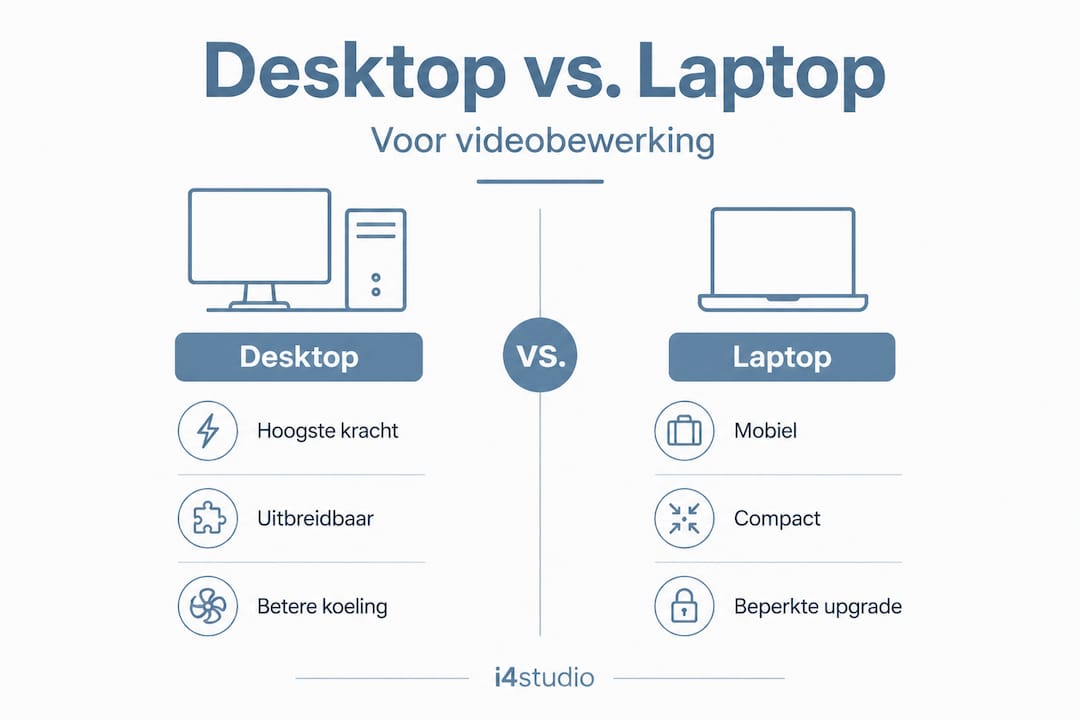
For video editing in a fixed studio, a desktop is almost always the better choice. Do you work partly on location? Then you might also consider combining a powerful desktop with a mid-range laptop for light editing on the go.
Interesting concerns with laptops:
- Cooling noise level: during heavy tasks, fans often run loudly
- Screen quality: check color accuracy for color work
- Battery life drops sharply with heavy GPU use
- Number of USB, Thunderbolt and HDMI ports for external drives and monitors
Read more about the trade-offs of choosing desktop or laptop for professional studio use.
Practical tips for buying and putting together your video editing computer
After this comparison, here are some concrete, immediately applicable recommendations you shouldn’t miss. Even with the perfect budget, you can make wrong choices if you don’t know what to look for.
1. Always check compatibility
A powerful CPU is of little use if the motherboard (the circuit board that connects all the components) does not support it. Check:
- The socket compatibility between CPU and motherboard
- Whether the RAM specifications (DDR4 or DDR5, speed) match
- Whether the power supply (PSU) provides enough wattage for all your components
2. Invest in a good backup solution
Video project files are large and expensive. A failed drive without a backup means lost hours of work. Use at least two locations: a local backup on an external HDD and a cloud solution for your most critical projects. A RAID setup (multiple disks as one system) provides additional security for active projects.
3. Set clear priorities when purchasing
You don’t have to buy everything at once. Prioritize like this:
- First: CPU, motherboard, RAM and NVMe SSD. These are the building blocks of your workflow.
- Later: Upgrade GPU if you do more effect rendering and color work.
- Optional: Add additional storage as your archive grows.
4. Avoid common pitfalls
Cheap RAM bars with lower clock speeds can slow down your system even if your motherboard has higher specifications. A slow SSD without an NVMe interface is a missed opportunity. And insufficient ventilation in an enclosure leads to throttling: your processor reduces its speed to avoid overheating just when you need it.
Professional software recommendations for video editing also play a role in your hardware choice. DaVinci Resolve takes full advantage of GPU acceleration, while Premiere Pro leans more on CPU power. Tune your hardware to the software you use every day.
5. Keep drivers current
This sounds simple, but is frequently skipped. Outdated GPU drivers can lead to crashes, rendering errors and suboptimal performance. Both DaVinci Resolve and Premiere Pro regularly release updates that take advantage of the latest driver versions from NVIDIA and AMD.
Pro-tip: Use tools like DDU (Display Driver Uninstaller) for a clean reinstallation of GPU drivers after major updates. This prevents conflicts that can unexpectedly disrupt your workflow.
Want to know more about preventing technical problems? Then check out our guide on preventing problems in video editing.
Why most studio councils are behind in 2026
We’ve got all the technical facts straight. Time for an honest, critical look at what consulting in the studio industry looks like today, and why it will be insufficient in 2026.
Many configurations you come across in forums, blogs and even at dealers still focus on processor power as the primary measure. A high core count and fast clock speed are presented as the holy grail. But the reality of modern workflows tells a different story.
The GPU has undergone a transformation in recent years. Not just as a graphics card, but as a central computing element for AI-driven tools. DaVinci Resolve uses the GPU for its Neural Engine: real-time color recognition, face detection and noise reduction are all processed on the GPU. Anyone who buys a mediocre GPU but a top processor in 2026 will pay too much for too little result.
Added to that is something else. Workflows are changing. More studios are working with remote editors, cloud-based collaboration and shared project folders. This places new demands on network performance, storage and system stability that traditional advice simply does not cover.
Real-time AI tools such as voice isolation, automatic subtitling and smart reframing in Adobe Premiere Pro have become standard in modern productions. These tools not only demand more from your system, they specifically demand from the GPU and system RAM at the same time. A system that was “good enough” last year may falter at these functions today.
Our advice: re-evaluate your specs every year. Not to upgrade for the sake of upgrading, but to be aware of what new software requires of your system. Those who work with custom advice for DaVinci Resolve know that recommendations for each workflow can vary greatly from generic advice.
The most common mistake we see? Producers and editors who work on the same system for years because “it still works,” while their delivery times increase and their competitors produce faster. The real cost of an obsolete system is not in the purchase price, but in the lost hours and stress of a slow workflow.
Instantly arrange the best setup for your studio
Are you ready to put together or order your own video editing computer? At i4studio, we’ll help you find the right configuration tailored to your specific workflow and budget.

Whether you’re unsure between a desktop or laptop for your studio or you want to understand exactly which studio PC components make the most difference for video editing, we offer concrete answers and appropriate products. Our expertise lies in putting together systems that make sense, tailored to what professional video editors and producers need on a daily basis. Also check out the requirements and tips for your ideal video editing system and find out which step to take first.
Frequently asked questions about computers for video editing
Which component is most important for video editing, CPU or GPU?
For 4K and 8K video editing, a powerful CPU is essential, but a strong GPU speeds up effects, color grading and exports significantly. The ideal setup invests in both components in balance.
What is the minimum amount of RAM you need for video editing?
For professional 4K video editing, a minimum of 32GB of RAM is recommended. For complex projects with multiple streams, compositing or 8K material, 64GB or more is the better choice.
Is an SSD mandatory for fast video editing?
An NVMe SSD is highly recommended for active projects because its read and write speeds are many times faster than a traditional HDD. This makes an immediately noticeable difference in the fluidity of your workflow.
Does it matter which brand of CPU or GPU you choose?
In 2026, both AMD and Intel score well for video editing, provided you choose high-core count models with high clock speeds. For GPU, NVIDIA is better supported by DaVinci Resolve and Premiere Pro via CUDA, but AMD cards have become a serious alternative.