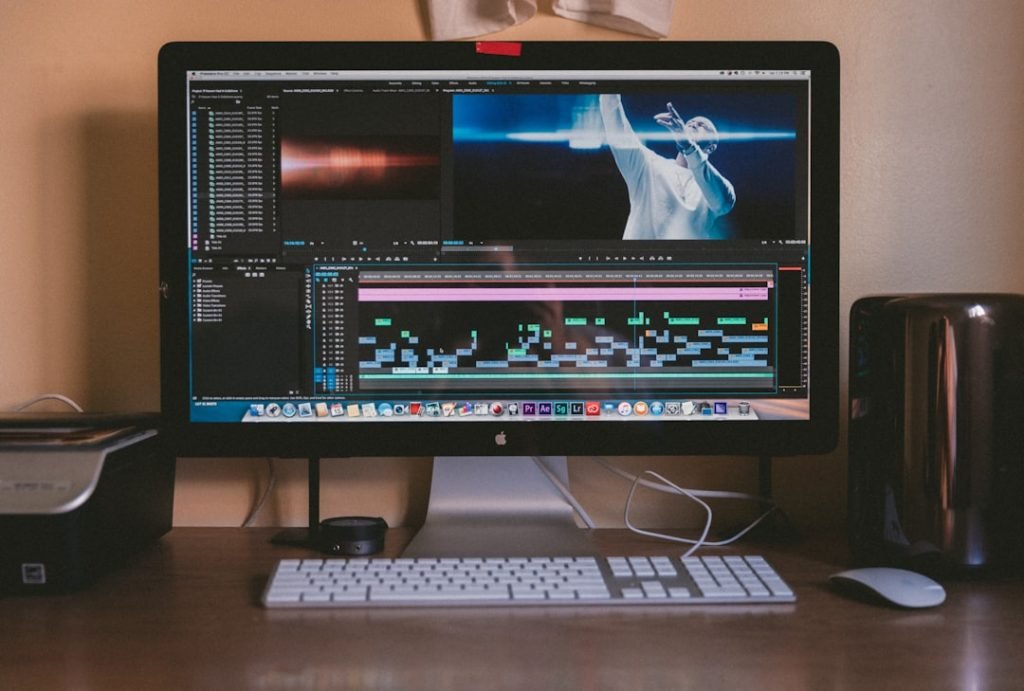
A professional 4K workflow requires different choices than quick social clips; therefore, video editing software recommendations are not one-to-one for everyone. This article will help creators, audio professionals and studio owners step-by-step in choosing the right software tailored to their goals, hardware and budget.
Why choosing the right software is important
The choice of editing software affects not only the end result, but also the speed of work, compatibility with studio hardware and the ability to collaborate. An editor using many real-time effects benefits from powerful GPU acceleration. A broadcast environment requires strict codec and timecode support. For audio professionals, integration with DAWs and precise audio features are often critical.
For whom is this article intended?
The recommendations focus on three main groups within I4studio’s target audience:
- Audio professionals and musicians who record video and need accurate audio integration.
- Content creators and YouTubers who want to publish efficiently, predictably and quickly.
- Film and broadcast professionals working with high resolutions, RAW/ProRes workflows and collaboration features.
Top video editing software recommendations
Here is a practical overview of recommended packages, what they do best and who they are suitable for.
DaVinci Resolve (Free & Studio)
Best for: color correction, grading, professional finishing, and complete workflows without separate apps.
- Advantages: World-class color correction, integrated editing, audio(Fairlight) and effects (Fusion) modules. Strong free version; Studio version adds GPU acceleration and additional tools.
- Disadvantages: Steep learning curve for beginners; heavy GPU and RAM requirements at high resolutions.
- Hardware: Many cores CPU and a powerful NVIDIA/AMD GPU speed up playback and effects. For 4K/RAW projects, a minimum of 32-64 GB of RAM is recommended.
Adobe Premiere Pro
Best for: creative teams, freelancers and creators who want standardization and integration with Adobe Creative Cloud.
- Advantages: Strong integration with After Effects and Audition, extensive plugin ecosystems and good support for multicam, proxies and collaboration via Team Projects.
- Disadvantages: Subscription model; may feel heavy on older hardware.
- Hardware: Works well with powerful CPU plus NVIDIA GPU for hardware acceleration (CUDA), or Quick Sync on Intel for encode tasks.
Final Cut Pro
Best for: Mac users who want speed and optimal M1/M2/M3 support.
- Advantages: Great real-time performance on Apple Silicon, magnetic timeline speeds up editing, excellent for quick episodes and social content.
- Disadvantages: MacOS only; working methods differ from other editors (magnetic timeline can take getting used to).
- Hardware: Apple Silicon (M1 Pro/Max/Ultra or M2/3 variants) offers unmatched performance per watt for exports and real-time operations.
Avid Media Composer
Best for: broadcast, film and large post-production workflows with strict deliverables and media management.
- Advantages: Robust media asset management (AMA/Interplay), excellent support for complex projects and multiple editors.
- Disadvantages: Higher learning curve and often more expensive in licensing and infrastructure.
- Hardware: Strong CPU and reliable I/O (SAN/NAS) are important; many mailhouse environments run on Avid-certified hardware.
VEGAS Pro
Best for: fast editing and audio integration on Windows, popular with individual videographers.
- Advantages: Intuitive audio features, strong timeline workflow and good value for money.
- Disadvantages: Less industry standard than Premiere or Avid for large teams.
HitFilm Pro
Best for: creators who want editing and compositing in one package, including visual effects.
- Advantages: Strong VFX tools, reasonably affordable and good presets for quick results.
- Disadvantages: Can be slow on heavy compositions without a powerful GPU.
Filmora
Best for: beginners and creators who want to publish content quickly without much technical knowledge.
- Advantages: Easy to learn, lots of templates and effects, inexpensive.
- Disadvantages: Less sophisticated color and audio control; not suitable for high-end production.
Lightworks
Best for: editors looking for a powerful, professional tool with a free version.
- Benefits: Historically strong in film and TV, supports professional media management.
- Disadvantages: Interface can take getting used to; pro licenses required for some export formats.
Kdenlive, Shotcut, Blender VSE
Best for: budget or open-source fans, hobbyists, and Linux users.
- Advantages: Free, actively developed, good enough for many workflows.
- Disadvantages: Less polish and consistency than commercial packages; support and plugin ecosystem are more limited.
Camtasia
Best for: tutorials, screencasts and course videos with simple editing and annotation tools.
Which software fits which use case?
A sharp match between use and software prevents frustration later. Below are concrete scenarios and recommendations.
Novice content creator / YouTuber
- Recommended: Filmora, Premiere Elements or DaVinci Resolve (free).
- Why: Fast results, easy templates and clear workflows. Later you can switch to Premiere Pro or Resolve Studio for more control.
Podcasts and music videos (audio-centric)
- Recommended: Premiere Pro or VEGAS Pro combined with a DAW (Pro Tools, Reaper) and high-quality audio interfaces.
- Why: Accurate audio syncing, bus routing and integration with voice export/import.
Color grading and finish for film
- Recommended: DaVinci Resolve Studio.
- Why: Industry-standard grading tools, node-based workflow and support for film gamut, ACES and high-bit-depth deliverables.
Broadcast and large production environments
- Recommended: Avid Media Composer or Premiere Pro with media asset management.
- Why: Reliability, team collaboration and compatibility with broadcast codecs and ingest systems.
Motion graphics-heavy projects
- Recommended: Premiere Pro + Adobe After Effects, or Resolve + Fusion.
- Why: After Effects offers incomparable motion-design capabilities; Fusion within Resolve is powerful for node-based compositing.
Technical concerns when choosing software
The software does not determine everything; hardware and proper settings are just as important for a smooth process.
Codec and file compatibility
Some editors work better with certain codecs. For professional workflows, ProRes and DNxHR are favorites for editing and archiving because they edit quickly and maintain high quality. H.264/H.265 are useful for final delivery because of compression and small file size.
Proxy workflows
For 4K/RAW or multicam projects, proxies are recommended: lower resolution files that allow quick editing, with links to the original high-res files for final render.
GPU, CPU, and RAM
- GPU: Speeds up effects, decoding and rendering. NVIDIA RTX series is widely supported (CUDA), while Apple Silicon has a lot of GPU power built in.
- CPU: Important for encoding, effect calculations and export. More cores help with export and background rendering.
- RAM: Minimum 16 GB for simple projects; 32-64+ GB strongly recommended for 4K, RAW and heavy effect stacks.
Storage and I/O
Active projects best on fast NVMe SSDs (scratch). Large media libraries can be put on fast NAS or RAID array. For ingest and real-time playback of high bitrate codecs, PCIe/Thunderbolt I/O cards and fast network connections are essential.
Audio integration
For audio professionals, low-latency audio interfaces, stable sample rates (usually 48 kHz for video) and good routing between DAW and editor is crucial. Timecode and LTC/VITC support are important with multi-camera and external recorders.
Workflow tips to work faster and more stable
A few practical practices save hours per project.
- Use proxies for heavy media; edit on proxy, switch to full-res for grading and export.
- Create ingest templates: automatic renaming, backup and transcode on import prevents chaos later.
- Organize media files logically: folders for rushes, audio, stills, exports and project files.
- Automate repetitive tasks: use presets, templates, and macros for exports and deliverables.
- Set loudness targets: broadcast often requires EBU R128 (-23 LUFS); streaming usually around -14 LUFS.
- Version control: save iterations and exports with clear names (v01, v02_feedback, final_prores) so that one can quickly roll back.
Render and export settings one needs to know
Knowledge of the right codecs and settings prevents post-editing problems and produces consistent results.
- H.264: Universal, small file size, suitable for YouTube and social media. Choose a target bitrate appropriate for resolution.
- H.265 (HEVC): More efficient than H.264, useful for 4K distrubution but less universal support.
- ProRes / DNxHR: Ideal for archiving and further editing; higher files but much more stable in professional pipelines.
- Audio: Always deliver in WAV or PCM with 48 kHz/24-bit for professional delivery; voice mixes can also be delivered as voice or master voices separately.
- Closed captions and subtitles: Embed when possible and provide separate .srt/.vtt for streaming services.
Recommended hardware configurations for different workloads
The right hardware choice makes a world of difference. Below are features by category, practical and applicable in a studio environment.
Entry-Level Editing (1080p)
- CPU: Intel i5 or AMD Ryzen 5
- GPU: NVIDIA GTX 1660 or similar
- RAM: 16-32 GB
- Storage: 1 NVMe SSD (500 GB) for OS/projects, 2 TB HDD for archive
- Use case: YouTube, social clips, basic vlogs
Mid-Level (4K, multicam)
- CPU: Intel i7 / Ryzen 7 or better multi-core
- GPU: NVIDIA RTX 3060/3070 or AMD equivalent
- RAM: 32-64 GB
- Storage: NVMe (1-2 TB) for scratch, RAID/NAS for media library
- Use case: Music videos, corporate video, livestream post-production
High-End / Resolve Workstation (8K, heavy grading)
- CPU: Higher core-count workstation CPU (Threadripper or Intel Xeon)
- GPU: NVIDIA RTX 4080/4090 or multiple GPUs; for Resolve Studio, GPU power is critical
- RAM: 64-256 GB, depending on timeline complexity
- Storage: Multiple NVMe SSDs in RAID for scratch, fast SAN/NAS for ingest
- Use case: Professional color correction, large film projects, broadcast
I4studio recommends and delivers workstations tailored to such scenarios. For example: a Resolve-optimized PC with multiple RTX-GPUs, 128 GB of RAM and NVMe RAID for real-time grading and playback.
Integration with studio equipment and audio
For audio professionals, it is crucial that video and audio workflows interact smoothly.
DAW integration
- Export voices (vocal, music, SFX) as separate WAV files for mixing in Pro Tools or Reaper.
- Use OMF/AAF for projects that go back and forth between editor and DAW; some editors support direct roundtrip workflows with Pro Tools.
- Ensure consistent sample rate (usually 48 kHz) to avoid resampling problems.
Timecode and I/O
In multi-camera shoots and external recorders, accurate timecode is essential. Investing in reliable sync hardware and an interface that accepts LTC/VITC prevents synchronization problems during editing.
Acoustics and monitoring
A good listening environment is as important as good image monitoring. I4studio provides not only computers but also acoustical solutions and monitoring advice so that one can mix and deliver accurately without misunderstanding how the final product sounds.
Costs and licensing models
The pricing structure varies widely among software:
- Subscriptions: Adobe Premiere Pro (Creative Cloud) operates on a subscription basis, which is advantageous for updates and cloud integration but leads to ongoing costs.
- Perpetual/licensing: Final Cut Pro and DaVinci Resolve Studio offer a one-time payment (Resolve has both free and paid options).
- Free/open-source: Kdenlive, Shotcut and Blender VSE are good for budget-conscious creators.
One must consider additional costs: plugins, LUTs, stock media, and training. Sometimes investing in the right hardware and workflow (such as an I4studio workstation with support) is more cost-effective in the long run than wasting time due to slow systems.
Practical examples and case studies
A music producer editing live performances often combines multicam recordings with multitrack audio from a DAW. The workflow that often works well:
- Ingest multicam image and multitrack audio with timecode.
- Create proxies and edit in DaVinci Resolve or Premiere Pro.
- Export voices to the DAW for mixing and mastering.
- Import the mixed voices back and perform final sync and color grading.
- Export master in ProRes and compress to H.264/H.265 for web.
For a broadcaster, I4studio’s solution was often an Avid-compatible workstation + SAN storage with redundant ingest systems and 24/7 support. This ensures short lead times and minimal downtime during live or scheduled broadcasts.
How an editor makes the right choice
A simple decision tree can help:
- What is the primary delivery? (YouTube, broadcast, cinema)
- What is the media type (H.264, ProRes, RAW, multicam)?
- What hardware is available? (Mac, Windows, Linux; GPU/CPU)
- Is team collaboration required (Avid/Adobe workflows)?
- What is the budget (free/open-source vs professional licenses)?
After this evaluation, a short list of suitable software usually emerges. Try free trials (where available) with a representative clipset: then notice immediately if the workflow feels comfortable.
Summary and Recommendation
There is no universal best choice; the best package depends on the project. Briefly:
- DaVinci Resolve – top choice for color, integrated audio and powerful free version; ideal for film and grading.
- Adobe Premiere Pro – strong for creative teams and integration with After Effects.
- Final Cut Pro – best performance for Mac users, especially on Apple Silicon.
- Avid Media Composer – the industry standard for broadcast and large post-production workflows.
- Budget/Beginner options – Filmora, Kdenlive or Shotcut are fine for quick, inexpensive production.
For audio professionals and studios producing both high quality images and sound, a combination of reliable hardware and the right software is crucial. I4studio can advise on custom-built workstations, audio interfaces and acoustic solutions that allow the editing software of choice to perform at its best.
Frequently Asked Questions
Which video editing software is best for music videos?
For music videos where audio integration and multicam are important, DaVinci Resolve (for grading and finishing) and Adobe Premiere Pro (for flexible editing and After Effects integration) are excellent choices. Also important is DAW integration for voices and mixing.
Is the free version of DaVinci Resolve sufficient?
For many projects, the free version of DaVinci Resolve is very capable: editing, color and Fairlight audio are provided. For advanced GPU acceleration, specific codecs and additional plugins, Resolve Studio is recommended.
What is the difference between ProRes and H.264 for export?
ProRes is an intraframe codec designed for editing and archiving: high quality and larger files. H.264 is highly compressed and suitable for distribution and streaming because of smaller files. Professional pipelines often archive in ProRes and compress to H.264 for publication.
How much RAM does one really need for 4K editing?
At least 32 GB is recommended for 4K work; 64 GB gives more comfort for heavy effects and grading. RAM requirements grow with timeline complexity and the number of concurrent applications (DAW, VSTs, browsers).
Can I4studio help set up an editing workstation?
Yes. I4studio provides custom audio and video workstations, consulting on storage and networking solutions, and acoustical enhancements for studios. They also provide support for optimizing systems for specific software such as DaVinci Resolve, Premiere Pro and Avid.
With these video editing software recommendations, one can make an informed choice tailored to workflow, budget and end goals. Those who need help with hardware selection or studio integration can count on expertise and customized solutions.