
System Requirements DaVinci Resolve.
Blackmagic’s guide is comprehensive, but it doesn’t tell you the whole story. In our experience, standard recommendations don’t always lead to the most reliable workstation for high-end color correction and VFX. Therefore, we have taken up the gauntlet and conducted extensive testing ourselves on the latest generations of hardware. We offer you the specific data on GPU performance and multi-core scalability that you won’t find anywhere else.
Choose a system guaranteed to perform under pressure. 🚀 Instantly view our special i4studio video computers: video computers
Processor (CPU)
Although DaVinci Resolve relies heavily on the performance of your GPU (especially when using OpenFX or noise reduction), the processor (or CPU) is still an essential part of your system. While many other parts of the system affect performance to some degree, the CPU is the core piece of hardware that is part of everything you do. While Dual Xeon workstations were ideal for DaVinci Resolve in the past because they were often needed for higher GPU counts, recent changes in both hardware and software mean that this is no longer the case. In almost all cases, a single CPU workstation should easily match a Dual Xeon system at a much lower cost.
Which CPU is ideal for color grading and video editing in DaVinci Resolve?
The perfect CPU for DaVinci Resolve depends on your budget and the amount of GPU power you want to harness. Are you working with a single GPU? Then choose a processor with a high clock speed and medium number of cores, such as the Intel Core 14th generation or the AMD Ryzen 7000 series. The Intel Core line excels for H.264 and H.265 (HEVC) imagery thanks to fast Quick Sync technology.
However, are you going for multiple GPUs or working with heavy RAW video codecs? Then you’ll take full advantage of a processor with more cores for a maximum performance boost.
Which CPU is best for Fusion in Resolve?
Fusion was fairly recently integrated into DaVinci Resolve and is currently very different from the rest of Resolve. Here you are better off with a high-frequency CPU than one with many cores.
Do more CPU cores make DaVinci Resolve faster?
To some extent, more cores should improve performance, although more complex projects with OpenFX and noise reduction will often be affected more by the performance of your GPU(s) than your processor. In addition, Resolve is in many ways a collection of different software packages combined and some (such as Fusion) much prefer a CPU with higher per-core performance than one with many cores.
Keep in mind that the number of cores is only one of many different specifications that affect performance. Therefore, we strongly recommend that you look at the performance of different CPUs in benchmarks rather than trying to choose a CPU based on the number of cores (or some other specification) alone.
Does DaVinci Resolve take advantage of Intel Quick Sync?
Some Intel processors have onboard graphics chips with enhanced capabilities for encoding and decoding video, a feature known as Quick Sync. Most modern video cards offer similar functionality, but Intel’s Core processors have additional levels of hardware decoding for H.265 images not available through modern GPUs. The downside is that these mainstream CPUs are limited in terms of core count and support for multiple video cards, so higher-end processors will still offer better overall performance, but models such as the Intel Core i9 14900K and i7 14700K can be good price-performance options for those working with H.265 in DaVinci Resolve.
Video card (GPU).
DaVinci Resolve makes great use of the video card(s) in your system to improve playback and rendering performance. As a result, the choice of GPU has a direct impact on the performance of your system. An important point to note is that Resolve’s Free Edition can use powerful cards such as NVIDIA’s GeForce RTX 5090, but is limited to only one GPU. The Studio Edition, however, can technically use up to eight GPUs – although in our tests performance usually peaks at about 3-4 GPUs.
In addition, the Studio version includes GPU-accelerated H.264 encoding and decoding, which can often result in a significant increase in performance when working with that type of media.
Which GPU is the best choice for DaVinci Resolve?
For top performance in DaVinci Resolve, the NVIDIA GeForce RTX 5090 is currently the best choice; this card delivers power comparable to two previous-generation GPUs! Are you working on a slightly more limited budget? Then the GeForce RTX 5070 SUPER and 5080 SUPER are excellent alternatives that still offer impressive performance. If you really want to take performance to the highest level, you can even opt for a dual setup with two RTX 5090s.
Does DaVinci Resolve require a Quadro card?
DaVinci Resolve works great with NVIDIA professional graphics cards – formerly referred to as “Quadro” – but for most users, a GeForce card is the better option. GeForce cards are not only much more affordable, they can match or even exceed the performance of the professional cards. However, the main advantage of using a professional card in Resolve is that you can get much higher VRAM capacities, which can be essential for those working with >8K media.
Is DaVinci Resolve faster with NVIDIA or AMD?
Step by step, we have found that NVIDIA cards currently provide better performance in Resolve. We have also found that NVIDIA cards are generally slightly more reliable (from both a hardware and driver standpoint). Therefore, we usually use NVIDIA instead of AMD, unless there is a clear advantage to using an AMD card.
Memory (RAM)
The exact amount of RAM you need depends on the resolution, length and complexity of your project, but Resolve generally requires fairly little RAM. However, keep in mind that if you often work with multiple programs simultaneously, you may want to have even more RAM in your system because each program requires its own chunk of RAM.
How much RAM does DaVinci Resolve require?
The exact amount you need depends on exactly what you are doing, but we have a general guideline depending on the different resolutions you are working with:
Image resolution 4K
Minimum RAM capacity 32 GB
Image resolution 6K/8K+
Minimum RAM capacity 64 GB+
Storage (hard drives)
Storage is an aspect often overlooked in a video processing station. The CPU or video card may do all the processing work, but if your storage can’t keep up, it doesn’t matter how fast those components are. What makes storage complicated is the fact that you not only have to deal with the different types of drives available today, but you also want to configure them to provide maximum performance in DaVinci Resolve.
What type of storage disk should I use for DaVinci Resolve?
There are three main types of drives you can use for a video editing workstation: SSD, NVMe and the traditional platter drive (SATA 7200 rpm). Of these three, traditional platter drives are the slowest, but they are very affordable and available in much larger capacities than SSD or NVMe drives. This makes them excellent long-term storage drives, but in most cases not ideal for immediate use.
SATA SSDs are several times faster than a 7200 rpm SATA drive, but are also more expensive. These drives are excellent for a wide range of tasks, such as storing your operating system and applications, storing media and projects you are actively working on, or as cache/scratch drives.
NVMe drives (M.2 and ), and is significantly faster than even an SSD drive. They are about 10% more expensive than an SSD, but in return at least five times faster! In most cases, however, you won’t see much performance increase with an NVMe drive, because a modern standard SSD is already fast enough that it is rarely a performance bottleneck. High bitrate footage (~ 2,000 mbps or higher) is usually the only time when having your media on NVMe disk is necessary for DaVinci Resolve.
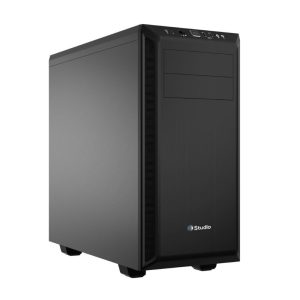
davinci resolve system requirements:
Want to smoothly edit 4K, apply color correction and use effects? Then you need more power.
CPU recommendations
Intel Core i7 (12th generation or newer)
AMD Ryzen 7 or Threadripper
GPU recommendations
NVIDIA RTX 5060 or higher
AMD Radeon RX 6700 XT or higher
At least 6GB of VRAM, preferably 8GB+
RAM recommendations
At least 32GB RAM, 64GB for heavier projects
Storage: HDD vs SSD
System disk: SSD (at least 500GB)
Project storage: NVMe SSD if possible
External drives: USB-C or Thunderbolt for speed
Additional hardware considerations
Monitor resolution & color reproduction
For color correction, a good monitor is crucial:
4K resolution
sRGB or AdobeRGB coverage
Calibration options
Cooling & power supply
A powerful PC generates heat:
Ensure adequate airflow
Choose a quality PSU with sufficient wattage
Peripherals
Special keyboard with keyboard shortcuts? Definitely a plus!
DaVinci Resolve Panels for professional workflows
An accurate mouse or graphics tablet speeds up your work