TL;DR:
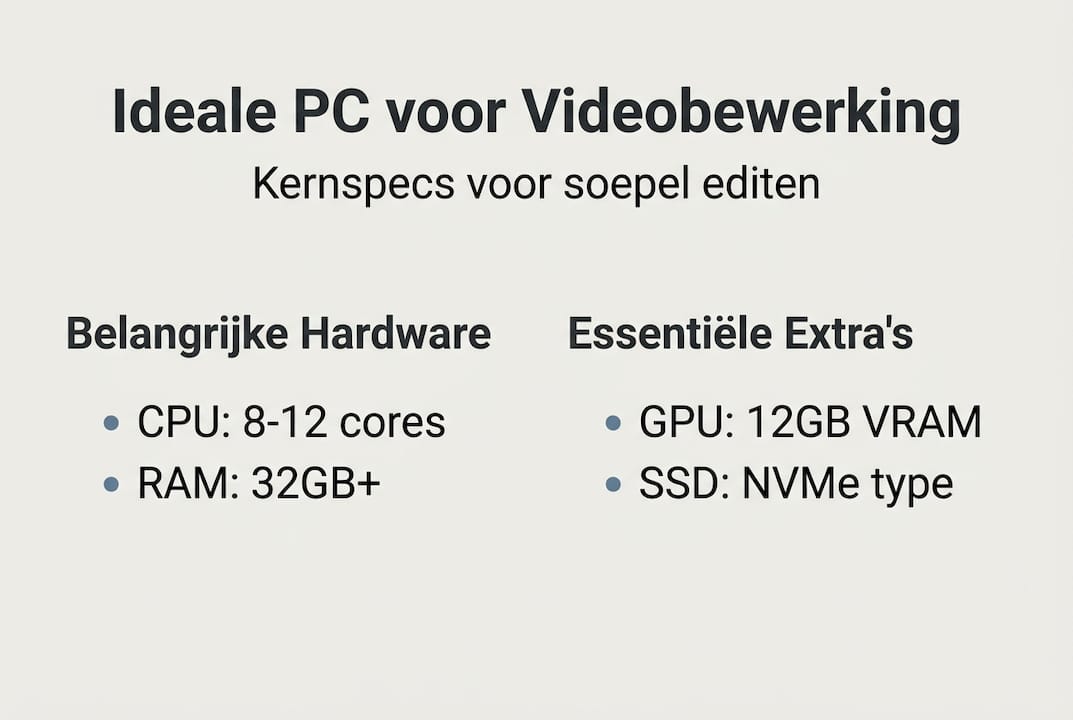
- A powerful CPU with at least 8 to 12 cores is essential for 4K video editing.
- A good GPU with at least 12GB of VRAM is crucial for 4K and 8K workflows.
- Sufficient RAM, especially 32GB or more, secures a smooth workflow on large projects.
Many editors invest thousands of dollars in a new computer, only to discover that renders run slowly, previews falter and the timeline crashes on complex projects. This is not bad luck, but the result of wrong choices in CPU, GPU or RAM. A fast processor alone is not enough: video editing is an interplay of components that all need to be up to par. In this article, you’ll learn exactly what specs your home studio really needs, from processor and graphics card to storage and memory, so you can work without frustration from now on.
Table of contents
- Processor and cores: the heart of video editing
- Graphics card and VRAM: why GPU is so decisive
- RAM: how much memory is really needed?
- Storage, backup and workflow: smart setup for home studio
- Desktop versus laptop: which is best for home studio editing?
- The practice: what we learn from the best editing setups
- How we help you get to the ideal video editing setup
- Frequently Asked Questions
Key Insights
| Item | Details |
|---|---|
| CPU and cores | A CPU with at least 8-12 cores provides fast 4K editing and prevents bottlenecks. |
| GPU and VRAM. | An NVIDIA RTX with at least 12GB of VRAM is essential for smooth rendering and color correction. |
| RAM and speed | For stable workflow in 4K or higher, 32GB of DDR5 RAM is the starting point, more for professional projects. |
| Storage and backup | Use multiple NVMe SSDs and a backup strategy for fast access and security. |
| Desktop preference | For home studios, desktops are more powerful, cooler and more flexible than laptops. |
Processor and cores: the heart of video editing
The processor is the first component you should seriously look at. Video editing is all about the number of cores and how well the CPU can handle multi-threaded tasks. Rendering, exporting and decoding heavily compressed codecs such as H.265 or ProRes RAW require an enormous amount of processing power at once.
For at least 8-12 cores for 4K editing, that’s the absolute lower limit, and for professional workflows with multiple streams or complex color correction, you better count on 16 or more cores. Less than that and you notice it immediately: longer export times, faltering previews and a system under pressure as soon as you open multiple applications at once.
Intel processors with Quick Sync offer a concrete advantage in processing specific codecs. Quick Sync is an on-chip hardware accelerator that decodes H.264 and H.265 significantly faster than via software. That saves time when importing and playing back footage. Also check out the Premiere Pro requirements if you work with Adobe, as Adobe specifies which CPU generations are officially supported for each version.
AMD Threadripper is another category. Built for heavy multi-threaded workloads, these processors excel at long exports and batch rendering. They are more expensive, but if you process hours of footage daily, that investment pays for itself in time.
| CPU Type | Cores | Suitable for |
|---|---|---|
| Intel Core i7 (14th gen) | 8-12 | 1080p and light 4K editing |
| Intel Core i9 (14th gen) | 16-24 | Heavy 4K, multiple streams |
| AMD Ryzen 9 7950X | 16-32 | Professional 4K and 8K |
| AMD Threadripper PRO | 32-64 | Studio-grade, batch exports |
For the hardware recommendations we make, we always advise editors who are serious about getting started not to skimp on the processor. A CPU you have just enough of now will be a bottleneck in two years.
Pro-tip: When choosing a CPU, look not only at the clock speed, but at the number of performance scores and the single-thread score. These determine how fast your editing software responds during editing itself.
Want to know which configuration suits your workflow? Then check out the best computer for video editing for concrete options by editing profile.
Graphics card and VRAM: why GPU is so decisive
After the processor, the graphics card is the component that makes the biggest difference in your daily workflow. Especially if you work in DaVinci Resolve, which relies heavily on GPU acceleration for color correction, noise reduction and effects. Premiere Pro splits the load more between CPU and GPU, but even there you’ll notice the difference immediately with a powerful video card.
For 4K editing, you need at least 12 to 16GB of VRAM. If you are working with 8K footage, multiple color layers or heavy VFX compositing, then 24 to 32GB VRAM is not overkill but a requirement. NVIDIA RTX 50-series with 12-32GB VRAM are currently the standard for serious 4K and 8K editing.
VRAM is the memory on your graphics card. If your timeline becomes too complex for the available VRAM, the GPU falls back on system memory, which immediately slows down your workflow.
| GPU | VRAM | Suitable for |
|---|---|---|
| NVIDIA RTX 4070 | 12GB | 4K editing, light effects |
| NVIDIA RTX 4090 | 24GB | Heavy 4K, 8K, DaVinci Resolve |
| NVIDIA RTX 5090 | 32GB | Studio-grade 8K and VFX |
| AMD Radeon RX 7900 XTX | 24GB | 4K/8K, good for Premiere Pro |
For more context on 4K editing PC configurations, also check out the comparisons published by independent editors. That will give you a realistic picture of what to expect in practice.
Pro-tip: Always opt for more VRAM than you think you need at the moment. A long timeline with multiple tracks, color correction layers and graphics overlays eats up VRAM faster than you expect.
For complete video editing setup advice, we recommend always looking at GPU and CPU as a pair. A powerful GPU with a slow CPU creates a new bottleneck. Also, check out our hardware recommendations for balanced configurations.
RAM: how much memory is really needed?
After CPU and GPU, memory is the next bottleneck affecting your workflow. RAM determines how much your system can hold at once: your editing software, browser windows, music player, preview buffers and project files all at once.

32GB of RAM is the minimum for 4K editing, but for professional workflows or 8K projects, 64 to 128GB is the recommended amount. Less than 32GB and you’ll notice it as soon as you open a large timeline or run multiple applications at once.
Here is an overview by editing level:
- 1080p editing: 16GB is workable, 32GB comfortable
- 4K editing: 32GB minimum, 64GB for smooth workflow
- 8K editing or heavy VFX: 64GB minimum, 128GB for stable performance
- Multi-cam or long documentaries: 128GB or more
DDR5 is now the new minimum for serious editing setups. It offers higher bandwidth and lower latency than DDR4, which translates into faster data transfers between RAM and CPU. You’ll notice this when loading large project files and playing back uncompressed footage.
For more technical context, check out the hardware requirements published by editors and software developers. These give a good idea of what software packages will actually require in 2026.
Pro-tip: Always install RAM in pairs (dual-channel) for maximum bandwidth. Two 32GB sticks perform better than one 64GB stick in most motherboards.
For trouble-free editing, sufficient RAM is not a luxury but a necessity. It is the cheapest component to upgrade and it has an immediate noticeable impact on your daily workflow.
Storage, backup and workflow: smart setup for home studio
Besides RAM and GPU, storage plays a key role: everything hinges on a smart setup. Many editors still work with one big disk for everything, and that’s exactly where the problems start. Slow load times, cache conflicts and no secure backup are the result.
NVMe SSDs of at least 1TB per drive are the current standard, and three-drive setups are strongly recommended for editors working with high-bitrate footage. That sounds like a lot, but the logic is simple.
A smart three-drive workflow looks like this:
- Drive 1 (OS and software): 1TB NVMe SSD for Windows or macOS and your editing software
- Drive 2 (project files and footage): NVMe SSD of 2TB or more for active projects
- Drive 3 (cache and scratch disk): Separate SSD specifically for cache from Premiere Pro, DaVinci Resolve or After Effects
By putting cache on a separate disk, you prevent your OS disk from filling up and read and write operations from slowing each other down. The difference in preview speed is immediately noticeable.
For editors working with 4K RAW or multiple cameras simultaneously, RAID is a serious consideration. RAID 0 increases read speed by making two disks work together. RAID 1 automatically creates a copy on a second disk. Also see the 4K editing PC recommendations for real-world RAID configurations.
Backup is the most underrated part of any editing setup:
- Local backup on an external hard drive or NAS
- Cloud backup for critical project files
- Weekly check that backups are actually working
Pro-tip: Use the 3-2-1 backup rule: three copies, on two different media, one of which should be offsite or in the cloud. One failed disk should never mean the end of a project.
For more tips on storage for video projects and helpful workflow tips, find concrete advice by project type.
Desktop versus laptop: which is best for home studio editing?
Finally, we compare desktop and laptop, and which one best suits your studio. The answer is obvious to most home studio editors: a desktop wins on almost every technical front.
Desktops offer more power per dollar, better cooling and are significantly easier to upgrade than laptops. You can expand a desktop with extra RAM, a faster GPU or an extra drive without replacing the entire system. That makes a desktop a smarter investment in the long run.
| Criterion | Desktop | Laptop |
|---|---|---|
| Performance | High | Medium to high |
| Cooling | Excellent | Limited |
| Upgradeability | High | Low |
| Mobility | No | Full |
| Price-performance ratio | Better | More expensive for same specs |
| External monitor | Optional | Often required |
Laptops are a good choice if you regularly film on location and want to edit on the spot. But note the limitations: thermal throttling (where the laptop slows itself down to prevent overheating) is a real problem with heavy rendering.
Tips for editors who still choose a laptop:
- Use an external cooler to reduce thermal throttling
- Connect footage via Thunderbolt 4 for maximum transfer speed
- Choose a laptop with a dedicated GPU and at least 16GB VRAM
- Check Adobe’s hardware guidelines for supported laptop models
Check out our comparison of desktop vs laptop video editing for a detailed analysis by usage profile.
The practice: what we learn from the best editing setups
After years of putting together and recommending editing setups for home studios, we keep seeing the same patterns. Editors pay a lot of attention to the CPU and then forget that VRAM and storage are just as critical to the daily workflow. A powerful processor with too small a GPU or one overloaded disk still makes the system slow.
Backups are most often forgotten in practice. Not because editors don’t know, but because setting up a good backup strategy takes time that doesn’t seem to be there at the time. Until a disk fails.
Another thing we notice: editors who invest in sufficient RAM and fast NVMe drives report the biggest jump in satisfaction. These are components that are immediately noticeable in your daily work, every time you open a project or play a preview.
Don’t budget on SSDs is our strongest advice. A storage bottleneck will cost you more time than the price of an extra drive ever justifies. Check out our tips and tricks for more practical lessons from the studio.
How we help you get to the ideal video editing setup
You now know exactly which specs matter and why. The next step is a configuration that really fits your workflow, not a generic solution off the shelf.

At i4studio, we build custom studio PCs tailored to your editing profile, from light 4K projects to heavy 8K workflows with multiple cameras. We consider CPU, GPU, RAM and storage as one cohesive system. Check out our range of video editing PC configurations or discover everything you need through our home studio supplies page. Contact us for personal advice or request an instant quote.
Frequently Asked Questions
How many cores should my CPU have for 4K video editing?
For 4K editing, a minimum of 8-12 cores is advisable. For professional workflows with multiple streams or complex effects, 16 cores or more is the better choice.
Which GPU is suitable for video editing in DaVinci Resolve?
An NVIDIA RTX 50 series with 16GB+ VRAM is ideal for DaVinci Resolve, which relies heavily on GPU acceleration for color correction and noise reduction.
Is 32GB of RAM sufficient for video editing?
32GB is the basic requirement for 4K editing and sufficient in most cases. For 8K projects or timelines with many effects and color layers, 64GB or more is a lot more comfortable.
What is the advantage of a desktop over a laptop for video editing?
Desktops offer more power per euro, better cooling and are easily expandable with additional RAM, GPU or storage without replacing the entire system.