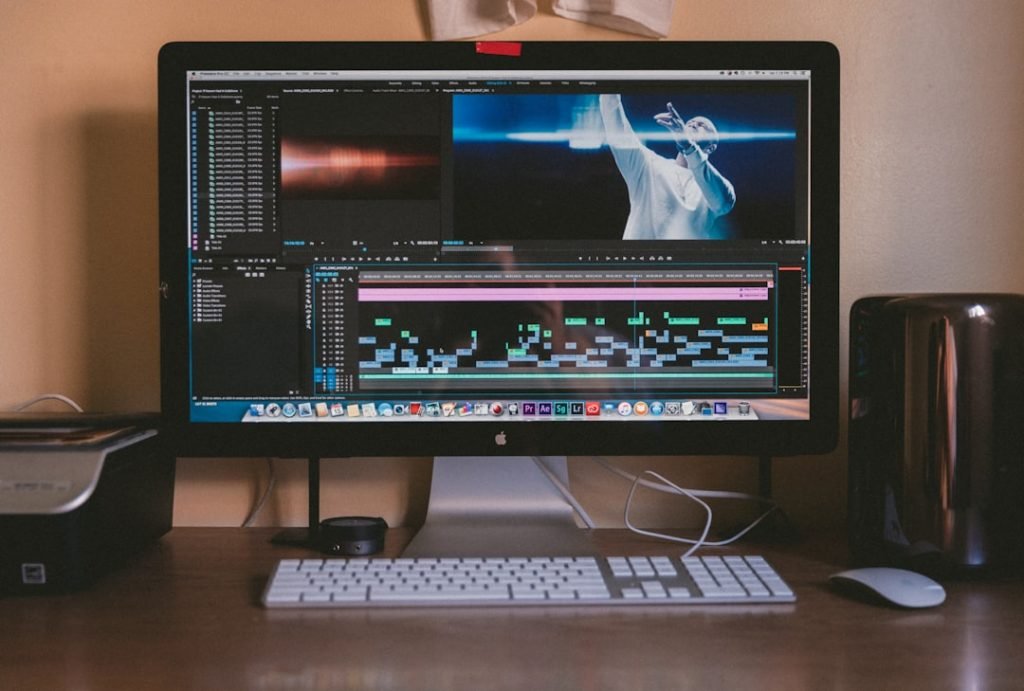
An editor given 120 hours of raw footage and a 48-hour deadline for a short documentary must work smart – that’s exactly where video editing workflow tips make all the difference. This article gathers practical, technical and organizational advice that will help editors, musicians and audio professionals work faster and more reliably, without sacrificing creative quality.
Why a Streamlined Workflow Is Important.
A well-thought-out workflow saves time, prevents errors and makes collaboration much easier. For audio and video professionals, an efficient workflow translates directly into fewer frustrations during delivery, better sound quality and more time for creative decisions. It also helps meet broadcast and streaming standards – crucial for content creators and studios that deliver consistently.
Preparation and Ingest
Plan before one frame has been edited
The best edits begin during pre-production. A simple shot list, log of priorities, and agreed-upon file names save hours later. For small music videos, a tight plan structure is often enough; for longer productions, it is preferable to use time code and slate.
Organize files and use an established structure
A consistent folder structure prevents searches and mistakes. An example (use as a template):
ProjectName/
  01_Source/
    Camera_A/
    Camera_B/
    Audio/
  02_Proxies/
  03_ProjectFiles/
  04_Assets/
    Graphics/
    Music/
  05_Exports/
  06_Archive/
File names can include time code and scene, e.g. INT_Kamer_20260315_CAMA_TC_01.mov. This makes relinking and troubleshooting much easier.
Ingest and backup: follow the 3-2-1 rule
Always keep at least three copies, on two different media and one offsite (cloud or physical storage). For ingest, it is wise to do instant checksum verification (e.g., with md5 or ffmpeg checksums) to detect corruption early.
Hardware: Choose Reliable Performance
CPU, GPU and RAM – what to look out for?
- CPU: For editing and encoding, a high single-thread speed plus multiple cores is ideal. Modern Intel or AMD Ryzen/Threadripper CPUs perform well for multicam and effects.
- GPU: Many NLEs (DaVinci Resolve, Premiere Pro, Final Cut) take advantage of powerful GPUs for real-time playback and effects. NVIDIA cards with many CUDA cores or professional cards (such as RTX/Quadro) speed up color grading and VFX.
- RAM: 32 GB is often the minimum for serious projects; for 4K/8K and heavy effects, 64 GB or more is recommended.
Storage: speed and organization
Use NVMe SSDs for OS and active projects (scratch disk), fast SATA SSDs for frequently used assets, and large HDD arrays or NAS for archives. For performance: work files on fast local disks; backups and archives on redundant, slower disks or tape.
Audio and studio hardware
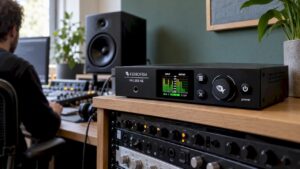
A stable audio interface with low latency is essential when authors integrate audio. In addition, good studio monitors and acoustic treatment help base mix decisions on reliable information – something I4studio is experienced in and offers tailored advice on.
Why I4studio is relevant
Companies like I4studio provide composite workstations specializing in audio, video and broadcast. For teams that want reliable performance and fast support, a custom-built system with the right CPU, GPU and storage can efficiently support thousands of hours of work.
Project Setup in the NLE
Sequence and codec choices
Start with a sequence that matches end goal, not necessarily source material – but keep color and frame rate in mind. When mismatched, working with proxies is a godsend. If sources are recorded in H.264/H.265, proxies or optimized media are often necessary for smooth editing.
Proxy versus optimized media
- Proxies: Low-resolution copies that give speed during edit. Later relinks to high-res for color and export.
- Optimized media: Transcodes to an intraframe codec (ProRes, DNxHR) for better performance without resolution loss.
For teams with limited disk space, proxies are often the best balance between speed and storage needs.
Automating proxy creation with ffmpeg
A useful example command that many editors use to create proxies with ffmpeg:
ffmpeg -i source.mov -c:v libx264 -crf 23 -preset fast -vf "scale=1280:-2" -c:a aac -b:a 128k proxy_1280.mp4
This produces a 1280px wide proxy in H.264 with reasonable quality and playability in NLEs.
Edit phase: Speed, Organization and Creativity
Assembly in stages
- Assembly Cut: Line up all the good takes without finesse – goal is structure.
- Trim/Fine Cut: Refine timing, rhythm and flow.
- Picture Lock: Picture final; audio and grading are applied from this point.
By strictly following these stages, there are fewer last-minute changes that cause duplication (e.g., re-mixing or grading).
Use markers, metadata and subclips
Color-coded markers for sound problems, good takes, or VFX points save time. Subclips reduce timeline chaos and make it easier to find favorite takes quickly.
Keyboard shortcuts and control surfaces
An editor who invests in learning shortcuts or a control surface (tactile jog/shuttle, faders) gains minutes per task. On an annual basis, that can save dozens of hours – time that can be used creatively.
Version control and backups during the edit
Regularly save a new project version with clear naming (Project_v03_finalcut) prevents errors from previous edits from being lost. Cloud-sync of project files or automatic snapshots from NAS helps with team projects.
Audio: The Indispensable Partner of Image
Sync and sample rate management
Avoid sample rate mismatches (44.1kHz vs. 48kHz). For video, 48kHz is standard; audio recorded at 44.1kHz must be converted before being placed in the timeline. Automatic sync tools (timecode, waveforms) save a lot of manual work.
Roundtrip to DAW
For complex audio work (mix, voices, ADR), a roundtrip to Pro Tools, Logic or Reaper is often the most efficient. Exporting voices (dialogue, music, SFX) and importing them back provides overview and control. Keep levels and headroom in the mix, and use reference tracks as guidelines.
Restore and dialog editing
Tools like iZotope RX are standard for noise reduction and dialog repair. But always subtly: over-editing makes audio unnatural. An editor must strike a balance between clean sound and maintaining natural ambience.
Color correction and VFX
Methodology: from primary to secondary
First general exposure and contrast (primary grade), then selective color work (secondary) and finally creative looks (LUTs, film emulation). In DaVinci Resolve, nodes are powerful – use them to work non-destructively.
VFX and relinking
For VFX and heavy grading, work with proxies and relink to the high-res master later. Keep a clear checklist: export XML/AAF, VFX renders, composited shots back into the original project and check color spaces for consistent results.
Rendering, Delivery and Archiving
Export presets and deliverables
Each platform has its own requirements. Some guidelines:
- YouTube/Vimeo: H.264 or H.265, 10-20 Mbps for 1080p, 35-45 Mbps for 4K; AAC audio, 320 kbps.
- Broadcast: Deliver according to broadcaster specification (e.g. ProRes HQ, DNxHD/HR) and check loudness (EBU R128, -23 LUFS or regional standards).
- Social Media: Optimize aspect ratio and bit rate for mobile viewing; vertical content often in 9:16.
Batch rendering and automation
Use watch folders, Media Encoder cloud renders or dedicated render nodes for large batches. This saves time and reduces risk of human error with multiple deliverables.
Archiving
Archive: source file, project file, exports, proxy folder and checksums. LTO tape provides long-term storage; NAS with RAID-6 is good for medium-term access. Document what is in the archive – without documentation, archives are worth little.
Collaboration and Review
Feedback loops
Use frame-based review tools (Frame.io, Wipster, Vimeo Review) so that comments are contextual and exact. This prevents misunderstandings and speeds up the approval cycle.
Remote workflows
For teams collaborating remotely, proxy-based workflows, shared cloud projects and clear time-code agreements are essential. Project locking in Premiere or Resolve project sharing via PostgreSQL helps with simultaneous work.
System Optimization: Keep Everything Fast
OS and driver tips
- Keep GPU drivers up to date (but test updates first on a test machine for critical projects).
- Reserve a fast, local “scratch” drive for media cache and playback files.
- Disable unwanted background processes and use power settings for maximum performance.
Media cache and database management
Regular cache cleaning prevents NLE database corruption or slowness. Backup of databases and project settings is essential for team projects; I4studio can advise on setting up stable, high-performance systems.
Automation, Templates and Time Savers
Templates and presets
A set of sequence templates, graphics templates (MOGRTs), audio templates and export presets drastically reduces set-up time. For many content creators, setting up a library of standard intros, lower thirds and color LUTs is an investment that pays for itself.
Scripting and extensions
For repetitive tasks, scripts (extendscript for Premiere, Python for Resolve) can automate tasks such as batch renaming, proxy creation or bulk export of stems.
Practical Workflows: Three Scenarios
1) Music video (solo editor)
- Ingest: check audio, create proxies 1280px via ffmpeg.
- Assembly: rough cut on proxy, use subclips per take.
- Sync: match audio from recording with timecode; roundtrip to DAW if necessary.
- Picture Lock & grade: relink to high-res, color grade, VFX (simple).
- Final mix and deliver: export master and social edits.
2) Documentary (small team)
- Ingest and backup: 3-2-1, checksum, log with metadata.
- Proxy workflow: create proxies and share on cloud for remote editors.
- Rough cuts and interviews: markers and metadata; use transcript tools for faster cuts.
- Picture Lock: create voices and send to audio engineer.
- Color, VFX and final renders according to broadcast specs.
3) Broadcast / News (fast turnaround)
- Straight to edit: ingest and real-time trimming on proxies.
- Automatic QC: checks for levels and codecs via scripts.
- Publishing: use watch folders and automated encoders for multiple deliverables.
Golden Rules Summary
- Plan and organize – clear folders and names save time and mistakes.
- Work with proxies when source material is heavy or disk performance is limited.
- Keep audio accurate – sample rates, sync and voices are crucial.
- Automate repetitive tasks with presets, scripts and templates.
- Archiving and backing up is not an extra step, but part of the job.
How I4studio Can Help
For audio professionals, musicians and content creators who want reliable performance, I4studio offers tailored advice: from putting together a workstation optimized for NLEs and DAWs to acoustic solutions for reliable monitoring. I4studio also supports setting up storage solutions and workflow consulting so that editors spend less time on technical problems and more on creation.
Conclusion
Efficient video editing workflows combine technical preparation, smart hardware choices and tight project organization. With the right setup – fast local storage, adequate RAM, GPU support and a set way of working with proxies, metadata and backups – any editor can work more productively and creatively. Small habits like consistent naming, use of templates and regular backups add up to big gains. For teams looking to scale up or solve persistent performance problems, specialized hardware and advice from vendors such as I4studio can save time and money immediately.
Frequently Asked Questions
What is the difference between proxies and optimized media?
Proxies are lower resolution copies of source material intended for smoother playback during editing. Optimized media (e.g., ProRes, DNxHR) are transcodes to intraframe codecs that provide better performance and quality than H.264/H.265, but require more storage. Proxies are ideal for speed and storage efficiency; optimized media for quality and compatibility.
How much RAM does a video editor really need?
For 1080p editing, 16-32 GB is often sufficient, but for 4K, multicam and heavy VFX, 64 GB or more is recommended. More RAM helps especially with multitasking and large cache files in NLEs and color grading software.
Is a powerful GPU necessary for editing?
Yes, for real-time playback, color grading and GPU-accelerated effects, a powerful GPU is highly recommended. Work with DaVinci Resolve or GPU-accelerated features in Premiere and one will quickly notice the difference. For pure clipping without many effects, CPU power may weigh more heavily.
How does one keep projects safe for the long term?
Follow the 3-2-1 rule: three copies, on two different media, one offsite. Use checksums for integrity checking and document what is archived. For long-term storage, LTO tape can be a cost-effective and reliable solution.