Line level and mic level are two different signal levels. A microphone produces a very weak signal of about 1 to 10 millivolts. A line signal from a synth, mixer, or audio interface is around 1 volt. That’s roughly a thousand times stronger. If you connect one to an input intended for the other, you’ll get distortion or, conversely, a faint, noisy signal. In this guide, you’ll learn what both levels mean and where instrument level fits in. You’ll also learn how to convert line level to mic level and how to properly connect each source to your interface.
In a nutshell
- Mic level is the weakest signal in your studio, ranging from about 0.001 to 0.01 volts. It always requires a preamp.
- Line level is about a thousand times stronger. Consumer equipment operates at -10 dBV, while professional equipment operates at +4 dBu.
- Instrument level (guitar, bass) falls in between and requires a Hi-Z input or a DI box because the impedance is high.
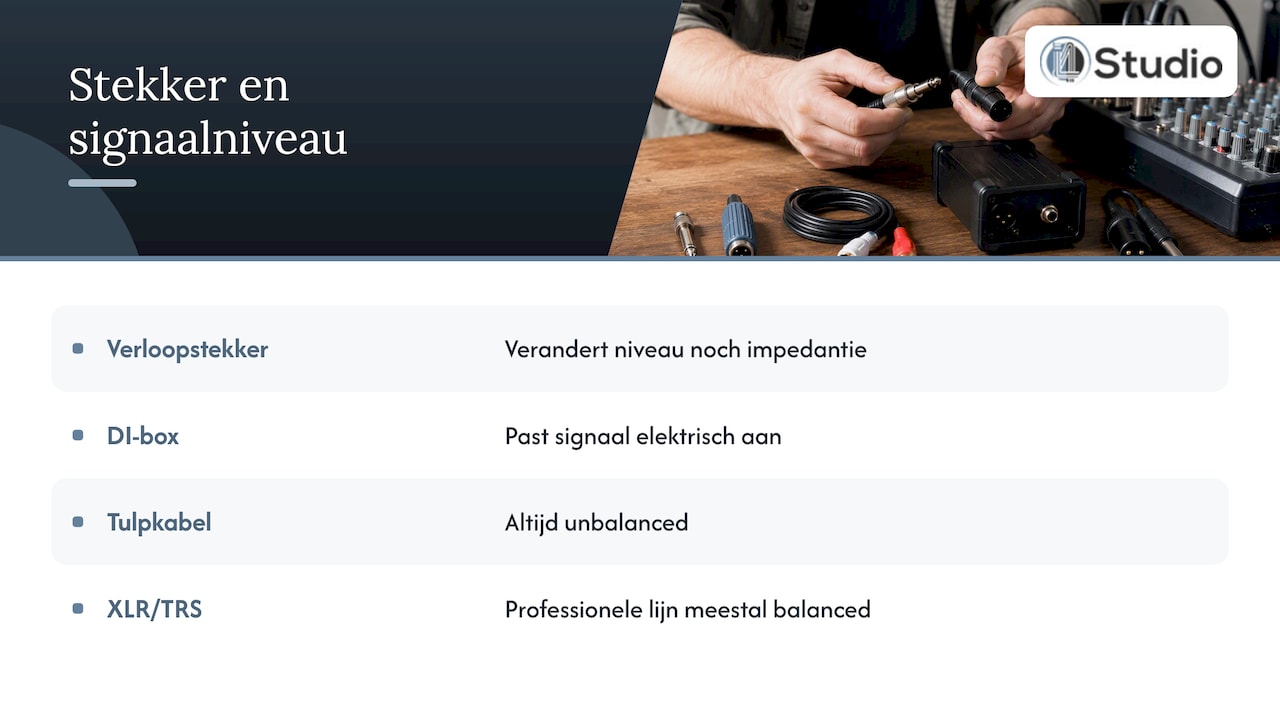
- A plug that fits says nothing about the signal level. An adapter does not resolve differences in level or impedance.
- If you must connect a line signal to a microphone input, use an attenuator or a DI box and set the gain low.
Table of Contents
- What is mic level?
- What is line level?
- Instrument level: the middle ground
- Mic, line, and instrument side by side
- What goes wrong if you connect it incorrectly
- The right plug doesn’t necessarily mean the right level
- Converting line level to mic level
- How to Properly Connect Each Source to Your Audio Interface
- Gain staging: the right level after the right connection
- Our approach to signal levels in the studio
- Get Your Studio Chain in Order with i4studio
- Frequently Asked Questions
- Sources
What is mic level?
A microphone converts air pressure into an electrical signal. That signal is small. According to the explanation of mic and line levels, the microphone level ranges from 0.001 volts (1 millivolt) to 0.01 volts (10 millivolts). In decibels, that’s -60 to -40 dBV.
Because the signal is so weak, your DAW can’t process it without amplification. A microphone therefore always needs a preamp to boost the low output level to line level. Most audio interfaces already have these preamps built in. That’s what happens when you turn up the gain knob on your XLR input.
How much gain you need depends on the microphone and the sound source. A dynamic microphone used with a soft voice requires a lot of gain. A condenser microphone used with a guitar amplifier requires much less. A good preamp therefore has a wide gain range with low inherent noise, so that even soft sources come through clearly.
Typical sources at the micro level:
- Dynamic microphones for vocals, snare drums, or guitar amplifiers
- Condenser microphones in the recording studio
- Ribbon microphones
- Some wireless receivers and podcast microphones with an XLR output
Are you looking for a microphone for your home studio? In our studio microphones category, you’ll find models for vocals, acoustic instruments, and speech. For vocals, check out the vocal microphones.
What is line level?
At line level, devices exchange signals with one another after amplification has already taken place. Examples include the output of a synthesizer, a drum machine, a mixer, or an external compressor. The outputs from your audio interface to your studio monitors also operate at line level. Line level is around 1 volt and is about a thousand times stronger than a microphone signal.
In specifications, you’ll come across two standards:
| Default | Value | Where you’ll find it |
|---|---|---|
| Consumer-grade | -10 dBV | Hi-Fi, DJ equipment, many affordable synthesizers and media players, often via RCA or mini-jack |
| Professional level | +4 dBu | Mixers, outboard gear, studio interfaces, active studio monitors, usually balanced via XLR or TRS |
The difference between the two is about 12 dB. A source at -10 dBV will sound noticeably quieter when connected to an input rated for +4 dBu. This usually works fine, as long as you apply some extra gain. Conversely, a professional signal at +4 dBu can cause a consumer device to clip more easily.
With many interfaces, you can choose between the two standards for each input or output. Check the manual or your interface’s software for details.
Instrument level: the middle ground
In addition to mic and line levels, there is a third level: instrument level. This is the signal from the passive components of an electric guitar or bass. It falls between microphone and line levels and has its own distinct character.
There are two key differences compared to a line signal. An instrument signal is weaker and therefore requires more gain. In addition, the impedance is high. If you connect a guitar to a standard line input, that input will overload the components. The result is a dull, thin sound in which the high frequencies are lost.
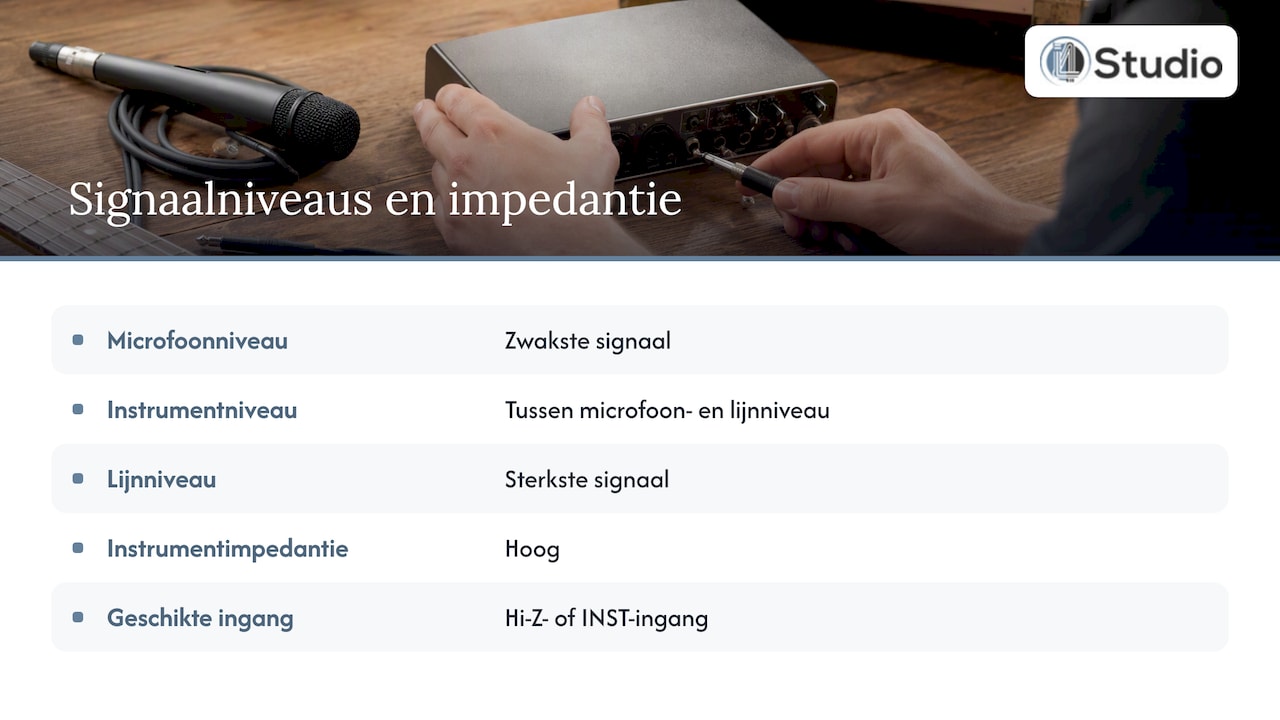
That’s why most interfaces have a Hi-Z or INST switch. It adjusts the gain and input impedance so that your tone is preserved. If your interface doesn’t have that option, or if the signal has to travel through a long cable, then a DI box is the solution.
Mic, line, and instrument side by side
| Microphone level | Instrument level | Line level | |
|---|---|---|---|
| Voltage | 1 to 10 mV | between mic and line in | approximately 1 V |
| Expressed in dB | -60 to -40 dBV | varies by instrument | -10 dBV or +4 dBu |
| Impedance | low | high | low |
| Typical source | microphone | electric guitar, bass | synth, mixer, interface output |
| Standard cable | XLR, balanced | jack (TS), unbalanced | XLR or TRS balanced, or RCA |
| Input on your interface | XLR with preamp | Hi-Z / INST | Line (TRS) |
What Goes Wrong If You Connect It Incorrectly
Line-level signal on a microphone input
This is a classic mistake. A preamp is designed to significantly amplify a few millivolts. If it receives a signal of around one volt, it will already go into clipping even when the gain is still almost turned all the way down. You’ll hear harsh, crackling distortion that you won’t be able to remove later.
The same thing happens with active speakers that have a mic/line switch. If you’re using one of these speakers with a mixer, set the switch to “line.” Otherwise, the mixer will overload the input and distort the sound.
Microphone connected to a line input
Conversely, you’ll run into the opposite problem. The line input expects a strong signal and provides very little amplification. Your microphone will then be almost inaudible. If you turn everything up, you’ll mainly hear noise. Gain isn’t a volume knob—it determines the ratio between your signal and the noise floor. If you want to tackle noise systematically, read our guide on minimizing noise in your studio.
Guitar into a line input
The signal is too weak, and the impedance is mismatched. The result is a soft, shrill, or lifeless guitar sound. Use the Hi-Z input or a DI box.
Just because a plug fits doesn’t mean the voltage is right
Many people think that as long as the plug fits, everything will work. With an XLR-to-TRS adapter, a microphone physically connects to a line input, but the signal level or impedance remains unchanged. That’s precisely why DI boxes and similar devices exist: they adjust the signal electrically, not just mechanically.
Use a stereo audio cable with a mini-jack to RCA plug. This type of cable connects the headphone or line output of a laptop or phone to two RCA inputs. This is useful when connecting a consumer-grade source to a mixer or to the line inputs of your audio interface. If you feed the same signal into a microphone input via an adapter, you’ll run into the same clipping problem described above. The cable fits, but the level doesn’t.
Also keep in mind the difference between balanced and unbalanced signals. Professional line signals are usually transmitted balanced via XLR or TRS connectors. This helps reduce noise over longer distances. A RCA cable is always unbalanced. To learn why this difference matters, read our explanation of balanced audio in the studio.
Converting line level to mic level
Sometimes you have no choice. A camera, field recorder, or older mixer may only have microphone inputs, and you want to connect a line signal to it—for example, the output from a mixing console. In that case, the signal must first be attenuated. There are two common solutions:
- An attenuator. This is an inline adapter or cable with a fixed attenuation level. You connect it between the line output and the microphone input. Simple and compact.
- A DI box with a pad switch. A DI box reduces the signal to a low level and low impedance. It also converts an unbalanced signal to a balanced signal, which is useful with long cables. Many DI boxes have a pad switch to further attenuate a strong line signal.
Here’s how to safely convert the signal:
- Turn the microphone input gain all the way down and turn off phantom power.
- Place the attenuator or DI box between the source and the input.
- Set the source’s output volume to a normal level.
- Slowly turn up the gain until the peaks remain well below the red light.
- Listen for distortion and noise on your monitors or headphones before you start recording.
Does the recording device have a mic/line switch or a combo input? If so, you often won’t need to convert the signal at all. So check first to see if that option is available.
Here’s how to properly connect each source to your audio interface
Modern interfaces often have combo inputs for both XLR and jack connectors. You can use a switch or the software to select whether the input is set to mic, line, or instrument. Forgetting to set this mode is one of the most common causes of distortion or a silent, noisy channel. So it all starts with selecting the correct input.
- Microphone: Plug the XLR cable into the combo input with the gain turned off. Connect a condenser microphone first, and only then turn on phantom power. Plugging it in while P48 is on may cause popping noises and, in rare cases, damage the electronics.
- Guitar or bass: Plug the jack cable (TS) into the combo input and turn on the Hi-Z or INST switch.
- Synth, drum machine, or mixer: Use a balanced TRS cable connected to the line input or the combo input set to “line.” If your interface can be switched between -10 and +4, select the setting that matches your source.
- Outputs to studio monitors: Connect the line outputs of your interface to the line inputs of your monitors. To learn how to set them up properly, check out our guide on setting up studio monitors.
Want to set up a complete setup step by step? Then check out our guide to recording setups. You can find out where to place your microphone relative to the sound source in the microphone placement workflow.
Gain staging: the right level after the right connection
Once everything is connected to the correct inputs, it’s time to start adjusting the settings. With gain staging, the goal isn’t to make every point as loud as possible, but to maintain enough headroom. This ensures your signal stays well above the noise floor and doesn’t distort during loud peaks.
A practical rule of thumb for recording at 24-bit: keep the peaks of your recording well below 0 dBFS. This leaves you some headroom for an unexpectedly loud note or attack. To learn how to further control the level in your mix, check out our workflow for gain staging in your DAW.
The room also plays a role. A microphone picks up not only your voice but also the echoes from bare walls. The less the room affects the sound, the less you’ll need to correct it later. You can read more about this in our guide to improving studio acoustics.
Our Perspective on Signal Levels in the Studio
Customers often ask us the same question: “My recording sounds distorted or has noise—is it my microphone?” Most of the time, the equipment is fine, but there’s a level issue somewhere in the chain. A synth plugged into a microphone input, a guitar without Hi-Z, or a combo input that’s still set to the wrong position.
That’s why, when providing advice, we always look at the entire chain, from the source to the DAW. A good interface with plenty of clean gain and the right types of inputs prevents many problems. Behind that, you need a computer that runs stably with low latency. That way, you can monitor without delay and won’t have to fiddle with the buffer size for every recording. And the room itself has to cooperate; otherwise, your microphone will mainly pick up the sound of the room.
Our tip: Note the level each source outputs and label your inputs. It takes ten minutes and saves you from endlessly searching for the cause of noise or distortion.
– harold
Keep Your Studio Chain Organized with i4studio
Want to make sure your microphones, instruments, and synths are coming in at the right level? In our collection of audio interfaces, you’ll find models with combo inputs, Hi-Z, and switchable line levels. Just getting started? Then the Studio Recording Bundle is a logical place to begin. For the rest of your setup, check out our studio equipment. Looking for an audio PC built for stability and low latency? Our custom-built studio computers start at €1,099.
Frequently Asked Questions
What is a typical mic-level signal?
A microphone signal typically ranges from 1 to 10 millivolts, or -60 to -40 dBV. The exact level depends on the type of microphone and how loud the sound source is. A condenser microphone generally provides a higher output level than a dynamic microphone.
How do I convert line level to mic level?
Use an attenuator or a DI box with a pad switch between the line output and the microphone input. First, turn the gain all the way down and turn off phantom power, then slowly turn the gain up. A regular adapter or adapter plug isn’t enough, because it doesn’t change the signal level.
Should I set my microphone to “line” or “inst”?
Neither. A microphone should be plugged into the microphone input via XLR so that the built-in preamp can amplify the signal. The “inst” setting is for guitars and basses, while the “line” setting is for synths, mixers, and other devices with a strong signal.
What does “line-level output” mean?
A line-level output is an output that provides a line-level signal, around 1 volt. You connect it to a line input on an audio interface, mixer, or active monitor. Such a signal is too strong for a microphone input unless you attenuate it first.
Sources
- Tell Me About: Mic and Line Levels
- What’s the Difference Between Line and Mic Levels?
- How to Connect a Microphone to an Audio Interface
- Live Sound Interconnections 101
- The Direct Path
- Live Sound Troubleshooting Tips, Part 2
- Gain Staging