Loopback on an audio interface sends the audio played by your computer back to an input on that same interface. This allows you to record or stream browser audio, a video call, a game, or a second DAW, in addition to your microphone and instruments. You don’t need any extra cables or a second sound card. In this guide, you’ll learn how loopback works, which interfaces support it, how to set it up in your DAW, OBS, or calling software, and what mistakes you should avoid.
In a nutshell
- Loopback is a virtual input: the playback signal from your computer is fed into your recording or streaming software as an additional stereo channel.
- In your software, select the loopback input—often the top stereo pair. In the corresponding control software, you can specify what goes into that channel.
- Many recent interfaces come with this feature built in, such as the Scarlett 4th Gen series and the EVO 4. Older generations often lack it.
- The biggest risk is a feedback loop: if you record the loopback channel and listen to it at the same time, the signal can keep amplifying itself.
- On Windows and macOS, loopback works slightly differently. Therefore, check what the driver and software support for each interface.
Table of contents
- What exactly does loopback do?
- What is loopback used for?
- Hardware loopback or routing software?
- Which audio interfaces have loopback?
- Setting up loopback in four steps
- Windows and macOS: the differences
- Common Mistakes and How to Avoid Them
- How to Choose a Loopback interface
- Our take: Loopback is only as good as your system
- A studio that handles Loopback with ease
- Frequently Asked Questions
- Sources
What exactly does loopback do?
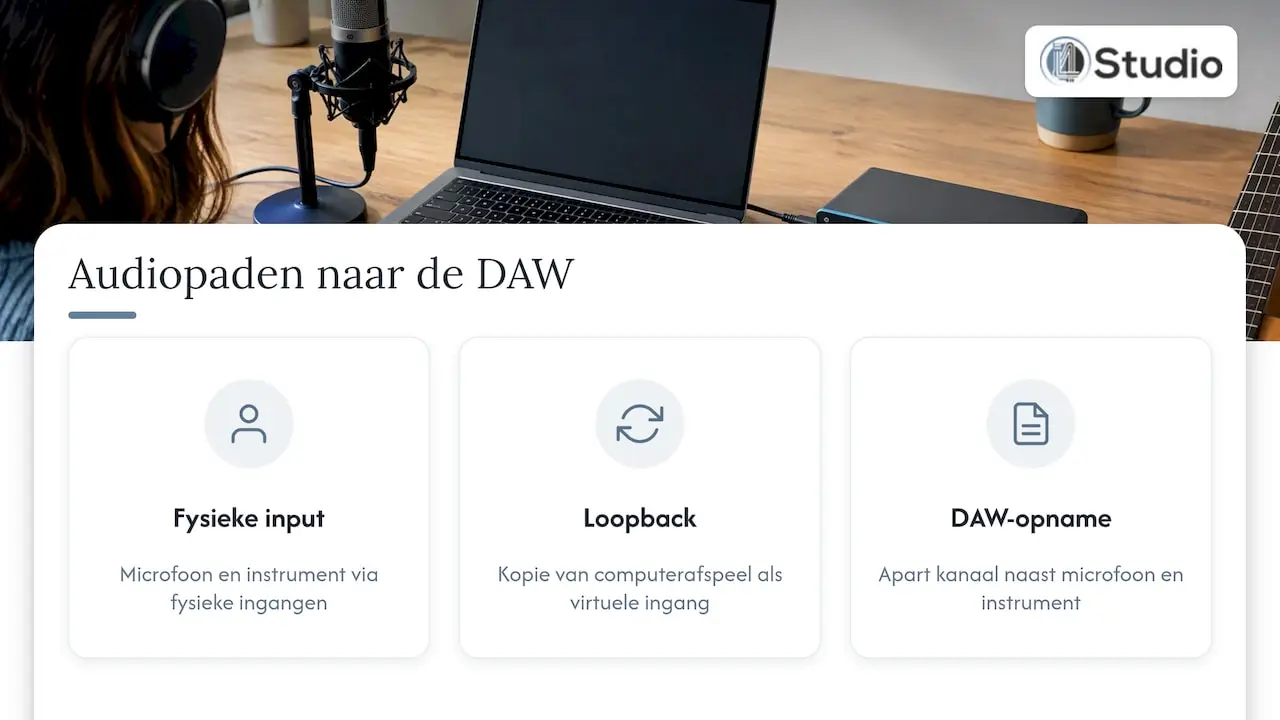
Normally, audio flows in one direction. Your microphone sends a signal to the interface, the computer processes the signal, and the result comes out of your speakers or headphones. The sound that your computer plays itself—such as from YouTube, Zoom, or a software synth in another app—goes only to the outputs. So you can’t just record it.
Loopback reverses that process. The interface creates a copy of the playback signal and offers it as an input. Focusrite describes it as routing the audio outputs from your computer back in, so you can record them on a separate channel alongside your microphones or instruments.
Important to know: A loopback input is not a physical connection. With the Scarlett 4i4 4th Gen , for example , two additional inputs—5 and 6—appear in your DAW’s I/O settings. These are virtual channels within the software and not additional connectors on the back panel.
A mix of everything or individual sources
Not every loopback works the same way. There are roughly two types:
- Total monitor mix: Everything you hear goes to the loopback channel. That’s simple, but you’ll also record system sounds and any forgotten browser tabs.
- Custom loopback mix: In a mixer, you can specify for each source what goes to the loopback channel. At Audient, this is called the Loopback Mixer. With the iD4 MKII, you can use it to mix mic and DI inputs with computer audio into a single stereo signal.
If you want to record or stream with a clean audio signal, choose an interface with the second option. That way, you’ll keep notification sounds and other unwanted noise out of your recording.
What do you use loopback for?
Loopback is designed for anyone who wants to record multiple audio sources on their computer at the same time. In practice, we see it used primarily for the following purposes:
- Podcasts with remote guests: You record your own microphone and your guest’s voice from the video chat software on separate tracks. Focusrite lists video calls and podcasts as typical uses.
- Live streams: In OBS, you can combine your voice with game audio, music, or your DAW—without any complicated software workarounds.
- Sampling: You record audio directly into your DAW from a browser, media player, or standalone plug-in.
- Tutorials and screen recordings: You record your narration along with the audio from the software you’re demonstrating.
- Linking two audio programs: for example, a standalone synth app that you want to record into your DAW.
- Video editing: An editor records a voice-over while the timeline plays, and keeps both as separate sources.
For podcasters, loopback is often the reason for choosing a particular interface. If you’re setting up a complete recording space, be sure to read our step-by-step guide to building a podcast studio.
Hardware loopback or routing software?
There are two ways to set up loopback: through your audio interface’s driver and software, or through a separate virtual routing app that you install on your computer. LEWITT mentions these two common methods and notes that third-party routing software can be difficult to set up.
| Criterion | Loopback in the interface | Virtual routing software |
|---|---|---|
| Setup | Once in the interface’s control software | Standalone installation, custom devices, and routes |
| Additional costs | Included in the interface | Often requires a paid license |
| Flexibility | Depending on the mixer: one or more loopback pairs | Can often be routed via an app |
| Stability | One driver, fewer layers | Additional virtual device between the app and the interface |
| Works without an interface | No | Yes |
| Ideal for | Podcasting, streaming, sampling, video calls | Complex routing on macOS, multiple apps at once |
For most producers and content creators, loopback on the interface is the simplest option. It works right away, and you have one fewer driver that could cause problems. Routing software is especially useful if you want to route multiple apps separately on a Mac, or if your interface doesn’t have loopback.
Which audio interfaces have loopback?
In recent years, loopback has become standard, particularly in compact interfaces designed for content creators. Here is an overview of well-known series, based on the manufacturers’ documentation:
| Serial Interface | Loopback | Special Features |
|---|---|---|
| Focusrite Scarlett 4th Gen | Yes | Supported according to Focusrite; configured via Focusrite Control 2 |
| Focusrite Scarlett Solo 4th Gen | Yes | Send computer audio back without cables |
| Scarlett 4i4, 8i6, 18i8, 18i20 3rd Gen | Yes | Only these 3rd Gen models, not the smallest one |
| Audient EVO 4 | Yes | In-software loopback mixer for macOS and Windows |
| Audient iD4 MKII / iD44 MKII | Yes | Loopback Mixer; with the iD44, you can use multiple apps simultaneously with your microphones |
| Arturia MiniFuse | Yes, with firmware | Loopback was included in firmware update 1.5 |
| PreSonus Studio 24c | Windows only | Two loopback streams via the ASIO driver |
| PreSonus Revelator | Yes, depending on the mode | Routing options vary by mode on the Mac |
A few things stand out. The generation makes a difference: an older model in the same series may not have loopback. Sometimes the feature is only added with a firmware update, as is the case with Arturia. And on some interfaces, loopback only works on Windows. So always check the exact model and your operating system, not just the brand name.
Are you looking for a compact interface with loopback for podcasting or streaming? The Audient EVO 4 combines two microphone inputs with a software-based loopback mixer. You’ll find more options in our audio interfaces category.
How to Set Up Loopback in Four Steps
The names vary by brand, but the process is almost always the same.
- Install the driver and control software. On Windows, this is usually an ASIO driver with its own app, such as Focusrite Control 2 or the EVO app. Update the firmware right away: loopback may depend on it.
- Set the interface as the playback device. The audio you want to record must be played through your interface. Select the interface in the Windows or macOS sound settings, or within the app itself, such as your browser or calling software.
- Decide what goes into the loopback channel. In the control software’s mixer, choose which sources are routed to loopback: just computer audio, or your microphone as well.
- Select the loopback input in your software. In your DAW or OBS, select the loopback pair as the input. According to Focusrite, this is often the highest stereo pair, and you’ll need to route the correct playback audio to that channel in the control software.
In your DAW
Create a new stereo track and select the loopback input as the source. Turn off monitoring for that track. Otherwise, you’ll hear the signal twice, which could cause a feedback loop (see below). If you record your microphone on a separate track, you can mix them both separately later.
At OBS
In the Sources panel, add an “Audio Input Capture” and select the loopback input on your interface. Audient describes this procedure in the guide for using OBS with an Audient interface. Disable OBS’s default “Desktop Audio” setting when using loopback. This prevents the same audio from being captured twice in your stream.
On Zoom, Teams, or Discord
If you want to play something for your guest—such as a jingle or your DAW—select the loopback input as the microphone in your calling software. Be sure to use a loopback mix that includes your own microphone but not the sound of the person you’re talking to. Otherwise, your guest will hear themselves with a delay. Podcasters refer to a mix like this—one that excludes the listener’s own voice—as a “mix-minus.”
Windows and macOS: The Differences
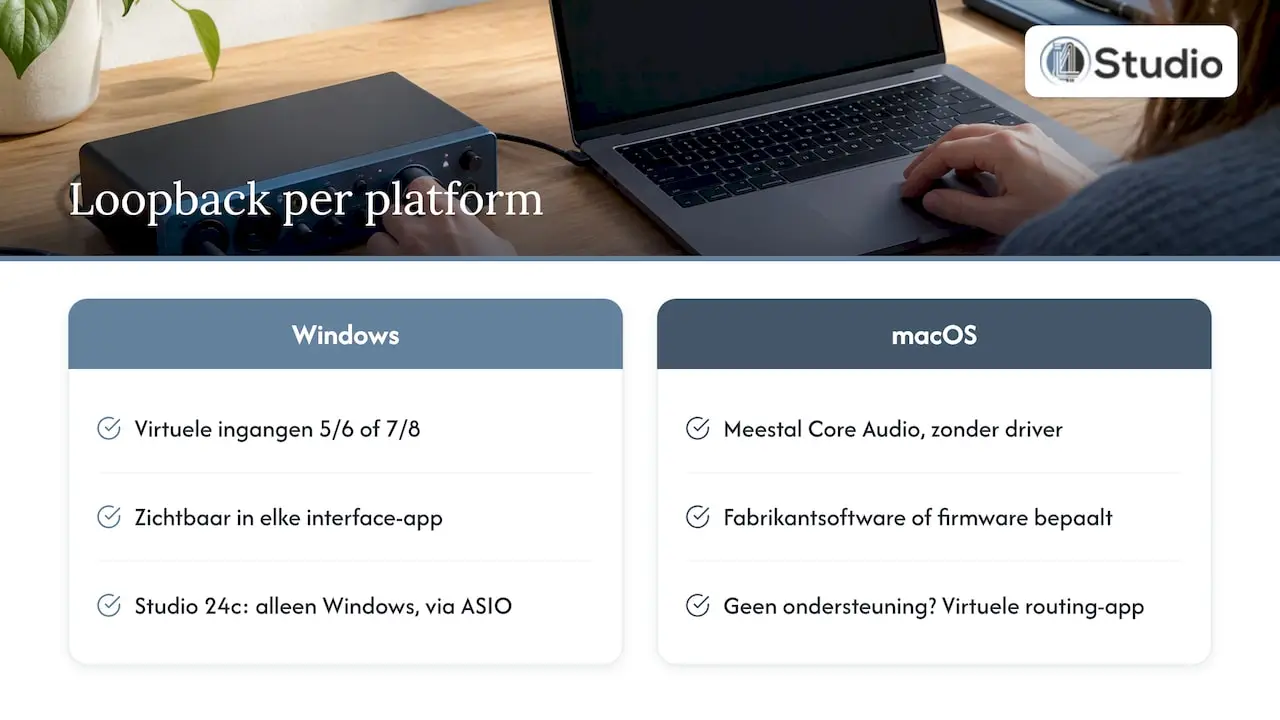
On Windows, loopback usually works through additional virtual inputs in the driver, such as inputs 5/6 or 7/8. You’ll see these in any app that uses the interface. There are some exceptions, though: with the PreSonus Studio 24c, for example, loopback only works on Windows, via the ASIO driver.
On macOS, most interfaces operate in class-compliant mode via Core Audio, without their own driver. As a result, loopback depends more heavily on the manufacturer’s control software or firmware. If that support is missing, you’ll need to use a virtual routing app. With some interfaces, the routing also changes depending on the device’s mode, such as with the PreSonus Revelator.
Do you work on both platforms—for example, with a Windows studio PC and a MacBook for when you’re on the go? If so, check the manual to see if loopback is available on both systems.
Common Mistakes and How to Avoid Them
Loopback is easy once it’s working. When setting it up, things usually go wrong at one of these points:
- Feedback Loop: You record the loopback channel with monitoring enabled, causing the signal to be sent back to the output and then back to the loopback channel. The result is a whistling sound or a rapidly building reverb. Turn off input monitoring on that track and keep your volume low while testing.
- Dual audio: Both loopback and the system audio recording from your streaming software are enabled. Choose one of the two.
- Notification sounds in your recording: A full monitor mix includes all system sounds. Turn off notifications or use a separate loopback mix.
- Silence on the loopback channel: The app is not playing through your interface, but through the built-in sound card or HDMI. Check the playback device for each app.
- Different sample rates: If Windows is set to 48 kHz and your DAW project is set to 44.1 kHz, the audio may crackle or cut out. Set everything to the same sample rate.
- Crackling and dropouts: Loopback places slightly more demands on your system because additional channels are running in real time. If you hear crackling, try increasing your buffer size first. If the crackling persists, check the known causes of crackling sounds in Windows 11, such as power management and background processes.
You can find more solutions for each symptom in our article on troubleshooting audio interface issues.
How to Choose an Interface for Loopback
“Loopback” is listed on the box, but the actual product varies significantly. Keep these points in mind when making your choice:
- Loopback type: just a master mix, or a separate mixer where you can select each source individually?
- Number of loopback channels: One stereo pair is enough for a stream. For a podcast using multiple apps at the same time, you’ll want more routing options.
- Operating system: Does loopback work on both Windows and macOS, or only on one platform?
- Number of microphone inputs: If you’re recording two people in the same room, choose at least two preamps.
- Control software: An intuitive mixer saves a lot of time fumbling around. Check screenshots or the manual beforehand.
- Firmware and support: Is the interface still being updated? On some models, loopback wasn’t available until a later update.
Not sure how many inputs and outputs you need? Our guide to audio interfaces for recording breaks down the options for studio, podcast, and live use. A good microphone for your studio makes all the difference for your voice—and loopback doesn’t help with that.
Our take: Loopback is only as good as your system
At i4studio, we view loopback primarily as a tool within an overall workflow. A podcaster who records a guest using calling software, streams via OBS, and runs a DAW with plug-ins at the same time places heavy demands on their computer. At that moment, multiple audio programs are running simultaneously on a single driver. That’s exactly when you can tell whether a system remains stable and keeps latency low.
That’s why we never look at just the interface. The combination of the interface, driver, computer, and settings determines whether loopback works reliably. Many crackling issues that resemble loopback problems are caused by a computer that isn’t optimized for audio: power-saving features that slow down the processor, background software, or a congested USB bus.
We build our custom studio PCs with precisely that focus in mind: stability, low latency, and a configuration optimized for audio. And because we also supply and advise on interfaces, microphones, and acoustics, we look at the big picture rather than just a single component.
– harold
A studio that handles loopback with ease
Are you ready for a setup that can handle podcasting, streaming, and production all at once? We build custom studio computers for audio and video, starting at €1,099. Combine them with an interface from our lineup, and you’ll have a system optimized for low latency. Wondering which configuration is right for your work? Check out our studio PC examples for 2026 or our studio computers for podcasting.
Frequently Asked Questions
What does loopback do on an audio interface?
Loopback sends the audio your computer is playing back to a virtual input on your audio interface. This allows you to record or stream browser audio, a video call, or another app, in addition to your microphone. You don’t need any extra cables to do this.
Does every audio interface have loopback?
No. This feature is mainly available in recent interfaces for content creators, and even within a single series, it varies by generation and model. Sometimes loopback isn’t available until a firmware update, or it only works on Windows. Check the manual for your specific model.
Why do I hear a whistling sound when I record a loopback?
That’s usually a feedback loop. You’re recording the loopback channel while input monitoring is enabled, which causes the signal to be fed back into itself over and over again. Turn off monitoring on that track and remove the loopback source from your own monitor mix.
Can I use loopback without an interface that supports loopback?
Yes, with virtual routing software on your computer. That works, but it requires more configuration and adds an extra layer between your apps and your interface. For podcasting and streaming, an interface with built-in loopback is usually simpler and more stable.
Does loopback also work in OBS and Zoom?
Yes. In OBS, add the loopback input as the audio input source and turn off Desktop Audio. In Zoom or Teams, select the loopback input as your microphone, using a mix that doesn’t include your conversation partner’s voice.
Sources
- Focusrite: How to Use Loopback in Focusrite Control 2
- Focusrite: Which Focusrite interfaces support Loopback?
- Focusrite: Using Loopback on Scarlett 3rd Gen interfaces
- Focusrite: Using Your Solo 4th Gen
- Focusrite Scarlett 4i4 Manual: Loopback Inputs
- Audient: Setting up Loopback on the iD4 MKII
- Audient: Loopback on the iD44 MKII
- Audient: EVO 4 Overview
- Audient: Setting Up OBS with an Audient Interface
- LEWITT: Recording Computer Audio via Loopback
- Synthanatomy: Arturia MiniFuse firmware 1.5 with loopback
- PreSonus Studio 24c Manual
- PreSonus: Revelator Multi-Mode vs. Single Mode on Mac