Briefly:
- Proper monitor placement improves sound quality and image clarity and helps prevent physical discomfort during long production sessions.
- Adjusting distance, height, angle, and spatial position is at the heart of ergonomic work practices in the studio.
- A precise setup reduces fatigue, improves focus, and ensures better mix and image quality.
Monitor placement is the cornerstone of an accurate audio and video production environment. Without the proper setup, you won’t hear or see what’s actually in your mix or image. The industry refers to “monitor placement” as the combination of distance, height, angle, and spatial position that determines how faithfully sound and image reach you. Ergonomic guidelines recommend a viewing distance of 50 to 75 cm, with the top edge at eye level and a tilt angle of 10–20 degrees. Anyone who ignores these parameters will pay the price in fatigue, discomfort, and mixing errors.
Why Monitor Placement Is the Foundation of Sound and Picture Quality
The optimal monitor placement for sound and video depends on four measurable parameters: distance, height, angle, and spatial position. Each of these factors influences what your ears and eyes perceive, and thus every decision you make in the studio.
Distance: an arm’s length as a starting point
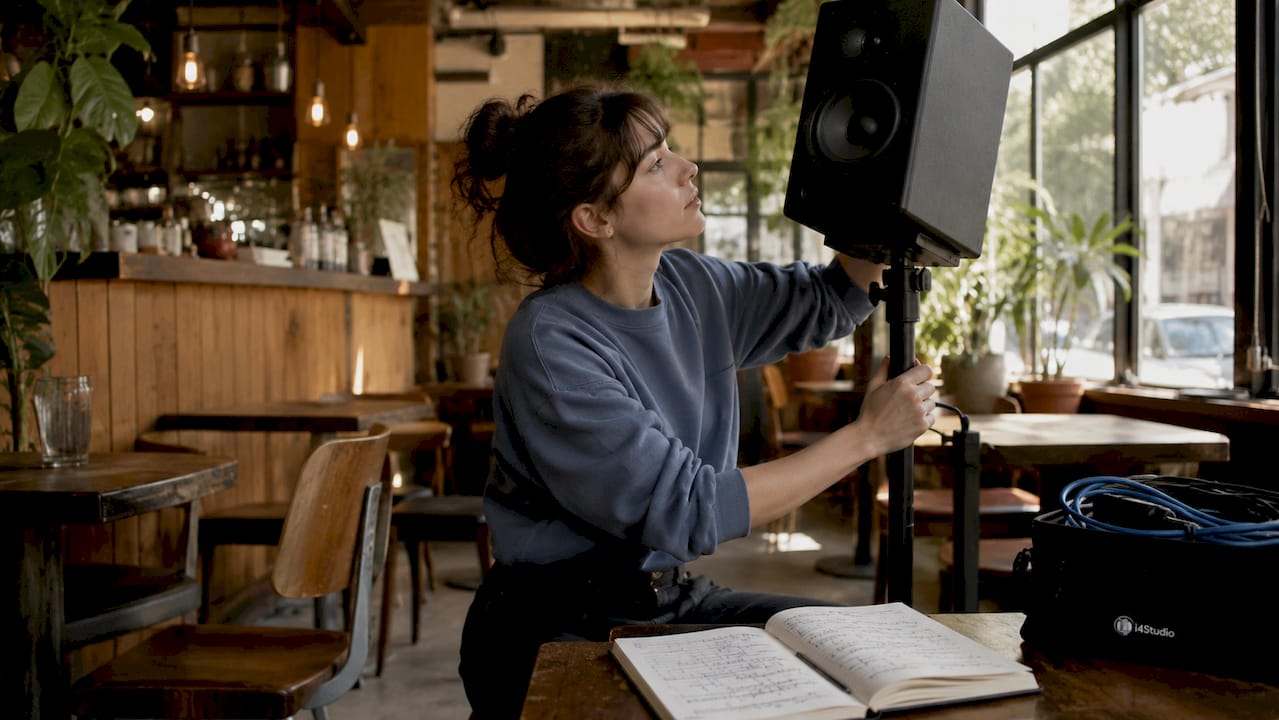
The ideal viewing distance from a monitor is between 50 and 75 cm—roughly an arm’s length. At that distance, your eyes process the image without straining, and sound waves from studio monitors reach your ears with minimal room influence. If you sit closer, you’ll hear the tweeter and woofer as separate sources rather than as a single coherent sound. If you sit farther away, you’ll lose detail in the high frequencies and visual sharpness.
The correct viewing distance also depends on screen size and resolution. A 32-inch 4K screen can be viewed from a slightly greater distance than a 24-inch Full HD panel, because the pixel density is higher. However, viewing distance and viewing angle remain key factors in readability and comfort, regardless of how large or sharp the screen is.
Pro-tip: The ultimate test for reading distance isn’t measuring in centimeters, but whether you can read comfortably without straining your eyes. If you have to squint, enlarge the text instead of moving closer.
Height and tilt angle
The top edge of the monitor should be at or just below eye level, so that your gaze is directed slightly downward. This slight downward gaze relaxes the neck muscles and reduces pressure on the upper spine. A monitor that is positioned too high forces your chin upward and puts constant strain on your neck.
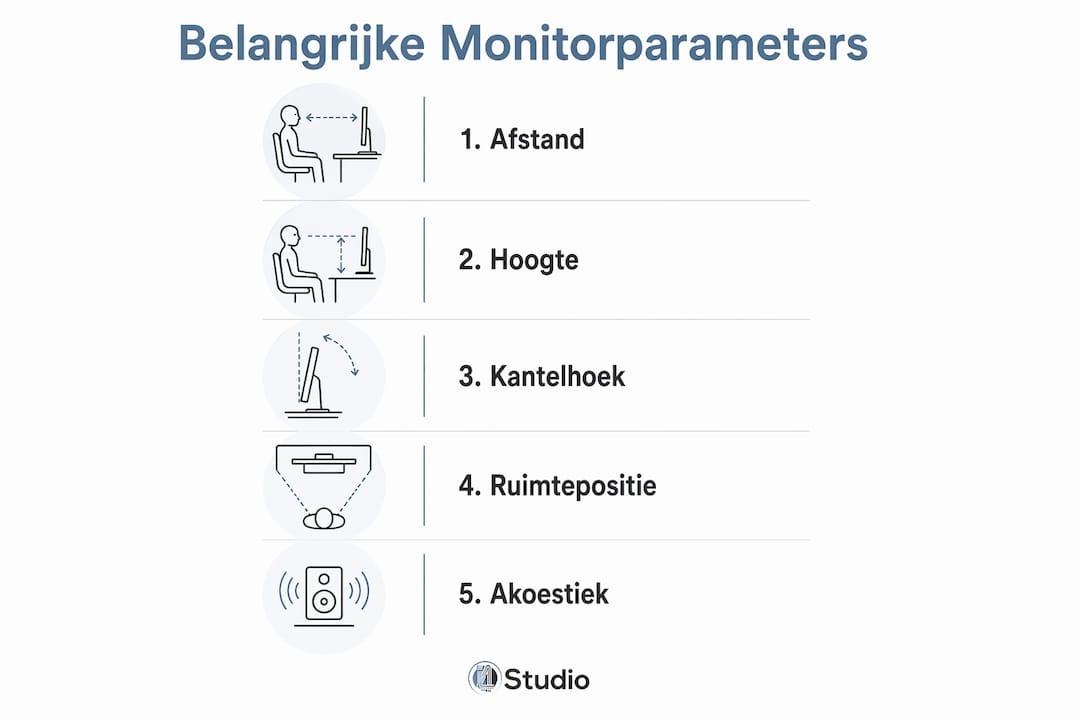
A tilt angle of 10 to 20 degrees backward improves readability and reduces eye strain. This applies to monitors used in both video editing and audio mixing. Combine the right height with that slight backward tilt, and your sitting posture will improve almost automatically.
Spatial Position and Acoustics
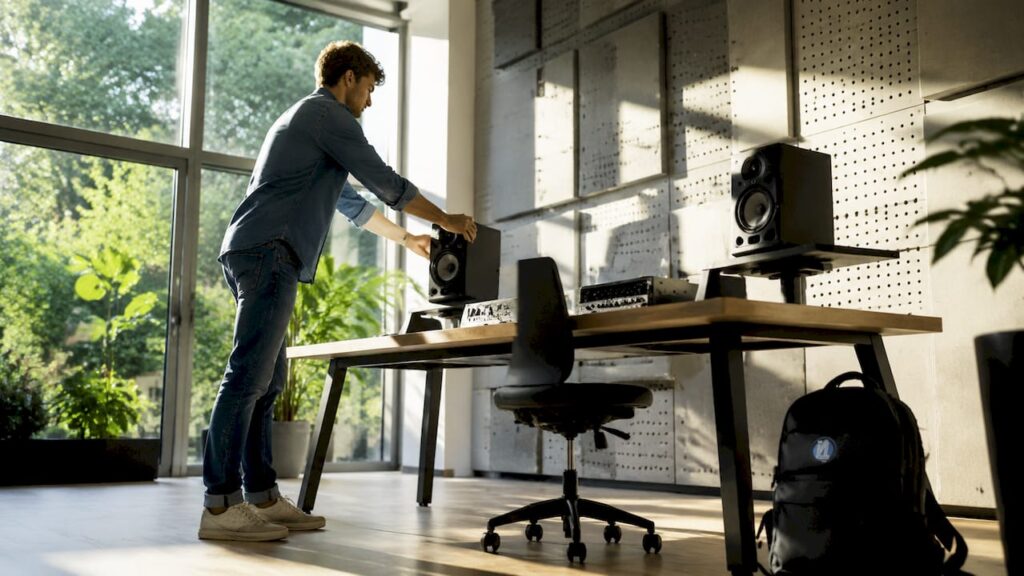
The position of your studio monitor relative to walls and corners determines how much low-frequency response is built up. Placing it close to a wall amplifies the bass due to the boundary effect, which colors your mix without you even realizing it. Placing the monitor in the center and avoiding reflections significantly improve sound and image quality in the studio.
| Parameter | Guideline | Effect of Deviation |
|---|---|---|
| Viewing distance | 50–75 cm | Loss of detail or coherence |
| Monitor Height | Top edge at eye level | Neck pain, improper viewing angle |
| Tilt angle | 10–20 degrees backward | Eye strain, reflections |
| Distance from the wall | At least 30 cm behind the monitor | Bass-rich, vibrant sound |
How does monitor placement affect ergonomics during long sessions?
An improper monitor position directly leads to eye, neck, and back problems due to forced postural changes. Production professionals regularly work four- to eight-hour shifts in front of their screens. Minor deviations in the setup can then accumulate and lead to serious health issues.
The most common physical consequences
- Neck pain caused by a monitor that’s too high. When the monitor is positioned above eye level, the head tilts backward. This position significantly increases the strain on the cervical spine.
- Back pain caused by bending forward. A monitor that’s too far away or too small pulls you forward. You lose the lumbar support from your chair, and your lower back starts to compensate.
- Eye strain caused by an incorrect angle or distance. Glare, a viewing angle that’s too steep, or a screen that’s too close causes the eye muscles to tire more quickly. This results in headaches after long sessions.
- Shoulder pain caused by a monitor that is positioned at an angle. If your monitor isn’t positioned directly in front of you, you’ll unconsciously turn your head or torso. This leads to uneven strain on your shoulders and neck.
- Reduced concentration due to physical discomfort. Pain and fatigue reduce your ability to concentrate. Decisions you make when you’re tired are rarely the best ones.
A neutral sitting posture can only be achieved if the monitor is positioned correctly. The chair, desk, and monitor together form a system. If you adjust one element without checking the rest, you’re just shifting the problem.
Chair, desk, and monitor as a single system
First, adjust the chair height so that your feet are flat on the floor and your knees are at a 90-degree angle. Only then should you adjust the desk height so that your forearms are horizontal while typing. Finally, adjust the monitor to the correct height and distance. In that order, each adjustment serves as the foundation for the next.
Ergonomics is not a static characteristic but a system of interrelated adjustments. A good monitor that isn’t positioned correctly is just as ineffective as an ergonomic chair that has never been adjusted.
Pro-tip: Check your posture every 45 minutes. Set a timer. One quick check per hour will prevent you from slipping into a bad posture without realizing it.
What are the best practices for a professional monitor setup?
The main monitor should always be positioned directly in front of you, at an equal distance from both ears. This isn’t a matter of preference but an acoustic necessity. Any asymmetry in the setup alters the stereo balance you hear.
Single and Multiple Configurations
For a single monitor, the basic rules apply: an arm’s-length distance, the top edge at eye level, and a slight backward tilt. Make sure the monitor isn’t positioned directly in front of a window. Daylight coming from behind the screen causes glare; daylight coming from behind you makes the screen too bright and distorts color perception when working with video.
With multiple monitors, a different approach applies. In multi-monitor setups, a V-shaped angle is crucial for avoiding neck strain. The primary monitor is positioned directly in front of you. Secondary screens are angled slightly inward so you can read them with minimal head movement. If you place the secondary screens parallel to the primary one, you’ll force yourself to turn your head all the way every time you look to the side.
Minimizing Reflections in the Studio
Reflections caused by windows or walls interfere with both the image and the sound. For audio, early reflections from side walls and the ceiling color the sound you hear. For video, reflections on the screen distort color perception during color grading. Matte screens reduce visual reflections. Acoustic treatment of the room, such as absorbers placed at the first reflection points, addresses the sound issue.
Practical steps for a reflection-free setup:
- Do not place the primary monitor directly in front of or next to a window.
- Use curtains or blinds to control the amount of light coming in.
- Treat the first reflection points on the side walls with absorbers.
- Leave at least 30 cm of space between the back of the monitor and the wall.
- Choose a matte monitor finish over a glossy panel for video work.
Monitor Arms as a Practical Tool
A monitor arm gives you more freedom than a fixed stand. You can adjust the height, depth, and angle without having to prop the monitor up on books or boxes. For a professional studio setup, an adjustable arm isn’t a luxury—it’s a tool. Pair the arm with a monitor that features a pivot function and Low Blue Light mode for maximum comfort during long sessions.
What technical pitfalls should you avoid when installing monitors?
Most setup errors can be avoided if you know what to look out for. Below are the most common technical errors related to monitor placement.
- VESA screws that are too long. Use only VESA screws that are exactly the right length. Screws that are too long will penetrate the panel and cause structural damage to the internal LCD screen. This is a mistake you won’t discover until the damage has already been done.
- The gas spring on the monitor arm is misaligned. A poorly adjusted gas spring causes the arm to spring up or drop as soon as you let go. This isn’t just annoying; it also causes the arm to wear out faster. Adjust the gas spring to match the weight of your specific monitor.
- Secondary monitors are too far apart or turned the wrong way. If you place two screens side by side without angling them inward, you create a setup in which the edges of your field of vision are constantly in use. This strains the eye muscles and the neck.
- The screen is positioned too high. This is the most common mistake. Many people place the monitor on its stand without checking the height. As a result, the screen is often 5 to 10 cm too high, which puts constant strain on the neck.
- Insufficient attention to background noise and reflections. A monitor placed against a hard wall without acoustic treatment produces a colored sound. You’ll end up mixing based on how the room sounds, not on what’s actually in the signal.
Pro-tip: When installing a monitor arm, take a photo of the screw length next to a ruler. That way, the next time you need to reposition it, you’ll know right away what size you need.
Key insights
Proper monitor placement requires the correct distance, height, angle, and spatial positioning to ensure both audio and video quality as well as physical comfort.
| Item | Details |
|---|---|
| Optimal viewing distance | Maintain a distance of 50–75 cm between your eyes and the screen for clear sound and a sharp picture. |
| Height and Tilt Angle | Top edge at eye level, tilted back 10–20 degrees to reduce eye strain. |
| V-shape with multiple monitors | Tilt secondary monitors slightly inward to prevent neck strain. |
| Dealing with Reflections | Use matte screens, acoustic absorbers, and keep a distance of at least 30 cm from the wall. |
| How to Properly Install a VESA Mount | Use screws that fit exactly and adjust the gas spring to match the monitor’s weight. |
Why I’ll Never Again Consider Monitor Placement a Minor Issue
Years ago, I was mixing on a setup that looked great but was an acoustic disaster. The monitors were too close to the back wall, slightly too high, and a little off-kilter. My mixes sounded good in the studio but terrible on any other system. I thought it was my ears. It was actually the room and the position of the speakers.
What I’ve learned since then: one correct setting is more valuable than any plugin or upgrade. When I moved the monitors forward, lowered their height, and addressed the primary reflection points, the mix changed immediately. I heard details I had previously missed. My decisions became faster and more confident.
Many people adapt their bodies to a poor workstation instead of the other way around. It’s a gradual process. You get used to the pain in your neck, to straining to look at a screen that’s too high, to the fatigue after a session. But getting used to it isn’t the same as solving the problem.
My advice: spend an hour setting up your setup correctly. Use a ruler to measure the distance, a level to check the height, and your ears to assess the acoustics. After that, check every few months to see if anything has shifted. A good setup isn’t a one-time task—it’s a habit. Many professionals underestimate the role of ergonomics in the studio, but it’s precisely these kinds of details that make the difference between a good studio and a great one.
– harold
The right hardware makes all the difference in your studio
Proper monitor placement is the foundation. The hardware you use determines how far you can expand on that foundation. I4studio provides custom-built studio PCs tailored to the demands of audio and video production, from low latency to maximum processing power for demanding DAW sessions.
Check out I4studio’s best studio PC configurations for 2026 and find the setup that fits your workflow. Are you working on music production and want to know which PC suits your specific needs? I4studio’s studio PC guide helps you make an informed choice. From acoustic treatment to custom hardware, I4studio works with you to plan your entire studio setup.
Frequently Asked Questions
What is the ideal distance between the monitor and the listening position?
The ideal viewing distance is between 50 and 75 cm—roughly an arm’s length. At that distance, you’ll hear studio monitors as a single coherent sound source and see the image clearly without having to strain your eyes.
How high should my monitor be for good posture?
The top edge of the monitor should be at or just below eye level. This way, your gaze is directed slightly downward, which relaxes your neck muscles and helps prevent back pain during long sessions.
Why is the monitor’s angle important?
A tilt angle of 10–20 degrees backward reduces eye strain and improves readability. It also reduces the likelihood of glare from ceiling lights on the screen.
How can I prevent reflections in a multi-monitor setup?
Position secondary monitors in a V-shape, angled inward, and maintain a minimum distance of 30 cm between the back of the monitor and the wall. Use matte screens and treat the first reflection points in the room with acoustic absorbers.
What’s the problem with VESA screws that are too long?
VESA screws that are too long will penetrate the panel and cause structural damage to the internal LCD screen. Always use screws that match the thickness of your monitor’s VESA mount exactly.