Briefly:
- A good studio PC for music production should have at least a 6-core processor, 16 GB of RAM, and an NVMe SSD. For professional workflows, 32 to 64 GB of RAM and a powerful CPU are essential, especially when working with large sample libraries and orchestral projects. Key factors for optimal performance include stable drivers, sufficient expansion options, and a reliable power supply.
A usable studio PC for music production starts with a modern processor with at least 6 cores, sufficient RAM, an NVMe SSD as the system drive, and a stable audio interface with ASIO drivers. That’s the absolute minimum. For serious projects involving multiple instrument tracks, resource-intensive plug-ins, and sample libraries, more RAM and a faster CPU class are the recommended baseline. Professional orchestral templates or film scores require a large amount of RAM.
The table below shows you the three levels at a glance:
| Component | Minimum | Recommended | Pro |
|---|---|---|---|
| Processor | Intel Core i5 / AMD Ryzen 5 (multi-core) | Intel Core i7 / AMD Ryzen 7 (multi-core) | Intel Core i9 / AMD Ryzen 9 (top-of-the-line cores) |
| RAM | 16 GB is suitable for basic use | 32 GB recommended for serious production | 64 GB recommended for professional workflows |
| System Drive | Medium-capacity NVMe SSD | High-capacity NVMe SSD | Very high-capacity NVMe SSD |
| Sample Drive | SATA SSD suitable for beginners | NVMe SSD for large libraries | NVMe SSD with ample capacity |
| Audio interface | USB with ASIO drivers | USB or Thunderbolt, low latency | Thunderbolt, multiple I/O channels |
| Estimated budget | entry-level | mid-range | Professional class |
When should you scale up? As soon as your projects regularly consist of several dozen tracks, you load heavy orchestral sample libraries (Spitfire Audio, EastWest), or you run multiple CPU-intensive plug-ins in real time—such as Fabfilter Pro-Q 3 or Omnisphere—the recommended class is the minimum requirement. The pro class is only truly necessary for film scores, large-scale live recordings, or combined audio/video workflows.
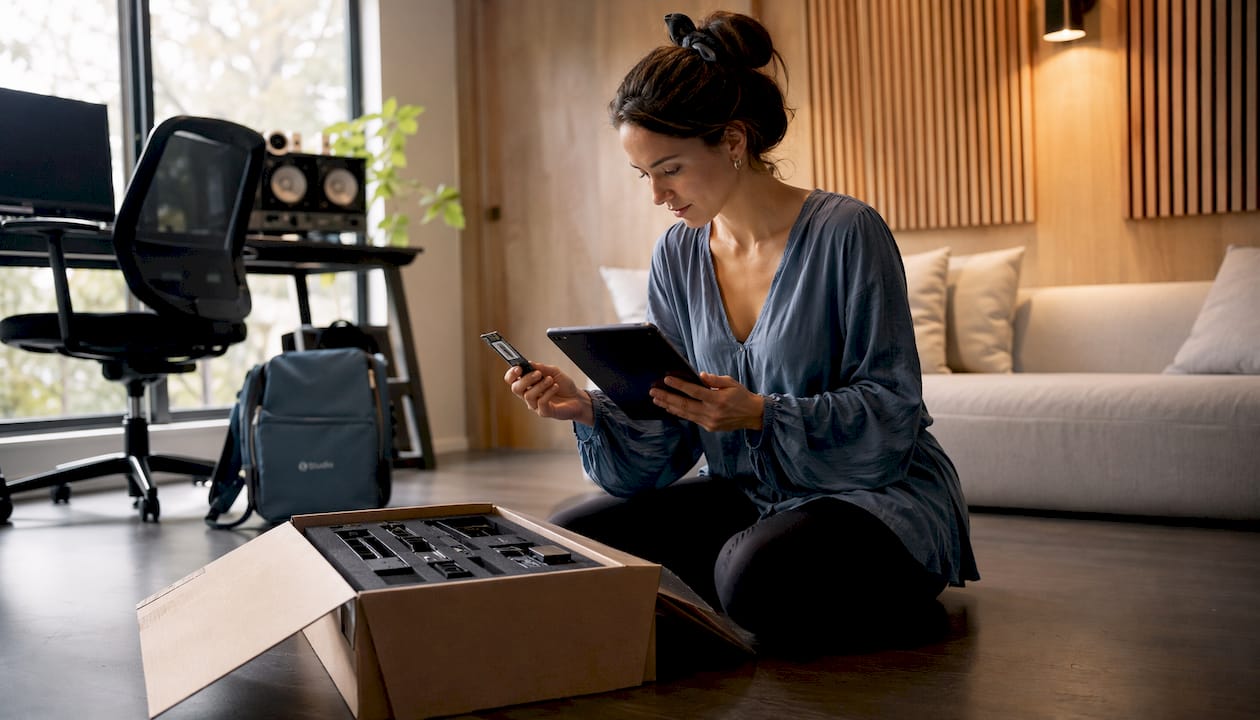
Watch out for these red flags when making a purchase: a generic or underpowered power supply unit (PSU), unclear or outdated ASIO drivers for the audio interface, and systems with only two USB ports and no expansion options.
Table of contents
- What kind of processor do you need for a studio PC?
- How much RAM do you really need for music production?
- How do you set up storage for your studio PC?
- What audio interface and drivers do you need?
- How many ports does a studio PC need?
- When do you need a graphics card in a studio PC?
- Desktop or laptop, Windows or macOS: What’s the best choice for a studio PC?
- Cooling, Power Supply, and Quiet Operation: How Do You Build a Reliable System?
- Specific sample configurations for 2026: Starter, Recommended, and Pro
- Purchasing Checklist: What Should You Check Before You Buy?
- I4studio builds your custom studio PC
- Key insights
- To be honest: what most buyers underestimate
- Useful resources for further study
- Frequently Asked Questions
What kind of processor do you need for a studio PC?
More cores and a higher single-thread clock speed combine to deliver the best DAW performance. That may sound obvious, but in practice, the balance between the two is what determines your workflow.
When loading large orchestral templates or streaming dozens of sample tracks at once, you’ll benefit from having more cores. An Intel Core i9-14900K or AMD Ryzen 9 7950X distributes that load across 16 or more threads. But when it comes to live tracking, playing software synths in real time, or using certain plug-ins that don’t multithread well, a high single-core frequency is actually the deciding factor. Many DAWs, such as Ableton Live and Logic Pro, still process the audio buffer largely on just one or two cores.
By grade level in practice:
- Entry-level (starter): Intel Core i5-13400 or AMD Ryzen 5 7600. Suitable for projects with up to about 20–30 tracks using standard plug-ins.
- Recommended: Intel Core i7-14700 or AMD Ryzen 7 7700X. Handles 40–80 tracks, multiple virtual instruments, and plugin chains with ease.
- Pro: Intel Core i9-14900K or AMD Ryzen 9 7950X. Required for demanding orchestral templates, film scores, or combined audio/video production.
Pro-tip: Set the CPU affinity in your DAW so that system processes don’t compete with the audio buffer. Combined with a smaller buffer size (128–256 samples when recording) and a larger buffer when mixing (512–1024 samples), you’ll get significantly more usable tracks out of the same hardware.
You can read more about which studio PC components have the greatest impact on DAW performance in the I4studio component guide.
How much RAM do you really need for music production?
16 GB of RAM is the minimum for simple projects, 32 GB is the recommended baseline for serious production, and 64 GB or more is only necessary for demanding sample-based orchestral workflows. This distinction is not arbitrary: sample libraries such as Spitfire BBCSO or EastWest Hollywood Orchestra load large portions of their samples into RAM for fast playback. A complete orchestral template can easily require 20–40 GB of memory.
DAWs themselves use relatively little memory, but plug-ins and virtual instruments can quickly add up. In addition to the samples, your operating system also needs RAM: expect to use at least 4–6 GB for Windows 11 running in the background.
Practical upgrade path:
- Start with 2×8 GB (dual-channel, 16 GB total) as the absolute entry-level option.
- Upgrade to 2×16 GB (32 GB) as soon as you notice that projects are loading more slowly or your DAW is regularly running out of memory.
- For resource-intensive templates: 4×16 GB (64 GB) or 2×32 GB (64 GB) in dual-channel mode.
A dual-channel configuration is important: two identical modules in the correct slots provide measurably higher memory bandwidth than a single module. On AMD Ryzen platforms, this effect is more pronounced than on Intel platforms, because Ryzen’s integrated memory controller is more sensitive to memory latency.
DDR5 vs. DDR4: DDR5 offers higher bandwidth and comes standard on newer platforms (Intel 12th Gen and later, AMD AM5). For pure audio workloads, the difference compared to DDR4 is minimal, but if you’re building a new system anyway, opt for DDR5 for future-proofing. Be sure to check compatibility with your motherboard: DDR4 and DDR5 are not interchangeable.
Unlit Studio’s hardware profiles confirm this trend: their Lite profile (i5/Ryzen 5, 16 GB) is suitable for basic use, while the Professional profile (i7/Ryzen 7, 32 GB+) really shines when working on larger projects.
How do you set up storage for your studio PC?
An NVMe SSD for the operating system and active sample libraries provides the greatest speed boost. An HDD or external drive is fine for archiving and backups, but should never be used as the primary sample drive.
The most practical layout for a studio PC:
| Disk | Type | Recommended capacity | Purpose |
|---|---|---|---|
| System Drive | NVMe SSD | An SSD with sufficient capacity — an SSD with ample capacity | Windows/macOS, DAW, plug-ins |
| Sample drive | NVMe SSD | 1–4 TB | Active sample libraries |
| Archive Drive | HDD or external SSD | 2–8 TB | Completed projects, backups |
Why NVMe for samples? Sample libraries continuously stream large files to memory. An NVMe drive achieves read/write speeds of 3,000–7,000 MB/s, while a standard SATA SSD hovers around 500–550 MB/s. When loading large orchestral templates, that difference is immediately audible: shorter load times and a lower risk of audio dropouts due to slow disk access.
Capacity Recommendations by Use:
- Starter: an NVMe SSD with sufficient capacity for the OS + a SATA SSD with ample capacity for samples. Enough for standard plug-ins and a limited sample collection.
- Recommended: a high-capacity NVMe SSD for the OS + a high-capacity NVMe SSD for samples. Ideal for multiple large libraries.
- Pro: a high-capacity NVMe SSD for the OS + a 2–4 TB NVMe SSD for samples + an external NAS or large HDD for archiving.
Backing up is not an option. At a minimum, use the 3-2-1 method: three copies, on two different media, one of which is offsite or in the cloud. Project files are small, but sample libraries are not. Schedule weekly backups of active projects and monthly backups of the entire library collection.
RAID is not a substitute for backup: it protects against disk failure, not against human error or ransomware.
What audio interface and drivers do you need?
For a studio PC, stable drivers and low latency are often more important than an extra pair of CPU cores. A slow or unstable driver causes clicks, pops, and dropouts, no matter how powerful the rest of the system is.
What is ASIO, and why does it matter?
ASIO (Audio Stream Input/Output) is the standard driver protocol for low latency on Windows. It bypasses standard Windows audio processing and gives the DAW direct access to the audio interface. Without ASIO, you’ll be working with buffer sizes of hundreds of milliseconds. With a good ASIO driver and a suitable interface, you can achieve 2–6 ms round-trip latency, which is comfortable for live tracking.
How do you choose between USB and Thunderbolt?
- USB (2.0/3.x): Sufficient for most home studio applications. Interfaces such as the Focusrite Scarlett series or the Universal Audio Volt work reliably via USB. Bandwidth is rarely a bottleneck for stereo or 4-channel recording.
- Thunderbolt: Useful when using 16 or more channels simultaneously, connecting multiple interfaces in a daisy chain, or when you need the absolute lowest latency. Thunderbolt offers higher bandwidth and lower CPU overhead than USB, but requires a PC with a Thunderbolt port (Intel platforms are more likely to have this than AMD).
- Driver stability above all else: Choose a brand with a proven track record on Windows. Focusrite, Universal Audio, and RME are known for their stable drivers that receive long-term support.
Checklist for I/O Requirements:
- How many microphone or line inputs do you need at the same time?
- Do you need ADAT to add more preamps?
- Do you use hardware synthesizers or outboard gear via MIDI or DIN?
- Do you need a loopback to record computer signals?
Pro-tip: Measure the actual round-trip latency using a tool like LatencyMon (Windows) before you finalize your choice of interface. Set the buffer size to 128–256 samples when recording, and increase it to 512–1024 samples when mixing to avoid CPU spikes.
How many ports does a studio PC need?
Count your current devices and add 20–30% extra capacity. That might sound like a lot, but a home studio grows faster than you think: an extra MIDI controller, a second external drive, a USB hub for peripherals.
Which ports are essential:
- At least 4 USB-A ports (for controller, interface, external drive, dongle)
- At least 1 USB-C or Thunderbolt 4 port (for high-speed external storage or a Thunderbolt interface)
- Ethernet (1 Gb or 2.5 Gb) for a stable connection during online collaboration or NAS use
Wi-Fi is convenient, but for a dedicated studio PC, a wired network is always the better choice. Latency and packet loss over Wi-Fi can be disruptive when streaming large sample libraries via a NAS.
MIDI connectivity: Most modern controllers use USB-MIDI. If you have older hardware with a 5-pin DIN connector, an affordable USB-MIDI interface will suffice. Dedicated DIN ports on the motherboard are rare and seldom necessary.
Network for Collaboration: If you collaborate with other producers or use cloud services for backup, a 2.5 Gb Ethernet port is a worthwhile upgrade on a new motherboard. The additional cost is minimal, and it offers great future-proofing.
When do you need a graphics card in a studio PC?
For a pure DAW workflow, a powerful graphics card is rarely necessary. The integrated graphics chip in a modern Intel Core i5/i7 or AMD Ryzen 5/7 processor is more than sufficient for driving one or two monitors during standard DAW use.
Situations in which a discrete graphics card is indeed useful:
- You combine music production with video editing (DaVinci Resolve, Premiere Pro), where GPU acceleration drastically reduces rendering time.
- You are using graphics-intensive plug-ins or visualizations that utilize GPU processing power.
- You’re working with three or more monitors, or with 4K displays where the built-in chip isn’t powerful enough.
Recommendation by use:
- Audio only: No separate GPU required. Save that budget for a CPU or RAM.
- Audio + occasional video: An entry-level GPU like an NVIDIA GeForce RTX 4060 is more than enough.
- Combined audio/video production: A mid-range GPU (RTX 4070 or AMD Radeon RX 7700 XT) delivers smooth performance for 4K video editing alongside demanding DAW sessions.
Keep in mind that a powerful GPU generates extra heat and noise. In a quiet studio environment, that’s something to consider.
Desktop or laptop, Windows or macOS: What’s the best choice for a studio PC?
A desktop offers the best cooling, expandability, and value for a dedicated home studio. A laptop is convenient for mobile use, but almost always involves compromises in terms of cooling, expandability, and noise level.
Practical considerations for each option:
- Desktop: Greater cooling capacity, easy to expand RAM and storage, can be made quieter with the right case and cooling system, better value for the performance level.
- Laptop: Portable and compact, but thermal throttling during extended sessions is a real risk. Upgrading the RAM is no longer possible on many modern laptops.
Windows vs. macOS:
- Windows offers more flexibility in component selection and is the standard for custom-built studio PCs. ASIO drivers are widely available. Always check the system requirements for Pro Tools or your other DAW before choosing an OS version.
- macOS is optimized for Apple Silicon (M-series chips) and offers excellent driver stability for Logic Pro and GarageBand. macOS is not an option for Windows-based custom builds.
Stability Tips for Windows Studio PCs:
- Disable automatic Windows updates during sessions, or schedule them outside of business hours.
- Create a system restore point before every driver or OS update.
- Use a dedicated audio profile in Windows (high performance, USB selective suspend off).
- Always test new drivers on a non-critical project first.
According to DAW manufacturers such as Avid, driver stability and OS compatibility are often the cause of instability, not the hardware itself.
Cooling, Power Supply, and Quiet Operation: How Do You Build a Reliable System?
A high-quality power supply and a well-designed cooling solution are more critical to reliable studio sessions than the very highest CPU score. A system that throttles due to heat after two hours, or a power supply that becomes unstable under peak load, is unusable in a professional setting.
Reliability Checklist:
- Choose a power supply with at least 80+ Gold certification. Platinum is better for systems that run at high power for long periods of time.
- Use a quiet air cooler (Noctua NH-D15, be quiet! Dark Rock Pro) or a quiet AIO liquid cooler for the CPU.
- Optimize airflow inside the case: cool air enters at the front/bottom, and warm air exits at the back/top.
- Choose a case with space for sound-dampening materials or rubber mounts for drives and fans.
Studio Acoustics: Place the PC as far away from the microphone as possible, preferably in a different room or behind an acoustic screen. Rubber dampers under the case and on the fans reduce vibration transmission to the desk.
Pro-tip: After assembly, run a stress test for at least 30–60 minutes using a tool such as Prime95 (CPU) and CrystalDiskMark (drives) while loading a large sample library. Check the temperatures using HWiNFO64. If the CPU exceeds 90°C or the clock speed drops, the cooling is insufficient for studio use.
Specific sample configurations for 2026: Starter, Recommended, and Pro
The three builds listed below are realistic guidelines for 2026 workflows. Budget ranges are approximate and depend on current component prices.
| Component | Starter | Recommended | Pro |
|---|---|---|---|
| Processor | Intel Core i5-13400 / Ryzen 5 7600 | Intel Core i7-14700 / Ryzen 7 7700X | Intel Core i9-14900K / Ryzen 9 7950X |
| RAM | 16 GB (2×8 GB, dual channel) | 32 GB (2×16 GB, dual channel) | 64 GB (4×16 GB or 2×32 GB, dual channel) |
| System Drive | NVMe SSD: an SSD with sufficient capacity | NVMe SSD: an SSD with ample capacity | NVMe SSD: an SSD with large capacity |
| Sample Drive | SATA SSD: an SSD with ample capacity | NVMe SSD: a high-capacity SSD | NVMe SSD 4 TB |
| Power Supply | 550 W 80+ Gold | — | — |
| Case | Midi tower, quiet fans | Midi-tower, sound-dampening | Full-tower, premium cooling |
| Audio interface type | USB, ASIO drivers | USB or Thunderbolt | Thunderbolt, multiple I/O channels |
| The estimated budget depends on the choice of components and the build class. |
In practice, what do you get out of each build?
The Starter Build comfortably supports 20–30 tracks with common plug-ins such as Serum, Kontakt instruments, and a handful of Fabfilter plug-ins. The recommended build handles 50–80 tracks with multiple virtual instruments and more demanding effects chains without any issues. The pro build is suitable for full orchestral templates, film scores with 100+ tracks, and combined audio/video production.
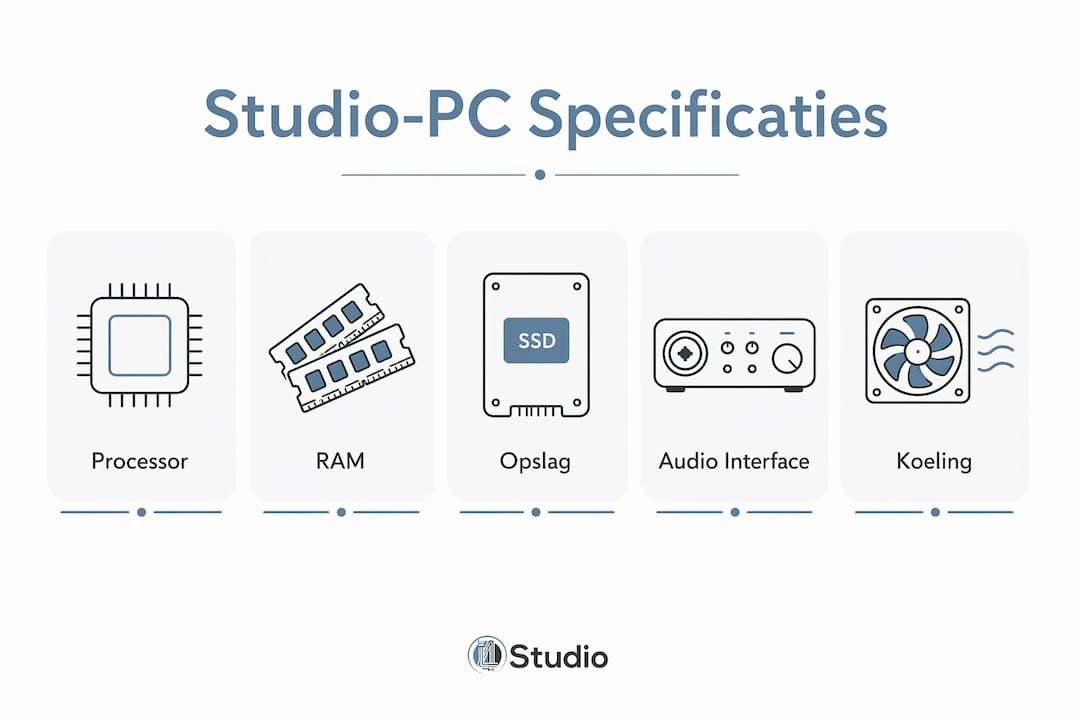
Custom vs. Off-the-Shelf: Off-the-shelf systems are available quickly, but are rarely optimized for audio workloads. Custom solutions from I4studio mean that component selection, cooling solutions, and I/O configurations are tailored to your specific workflow. Check out I4studio’s studio PC examples for off-the-shelf configurations that are ready to use right away.
Purchasing Checklist: What Should You Check Before You Buy?
Use this list when comparing systems or placing a custom order.
Questions to ask:
- Does the system have enough USB ports (at least 4 USB-A + 1 USB-C/Thunderbolt)?
- Is the RAM expandable (are there any free DIMM slots)?
- Are there multiple M.2 slots for NVMe drives?
- What power supply is included, and what is its efficiency rating?
- What cooling solution is used, and what are the measured temperatures under full load?
- What warranty and service are included?
- Has the system been tested with audio-specific software (DAW, sample libraries)?
Red flags:
- Unbranded or unknown food products without an energy efficiency rating.
- No information is available regarding ASIO driver support for the included or recommended audio interface.
- The seller cannot provide thermal test results.
- Only one M.2 slot or no RAM expansion options.
- The system comes with a standard Windows installation without any audio optimizations.
For a custom order, be sure to ask specifically for:
- What test protocol is used for the build (stress tests, audio-specific tests)?
- How is the RAM configured (dual-channel, XMP/EXPO enabled)?
- What is the delivery time, and what is included in the installation and configuration?
- Is a restore point or system image available upon delivery?
A good supplier provides specific answers to all these questions. Vague information about power requirements or a lack of test data are signs that you should keep looking. Use I4studio’s selection guide to match your requirements to the right configuration.
I4studio builds your custom studio PC
Do you know what specs you need, but want to make sure everything is just right for your workflow? I4studio builds custom studio PCs tailored to your DAW, sample libraries, and I/O requirements. Not just a generic gaming PC with a DAW installed, but a system optimized for audio: quiet cooling, stable drivers, the right ports, and a thorough testing procedure before delivery.
The process begins with an intake: Which DAW do you use, how many tracks and plug-ins, which sample libraries, and do you have any specific I/O requirements? Based on that, I4studio puts together a configuration, builds the system, runs stress tests, and delivers it ready to use—including installation, configuration, and warranty. Check out the sample configurations or go directly to the selection guide to see which build fits your situation.
Key insights
A studio PC for music production requires at least a 6-core processor, 16 GB of RAM, and an NVMe SSD, but for serious projects, 32 GB of RAM and an i7/Ryzen 7-class processor are the realistic minimum requirements.
| Item | Details |
|---|---|
| Minimum Baseline | Intel Core i5 / Ryzen 5, 16 GB RAM, NVMe SSD, USB interface with ASIO drivers. |
| Recommended baseline | Intel Core i7 / Ryzen 7, 32 GB RAM, two NVMe SSDs, Thunderbolt or USB interface. |
| Pro-baseline | Intel Core i9 / Ryzen 9, 64 GB RAM, multiple NVMe SSDs, Thunderbolt with multiple I/O channels. |
| Red Flags | Unbranded power supplies, lack of ASIO driver support, and too few USB ports are the most common issues. |
| I4studio Custom Solutions | I4studio builds and tests custom studio PCs tailored to your DAW and workflow, including a warranty and configuration. |
To be honest: what most buyers underestimate
There’s one pattern I see time and time again with people building their first gaming PC: they spend most of their budget on the processor and skimp on the power supply and cooling. The result is a system that looks impressive on paper but starts to throttle or runs noticeably louder after an hour of intensive use.
A power supply from an unknown brand that’s €40 cheaper isn’t a savings. It’s a risk to every component in the system. The same applies to cooling: a CPU running at 95°C under full load consistently performs worse than the same chip with a good cooler running at 70°C. You’ll notice that difference immediately in your DAW, during long rendering sessions, or when loading large templates.
Another factor that’s often underestimated: the audio interface is just as crucial as the CPU. An interface with unstable drivers on Windows can render an otherwise perfect system unusable for professional purposes. Driver stability isn’t just a marketing term—it’s the reason why brands like RME have a loyal following among professionals.
Small choices, big consequences. That’s the essence of a good studio PC build.
Useful resources for further study
Would you like to learn more about specific topics or DAW requirements? These resources will help you:
- Studio PC examples from I4studio: Ready-to-use configurations with components and price ranges, ready to use as a reference or for ordering.
- Desktop PC Components Explained: A more in-depth explanation of each component (CPU, RAM, storage, I/O) for those who want to understand the technical details before making a purchase.
- Pro Tools System Requirements (Avid): Check here to see which OS versions, CPU classes, and RAM configurations are officially supported. Required reading if you use Pro Tools.
- Unlit Studio Hardware Requirements: A practical reference guide with Lite/Standard/Professional profiles, useful for aligning your own workflow with specific hardware recommendations.
- Decision Guide for Producers (Master the Mix): Overview of software and hardware recommendations for producers, including RAM and CPU guidelines for each use case.
- Which studio PC is right for you? (I4studio): Decision tree and selection guide to help you match your requirements to a specific configuration or custom project.
- Digital Audio Workflow Tips for Producers: Practical advice on buffer settings, workflow optimization, and setting up an efficient audio PC.
Frequently Asked Questions
What kinds of computers do professional studios use?
Professional studios typically use high-performance desktops with an Intel Core i9 or AMD Ryzen 9 processor, at least 64 GB of RAM, and multiple NVMe SSDs. The Apple Mac Pro and Mac Studio are popular in macOS environments; for Windows-based studios, custom builds are the norm.
How much RAM do you need for music production?
For simple projects, 16 GB of RAM is sufficient, but 32 GB is the recommended baseline for serious production work involving sample libraries and multiple virtual instruments. Heavy orchestral templates require 64 GB or more.
Which PC is suitable for both video editing and music production?
For combined audio/video workflows, experts recommend at least an Intel Core i7 or AMD Ryzen 7 with 32 GB of RAM, along with a mid-range graphics card for GPU acceleration during video rendering.
What are the recommended specs for a studio PC in 2026?
A good studio PC in 2026 will have at least an 8-core processor (i7/Ryzen 7), plenty of RAM, an NVMe SSD with ample capacity for the system, and a second NVMe SSD for sample libraries, plus a stable audio interface with ASIO drivers. Check out I4studio’s sample configurations for specific builds tailored to your budget.
Does it matter whether I use Windows or macOS for music production?
Both platforms work well, but the choice depends on your DAW and workflow. Windows offers more flexibility for custom builds and ASIO drivers; macOS is optimized for Logic Pro and Apple Silicon. Always check your DAW’s official system requirements before making a decision.