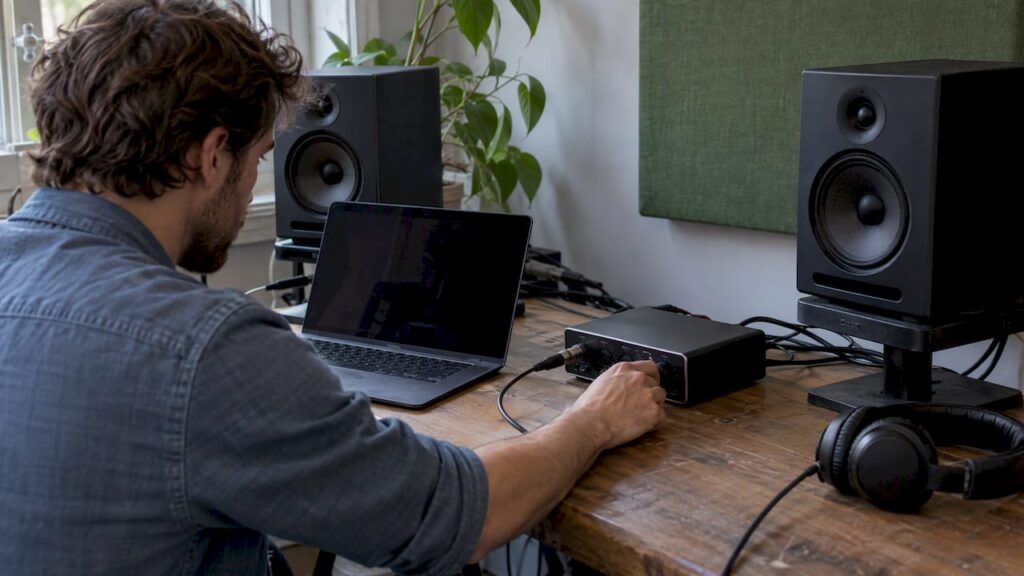
You can only fix noise on your audio interface once you know where it’s coming from. A low 50 Hz hum has a different cause than a hiss that gets louder when you turn up the gain, or a digital buzz that moves along with your mouse. In this guide, you’ll first learn to identify the type of noise. Then, you’ll isolate the source with a few simple tests and address it specifically. Usually, the fix is free: a different power strip, a different USB port, or a different gain setting.
TL;DR
- First, identify the type of noise. A hum usually indicates a ground loop, a hiss indicates too much gain, and a buzzing or beeping sound that changes in sync with your computer indicates interference from the USB connection or the power supply.
- Isolate the source. Unplug all cables from the inputs. If the noise is gone, the problem lies outside your interface.
- Plug everything into a single outlet and use balanced cables (XLR or TRS) to connect to your monitors. Never disconnect the ground from a device.
- Laptop and USB: Unplug the charger, connect your interface directly to the computer, and avoid cheap hubs.
- Crackling and clicking sounds are usually not noise but a buffer or driver issue. Increase the buffer size and check your Windows settings.
Table of contents
- What kind of noise do you hear, exactly?
- Step 1: Pinpoint the source in five minutes
- Hum and buzz: how to fix a ground loop
- Noise via USB and your computer
- Hissing at high gain: how to tackle the noise floor
- Crackling, clicking, and audio dropouts
- Cables and Setup: Prevent Noise from the Start
- Is it the interface itself?
- Our take: Noise is almost always a system issue
- Work more quietly with the right equipment
- Frequently Asked Questions
- Sources
What kind of noise do you hear, exactly?
Before you start replacing cables, listen carefully. Each type of noise has its own characteristics and its own cause. This table will usually get you a long way.
| What You Hear | When it occurs | Most likely cause | First solution |
|---|---|---|---|
| Low, constant hum (50 Hz buzz) | Always, even when everything is turned off | Ground loop between devices | Everything plugged into a single outlet, balanced cables |
| Sis or white noise | It gets louder when you turn up the gain | Preamp noise floor | Gain staging and microphone selection |
| Digital buzzing, beeps, chirping | Changes with mouse movements, scrolling, or rendering | Interference via USB or the computer’s power supply | Use a different USB port, disconnect the charger, or use a USB isolator |
| Hum on the guitar only | It gets less noticeable when you touch the strings | Single-coil pickups or poor shielding | Distance from the monitor and computer; use a different cable |
| Cracking, clicking, or intermittent sounds | Especially during demanding projects or when the buffer is low | Buffer size, driver, or system load | Increase buffer size, use the correct driver, adjust Windows settings |
| Noise only in the headphones | Monitors are silent | Headphone amplifier or sensitive in-ear monitors | Increase the interface volume, decrease the output volume in the DAW |
Do you hear multiple types of noise at the same time? If so, tackle them one by one, starting with the hum. It’s often the loudest and masks the rest.
Step 1: Isolate the source in five minutes
The fastest way to fix noise on your audio interface is to rule out possible causes. Follow these steps in order and listen after each one.
- Set the gain on all inputs to zero and turn off direct monitoring. If you still hear noise on your monitors, the problem lies in the output path: monitor cables, power supply, or USB.
- Unplug all cables from the inputs. Without a microphone, guitar, or synth connected, you can be sure that no external signals are coming in. Now slowly turn up the gain. A slight hiss at maximum gain is normal: that’s the preamp’s inherent noise floor.
- Reconnect one source at a time. If the noise returns with a specific cable or device, you’ve found the culprit.
- Unplug your laptop’s charger and listen again. If the hum or buzz goes away, then you’re dealing with a ground loop caused by the computer.
- Disconnect the monitors from the interface but leave them turned on. If they’re still producing noise, the problem is with the monitors themselves or their power supply, not your interface.
Does the noise persist even when no cables are connected, even at low gain? If so, there may be a problem with the hardware. More on that later.
Have you just connected your interface and are you unsure if everything is set up correctly? If so, first follow our step-by-step guide for connecting your audio interface. Many noise issues stem from the wrong input or the wrong type of cable.
Buzzing and Humming: How to Fix a Ground Loop
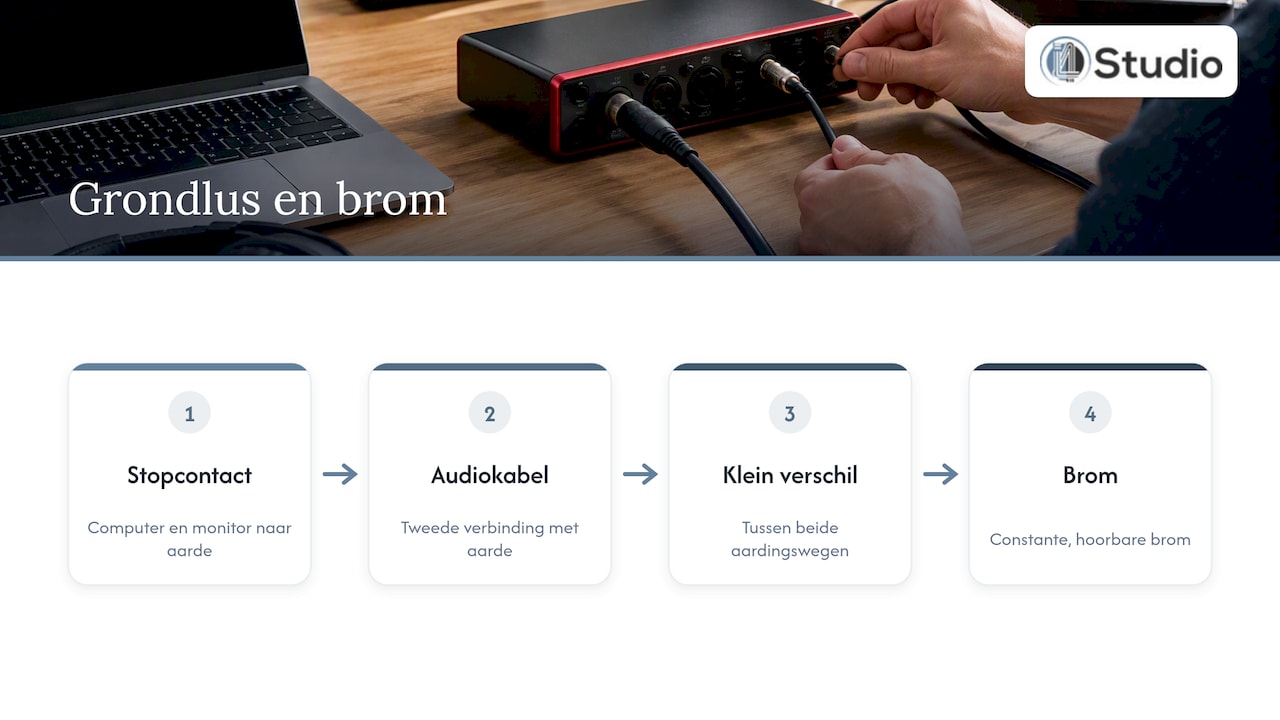
A ground loop occurs when devices are connected to ground through more than one path—for example, through both the power outlet and the audio cable. There’s a small voltage difference between those paths, which you hear as a constant hum. According to Sound On Sound, many support requests regarding hum and buzz in monitors can be traced back to grounding issues.
One outlet for the entire studio
The most effective solution costs nothing. Plug your computer, interface, monitors, and other equipment into a single power strip connected to a single wall outlet. This way, all devices share the same ground connection, and the voltage difference is eliminated. If your monitors are on one side of the room and connected to a different circuit than your computer, that’s often the root cause.
Balanced cables to your monitors
Always use balanced cables between the interface and the monitors: XLR or TRS (the jack with two rings). A balanced connection transmits the signal twice over the cable, with one signal in opposite phase. At the receiving end, the difference is measured, causing any interference that affects both conductors along the way to cancel each other out. You don’t get that benefit with a standard RCA cable or TS jack. We explain this in detail in our article on why balanced audio enables noise-free operation.
Never remove the soil
On forums, you sometimes see advice to cover the ground pins or use a plug without a ground. Don’t do that. Sound On Sound strongly warns that bypassing the safety ground is dangerous. The ground protects you from an electric shock if something goes wrong inside a device. The hum might disappear, but you’re trading a sound issue for a safety risk.
Are you unsure about the electrical wiring itself—for example, in an old house or a converted barn? Then have the circuit breakers and grounding checked by a licensed electrician. That’s not a job for the studio owner.
Noise via USB and your computer
If your interface is powered via USB, it shares power with your computer’s motherboard. The graphics card, processor, and fans cause electrical interference on that power supply. You can hear this as a chirping or humming sound that changes as soon as you scroll, open a plug-in, or render a video.
Quick Solutions for Laptops
- Unplug the charger. Many laptop chargers have no ground or a weak ground. If you run the laptop on battery power and the noise goes away, then you know where the problem is. A charger with a ground pin often solves the problem.
- Try using a different USB port. On a desktop computer, the ports on the back are connected directly to the motherboard. They’re usually quieter than the ports on the front.
- Skip the hub. Connect your interface directly to the computer. Inexpensive, unpowered hubs are a common source of interference.
- Use a shorter, well-shielded USB cable. A cable that runs next to a power cord is more prone to picking up interference.
- Docking station? Test it without the dock. If the noise is only present in the signal path through the dock, then that’s the cause.
A USB isolator or external power supply
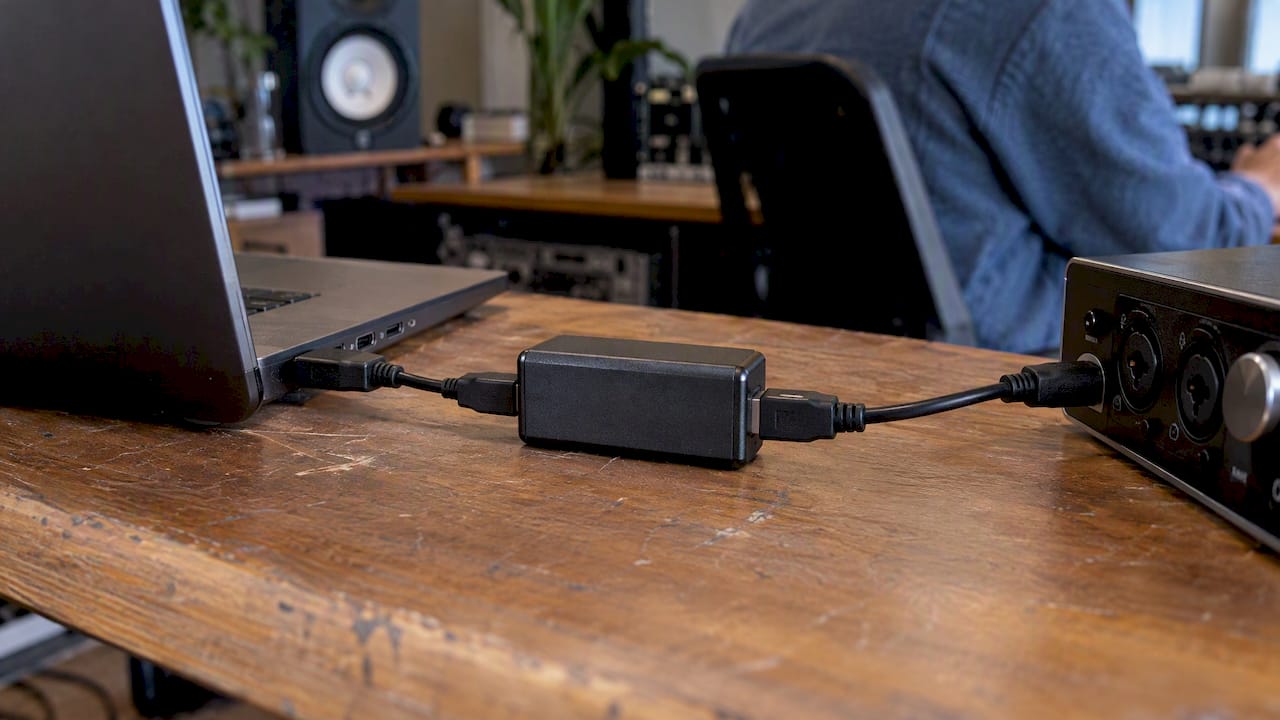
If your interface has a port for an external power adapter, use it. That way, it won’t draw power from the USB port anymore. A second option is a USB isolator: a small box between the computer and the interface that breaks the electrical connection but allows data to pass through. Please note: not every isolator provides enough power for an interface that’s powered via USB, and not every isolator supports the speed your interface requires. Therefore, check your interface’s power consumption and USB standard before purchasing.
A quiet computer starts with its design
Digital noise is often a result of a computer’s configuration: the power supply, motherboard, USB controllers, and the placement of the cards. A standard office or gaming PC isn’t designed for that. In contrast, a studio PC built for audio and video is specifically designed with stability and low latency in mind.
Hiss at high gain: how to tackle the noise floor
Every preamp has a noise floor: the noise generated by the electronic components themselves. At low gain, you can’t hear it. If you turn the gain way up, you’re amplifying that noise as well. So a slight hiss with no source connected at maximum gain isn’t a defect—it’s just physics.
The goal, therefore, is to use as little gain as possible. Here’s how to do it:
- Choose the correct input. Connect a guitar or bass to the instrument input (Hi-Z or INST). A synthesizer or drum machine goes into a line input. If you plug an instrument into a microphone input, you’ll have to turn up the gain unnecessarily.
- Move the microphone closer. Every doubling of the distance reduces your signal. Fifteen to twenty centimeters for vocals results in a stronger signal and less ambient noise.
- Choose a suitable microphone. A dynamic microphone requires a lot of gain. For soft sound sources, such as whispered vocals or an acoustic guitar, a condenser microphone provides a stronger signal and therefore less noise. Check out our studio microphones and vocal microphones for both types.
- Use an inline preamp with dynamic microphones. This small booster, placed between the microphone and the interface, provides extra clean gain, so the preamp on your interface doesn’t have to be pushed to its limit. You can find them in the microphone accessories section.
- Don’t record at too high a level. Aim for peaks around -12 to -6 dBFS. That way, you’ll have some headroom left, and the signal will be well above the noise floor.
When choosing a new interface, pay attention to the specified Equivalent Input Noise (EIN) of the preamps. The lower that number, the quieter the preamp.
Crackling, clicking, and audio dropouts
Crackling and clicking sounds may seem like noise, but they usually have a different cause: the computer isn’t processing the audio fast enough. You can fix this in the software.
- Increase the buffer size. When recording, use 64 or 128 samples; when mixing, you can go up to 512 or 1024. A larger buffer gives the processor more time.
- Use the manufacturer’s driver. On Windows, you should use your interface’s ASIO driver in your DAW, not a generic driver.
- Choose a standard sample rate. 44.1 or 48 kHz is sufficient for virtually all music and video projects and puts less strain on your system than 96 or 192 kHz.
- Check your Windows settings. Microsoft cites audio enhancements, unsupported formats, and driver issues as causes of distorted or crackling sound in Windows 11. Turn off audio enhancements for your interface and select the high-performance power plan.
- Close background programs. Cloud synchronization, browsers with many tabs, and Wi-Fi scans can cause spikes.
If you’re not hearing any sound at all from your speakers, the general Windows troubleshooting guide for sound issues will walk you through the basic checks. For more specific tips for studios, check out our guide to troubleshooting audio interface issues.
Cables and Setup: Prevent Noise from the Start
A lot of noise is caused by how your studio is set up. A few rules can prevent most problems:
- Keep audio and power cables separate. If they must cross, do so at right angles rather than running parallel over a long distance.
- Don’t coil excess cable tightly behind your desk, especially with power cables.
- Keep a safe distance from sources of interference: dimmers, LED strips with cheap power supplies, phone chargers, and Wi-Fi routers.
- Consistently opt for balanced connections wherever possible. Expensive cables won’t solve a grounding problem—a consistent, balanced setup will.
Shielding and a proper return path for interference are integral parts of a system’s design—not just a last resort. This principle applies broadly in electronics, as this article on RF shielding and interference elimination demonstrates. Want to run your cables neatly and hum-free? Then follow our step-by-step guide to hum-free cables in your studio. A studio desk with space for cable trays helps keep power and audio cables physically separated.
You’ll find even more techniques—from guitar hum to recording spaces—in our article on minimizing noise in your studio.
Is it because of your interface itself?
Have you finished everything, and is the noise still there? If so, the hardware might be the cause. Signs of this include:
- The noise is still present even at low gain and with no cables connected.
- One channel clearly has more noise than the other, even with the same settings.
- There’s a crackling sound when you turn a gain knob. This indicates a dirty or worn-out potentiometer.
- The noise changes when you tap the case or move the USB plug. This may indicate a loose connection.
In that case, test the interface on another computer using different cables. If it behaves the same way there, contact the seller or manufacturer. If your interface is several years old, replacing it is often more cost-effective than repairing it. Modern preamplifiers are quieter, and the converters are better than those from a generation ago.
Our take: Noise is almost always a system problem
In practice, we rarely see an audio interface itself being the source of noise. Usually, the problem lies in the surrounding system: a computer that isn’t optimized for audio, monitors connected to a different power circuit, an unbalanced cable to the speakers, or a USB hub loaded with peripherals. If you rush out and buy a new interface right away, you’ll just be bringing the problem with you.
That’s why we always look at the big picture. We build studio PCs with stability and low latency in mind, so the computer doesn’t become a source of interference. When it comes to acoustics and setup, we work with you to determine where equipment should be placed and how cables should be routed. And if an interface does need to be replaced, we consider what you’re recording: vocals, guitar, a full band, or voice-over for video. In that case, a quiet preamp is more important than the number of inputs.
Our tip: Fix the problem first, and then invest. That will save you money and frustration.
– harold
Work More Quietly with the Right Equipment
Is your computer the source of digital noise, or is your interface really due for a replacement? At i4studio, you’ll find studio PCs for audio and video, custom-built starting at €1,099, with an emphasis on stability and low latency. In our audio interfaces category, you can choose an interface that suits your recording needs. Matching studio monitors with balanced inputs round out your setup. Not sure what’s best for you? Our specialists will personally assist you in choosing both hardware and acoustics, including advice on acoustic panels.
Frequently Asked Questions
Why do I hear noise on my audio interface when nothing is connected?
At high gain, you’ll hear the preamp’s inherent noise floor. This is normal and not a malfunction. Set the gain to a low level: if the noise goes away, your interface is working fine. If you still hear noise at low gain even when no cables are connected, check the USB, power, and monitor cables.
Does a ferrite core help reduce noise?
A ferrite core wrapped around a cable can reduce high-frequency interference, such as radio or cell phone interference. It does not help against ground loops or high-gain noise. Use it as a supplement, not as your first line of defense.
Can I remove noise from a recording after the fact?
Yes, you can use noise-reduction plug-ins in your DAW to reduce constant hissing or humming. The more you filter out, the more you also affect the signal. So you’ll always get better results if you fix the source of the problem before recording.
Why do my speakers only make noise when my laptop is charging?
Then you almost certainly have a ground loop caused by the charger. Plug your laptop, audio interface, and monitors into the same power strip and use balanced cables to connect to your monitors. If that doesn’t help, a USB isolator or a charger with a grounding pin can eliminate the noise.
Is a more expensive interface quieter?
That’s often the case, because more expensive models have quieter preamps and better converters. But a more expensive interface won’t fix a ground loop or USB interference. First, identify the cause using the tests in this article, and only then choose a new interface.
Sources
- Sound On Sound: Understanding & Solving Ground Loops
- Microsoft Support: Fixing Distorted or Crackling Sound in Windows
- Microsoft Support: Troubleshooting Audio Problems in Windows
- DigiKey: RF Shielding and Interference Suppression