If your sample rate is locked, something other than you is determining the sample rate at which your audio interface is running: a driver setting, an external clock source, your operating system, or a program that’s taking over the interface. The solution is almost always the same: figure out what’s “holding” the clock, choose a single sample rate, and set it consistently across your interface, your OS, and your DAW project. Below, you’ll find a breakdown of each situation, explaining what’s going on and how to fix it step by step.
In a nutshell
- “Locked” has three meanings: a deliberate driver option (Rate Locked), a clock status (Lock/Sync on a digital input), or a program that has taken exclusive control of the interface.
- A mismatch is the most common cause: the DAW, Windows or macOS, and another app each request a different sample rate from the same interface.
- Do you work with digital connections? If so, the clock leader determines the sample rate. You can only change the settings on the following devices if the leader changes as well.
- The solution involves the following steps in this order: Close the DAW, close any background apps, set the sample rate in the driver panel or operating system, adjust the DAW project accordingly, and restart the DAW.
- Never change the sample rate during recording or playback, and for most projects, simply choose 44.1 or 48 kHz.
Table of contents
- What exactly does “sample rate locked” mean?
- First, the basics: what is a sample rate?
- Symptoms and causes at a glance
- Step-by-step guide to resolving a locked sample rate
- When it’s better to leave the sample rate locked
- So which sample rate should you choose?
- Our take on locked sample rates
- A studio that runs in perfect sync
- Frequently Asked Questions
- Sources
What exactly does “sample rate locked” mean?
You’ll see this message or the gray drop-down menu in various places: in your interface’s control panel, in your DAW’s audio settings, or in Windows and macOS themselves. That single term actually refers to three very different situations.
1. A specific driver option: Rate Locked
Some interfaces have a checkbox in their driver panel to lock the sample rate. The M-Audio Delta 66 manual explains exactly what this does: when “Rate Locked” is enabled, the driver will only operate at the selected sample rate. If a program requests a different rate, the driver may fail to open and you’ll receive an error message. This isn’t a malfunction but a safety feature: it prevents any app from silently changing your session’s sample rate.
2. A clock status: Lock or Sync
If you’re using a digital input such as S/PDIF, ADAT, or word clock, “Locked” has a different meaning. The same Delta 66 manual explains that, for S/PDIF as the master clock, “Locked” indicates that a valid S/PDIF signal has been detected. In the RME configuration manual, in addition to the “Current sample rate,” you’ll also see a “Clock state” with three values: No Lock, Lock, and Sync. This tells you whether a valid, synchronous clock signal is being received.
In this situation, the sample rate is locked because your interface is synchronized to the clock of another device. You cannot select the rate locally; the device providing the clock determines it.
3. A program or operating system that claims the interface
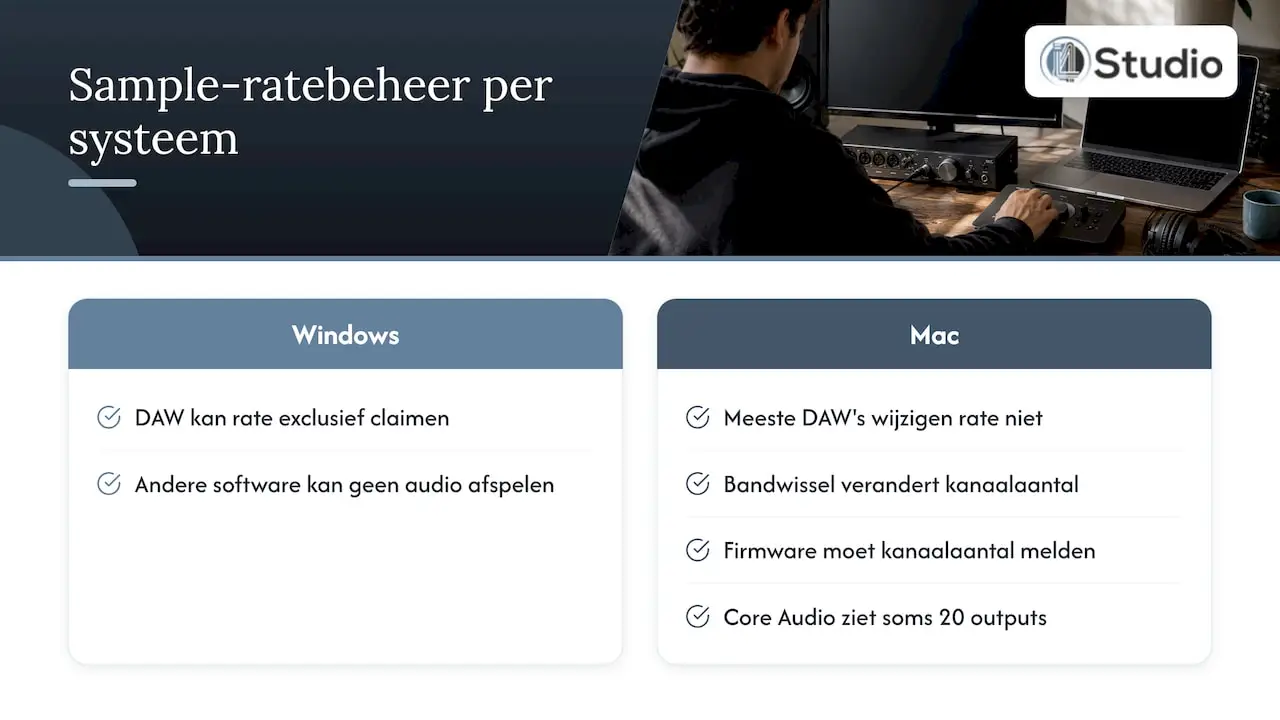
The third situation is most common in home studios. According to Audient On Windows, a program—such as your DAW—can sometimes take “exclusive control” of your interface’s sample rate. Other software will then be unable to play audio through that interface. Something similar can happen on a Mac: Focusrite explains that some class-compliant interfaces do not allow their sample rate to be changed from most DAWs. When switching between sample rate bands, the number of channels changes, and Core Audio must first receive this information from the firmware. If it doesn’t, Core Audio will still think there are 20 outputs, for example, and nothing will play.
First, the basics: What is sample rate?
The sample rate is the number of measurements (samples) taken per second from your audio signal. Analog Devices expresses this in samples per second or in hertz, and lists 44.1 kHz and 48 kHz as common values. The Nyquist frequency—the highest frequency that can be captured—is half the sample rate. At 44.1 kHz, that’s 22.05 kHz, well above what the human ear can hear.
The so-called “bands” are important in this context. Focusrite divides sample rates into three groups:
| Band | Sample rates | Typical uses |
|---|---|---|
| Single-band | 44.1 kHz and 48 kHz | Music production, video, podcasts |
| Dual-band | 88.2 kHz and 96 kHz | Recordings requiring extensive editing and sound design |
| Quad-band | 176.4 kHz and 192 kHz | Specialized applications |
Switching within a frequency band (from 44.1 to 48 kHz) usually goes smoothly. Switching between bands can change the number of available channels on some interfaces, and that’s exactly where things sometimes get stuck on a Mac. Want to take another look at the basics of samples, bit depth, and conversion? Then read our guide to digital audio.
Symptoms and causes at a glance
A locked sample rate rarely occurs on its own. You’ll usually notice it because of one of these symptoms:
| Symptom | Probable cause | First step |
|---|---|---|
| The sample rate menu in the DAW is grayed out | The interface is following an external clock, or the driver is set to “Rate Locked” | Check the clock source and driver panel |
| DAW is working, but YouTube or system audio is muted | The DAW has exclusive control; Windows is running at a different sample rate | Set Windows and the DAW to the same sample rate, and disable exclusive mode |
| Clicking, crackling, or robotic sounds | Sample rate mismatch between the DAW, OS, or another app | Choose a single rate across all applications and close background apps |
| Logic displays an audio and MIDI sync message | The incoming signal deviates from the project rate or fluctuates | Match the project rate to the interface |
| Error message when opening the driver | Rate Locked is set to a rate different from what the app requests | Adjust the locked rate or uncheck the box |
| Clock state shows “No Lock” | No valid signal at the selected clock input | Check the cable, input, and sample rate of the leader |
Mackie cites a sample rate mismatch between the DAW, OS audio, and other apps as a common cause of clicks, glitches, and distorted audio. And Apple reports that Logic Pro displays a sync warning whenever the sample rate of an incoming signal does not match the project rate, or when that rate fluctuates.
Step-by-Step Guide to Resolving a Locked Sample Rate
Follow these steps in order. For most studios, the problem is already resolved after step 4.
- Stop recording and playback. Never make any changes while audio is playing.
- Close your DAW completely. As long as the DAW keeps the driver open, it can continue to maintain the sample rate.
- Close any other audio software. This includes browsers, streaming services, video calling apps, and mixing software. According to Mackie, any app that opens the driver at a different rate can cause problems.
- Set the sample rate on the source. This is your interface’s control panel or, in the case of a digital connection, the device that provides the clock.
- Set your operating system to the same rate. See the instructions for Windows and macOS below.
- Launch your DAW and check the project rate. It should match the rate at which the interface is running.
- Is there still crackling? If so, increase the buffer size in the DAW or the driver panel, as recommended by Mackie. A larger buffer gives the processor more headroom, at the cost of slightly higher latency.
If the problem keeps recurring, our article on troubleshooting audio interface issues will help you with drivers, USB ports, and power supply.
On Windows
On Windows, two audio paths run in parallel: your DAW’s ASIO driver and standard Windows audio. If the DAW is running at 48 kHz and Windows at 44.1 kHz, the DAW may work fine, but your system audio may cut out. Audient recommends the following approach:
- Open the classic Sound window from the Control Panel and select your interface under Playback.
- Go to Properties > Advanced, and under Default Format, select the same sample rate as in your DAW.
- Do the same under the Recording tab so that the input and output settings match.
- Leave the “Exclusive control by applications” option unchecked so that Windows and your DAW can share the interface.
On macOS
On a Mac, you can adjust the sample rate in Audio MIDI Setup (Applications > Utilities). According to Apple, you select the sample rate from the Format menu there, and it works best when it matches your source material. Is your interface not allowing you to change the sample rate from within the DAW? If so, you may be experiencing the bandwidth issue described by Focusrite. In that case, set the rate via the interface’s control panel or through Audio MIDI Setup, and only then open your DAW.
In your DAW
In Logic Pro, you can check the project rate by going to File > Project Settings > Audio. Apple also explains that Logic can automatically convert imported audio to the project rate if the option to convert the sample rate upon import is enabled. This prevents a sample at 44.1 kHz from sounding too fast or too high-pitched in a 48 kHz project. In other DAWs, you’ll usually find the project rate in the audio or project preferences. The principle is the same everywhere: either the DAW follows the interface, or the interface follows the DAW, but they must display the same number.
For ADAT, S/PDIF, and word clock
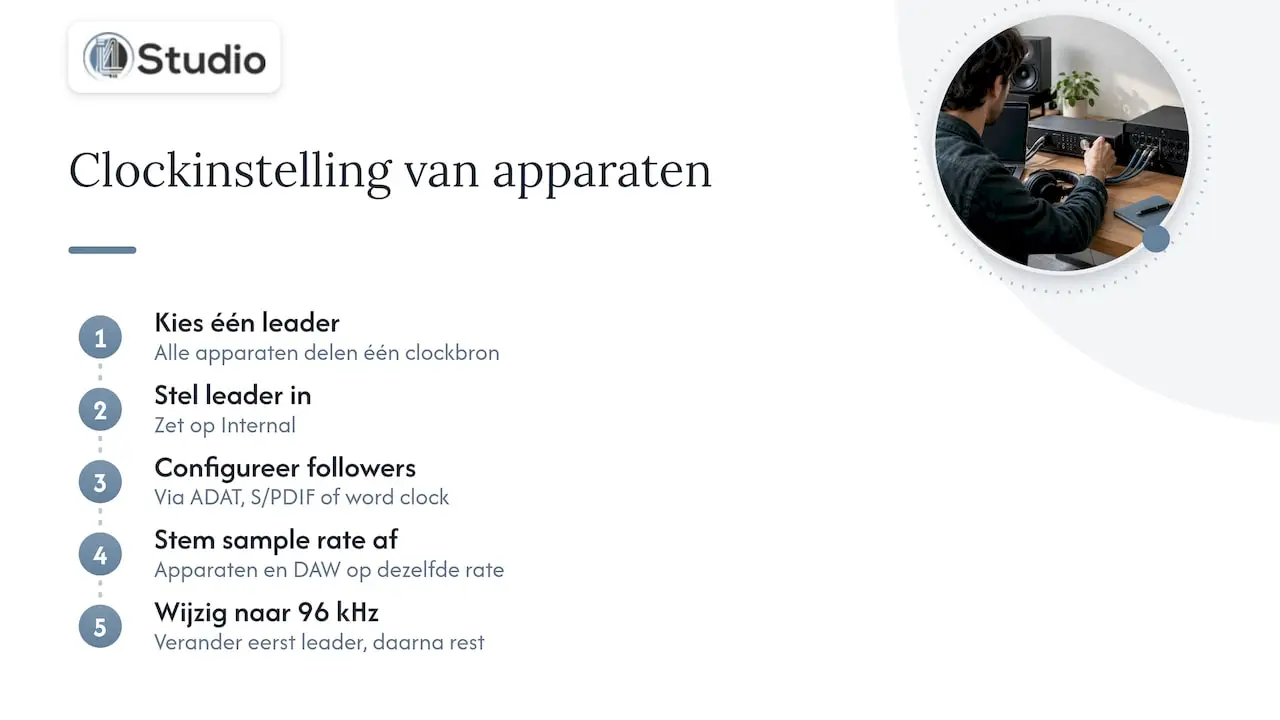
If you’re connecting multiple digital devices, there’s one rule to follow. Focusrite states that all devices must use the same common clock source: one clock leader and the rest as followers. Their ADAT manual provides the practical details: the leader is set to “Internal,” all other devices are clocked via the appropriate connection (ADAT, S/PDIF, or word clock), and all devices—including your DAW—are set to the same sample rate.
That explains why you can’t change the rate on a follower: it’s locked to the leader, and for good reason. If you want to go to 96 kHz, first change the leader, and then the rest. You can read more about leaders, followers, and a master clock in our explanation of word clock.
If you keep the sample rate locked in place
Not every lock needs to be removed. In these situations, securing something is actually the goal:
- During a recording or mix. RME recommends that you do not change settings while playing back or recording, as this may cause unwanted noise.
- If your DAW keeps the device open. RME also points out that some programs keep the interface open in stop mode, which prevents new settings from taking effect immediately. In that case, close the program first.
- In a synchronized digital chain, if the clock state is set to “Lock” or “Sync,” your setup will work as intended. Unlocking it breaks the synchronization.
- For an ongoing project. Converting to a 48 kHz sample rate halfway through takes time and requires converting all your audio files. Choose the sample rate at the start and stick with it.
So a fixed sample rate isn’t a problem in and of itself. It only becomes an issue when two components of your system expect slightly different values.
So which sample rate should you choose?
To avoid locking issues, it helps to choose a single standard for all your work:
- 44.1 kHz: the classic standard for music. In the Logic documentation, Apple recommends 44.1 kHz for most situations.
- 48 kHz: commonly used if you also work with video or film, so that the audio and video maintain the same sample rate.
- 88.2 or 96 kHz: useful for recordings that you’ll heavily edit later, such as time-stretching or sound design. Keep in mind that your projects will become larger and your computer will have to process more data per track.
The rule of thumb: choose what your final product requires, add it to your project template, and adjust your OS accordingly. That way, there’s little reason for the program to want to change the rate. In our tips for your digital audio workflow, you can read about how to set up these templates effectively.
Our Perspective on Locked Sample Rates
In the studios we set up, we’ve found that sample rate issues are rarely caused by a single piece of equipment. They arise from the interaction between the interface, the driver, the operating system, and the software. That’s why we never look at just the interface—we look at the entire system.
A stable studio starts with a computer configured for audio. With our custom-built studio PCs, the focus is on stability and low latency: the configuration is optimized for audio, so your DAW and your interface work together seamlessly. Combine that with an interface that has a robust driver panel and a clear clock display, and you’ll see at a glance which sample rate is active and which device is providing the clock.
If you’re working with multiple digital devices, we recommend deciding in advance which device will be the “clock leader.” This will help you avoid most of the guesswork. And if you do run into trouble, our experts will be happy to help you figure out the right combination of hardware and settings.
Harold
A studio that runs in perfect sync from the start
Want to put an end to recurring sample rate conflicts? At i4studio, we build custom studio PCs, starting at €1,099, configured for stability and low latency in audio and video work. You’ll receive personalized support from industry experts who are knowledgeable about both hardware and software.
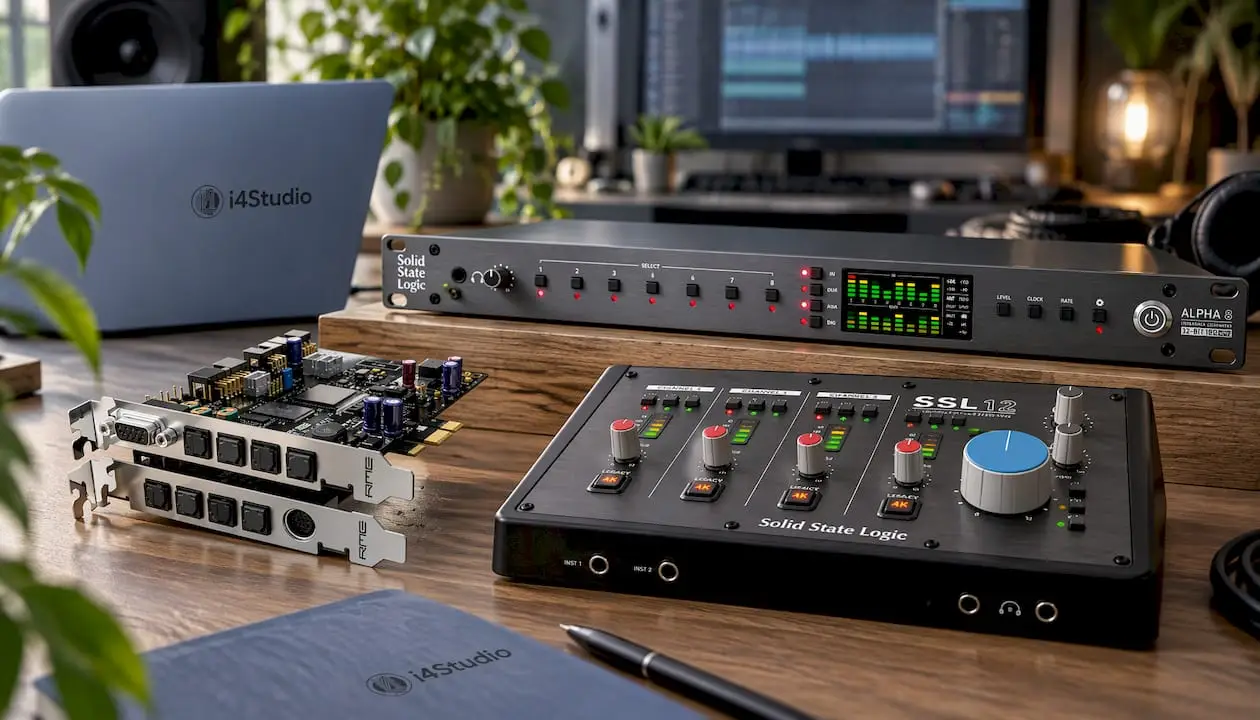
Are you looking for an interface that fits a professional setup? Then check out our audio interfaces, from the compact SSL 12 USB audio interface to the RME HDSPe RayDAT PCIe interface for larger digital workflows. If you want to expand your setup with additional AD/DA conversion, the SSL ALPHA 8 AD/DA converter —with 8 in/8 out and 18 in/18 out via USB—is a logical next step. You can also come to us for studio equipment, software, and studio monitors. To learn exactly what an interface does in your studio, read about the role of an audio interface.
Frequently Asked Questions
Why can’t I change the sample rate in my DAW?
Usually, your interface follows an external clock, the driver is set to a locked rate, or another program is controlling the interface. On a Mac, some class-compliant interfaces cannot switch tracks from within the DAW. In that case, set the rate via the interface’s control panel or Audio MIDI Setup, and then restart your DAW.
What does 44.1 kHz mean?
At 44.1 kHz, the audio signal is sampled 44,100 times per second. The highest frequency you can capture at this rate is half that: 22.05 kHz. It is one of the two most commonly used sample rates, along with 48 kHz.
Why does my Windows sound cut out when my DAW is open?
Your DAW probably has exclusive control over the interface, or Windows is running at a different sample rate than your DAW. Set the input and output in Windows to the same rate as your DAW and uncheck the “Exclusive Mode” box. After that, both can share the interface.
How do I know which device is the clock leader?
Check the driver panel or the display of each device for the clock source. The device set to “Internal” is the leader. All other devices must follow it via ADAT, S/PDIF, or word clock and will then show a status such as “Lock” or “Sync.”
Do I need to convert my existing project to a different sample rate?
It’s best not to do this halfway through. Choose the sample rate at the start of a project and configure your interface accordingly. If you do need to use material with a different rate, let your DAW convert it to the project rate during import.
Sources
- M-Audio Delta 66 User Manual, page 22
- RME: Configuring the HDSPe AoX-M
- Audient: Windows—Can’t Listen to Audio from Multiple Applications at the Same Time
- Focusrite: Why Can’t My DAW Change the Sample Rate of My Interface on a Mac
- Analog Devices: Sampling Rate
- Focusrite: Sample Rate, Bit Depth, and Buffer Size Explained
- Mackie: Troubleshooting Glitches, Pops, or Robotic/Distorted Audio
- Apple: Audio and MIDI sync alert in Logic Pro
- Apple: Play high-sample-rate audio on your Mac
- Apple: Setting the Project Sample Rate (Logic Pro)
- Focusrite: Understanding Clocking
- Focusrite: Troubleshooting ADAT