

For an audio interface with Thunderbolt, there’s one simple rule: keep the cable as short as your setup allows. A passive cable up to about 0.8 meters will achieve full speed. A certified active Thunderbolt 4 cable can be up to 2 meters long. If the distance between the computer and the interface increases, don’t make the Thunderbolt cable any longer. Instead, move the computer or the interface, and bridge the gap with analog cables or a silent studio PC next to your desk. This way, your studio chain remains stable, and you maintain the low latency that’s exactly why you chose Thunderbolt in the first place.
In a nutshell
- Passive up to about 0.8 m: beyond that, a passive cable often drops back to 20 Gbit/s at 40 Gbit/s, or the connection is lost.
- Active up to 2 m: Certified Thunderbolt 4 cables with a retimer chip deliver 40 Gbit/s up to 2 meters.
- Up to 50 m over fiber, but without power: a bus-powered interface won’t work there.
- The cable itself adds virtually no latency. However, if the cable is too long or not certified, you’ll experience dropouts, clicks, and the interface suddenly disappearing.
- You can bridge the distance more effectively with XLR or DB25 cables, or with a studio PC that’s quiet enough to be placed close to your desk.
Table of contents
- This is how long a Thunderbolt cable can be
- Passive, active, or optical: what’s the difference?
- Why length is so important for audio
- Thunderbolt isn’t just USB-C
- How to choose the right length for your studio
- Bridging distances without a longer Thunderbolt cable
- Dropouts? Here’s How to Troubleshoot a Cable Problem
- A stable Thunderbolt studio at i4studio
- Our perspective: The cable is the last link, not the solution
- Frequently Asked Questions
- Sources
This is how long a Thunderbolt cable can be
The maximum length depends on three factors: the Thunderbolt generation, whether the cable is passive or active, and the speed you need. The higher the speed, the shorter a cable without electronics can be. At 40 Gbit/s, the limit for passive cables is around 0.8 meters. A passive Thunderbolt 4 cable that is longer often drops back to 20 Gbit/s.
Longer cables require an active cable. According to the Thunderbolt specification, a Thunderbolt 4 cable can be up to 2 meters long for 40 Gbit/s. Longer lengths are only possible with optical cables. According to Intel, active optical Thunderbolt cables can reach up to 50 meters, but they do not provide bus power.
| Cable Type | Practical maximum length | Speed | Power for your interface |
|---|---|---|---|
| Passive (TB3, TB4, TB5) | approx. 0.8 m | full speed | yes |
| Passive, longer than 0.8 m | up to approx. 2 m | often drops back to 20 Gbit/s | yes |
| Active copper (TB4) | up to 2 m | 40 Gbit/s | yes |
| Active copper (TB5) | in short, active is needed sooner | up to 120 Gbit/s | yes |
| Optical (TB3/TB4) | up to 50 m | full speed | no |
For most studios, the conclusion is practical: anything between 0.5 and 2 meters, certified, and preferably as short as your desk allows.
And what about Thunderbolt 5?
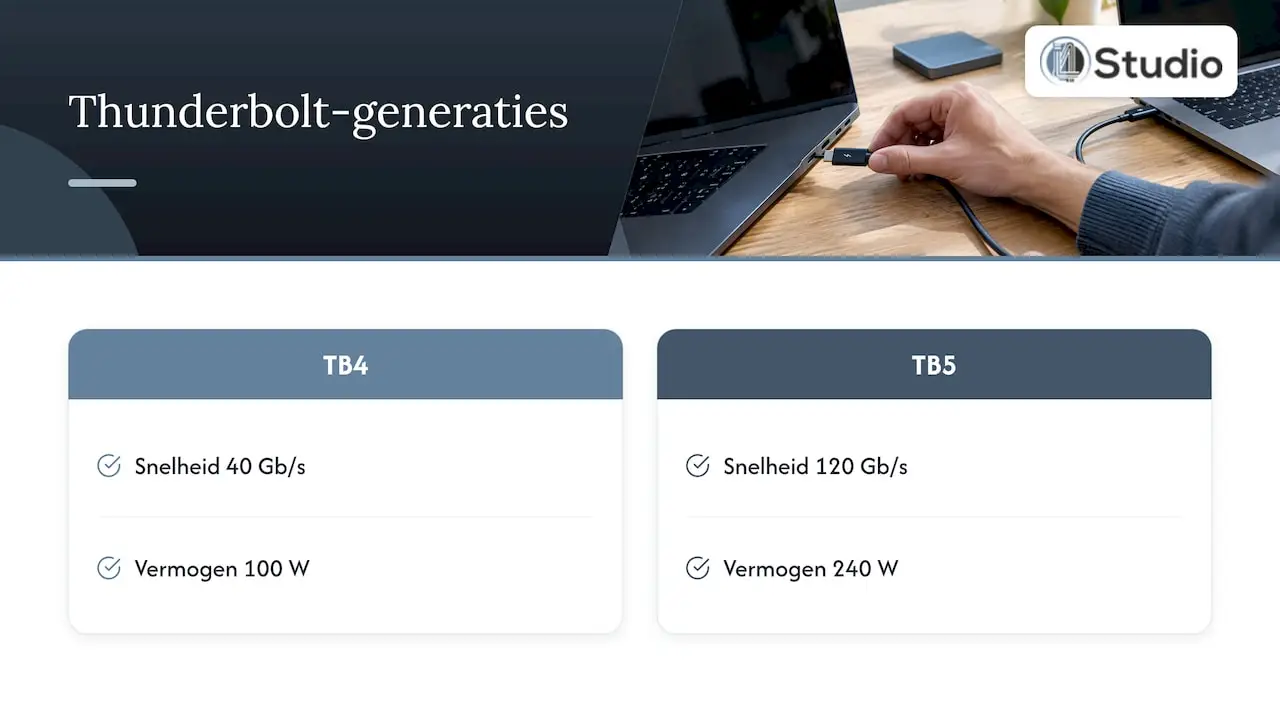
Thunderbolt 5 achieves much higher speeds. The Thunderbolt 5 Pro cables listed in Apple’s cable overview support up to 120 Gb/s and 240 W, compared to 40 Gb/s and 100 W for Thunderbolt 4. That speed comes at a cost: with the latest standard, you need an active chip even at shorter lengths than with older generations. For audio, that’s not a problem. Even an interface with hundreds of channels uses only a fraction of 40 Gbit/s. So a Thunderbolt 4 cable works just fine with a Thunderbolt 5 computer.
Passive, active, or optical: what’s the difference?
At first glance, all Thunderbolt cables look the same: two USB-C connectors with a cable connecting them. The difference is on the inside.
- Passive cable: plain copper wire, without any electronics. Inexpensive, thin, and flexible, but only reliable over short distances. The longer the cable, the more the signal weakens.
- Active copper cable: The connectors contain a retimer or redriver chip. This chip receives the signal, cleans it up, and sends it on amplified. This allows for 40 Gbit/s over distances of up to 2 meters. Active cables are slightly thicker and more expensive.
- Optical cable: converts the electrical signal into light. This allows you to bridge distances of tens of meters, for example, from a machine room to the control room. The downside for audio: no current flows through the cable.
Many people forget that last point. Many compact audio interfaces draw their power from the Thunderbolt port. When connected via an optical cable, such an interface won’t power on. An optical connection is therefore only an option for equipment with its own power supply.
Why Duration Is So Important in Audio
A common question: Does the sound quality get worse with a longer cable? No. Thunderbolt transmits digital data. The sound of your recordings isn’t affected by the cable length. The latency of the cable itself is also negligible: the chips in active cables process the signal with virtually no delay.
The risk lies elsewhere: in signal integrity. That refers to the degree to which the digital signal arrives undistorted. If a cable becomes too long for its type, the speed first drops by half, and the connection may eventually be lost entirely. In a studio, you’ll notice it right away:
- Dropouts and clicks in your recording or playback stream.
- An interface that disappears from your DAW in the middle of a session.
- Buffer errors that force you to increase the buffer size, resulting in higher latency during recording.
- Problems with a chain of devices, because every additional connection reduces the margin.
Precisely because you’re choosing Thunderbolt for its low latency and high channel count, you don’t want to sacrifice that advantage with a cable that’s half a meter too long.
Thunderbolt isn’t just USB-C
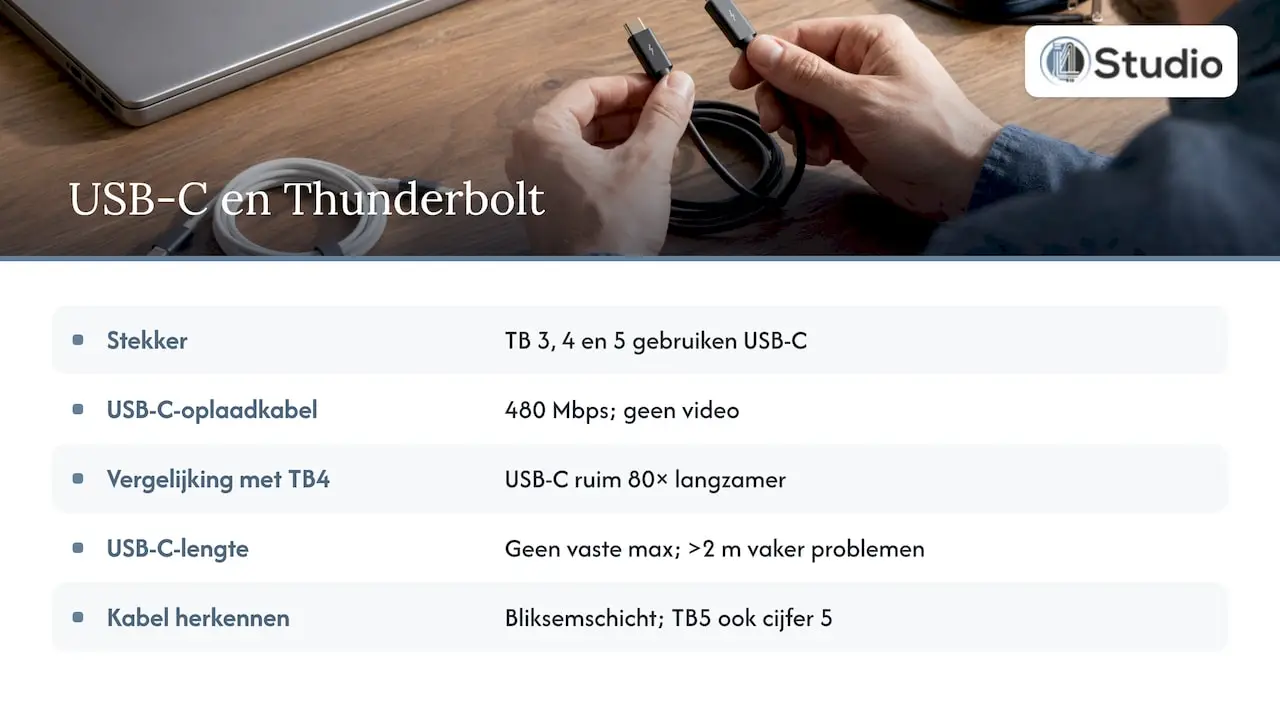
Thunderbolt 3, 4, and 5 use the same USB-C connector as your phone charger. That makes it confusing. A regular USB-C cable is by no means always a Thunderbolt cable. The standard USB-C charging cable that comes with many laptops only supports 480 Mbps and doesn’t support video, which is more than eighty times slower than Thunderbolt 4.
Cable length also works differently. The USB-C standard itself does not specify a fixed maximum cable length; it’s all about signal quality. Problems occur more frequently with cables longer than 2 meters. The difference between Thunderbolt and USB-C, therefore, isn’t in the connector, but in what the cable can handle and how it’s certified.
You can recognize a genuine Thunderbolt cable by the lightning bolt logo on the connector; for Thunderbolt 5, the number 5 is also included. It does work the other way around, though: a Thunderbolt cable will also fit into a standard USB-C port, but it will operate at USB speeds there.
How to Choose the Right Length for Your Studio
By following these steps, you can choose a cable that works today and will still be reliable three years from now.
- Measure the actual distance. Measure from outlet to outlet, following the path the cable will take: past the desk, through a cable tray, and around the stands of your monitors. Add 20 to 30 cm for slack, so the plug isn’t under tension.
- Choose the shortest cable that fits. If the distance is within 0.8 meters, a passive cable will suffice. For distances between 0.8 and 2 meters, choose a certified active Thunderbolt 4 cable.
- Check the power supply. Does your interface draw power from the Thunderbolt port? If so, that’s out of the question, and the cable must be capable of carrying power.
- Be mindful of shielding. In a studio, power supplies, lamps, and power cords are located close together. A well-shielded cable, routed separately from power cords, prevents interference.
- Use the included cable as a reference. Manufacturers test their interfaces using the cable that comes in the box. If everything works with that cable but you run into problems with a longer one, you’ll know where to look.
- Consider the entire chain. If you daisy-chain multiple Thunderbolt devices, each connection counts. In our guide to setting up a stable Thunderbolt daisy chain for audio, you can learn how to build that chain.
Still unsure which interface—Thunderbolt, USB, or PCIe—is right for your workflow? Then start by finding out which audio interface is best for your studio. An interface that you install directly into your PC doesn’t have any cable issues at all: read more about this in our guide on choosing a PCIe audio interface.
Bridging the distance without a longer Thunderbolt cable
Is your computer on the other side of the room, or do you want to record in a booth next to the control room? In that case, a longer Thunderbolt cable is rarely the best solution. It’s better to keep the digital connection short and bridge the distance using an analog connection.
The interface on the computer, the cables connecting to the source
Analog microphone and line signals travel balanced over distances of tens of meters without any problems. So place the interface close to the computer, using a short Thunderbolt cable, and run your microphone cables to the recording room. A professional 6-meter XLR cable easily bridges the distance to a vocal booth or drum set.
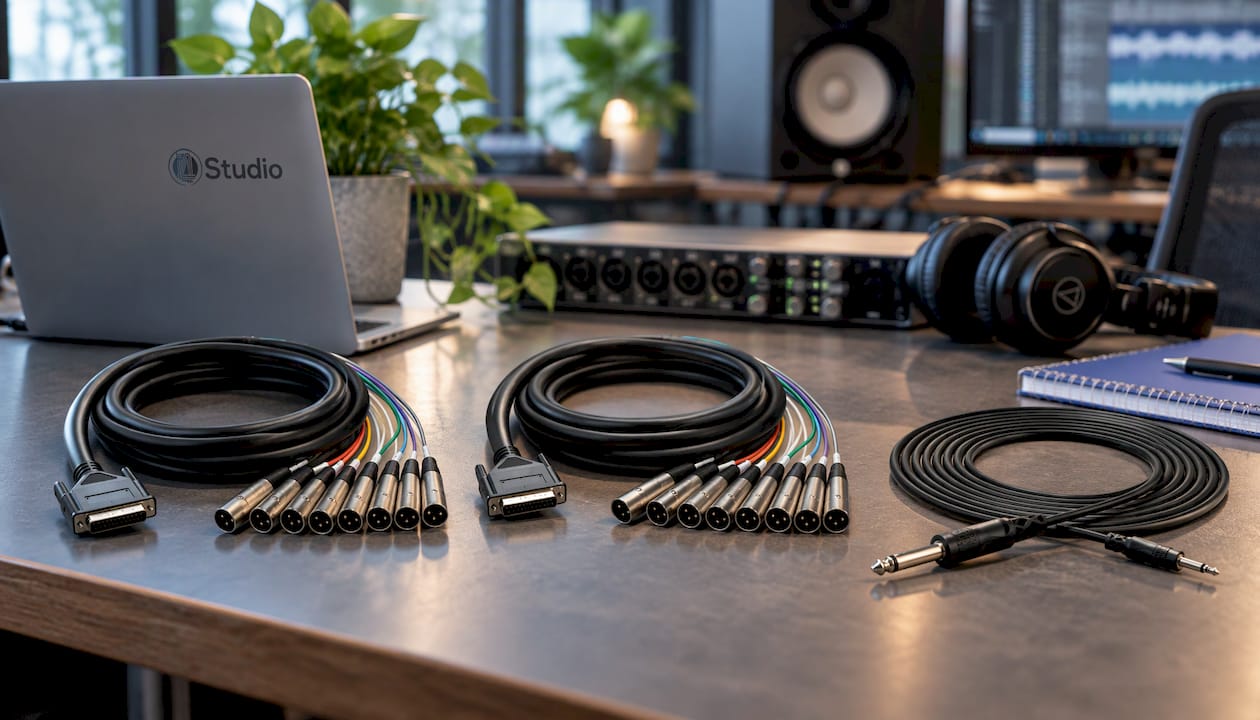
Do you work with a lot of channels at the same time? Many interfaces have DB25 connectors, which bundle eight channels into a single plug. With a DB25-to-XLR cable, such as the Hosa DTM-805 or the shorter Hosa DTM-803, you can neatly connect them to your patchbay or stage box.
The computer on the desk
The other solution: just place the computer close to your desk. The reason people put their PCs far away is almost always noise. You don’t want fans that are audible while recording or mixing right next to your microphone. A studio PC built for quiet operation and stability solves that problem at the source, allowing you to use a short, reliable cable again. Combine that with the right acoustic panels, and you’ll be listening in a space where your monitors and your computer don’t interfere with each other.
Windows and Thunderbolt
If you’re using Thunderbolt on a Windows PC, configuration—including drivers, BIOS settings, and the right controller—is just as important as the cable itself. Our article on Thunderbolt audio on Windows provides step-by-step instructions on how to get it working reliably.
Dropouts? Here’s how to troubleshoot a cable problem
If you’re experiencing clicks, dropouts, or an interface that cuts out, the cable is one of the first things to check. Here’s how to check it quickly:
- Switch to the included cable or a shorter one. If the problem goes away, the cable was too long, uncertified, or damaged.
- Take a look at the connector. If it doesn’t have a Thunderbolt logo on it, it’s probably just a regular USB-C cable.
- Disconnect the chain. Connect the interface directly to the computer, without a dock, hub, or any other devices in between.
- Set the cable aside. Keep it away from power supplies and power cords, and avoid sharp kinks near the plug.
- Test using a fixed buffer. Record for a few minutes using the same buffer size. If the errors occur only with the long cable, then you have your answer.
If the problems persist even with a short, certified cable, the cause is more likely to be related to drivers, power management, or the computer itself. We’d be happy to help you with that.
A stable Thunderbolt studio at i4studio
At i4studio, you’ll find all the components you need for a complete, stable workflow in one place. In the USB and Thunderbolt interfaces category, you can choose the interface that suits your number of channels and your workflow—for example, the Antelope Discrete 4 Pro with Thunderbolt 3, USB 2.0, and built-in DSP. See our full selection of audio interfaces.
Would you like to make sure your computer setup is just right, too? We build custom studio PCs for audio and video, starting at €1,099, with a focus on stability and low latency. Complete your setup with studio monitors, microphones, and studio equipment, and ask us for advice on acoustics and hardware.
Our perspective: The cable is the final link, not the solution
We’re often asked which Thunderbolt cable is the longest without causing any problems. Our answer is usually a counter-question: Why does the cable need to be that long in the first place?
In almost all cases, the computer is located far away because it makes too much noise, or because the space isn’t laid out properly. A longer cable merely shifts that problem elsewhere and makes your setup more vulnerable at the very point where you need stability.
That’s why we take a holistic approach to the studio. A custom-built studio PC configured for audio, an interface that fits your workflow, and a space with the right acoustics. That way, everything can be set up close together, using a short, certified cable, without compromising on latency.
That’s what we focus on: high-end equipment, optimal audio setups, and personalized advice from people who work in the studio themselves. A half-meter cable that always works is ultimately worth more than a five-meter cable that you’re constantly doubting.
Harold
Frequently Asked Questions
Can I extend a Thunderbolt cable using an adapter?
We don’t recommend that. Every additional connection point weakens the signal, and an extension cable is not certified for Thunderbolt speeds. If you need more length, choose a single certified active cable up to 2 meters, or move the interface and bridge the distance with XLR or DB25 cables.
Is a 3-meter Thunderbolt cable suitable for audio?
There are 3-meter active cables available, but they exceed the 2-meter length for which Thunderbolt 4 guarantees full speed. For a bus-powered interface or a studio where you don’t want any dropouts, a shorter cable is the safer choice. If it still doesn’t work, thoroughly test the connection using the same buffer you use during sessions.
Will a Thunderbolt 4 cable work with a Thunderbolt 3 interface?
Yes. Thunderbolt 4 cables are backward compatible with Thunderbolt 3 devices. Your interface will simply operate at its own Thunderbolt 3 speed, which is more than enough for audio.
Will a more expensive cable improve my sound quality?
No. Thunderbolt transmits digital data, so the sound doesn’t change. A good, certified cable does ensure a stable connection without dropouts, and that’s what you hear in the studio when everything is working properly.
Sources
- MakeUseOf: The USB-C cable spec nobody reads matters more than you think
- ASUS Support: Speed Differences Between Thunderbolt 4 and USB4
- Intel: Thunderbolt Technology Brief
- Apple Support: About Apple Thunderbolt Pro Cables
- Der Spiegel: USB-C—Which Cable Is Right for Me?