Do you hear a click, pop, or thud when you press the 48V button on your audio interface or mixer? If so, it’s usually nothing to worry about. A condenser microphone has its own onboard electronics, which power up as soon as voltage is applied. You hear that startup as a click. You can prevent it by first muting the channel or turning the gain all the way down, and only then switching it on. Does it also click during recording, even though the phantom power is on? Then the cause lies somewhere else in the chain: in the cable, the input, the power supply, or the computer. A quiet recording therefore starts with two things: the correct switching sequence and a signal chain in which each component works well with the others.
In a nutshell
- A clicking sound when turning the 48V on or off is normal: it’s the electronics in your microphone starting up or shutting down.
- Mute the channel or turn down the gain before switching on phantom power, and never connect or disconnect a microphone while the 48V is on.
- According to Sound on Sound, a switching pop like that won’t damage your microphone, recorder, or headphones. However, a loud thud coming through your monitors is bad for your speakers and your ears.
- Clicking and crackling sounds during recording indicate something else: a faulty cable, an input that isn’t providing enough power, or a computer that can’t keep up.
- Troubleshoot the problem by replacing one component at a time: the cable, the input, the microphone, and finally the computer.
Table of contents
- Why You Hear a Click When Switching to 48V
- Normal or Not? Tell the Difference
- The Correct Order for Switching 48V
- Can a click damage your equipment?
- Identifying clicks during recording
- A chain that stays silent
- Our take on clicking noises in the studio
- Frequently Asked Questions
- Sources
Why You Hear a Click When You Switch to 48V
Phantom power is a DC voltage that travels through the same XLR cable as the audio signal. According to the explanation on Wikipedia, pins 2 and 3 are at +48V relative to pin 1. A dynamic microphone does not require this voltage. A condenser microphone, however, does: it is used to power the capsule and the internal amplifier.
The moment you turn on the 48V power, the components inside the microphone charge up and the internal electronics come to life. When you turn it off, the same thing happens in reverse. Sound on Sound explains that how this sounds depends on the microphone: some models make a loud pop, while others start up almost silently. So it’s not a sign of a bad microphone or a broken interface.
The click is especially loud when:
- the channel’s gain is already turned up;
- your monitors or headphones are turned up;
- the microphone has a sensitive, high-output signal;
- you plug in the microphone while the 48V is already on.
Some microphones also need a moment after being turned on before they stabilize. You’ll then hear a gradually increasing sound or a second click for a few seconds. That, too, is normal startup behavior. If you’d like to review the basics of phantom power at your leisure, read our explanation of phantom power.
Normal or Not? Recognize the Difference
Not every click has the same cause. This table helps you quickly identify where to look.
| What You Hear | When | Probable cause | What to do |
|---|---|---|---|
| One click or pop | When turning 48V on or off | Powering up the microphone electronics | Normal; mute the channel first |
| Loud bang | When plugging in or unplugging a cable | Connecting while the 48V is on | Always turn off the 48V first, then plug in |
| Intermittent crackling or static | When you move the cable | Loose connection or defective shielding in the XLR cable | Replace the cable |
| Buzzing or humming | Constant as long as the 48V is on | Uneven voltage on pins 2 and 3, or a grounding issue | Try a different input; have the power supply checked |
| Distortion or signal loss | With loud sound sources or multiple microphones | Insufficient power supply | Test the microphone on a different input or interface |
| Short clicks in the recording | Even with a dynamic microphone without 48V | The computer or buffer can’t keep up | Check the buffer and computer |
The first two lines are part of the switching sequence. The rest is a malfunction that you’ll troubleshoot step by step later in this article.
The correct sequence for switching 48V
You don’t need to eliminate the click itself; you just need to make sure it isn’t audible. You can achieve this by following a set sequence. The ISWTT sound engineering course teaches the same rule that professional technicians follow: make all connections first, then turn on the phantom power, and never connect or disconnect a microphone while the power is on.
Connecting a Microphone
- Keep your monitors and headphones at a low volume or turned off. Turn down the volume on your studio monitors and headphone amplifier. This is your safety net in case you do happen to miss a beat.
- Mute the channel and turn the gain all the way down. Turn the gain knob on your interface or preamp all the way down, or mute the channel on your mixer.
- 48V off. Make sure the phantom power is turned off on that channel. On many compact interfaces, a single button controls multiple inputs at once, so be careful.
- Connect the microphone. Use an undamaged XLR cable and push the plug in firmly until it clicks.
- 48V on. Now you won’t hear anything—or at most a soft tap—because the channel is closed.
- Please wait a moment. Give the microphone a few seconds to power up. ProSoundWeb recommends waiting a few seconds after turning it on until the microphone is fully powered up.
- Turn up the gain and volume. Slowly turn up the gain while you’re talking or playing, and then adjust your monitors back to the proper level.
Disconnecting a Microphone
Reverse the order: turn the monitors down, turn the gain all the way down, turn off the 48V, wait a moment for the voltage to drop, and only then unplug the cable.
Where things usually go wrong: someone quickly switches microphones between two takes, with the 48V still on and the headphones still on. That’s exactly the situation where the pop noise is loudest. Make this sequence a habit, even when the session is hectic.
Can a click damage your equipment?
The normal switching click does not. Sound on Sound explicitly states that these popping sounds do not damage the microphone, the recorder, or the headphones. Your condenser microphone is designed to be turned on and off every day.
The situation is different when there’s a loud bang in a system that’s fully powered on. The ISWTT course warns that turning on the system can cause a surge in amplifiers and speakers, and that a microphone or keyboard connected incorrectly can burn out due to the phantom power. That’s where the safety rules come from:
- Protect your ears. A sudden loud noise through headphones at full volume is unpleasant and can be harmful over time. Turn down the volume before switching channels.
- Protect your monitors. A tweeter is the first to pick up a loud peak. Turn off or turn down your monitors while patching.
- Do not connect anything else to a 48V input. A properly connected dynamic microphone will not be affected by the voltage, but a keyboard, synthesizer, or other line-level signal should not be connected to an XLR input with phantom power.
- Check the manual for ribbon microphones and older microphones. Some types cannot handle phantom power, or can only handle it under certain conditions. If you’re unsure, turn off the 48V until you’re certain.
- Preferably use XLR connections for microphone signals. Connecting through jack patchbays can cause pins to short-circuit when plugging in, resulting in loud peaks.
Detecting clicks during recording
If you hear clicking, crackling, or humming while the phantom power is turned on, something is wrong. Work from simple to complex, and change only one component at a time.
Step 1: The cable
The XLR cable is the most common culprit. A loose solder joint or damaged shielding causes crackling that changes when you move the cable. Replace the cable with one you know for sure works. If the noise is gone, you’re done.
Step 2: The input
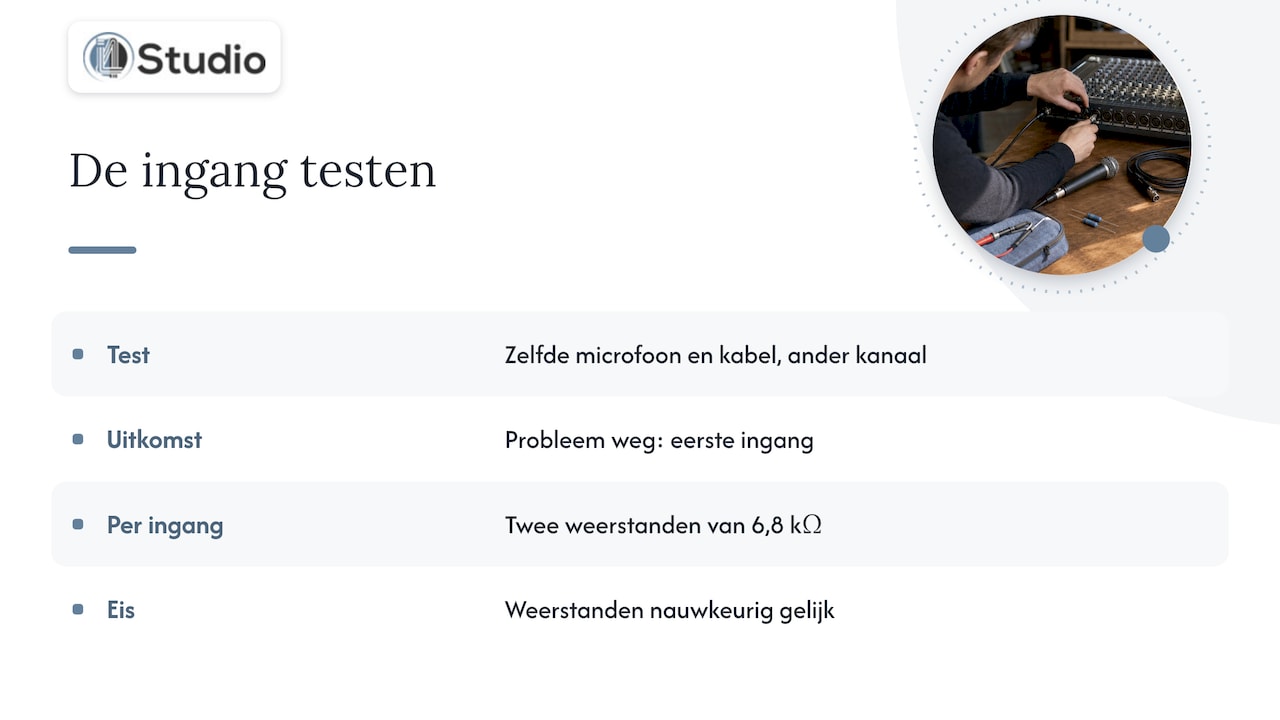
Connect the same microphone using the same cable to a different channel. If the problem goes away, then the issue is with the first input. Phantom power is routed through two 6.8 kΩ resistors per input. Ray Rayburn writes on ProSoundWeb that these resistors must be exactly the same, and that a short circuit or an unbalanced 48V source can permanently damage them. The input will then provide an unbalanced power supply, resulting in hum or noise.
Step 3: The Current
Not every input provides the same amount of power. According to the Sound on Sound glossary, P48 should be between 44 and 52 volts, and a maximum of 10 mA is available per input, while most microphones draw around 4 mA or less. Microphones with higher power consumption, or multiple power-hungry microphones connected to a small USB-powered interface, may reach that limit. Sound on Sound cites insufficient phantom power as a cause of distortion: with loud sound sources, the microphone then exhausts its power reserve.
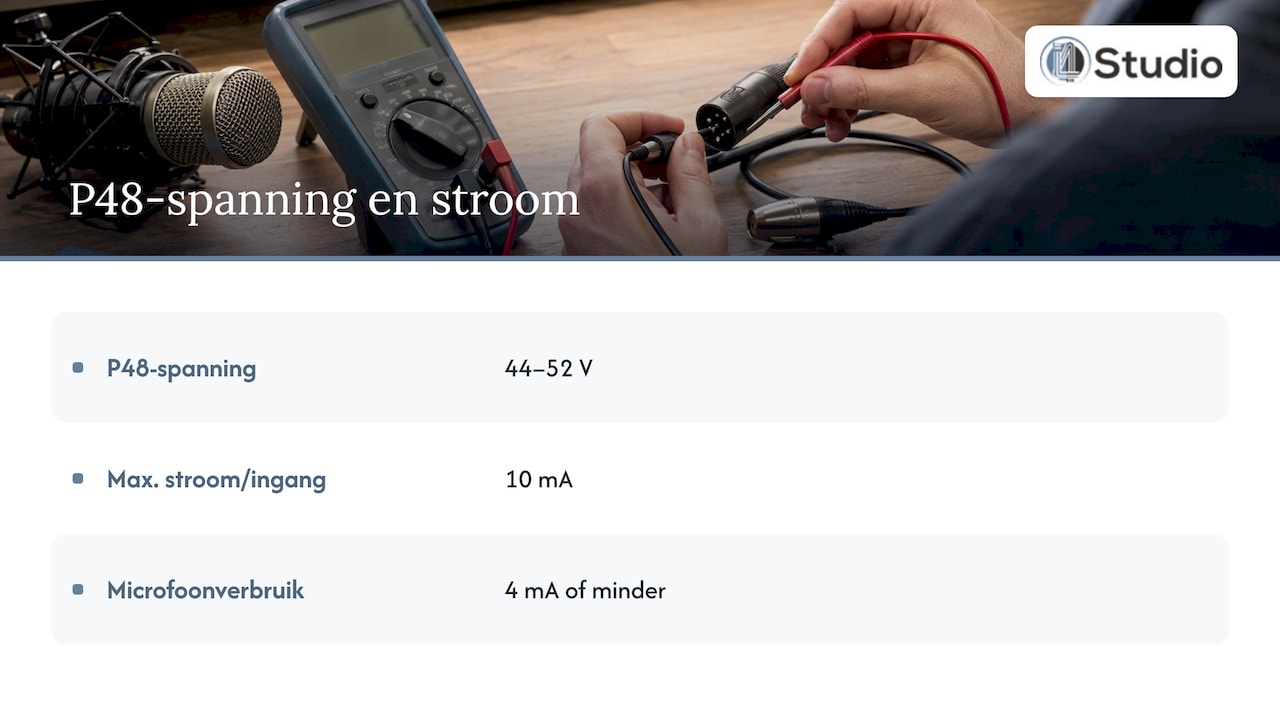
If you have experience with measuring, you can use a multimeter to check whether the voltage is correct. With no microphone connected, the voltage between pins 1 and 2 and between pins 1 and 3 should be the same, within the range of 44 to 52 volts. With phantom power turned off, there should be no DC voltage present. If you’re unsure about the result or the measurement itself, have a technician inspect the interface or mixer; do not open the device yourself.
Step 4: The Microphone
Try using a different condenser microphone with the same cable and input. If only your microphone produces a clicking sound while another one remains silent, the problem is with the microphone. In that case, contact the supplier for warranty service or repairs.
Step 5: The Computer
Do you hear short clicks in the recording, even with a dynamic microphone without 48V? Then it has nothing to do with phantom power. These are usually digital dropouts: the computer isn’t processing the audio in time, for example due to a buffer that’s too small, background processes, or a system that isn’t configured for audio. A larger buffer helps temporarily, but increases latency. You’ll notice this immediately if you’re singing or playing along while monitoring through your DAW.
A chain that remains silent
Most click issues occur at the connections: between the microphone and the cable, between the cable and the preamp, and between the interface and the computer. That’s why at i4studio, we look at the entire chain rather than just a single device. Our custom-built studio PCs start at €1,099 and are built with a focus on stability and low latency, so dropouts won’t ruin your recording.
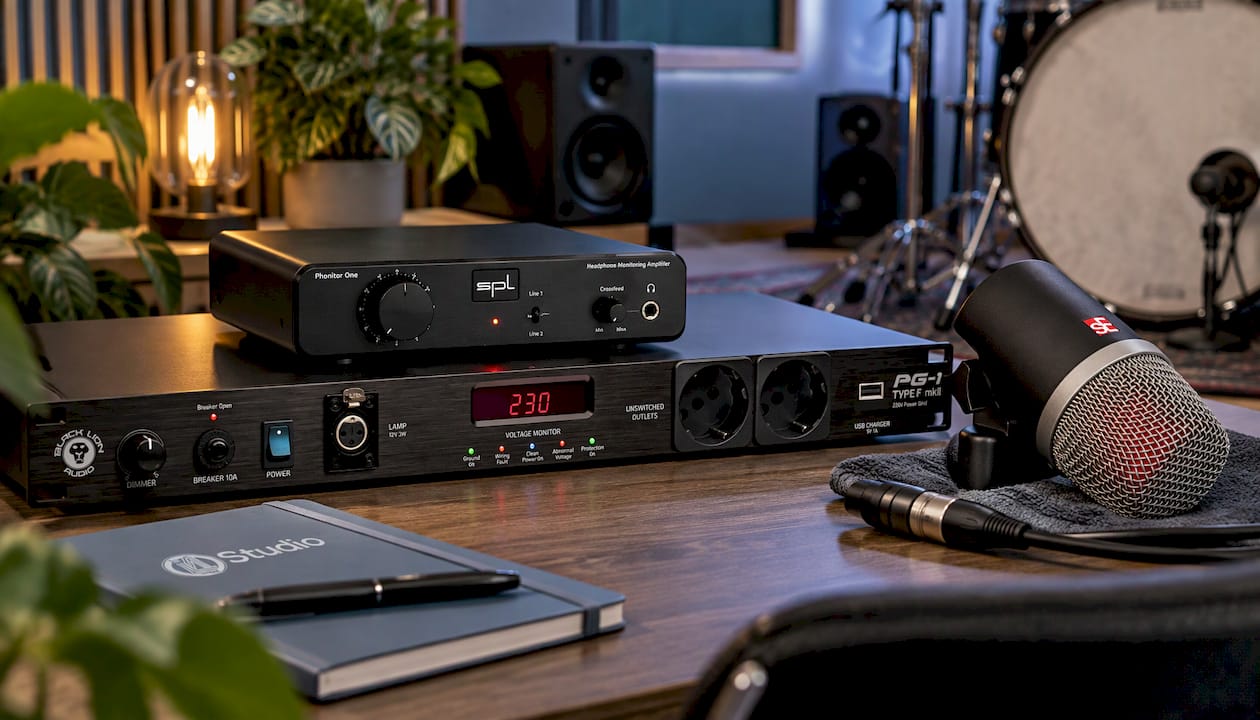
We also offer audio interfaces with phantom power, a wide selection of studio microphones, and studio monitors that faithfully reproduce your mix. For a clean power supply for your rack, there’s the Black Lion Audio PG1-F power conditioner for 230 VAC. If you’re just getting started, a studio recording bundle is a great way to begin. If you’re unsure which combination suits your space and workflow, our specialists are here to help you figure it out.
Our Take on Clicking Noises in the Studio
A click when switching on the 48V power isn’t a problem—it’s a sign that your microphone is working. What is a problem, though, is a signal chain where you can never be sure whether a click in your recording comes from the cable, the preamp, or the computer. Then you’re looking for mistakes instead of making music.
That’s why we view a studio as a single, integrated system. A good condenser microphone deserves an interface with a stable phantom power supply, high-quality cables, and a computer that processes audio with low latency without any glitches. It is precisely this combination of high-end equipment, an audio-optimized setup, and personalized advice from experts that makes all the difference.
If you set up your chain this way, you’ll only have one thing left to do: mute the channel, switch to 48V, and open the gain. The rest of the session is all about your recording.
Harold
Frequently Asked Questions
Is a clicking sound normal when turning on phantom power?
Yes. The click is the sound made by the electronics in your condenser microphone when it turns on or off. How loud it is varies from microphone to microphone. You can prevent yourself from hearing it by first muting the channel or turning down the gain.
Do I need to turn off phantom power when using a dynamic microphone?
A properly connected dynamic microphone is not affected by the 48V, as noted in the ISWTT course, among other sources. So, with a dynamic microphone like the sE Electronics V KICK, you can leave the phantom power on. Be sure to turn it off before swapping cables, and never connect a keyboard or other line-level signal to an input with 48V enabled.
Can I leave the phantom power on all the time?
Yes, as long as you don’t plug in or unplug while the power is on. Many studios simply leave the 48V power on for condenser microphones. When switching microphones, follow this set sequence: turn the gain down, turn off 48V, switch microphones, turn on 48V, and turn the gain up.
Why does my recording make a clicking sound even when the phantom power is turned off?
In that case, the problem isn’t caused by phantom power. It’s usually due to digital dropouts, because the computer isn’t processing the audio fast enough. Check your buffer size and background processes; a computer set up specifically for audio work can prevent this from happening consistently.
Which microphone should I choose for my home studio?
That depends on what you’re recording, your space, and your interface. In our guide to microphones for your home studio, we list the options, from type to placement. If you’d like a specific example of a studio condenser mic, check out the sE Electronics Z5600A II.
Sources
Sound on Sound: Is it my mic or hardware recorder that’s causing an audible phantom power thump?
Sound on Sound: Phantom Power (Glossary)
Sound on Sound: What is causing my kick/snare mic to distort?
ProSoundWeb: Identifying Common Phantom Power Problems
ProSoundWeb: Ghost In The Machine: Phantom Power
ISWTT: Sound Engineering Course
Wikipedia: Phantom Power