Is your Bluetooth audio giving you trouble? Most of the time, it’s not because your headphones or speaker are broken. The cause is almost always one of these four: interference on the crowded 2.4 GHz band (Wi-Fi, microwaves, other Bluetooth devices), too much distance or obstacles, a codec that sends more data than the connection can handle, or a device connected to two sources at the same time. Follow the steps below to fix it in just a few minutes. Are you a producer, video editor, or musician? Then you’ll also want to know why Bluetooth in the studio never provides the reliable connection you need. For recording, mixing, and editing, a wired setup with an audio interface and studio headphones simply works better. At i4studio, we put together these setups for you.
In a nutshell
- Interference usually comes from the surrounding environment. Wi-Fi, microwaves, cell phones, metal, and concrete can disrupt the Bluetooth signal. Moving to a different location or reducing the distance often solves the problem.
- Start simple, then go in-depth. Charge the device, restart it, disconnect, and reconnect. Only then should you check codecs, firmware, and a factory reset.
- Hi-res codecs are more sensitive. If you’re experiencing glitches, temporarily switch to a standard codec like AAC or SBC.
- For studio work, Bluetooth is the wrong connection. You’ll experience latency, compression, and interference. Monitor and record using a wired connection via an audio interface.
- Is there still crackling even when using a wired connection? Then the problem lies with your computer or interface settings, not with Bluetooth.
Table of contents
- Why Bluetooth Audio Is Interfering
- Step-by-Step Guide: Fixing Stuttering Bluetooth Audio
- Connected, but no sound or sound too quiet
- Bluetooth in the studio: why it keeps glitching
- Does it crackle even when wired?
- Our advice: listen wirelessly, work with a cable
- Why the Antelope Orion Studio Synergy Core
- Frequently Asked Questions
- Sources
Why Bluetooth Audio Causes Interference
Bluetooth shares the 2.4 GHz frequency band with many other devices. If there are a lot of transmitters in the same room, your headphones or speaker will have to filter out the correct signal from the noise. If they can’t do that, you’ll hear glitches, clicks, or dropouts.
Audio equipment manufacturers themselves have also noticed this. Other nearby devices that use the 2.4 GHz frequency can occasionally cause static or buzzing noises. Apple lists Wi-Fi activity, poorly shielded cables, microwaves, and wireless speakers as common sources of interference. This immediately raises a concern for a home studio: a desk full of cables, a router under the table, and a wireless speaker on the shelf all combine to create a challenging environment for Bluetooth.
Here are the most common causes:
| What You Hear | Probable cause | Initial solution |
|---|---|---|
| Brief glitches or clicks | Interference on the 2.4 GHz band (Wi-Fi, microwave, other Bluetooth devices) | Move to a different location or turn off sources of interference |
| Sound cuts out when you walk away | Too much distance or obstacles such as walls, metal, or concrete | Keep the source device close by and in sight |
| Stuttering occurs mainly at high quality settings | The hi-res codec sends more data than the connection can handle | Switch to AAC or SBC |
| Audio switches between devices | Headphones are connected to two sources at the same time | Disconnect the second device |
| Static or buzzing | Other wireless transmitters nearby | Move the source, close apps, update the phone |
| Glitches after an update or for no apparent reason | Firmware or software error | Restart, reconnect, update the firmware |
Distance and Obstacles
Bluetooth is designed for short distances. For example, Sonos recommends keeping the Bluetooth device within 9 meters of the speaker and away from microwaves, cordless phones, metal, and concrete. In practice, the usable range is reduced by anything in the way: a concrete wall, a metal studio rack, or your own body.
Codecs and Data Streams
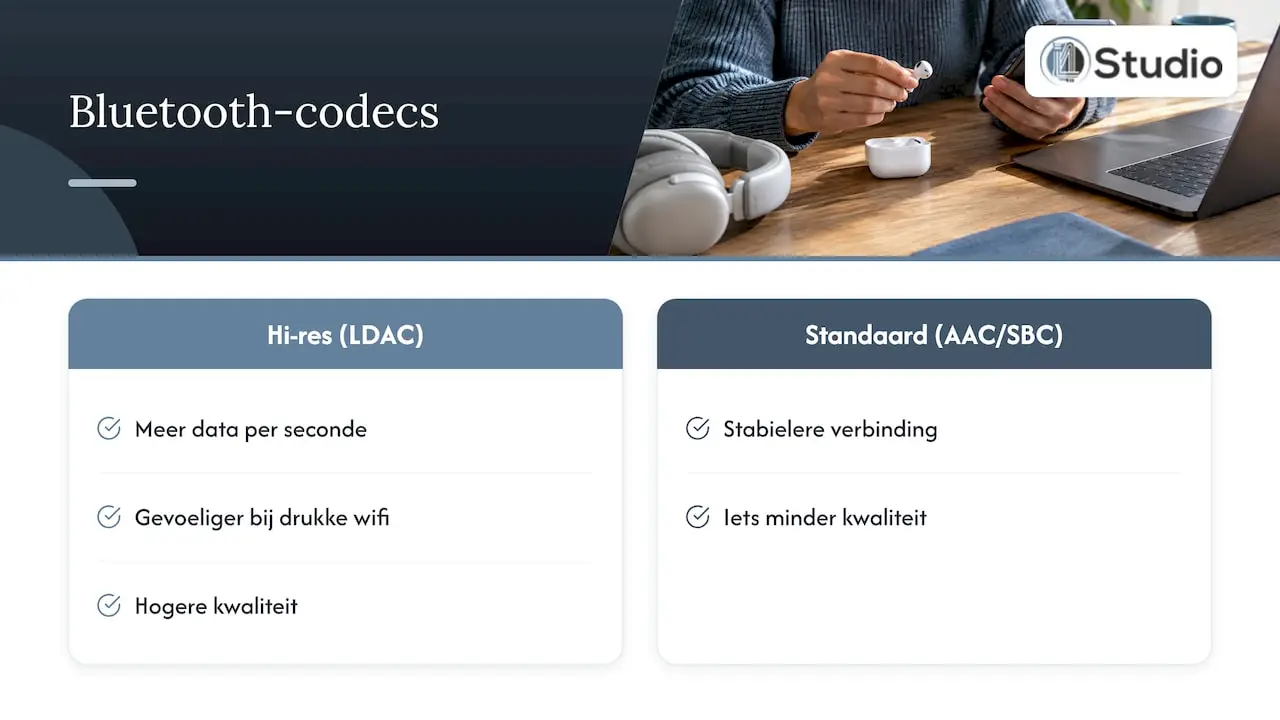
A codec determines how audio is compressed before being transmitted wirelessly. The higher the quality, the more data per second, and the more sensitive the connection. Fairphone explains that dropouts mainly occur with high-resolution formats like LDAC, in crowded Wi-Fi environments, and when there are physical barriers. Their solution: temporarily switch back to a standard codec like AAC or SBC. You sacrifice a bit of quality, but you get a more stable connection.
Step by Step: Troubleshooting Stuttering Bluetooth Audio
Follow these steps in order. The first steps take only a few seconds and resolve most of the issues. The last steps are more thorough and should only be used if nothing else works.
- Test with stored audio, close by. Play a song stored locally on your phone or laptop and keep the device within arm’s reach. This will help you rule out your internet connection as the cause. If you’re streaming music, turn off Bluetooth for a moment and play it through the built-in speaker. If it’s still glitching, the problem is with your Wi-Fi or mobile data, not Bluetooth.
- Change locations. Go into a different room or turn off the router, microwave, or wireless speaker for a moment. If the problem goes away, you’ll know that the environment is the cause.
- Charge both devices. A nearly empty battery can cause an unstable connection. Charge your headphones and phone for a bit, then try again.
- Turn off power-saving mode. Some phones limit Bluetooth functionality in power-saving mode. Temporarily turn off that mode and close any apps you’re not using.
- Disconnect and reconnect. Have your device forget the headphones or speaker, restart it, and then reconnect. This resolves many connection errors. If you’re still unable to connect, this guide with steps for Bluetooth connection issues will help you further.
- Remove any secondary connections. If your headphones are also connected to your laptop or tablet, the audio may switch back and forth between devices. Turn off Bluetooth on the second device.
- Choose a lighter codec. If you’re using LDAC or another high-resolution setting, turn it off in the Bluetooth settings or in your headphones’ app. Carry your phone on the same side of your body as your headphones.
- Update your firmware and apps. Check for updates for your phone, your computer, and the app for your headphones or speaker.
- Reset as a last resort. If that doesn’t help, reset the headphones or speaker to their factory settings according to the manual and pair them again.
Where people often go wrong: they start at step 9. A reset clears your settings but doesn’t eliminate a source of interference in the room. So always start with the environment.
Connected, but no sound or the sound is too quiet
Does it clearly say “connected,” but you still can’t hear anything? Then it’s usually a matter of routing or volume, not a malfunction.
- Check the audio output. On a computer, the sound may still be going to the built-in speakers or to your audio interface. Manually select the Bluetooth headphones as the output device.
- Check both volume levels. Not every device syncs the volume with the headphones. So turn up the volume on both the source and the headphones.
- Check to see if something is playing on another device. If your headphones are also connected to a second device, the audio may be routed to that device. Pause the audio there.
- Check the profile. For music, Bluetooth uses the A2DP profile, which is the profile for stereo music. If your headphones are in call mode (for example, because an app is using the microphone), the sound will be thin and soft. Close any calling apps and video calling software, and try again.
That last point is a common occurrence in the studio. If you open a DAW or video chat program that claims the microphone on your Bluetooth headset, the connection switches to a call profile with much lower sound quality. You might then think your mix sounds bad, when in fact the connection is the culprit.
Bluetooth in the Studio: Why It Keeps Causing Problems
Bluetooth is great for casual listening. But when it comes to producing, recording, and editing, you’ll run into three limitations that no setting can completely eliminate.
1. Delay
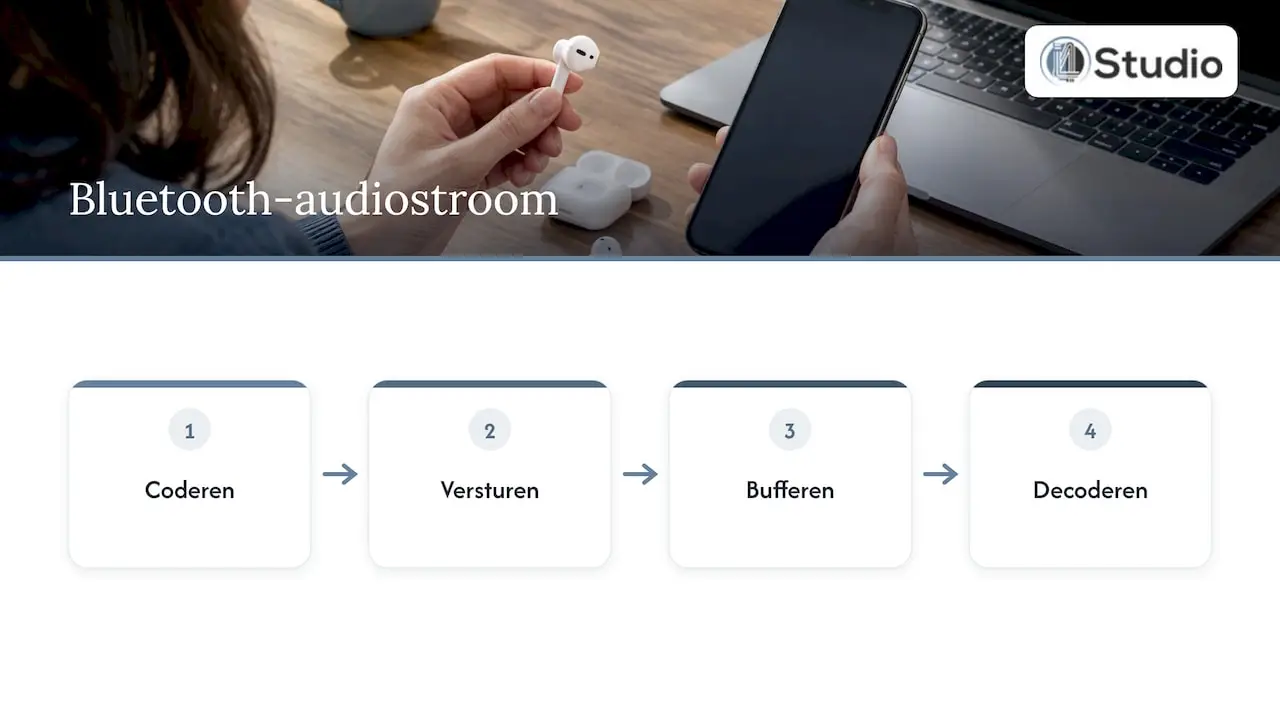
Bluetooth audio has to be encoded, transmitted, buffered, and then decoded. That takes time. You don’t notice this when playing a song, but if you’re playing a soft synth or recording vocals while listening back, you’ll hear yourself with a delay. You’ll notice it in video editing, too: the video and audio aren’t quite in sync, and you end up placing your cuts at the wrong moment.
2. Compression
Bluetooth almost always transmits music in a compressed format. So what you hear isn’t exactly what your DAW is playing. To evaluate details such as reverb tails, the decay of a snare, or subtle EQ choices, you want to hear the exact studio-quality sound, without a codec in between.
3. Malfunction
A studio is full of exactly the kinds of things that interfere with Bluetooth: Wi-Fi, cables, metal racks, and other wireless devices. A glitch during a take means starting over. A glitch while mixing means wondering whether the problem is in your mix or in your connection.
The solution is a wired monitoring setup: your computer, an audio interface, and either closed-back or open-back studio headphones or a pair of studio monitors. No codec, no wireless interference, and a latency that you can adjust yourself using your interface’s buffer.
Wireless Recording on Stage or on Location
Do you still want to move freely, for example, during live recordings, presentations, or on-location video shoots? If so, consider systems designed specifically for that purpose, such as a wireless microphone set. These are built to ensure stable transmission of voice and instrument sound and are in a different category than a Bluetooth headset.
Does it crackle even when it’s plugged in?
Have you already switched from Bluetooth to a cable, but are you still hearing clicks, crackling, or glitches? If so, the problem lies with your computer or your interface settings. That’s a different issue that requires a different approach:
- If the audio crackles mainly when you set the buffer size low for recordings, see ” Audio Crackles at Low Buffer Size.”
- If a USB interface is glitching on a Windows PC, check out “USB Audio Glitches in Windows.”
- If you want to set up your system correctly the first time, follow our guide to optimizing Windows 11 for audio.
- If you hear noise or hum, check out “Fixing Noise on Your Audio Interface.”
- For all other issues, check out our overview of practical tips for audio interface problems.
A common scenario: a laptop with Bluetooth, Wi-Fi, and a USB interface all active at the same time. If you turn off Bluetooth and Wi-Fi while recording, your system will have fewer background tasks and be less likely to experience interruptions.
Our advice: Listen wirelessly, work with a cable
We often get questions from producers and editors who also use their Bluetooth headphones in the studio. It’s an understandable desire: no cables, freedom of movement. Still, we recommend using a wired setup for anything you record, mix, or edit.
A studio is all about reliability. You want a take to sound exactly as you played it, for your mix to hold up on any system, and for the video and audio to be perfectly synchronized. To achieve that, you need a connection without a codec and without interference, with a latency that you control.
That’s why we focus on stability, low latency, and the right configuration for audio. This applies to our custom-built studio PCs as well as the audio interfaces, headphones, and monitors we supply. A properly configured computer and interface can solve more problems than any Bluetooth setting.
You don’t have to put your Bluetooth headphones away. Use them when you’re on the go, as a reference, or to check how your mix sounds on your listener’s device. But for the real work, stick to wired headphones.
Harold
Why the Antelope Orion Studio Synergy Core
If you’re looking for an interface that can handle a full-fledged studio, the Antelope Orion Studio Synergy Core is an excellent choice. It’s a top-of-the-line interface with both Thunderbolt and USB connections, making it compatible with both Mac and Windows. Synergy Core refers to the effects processing built into the interface itself: you can run effects in real time without putting a strain on your computer. This is useful if you want to record and monitor with low latency, while applying reverb or compression to your headphone mix.
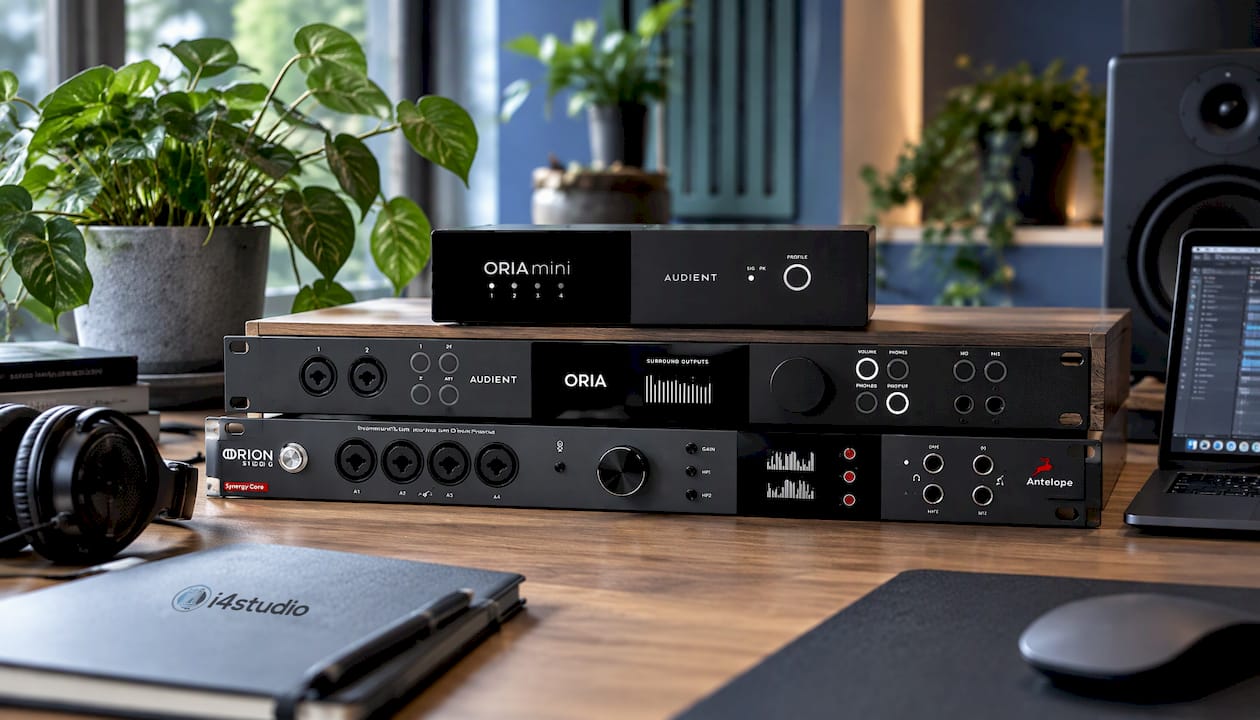
Want to get the entire setup right the first time? We offer custom-built studio PCs starting at €1,099, designed for stability and low latency, and provide personalized advice on pairing them with your interface, headphones, and monitors. If you prefer a compact setup, be sure to check out the Audient ORIA audio interface and monitor controller.
Frequently Asked Questions
Why is Bluetooth suddenly acting up, even though it was working fine before?
Usually, something in the environment has changed: a new router, an additional wireless device, or a different location in the house. An update can also temporarily disrupt the connection. First, try moving to a different location, then disconnect and reconnect.
Why do my Bluetooth headphones sound bad when I use the microphone?
As soon as an app uses your headset’s microphone, the connection switches from the music profile to a call profile. That profile has much lower sound quality. Close any calling apps or use a separate microphone connected through your audio interface.
Can I use Bluetooth headphones to record?
Bluetooth isn’t suitable for monitoring during recordings because of the delay: you’ll hear yourself too late. Use wired studio headphones plugged into the headphone output of your audio interface. That way, you can monitor without any audible delay or compression.
Does a better Bluetooth codec help prevent stuttering?
A high-resolution codec offers better quality, but transmits more data and is therefore more susceptible to interference. If you experience glitches, opt for a standard codec such as AAC or SBC instead. For critical listening in the studio, a wired connection is the better option.
My audio crackles even when I’m using a cable. Is that because of Bluetooth?
No, the cause lies with your computer, your driver, or your buffer settings. Turn off Bluetooth and Wi-Fi while working and increase your interface’s buffer size. If the issue returns, check out our guides on crackling with a low buffer and optimizing Windows for audio.
Sources
- Phonak: Troubleshooting Poor Bluetooth Audio Quality
- Apple Support: If the sound from wireless headphones cuts out
- Sonos: Bluetooth audio stops or skips
- Fairphone: Choppy or Disconnected Bluetooth Audio
- Fix It Daily: Bluetooth not connecting