
Briefly:
- An SSD boosts the speed and stability of music production workflows, eliminating dropouts and delays.
- An NVMe SSD offers significantly higher read speeds and IOPS than a SATA SSD, which is crucial when working with large sample libraries and complex projects.
An SSD, or Solid State Drive, is the fastest and most reliable storage solution for modern music production. The role of an SSD in music production goes beyond mere storage: an SSD determines how quickly your DAW starts up, how smoothly sample libraries load, and whether your sessions remain free of dropouts. Producers working with Ableton Live, Logic Pro, or Cubase immediately notice the difference as soon as they switch from a traditional hard drive to an SSD. Models like the Crucial X10 Pro, with read speeds of up to 2,100 MB/s, demonstrate just how far SSD technology has advanced in music.
What role does an SSD play in music production?
An SSD replaces the mechanical hard disk drive (HDD) and reads and writes data without any moving parts. That sounds technical, but the practical implications are clear: no wait time when opening a project, no glitches when streaming large sample libraries, and no sudden system slowdowns in the middle of a recording session.
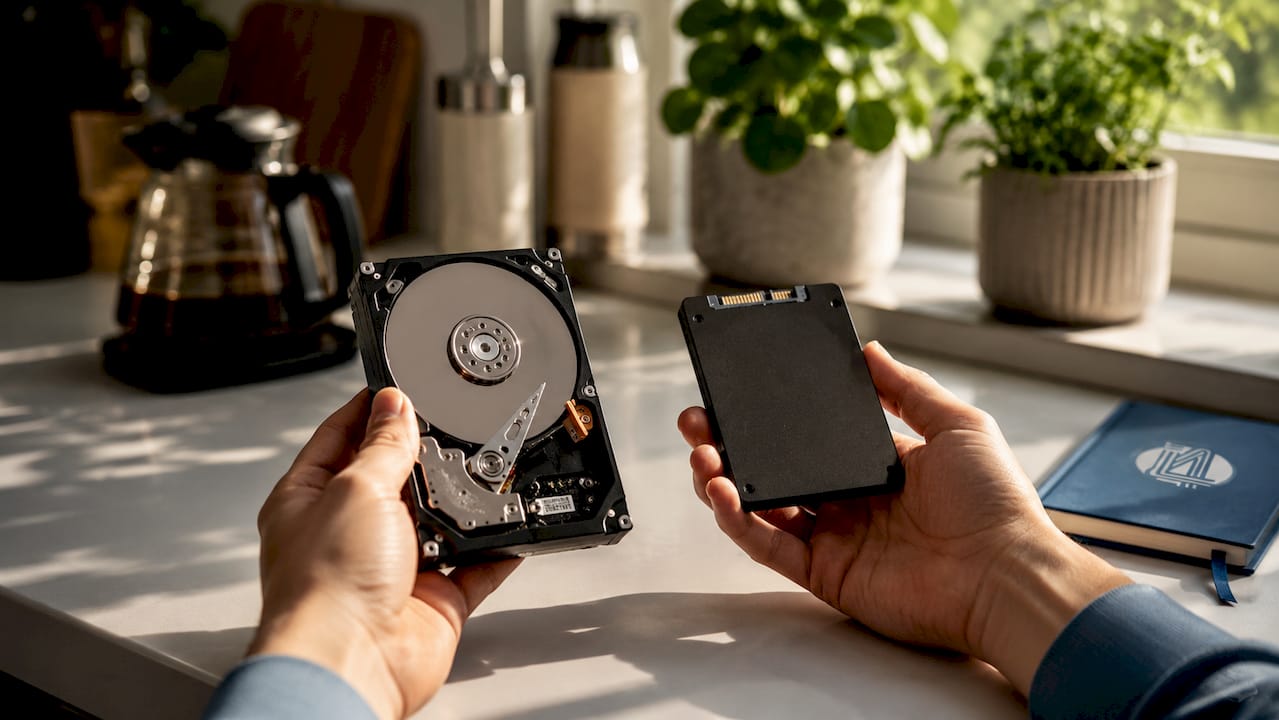
The key benefit lies in the access time. An HDD has an average access time of 5–10 milliseconds. A SATA SSD sits at 0.1 milliseconds, and an NVMe SSD even reaches 0.02 milliseconds. For audio, every millisecond matters, especially when working with small buffer sizes to minimize latency.
SSDs improve the stability of music production workflows by reducing latency and system interruptions. This translates to fewer support tickets and smoother software updates in professional environments. For the home producer, it simply means less frustration and more time for music.
How do SSDs speed up the loading of sample libraries?
Sample libraries pose the biggest challenge for storage media in a modern studio. An orchestral library from Spitfire Audio or EastWest can easily take up 500 GB to several terabytes. When you play a note, your computer streams hundreds of small audio files simultaneously in real time. An HDD cannot deliver those data streams fast enough, resulting in crackling audio or freezes.
Switching from HDD to SSD cuts project load times in half and significantly improves creative workflow. Producers experience higher productivity after the switch, as they no longer have to wait for the system and can stay focused on the musical process.
“The biggest benefit of SSDs isn’t just their speed, but also the stable, uninterrupted creative flow they enable.” — The Sound of Music Guide
Specific advantages of working with sample libraries on an SSD:
- Shorter load times: A project that takes 45 seconds to load on an HDD loads in less than 10 seconds on an NVMe SSD.
- Smooth streaming: Play multiple instruments at the same time without stuttering or audio dropouts.
- Faster DAW startup: Ableton Live, Logic Pro, and FL Studio start up two to three times faster on an SSD.
- Shorter bounce wait time: Exporting an entire package is noticeably faster thanks to the higher write speed.
- More stable sessions: Reduced risk of crashes caused by I/O overload on the storage medium.
So, the efficiency of SSDs in music production isn’t just a matter of speed. It’s about eliminating technical obstacles that interrupt your creative process.
NVMe vs. SATA SSD: Which One Should You Choose for Music Production?
Not all SSDs are the same. The two main types are SATA SSDs and NVMe SSDs, and the difference lies in the interface and protocol they use to communicate with your computer.
A SATA SSD uses the same interface as a traditional HDD and is limited to a maximum transfer rate of approximately 600 MB/s. An NVMe SSD communicates via the PCIe bus and achieves speeds ranging from 3,500 MB/s to 7,000 MB/s in the latest generation. IOPS, or Input/Output Operations Per Second, is the key metric here: the higher the IOPS, the more small files can be processed simultaneously.
NVMe SSDs have a clear advantage over SATA for demanding real-time tasks due to higher IOPS and lower latency. For light tasks, the difference is negligible, but for complex virtual instruments, the difference is crucial.
Comparison: NVMe vs. SATA SSD for music production
| Feature | SATA SSD | NVMe SSD |
|---|---|---|
| Maximum read speed | ~550 MB/s | 3,500–7,000 MB/s |
| Maximum write speed | ~520 MB/s | 3,000–6,500 MB/s |
| Latency | ~0.1 ms | ~0.02 ms |
| IOPS (random read) | ~100,000 | 500,000–1,000,000+ |
| Price per GB | Lower | Higher |
| Suitable for | Light projects, archiving | Complex sessions, sample streaming |
| Thermal load | Low | Moderate to high |
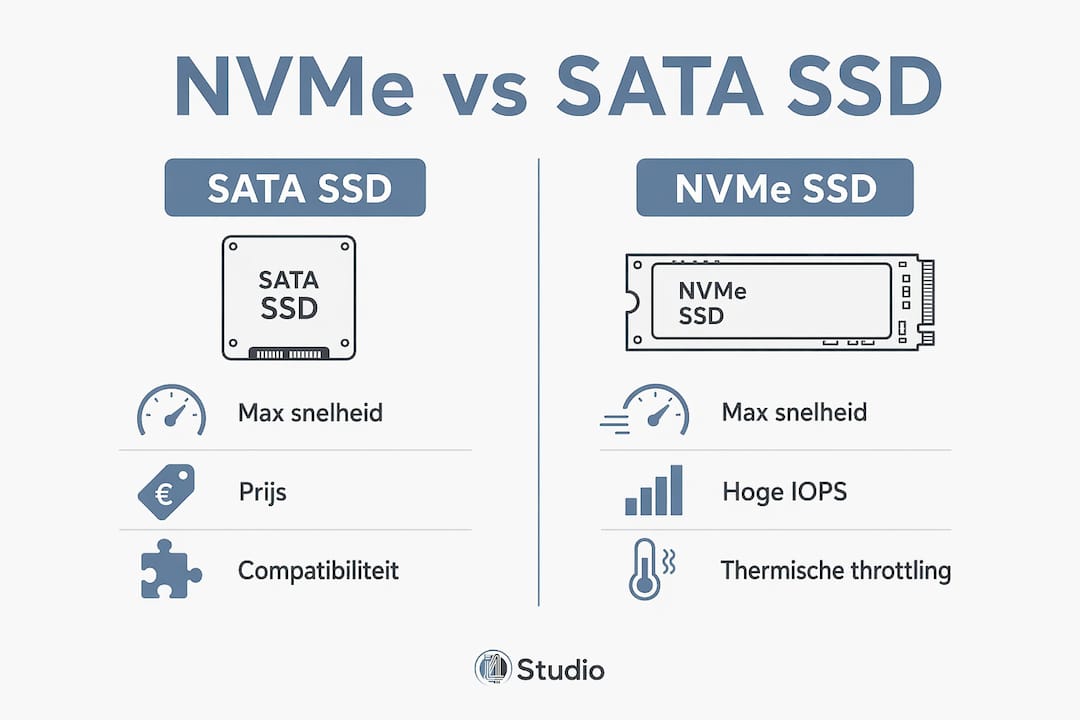
For producers who work with orchestral libraries, heavy synthesizer plugins, or multitrack recordings at high sample rates, NVMe is the right choice. If you primarily work with electronic music and a limited number of tracks, a SATA SSD already offers a huge improvement over an HDD.
An important consideration with NVMe SSDs is thermal throttling. Thermal throttling can reduce performance during long, intensive production projects without adequate cooling. A good heatsink or active cooling is not a luxury but a necessity in a professional studio PC.
Pro-tip: Always install your NVMe SSD with a heatsink if your motherboard supports it. During long sessions with large sample libraries, this prevents the SSD from throttling down to lower speeds and disrupting your workflow.
What practical benefits does an SSD offer in a studio workflow?
The benefits of SSDs in production are most noticeable during an active recording session. An HDD can run into problems during simultaneous read and write operations, resulting in audio dropouts: brief interruptions in the sound that render a recording unusable. An SSD virtually eliminates this problem.
SSDs process large files and temporary caches faster, which is essential for workflows with tight deadlines and complex productions. Faster exports and previews mean less downtime and greater reliability. That’s exactly what you need when a client is waiting for a mix or a deadline is approaching.
Here’s how to best integrate an SSD into your audio workflow:
- Install your operating system and DAW on the SSD. Ableton Live, Logic Pro, or Pro Tools will then start up two to three times faster.
- Store active projects on the SSD. All the files you need during a session should be stored on the fastest drive.
- Use a separate SSD for sample libraries. This prevents the OS drive from becoming overloaded while streaming samples.
- Configure your DAW to save temporary files to the SSD. In Ableton Live, you can do this by going to Preferences > Files. In Logic Pro, go to Settings > Recording.
- Use an HDD or a large SSD for archiving and backups. Completed projects do not need to be stored on the fastest drive.
Pro-tip: Keep at least 20% of your SSD free. A full SSD runs noticeably slower because the operating system has less space for temporary files and garbage collection.
The impact of SSDs on audio is also evident when working with plugins and virtual instruments. Resource-intensive plugins like Kontakt or Omnisphere load some of their data from the disk. On an NVMe SSD, that process is so fast that you’ll hardly notice it.
How do you choose the right SSD for your music production?
Choosing the right SSD depends on your workflow, budget, and the size of your projects. A few specific guidelines can help you make the right decision.
Experts recommend a minimum read and write speed of 1,000 MB/s for external SSDs to prevent dropouts during recording sessions. The Crucial X10 Pro offers speeds of up to 2,100 MB/s and is often recommended in the music industry as an external option.
What to look for when making your choice:
- Speed: Choose a minimum of 1,000 MB/s for recording. For sample streaming, 3,500 MB/s or higher is recommended.
- Capacity: Sample libraries are growing rapidly. Start with at least 1 TB for your active project drive. Professionals recommend at least 4 TB of total storage, depending on the size of your project.
- Internal vs. external: An internal NVMe SSD is faster and more reliable. An external SSD, such as the Crucial X10 Pro or Samsung T7 Shield, is convenient for mobile use or as an additional project drive.
- Durability: Check the TBW (Terabytes Written) rating. For intensive studio use, choose an SSD with at least 600 TBW.
- Brand and reliability: Samsung, Crucial, Western Digital, and Seagate offer reliable options for studio use.
Recommended SSD configurations by use case
| Scenario | Recommended type | Minimum capacity | Minimum speed |
|---|---|---|---|
| Home user, light-duty projects | SATA SSD | 500 GB | 500 MB/s |
| Mid-sized studio, sample libraries | Internal NVMe SSD | 2 TB | 3,500 MB/s |
| Professional studio, orchestral libraries | NVMe SSD + HDD archive | 4 TB+ | 5,000 MB/s |
| Mobile production, live use | External SSD (USB-C) | 1 TB | 1,000 MB/s |
A combination of fast SSDs for active projects and HDDs for backups is the most practical approach in studios. This way, you combine the speed of SSDs with the low cost per gigabyte of HDDs for archiving. SATA SSDs and RAID arrays are suitable for cost-effective archive management, while NVMe SSDs are preferred for active project drives and high sample rates.
When building a complete audio PC setup, choosing the right SSD is one of the most critical decisions, right up there with selecting the processor and RAM.
Key insights
The role of SSDs in music production is crucial for speed, stability, and creative flow: investing in the right SSD configuration eliminates the technical obstacles that hinder productivity.
| Item | Details |
|---|---|
| Minimum recording speed | Use an SSD with a minimum speed of 1,000 MB/s to prevent dropouts during recording sessions. |
| NVMe over SATA for demanding tasks | NVMe SSDs offer higher IOPS and lower latency, which are essential for complex sample libraries and real-time plugins. |
| Prevent thermal throttling | Install a heatsink on your NVMe SSD to prevent performance degradation during long sessions. |
| Combine an SSD and an HDD | Use a fast SSD for active projects and an HDD for archives and backups. |
| Planning for Future Storage Needs | Choose at least 2 TB for your project drive; professionals use 4 TB or more of total storage. |
What I’ve learned about SSDs after years of research
I still remember very well what it was like to work with an orchestral Kontakt library on a hard drive. Every time I loaded a new instrument, I had to wait. Sometimes 30 seconds, sometimes longer. That wait might seem harmless, but it completely breaks your creative flow.
After switching to an NVMe SSD, that problem literally disappeared overnight. What surprised me, however, wasn’t just the speed. It was the smooth operation. No stuttering, no sudden CPU spikes caused by I/O wait times, no sessions freezing at the most inopportune moment.
One thing I often see manufacturers underestimate is thermal throttling. An NVMe SSD without a heatsink in an enclosed case can drop back to SATA speeds after 20–30 minutes of intensive use. You won’t notice it right away, but your session will become slower and less stable. This isn’t just a theoretical problem. I’ve seen it happen multiple times on studio PCs that were configured without a heatsink.
My advice: don’t treat your SSD as an afterthought. It’s the backbone of your digital studio. A good DAW hardware setup starts with the right storage, not the most expensive processor or the most RAM. Invest in an NVMe SSD with a heatsink as your primary project drive, add a large HDD for archiving, and your workflow will change fundamentally.
– harold
I4studio helps you build the right studio PC
At I4studio, we build studio PCs that are specifically tailored to the demands of music production. That means the right NVMe SSD configuration, adequate cooling, and a system that remains stable even during the most demanding sessions.
Check out our 2026 studio PC configurations for specific examples of systems with optimized SSD setups. Are you just starting out in production? On the studio gear for beginners page, you can find out exactly what hardware you need first, including storage recommendations. I4studio is ready to help you build a system that fits your workflow and budget.
Frequently Asked Questions
What is the difference between SSD and HDD for music production?
An SSD reads and writes data up to ten times faster than an HDD and has no moving parts. This results in shorter load times, fewer dropouts, and more stable recording sessions.
What is the minimum SSD speed I need for audio recording?
Experts recommend a minimum read and write speed of 1,000 MB/s to prevent dropouts. For streaming large sample libraries, an NVMe SSD with a speed of 3,500 MB/s or higher is recommended.
Is an NVMe SSD always better than a SATA SSD for music production?
For complex sessions involving orchestral libraries or a large number of virtual instruments, NVMe is clearly superior due to its higher IOPS and lower latency. For lighter projects, a SATA SSD provides sufficient performance.
How can I prevent thermal throttling on an NVMe SSD?
Install a heatsink on your NVMe SSD and ensure there is adequate airflow inside your case. During prolonged periods of intensive use, active cooling is recommended to prevent a drop in performance.
How much storage capacity do I need as a music producer?
Professionals recommend at least 4 TB of total storage. Use a fast SSD with at least 2 TB of storage for active projects and sample libraries, supplemented by an HDD for archiving and backups.
New PCIe 5 NVMe
For music producers and composers who work with extensive sample libraries (such as those from Spitfire Audio, Native Instruments, or Vienna Symphonic Library), switching to PCIe 5.0 NVMe SSDs is a huge leap forward. Here’s why they’re perfect for this specific purpose:
1. Extremely high throughput (bandwidth)
Modern, high-end sample libraries often use Direct-from-Disk (DFD) streaming. This means that not all samples are loaded entirely into RAM, but are streamed from the disk in real time. PCIe 5.0 drives offer speeds that often exceed 10,000 MB/s. This allows hundreds of simultaneous voices to be played back without stuttering or “disk overload” warnings.
2. Minimal latency
In addition to raw speed, access time is crucial. PCIe 5.0 drives have extremely low latency. When you play a chord on your MIDI keyboard, you want the samples to trigger immediately. The more efficient architecture of Gen5 NVMe drives ensures that the time between the DAW’s “trigger” and the actual sound coming from the drive is minimal, resulting in a more natural playing experience.
3. Efficiency in complex projects
When working with orchestral templates containing thousands of tracks, the I/O (Input/Output) load on your drive is enormous. While older SATA SSDs or even PCIe 3.0 drives reach their limits when simultaneously streaming data from multiple microphone positions (such as Close, Room, and Surround mics), PCIe 5.0 drives provide the necessary “headroom” to process this data effortlessly without slowing down your system.
Note during installation: PCIe 5.0 drives generate significant heat due to their high performance. When installing, always make sure to use a high-quality heatsink or your motherboard’s built-in cooling to prevent “thermal throttling,” which could negatively impact performance during long studio sessions.
In short: For professional composers, a PCIe 5.0 NVMe drive simply means more creative freedom: you can load larger templates and use more microphone positions without the technology getting in the way of your workflow.
Are you planning to upgrade your current system, or are you in the process of building a new studio PC?
Recommendation
- Computer for Music Production: Complete Guide to Studio Performance – https://i4studio.nl/
- Computer for Music Production: Complete Guide to Studio Performance – https://i4studio.nl/
- DAW and Storage Capacity: How to Choose the Right Storage for Music Production – https://i4studio.nl/
- Gaming laptop vs studio laptop for music production