To run multiple DAWs smoothly at the same time, you’ll need at least a 6-core processor, 32 GB of RAM, and an NVMe SSD. We recommend an 8-core or higher processor, 64 GB of RAM, and two separate NVMe drives: one for the operating system and your DAWs, and one for sample libraries. Without this separation, you’ll encounter loading delays and audio dropouts even with medium-sized projects.
Key specifications at a glance:
- CPU: at least 6 cores / 12 threads. Recommended: 8–12 cores with a high clock speed
- RAM: at least 32 GB; 64 GB recommended for large sample libraries
- Storage: NVMe SSD for OS/DAW (at least 500 GB), separate NVMe for samples (1–2 TB)
- Audio interface: stable ASIO driver, Thunderbolt or USB-C
- Ports: at least 2× USB-A, 1× Thunderbolt/USB-C, optional MIDI-DIN
| Specifications | Minimum | Recommended |
|---|---|---|
| CPU cores | 6 cores / 12 threads | 8–12 cores / 16–24 threads |
| RAM | 32 GB DDR4 | 64 GB DDR4/DDR5 |
| OS/DAW Drive | 500 GB NVMe | 1 TB NVMe Gen4 |
| Sample drive | 1 TB NVMe | 2 TB NVMe Gen4 |
| Audio Interface | USB with ASIO | Thunderbolt with low latency |
Pro tip: If you’re on a tight budget, prioritize RAM over a faster CPU. More memory prevents your DAW from offloading to the hard drive, which avoids immediately audible quality loss and crashes.
Key insights
A studio PC capable of running multiple DAWs simultaneously requires at least 32 GB of RAM, a high-clock-speed 6-core processor, and two separate NVMe drives for the OS/DAW and sample libraries.
| Item | Details |
|---|---|
| CPU Priority | Choose at least 6 cores with a clock speed of 4.0+ GHz; single-thread performance is a major factor for DAW plug-ins. |
| RAM as the first upgrade | 32 GB is the minimum for two DAWs; 64 GB is recommended for large sample libraries or orchestral workflows. |
| Two separate NVMe drives | Keep your OS/DAW and sample libraries on separate drives to minimize load times and audio dropouts. |
| ASIO and multi-client drivers | Use an interface with multi-client ASIO support or a virtual audio router for stable audio across multiple DAWs. |
| I4studio Custom Solutions | I4studio provides pre-configured studio PCs with silent cooling and optimized DAW settings for Dutch producers. |
Table of contents
- What kind of CPU do you need to run multiple DAWs at the same time?
- How much RAM do you really need for multiple DAWs and large libraries?
- What kind of storage do you need for fast DAW performance?
- What connections are essential for a stable studio workflow?
- How do you prevent latency and driver issues when using multiple DAWs?
- How do you keep your studio PC quiet enough for recording?
- macOS, Windows, or Linux: Which platform fits your workflow?
- How do you run multiple DAWs simultaneously without any issues?
- Recommended builds by use case
- Why I4studio recommends these specifications
- A personal note on running multiple DAWs and the right hardware
- I4studio custom studio PCs for your workflow
- Sources
- Frequently Asked Questions
What kind of CPU do you need to run multiple DAWs at the same time?
The processor is the heart of every music production studio PC. With a single DAW running twenty tracks, four cores might still be enough, but as soon as you open two or three DAW instances at the same time, the CPU load increases rapidly. Each DAW reserves its own audio buffer and processes plug-ins in parallel.
What many producers underestimate: Not all DAW tasks are multi-threaded. Plug-ins such as certain compressors and synthesizers still run on a single thread. That means a high single-thread clock speed (above 4.5 GHz) is just as important as a high number of cores. In practice, an eight-core processor running at 5.0 GHz performs better for audio than a sixteen-core chip running at 3.2 GHz.
Practical breakdown by workflow:
- Entry-level (beatmaker, simple arrangements): 6 cores / 12 threads, clock speed 4.0+ GHz
- Mid-range (multiple DAWs, VST-intensive projects): 8 cores / 16 threads, clock speed 4.5+ GHz
- High-end (orchestral templates, film scores, real-time rendering): 12+ cores / 24 threads, clock speed 5.0+ GHz
Modern multi-core processors combined with fast NVMe drives deliver the greatest performance gains for sample-heavy and demanding projects. Choose a platform that you can expand later with additional RAM slots, as that is the most common bottleneck after the CPU.
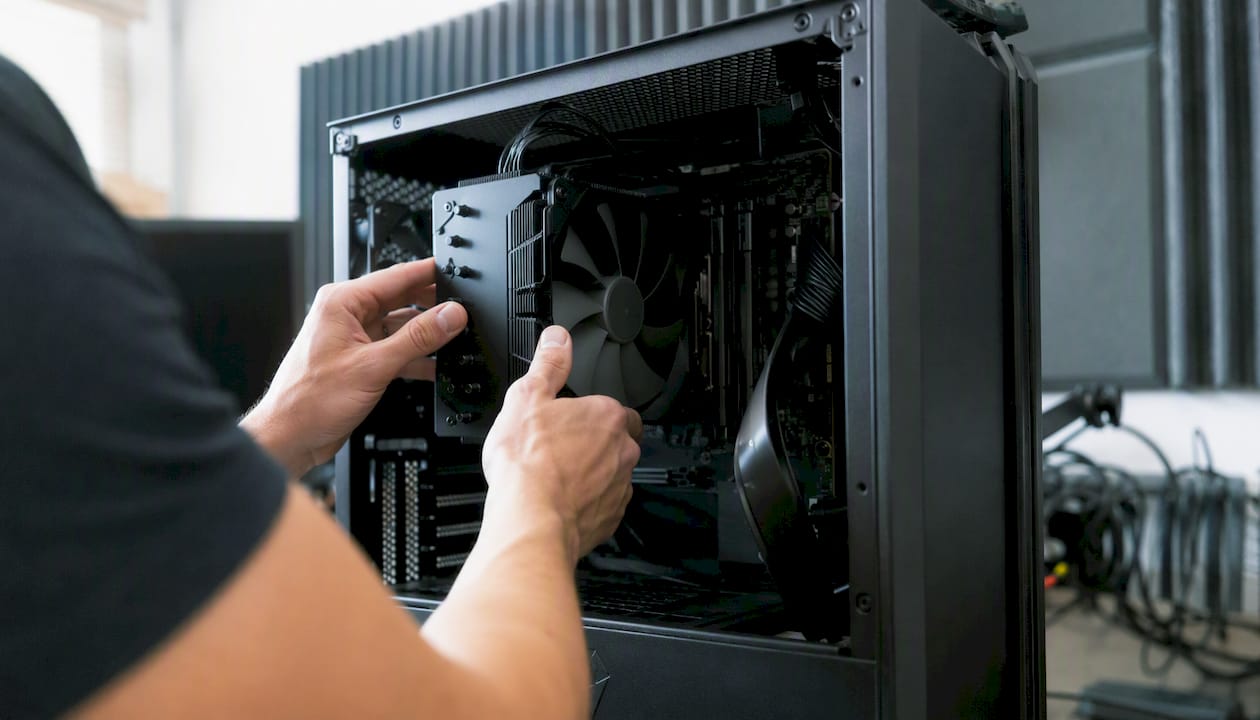
Pro tip: Always check your processor’s maximum TDP and make sure your cooling system is well above that. A processor that throttles due to heat won’t perform as well as its specs promise.
How much RAM do you really need for multiple DAWs and large libraries?
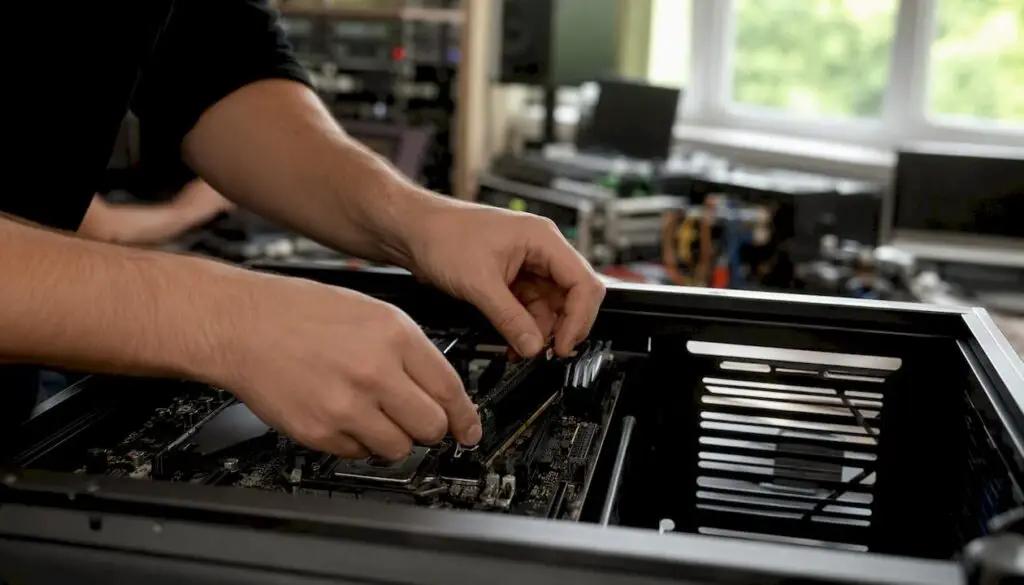
RAM is the fastest and most affordable upgrade you can make. For beginners, 8–16 GB of RAM and an SSD are sufficient, but as soon as you open multiple DAWs at the same time or load orchestral sample libraries, 16 GB won’t be enough.
The rule of thumb is simple: each DAW instance takes up 2–4 GB of RAM, even before you load a single plug-in or sample library. An orchestral library, such as a large string set, can take up 8–16 GB of RAM on its own. Add that to two active DAWs, and you’ll quickly reach 40–50 GB of RAM usage.
- About 16 GB: suitable for a single DAW with light projects, without large sample libraries
- About 32 GB: recommended for running two DAWs simultaneously with medium-sized libraries and VST synthesizers
- More than 64 GB: recommended for orchestral workflows, multiple resource-intensive DAW sessions, and streaming samples
When more RAM is more beneficial than a faster CPU: if you load sample libraries entirely into memory (pre-load), this drastically reduces disk activity. For orchestral projects, 64 GB of RAM is more effective than a CPU upgrade of the same price.
Pro tip: Buy RAM in kits of two or four sticks for dual-channel or quad-channel operation. Two 32 GB sticks provide more bandwidth than a single 64 GB stick, which is immediately noticeable in sample library load times.
What kind of storage do you need for fast DAW performance?
The disk configuration determines whether your sessions run smoothly or freeze when loading samples. NVMe SSDs are the standard for working disks; traditional hard drives are now only suitable as backup media, not as working disks for sample-heavy projects.
A proven configuration for a studio PC:
- Internal, Drive 1: NVMe Gen4 (1 TB) for the operating system, DAW software, and plug-ins
- Internal, drive 2: NVMe Gen3/Gen4 (2 TB) for sample libraries and virtual instruments
- External, USB-C/Thunderbolt: NVMe (1–2 TB) for active project files and session exports
- Backup: external HDD or NAS for archiving and project backups
| Disc Pulley | Type | Minimum capacity | Recommended |
|---|---|---|---|
| OS + DAW | NVMe Gen4 | 500 GB | 1 TB |
| Sample Libraries | NVMe Gen3/Gen4 | 1 TB | 2 TB |
| Active Projects | External NVMe | 500 GB | 1 TB |
| Backup/Archive | HDD or NAS | 4 TB | 8 TB+ |
When it comes to RAID: RAID 1 (mirroring) protects against disk failure but doubles your storage costs. For most home studios, a weekly backup to an external drive or cloud storage is more practical. Use tools like Macrium Reflect (Windows) or Time Machine (macOS) for automated backups.
What connections are essential for a stable studio workflow?
Ports are the connection points between your PC and the rest of your studio. One wrong choice here, and your audio interface won’t run smoothly, or your external NVMe drive won’t reach its maximum speed.
Minimum port configuration for a stable workflow:
- Thunderbolt 4 or USB4: at least one port for an audio interface or external low-latency NVMe
- USB-A 3.2 Gen 2: at least two ports for MIDI controllers, dongles, and peripherals
- USB-C: useful for modern audio interfaces and external drives
- MIDI-DIN (5-pin): only required for older hardware synthesizers or MIDI patchbays
- S/PDIF or ADAT optical: relevant when expanding your interface with additional I/O channels
- Ethernet: for network synchronization between DAW systems or when using Dante/AVB audio
Thunderbolt is key for professional audio interfaces. The protocol offers a guaranteed bandwidth of 40 Gbps and stable latency that USB cannot always match, especially at high sample rates (96 kHz or 192 kHz). In the audiovisual sector, Thunderbolt is considered the standard for reliable, low-latency connections.
Practical checklist for purchasing:
- At least one Thunderbolt 4 port on the motherboard (not via an adapter)
- Avoid using a USB hub for audio interfaces: always connect directly to the motherboard
- Check whether your motherboard supports MIDI-DIN, or plan to use a USB-MIDI interface
How do you prevent latency and driver issues when using multiple DAWs?
A high-quality audio interface with stable ASIO drivers is the foundation. ASIO (Audio Stream Input/Output) bypasses the Windows audio mixer and communicates directly with your hardware, reducing latency to just a few milliseconds. Without ASIO, you’ll be working with WDM or MME, which can quickly lead to conflicts when using multiple DAWs.
Buffer settings determine the balance between latency and CPU load:
- 64–128 samples: minimal latency, high CPU usage, suitable for recording
- 256–512 samples: good balance for mixing and arranging
- 1024 samples or more: low CPU usage, higher latency, suitable for mastering or rendering
The problem with running multiple DAWs at the same time: Standard ASIO drivers only allow one application to control the interface. Solutions:
- Use an audio interface with multi-client ASIO drivers (many professional interfaces support this)
- Install ASIO4ALL as a middleware layer for interfaces without native multi-client support
- Use a virtual audio router such as VoiceMeeter Banana to route audio signals between DAWs
Always set Windows Power Options to “High Performance” or a custom plan that does not throttle the CPU. A processor that reduces its clock speed during a recording session causes irregular buffer filling and audible clicks in your audio. Also, make sure Windows Update isn’t running during sessions: background processes are the most common cause of unexplained audio dropouts.
Pro tip: Disable all non-essential startup programs via Task Manager and temporarily turn off Windows Defender’s real-time protection during long recording sessions. Antivirus scans and DAW work don’t mix well.
How do you keep your studio PC quiet enough for recording?
For many producers, cooling and noise levels are a secondary concern—until they record their first vocal track with a condenser mic that picks up the sound of the PC’s fan. A quiet PC isn’t a luxury in a recording studio; it’s a technical requirement.
A Practical Approach to Quiet Cooling:
- Large, low-RPM fans (140 mm or larger): require lower RPMs to produce the same airflow, resulting in less noise
- Noctua, be quiet!, or Arctic coolers: well-known brands for quiet CPU cooling
- Passive cooling for the power supply: a fanless power supply eliminates an additional source of noise
- Anti-vibration mounts for drives: NVMe drives are silent, but 2.5-inch drives can vibrate
Configuring fan curves in your BIOS is just as important as choosing the cooler itself. Set a curve so that the fans don’t start speeding up until the temperature exceeds 60°C. That way, your PC will remain virtually silent during light DAW tasks.
If you want to keep the PC completely out of the recording room, consider using a long USB/Thunderbolt cable or a KVM extender. That way, the PC can be located in an adjacent room, and you can work with just a monitor, keyboard, and mouse at your recording station.
Pro tip: Choose a power supply with 80 Plus Gold certification or higher. A more efficient power supply generates less heat under the same load, which directly reduces the need for fan cooling. Electrical noise from a cheap power supply may also be audible through your audio interface as a soft hum.
macOS, Windows, or Linux: Which platform fits your workflow?
The choice of platform has a direct impact on plug-in compatibility, driver stability, and the available DAWs. There is no one-size-fits-all answer, but there are clear patterns.
Windows is the most versatile choice for producers who want to run multiple DAWs. Virtually all DAWs are available, the choice of hardware is unlimited, and ASIO drivers run stably on a properly configured system. A properly configured Windows system is highly reliable for DAW work, provided you configure power management, drivers, and background processes correctly.
macOS is the preferred choice if you use Logic Pro as your primary DAW, or if you want an Apple Silicon laptop for mobile production. The M-series chips offer quiet operation and impressive performance per watt. Downside: hardware expandability is limited, and some Windows-only plug-ins don’t work or only work via emulation.
Linux is an option for producers who use open-source DAWs such as Ardour and are willing to invest time in configuration. For using multiple commercial DAWs at the same time, Linux is practically not an option due to limited plugin support.
Desktop vs. Laptop for Multiple DAWs:
- Desktop: more expandable RAM slots, better cooling, higher CPU performance per euro, no battery limitations
- Laptop: mobility; the Apple M-series offers quiet operation, but RAM and storage are often not expandable
For the same price, a custom-built desktop offers more CPU cores and faster storage, which directly translates to shorter render and load times. For a fixed studio setup, a desktop is the logical choice; for producers who regularly work on location, a powerful laptop with an external interface is the better option.
How do you run multiple DAWs simultaneously without any issues?
Running multiple DAW instances simultaneously is technically possible, but requires a well-thought-out approach. The main difference compared to a single DAW with many plug-ins is that each DAW instance has its own audio buffer, its own memory space, and its own connection to the audio interface.
When should you choose to run multiple DAWs simultaneously versus a single DAW with many plug-ins?
- You’re working with DAW-specific features that you don’t want to do without (Logic’s Drummer alongside Ableton’s clip launch)
- You receive project files in a format different from your primary DAW
- You want to send audio from one DAW to another for specific processing
Practical Checklist for Stable Operation:
- Allocate a fixed amount of RAM to each DAW via the settings (if supported)
- Use a virtual audio router (VoiceMeeter, Loopback on macOS) for audio exchange between DAWs
- Set the same sample rate in each DAW (44.1 kHz or 48 kHz): a mismatch will immediately cause clicks
- Synchronize DAWs via MIDI Clock or MTC if you want to keep them in time with each other
- Use ReWire (where still supported) or audio loopback for direct DAW linking
Licenses are a separate consideration. Some DAW licenses allow only one active instance per machine. Check the license terms for each DAW before opening two instances of the same program at the same time.
Recommended Builds by Use Case
Three configurations tailored to the most common workflows. Also check out I4studio’s sample configurations for ready-to-use custom options.
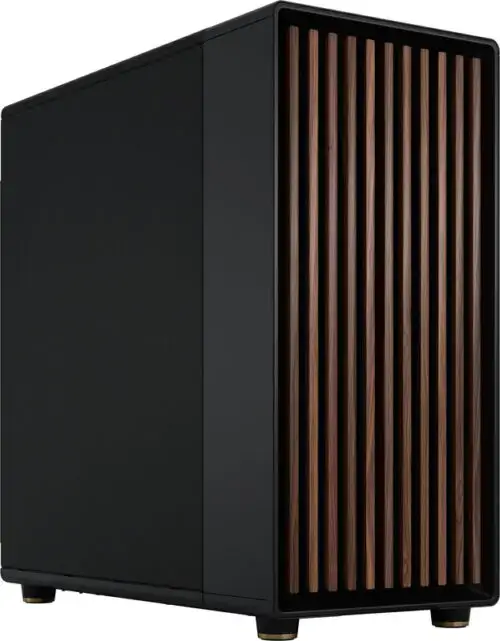
| Specifications | Beginner (beatmaker) | Advanced (producer) | Pro (orchestral/film music) |
|---|---|---|---|
| CPU | 6-core, 4.0+ GHz | 8-core, 4.5+ GHz | 12-core, 5.0+ GHz |
| RAM | 32 GB DDR4 | 64 GB DDR4 | 128 GB DDR5 |
| OS/DAW Drive | 500 GB NVMe Gen3 | 1 TB NVMe Gen4 | 2 TB NVMe Gen4 |
| Sample Drive | 1 TB NVMe Gen3 | 2 TB NVMe Gen4 | 4 TB NVMe Gen4 |
| Audio interface | USB, ASIO | Thunderbolt, low latency | Thunderbolt, multiple I/O |
| Cooling | Quiet tower cooler | Quiet tower or AIO | AIO or custom water cooling |
The entry-level build is suitable for running two DAWs simultaneously with light VST sets. The advanced build comfortably runs three DAWs, including medium-sized orchestral libraries. The pro build is designed for heavy templates with hundreds of tracks and multiple sample players running simultaneously.
Upgrade paths to consider:
- RAM is the cheapest and most impactful upgrade: going from 32 to 64 GB costs relatively little
- A second NVMe slot is available on most modern motherboards at no extra cost
- A CPU upgrade often requires a new motherboard as well: plan for this when making your initial purchase
Check out the I4studio selection guide if you’re unsure which build fits your workflow.
Why I4studio recommends these specifications
I4studio builds and supplies custom studio PCs specifically designed for audio and video production in the Netherlands. The recommendations in this article are based on practical experience with a wide range of studio setups, from small home studios to professional recording studios.
How we evaluate specifications:
- Stability test: Each build runs for at least 24 hours under full DAW load before delivery
- Latency test: buffer settings are tested at 64, 128, and 256 samples using the included audio interface
- Thermal management: Fan curves are set for quiet operation under normal studio conditions
- Expandability: We select motherboards with sufficient RAM slots and NVMe ports for future growth
I4studio offers practical specifications and sample configurations tailored to various workflows, with an emphasis on customization for stability and quiet cooling.
A personal note on using multiple DAWs and the right hardware
For many producers, running multiple DAWs at the same time isn’t a luxury—it’s a reality. You might receive a Logic project, work in Ableton yourself, and want to have both open for reference. Or you might use Reaper for audio editing alongside FL Studio for beat production. The hardware requirements in this case are fundamentally different from those for a single DAW.
Something I’m seeing producers in the Netherlands underestimate more and more often: the combination of RAM and silent cooling. A system that thermally throttles or lacks sufficient memory behaves unpredictably. Ultimately, that costs you more time than the money you saved on the initial purchase. Contact I4studio for customized advice tailored to your specific workflow and budget.
I4studio: Custom-built studio PCs for your workflow
A studio PC that can run multiple DAWs reliably requires more than just a fast processor. Quiet cooling, the right port configuration, and preconfigured ASIO settings make the difference between a system that works and one you can trust.
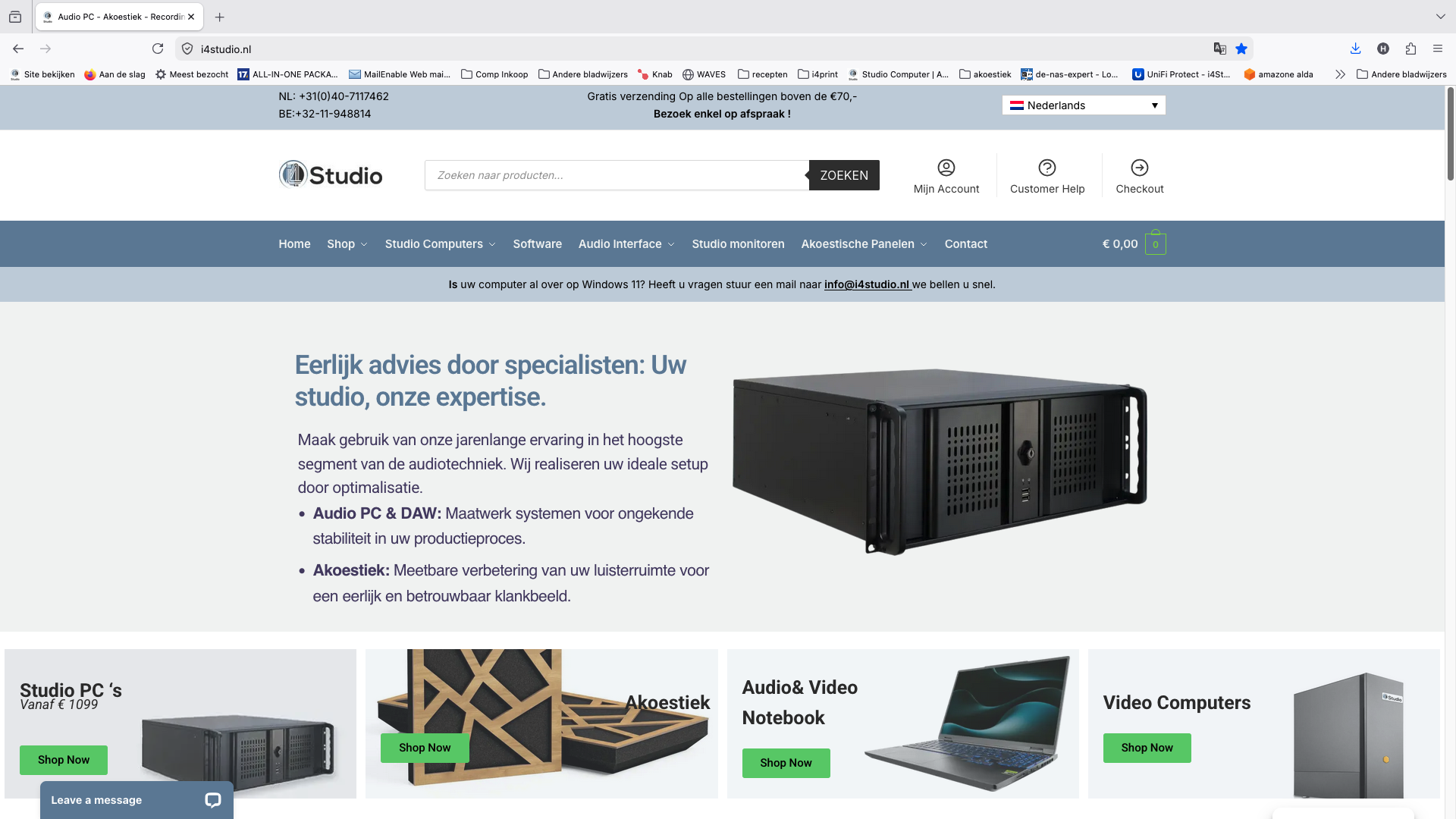
I4studio provides custom-built studio PCs specifically configured for audio and video production. Each build comes with preset power management settings, an optimized BIOS configuration, and has been tested for DAW stability. Not just a generic gaming PC with a sticker on it, but a system that’s ready for your sessions.
What you’ll get:
- Custom configuration based on your DAWs and workflow
- Quiet cooling, suitable for use in the recording studio
- Warranty and support from the Netherlands
Check out the sample studio PC configurations or go directly to the I4studio studio PC selection guide to find the build that fits your workflow.
Sources
Frequently Asked Questions
How much RAM do you need to run two DAWs at the same time?
For two DAWs running simultaneously, 32 GB of RAM is the minimum; for large sample libraries or orchestral projects, 64 GB is recommended to ensure stable operation without swapping to disk.
Can a single audio interface drive multiple DAWs at the same time?
Yes, provided the interface supports multi-client ASIO drivers or you use a virtual audio router such as VoiceMeeter. Without multi-client support, only one DAW can control the interface at a time.
What specifications should a studio PC have for orchestral projects?
For orchestral workflows, I4studio recommends at least 12 CPU cores, 128 GB of RAM, and two NVMe Gen4 drives, each with a capacity of 2–4 TB, so that large sample libraries can be loaded entirely into memory.
Is a desktop or laptop better for running multiple DAWs?
A desktop offers more expandable RAM slots, better cooling, and higher CPU performance per euro. A laptop is the better choice if you regularly work on location, with Apple M-series models combining quiet operation with strong performance.
Why is Thunderbolt better than USB for an audio interface?
Thunderbolt offers a guaranteed bandwidth of 40 Gbps and more stable latency than standard USB, which—at high sample rates (96 kHz or 192 kHz) and with multiple active DAWs—makes the difference between stable audio and audible dropouts.
Recommendation
- DAW Computer Recommendations: What Hardware Do You Need for a Fast, Reliable Studio – https://i4studio.nl/
- DAW Hardware Recommendations for Professional Audio Workflows – https://i4studio.nl/
- What specs do you need for a good studio PC?
- Best Computer for DAW: A Guide for Producers and Studios – https://i4studio.nl/