Quick Sync and NVENC do the same thing: they encode video using a separate chip, so your processor remains free to handle other tasks. The difference lies in where that chip is located and what it does best. Quick Sync is built into the integrated graphics of Intel processors and excels at energy-efficient, fast encoding and smooth playback of HEVC footage in your editing software. NVENC is found on Nvidia GeForce RTX graphics cards and is the best choice for streaming, AV1, and heavy-duty exports. For most creative workflows, the best solution is therefore not an “either/or” choice, but a system that has both on board and is properly configured.
In a nutshell
- Quick Sync is the media engine in Intel processors with integrated graphics: energy-efficient, fast, and powerful at HEVC decoding during editing.
- NVENC is a standalone encoder on NVIDIA graphics cards: ideal for live streams and recordings with OBS, and on RTX 40 and 50 series cards, it also supports AV1.
- For modern generations, image quality is very similar across different models and is largely determined by software encoding; the codec (AV1, HEVC, H.264) makes a bigger difference than the brand.
- Streamer or gamer? Choose NVENC. Editing camera footage in HEVC? Quick Sync is a big plus. Both? Combine an Intel processor with an iGPU and an RTX card.
- Choose hardware encoding for real-time work; use software encoding (x264) only if you have time and want the absolute best quality.
Table of contents
- What exactly are Quick Sync and NVENC?
- Quick Sync and NVENC Side by Side
- Image quality: Which one delivers the best picture?
- Speed, power consumption, and system load
- Which one should you choose for your work?
- How to set up Quick Sync or NVENC in OBS
- Hardware encoding or software encoding with x264?
- Our take on Quick Sync and NVENC
- A studio PC that utilizes both Quick Sync and NVENC
- Frequently Asked Questions
- Sources
What exactly are Quick Sync and NVENC?
Both are hardware encoders: dedicated processing units that only encode and decode video. This is fundamentally different from software encoding, where your processor calculates each frame itself.
Intel Quick Sync Video
Quick Sync (often abbreviated as QSV) is built into the graphics chip of Intel processors. This means you don’t need a separate graphics card, but you do need a processor with integrated graphics enabled. Note: Intel models with an “F” in their name do not have an iGPU and therefore do not support Quick Sync.
According to OBS’s explanation of hardware encoding, Quick Sync works on Windows and Linux starting with the 2nd generation Intel Core (Sandy Bridge), but OBS recommends Haswell or newer because earlier generations clearly delivered lower quality. Anyone building a system today will be well above that threshold.
Nvidia NVENC
NVENC is a separate component of the NVIDIA GPU. NVIDIA describes it on its page about live streaming with GeForce RTX as an independent section that encodes video, thereby reducing the load on your CPU. Because it is separate from the graphics cores, streaming or recording while gaming has virtually no impact on performance.
OBS supports NVENC on graphics cards including the GeForce 750 Ti and the 900 series, but recommends the 6th-generation NVENC, the Turing architecture (RTX 20 series), and newer models for the best results.
Quick Sync and NVENC Side by Side
Want to quickly spot the difference? This table lists the key points that make all the difference in practice.
| Criterion | Intel Quick Sync | NVIDIA NVENC |
|---|---|---|
| Where is it? | In the Intel processor’s iGPU | On the GeForce RTX graphics card |
| Additional hardware required | No, but a CPU with an iGPU (not an F-model) | Yes, an NVIDIA graphics card |
| H.264 and HEVC | Yes, including 10-bit HEVC on recent generations | Yes, HEVC 8-bit and 10-bit |
| AV1 encoding | On recent generations, such as Core Ultra | On RTX 40 (Ada) and RTX 50 (Blackwell) |
| Strengths in | Efficient encoding, HEVC decoding in your NLE | Streaming, AV1, fast exports |
| OBS Support | Yes | Yes, with extensive presets |
| CPU Load | Low | Low |
Why the Generation Is More Important Than the Brand
A Quick Sync encoder from ten years ago cannot be compared to the one in a current Core Ultra, and a GTX card from 2016 cannot be compared to an RTX 50. Nvidia’s NVENC Application Note lists support for H.264, HEVC in 8- and 10-bit, and AV1 in 8- and 10-bit, with AV1 encoding reserved for the Ada and Blackwell generations. On the Intel side, recent generations, such as Core Ultra, have gained AV1 encoding in addition to H.264 and 10-bit HEVC. Check the specifications for each processor.
So always compare specific generations with each other, not “Intel” versus “Nvidia.”
Picture Quality: Who Delivers the Best Picture?
With modern hardware, the differences are smaller than many forum discussions suggest. An academic evaluation of hardware encoders on modern GPUs from 2025 measured quality using VMAF. Intel Quick Sync scored slightly better on average than the software encoders in the test; Nvidia had a slight advantage at 1080p and was roughly on par with software overall.
More importantly, according to the same researchers, the quality improvements of recent years stem primarily from the shift to newer codecs such as AV1, and less from changes to the encoders themselves. In its OBS guide for NVENC, Nvidia states that AV1 on the RTX 50 series is about 43% more efficient than H.264, which results in higher quality at the same bandwidth.
What does that mean for you?
- Use the latest codec supported by your hardware and platform. AV1 or HEVC provides more detail than H.264 at the same bitrate.
- Allocate a sufficient bitrate. At low bitrates, differences between encoders are most noticeable, especially in fast-moving scenes.
- Choose the right preset. A slower, higher-quality preset on NVENC or Quick Sync makes a bigger difference than the chip brand.
For exports, Nvidia also highlighted improved HEVC and AV1 quality in the RTX 50 series, along with an Ultra High Quality mode that, according to Nvidia, further boosts quality by about 5%.
Speed, Power Consumption, and System Load
Both encoders take the load off your processor. You’ll notice it right away: your DAW, your game, or your editing timeline will run smoothly while encoding takes place in the background.
- Power consumption: In the evaluation mentioned, both hardware encoders consumed significantly less power than software encoding, while delivering comparable or higher throughput for real-time applications.
- Throughput: Nvidia cards traditionally perform well with multiple simultaneous streams or heavy exports, especially on cards with multiple encoders.
- Energy efficiency: Quick Sync is particularly efficient because it is built into the processor and does not require a separate card to be powered.
The actual speed depends on the combination of your CPU, GPU, and software. Swing Catalyst’s support page on hardware encoding rightly points out that performance can vary from system to system, and that it’s a good idea to run a quick benchmark on your own machine. This applies to any program: test a ten-minute export with both encoders and compare the time and video quality.
Which one do you choose for your work?
The best encoder depends on what you do on a daily basis. Below are the four most common situations.
Live Streaming and Gaming
This is where NVENC comes out on top. The encoder is separate from the graphics cores, so your game and your stream don’t interfere with each other. In its OBS guide, NVIDIA recommends using H.264 via NVENC for Twitch, AV1 for YouTube on RTX 40 series cards and newer, and HEVC otherwise. Be sure to check out our page on video streaming if you’re putting together a complete streaming setup.
Webinars, presentations, and screen recordings
If you record your training sessions, webinars, or product demos, hardware encoding is a quiet powerhouse: your laptop or workstation stays cool and responsive while you’re presenting. Both Quick Sync and NVENC are more than sufficient for this. If you also use a tool for short video messages within your team, a side-by-side comparison of tools like Loom and Vidyard can help you choose the right platform for business video.
Video editing
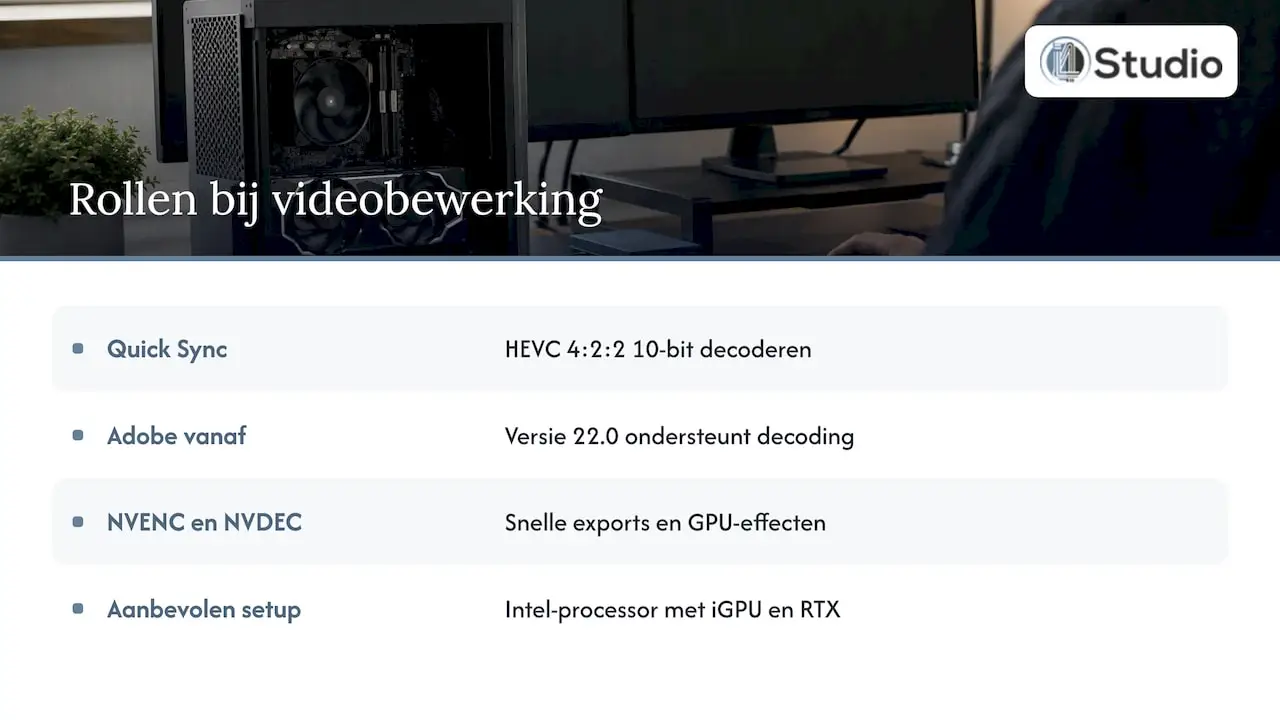
This is where it gets interesting, because editing is mainly about decoding: your timeline needs to play back smoothly. Many system cameras and drones record in HEVC, often in 10-bit 4:2:2. Adobe notes in its list of supported codecs for hardware decoding that, starting with version 22.0, Premiere, Media Encoder, and After Effects can decode HEVC 4:2:2 10-bit on Intel platforms. That makes Quick Sync a major advantage for many editors.
NVENC and NVDEC also remain valuable for fast exports and GPU effects, and newer RTX generations further expand the range of supported camera formats. That’s why we usually recommend that editors use a combination of an Intel processor with an iGPU and an RTX card. You can read more about this in our guide to video editing setups and our hardware recommendations for video editing.
Transcoding Your Media Library
If you want to convert an archive to HEVC or AV1 to save space, both encoders can handle it. Quick Sync is energy-efficient for a machine that’s often left on; NVENC is faster when processing large volumes at once. AV1 transcoding with Quick Sync is possible on Intel Arc graphics cards and recent Intel iGPUs; Jellyfin’s hardware acceleration documentation explains how to use it.
How to Set Up Quick Sync or NVENC in OBS
In its guide to advanced recording settings, OBS provides specific default values for local recordings. Use these as a starting point and then adjust them to suit your own footage.
NVENC for recordings:
- Rate control: CQP, with a value between 16 and 23 (lower is better and results in a larger file size).
- Keyframe interval: 2 seconds.
- Preset: P5.
- Tuning: High Quality.
- Two-pass at quarter resolution.
Quick Sync for recordings:
- Rate control: ICQ, with a value between 16 and 23.
- Target usage: TU4.
- Keyframe interval: 2 seconds.
- Latency: normal.
- B-frames: 3.
For streaming with NVENC, Nvidia recommends CBR, a keyframe interval of 2, and preset P6 as practical settings in its guide. CBR keeps your bitrate constant, which streaming platforms prefer.
If you mainly work in an NLE like Premiere Pro or DaVinci Resolve, check your preferences to make sure hardware decoding and encoding are enabled, and that your iGPU isn’t disabled in the BIOS. A disabled iGPU is the most common mistake when Quick Sync “doesn’t work.” You can find more practical tips in our video editing workflow tips.
Hardware encoding or software encoding with x264?
Software encoding with x264 or x265 lets your processor do all the work. At the slowest presets, this can deliver the best quality per megabit, but it requires a lot of processing power and energy and doesn’t always keep up with real-time work. The researchers behind the aforementioned evaluation conclude that hardware encoders are best suited for real-time streaming, especially if your processor needs resources for other tasks.
OBS therefore generally recommends hardware encoding. It notes that older hardware encoders may produce slightly lower quality at the same bitrate than x264 using the standard “veryfast” preset, but that modern hardware encoders deliver good quality with little impact on performance.
In short:
- Coding live or while working: hardware, always.
- Quick exports for clients or social media: hardware.
- A master that needs to be as small as possible and perfect, without time pressure: software set to a slow preset can still gain a few percent, provided your processor is powerful enough.
Our Perspective on Quick Sync and NVENC
At i4studio, every week we see producers, editors, and streamers struggling with the same question: Intel or Nvidia? Our answer is almost always: both, as long as they’re properly configured.
A modern Intel processor with a functional iGPU gives you Quick Sync for smooth HEVC timelines. An RTX card gives you NVENC for streams, AV1, and fast exports. Together, you get the best of both worlds, without your processor being overwhelmed by the encoding.
The difference is in the details. Is the iGPU enabled in the BIOS? Does your NLE recognize both chips? Are the drivers stable? Does your audio remain free of dropouts while the GPU is exporting? That’s what we focus on with every studio PC we build: stability, low latency, and a configuration optimized for both audio and video. And if you have any questions, you’ll be talking to people who work with this software themselves.
Harold
A studio PC that takes advantage of both Quick Sync and NVENC
Don’t want to mess around with BIOS settings, drivers, and encoder choices yourself? Our custom-built studio PCs start at €1,099 and are configured specifically for your workflow. For editing, streaming, and media production, we build a video editing computer in which the processor, iGPU, and RTX card are fine-tuned to work seamlessly together.
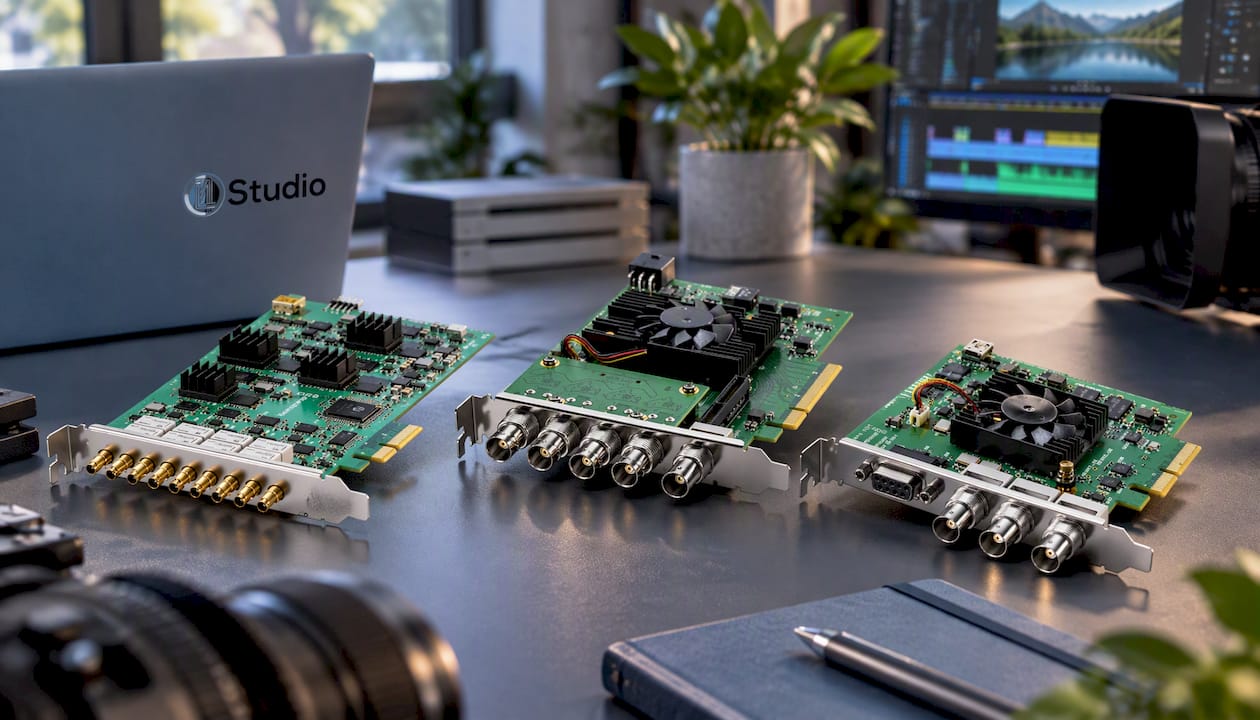
Do you work with professional cameras or multiple SDI sources? If so, pair your system with a capture card such as the Blackmagic DeckLink SDI 4K, the DeckLink Quad 2 for multiple channels, or the DeckLink 8K Pro. You’ll also find studio equipment, software, and audio interfaces to complete your setup. Not sure which processor to choose? Check out our comparison of the Intel 14900K vs. the Ultra 9.
Frequently Asked Questions
Which graphics cards have NVENC?
Virtually all modern Nvidia GeForce graphics cards support NVENC, starting with the GTX 750 Ti and the 900 series. For good quality, OBS recommends Turing (RTX 20) or newer. If you want AV1 encoding, you’ll need an RTX 40 or RTX 50 card.
Is Intel Quick Sync any good?
Yes, modern Quick Sync is energy-efficient, fast, and, according to recent tests, delivers quality comparable to software encoding. It’s particularly effective at decoding HEVC camera footage in your video editing software. Just make sure your processor has an iGPU and that it’s enabled.
Is video encoding better on the CPU or the GPU?
For real-time tasks, such as streaming and recording, a hardware encoder on the GPU or iGPU is the better choice: it’s faster, more energy-efficient, and doesn’t put a strain on your system. Software encoding on the CPU can compress slightly more efficiently with slow presets, but it takes much more time and consumes much more power.
Should I use NVENC or x264 in OBS?
If you have an RTX card, choose NVENC. You’ll save your CPU power for your game or other software, and the quality of modern NVENC is excellent. x264 is only worth using if you have a very powerful processor and no suitable hardware encoder.
Can I use Quick Sync and NVENC at the same time?
Yes. On a system with an Intel iGPU and an NVIDIA graphics card, for example, you can have Quick Sync handle decoding in your editing software and use NVENC for exporting, or use one encoder for your stream and the other for a local recording. This does require that the iGPU remain active in the BIOS.
Sources
- Hardware Encoding, OBS
- GeForce RTX: Your Ultimate Live Streaming Solution, NVIDIA
- NVENC Application Note 13.0, NVIDIA
- Evaluation of Hardware-Based Video Encoders on Modern GPUs, arXiv
- NVIDIA NVENC OBS Guide, NVIDIA
- GeForce RTX 50 Series Accelerates DaVinci Resolve 20 Studio, NVIDIA Blog
- Using Hardware Encoding, Swing Catalyst
- Supported codecs for hardware-accelerated decoding, Adobe
- HWA Tutorial on Intel GPU, Jellyfin
- Advanced Recording Settings Guide, OBS