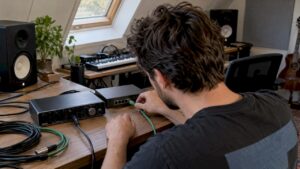
Video editing setup advice starts with clearly defining the intended result: fast renders, accurate color correction, real-time playback without dropped frames or a compact mobile studio for location recording. This article offers a step-by-step guide to hardware, software, workflow and acoustics, aimed specifically at audio professionals, musicians and content creators looking for reliable performance and practical solutions.
Why a thoughtful setup is important
A well-designed video editing setup does more than just render faster. For professionals, the setup affects:
- Creative speed: fast previews and responsive timelines speed up decisions.
- Consistency: calibrated displays and correct audio ensure that the final product is always correct.
- Reliability: stable storage and backups prevent hours of work from being lost.
- Ergonomics and workflow: less physical strain and a logical setup increase productivity and creativity.
Step 1 – Define goals and usage scenarios.
Before choosing hardware or software, it is wise to answer some questions:
- What is the typical project format (4K/6K/RAW, multicam, drone shots)?
- Is real-time color grading necessary or will offline grading suffice?
- Do they work primarily solo, or in a team with shared storage?
- Is mobility important or is a permanent studio desired?
- What is the available budget for hardware and studio improvements?
These answers form the basis of any serious video editing setup advice. An instructor making short 1080p tutorials does not need to invest the same amount as a post-production studio handling 8K RAW.
Step 2 – Core hardware for a video editing workstation
Key components are discussed below, with practical recommendations for different workflows.
Processor (CPU)
The CPU is crucial for tasks such as encoding, timeline scrubbing with certain software and effects that are not GPU-accelerated. For video editors:
- Entry-level: 6-8 cores (e.g. Intel i5 or AMD Ryzen 5) – sufficient for 1080p and light 4K editing.
- Mid-range: 8-12 cores (Intel i7 / Ryzen 7) – good for 4K, multicam and moderate effects.
- High-end/pro: 16+ cores (Intel Xeon / AMD Threadripper / Ryzen 9) – for 6K/8K RAW and heavy rendering tasks.
Some workflows, such as DaVinci Resolve and recent Adobe plug-ins, use GPU-intensive computing. Still, a powerful CPU remains valuable for overall responsiveness and exports.
Graphics card (GPU).
GPU acceleration enhances real-time playback, color correction, effects and machine learning features (such as automatic color matching). Recommendations:
- Content creators: mid-range GPU (NVIDIA RTX 3060/4060 or AMD RX 6700) offers good value for money.
- Professionals: high-end GPU (NVIDIA RTX 4080/4090 or professional cards such as NVIDIA RTX A4000+) for 4K/8K and heavy grading.
- Beware: VRAM is essential. 10-16 GB is minimum for 4K, 24+ GB recommended for 8K and large compositions.
Working memory (RAM)
RAM affects how many layers, clips and effects a system can manage at once. Guidelines:
- Entry: 16 GB – only for simple 1080p projects.
- Mid: 32 GB – comfortable for 4K editing and multicam.
- Pro: 64 GB or more – recommended for 8K, large compositions and simultaneous audio projects.
Storage: speed and capacity planning
Storage is often the bottleneck. A logical layout helps:
- OS and applications: NVMe SSD (500 GB-1 TB).
- Active project files: fast NVMe SSD or PCIe 4.0 NVMe (1 TB+).
- Media archive and footage: large SATA SSDs or enterprise HDDs in RAID; external Thunderbolt SSDs for mobility.
- Backups: NAS or external drive according to 3-2-1 principle (more on that below).
For heavy-duty workflows, a fast RAID array or dedicated scratch disk can make all the difference in multicam and high bitrate footage.
Motherboard, power supply and cooling
A stable power supply (80 PLUS Gold/Platinum) and good cooling prevent throttling during long renders. For workstations, ECC-RAM is optional but useful for critical workflows. Make sure the motherboard has enough connections for future expansion (more M.2 slots, U.2, multiple GPU PCIe slots, Thunderbolt).
Step 3 – Monitoring, color and visual inspection
Choice of monitor
For accurate color correction and grading, a monitor with high color coverage is essential. Key specifications:
- Panel type: IPS or professional VA panels for color stability.
- Color coverage: at least 100% sRGB and 95% DCI-P3 for modern workflows; 99% Adobe RGB for print/photography.
- Screen size and resolution: 27″ 4K is a common sweet spot; dual monitor setups (toolbars + fullscreen preview) increase efficiency.
- Hardware calibration support: for consistent results between monitors and outputs.
Calibration and color management
A calibration tool such as an X-Rite i1Display or Datacolor Spyder belongs in every serious editor’s kit. Calibration ensures that what is seen in the studio matches what the viewer sees at home – essential in broadcast and commercial projects.
Step 4 – Audio: from input to monitoring
Since the target audience often includes audio professionals and musicians, audio integration is a distinguishing factor in this video editing setup advice.
Audio interface and monitoring
- Choose an audio interface with low latency and stable drivers (Thunderbolt interfaces often give the best performance for complex sessions).
- Professional nearfield monitors (e.g., Genelec, Adam Audio, Focal) with an appropriate subwoofer improve the mix reference.
- Headphone monitoring with multiple outputs and talkback features is practical for voice-over and collaborations.
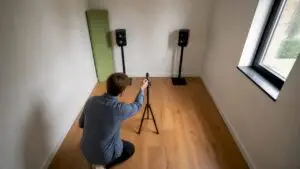
Room treatment and acoustics
The listening environment changes the perception of the mix. As a provider of studio and acoustic solutions, I4studio can advise on absorption, diffusion and bass suppression, and supplies custom panels to optimize the listening room. A few simple steps often deliver big gains:
- Sound absorbing panels at primary reflection points.
- Bass traps in the corners to reduce low-frequency accumulation.
- Use of a symmetrical arrangement of monitors opposite the listening position.
Step 5 – Peripherals and control surfaces
The right tools speed up workflow and make recurring tasks more enjoyable.
- Control surfaces: Loupedeck, Avid S1/S3 or Blackmagic panels cut up color grading and audio automation.
- Editing hardware: jog/shuttle-wheels or dedicated speed controllers are useful for long rough cuts.
- Calibrated keyboard shortcuts and macros: streamlinet repetitive actions.
- Graphics tablet (Wacom): useful for masking and rotoscoping.
Step 6 – Camera and codec management.
Regardless of the camera, one must pay attention to codecs and color management:
ProRes and DNxHR vs. H.264/H.265
For editing, intra-frame codecs such as ProRes or DNxHR are smoother than highly compressed H.264/HEVC. Large production houses often work with ProRes or RAW, while H.264/H.265 is more suitable for final distribution.
Proxy workflow
For long 4K/8K projects, a proxy workflow saves a lot of time. Example of a simple proxy creation with ffmpeg:
ffmpeg -i origineel.mov -c:v libx264 -preset veryfast -crf 18 -c:a copy proxy.mp4The editor can work on proxy.mp4 and later switch back to the original media for color and export.
Step 7 – Software selection and optimization
Which NLE (nonlinear editor) one chooses depends on the type of work, team requirements and personal preferences. The most popular options:
- Adobe Premiere Pro: broadly applicable, good for integration with After Effects and Audition.
- DaVinci Resolve: excellent color grading and increasingly complete NLE features; also very GPU-intensive.
- Final Cut Pro: optimized for macOS and fast performance on Apple Silicon.
- Avid Media Composer: traditional favorite for broadcast and long-format productions.
Key optimizations:
- Update GPU and driver updates to professional (Studio/Creator) drivers where relevant.
- Set up scratch disks and cache on a separate fast disk (NVMe) for previews and renders.
- Use of optimized media or render cache in the NLE for smoother playback.
Step 8 – Network, shared storage and backup strategy
When collaborating or when multiple workstations need access to large media files, a network solution is essential.
NAS and high-speed networking
- A NAS with 10GbE connectivity offers many advantages for teams. For intensive workflows, 25GbE or more are relevant.
- Make sure the NAS supports SSD caching or NVMe tiering to achieve high I/O performance.
Backup: the 3-2-1 principle
A reliable strategy consists of:
- 3 copies of the data (original + two backups)
- 2 different media types (local RAID + external drive or NAS)
- 1 off-site copy (cloud or physical storage at another location)
Service solutions such as Backblaze B2 or AWS S3 Glacier can be used for archiving large footage sets.
Step 9 – Ergonomics and physical workflow
A comfortable workspace increases creativity and prevents physical ailments during long sessions. Points of interest:
- Monitor height and distance so that the neck remains in a neutral position.
- Ergonomic chair with good lumbar support.
- Alternate standing work with an adjustable desk.
- Cable management to reduce clutter and optimize cooling flows.
Budget-based recommendations
Here are concrete configuration suggestions as a starting point. I4studio can deliver such video computers customized and optimized for audio/video workflows.
Entry-level Creator (suitable for 1080p, light 4K)
- CPU: 6-8 cores
- GPU: NVIDIA GTX/RTX 3050
- RAM: 16-32 GB
- Storage: 1 TB NVMe (OS) + 2 TB SATA SSD (projects)
- Monitor: 27″ 1440p IPS
Mid-range Professional (serious 4K workflows)
- CPU: 8-12 cores
- GPU: NVIDIA RTX 3060/3070 or AMD equivalent
- RAM: 32-64 GB
- Storage: 1 TB NVMe (OS) + 2x NVMe (project scratch) + 8 TB RAID or NAS
- Monitor: 27″-32″ 4K, 95% DCI-P3
High-end Studio Workstation (8K, color grading, broadcast)
- CPU: 16+ cores (Threadripper or Xeon)
- GPU: NVIDIA RTX 4080/4090 or professional A-series cards
- RAM: 64-256 GB
- Storage: multiple NVMe for scratch, RAID or SAN solutions for media
- Monitor: professional 4K/5K reference displays with hardware calibration
Practical examples and workflow tips
An editor working with multicam 4K interviews might do the following to stay efficient:
- Ingest: Copying camera CF/SD cards to local NVMe scratch and NAS archive.
- Proxy: Automatically generate proxies in ProRes Proxy or low-bitrate H.264 via Watch Folders or Media Encoder.
- Edit: Edit timeline on proxies, fine tune audio in DAW via AAF/OMF export if needed.
- Export: Relink to original media, color correction and final export to desired deliverables.
A useful trick: for projects with many RAW files, you can transcode to halfraw format (e.g. ProRes 422 HQ) during ingest so that color pipeline works faster and more consistently.
Measuring performance and resolving bottlenecks
If timeline stutters or exports are slow, a systematic approach helps:
- Monitor CPU and GPU load during playback (Task Manager, Activity Monitor, or tools such as GPU-Z).
- Check disk I/O and temperature of drives; replace slow HDDs with SSD or NVMe.
- Make sure you have up-to-date drivers and if possible use NVIDIA’s Studio/Creator drivers for stability with pro software.
- Limit background applications, turn off antivirus scans during renders (but not permanently).
When to seek professional help?
Setting up a studio and choosing the right combination of hardware and acoustic treatment can be overwhelming. I4studio offers advice and customized workstations for audio and video production, including:
- Preconfigured workstations optimized for NLEs and audio DSP
- Advice for studio acoustics and pairwise hardware solutions
- On-site support and tuning for networks and shared storage
For teams looking to set up a shared editing environment or those producing mission-critical broadcasts, bringing in experts is often faster and more cost-effective than in-house trial-and-error.
Checklist: A practical overview for purchase and setup
- Determine target and resolution (1080p vs 4K vs 8K).
- CPU and GPU specifications matched to workflows.
- Minimum of 32 GB RAM for serious 4K projects, more for larger projects.
- Fast NVMe for OS & scratch, ample archive storage for footage.
- Monitor with good color coverage and hardware calibration.
- Audio interface with low latency and good monitor setup.
- Redundant backups (3-2-1) and a plan for off-site archiving.
- Ergonomics and acoustic treatment of the workspace.
- Contact a vendor experienced with audio/video workstations (such as I4studio) for customization.
Common mistakes and how to avoid them
- Underbudget for storage: footage grows rapidly; count liberally.
- Relying on laptop GPU for heavy grading: often inadequate.
- No backup strategy: hard drive failure is inevitable, planning helps.
- Disappointment with color: not using calibration or wrong color profiles.
- Ignoring cooling and ventilation requirements in high-end builds, leading to throttling.
Future-proof building
Investing in modularity pays off. Consider:
- Motherboards with additional M.2 slots and multiple PCIe lanes.
- Power supply with sufficient power and reserves for future GPU upgrades.
- Network cards for 10GbE/25GbE if team collaboration is planned.
Conclusion
A smartly constructed video editing setup is a balance between speed, reliability and budget. Video editing setup advice is not just about the fastest CPU or biggest GPU; it’s about bringing together the right components, optimal storage architecture, reliable backups, accurate monitors and a well-treated listening room. For audio professionals and content creators, a customized solution – including acoustic treatment and professional interfaces – offers an immediate improvement in workflow and end result.
I4studio can support this by providing workstations specifically tailored to audio and video workflows, as well as advice on studio acoustics and networking solutions. For those looking to speed up the process or reduce risk, professional advice is often a wise investment.
Frequently Asked Questions
Which component affects render time the most?
It depends on the task and the software. For CPU-bound encodes and some effects, the CPU is decisive. For GPU-accelerated effects, color grading and real-time playback, the GPU is often the limiter. In most modern workflows, a good balance between CPU, GPU and fast storage helps the most.
Is 32 GB of RAM enough for 4K editing?
For many 4K projects, 32 GB is fine, especially for solo editing and simple compositions. For multicam, heavy color grading or simultaneous DAW projects, 64 GB is preferable.
Should one choose ProRes or continue to work with H.264/H.265?
For editing and grading, ProRes or DNxHR are more convenient because of lower compression and better frame-accurate editing. H.264/H.265 are excellent for final delivery because of smaller files, but are less suitable during the editing phase.
How important is 10GbE for a small studio?
For solo editors, 10GbE is not always necessary, but for teams or when high bitrate media is shared via NAS, 10GbE or higher delivers significant time savings and smoother collaboration.
When is acoustic treatment really necessary?
For anyone serious about mixing or doing sound design, minimal treatment is recommended: absorption at primary reflection points and bass traps. For broadcast and music production, a well-treated room is indispensable for making reliable mix decisions.