There are a number of different types of video you want to include in your livestream or capture for later editing. Each source requires the right approach for capturing and importing into your streaming software. Here’s some information on the most common video types we get questions about.
Local screen capture
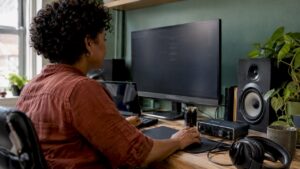
The most basic source to work with is the video feed coming to your monitor. It is almost trivial these days to simply capture your screen, and there is a wide range of software available for this task. Some programs also allow you to capture only part of your screen or an active window, and no special hardware is required for this. This video source is ideal for tutorials where you want to show your audience how to use an application, as well as for those who stream video from video games directly from the PC they are playing on.
HDMI cameras
Most consumer cameras and camcorders that support live video output do so via HDMI. Not every digital camera has this capability, so if you’re not sure, consult the owner’s manual. Most higher-end DSLRs and video cameras also have this functionality, and it is also one of the three common options for fixed event cameras (along with SDI and network designs, as shown below). It’s worth noting that some cameras have a smaller version of the connector – Mini HDMI or Micro HDMI – and cables are available to adapt it to the normal-sized plug. To use HDMI cameras with a computer for streaming, you need a capture card with the right number of HDMI inputs for the number of cameras you want connected. The Elgato Cam Link Pro we sell supports up to four inputs on one card.
Another PC or game console
If you want to capture video from another computer, you need to be able to intercept the signal and still pass it on to the monitor. The same goes for capturing output from a game console before it reaches a TV. This requires a special type of capture device that has both an input to feed the device and an output to send it to the appropriate monitor, ideally with little or no delay in the process. We offer the Elgato 4K60 Pro Mk 2 HDMI capture card, which is made specifically for this purpose and also supports high resolutions and frame rates.
SDI cameras
SDI (Serial Digital Interface) is a step beyond HDMI and supports much longer cabling and traditionally uses the BNC connector that can be locked for greater reliability. This interface is mostly found on more expensive video equipment and requires a special capture card in the computer for recording or streaming. Blackmagic Design makes several such cards in their Decklink product line, and we have a few of them here at i4studio
Network / IP cameras
A recent trend in cameras is to do away with a dedicated video connector altogether and instead send the video (and audio, if any) over a network connection. This allows the use of much longer cables and eliminates the need for a dedicated recording card, but requires more investment in a good network infrastructure. Some cameras like this one are powered via Ethernet (PoE for short) and must be connected to a switch that can supply the right amount of power. You also have to consider the format in which the video images are transmitted over the network. Some cameras use proprietary encoding, but there are also industry standards available such as NDI (Network Device Interface)
Live streaming computer system FAQ
What computer hardware is needed for smooth live streaming?
That answer depends on how you approach streaming and what kind of content you’re broadcasting. The computer must be able to handle whatever you plan to stream first — whether it’s a video game, desktop application, web conferencing software, etc — and then on top of that will have additional system requirements that vary with different streaming applications. In general, a reasonably powerful CPU or NVENC-enabled video card is the most important component for encoding the video stream. You also need an Internet connection with good upload bandwidth to ensure the data gets to your viewers smoothly.
Should I have a separate computer for streaming?
Live streaming system FAQ
What computer hardware is required for smooth live streaming?
That answer depends on how you approach streaming and what kind of content you’re broadcasting. The computer must be able to handle whatever you plan to stream first — whether it’s a video game, desktop application, web conferencing software, etc — and then on top of that will have additional system requirements that vary with different streaming applications. We have another tab with hardware requirements for games, for those who want to live stream their gameplay. In general, a reasonably powerful CPU or a video card with NVENC support ( e.g. nvidea) is the most important component for encoding the video stream. You also need an Internet connection with good upload bandwidth to ensure the data gets to your viewers smoothly.
Do I need to have a separate computer for streaming?
If you only want to stream content from other devices, then a standalone computer is probably the best way to go. However, if you want to stream content directly from a computer, you can configure it to handle both your computing and streaming at the same time. That may make the computer more expensive, but it may be easier to manage than having a separate computer next to your main system just for streaming. If the activity you are streaming is extremely CPU-intensive, the pendulum may swing back in favor of a dedicated streaming box. In addition, if you are streaming from a combination of multiple sources at the same time, then the system may need to be physically larger to have multiple recording devices to make that possible.