If you’re using an NVIDIA graphics card, you can choose between two driver lines: Game Ready and Studio. The short answer: if you’re editing video, producing music, or rendering 3D, the Studio driver is usually the safest choice. If you mainly play the latest games on the day they’re released, Game Ready is a better fit. Both drivers share the same foundation. The difference lies in what NVIDIA tests and how often updates are released. Below, you’ll learn exactly what that means for your workflow, when you’re better off choosing Game Ready, and how to switch safely.
In a nutshell
- Studio drivers are designed for creators and are extensively tested with leading creative applications. They are released less frequently, typically about once a month.
- Game Ready drivers are designed for gamers and provide support for new games on launch day. They are released more frequently.
- You can game just fine on a Studio driver, and creative software also runs on Game Ready. According to NVIDIA, all NVIDIA drivers support both games and creative apps.
- You can only install one at a time. You can switchbetween them at any time using the NVIDIA software on your PC.
- For a studio PC that you use to earn money through audio or video work, stability is more important than the latest game optimizations.
Table of Contents
- What is the difference between Studio and Game Ready?
- Which driver is right for your work?
- Can you play games with a Studio driver?
- Here’s how to safely switch between the two drivers
- Having problems after a driver update?
- How We Set Up Drivers on a Studio PC
- A studio PC that runs smoothly from day one
- Frequently Asked Questions
- Resources
What is the difference between Studio and Game Ready?
According to NVIDIA’s Studio FAQ, Game Ready drivers are designed for gamers who want day-0 support for new titles, patches, and DLC. Studio drivers are designed for creators. They undergo extensive testing with creative applications and workflows and are released on a longer schedule, typically monthly.
At a glance:
| Feature | Studio driver | Game Ready driver |
|---|---|---|
| Target Audience | Video editors, photographers, 3D artists, producers | Gamers |
| Test Focus | Creative Applications and Workflows | Games, on thousands of hardware configurations |
| Update Frequency | Lower, usually monthly | Higher, often with major game releases |
| New Games | They work, but without Day 0 optimization | Day-0 support |
| Major app updates | Supported from day one | Usually work, but have been tested less thoroughly |
| Risk of new bugs | Lower, due to fewer and more thoroughly tested releases | Slightly larger, due to the faster pace |
| Best for | Production work where stability matters | Playing the latest games |
Same foundation, a different test route
A common misconception is that the Studio driver is a completely different product. That’s not true. According to XDA Developers, both drivers are built on the same core and are therefore technically interchangeable. Which one you choose does, however, affect performance and stability in specific situations.
You can think of them as two release schedules for the same engine. Game Ready drivers quickly receive the latest optimizations for games. That speed comes at a cost: Game Ready drivers are released more frequently and, as a result, may contain bugs or issues more often. Studio drivers take longer to release and are tested during that time with software such as video editing and design suites.
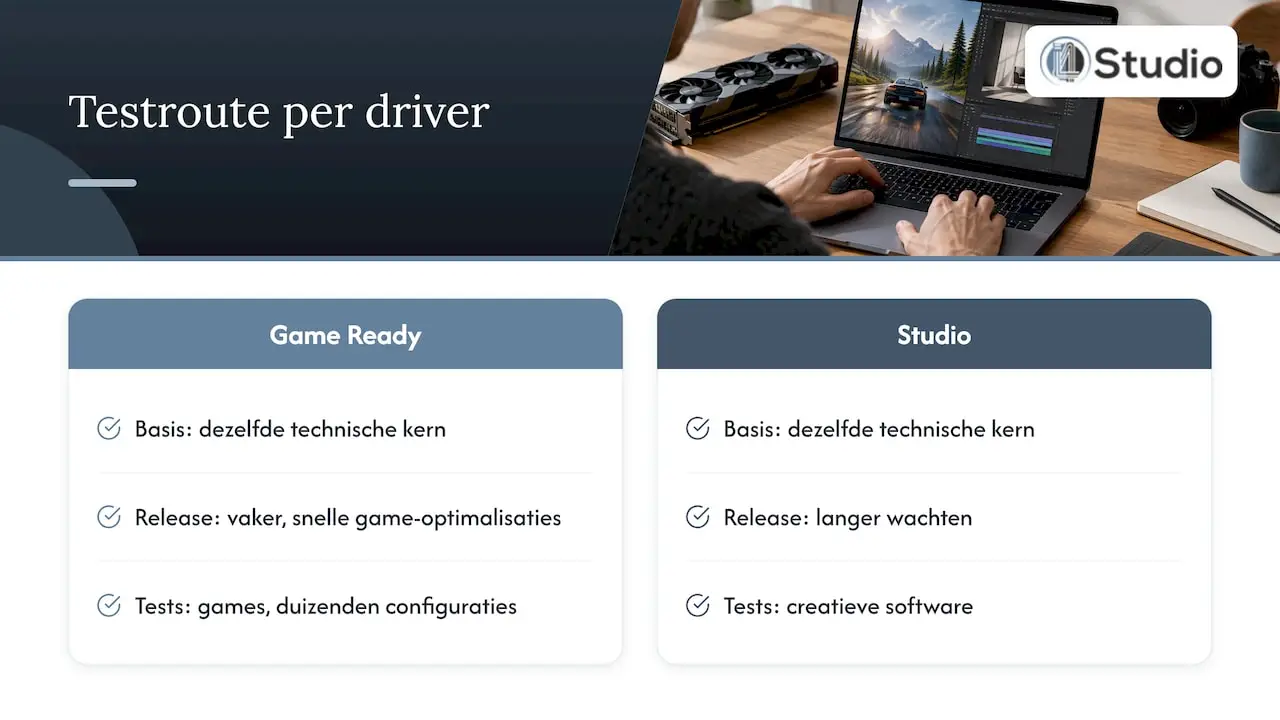
That doesn’t mean Game Ready drivers are tested carelessly. NVIDIA states that Game Ready drivers are thoroughly tested on thousands of hardware configurations. However, those tests focus on games, not on your timeline in an editing program or your plug-in chains.
Why the Lower Update Frequency Matters
For a creator, fewer updates are actually an advantage. Every driver update is a moment when something in your workflow might change: an effect that renders differently, an export that freezes, a plug-in that suddenly glitches. With a monthly release schedule, you have fewer of those moments. You can work longer on a version you know is reliable.
The German publication GameStar also points out that Studio drivers undergo more rigorous stability testing when you have multiple creative applications open at the same time—for example, a video editing program and a photo editing program running side by side. That’s exactly how many editors work.
Which driver is right for your job?
The right choice depends on what you do every day. Below are the situations we encounter most often.
Video editing and color grading
This is where the choice is clearest. NVIDIA recommends Studio drivers for creators who prioritize stability and quality in workflows such as video editing, photography, and graphic design. Your graphics card does a lot of heavy lifting in video editing software: hardware-based decoding and encoding, effects, noise reduction, and color grading. A driver that has been tested with these applications reduces the risk of crashes during export or strange artifacts in your preview.
If you want to speed up your editing even more, be sure to check out our tips for an efficient video workflow. The driver is one factor; the balance between the processor and the graphics card is another. That’s the topic of our article on the role of the CPU in video editing.
Music Production and DAW Work
In an audio studio, the graphics card isn’t a key component, but the driver can still get in the way. A DAW runs on the processor and your audio interface. Still, the graphics driver is always running in the background, and an unstable driver can briefly tie up the system. In practice, you’ll notice this as glitches, dropouts, or a buffer that you have to set higher than necessary.
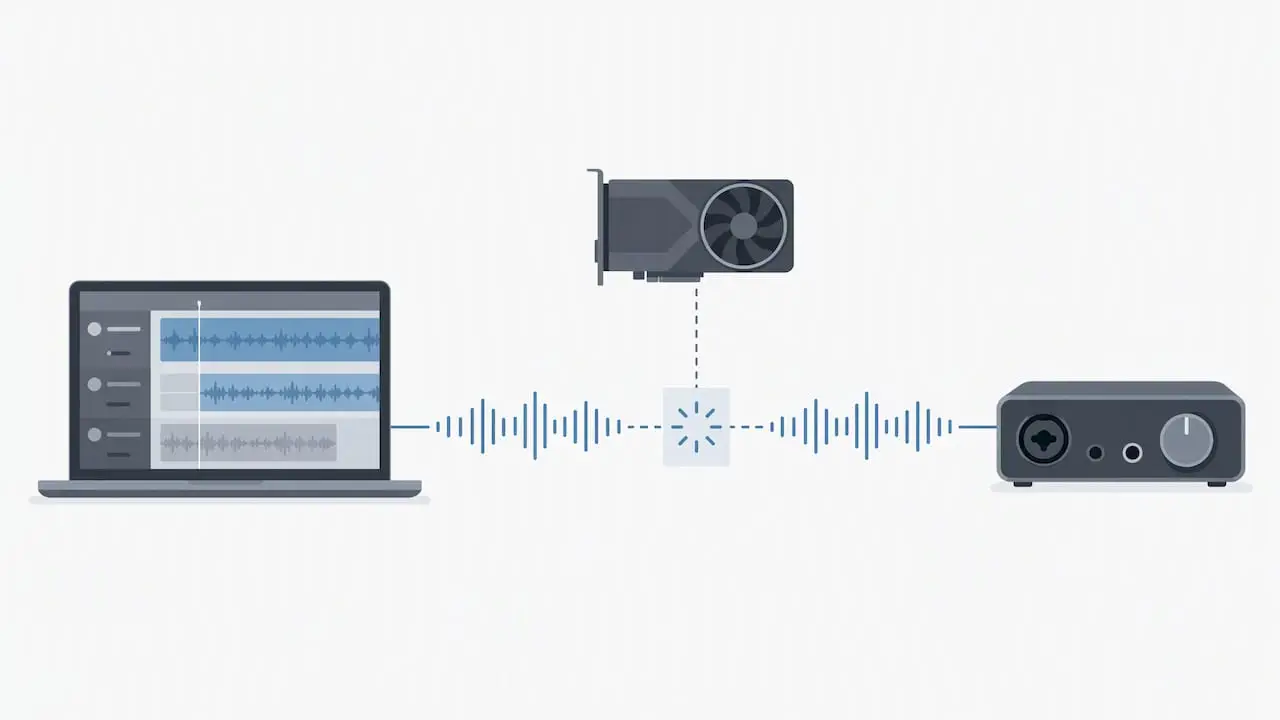
When it comes to an audio PC, we therefore opt for the most stable approach: a Studio driver, only the components you really need, and no updates with every new release. If you notice unexplained glitches, check out our real-world example involving NVIDIA issues. And for the rest of the system: Optimizing Windows 11 for audio and five tweaks for better DAW performance.
3D, motion graphics, and AI applications
With 3D rendering, motion design, and locally running AI models, your graphics card runs at full power for hours on end. A render that’s supposed to run overnight but stops halfway through will cost you a full workday. The same rule applies here: use the Studio driver, unless you have a specific reason to choose otherwise. Read about which specifications are essential for an AI computer and what else matters besides the driver.
Live streaming and real-time video
This is the exception you often come across on forums. Anyone who does live production—involving real-time mixing of camera footage, overlays, and streaming—will regularly read there that Game Ready drivers are better suited for real-time video processing. A number of users of live production software deliberately choose them for this reason.
Our advice: Check what the developer of your live software recommends in the system requirements or on the support pages, and follow those guidelines. If you’re doing post-production editing in addition to live production, test both drivers on your own system and choose the version that runs smoothly.
Gaming and Creating on a Single PC
Many producers and editors also play video games. If you do so only occasionally, the Studio driver is perfectly fine. Most games run just fine on it, though sometimes without the very latest optimizations. If you play competitively or want to play a new title on release day with all the latest improvements, Game Ready makes more sense. Or you can switch it up depending on the time of year: Studio during a production, Game Ready during your week off.
Quick decision guide
| Your situation | Our choice |
|---|---|
| You can earn money through video or photo editing | Studio |
| You produce or mix music in a DAW | Studio |
| You render 3D models or run local AI models | Studio |
| You’re doing live production or streaming | Follow the instructions provided by your live streaming software |
| You play video games from time to time alongside your creative work | Studio |
| You mostly play new games on their release date | Game Ready |
Can you play games with a Studio driver?
Yes. According to NVIDIA, all NVIDIA drivers offer full functionality and support for leading games and creative applications. So a Studio driver doesn’t block games, and Game Ready doesn’t block editing software.
The difference lies in timing. When a major new game is released, Game Ready usually receives the optimizations for it right away. The Studio driver doesn’t include those improvements until a later release, after additional testing. For older and existing games, you’ll often notice little difference in practice.
Here’s how to safely switch between the two drivers
You can only install one driver at a time. According to NVIDIA, in the NVIDIA software (GeForce Experience), select “Studio Driver” from the menu with the three vertical dots, then download and install it.
In the studio, we follow these steps:
- Finish your project. Never switch drivers in the middle of a deadline. Save your projects and close all creative software.
- Make a note of your current driver version. If everything is working fine now, you’ll know right away which version to revert to.
- Create a system restore point in Windows. That way, you can revert to a previous state if something goes wrong.
- Select the desired driver in the NVIDIA software and start the download.
- Choose a clean install if that option is available. This will replace the old settings and help you avoid conflicts.
- Install only what you need. On an audio PC, it’s best to leave out any extras you don’t use.
- Restart and test. Open your DAW or editing software, play back a resource-intensive project, and perform a quick export. Only then should you get back to work.
When should you update, and when shouldn’t you?
If a driver is working properly, you don’t need to replace it right away. Update only when:
- if your software receives a new version that requires a more recent driver;
- if the release notes address an issue you’re experiencing;
- if you’re installing new hardware.
If everything is running smoothly and you have an ongoing project, you’d rather wait until the project is finished.
Problems after a driver update?
Even a Studio driver can cause problems on a specific system. Every PC is a different combination of motherboard, processor, audio interface, and software. If you notice glitches, crashes, or unusual behavior after an update, work through this list:
- Go back to your previous version. That’s often the quickest solution. That’s why you should make a note of that version beforehand.
- Perform a clean reinstallation of the same driver to remove any old remnants.
- Check your software settings. Audio editing programs often have a setting for hardware acceleration. Turn it off for a moment to see if the driver is the cause.
- Check your audio settings. Clicking noises in the DAW don’t always come from the graphics card. Also read our strategies for stable DAW performance.
- Test with Game Ready. Sometimes the other driver line actually resolves a specific issue. Since the base is the same, switching drivers is a valid test.
How We Install Drivers on a Studio PC
We build custom studio PCs for audio and video. Our philosophy can be summed up simply: the best driver is the one you don’t even notice. A producer wants to open their session and start working. An editor wants to export without having to check if everything is going smoothly. That’s why, when configuring an audio or video system, we focus not only on speed, but above all on stability and low latency.
For most creative systems, that means a Studio driver, with only the components you need. We fine-tune the entire setup to work with the software you use, so that the graphics card, audio interface, and Windows don’t interfere with each other. If you do run into a problem, our technical experts will personally help you resolve it, because a single setting can sometimes make the difference between a session that freezes and one that keeps running smoothly.
Our advice to anyone who does creative work with an NVIDIA graphics card: choose wisely, update selectively, and never make any changes in the middle of a deadline.
– harold
A studio PC that runs smoothly from day one
Would you rather not waste time on drivers, settings, and research? Our studio computers for audio, DAW, and video are custom-built and configured for your software, with a focus on stability and low latency. Studio PCs start at €1,099. Complete your setup with a suitable audio interface, studio monitors, or music production software. If you’re unsure which configuration is right for you, we’d be happy to help you figure it out.
Frequently Asked Questions
Is the Game Ready driver better than the Studio driver?
Not in general, because they’re designed for different purposes. Game Ready is better if you want to play the latest games on release day with all the optimizations. For creative work where stability matters—such as video, audio, and 3D—the Studio driver is usually the better choice.
Do I need to install both the Game Ready and Studio drivers?
No, you can only have one NVIDIA driver installed at a time. Both include the same basic features, so you won’t be missing anything. If you want to switch, select the other driver line in the NVIDIA software and install it.
Will my editing software work with a Game Ready driver?
Yes, creative applications also run on Game Ready. The difference is that the Studio driver has been specifically tested with this software and supports major app updates from day one. If you’re a professional user, the Studio driver reduces the likelihood of unexpected issues.
Does the NVIDIA driver affect my audio?
Indirectly, yes. Your DAW runs on the processor and your audio interface, but an unstable graphics driver can briefly strain the system and cause clicks or dropouts. A stable Studio driver with only the necessary components helps prevent that.
How often should I update my Studio driver?
A new Studio driver is usually released about once a month, but you don’t need to install every version. Update when your software prompts you to do so, when a known issue is resolved, or when you install new hardware. If everything is running smoothly, feel free to wait.
Sources
- NVIDIA: Studio FAQs
- NVIDIA: How GeForce Game Ready Drivers Deliver the Best Experience
- XDA Developers: Should You Use NVIDIA’s Game Ready or Studio Drivers?
- GameStar: What Are NVIDIA Game Ready Drivers?