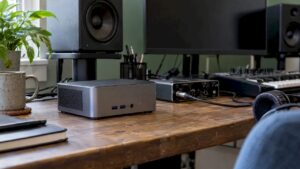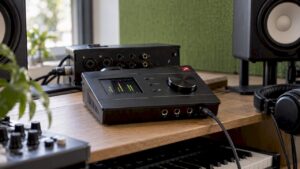
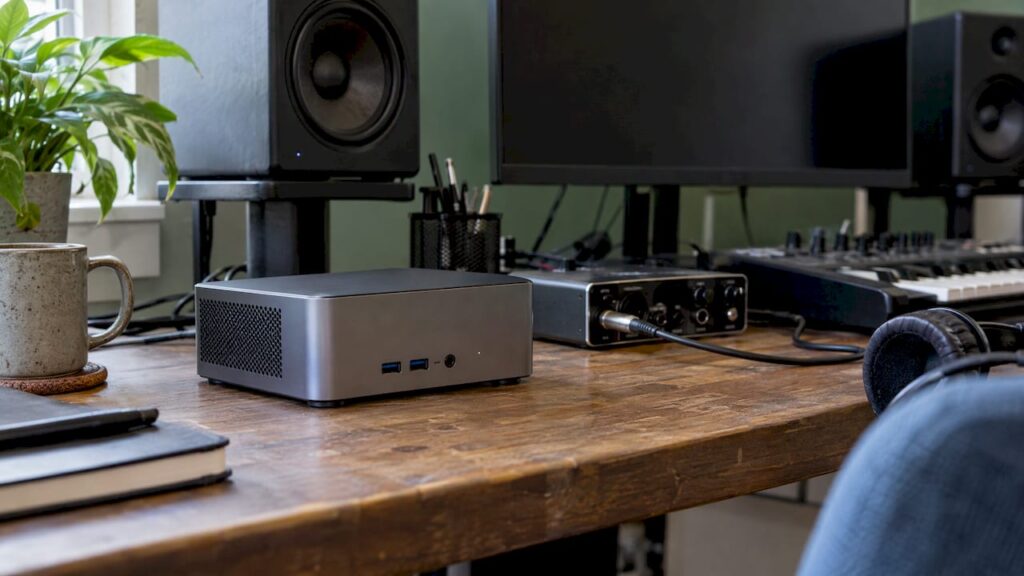
A mini-PC is well-suited for audio: for most producers, a solid mid-range model is enough to run a DAW, an audio interface, and a hefty stack of plug-ins. But the configuration has to be right. Think at least 16 GB of RAM—preferably 32 GB—a fast SSD with at least 1 TB of storage, enough USB ports to connect your interface directly, and a cooling system that stays quiet while you’re recording. If you work with massive sample libraries, heavy real-time processing, or 4K video, you’ll need more processing power and space for cooling. In this article, you’ll learn what to look for in each component and when a compact studio PC is the best choice.
In a nutshell
- Suitable for most producers: a well-configured mini-PC can run most DAW projects without any problems. For very large projects, you’ll need more processing power.
- Memory and storage: 16 GB of RAM is the minimum; 32 GB is the practical optimum for most producers. Choose at least a 1 TB SSD if you work with sample libraries.
- Connections: Connect your audio interface directly to the PC—not through a USB hub—and make sure there are enough USB-A and USB-C ports available.
- Silence matters: small fans can become audible under prolonged use. Pay attention to cooling and noise levels if the PC is located in the recording room.
- Note regarding soldered RAM: With more and more mini-PCs, you won’t be able to upgrade the memory later. So be sure to choose enough right from the start.
Table of contents
- Mini-PC or tower: What’s the difference in the studio?
- What kind of work is a mini PC suitable for?
- Processor, RAM, and storage
- Connections: USB, Thunderbolt, and your audio interface
- Fan noise and heat in the recording room
- Latency, buffer size, and lots of plug-ins
- Power: Protect Your Session
- Setting Up Your Mini PC for Music Production
- Our take on the mini-PC in the studio
- A studio PC built for audio
- Frequently Asked Questions
- Resources
Mini-PC or tower: What’s the difference in the studio?
A mini-PC is a compact desktop computer. It’s often no bigger than a book and can sometimes fit behind your monitor. A tower has more internal space: for a more powerful processor, a large cooler, a discrete graphics card, and expansion cards. With a mini PC, you trade that expandability for a smaller form factor.
In a studio, that difference comes into play in three ways:
- Space and portability. A mini-PC fits on a crowded desk next to your controller, synthesizer, and monitors. It’s also easy to take with you to a rehearsal space or a gig.
- Cooling. A tower can dissipate heat through large, slow-spinning fans. A mini-PC has smaller fans that have to spin faster when the processor runs at full power for extended periods.
- Future. In a tower, you can easily replace a component later on. With many mini PCs, the configuration is largely fixed at the time of purchase.
Still unsure whether to choose a desktop or a laptop? In our guide to desktops and laptops for audio and video production, we compare the options side by side.
What kind of work is a mini PC suitable for?
According to KVR Audio, a solid mid-range mini-PC is sufficient for most music producers. However, large sample libraries, intensive real-time processing, and video editing do require higher specifications. This aligns with what we see in practice: the type of work determines the configuration, not the size of the case.
| Work | Is a mini PC suitable? | What to look for |
|---|---|---|
| Beats, electronic music, pop productions | Yes | 32 GB RAM, fast processor with high clock speed per core |
| Recording Vocals and Instruments | Yes | Silent cooling, direct USB connection for the interface |
| Mixing with lots of plug-ins | Yes, provided it’s powerful | Many cores, good cooling under sustained load |
| Orchestral productions with large sample libraries | High-end only | 64 GB of RAM or more, multiple fast SSDs |
| Live performances and DJ sets | Yes | Compact, reliable, low latency |
| Video Editing in 1080p | Yes | Six- or eight-core processor, 32 GB RAM |
| 4K Editing and Color Correction | High-end only | Powerful graphics performance, plenty of RAM and storage |
Compact machines are now genuinely viable for video work. As early as 2020, the Dutch edition of *c’t* highlighted a mini-PC with a 60-core processor powerful enough for video editing. And in a 2026 comparison of mini-PCs, a high-end model edited and graded 4K video in Premiere Pro and DaVinci Resolve without any hiccups. That level of performance is typically found in the higher-end models.
Processor, RAM, and Storage
Processor
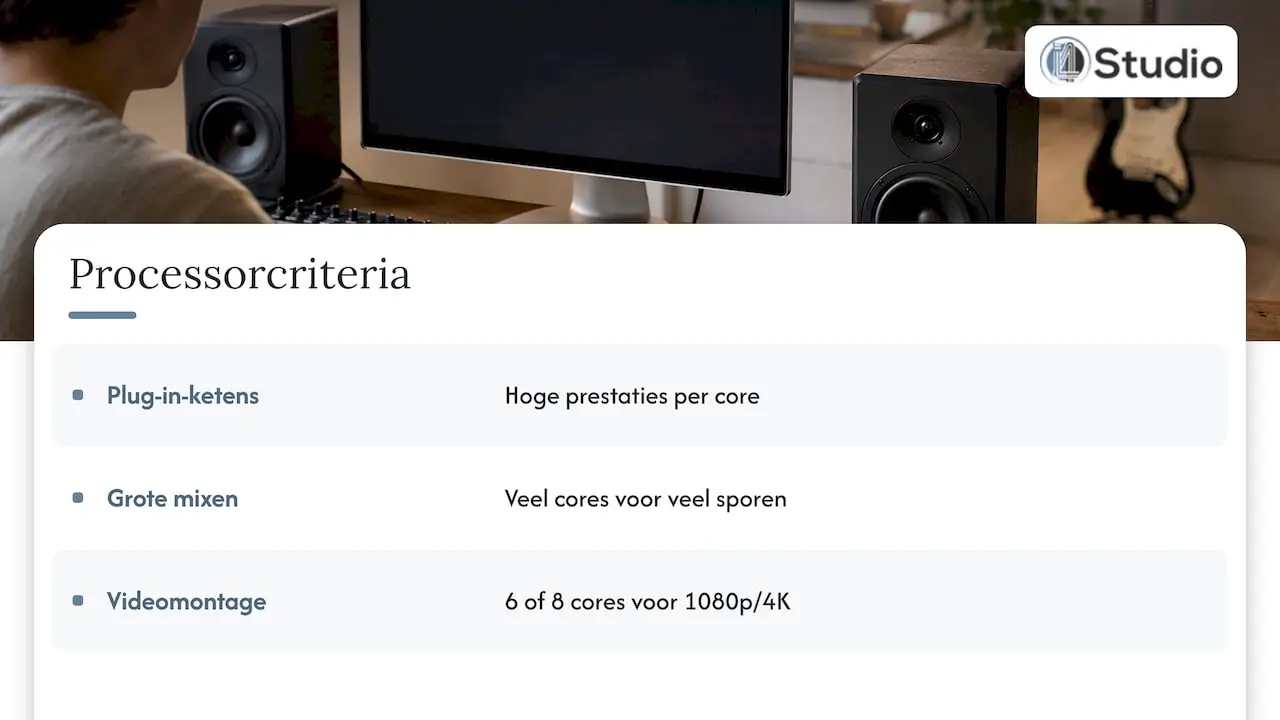
For audio, what matters most is how fast a single core performs its tasks. Each track, along with its chain of plug-ins, must be processed within a single buffer cycle, and often a single core handles that task. Having multiple cores is especially helpful for large mixes with many tracks running simultaneously and for video rendering. So choose a processor that excels at both: a high clock speed per core and enough cores. For video editing in 1080p or 4K, a six- or eight-core processor is a good starting point.
Want to know how the processor, memory, and storage work together in a DAW? We explain it in our article on studio PC components for music production.
Working Memory
KVR Audio recommends at least 16 GB of RAM for most producers , with about 32 GB being the practical optimum. If you work with large sample libraries, such as orchestral libraries or extensive drum kits, it’s worth investing in more memory. Speed is also a factor. You can read more about this in the article “How Much RAM Does Your DAW Need?”
When buying a mini PC, pay special attention to the type of memory it uses. More and more models come with soldered-on RAM, which you can’t easily upgrade later. If you buy one of these models, choose the amount of memory you’ll still need in two or three years.
Storage
For large instrument and sample libraries, KVR Audio recommends at least a 1 TB SSD. Many Windows mini-PCs have an extra M.2 slot, which comes in handy in a studio. Here’s a setup that works well:
- SSD 1: operating system, DAW, and plug-ins.
- SSD 2: sample libraries and projects.
- External drive or NAS: backups and completed projects.
This way, a single drive doesn’t have to load your system and stream samples at the same time.
Connections: USB, Thunderbolt, and your audio interface
The ports determine whether a mini-PC will actually fit in your studio. Figure out in advance what you’ll be connecting: an audio interface, a MIDI keyboard, a controller, USB-connected synthesizers, external SSDs, one or two monitors, a keyboard, and a mouse. For a music production PC, c’t listed USB-A, USB-C, HDMI, and DisplayPort as practical connections for interfaces, MIDI keyboards, synthesizers, and multiple monitors.
Three things to keep in mind:
- Connect the interface directly. In the same article, c’t recommends connecting the audio interface directly to a USB port and not using a USB hub if low latency is important. You can, however, use a hub for your keyboard and mouse.
- Enough USB-A. Not every compact computer still has traditional USB ports. On a compact AI workstation, c’t counted four USB-C ports and no USB-A ports, which meant you needed adapters or a dock. In a studio full of USB-A devices, that’s inconvenient.
- Thunderbolt or USB4. If you have an interface with Thunderbolt or want to use fast external storage, make sure that port is actually there. A USB-C port isn’t automatically a Thunderbolt port.
On Windows, use an interface with a good ASIO driver. According to Image-Line, ASIO drivers give your DAW direct access to the interface, rather than through the standard Windows audio layer. This provides a clear performance advantage. Looking for an interface that fits your setup? Check out our audio interfaces and, for the other end of the signal chain, our studio monitors.
Fan Noise and Heat in the Recording Room
If your PC is in the same room as your microphone, you’ll hear every fan in your recording. Energy-efficient mobile processors generally require less cooling and therefore often make less noise. However, the noise level varies by model and performance setting.
How quiet can a compact PC be? In the c’t review, a Sixcore mini-PC remained below 0.2 sone at idle and reached 1.6 sone under load. The specified power consumption was 3.8 W at idle and 56 to 90 W under load. At idle, you can barely hear it in a quiet room. Under full load, however, you can detect it with a sensitive condenser microphone.
Here’s how to keep the recording area quiet:
- Distance and direction: Place the PC as far away from the microphone as possible. Point the back of the microphone—where it picks up the least sound—toward the PC.
- Ventilation space: Do not install a mini-PC inside a closed piece of furniture. Trapped heat causes the fan to run faster.
- Power profile: Choose a profile that delivers stable performance without causing the processor to spike unnecessarily.
- Acoustics: Sound absorption in the room also dampens residual noise from equipment. Acoustic panels help reduce both reflections and background noise at the same time.
Latency, buffer size, and lots of plug-ins
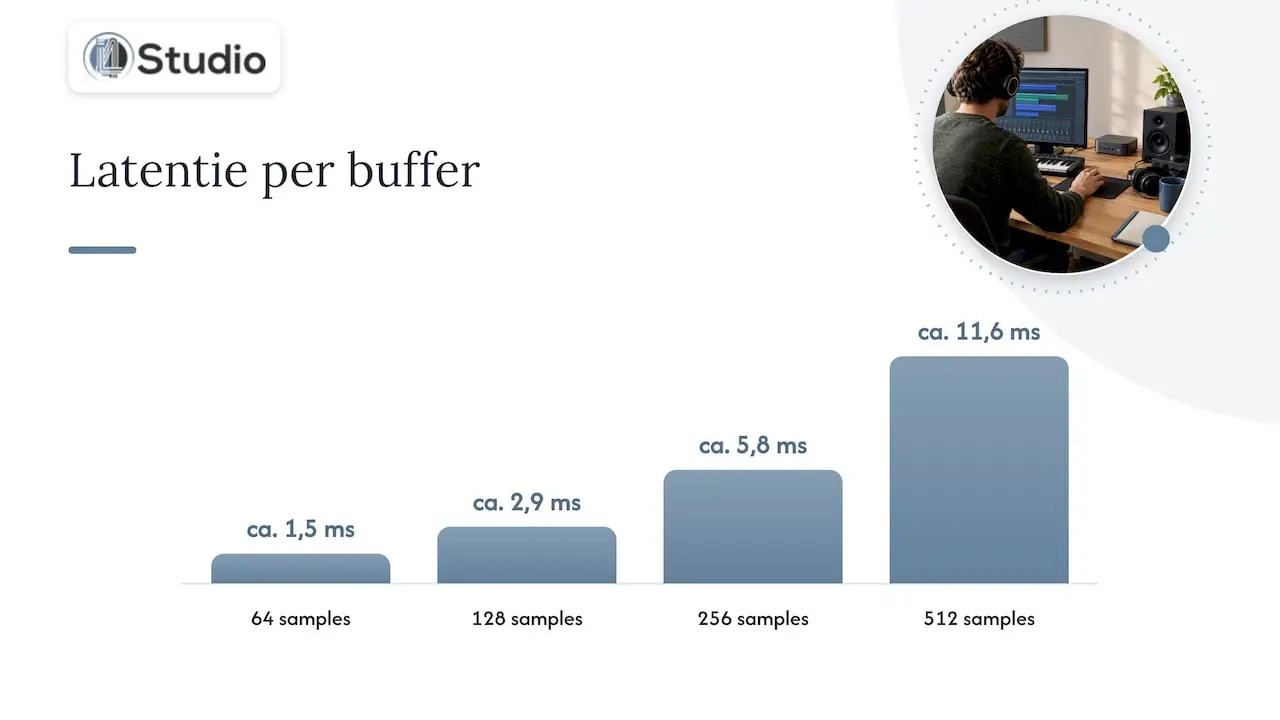
Latency is the delay between what you play and what you hear. You mainly adjust it by changing the buffer size in your DAW. A smaller buffer results in less delay, but places a greater demand on your processor. At 44.1 kHz, this translates to approximately the following values per buffer, for one direction:
| Buffer | Latency at 44.1 kHz | Typical use |
|---|---|---|
| 64 samples | approx. 1.5 ms | Live performance of software instruments |
| 128 samples | approx. 2.9 ms | Recording with monitoring via the DAW |
| 256 samples | approx. 5.8 ms | Producing with Many Instruments |
| 512 samples | approx. 11.6 ms | Mixing with resource-intensive plug-ins |
The total latency is higher because the interface and the converters add a little extra time. The pattern is clear, though: record with a small buffer and mix with a large one.
The DAW also makes a difference. c’t tested Ableton Live, Cubase, and Pro Tools at 128 samples and 44.1 kHz and observed differences in the number of playable tracks on the same PC. If you work with multiple DAWs, be sure to check out our specifications for a studio PC designed for multiple DAWs.
Are you still experiencing glitches or dropouts? If so, it’s often not due to a lack of processing power, but rather a driver that’s temporarily blocking the system. With LatencyMon, you can check whether a Windows PC is suitable for real-time audio. The tool searches for causes of buffer underruns by measuring DPC and ISR times, among other things. This is a particularly useful check for compact PCs with a lot of built-in wireless hardware.
Power: Protect Your Session
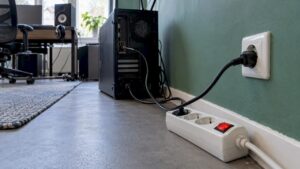
A mini-PC uses very little power, but even a brief power outage can still cost you an unsaved mix. A UPS gives you enough time to save your work and shut down properly in the event of a power outage. The type of UPS matters for sensitive equipment. If in doubt, read up on the difference between online and line-interactive UPS systems before choosing one. At a minimum, connect your PC, audio interface, and monitor to the UPS.
Setting Up Your Mini-PC for Music Production
Have you chosen a compact PC? Follow these steps to set it up properly:
- Update Windows and your drivers before installing your DAW. Then install the latest driver for your audio interface.
- Choose the right power profile so that the processor performs consistently without unnecessary spikes.
- Connect the interface directly to a port on the PC itself, not through a hub or dock.
- Set up ASIO in your DAW and select your interface’s driver.
- Run a test with LatencyMon while playing a resource-intensive project.
- Divide your storage: put the system and plug-ins on one SSD, and samples and projects on the other.
- Turn off automatic updates and background tasks outside of your sessions so that no downloads start during a recording.
- Create a backup routine for projects and plugin settings.
Our Take on the Mini PC in the Studio
We’ve been building computers for audio and video for years, and our conclusion is simple: the form factor is never the problem—the configuration is. An off-the-shelf mini-PC is designed for office work. It needs to be energy-efficient, inexpensive to produce, and suitable for as many people as possible. A studio requires something different: stability under hours of continuous use, low latency, drivers that don’t interrupt your audio, and a cooling system that stays quiet.
That’s why we build every studio PC to suit the work you do. If you produce beats in Ableton, we focus on speed per core. If you mix large sessions or edit video, we opt for more cores, more memory, and a cooling system that can handle the load. We select every component with audio in mind, and we configure the system so that it runs stably right out of the box.
Our advice: Don’t start by choosing a cabinet and hoping your gear will fit inside. Start with your sessions, your plug-ins, and your space. Then it will become clear whether a compact system is enough or if a quiet, powerful tower will deliver better results. Not sure? Ask us, and we’ll work with you personally to figure out the best hardware and acoustics for your setup.
Harold
A studio PC built for audio
Don’t want to compromise on size, silence, or performance? Our custom-built studio PCs start at €1,099. Each PC is built and configured for audio and video, with a focus on stability and low latency.
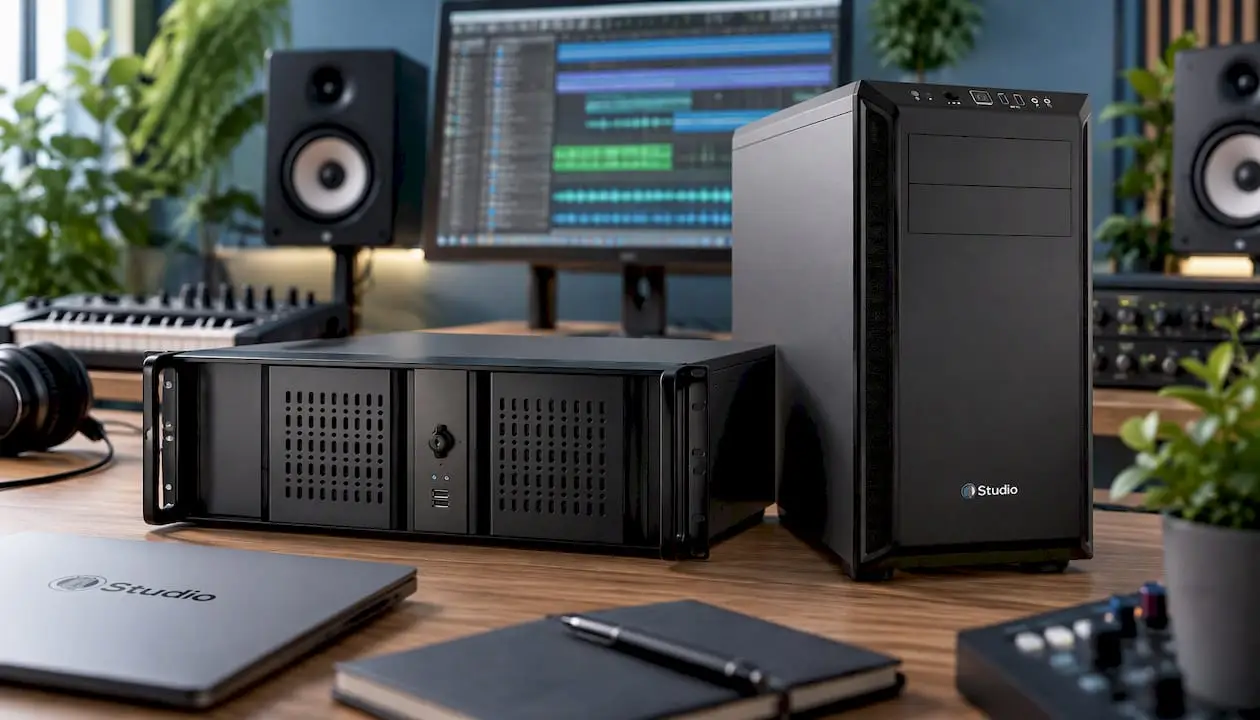
For example, check out the DAW Power Producer studio PC for production and mixing, or the Diamond Audio PC if you’re looking for more power. If you’re working on demanding projects, the Power Tower studio PC is the most powerful option. Complete your setup with microphones, studio equipment, and music production software. Do you mainly work in Ableton? Then be sure to check out our guide to the best computer for Ableton Live.
Frequently Asked Questions
Is a mini PC powerful enough for music production?
For most producers, yes—as long as you choose a solid mid-range model with at least 16 GB, and preferably 32 GB, of RAM. If you’re working with large orchestral sample libraries or hundreds of plug-ins at once, you’ll need more memory and more processing power. In that case, choose a high-end configuration or a tower.
How much RAM do I need in a mini PC for audio?
16 GB is the minimum, and 32 GB is the practical optimum for most producers. For large sample libraries, more is advisable. Check to see if the memory is soldered in, because then you won’t be able to upgrade it later.
Can I connect my audio interface via a USB hub?
That often works, but for the lowest latency, connect the interface directly to a USB port on the PC. Use the hub for the keyboard, mouse, and other devices that aren’t time-sensitive.
Why do I hear clicking and crackling sounds during playback?
Usually, the buffer is too small for your project, or a driver is temporarily causing a system freeze. First, increase the buffer size in your DAW. If that doesn’t help, use LatencyMon to identify which driver is causing the delay.
Is a mini-PC quiet enough for a recording studio?
When idle, good, compact PCs are almost inaudible. However, small fans may become audible during prolonged periods of heavy use. Place the PC away from your microphone, ensure there is adequate ventilation space, and choose a configuration with quiet cooling.
Sources
- KVR Audio: Mini PCs and NUCs for Music Production
- c’t: Compact Mini PC with Six Cores
- c’t: Build Guide for a Music Production PC
- c’t: Review of a compact AI workstation
- TechRadar: Best Mini PCs of 2026
- Image-Line: What computer should I get for music creation?
- Resplendence: LatencyMon