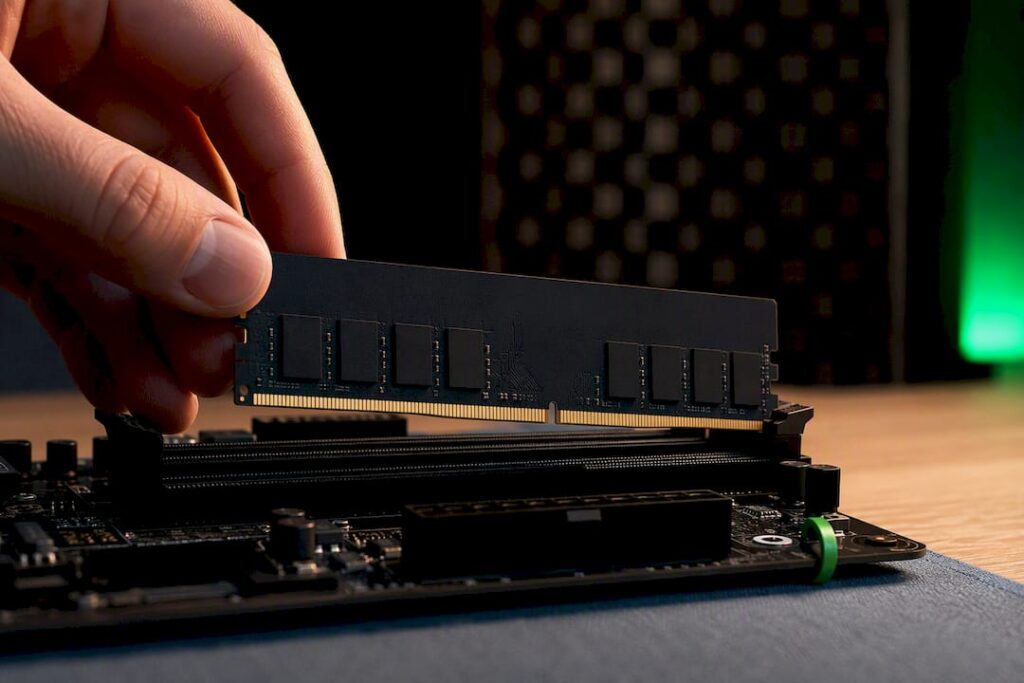
For most home studios, 32 GB of RAM is the practical lower limit for a DAW that won’t freeze, with 16 GB as the absolute minimum for light projects and 64 GB+ once orchestral libraries come into play. When it comes to speed, choose a kit ranging from 3200 to 3600 MHz with a CAS latency of CL16: that’s a useful rule of thumb that rarely disappoints in practice. Capacity determines whether your session will run stably; speed primarily determines how smooth that operation feels.
Briefly:
- A minimum of 32 GB of RAM is essential to prevent swapping, especially when working with orchestral libraries, while speed has less of an impact unless you’re doing real-time monitoring.
- Recommended RAM speeds range from 3200 to 3600 MHz with low CAS latency, such as CL16, because this combination offers the best balance between responsiveness and stability.
- For light projects, 16 GB of RAM is sufficient, but for professional workflows and large libraries, 32 GB or more is recommended to maintain efficient performance.
- Upgrading RAM usually results in only minor performance improvements, unless you’re actually running into memory limits and swapping, in which case additional capacity is crucial.
- When building a DAW PC, capacity is the top priority, because having enough RAM prevents swapping and minimizes performance issues during sessions.
Table of contents
- How does a DAW actually use your RAM?
- Speed versus capacity: which is more important?
- How many GB should you choose per workflow, and what speed is best for it?
- Configuration and compatibility: how to prevent instability after the upgrade
- What difference does a RAM upgrade actually make in practice?
- Why I4studio Recommends These Guidelines
- Short-term perspective: why capacity trumps megahertz
- Want to build your own stable DAW PC?
- Sources
- Frequently Asked Questions
How does a DAW actually use your RAM?
Every time you open a sample library, load an orchestral patch, or activate a reverb plugin, that program claims a portion of RAM. Some plugins load their entire sample set into memory as soon as you open a project, while others stream portions from disk as you play. Your DAW itself also uses shared buffers for audio flowing between tracks and buses, and those buffers grow as the number of active channels increases.
If your memory runs out of space, Windows switches to virtual storage: portions of RAM are temporarily written to your hard drive and then retrieved, a process known as swapping (Microsoft’s documentation on memory management explains this mechanism in technical terms). For a DAW, this is disastrous, because swapping is slow compared to RAM access, and that directly results in clicks, dropouts, or a frozen audio engine.
The tax varies significantly depending on the instrument:
- Lightweight synthesizers and effects often take up only a few dozen megabytes.
- Sample-based virtual instruments with multisamples can require hundreds of megabytes to several gigabytes per instrument.
- Large orchestral libraries with round-robins and multiple articulations can reach tens of gigabytes per section.
- Convolution reverbs with long impulse responses require a relatively large amount of memory per instance.
Speed versus capacity: Which is more important?
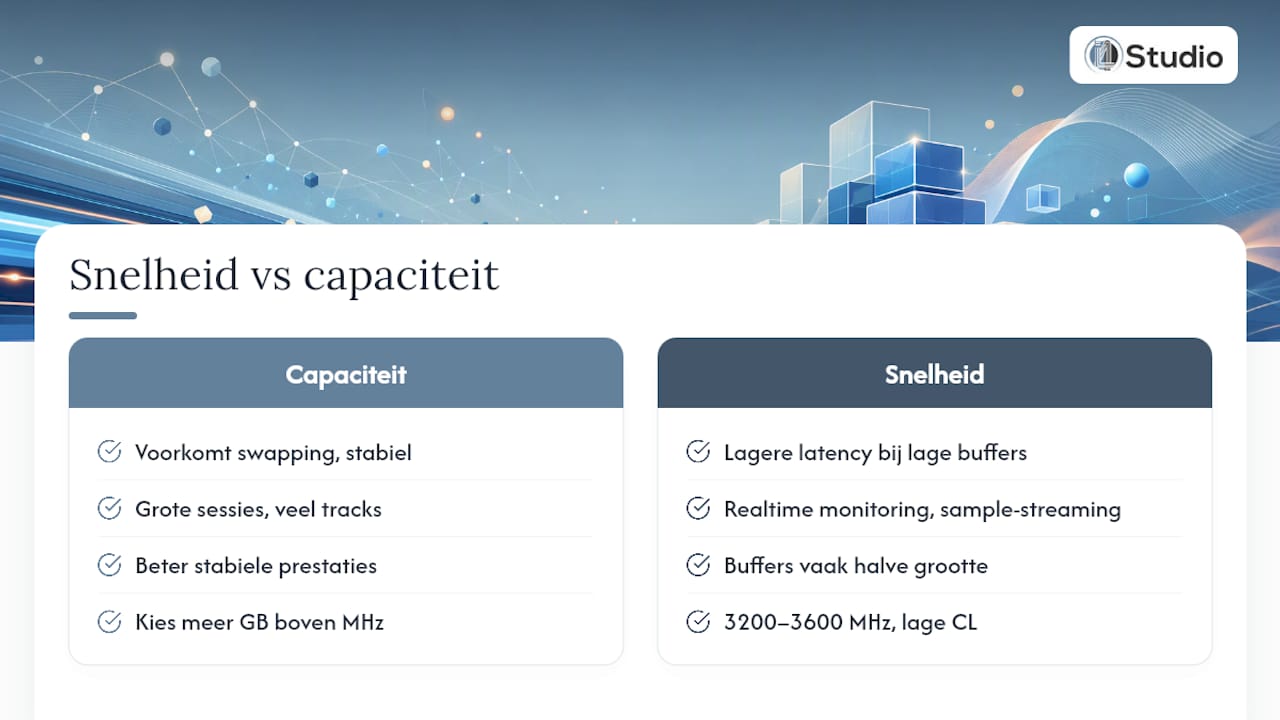
If you have to choose between more gigabytes or a higher megahertz, almost always go for capacity. Insufficient RAM leads to swapping, and swapping is the direct cause of lag and crashes during a session. Speed doesn’t solve that problem: a fast 16 GB kit that fills up will still perform worse than a slower 32 GB kit that has space to spare.
In practice: Test results show that upgrading from a low to a medium speed can sometimes reduce the required buffer size (for example, from 128 to 64 samples) and improve round-trip latency by about 1 to 2 milliseconds in specific setups.
Where speed does matter is in real-time monitoring with low buffer settings and in sessions that rely heavily on streaming samples from disk to memory. In those scenarios, higher bandwidth helps ensure a smoother flow of data.
However, megahertz isn’t the only number that matters. CAS latency, expressed as a CL value, determines how many clock cycles your memory needs to deliver data. In practice, a 3200 MHz kit with CL16 can respond faster than a 3600 MHz kit with CL18, simply because the lower timing compensates for the effective delay. Sources that specifically test DAW performance therefore recommend 3200 to 3600 MHz with low CAS latency—such as CL16—as the most reliable combination for smooth playback of virtual instruments. So don’t just blindly choose the highest MHz number on the box; instead, consider MHz and CL together.
How many GB do you choose per workflow, and what speed is appropriate for that?
The right amount of RAM depends heavily on what you’re actually producing. A recommendation of about 16 GB for basic production, 32 GB for most professional workflows, and 64 GB or more for large sample libraries should cover most home studio scenarios.
- 16 GB, for simple projects. This is enough for podcasts, basic songwriting sessions, or productions with a handful of lightweight plugins. As soon as you open multiple sample-based instruments at the same time, you’ll quickly run into limitations.
- 32 GB, the practical standard. For most home studios, this is the best place to start: enough headroom for multitrack recordings, VST-heavy mixing sessions, and a few more resource-intensive virtual instruments running simultaneously without having to constantly free up memory.
- 64 GB and higher, for heavy sample streaming. Orchestral compositions with multiple sections, film scoring templates, or productions that rely on extensive sample libraries require this amount of memory. This prevents a single project from freezing your entire system.
Regarding speed and memory type: DDR5 offers higher bandwidth than DDR4 and is recommended for new builds in 2026. This only applies if your CPU and motherboard are compatible with it. If you’re building with DDR4, stick to 3200 to 3600 MHz with CL16. If you’re unsure which capacity is right for your sample size, the guide on RAM for large sample libraries provides a more detailed overview.
Configuration and Compatibility: How to Prevent Instability After the Upgrade
Two identical modules in a matched dual-channel kit perform noticeably better than individual, randomly combined sticks. Dual-channel configurations effectively double memory bandwidth because the controller can communicate with two channels simultaneously, and this difference is documented in the architecture of multi-channel memory. Always install the modules in the correct slots, usually indicated by color-coding on the motherboard; otherwise, the system will silently switch back to single-channel mode.
A second step that many home studios skip: enabling XMP on Intel systems, or EXPO on AMD systems. Without that profile, your new memory will often run at a conservative default speed, well below the advertised MHz. Incorrect BIOS settings or a motherboard that doesn’t officially support the speed can also lead to instability, as explained in this guide to XMP profiles.
Before you buy or install, check the following:
- The maximum supported memory speed for your CPU and motherboard, because overclocking beyond that limit is not guaranteed to be stable.
- Whether your system requires UDIMMs (desktop) or SODIMMs (compact builds, laptops), as these are not interchangeable.
- The physical height of the memory modules when using a large CPU cooler, to prevent collisions.
Pro tip: After every RAM upgrade, run a stability test—such as Memtest86 or a similar stress test—for at least a few hours before starting a session involving important recordings. An unstable RAM kit often doesn’t show any issues until much later, and that’s the worst possible time to find out.
What difference does a RAM upgrade actually make in real life?
Don’t expect miracles from a speed upgrade alone. Real-world users who switched from 3200 to 3600 MHz generally report modest but measurable gains: slightly lower latency at the same buffer setting, and sometimes the ability to reduce the buffer size without dropouts.
Don’t forget that your CPU and hard drive are often a bigger bottleneck than your memory speed. A slow hard drive that has to keep up with sample streaming, or a processor that doesn’t allocate enough cores for plugin processing, will often slow down your session more than a few hundred megahertz difference in RAM.
If you want to measure the benefits of an upgrade yourself, compare the same session before and after the upgrade: note the smallest stable buffer size, count the number of active plugins before the CPU meter goes into the red, and track the load time of your largest project. These three figures will tell you more than just a glance at your memory kit’s box.
Why I4studio Recommends These Guidelines
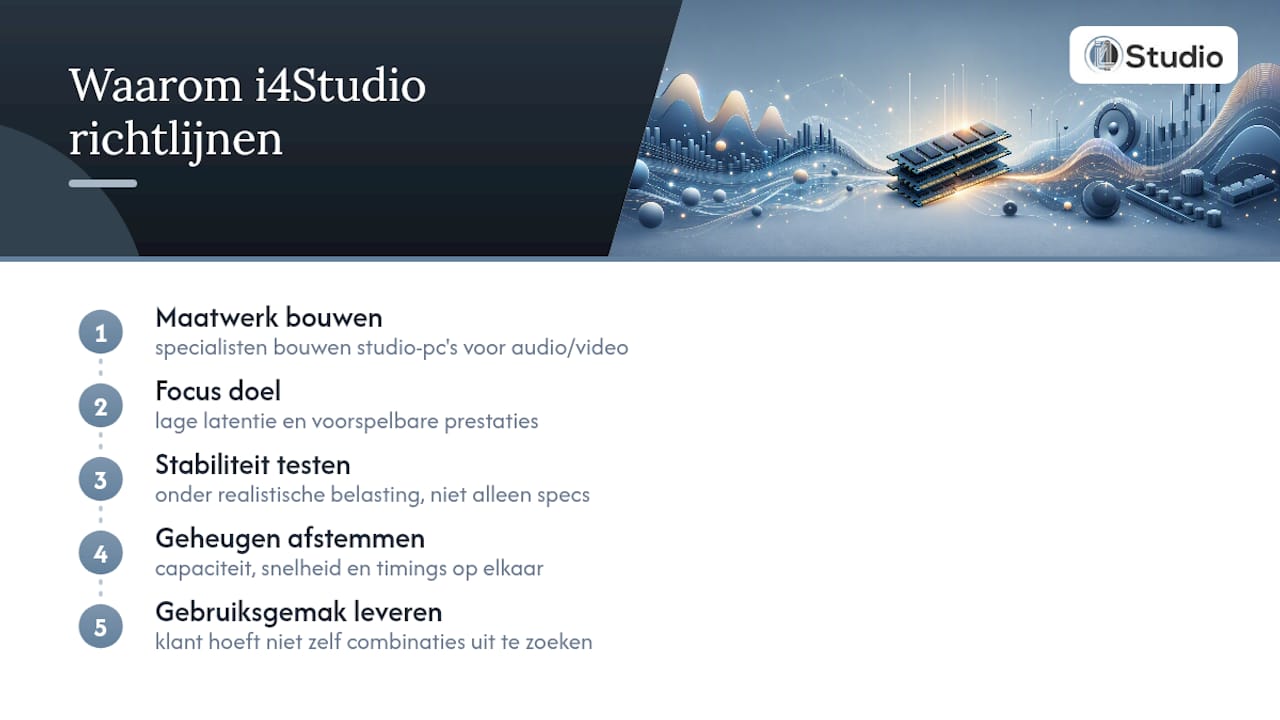
Specialists who build custom studio PCs for audio and video understand how memory choices determine the stability of a DAW. Our focus is on low latency and predictable performance: every configuration is tested for stability under realistic workloads, not just based on specifications on paper. In certain builds, capacity, speed, and timings are deliberately balanced so you don’t have to figure out for yourself which combination of MHz and CAS latency works best for your workflow.
Short-Term Perspective: Why Capacity Trumps Megahertz
The assumption that a higher MHz value automatically results in a faster DAW is rarely true in practice. Capacity prevents swapping, and swapping is the real enemy of a stable session. An investment in speed is only worthwhile for real-time monitoring with small buffers or heavy sample streaming.
Anyone allocating a budget would be wise to invest first in the CPU, then in sufficient RAM capacity, and only then in additional megahertz. For most DAW workflows, this order yields the best return on investment.
– harold
Want to build your own stable DAW PC?
Some vendors offer configurations in which the memory, motherboard, and processor are designed to work together as a single, optimized system, specifically for low latency in audio production.
Are you unsure whether 32 GB is enough for your templates, or do you want to be sure that your new kit runs stably at 3600 MHz with CL16 without any BIOS hassles? Check out the Studio PCs starting at €1,099 (one-time payment), with configurations already optimized for DAW use, or get inspired by specific examples of studio PCs for music production. You can request no-obligation advice on the right memory configuration for sample libraries.
Sources
- Impact of RAM Speed and Latency on DAW Performance?
- How Much RAM Do You Need for Music Production in 2026? | BeatSync PRO
- Multi-channel memory architecture — Wikipedia
- Best RAM for music production — Creator Gear Pro
Frequently Asked Questions
What RAM speed do I need for my DAW?
A kit operating at 3200 to 3600 MHz with a CAS latency of CL16 provides a reliable foundation for smooth playback performance of virtual instruments. A higher MHz value with poorer CL timing often does not result in any real benefit.
What is the difference between 16 GB and 32 GB of RAM for music production?
With 16 GB, you can run simple projects with a limited number of plugins, but you’ll quickly hit limits when using multiple sample-based instruments at the same time. 32 GB provides enough headroom for most professional workflows, including multitrack recordings and VST-intensive mixing sessions.
What is the clock speed of DDR5 RAM?
DDR5 modules typically achieve higher clock speeds than DDR4, resulting in more bandwidth for your system. This advantage only applies if your CPU and motherboard actually support DDR5; otherwise, you won’t benefit from it.
What is the fastest practical DDR4 memory speed for a DAW?
For DAW use, 3600 MHz with CL16 is usually the practical upper limit where speed and timing remain well balanced. Higher DDR4 speeds do exist, but the CAS latency often increases to the point where the effective benefit is lost.
Can I4studio help me choose the right RAM configuration?
Yes, I4studio configures the memory, processor, and motherboard as a single unit for every custom-built studio PC. Current prices and configuration options are available on the I4studio website.