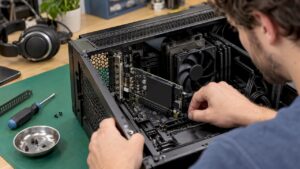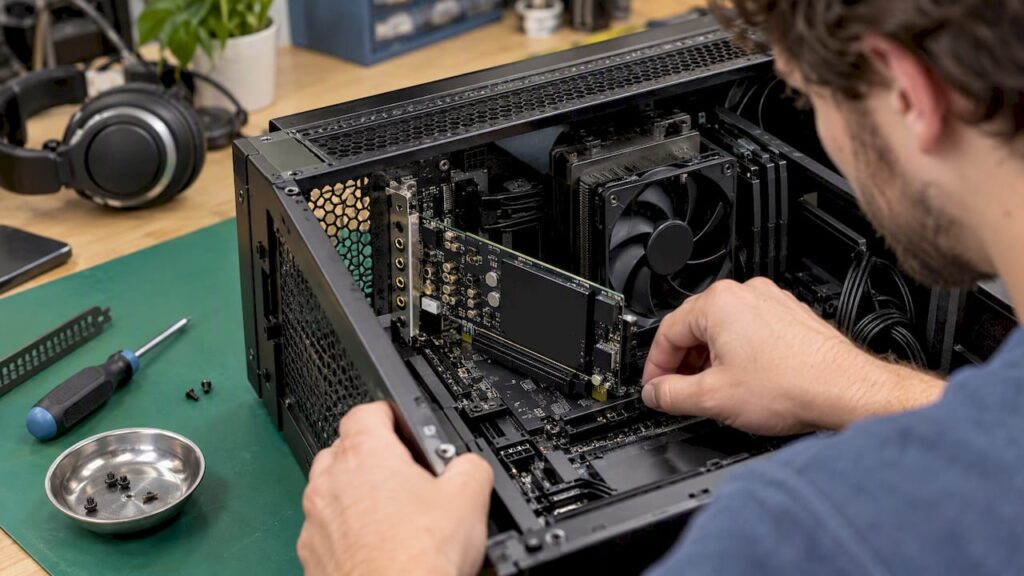
A PCIe audio interface is a sound card that you install in an available PCI Express slot on your desktop’s motherboard. This is different from a device that you connect via USB or Thunderbolt. You’ll mainly choose one if you need a lot of channels, want extensive routing capabilities, or want to use digital formats like ADAT, AES, or MADI in a permanent studio setup. In this guide, you’ll learn how a PCIe card works and when it’s truly better than USB or Thunderbolt. You’ll also discover the different types of cards available and what to look for before installing one in your studio PC.
In a nutshell
- A PCIe audio interface connects directly to the motherboard, giving it its own dedicated connection to your computer. You will need a desktop computer with an available slot, though.
- PCIe isn’t automatically faster than a good USB or Thunderbolt interface. Your buffer size usually has a greater impact on latency than the connection itself.
- Its true power lies in the number of channels, digital I/O (ADAT, AES, MADI), and hardware-based routing and monitoring that don’t put a strain on your CPU.
- Many professional PCIe cards are digital-only. So be sure to factor external AD/DA converters into your budget.
- A PCIe card works best in a PC that’s optimized for audio: the right slots, a stable chipset, and a properly configured Windows system.
Table of contents
- What exactly is a PCIe audio interface?
- PCIe, USB, and Thunderbolt Side by Side
- Is PCIe really faster? Here’s the deal with latency
- When a PCIe card is the best choice
- Types of PCIe audio interfaces
- Checklist: What to Look for Before Buying a PCIe Card
- How to Install a PCIe Card in Five Steps
- PCIe Audio in a Custom Studio PC
- Our Take on PCIe Audio Interfaces
- Frequently Asked Questions
- Sources
What exactly is a PCIe audio interface?
PCI Express, or PCIe for short, is the standard used to connect internal components such as graphics cards, SSDs, and sound cards to the motherboard. According to Synopsys’ explanation of PCI Express, PCIe uses serial connections in “lanes,” ranging from x1 to x16. Each device has its own point-to-point connection. The older parallel PCI used a shared bus, where all cards competed for the same bandwidth. That classic PCI has been replaced by PCI Express and is almost never found on modern motherboards anymore.
At its core, an audio interface does three things:
- AD conversion: the analog signal from your microphone, guitar, or synthesizer is converted to digital.
- DA conversion: the digital signal from your DAW is converted back to analog for your monitors and headphones.
- Transport: the audio travels back and forth between the hardware and your computer with as little latency as possible.
Would you like to review the basics at your own pace? Then read our article about the role of an audio interface in your studio. With a PCIe card, the signal is transmitted through the motherboard itself. The conversion takes place on the card, on a breakout box, or in an external converter—it depends on the model.
Is a PCIe card the same as a regular sound card?
Not exactly. Almost every motherboard has built-in audio, and there are also standalone consumer sound cards designed for gaming. These are designed for stereo playback and a headset. A professional PCIe audio interface uses drivers designed for music production, such as ASIO on Windows. It has multiple inputs and outputs and delivers predictable, stable performance with low buffer sizes. Sound On Sound explains that connections have different transfer modes. Audio must arrive on time, while a file being written to a hard drive can wait. That’s what studio use is all about.
PCIe, USB, and Thunderbolt Side by Side
The question is usually not whether PCIe is good, but whether it’s the best choice for your situation. This overview will help you weigh your options.
| Criterion | PCIe card | USB interface | Thunderbolt interface |
|---|---|---|---|
| Computer | Desktop only with an open slot | Desktop and laptop | Desktop and laptop with Thunderbolt |
| Portability | Fixed in the PC | Very good | Good |
| Number of channels | High, up to dozens of channels via ADAT or MADI | From 2 to medium | Medium to high |
| Digital I/O | Often expanded (ADAT, AES, MADI, word clock) | Usually limited, sometimes ADAT | Varies |
| Latency | Low, provided you have good drivers | Low with good drivers | Low with good drivers |
| Installation | Open the case, insert the card | Plug-and-play | Plug-and-play |
| Ideal for | Fixed studio, multiple channels, routing | Home studio, mobile | Mobile and fixed, medium-sized setups |
For most home studios, a good USB interface is more than enough. One example is the Audient ID14 MKII. If you mainly work with just a few microphones and instruments at a time, PCIe won’t offer you much of an advantage. Not sure which type is right for you? Our guide on choosing the right audio interface for your studio breaks down the options for you.
Is PCIe really faster? Here’s the deal with latency
This is the biggest misconception about PCIe audio. Many people think that an internal card always has less latency than USB. In practice, it’s a bit more nuanced.
The round-trip latency measurements of various RME products at Tonstudio Forum break down the delay into its components:
- Converter latency: the time required for AD and DA conversion.
- Transport latency: the time it takes to transmit data via PCIe, USB, or Thunderbolt.
- Buffer latency: the time it takes your DAW and driver to process audio in blocks.
This comparison shows that the buffer size and the quality of the driver are more important factors than the type of connection. Modern USB and Thunderbolt interfaces with good drivers perform nearly as well as PCIe. If you choose a PCIe card, do so for its features—not just for a few milliseconds.
When comparing devices, pay attention to the round-trip latency—that is, the total time from input through the computer to output. That number matters when you’re playing through plug-ins or singing live. Manufacturers don’t always specify this. This overview of variations in USB audio latency shows just how significant the differences between interfaces can be—and that the driver plays a major role in those differences.
Want to reduce latency in your own setup? Then check out:
- what latency is during recording and how to reduce it
- practical tips for faster monitoring
- Windows settings for a low-latency audio PC
When a PCIe card is the best choice
PCIe really shines in larger, fixed setups. You’ll usually recognize these situations right away.
Many channels at once
Do you record a full band, work with an outboard rack, or send a lot of stems to an analog summing mixer? Then you’ll need a lot of inputs and outputs at the same time. With PCIe cards that have multiple ADAT or MADI ports, you can get dozens of channels. The RME HDSPe RayDAT is one such example. According to the RME user forum, this card provides 72 channels via four ADAT ports. It includes MIDI I/O, but no analog headphone output.
Hardware routing and zero-latency monitoring
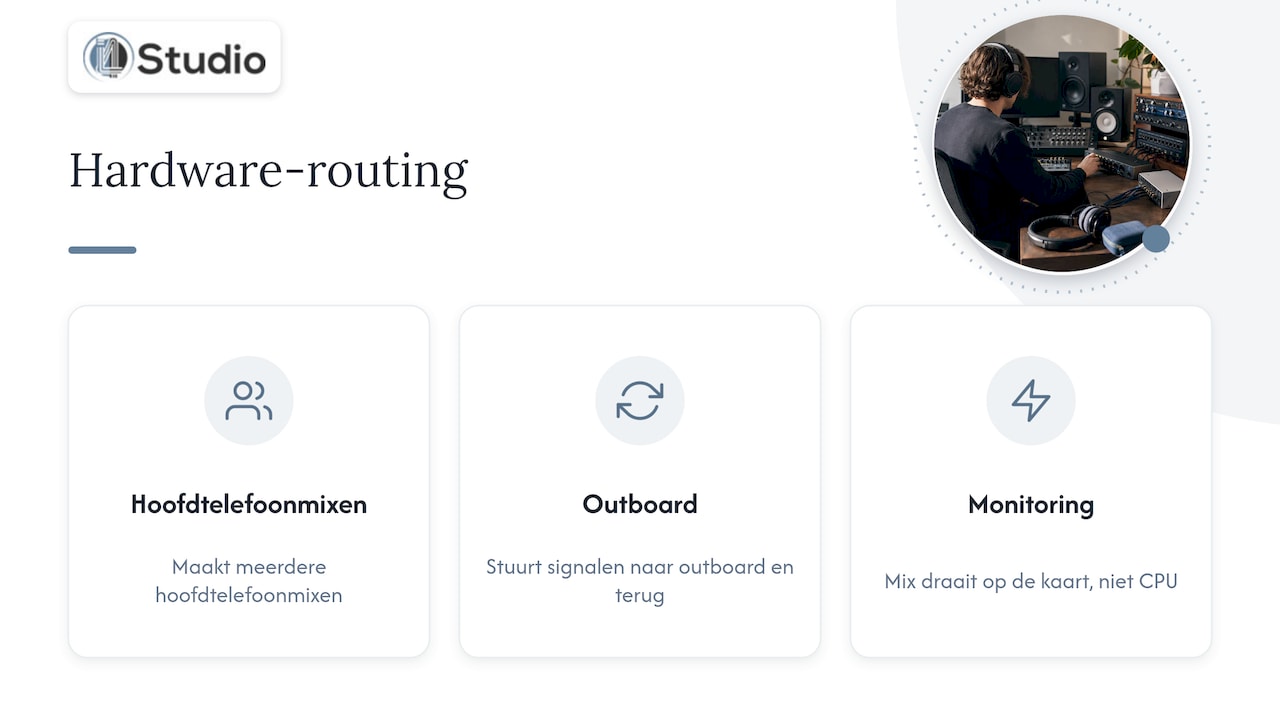
The software that comes with the card is often just as important as the card itself. Think of RME TotalMix FX or similar mixers from other manufacturers. With these, you can create multiple headphone mixes, send signals to and from outboard gear, and monitor without latency. The mixing takes place on the card, not on your CPU. Mixing Monster cites this routing software as one of the most important reasons to choose PCIe.
Digital Connections in an Existing Studio
Do you already have converters, a digital mixing console, or preamps with ADAT outputs? If so, a PCIe card with plenty of digital I/O is a great way to get everything running on a single clock and a single driver. Read our article to learn how to expand an audio interface with ADAT and how to link the channels together.
A desktop computer that never moves
Do you never shoot on location, and is your studio PC always tucked away under your desk? Then portability isn’t an issue. Plus, an internal card saves you from having an extra box, power supply, and cable on your desk.
Types of PCIe Audio Interfaces
Not every PCIe card does the same thing. Broadly speaking, there are three types.
| Type | What it does | Examples of models | Note |
|---|---|---|---|
| Analog or multi-format | Analog I/O on the card or breakout, often with additional digital ports | ESI Maya44 eX, RME HDSPe AIO (Pro) | The number of analog channels is often limited |
| Purely Digital (ADAT) | Multiple channels via optical ADAT ports | RME HDSPe RayDAT | ADAT converters or preamps required |
| Purely Digital (AES or MADI) | Professional digital formats for large systems | Lynx AES16e, MADI cards | Expensive external converters, often used in broadcast or large studios |
The models listed are from this overview of PCIe audio interfaces. According to RME’s product page, the RME HDSPe AIO is a 38-channel PCI Express card with multi-format I/O. The original version is no longer in production and is now mainly available used. Therefore, be sure to check for each model whether it’s still being shipped and whether there are up-to-date drivers available for your operating system.
The Hidden Costs of Digital Mixers
On paper, a purely digital interface often seems cost-effective per channel. But you can’t connect anything directly to it: no microphone, no monitors, and usually no headphones either. You need external AD/DA converters and preamps for your microphones. As Mixing Monster also points out, those converters together often cost significantly more than the sound card itself.
The quality of your converters also determines how your recordings and mixes sound. That’s why this isn’t an area where you should skimp. In our guide to the function of audio converters, you can read about what to look for. Would you like personalized advice on a specific combination? Then check out our AD-DA converters and get some advice.
Checklist: What to Look for Before Buying a PCIe Card
Please review these points before placing your order. This will help ensure that the card arrives but doesn’t end up in your system.
- An available and compatible slot. Check which PCIe slots your motherboard has and see if one is available. A large graphics card can physically block a slot. Slots may also share lanes with M.2 SSDs, which means a slot becomes unavailable when you install an SSD.
- Card height and enclosure. Some cards have a breakout cable or an additional bracket. Make sure your enclosure has enough space for them.
- Driver support. Check the manufacturer’s website to see if there are any up-to-date drivers for your version of Windows or macOS. A card without driver updates may become unusable after a system update.
- Routing software. Check out the mixer software beforehand. Can you easily create multiple monitor mixes, and can you save presets?
- Analog I/O. Do you have enough analog inputs and outputs on the card, or do you need converters? Be sure to include the headphone output as well.
- Digital expansion. How many ADAT, AES, or MADI channels do you plan to use in a few years? A card with room to grow will save you from having to replace it later.
- Clock and sync. If you’re working with multiple digital devices, you’ll want word clock connections to keep everything in sync.
- Total budget. Add up the cost of the sound card, breakout box, converters, preamps, and cables. Only then will you see what the setup really costs.
How to Install a PCIe Card in Five Steps
Did you receive the card? Here’s how to install it securely and stably in your system.
- Preparation. Download the latest driver and routing software from the manufacturer. Shut down the PC, unplug it, and touch a grounded metal part to discharge any static electricity.
- Choose a slot. Preferably, install the card in a slot that is directly connected to the processor or chipset and does not share lanes with a heavily loaded component. Your motherboard’s manual explains how the lanes are allocated.
- Insert and secure. Press the card straight into the slot and screw the bracket in place. Connect any breakout cables.
- Install the driver. Start the computer, install the driver, and restart. In your DAW, select the card’s ASIO driver, not the generic Windows driver.
- Testing and fine-tuning. Set the sample rate and buffer size, and record a test with all your channels. Do you hear clicks or glitches? If so, it’s often due to power management, background processes, or a shared interrupt.
Are you experiencing issues? Our page on troubleshooting audio interface problems will guide you through the process step by step.
PCIe Audio in a Custom-Built Studio PC
A PCIe card is only as good as the computer it’s built into. That’s why we build custom studio PCs tailored for audio and video work. We select a motherboard with plenty of easily accessible PCIe slots and plan the lane allocation in advance. We configure Windows for low latency and stability. Our studio PCs start at €1,099 and are built to order. This ensures that your interface, graphics card, and SSDs won’t interfere with each other. Are you looking for a suitable interface first—external or internal? Then check out our selection of audio interfaces or the broader category of studio equipment.
Our Take on PCIe Audio Interfaces
Every day, we work with producers, video editors, and studio owners who want to scale up their systems. In our experience, a PCIe card is rarely just a matter of “faster.” The customers who truly benefit from it have a permanent studio with many channels, outboard gear they want to route, or a digital connection to existing converters. For them, a PCIe card provides a stable foundation that will last for years.
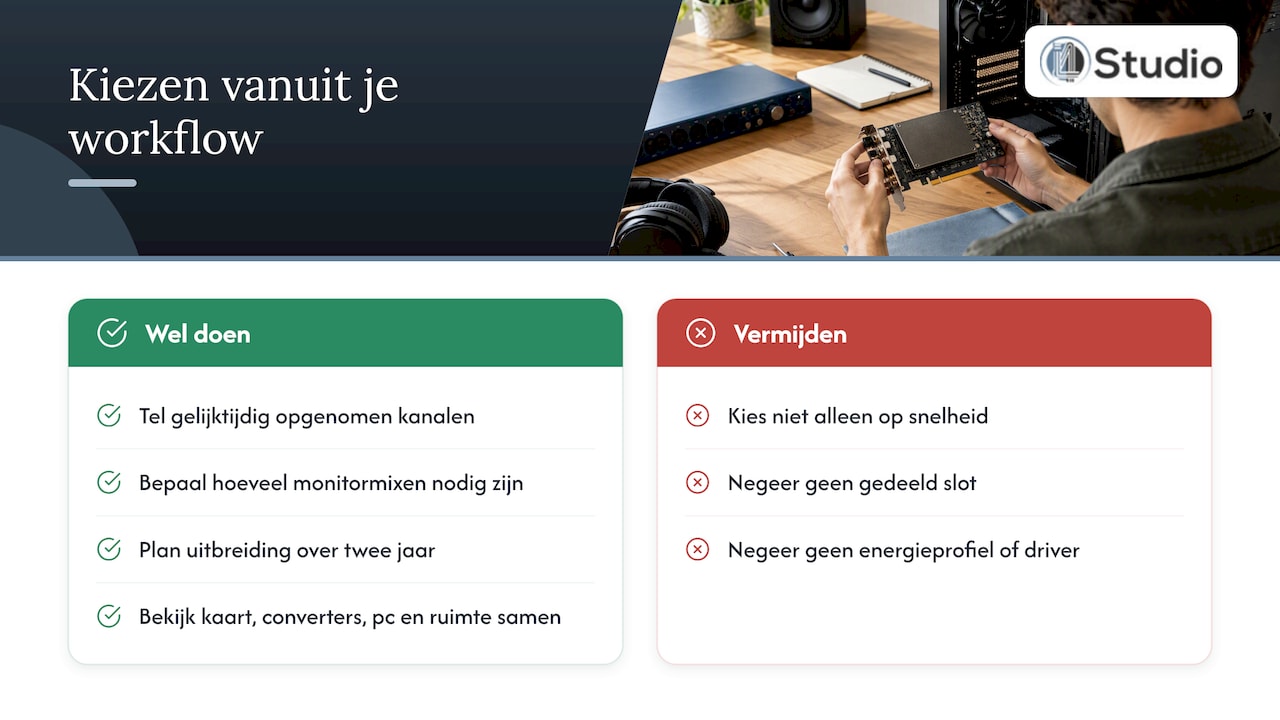
Another common scenario we see is when someone buys a high-quality sound card but installs it in a PC that isn’t set up for it. In that case, a shared slot, an aggressive power profile, or an outdated driver can still cause clicks and dropouts. That’s why we always look at the big picture: the sound card, the converters, the computer, and the room where you’re listening. An interface with top-of-the-line converters will only sound as intended on high-quality studio monitors in a room with the right acoustic panels.
Our advice: Start with your workflow. Count how many channels you record at once and how many monitor mixes you need, and consider whether you’ll want to expand in two years. Only then should you choose between PCIe, Thunderbolt, or USB. If you’re unsure, please contact us. We’ll work with you to find the hardware that’s right for your studio.
– harold
Frequently Asked Questions
Does a PCIe audio interface also work with a laptop?
Not directly, because laptops don’t have free PCIe slots. If you’re working on a laptop, a USB or Thunderbolt interface is the logical choice. A PCIe card is intended for a desktop or workstation that’s permanently set up in your studio.
Is a PCIe card better than a USB interface?
Not necessarily. When it comes to latency, good USB, Thunderbolt, and PCIe interfaces are all pretty close in performance, and your buffer size and driver are the most important factors. PCIe is especially better if you need a lot of channels, extensive digital I/O, or hardware routing.
Are standalone sound cards still available?
Yes. For everyday use, the audio on the motherboard is usually sufficient. Standalone consumer sound cards are primarily designed for gaming. Professional PCIe audio interfaces are still manufactured for studios that require many channels and stable, low latency.
Do I need anything else besides a digital PCIe card?
Usually, yes. A purely digital card with ADAT, AES, or MADI requires external AD/DA converters and preamps for your microphones. Be sure to factor those costs into your budget, as they’re often higher than the price of the card itself.
Which PCIe slot should I use for my audio card?
Sound cards require very little bandwidth, so an x1 or x4 slot is usually sufficient. More importantly, the slot should not share lanes with a heavily loaded component and should be easily accessible. Check your motherboard’s manual to see how the slots are connected.
Sources
- Synopsis: What is PCI Express (PCIe)?
- Wikipedia: Peripheral Component Interconnect
- Sound On Sound: Computer Connectors, Protocols, and Audio Interfaces
- Tonstudio Forum: RTL Comparison of Different RME Products
- Variation in USB Audio Latency
- RME User Forum: HDSPe RayDAT PCI Express Card Question
- Mixing Monster: 7 Best PCIe Audio Interfaces
- RME: HDSPe AIO