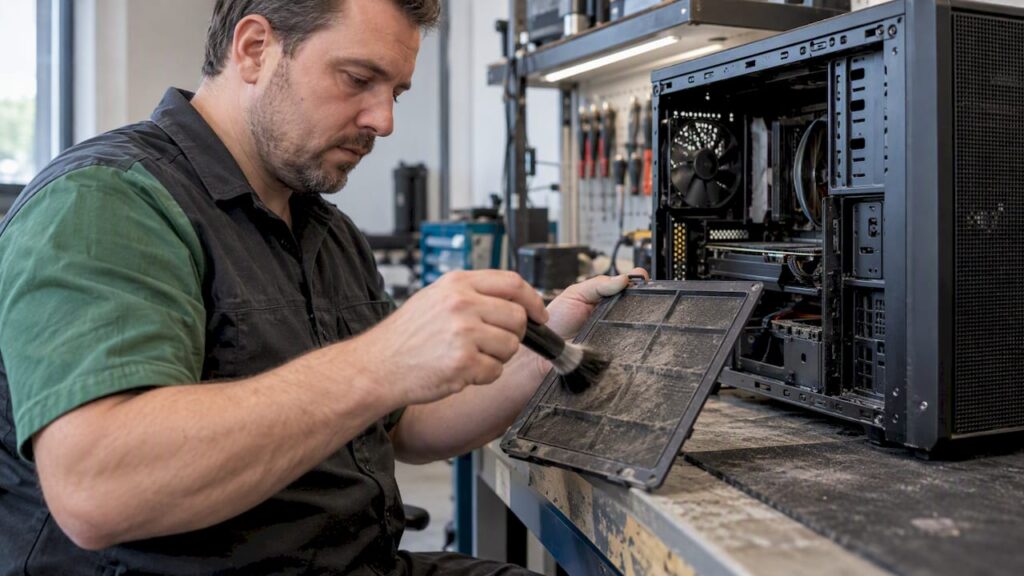
Do this now: make a backup, enable Storage Insight, and check and clean the fan filters. These three steps will prevent most of the problems caused by neglecting your computer’s maintenance: data loss, slow performance, and overheating. Afterward, establish a regular routine with monthly digital checks and a thorough physical cleaning every 36 months.
In short:
- System Restore reverts settings and system files, but does not protect personal documents; therefore, combine it with a local backup and a cloud backup.
- Hold the fan blades in place while using compressed air and keep the unit upright; a vacuum cleaner can build up static electricity and loosen parts.
- Storage Sense is turned off by default; Disk Cleanup runs on demand, while you can disable unnecessary startup programs in Task Manager and clear cache files in each browser monthly.
- Consult a specialist if you experience persistent overheating, recurring blue screens, or a laptop that’s difficult to open, as disassembling it yourself can cause damage.
Table of contents
- Physically Cleaning Your Desktop or Laptop: Step by Step
- Digital cleanup with Storage Insight and Disk Cleanup
- System Restore vs. Full Backup: What Protects What
- Checklist: Weekly, Monthly, and Triennial Tasks
- When to Call a Repair Service or Professional Cleaning Service
- Maintenance Tips for Studio and Video Editing PCs
- My Priorities for Computer Maintenance
- Custom Solutions and Advice from i4studio for Heavy Workloads
- Frequently Asked Questions
- Sources
How to Physically Clean Your Desktop or Laptop: Step by Step
Before touching anything, shut down the computer completely and unplug it from the outlet. If you’re using a laptop, remove the battery if possible, and always work in a well-lit, well-ventilated area so you can clearly see any dust buildup.
For a safe and thorough tune-up, you’ll need a small but specific set of tools:
- Compressed air in an aerosol can: Hold the can upright, because spraying at an angle can cause the propellant to land on the circuit board as a liquid.
- Microfiber cloths: Unlike paper towels, these won’t scratch screens and housings.
- Soft brush: ideal for brushing loose dust out of corners and cooling fins before using compressed air.
- Isopropyl alcohol (at least 90%): for stubborn stains on the keyboard or case; never apply directly to the screen.
- Antistatic wrist strap: protects sensitive components from static discharge when you open the case.
Work from the outside in and from top to bottom. Start with the external dust filters, since they determine how much dirt enters the rest of the system. Next, blow out the fans while holding the fan blades in place with your finger: this prevents them from spinning like a dynamo and generating voltage that could damage the electronics. Next, move on to the heat sinks of the processor and graphics card, the interior of the case, the cable management, and finally the external components such as the monitor and keyboard.
Consumer organizations warn against a few common mistakes that can cause more damage than the dust itself. Never use a regular vacuum cleaner inside a cabinet, because the suction can dislodge parts and build up static electricity that can damage the electronics. Also, never spray compressed air at an angle near printed circuit boards.
How often you should do this depends on your environment. Manufacturers like HP and Noctua generally recommend a thorough internal cleaning every 36 months as a rule of thumb, but if you have pets or your PC is on carpet, it’s wise to clean it more often because hair and fibers clog filters more quickly.
Pro tip: Take a photo of the inside of your case before disconnecting any cables, so that if you’re unsure, you’ll know exactly how everything goes back together.
Digital cleanup with Storage Insight and Disk Cleanup
Physical hardware is only half the story. A full hard drive and unnecessary background processes are just as big a cause of a slow PC, and Windows offers built-in solutions for these that most users never enable.
Storage Insight is turned off by default and must be enabled manually via Start, Settings, System, Storage, after which you can configure the frequency and conditions as you see fit, as Microsoft itself describes.
In addition to Storage Insights, there’s the classic Disk Cleanup tool, which you can run on its own when you want to quickly free up space without setting up a recurring schedule. In Settings, you’ll also find Cleanup Recommendations, which automatically suggest files you probably no longer need.
A few additional tasks that you’ll continue to do manually:
- Find large files: Sort your Downloads folder by size and delete installation files you haven’t used in a long time.
- OneDrive files on demand: Set files to “online only” so they save disk space without losing them.
- Manage startup programs: Open Task Manager, go to the Startup tab, and disable applications you don’t need on a daily basis.
- Clear your browser cache: Do this monthly in every browser you use, because cache files accumulate faster than most people realize.
Having enough free disk space is also important for stability: Microsoft points out that a full disk can hinder updates and overall performance, so don’t view these steps as a one-time task but as part of your regular maintenance routine.
System Restore vs. Full Backup: What Protects What
Many users confuse System Restore with a backup, even though the two serve completely different purposes. System Restore relies on restore points that revert system settings and files to a previous state, but it does not affect your personal documents, photos, and projects, and therefore does not prevent their loss.
A full backup protects those personal files and is indispensable alongside—not instead of—System Restore. The most reliable setup combines a local backup on an external drive with a cloud copy, so you’re covered in the event of hardware failure, theft, or fire. For step-by-step instructions using specific software, check out our guide to backing up with Acronis.
A few things to incorporate into your routine:
- Test your backup periodically: open a few files from the backup to make sure they’re actually usable.
- Use “Reset this PC” with “Remove everything” when you sell or give away a computer, so that personal files and settings are deleted.
- Select the “Clean up the drive” option during that reset: this makes it harder for third parties to recover files than a standard wipe.
- Create a recovery drive or installation media on a USB flash drive before you run into problems, so that if Windows stops booting, you’ll still have access to recovery options.
A full reset is also a suitable solution if you suspect malware or if other recovery options fail, but in that case, always back up what you want to keep first, as Microsoft itself recommends.
Checklist: Weekly, Monthly, and Triennial Tasks
Maintenance is only effective if you don’t have to figure it out from scratch every time. Divide the tasks into three categories based on frequency, and you’ll keep your PC in good condition for years without spending much time on it.
- Weekly: Wipe down the screen and keyboard with a microfiber cloth, run a quick antivirus scan, and check to see if your backup has been updated in the past few days.
- Monthly: Run Storage Insight or Disk Cleanup, check your startup programs in Task Manager, and clear your browser cache.
- Every 36 months: Open the case for an internal cleaning with compressed air, wash any washable filters, and check the cable management for loose or worn cables.
For automation, you can set a fixed schedule for Storage Insight so you never have to remember when you last ran it, and set reminders in Task Scheduler for the triennial internal maintenance. McAfee and similar security guides recommend exactly this kind of layered approach, with separate schedules for quick and thorough tasks.
When should you call a repair service or a professional cleaning service?
Sometimes cleaning it yourself isn’t enough or isn’t a good idea. Here are a few signs that tell you when it’s time to call in a specialist:
- Persistent overheating despite thorough cleaning, which may indicate worn-out thermal paste or a failing fan.
- Disturbing noises such as clicking, beeping, or grinding sounds coming from the case, often a sign that a bearing needs to be replaced.
- Hardware errors that keep recurring after a reset, such as random restarts or blue screens.
- A laptop that is difficult to open without specialized tools, where attempting to disassemble it yourself increases the risk of damage.
A professional service typically performs a complete internal cleaning, replaces filters as needed, and conducts a thermal inspection and diagnosis to identify underlying problems. Costs vary by provider and depending on the complexity of the unit, so be sure to ask for a specific quote in advance. Choose a reliable service provider by asking about their procedures and whether they offer a warranty on the cleaning work performed.
Maintenance Tips for Studio and Video Editing PCs
A studio PC or video editing system often runs for hours on end under heavy load, which places different demands on it than a standard office computer. Prolonged peak loads cause the internal temperature to rise more quickly, which in turn can affect latency during recording and rendering.

For these systems, robust cooling with filtered air intakes is just as important as the cleaning routine itself, because proper airflow configuration slows down dust buildup on critical components and improves stability. Careful cable management helps achieve this: fewer obstacles in the airflow means a cooler cabinet with the same number of fans.
After each cleanup, test a heavy workload—such as an export render or a session with multiple audio tracks—to verify that temperatures and performance have returned to normal. For those who want to fine-tune their Windows settings specifically for audio performance, we’ve written a practical guide for Windows 11, and for more in-depth DAW optimizations, our guide on optimizing DAW performance is a great next step.
My Priorities for Computer Maintenance
In practice, I see the same pattern of regret time and time again: people lose files first, and only then do they start taking backups seriously. My three main priorities are therefore: first, a working backup; then, clean filters and cooling; and only then the rest of the digital cleanup. That order prevents the most costly mistakes.
– harold
Custom Solutions and Consulting from i4studio for Heavy Workloads
For anyone working with a studio or video editing PC, stability under prolonged use is just as important as a proper cleaning routine. We provide custom-built studio PCs configured for low latency and reliable cooling, tailored to audio and video workflows.
In addition, we provide advice on acoustic panels and offer personalized support for both hardware selection and studio layout. Check out our studio PC configurations and ask for advice on a setup that suits your workload.
Frequently Asked Questions
How do I thoroughly clean my PC, inside and out?
Combine physical cleaning (filters, fans, and cooling fins with compressed air) with digital cleanup using Storage Insight or Disk Cleanup. Schedule the physical maintenance every 36 months and the digital check monthly for best results.
What free program can I use to clean up my computer?
Windows itself includes two built-in, free tools—Storage Sense and Disk Cleanup—that remove temporary files and unnecessary data. You don’t need to install any additional software: enable Storage Sense by going to Settings, System, Storage.
How do I securely delete all data from my old computer?
Use the “Reset this PC” feature with the “Remove everything” option, and select the option to clean the drive for a more thorough wipe. Before resetting, always back up any files you want to keep.
How do I safely clean the inside of my PC?
Turn off the computer, unplug it, and open the case in a well-ventilated area. Blow dust away with compressed air while holding the fan blades in place, and avoid using a vacuum cleaner, as it can build up static electricity that damages components.
What is the difference between System Restore and making a backup?
System Restore reverts system settings and files to a previous restore point, but does not affect your personal documents. A backup, on the other hand, protects those personal files and should be maintained separately, preferably both locally and in the cloud.
Sources
- Manage drive space with Storage Sense
- Keep your computer clean and dust-free
- Cleaning Your PC—Tips and Steps