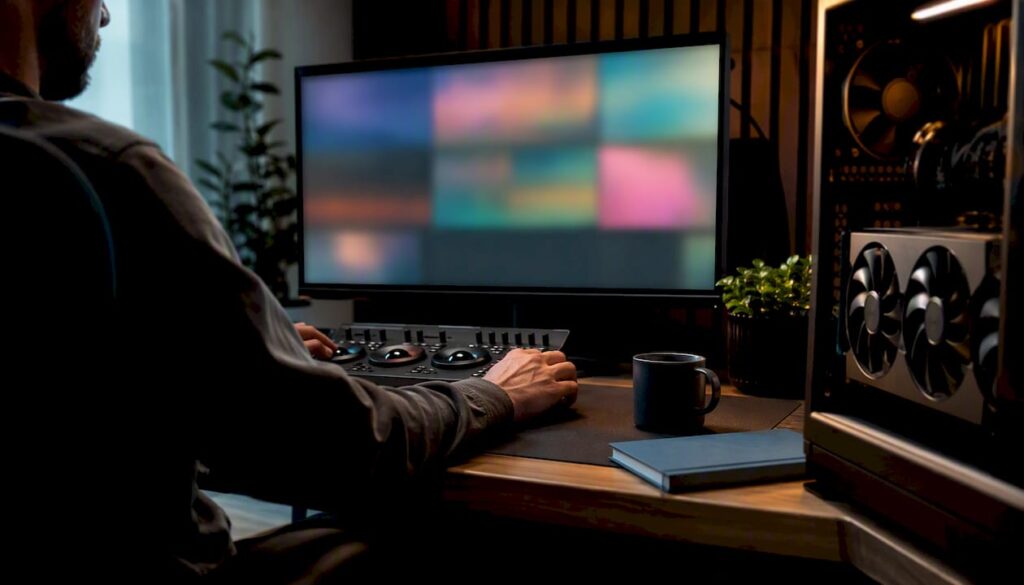
For DaVinci Resolve, you’ll need at least 16 GB of RAM, a GPU with 8 GB of VRAM, and an NVMe drive for your system to ensure optimal performance. If you want to work professionally with 4K multicam or Fairlight, you’ll need 32 GB of RAM and 8 to 12 GB of VRAM. For RAW footage, Fusion, or 6K/8K, you’ll need 64 GB of RAM and a GPU with 16 GB of VRAM or more, plus a Studio license for multiple graphics cards and the full Neural Engine.
Briefly:
- For intensive workflows such as 6K or 8K projects, a minimum of 64 GB of RAM and a GPU with 16 GB of VRAM are required, along with a Studio license for multiple graphics cards.
- A single GPU with about 12 GB of VRAM is sufficient for 4K multicam and basic color correction, but higher resolutions and Fusion processing require additional VRAM and processing power.
- It is essential to use fast NVMe drives for system, cache, and media data to prevent stuttering and delays during editing.
- The GPU is the primary factor determining the speed of color correction, Fusion, and Neural Engine tasks, with NVIDIA cards often being the preferred choice for AI-driven workflows.
- When considering your budget, it’s better to invest in a powerful GPU and additional storage than in a more powerful processor, because those make the biggest difference in Resolve.
Table of contents
- What are Blackmagic’s recommended PC specifications for DaVinci Resolve?
- Which hardware profile fits your workflow?
- Why is the graphics card so important for DaVinci Resolve?
- RAM and processor: which combination offers the best balance?
- How do you set up storage and disk architecture efficiently?
- What monitor and I/O devices do you need for accurate colors?
- What should you consider before buying or having a PC built?
- What does a custom-built studio PC from I4studio look like in practice?
- What I’d like to tell editors before they buy a PC
- A studio PC that fits your DaVinci Resolve workflow
- Sources
- Frequently Asked Questions
What are Blackmagic’s recommended PC specifications for DaVinci Resolve?
Blackmagic Design publishes the official technical specifications for DaVinci Resolve itself, broken down by operating system. That’s your starting point, but it’s also the pitfall: those figures are compatibility minimums, not productivity thresholds. A system that meets the minimum requirements exactly will launch the software, but you’ll be constantly waiting for renders and previews.
On Windows, Resolve requires at least Windows 10 or 11 (64-bit); a GPU with at least 8 GB of video memory is now standard for most modern versions; and sufficient system memory to render the timeline smoothly. On macOS, Blackmagic supports the more recent versions, including Sonoma and Sequoia, with Apple Silicon as the de facto standard for new purchases. On Linux, Rocky Linux is the only officially supported distribution, which significantly limits the range of options there compared to Windows.
The main differences between platforms lie in drivers and GPU support:
- Windows: widest selection of GPUs (NVIDIA and AMD), but you have to keep the drivers up to date yourself.
- macOS: less choice overload thanks to Apple’s fixed hardware combinations, with strong Neural Engine performance on the newer chips.
- Linux: limited distribution support (Rocky Linux only), primarily chosen by studios with an existing Linux infrastructure.
- All platforms: Blackmagic’s readme files list which driver versions have been tested for each release, and that’s exactly where many users skip an update and then experience strange crashes.
In practice, the distinction between minimum and recommended specifications is the biggest point of debate. Blackmagic itself deliberately sets conservative minimum thresholds because the software needs to run on so many different configurations, ranging from a laptop with an integrated graphics chip to a workstation with four GPUs. For serious work, there’s a simple rule of thumb: double the minimum values listed on the specifications page, and you’ll get roughly what a professional editor actually needs.
The difference between the free version and DaVinci Resolve Studio is also part of the system requirements. The free version lacks support for multiple GPUs simultaneously, and some of the AI-driven Neural Engine features are only available with the Studio license. If you’re working with complex color correction, AI-powered noise reduction, or want to have two graphics cards work together, then Studio isn’t a luxury—it’s a requirement.
Which hardware profile fits your workflow?
Not every editor needs the same computer, and that’s exactly where generic minimum requirements lists fall short. Three profiles cover virtually every real-world scenario.
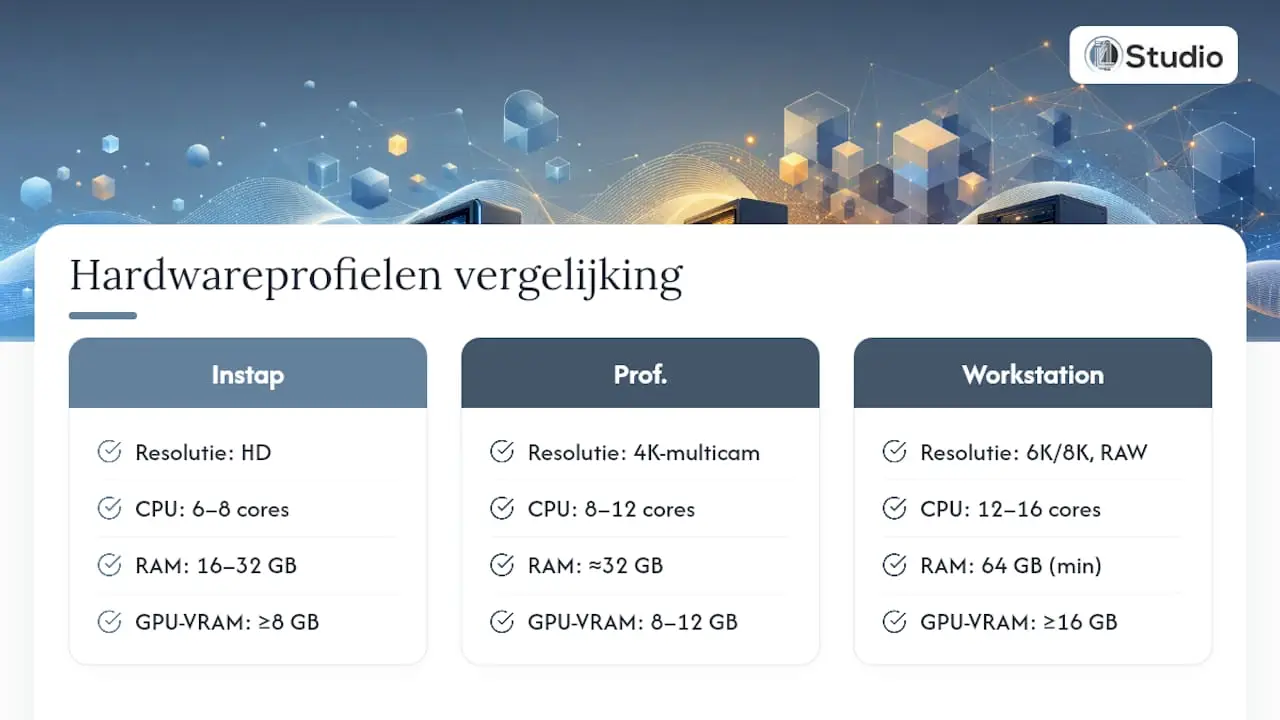
1. Entry-Level Profile: HD and Light Color Correction
This configuration is suitable for vloggers, content creators, and hobbyists who primarily edit HD footage with basic color corrections. Think of a modern 6- to 8-core processor, 16 to 32 GB of RAM, a GPU with at least 8 GB of VRAM, and a single NVMe drive with sufficient capacity. For pure HD work without heavy Fusion compositions, this is more than enough.
2. Professional profile: 4K multicam, Fairlight, and intensive color correction
Here, you’ll be looking at an 8- to 12-core processor, about 32 GB of RAM, and a GPU with 8 to 12 GB of VRAM. Multicam projects with multiple 4K sources and extensive Fairlight audio mixing require sufficient decoding capacity and memory. Expect a configuration with two NVMe drives: one for the system and cache, and one for active media use.
3. Workstation Profile: RAW, Fusion-Heavy, and 6K/8K
For RAW formats such as Blackmagic RAW or ProRes RAW at high resolutions, complex Fusion compositions with multiple nodes and visual effects, or 6K/8K projects, you’ll need a GPU with 16 GB of VRAM or more, 64 GB of RAM as a practical minimum, and a processor with at least 12 to 16 cores. This is also the level at which a second GPU becomes relevant.
Multiple GPUs are only worthwhile with a Studio license, and even then, only if your workflow actually benefits from parallel GPU processing, such as heavy Fusion renders or simultaneous encoding tasks. For a single editor who primarily does color correction, a second card often offers less value than investing in a single, more powerful GPU.
Pro tip: Can’t decide between two configurations? Always go with the more powerful one. Most editors underestimate how quickly a project can scale up from HD to 4K or from a single timeline to a Fusion-heavy sequence, and if your PC is just a bit underpowered, you won’t be able to fix it incrementally without having to buy everything all over again.
If you’d like to see a concrete starting point instead of just random numbers, check out the studio PC examples with ready-made configurations for every budget.
Why is the graphics card so important for DaVinci Resolve?
In Resolve, the GPU determines virtually everything: color correction, Fusion compositions, and the Neural Engine features for AI-driven tasks all rely heavily on graphics processing power. Whereas a word processor places hardly any load on the GPU, DaVinci Resolve throws every node on the Color page, every Fusion layer, and every AI tool onto the same graphics card. That makes the graphics card the component with the greatest impact on your daily workflow speed in DaVinci Resolve—more so than the processor.
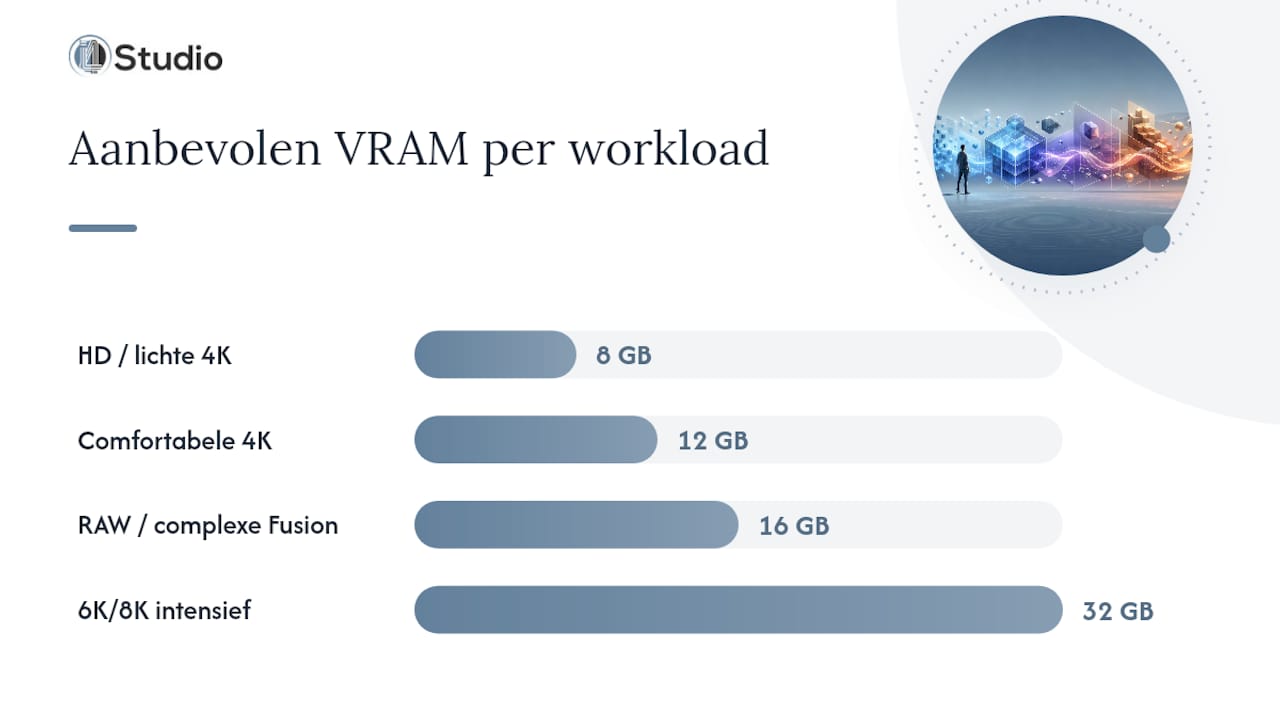
VRAM is the bottleneck you’ll encounter most quickly. For 4K work, 8 GB of VRAM is a realistic minimum, but for demanding Fusion or AI workflows, that increases to 12 to 16 GB or more, especially for 6K and 8K projects. If there isn’t enough video memory, Resolve falls back on system RAM for GPU tasks, which significantly reduces performance.
- About 8 GB of VRAM is sufficient for HD to light 4K projects without heavy Fusion compositions.
- About 12 GB of VRAM is sufficient for 4K multicam and moderate color correction with Resolve FX.
- For high-resolution RAW footage, complex Fusion nodes, and AI-driven tools such as noise reduction or automatic masking, 16 GB of VRAM or more is recommended.
- Cards with a large amount of VRAM, such as 32 GB, offer the most headroom for 6K/8K with intensive Fusion workflows, where both VRAM and GPU power are important.
For demanding Fusion and Neural Engine tasks, rendering performance does not scale linearly with additional video memory. Both the amount of VRAM and the card’s own processing power play a role, which explains why a card with a lot of memory but little processing power can sometimes still underperform with complex compositions.
In practice, there’s still a clear difference between NVIDIA and AMD. NVIDIA cards benefit from CUDA acceleration and deeper integration with the Neural Engine, which makes AI features like automatic color matching and facial recognition noticeably smoother. AMD cards perform very well in terms of raw rendering speed, but often lag slightly behind when it comes to AI-driven tasks. For those who work seriously with the Neural Engine, NVIDIA will still be the safer choice in 2026.
Using multiple GPUs only makes sense with a Studio license, because the free version does not offer multi-GPU support. Even with Studio, a second card primarily adds value for parallel rendering tasks and demanding Fusion workflows, not for a simple color correction timeline.
RAM and Processor: Which Combination Offers the Best Balance?
Memory and processor choice together determine how smoothly your timeline responds, and this is where many buyers make a mistake by focusing all their attention on the CPU, when RAM is often the cheaper and more effective upgrade.
- 16 GB of RAM is the absolute minimum and is suitable for light HD projects without many background processes.
- 32 GB of RAM is a realistic starting point for 4K work and most professional projects involving Fairlight mixing.
- 64 GB of RAM or more is recommended for 6K/8K footage and Fusion-heavy compositions with many active nodes.
When it comes to processors, the number of cores matters more than the clock speed, especially when your timeline needs to decode multiple streams simultaneously. A desktop processor with eight to twelve cores generally performs better in Resolve than a laptop chip with a higher advertised clock speed, because desktop models can sustain that speed for longer without thermal throttling. Laptops remain a compromise: great for editing on the go, but rarely the first choice for a primary workstation.
For content primarily recorded in H.264 or H.265—such as that from most cameras and smartphones— Intel Quick Sync offers a noticeable advantage in decoding and playback. Where a purely multi-core AMD system sometimes struggles with smooth scrubbing through heavily compressed footage, an Intel processor with Quick Sync often provides a smoother preview experience at a comparable price point. If you work primarily with RAW formats, this advantage is much less significant, since decoding for those formats is primarily handled by the GPU anyway.
As a general rule for upgrades: RAM is the cheapest and fastest solution if you notice that Resolve is slow to respond when switching between pages. A processor upgrade is more expensive and often less effective than people expect, unless you’re specifically running into CPU-intensive tasks such as certain audio effects in Fairlight.
How do you set up storage and disk architecture effectively?
Slow drives are the silent killer of any Resolve workflow. You can have the most expensive GPU and processor, but if you’re playing back media from a single slow drive, you’ll still experience choppy playback and stuttering scrubbing. In practice, I/O is more often the bottleneck than people expect, precisely because it’s less noticeable than a slow render.
- Primary NVMe drive: for the operating system, Resolve installation, and the media cache. Reserve at least 500 GB to 1 TB of space here.
- Scratch or cache drive: a second fast NVMe drive specifically for render files and proxies, so that write operations do not slow down the system.
- Media drive: a separate NVMe or fast SSD for active project files, ideally separate from the system drive.
- Archive storage: a NAS or larger SATA drive for completed footage and backups, where speed is less important than capacity.
A configuration with three NVMe drives—one for the system, one for cache, and one for active media— significantly reduces stalling during scrubbing and rendering compared to a system that combines everything on a single drive. With long 4K or 6K timelines, you’ll notice that difference right away.
RAID configurations and NAS solutions are particularly relevant for studios where multiple editors work on the same projects. For an individual editor, good backup practices are often more important than RAID itself: an external drive that syncs weekly prevents more data loss than a complex RAID array that no one monitors.
In Resolve itself, it’s worth taking the time to configure the media cache and optimized media settings: explicitly assign them to your fastest drive, not the default location. If you’re working with heavily compressed RAW footage on a less powerful machine, enabling proxy workflows makes the difference between working smoothly and constantly waiting.
What monitor and I/O devices do you need for accurate colors?
Color correction without a reliable monitor is a shot in the dark. A consumer monitor rarely accurately displays what your audience will ultimately see, and that’s exactly where many novice colorists go wrong.
- A display with true 10-bit support and a wide color gamut is essential once you start taking color correction seriously—not just an 8-bit panel with interpolation.
- A Blackmagic DeckLink card gives you a reliable SDI output for reference monitoring, independent of the color rendering of Windows or macOS itself.
- Thunderbolt ports are indispensable for fast external storage and professional audio interfaces that operate at high bandwidth.
- An audio interface with enough inputs and outputs is necessary as soon as you start mixing seriously in Fairlight, and a control panel like the Speed Editor noticeably speeds up color grading compared to using a mouse and keyboard.
These connections aren’t just luxury extras: without a DeckLink card and a calibrated monitor, you’ll be delivering content that looks good on one monitor but appears too dark, too warm, or too high in contrast on another when the client views it.
Pro tip: Invest in a properly calibrated monitor first before considering a second GPU. An uncalibrated monitor essentially renders any color correction you make useless, no matter how powerful your hardware is.
Ergonomics is often underestimated when designing a workflow. A well-designed workspace with ample screen space and a comfortable sitting position reduces fatigue during long editing days more than a faster processor ever could.
What should you keep in mind before buying or having a PC built?
Before you make a purchase or request a quote, it’s a good idea to go through a quick checklist so you don’t run into any surprises later on.
- Which resolution and codecs do you use most often: HD, 4K, or higher, and H.264/H.265 or RAW?
- How much VRAM does the GPU actually have, not just the total memory listed on the box?
- Is the system expandable with additional storage or a second GPU as your workflow grows?
- What warranty and after-sales support does the supplier offer in the event of component failure?
Ask every builder or salesperson these questions:
- What is the exact GPU, RAM, and storage configuration in this system, and is it expandable?
- Has the system been tested specifically with DaVinci Resolve, or only with general benchmarks?
- What is the warranty period for components, and who covers the costs if the GPU or power supply fails?
Be wary of vague answers about VRAM (“enough memory” without a specific number) and of systems without a clear warranty period for individual components. Those are the two biggest red flags when making a purchase.
What does a custom studio PC from I4studio look like in practice?
Three examples from the I4studio product line show how the profiles mentioned earlier are implemented in a real-world configuration.
- The DAW 14th Gen Studio & Video Editing PC combines a modern Intel processor with ample NVMe storage and is designed for users who want to run both audio and video on a single machine—exactly the kind of hybrid workflow that many freelance editors deal with.
- The Power Producer Ultra 9 is designed for heavier workloads with more cores and a more powerful GPU option, making it ideal for professional workflows involving 4K multicam and intensive color correction.
- The AM Diamond DAW computer emphasizes quiet cooling and stability during long sessions, which is important for studios where noise from the PC itself can be a distraction during recordings.
Customization delivers the most value in areas where standard systems fall short: cooling tailored to the specific GPU combination, enough PCIe slots for a DeckLink card and a second GPU, and a power supply designed to accommodate growth rather than just the minimum requirements. That’s exactly where a consumer laptop or off-the-shelf office PC falls short as soon as your workflow becomes more demanding.
Check out existing DaVinci Resolve computer configurations for an overview of the components included in each profile.
What I’d like to tell editors before they buy a PC
The most common mistake I see: allocating too much of the budget to the processor and too little to the GPU and storage. An impressive processor brand name feels like a safe purchase, but in Resolve, that processor does less work than most people think. Nine times out of ten, the GPU and your disk configuration determine whether a timeline feels smooth.
The most important lesson for anyone working on a limited budget: it’s better to choose a slightly less powerful processor with a more powerful GPU and an extra NVMe drive than the other way around. That order of priorities is rarely followed in practice, and that’s exactly why so many systems look impressive on paper but still feel slow in Resolve.
If you’re unsure about the right balance for your specific workflow, ask for specific advice from someone who works with these configurations on a daily basis, rather than following a generic online guide.
– harold
A studio PC that fits your DaVinci Resolve workflow
I4studio builds custom studio PCs specifically tailored for DaVinci Resolve, rather than selling you a generic office PC with a graphics card tacked on. That means a configuration where the GPU, RAM, and disk layout are optimized for your specific workflow—not for the average user who mainly plays videos.

Are you deciding between an entry-level model and a professional configuration, or do you want to know which setup is best suited for 4K multicam or Fusion-heavy projects? Check out the video editing PC page for a custom configuration based on your own editing work, or get inspired by existing studio PC examples before requesting a quote.
Sources
- Laptop for DaVinci Resolve | System Requirements & Recommendations | BTO
- Intel Quick Sync (explanation) — EDIUS / Intel relevance
Frequently Asked Questions
Can you use DaVinci Resolve for free?
Yes, the free version of DaVinci Resolve already offers many editing and color correction features, but it lacks support for multiple GPUs and some of the Neural Engine features that are only available in Studio.
How much does DaVinci Resolve cost?
The free version costs nothing; DaVinci Resolve Studio is a one-time purchase with no subscription fees, and is especially necessary if you want to take advantage of multi-GPU support or the full AI toolset.
What is the minimum amount of VRAM I need for 4K in DaVinci Resolve?
For 4K projects, 8 GB of VRAM is a realistic minimum; for demanding Fusion or AI workflows in 4K, that figure can quickly rise to 12 GB or more.
Is 16 GB of RAM enough for DaVinci Resolve?
16 GB of RAM is the absolute minimum and only works well for light HD projects; for 4K work, 32 GB is a realistic starting point, and 64 GB or more is needed for 6K/8K or Fusion-heavy timelines.
Does a second graphics card always help in DaVinci Resolve?
No, a second GPU only makes sense with a Studio license and is especially beneficial for heavy Fusion renders or parallel tasks; for simple color correction, a single powerful card is often more effective.