Briefly:
- A dual-monitor setup increases productivity and comfort in professional studios.
- It provides more space for the work software and reduces eye strain and neck pain.
Why do audio professionals choose a dual-monitor setup?
A second monitor isn’t a luxury in a professional studio. It’s a tool that directly affects your creative flow, your physical comfort, and the quality of your mix.
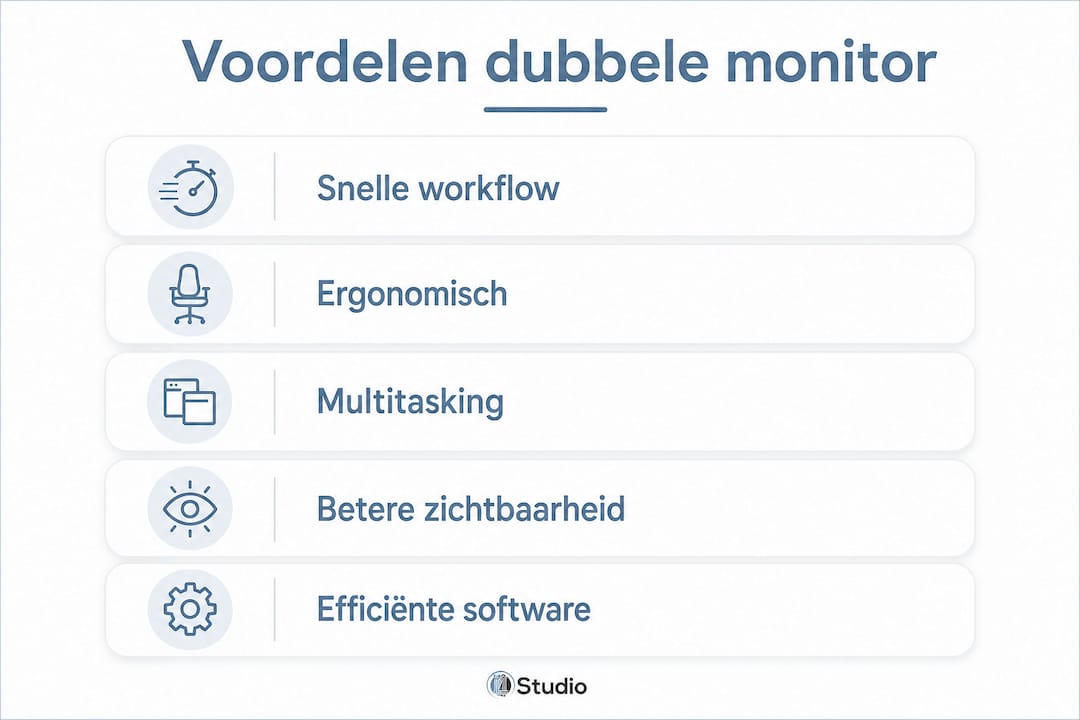
- More screen space, less window switching. Your DAW timeline, mixer, plugins, and reference material don’t fit comfortably on a single screen. A second screen gives each element its own dedicated space, reducing cognitive load during long sessions.
- Mixer and plugins are always visible. Professionals appreciate being able to keep their mixer and effects open next to the timeline without having to switch back and forth constantly.
- Working in an ergonomically sound manner. A single screen forces your head into a fixed position. Two screens, positioned correctly, distribute the viewing angle and reduce neck strain.
- Identical monitors for color consistency. In both audio and video editing, using two identical monitors with the same panel type is essential to prevent color discrepancies and visual distractions.
- Suitable for a studio PC setup. A custom-built studio PC with a GPU that supports two outputs gets the most out of a dual-monitor setup without sacrificing performance.
Table of contents
- How can you optimize your workflow with two monitors in the studio?
- What are the key points of a good dual-monitor setup?
- I4studio builds the studio PC that can handle your dual setup
- Frequently Asked Questions
- Key insights
How can you optimize your workflow with two monitors in the studio?
The arrangement of your visual elements determines how well a dual-screen setup works. Experts recommend reserving the main screen for creative work and setting up the second screen as a technical dashboard.
Screen Splitting in Practice:
- Main screen: DAW timeline, piano roll, recording playback
- Secondary screen: mixer, effects, meters, reference tracks, notes
Ergonomic positioning:
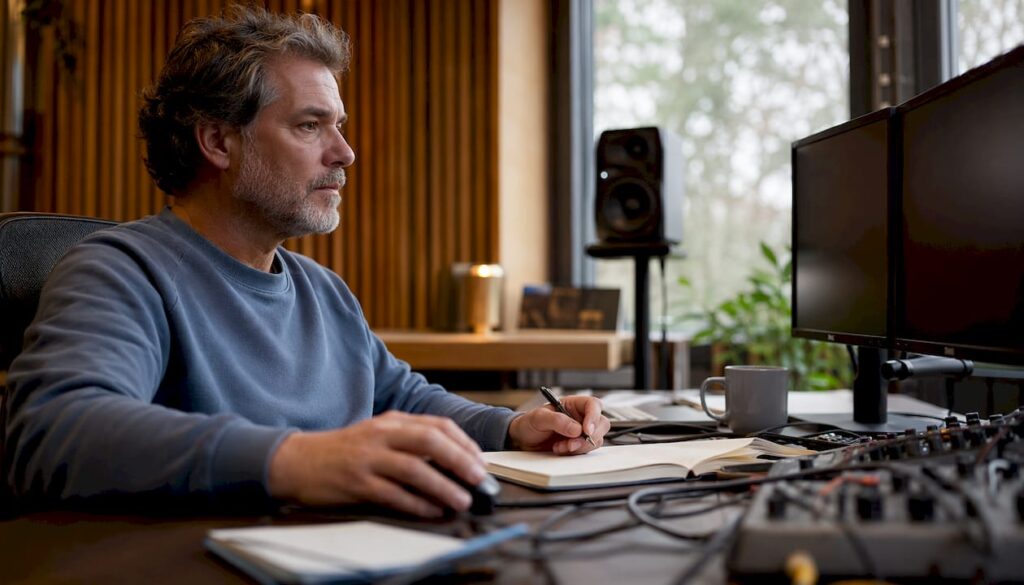
Poor positioning is the most common mistake in dual-monitor setups. Use monitor arms for precise height adjustment and make sure both screens are at eye level. Place the primary screen directly in front of you, and the second screen at an angle of 15–30 degrees. This way, you’ll only move your eyes, not your head.
Pro-tip: Monitors of the right size significantly reduce neck and shoulder strain. Combine this with an adjustable monitor arm for maximum flexibility.
Color Calibration and Image Quality:
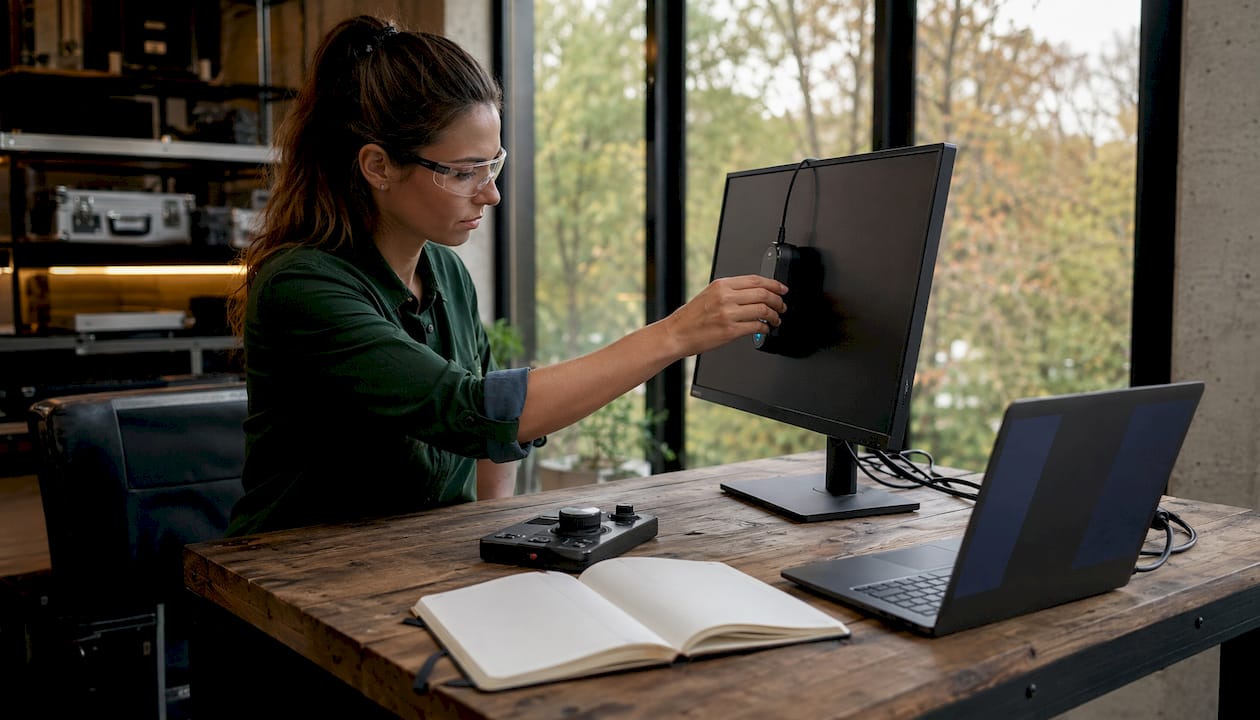
Brightness and color temperature must be the same on both screens. Even slight differences can disrupt your visual reference when mixing colors. Use a calibration tool such as the X-Rite i1Display or Datacolor SpyderX to match both screens.
Software settings:
In Ableton Live, Logic Pro, and Pro Tools, you can freely arrange windows across multiple screens. DaVinci Resolve has a built-in “Dual Screen” mode that automatically sends color wheels and scopes to the second screen. Save your workspace as a preset so you can pick up right where you left off after a restart.
GPU compatibility:
Your studio PC setup must include a GPU that supports two monitors with sufficient resolution and refresh rate. For Full HD, an integrated graphics card is often sufficient; for two 4K monitors, you’ll need a dedicated GPU. Professionals in the audiovisual sector typically use dedicated hardware to ensure stable performance.
What are the key points of a good dual-monitor setup?
A dual-monitor setup only works optimally when ergonomics, screen selection, and software configuration all work together properly.
- Organize your workspace thoughtfully: place the timeline on the primary screen, and the mixer and meters on the secondary screen
- Use identical screens to ensure color consistency and visual harmony
- Use monitor arms to position your monitors at eye level, with the primary monitor directly in front of you
- Calibrate both screens to the same brightness and color temperature
- Make sure your studio PC’s GPU supports two outputs, preferably DisplayPort or HDMI 2.0
Check out I4studio’s complete guide to studio setups for practical examples.
I4studio builds the studio PC that can handle your dual setup
A dual-monitor setup places demands on your hardware. I4studio assembles custom-built studio PCs that are configured from the ground up for professional audio and video workflows, including support for two high-resolution monitors. Not a generic consumer PC, but a custom DAW PC tailored to your specific setup: from GPU selection to ports and memory. Also check out the custom video-editing PC if you produce video in addition to audio. Contact I4studio for a configuration that suits your studio.
Frequently Asked Questions
Do you really need two identical screens?
That’s the best choice for color consistency. If you also use video, identical monitors with the same panel type and calibrated brightness are essential.
What GPU do you need for two monitors?
For Full HD, an integrated graphics card is sufficient; for two 4K monitors, you’ll need a dedicated GPU with two DisplayPort or HDMI 2.0 outputs.
How do you split your DAW across two screens?
Keep the timeline and recording view on the primary screen. Place the mixer, plugins, meters, and reference material on the secondary screen to keep your workspace organized.
Does a dual setup prevent neck pain?
Only if you position the screens correctly. Both should be at eye level, with the primary monitor directly in front of you and the second screen at an angle of 15–30 degrees, preferably using adjustable monitor arms.
Key insights
A dual-monitor setup increases productivity in professional audio studios only if ergonomics, identical screens, and a well-planned workspace layout all work together.
| Item | Details |
|---|---|
| Screen Layout | Timeline on the primary screen; mixer and plugins permanently on the secondary screen. |
| Identical Monitors | The same panel type and calibrated brightness prevent color differences during mixing. |
| Ergonomic positioning | Both screens at eye level with monitor arms; the second screen is tilted 15–30 degrees. |
| GPU Requirements | A dedicated GPU is required for two 4K displays; Full HD often works with an integrated graphics card. |
| I4studio | Builds custom-configured studio PCs with native support for dual-monitor setups. |