TL;DR:
- Many problems with fixed DAWs with VST3 plugins are caused by corrupt runtime files, memory limits or driver conflicts. Systematically eliminating causes and optimizing hardware ensure more stability and fewer crashes. Investing in proper PC configuration and a mastered plugin arsenal structurally prevents problems in music production.
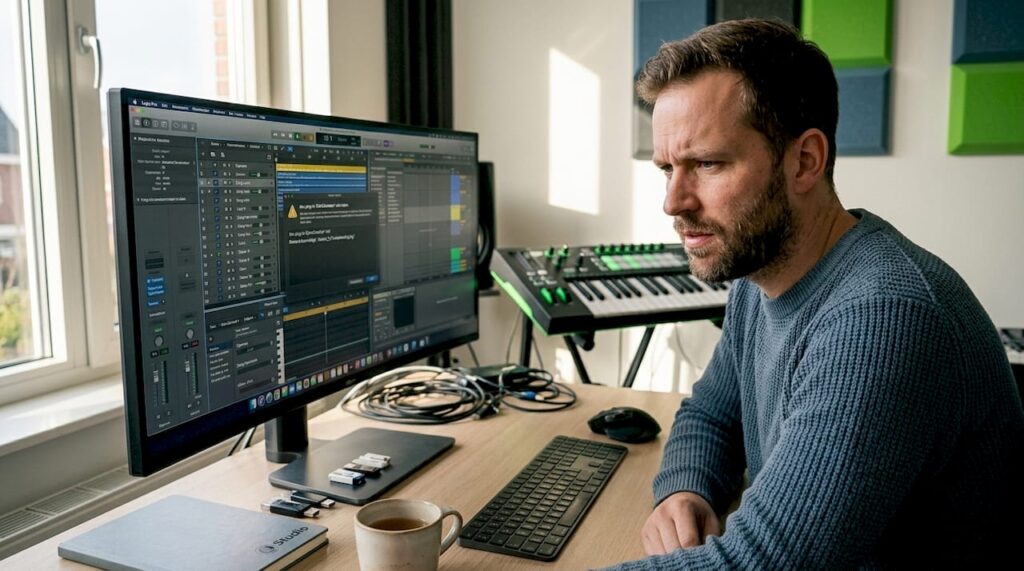
You work on a new project, load your template, and then: the DAW stops responding. You immediately think of a broken plugin or a bug in your DAW. But the reality is different. If your PC crashes with many VST3 plugins, the cause is more often Windows runtime files, memory limits or driver conflicts than the plugins themselves. This article explains exactly what goes wrong technically, how to systematically fix it, and how to set up your system so that it doesn’t happen again.
Table of contents
- Key insights
- Why your PC crashes with many VST3 plugins
- VST3 versus other plugin formats
- Practical steps to avoid crashes
- Improve performance for many VST3 uses
- My take on VST3 stability and smart workflows
- Stable production with the right studio hardware
- FAQ
Key insights
| Item | Details |
|---|---|
| Causes are often deeper | Crashes caused by VST3 plugins frequently come from runtime files or drivers, not from the plugin itself. |
| RAM usage is critical | Once RAM usage rises above 80%, the likelihood of audio applications crashing greatly increases. |
| Systematic troubleshooting works | Structured troubleshooting saves time and leads more quickly to the real cause. |
| Fewer plugins, more stability | Focusing on a small set of quality plugins improves both stability and creative focus. |
| Hardware makes the difference | Proper PC specifications for music production prevent most performance problems at the source. |
Why your PC crashes with many VST3 plugins
The frustrating thing about VST3 plugins problems is that the cause is rarely obvious. You can spend hours searching forum threads, uninstalling and reinstalling plugins, when the real problem is somewhere completely different. Here are the most common technical causes.
Plugin shells and complex wrappers
Some plugins do not work as independent files but via a so-called shell. Waves is the best-known example here. The WaveShell loads all Waves plugins at once during your DAW’s plugin scan. If that scan goes wrong, the entire plugin scan crashes with an error message such as Exception 0xc0000005. This occurs in about 1 in 10 installations. The problem is not Waves itself, but how the DAW interprets that shell.
Overloaded memory and CPU
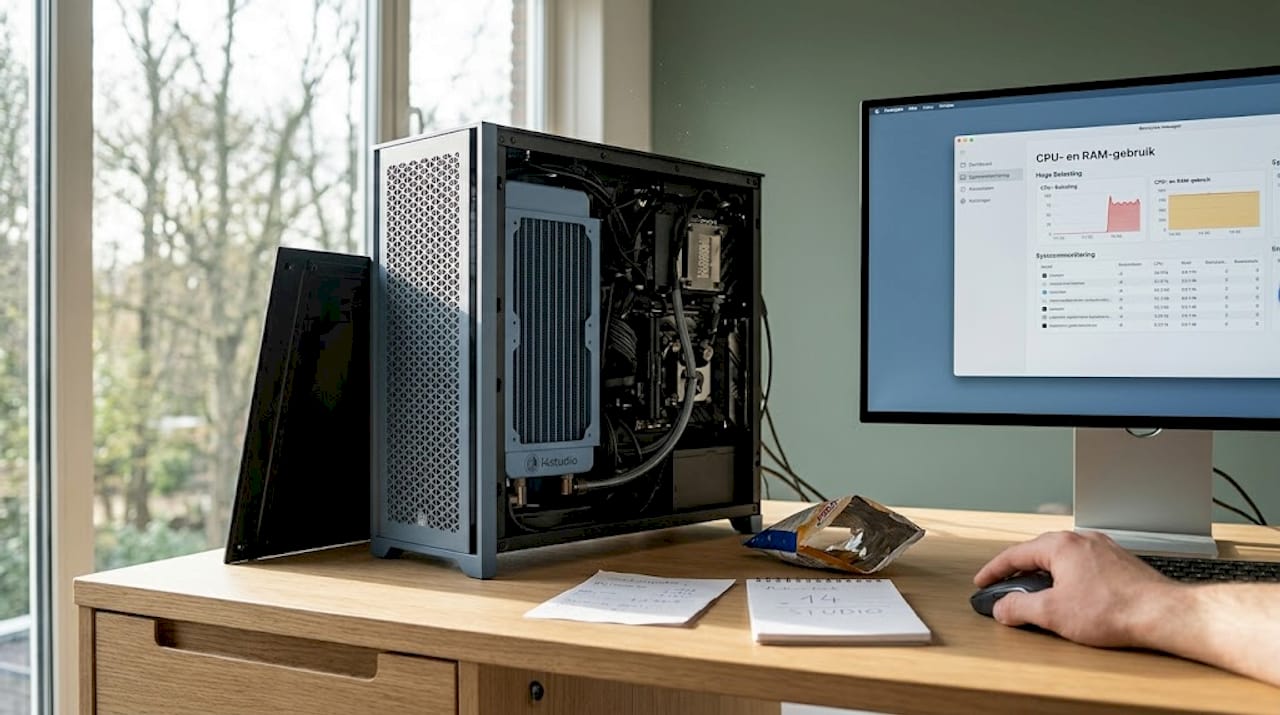
Each plugin instance you open requires RAM and processing power. In large templates with dozens of plugins, this accumulates quickly. RAM usage above 80% significantly increases the chance of system crashes in audio applications. Background processes such as browsers, cloud syncing and antivirus software also eat into that memory, while your DAW needs that space.
Corrupt runtime files
This is the most underestimated cause. Loading problems and blocking plugins are in many cases caused by corrupted or outdated Microsoft Visual C++ Redistributable files. These runtime libraries are necessary for loading VST3 plugins. If they are corrupt, a plugin simply does not load or the DAW crashes silently without an error message.
Driver and hardware conflicts
Outdated or incompatible graphics drivers are a known cause of system crashes in music production. The same is true of audio interface drivers. An ASIO driver that does not communicate properly with Windows can cause a conflict with any audio output. This then feels like the DAW is crashing, but the problem is at a lower level.
Time-outs at large templates
For large Cubase templates with VEPro 8, audio engine connections can crash in an endless handshake loop. Connection times of 60 to 180 seconds have been reported, sometimes followed by a crash when saving. This is specifically a problem with decentralized plugin systems with more than four or five active instances.
Pro-tip: Keep a log of each crash. Note which plugins were loaded, how much RAM was in use and whether any specific action preceded the crash. This makes troubleshooting much faster.
VST3 versus other plugin formats
Not all plugin formats behave the same under pressure. It is helpful to understand why VST3 is sometimes more demanding than alternatives.
| Feature | VST3 | VST2 | AU (Mac) |
|---|---|---|---|
| CPU utilization at idle instances | Low (dynamic) | High (always active) | Medium |
| Memory management | Per channel optimization | Static | Dynamic |
| Stability with many instances | Dependent on implementation | Predictable | Stable |
| Support modern DAWs | Excellent | Limited / descending | Mac-only |
| Chance of scan crashes | Higher for shells | Lower | Low |
VST3 is technically the most modern standard. The format is designed to reduce CPU usage by pausing inactive plugin instances. In theory, that saves computing power. In practice, the more complex architecture does mean that there are more components that can go wrong, especially for plugins that work through shells or rely on external components.
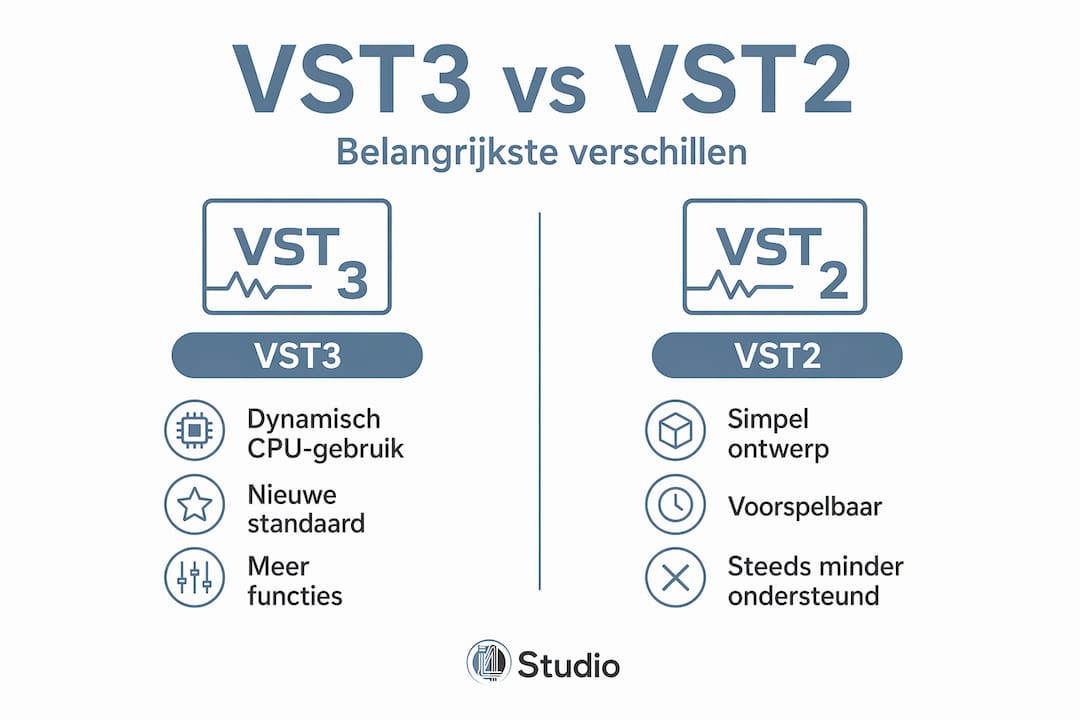
VST2 is simpler in design and therefore more predictable in many cases. That is why some experienced producers still prefer the VST2 version over VST3 in critical sessions. Not because VST3 is worse, but because VST2 has fewer variables.
The downside: VST2 support is increasingly disappearing. Ableton Live 12 and other modern DAWs actively disable VST2. So you have no choice in the long run. Learning to deal with VST3 and its stability requirements is the only sustainable approach.
Practical steps to avoid crashes
If your PC becomes sluggish because of plugins or crashes regularly, you tackle it most efficiently step by step. Randomly trying things takes hours without results. Here’s a structured approach.
Start with a clean boot. A clean boot and safe mode start Windows with minimal drivers and services. That way you immediately rule out software conflicts. If the DAW runs stably in safe mode, the problem is in a background process or driver.
Restore the Microsoft Visual C++ Redistributables. Go to Settings, then Apps, find all versions of Microsoft Visual C++ Redistributable and choose Modify followed by Restore. This solves a surprisingly large number of plugin loading problems without you having to remove a single plugin.
Scan plugins in batches. If your DAW crashes during the plugin scan, use the block list function. Temporarily move half of your VST3 files to another folder, scan again and determine which half is causing the problem. Repeat until you isolate the guilty plugin. This also works for Waves WaveShell problems that require batch scanning.
Update all drivers. Check both your graphics card driver and your audio interface driver. For your graphics card, use the official software from NVIDIA or AMD. For the audio interface, download the latest ASIO driver from the manufacturer’s website.
Close background processes. Open Task Manager before starting your DAW. Temporarily close browsers, cloud storage services, and antivirus software. Leave only basic Windows processes active. You’ll find that this immediately makes a noticeable difference in RAM availability.
Manage your templates actively. Large templates with dozens of plugin instances are a stability risk. Create separate, downsized templates for specific tasks. A beat production template has different requirements than a mixing template. Keep the number of active plugin instances per template as low as practical.
Adjust latency settings. Increase the buffer size in your ASIO settings during mixing. A buffer of 512 or 1024 samples gives the CPU more time per audio block and significantly reduces the chance of audio dropouts and crashes.
Pro-tip: Back up your working DAW settings after each successful configuration. If an update causes problems later, you can easily revert to a stable state.
Improve performance for many VST3 uses
Structural solutions for performance improvement VST3 start with the hardware. Band-aiding at the software level helps, but a system with insufficient foundation remains vulnerable.
Check out the recommended hardware for a DAW computer if you have doubts about whether your system is suitable for intensive plugin use. Here are the points of interest:
- RAM: For modern production with many VST3 plugins, 32 GB is the minimum. 64 GB gives room for large orchestral templates or complex mixing sessions without even getting close to the 80% limit.
- CPU: Choose a processor with high single-core performance. Audio engines have historically been little optimized for multi-core processing. An Intel Core i9 or AMD Ryzen 9 with high clock speed performs better than a server CPU with many but slow cores.
- SSD: An NVMe SSD for your operating system, DAW and plugins dramatically reduces loading times of samples and plugin libraries. This is noticeable when opening large templates.
- Audio interface with stable ASIO driver: The interface is the link between your DAW and your hardware. A cheap interface with unstable drivers causes more problems than any plugin.
In addition to hardware, you can better set up Windows itself for audio. Check out the tips on PC optimizing for audio for a step-by-step approach. The most impactful settings are:
- Set power management to High performance or Ultimate performance.
- Disable Windows Update during sessions.
- Disable USB selective suspend so that your audio interface never goes into sleep mode.
- Real-time prioritization of your DAW process via Task Manager.
Finally, plugin overload not only limits your CPU, but also causes decision fatigue. Fewer plugins in your arsenal means faster choices, more consistent results, and a quieter system. Choose a fixed set of twenty to thirty plugins that you know thoroughly, rather than a hundred plugins of which you rarely use forty.
My take on VST3 stability and smart workflows
I’ve analyzed dozens of studio PC setups over the past few years where the complaint invariably sounded the same: the DAW crashes, it’s probably because of the plugins. In almost half of those cases, the real cause turned out to be a combination of outdated runtime files and RAM shortage. Not a single plugin was actually defective.
What I have learned is that the tendency to immediately upgrade hardware when crashes occur is counterproductive. A faster CPU solves nothing if the problem lies with a corrupt Visual C++ package. Systematically debugging might take an hour, but will save you an unnecessary investment of hundreds of dollars.
I also see many producers feeling guilty about their plugin collection. As if more plugins equals more possibilities. Too many inconsistent plugins cost creative energy and tax your system. The best productions are made with limited but controlled toolsets. That’s not limitation, that’s discipline.
My advice: invest once in the right hardware, maintain your system regularly and build a plugin library you really know. Then your PC will stop crashing and you’ll start making what you wanted to make again.
– harold
Stable production with the right studio hardware
You now know what goes wrong technically and how to address it. But the most structural solution to PC bogging down in intensive plugin use starts with a system built from the ground up for music production.

I4studio is a specialist in custom studio PCs tailored exactly to the requirements of musicians and producers. No standard office computers that happen to run a DAW, but systems with the right CPU, RAM configuration and SSD setup for stable work with many VST3 plugins. See which studio PC suits your workflow and read what the most important components for music production are before making your choice. A well-built studio PC is the best investment you can make to put VST3 plugins problems structurally behind you.
FAQ
Why does my PC crash when loading VST3 plugins?
The cause is often not the plugins themselves but corrupt runtime files such as Microsoft Visual C++ Redistributable, overloaded RAM memory or outdated drivers. First fix the runtime files and then check your driver versions.
How much RAM do I need for many VST3 plugins?
For stable work with multiple VST3 plugin instances, 32 GB of RAM is a practical minimum. With 64 GB you always keep enough buffer, even with large orchestral templates or complex mixing sessions.
How do I isolate which VST3 plugin is causing my DAW to crash?
Scan your plugins in batches by temporarily moving half to another folder. Restart the DAW, determine which half is causing the problem and repeat until you find the guilty plugin.
Does a clean startup help with crashes caused by plugins?
Yes. A clean boot starts Windows with minimal services and drivers, allowing you to rule out software conflicts immediately. If the DAW runs stably after a clean boot, look for the problem in a background process or driver.
Is VST3 more stable than VST2?
VST3 is technically more modern and more economical with CPU at idle instances, but more complex in design. VST2 is simpler and therefore sometimes more predictable in behavior. In the long run, VST3 is the only viable choice because VST2 is less and less supported by modern DAWs.