TL;DR:
- Reducing the buffer size can lead to crackling noise due to DPC latency and mismatches in sample rates.
- A stable system requires using native ASIO drivers, correct sample rate settings and minimizing background processes.
You lower the buffer size for less latency while recording, and suddenly everything sounds like a broken radio. Crackling, stuttering, unusable. This is one of the most frustrating audio troubleshooting situations known to musicians and producers. The audio crackles at low buffer size fix exists, but requires more than one click. This guide gives you the exact step-by-step approach: from drivers and power management to sample rate consistency and system tuning.
Table of contents
- Key insights
- Preparation: what you need for the fix
- Set buffer size correctly step by step
- Identify common causes of crackling noise
- Verify that the fix works
- My take on chasing low buffers
- Stable hardware as a foundation for low latency
- FAQ
Key insights
| Item | Details |
|---|---|
| Start at 256 samples | A buffer of 256 samples is the safest starting value for stable audio without noticeable delay. |
| Native ASIO over ASIO4ALL | Native ASIO drivers deliver significantly less crackling sound than the ASIO4ALL wrapper. |
| Sample rates must match | Mismatches between DAW, driver and Windows cause instant crackling sound due to resampling overhead. |
| DPC latency is the silent culprit | GPU drivers and background processes block the CPU, causing buffer underruns. |
| Test and incrementally decrease | Decrease buffer size only step by step and confirm stability with LatencyMon or pw-top. |
Preparation: what you need for the fix
Before you start adjusting buffer size settings, it’s smart to understand what exactly is happening. An audio buffer is a small memory reserve that the system uses to buffer audio processing and accommodate timing differences. The lower the buffer, the less latency. But also: the less margin for your system to process everything in time.
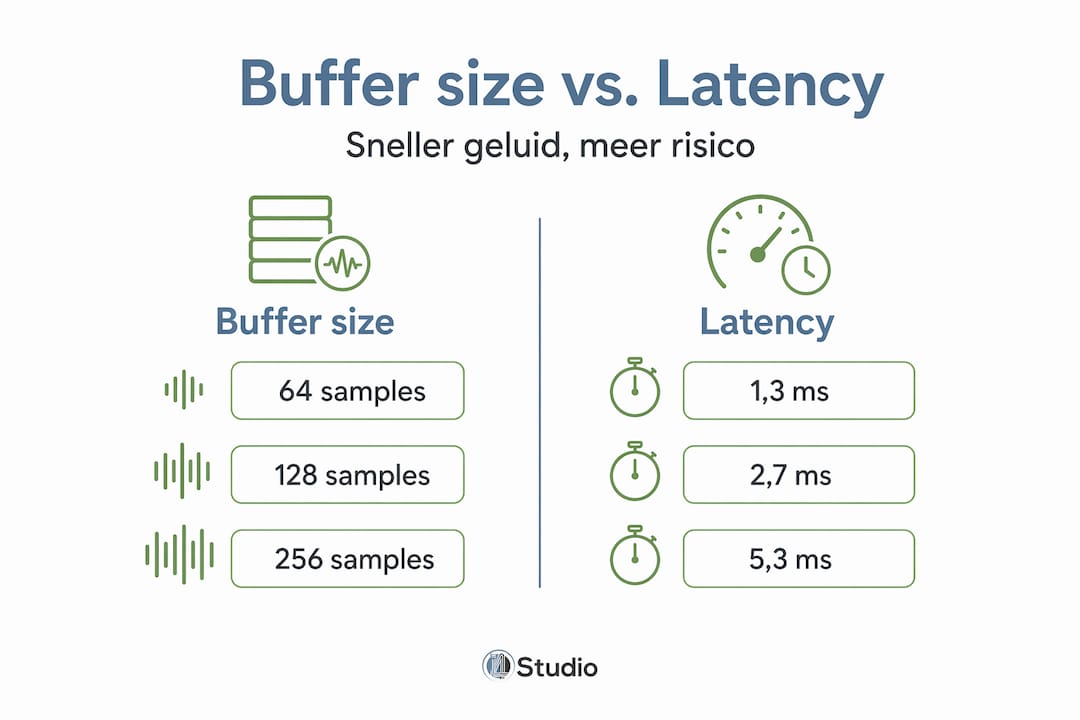
At 48kHz, 64 samples is 1.3 ms, 128 samples is 2.7 ms, and 256 samples is 5.3 ms. In practice, you hardly notice latency below 10 ms during recordings, making 128 or 256 samples more than sufficient for most situations.
Drivers: native ASIO versus ASIO4ALL
This distinction makes more difference than many people think. Native ASIO drivers are more stable audio than ASIO4ALL, which works as a workaround through the Windows audio stack. ASIO4ALL translates requests from your DAW to Windows audio drivers, which creates additional opportunities for timing problems. Do you have an audio interface with its own ASIO driver? Always use that as your first choice.
System requirements at a glance
Before proceeding, check the following:
- CPU load: At least 20% free capacity available during recording
- USB connection: Audio interface directly on motherboard, not through a hub
- RAM: Sufficient free memory so that no swapping occurs
- Windows power plan: Set to “High Performance” or “Ultimate Performance”
- Samplerate setting: Equal in Windows, driver and DAW
Diagnostic tool
| Tool | Platform | Use |
|---|---|---|
| LatencyMon | Windows | Measures DPC latency and finds problem processes |
| pw-top | Linux (PipeWire) | Monitors buffer overruns in real time |
| Task Manager | Windows | Monitor background processes and CPU usage |
| Device Manager | Windows | Detect driver conflicts and hardware errors |
Pro-tip: Run LatencyMon for at least 10 minutes while working normally. Short spikes in DPC latency that you see only after a few minutes are the most insidious causes of crackling noise.
Mismatches in sample rates in the chain lead to CPU overhead and crackling noise due to real-time resampling. This is one of the most underestimated causes. So always check that Windows sound settings, your ASIO driver and your DAW project are all set to the same sample rate, say all at 48kHz or all at 44.1kHz.
Set buffer size correctly step by step
Concrete steps are the key here. Follow this sequence for best results when adjusting buffer size settings.
Set your DAW to 256 samples as a starting point. That will give your system enough margin to run without problems. Check to see if the cracking disappears. If not, the buffer is not the only cause and you should go through the steps below as well.
Check sample rate consistency. Open Windows Sound Settings, click on your audio interface, go to Properties and Advanced. Set the sample rate to exactly the same value as your DAW project. Do the same in your ASIO driver panel.
Install or update the native ASIO driver from your audio interface manufacturer. Uninstall ASIO4ALL if you use it and if a native alternative is available. Then reboot your system.
Adjust Windows power management. Go to Control Panel, Power Management, Change Subscription Settings, Advanced Power Settings. Find “PCI Express” and set “Link State Power Management” to “Off.” Also find “USB settings” and set “USB selective suspend” to “Disabled.” Turning off power saving will prevent your interface from going into a sleep mode unexpectedly.
Connect your audio interface directly to a USB port on your motherboard. Avoid USB hubs, even if they are “active.” USB ports share controllers, and having your mouse, keyboard and interface on the same controller can cause jitter.
Minimize background processes. Close gaming launchers like Steam or Epic Games, cloud syncing services like Dropbox or OneDrive, and antivirus software that continuously scans files. Use Task Manager to see which processes use the most CPU and close unnecessary things.
Lower the buffer size incrementally: from 256 to 128, test thoroughly, then down to 64 if necessary. Run a recording for at least 10 minutes with a metronome track and plugins active.
Pro-tip: Linux users with PipeWire can set their buffer (quantum) through the terminal. PipeWire quantum 64 gives 1.3 ms latency but requires a stable system. Start at quantum 256 and lower only if pw-top shows no xruns.
For further depth in Windows-specific optimization, PC Optimize for Audio offers a complete approach for Windows 11 users.
Identify common causes of crackling noise
Not all crackling noise has the same cause. Here are the most common culprits in low buffer size problems, and how to recognize them.
DPC latency and GPU drivers
DPC stands for Deferred Procedure Call. It is a mechanism by which drivers temporarily “lock” the CPU to perform tasks. GPU drivers can cause spikes of 2 ms, which, with a buffer of 64 samples (1.3 ms), immediately gives too little margin. The result is a buffer underrun, and you hear it as crackling noise.
Check via LatencyMon which driver has the highest DPC routine times. Outdated or poorly optimized GPU drivers are a known culprit. Try updating the driver, or temporarily test with an older version if a recent update caused the problem.
The most common causes listed
- Outdated or conflicting drivers: Not just GPU, chipset and USB controllers can also cause problems
- Real-time resampling: Mixing of 44.1kHz and 48kHz increases latency and causes instability
- IRQ conflicts over USB: Shared USB controllers with devices that use high polling rates, such as gaming mice
- Heavy plugin load: Too many CPU-heavy plugins active at low buffer gives the processor too little breathing room
- Power management: Windows automatically lowering USB power during “quiet” moments
Plugin load under control
Heavy plugins, think convolution reverb, multiple compressors or a full synthesized mix, require a lot of CPU per buffer cycle. With a low buffer size, less compute time is available per cycle. Understanding which types of audio compression plugins consume the most CPU helps you make more focused choices.
“Most audio glitches are not hardware defects but timing and driver communication problems. Hardware replacement is always the last step, not the first.”
Preferably use plugin freezing (“track freeze”) for heavy instruments or effects that you have already written out. This way you significantly reduce the CPU load per buffer cycle without increasing the buffer size. More strategies for this can be found in DAW performance optimization.
Verify that the fix works
You’ve made adjustments. Now it’s time to confirm that the crackling noise is really gone and that the buffer size remains stable under load.
Run LatencyMon for at least 10 minutes on Windows while your DAW is open with a normal project. LatencyMon measures DPC latency and shows which drivers are causing high times. Green means stable, red means there are still problems.
Test with a metronome and several active tracks. Load a project with some plugins, turn on the metronome and let it run for 5 minutes. Actively listen for creaking or stuttering sounds. Also record a short audio clip and listen to the recording afterwards.
Check for xruns (Linux). Use pw-top to see in real time if buffer overruns are occurring. Setting up PipeWire quantum correctly and monitoring it via pw-top gives immediate insight into its stability.
Lower the buffer size only when everything is stable. Go from 256 to 128 only when LatencyMon shows consistent green and you don’t hear any complaints. Do the same for 128 to 64.
Hold optimization. Create a Windows power scheme that you use specifically for audio production, and keep a note of your settings. That way you don’t have to search again each time Windows updates or driver changes. For recurring problems after a system update, updating GPU and USB drivers is the first step.
My take on chasing low buffers
I’ve reviewed dozens of studio setups over the years, from simple home studios to larger production environments. And the biggest waste of time I see repeatedly? Producers obsessively chasing a buffer of 32 or 64 samples when their system simply can’t handle it.
Buffering is not a mistake but a necessity to compensate for system jitter. Striving for too low buffers without proper system preparation almost always leads to frustration, not better recordings.
What I learned: 128 samples at 48kHz gives you 2.7ms latency. You don’t feel that when singing in or playing guitar. The problem is rarely in the latency itself, but in the feeling that the setting feels “suboptimal.” While a stable session at 128 is always better than a cracking one at 64.
The invisible role of background processes also still puzzles me. One cloud sync service uploading a file at the time you record can be enough to cause a buffer underrun. System tuning is not sexy, but it makes more difference than a more expensive audio interface in many cases.
What I would give you: work incrementally, document what you change, and trust your ears combined with measurement data from LatencyMon. Real hardware problems are rarer than you think.
– harold
Stable hardware as a foundation for low latency
If after all the optimizations you still experience audio crackles during recording, sometimes that indicates a system problem that runs deeper. Hardware not tuned for audio production, a slow USB controller, a PC without real-time priority, these are factors that no driver setup can compensate for.
I4studio specializes in custom studio PCs built precisely for stable audio at low buffer sizes. No generic office computers, but systems where USB controllers, CPU selection and power management are tailored to music production from the start. Check out the studio PC advice for music production to see which system fits your workflow. Looking for more insight into the components that make a difference first? Then read about studio PC components explained or start with the studio gear beginner’s guide if your setup has yet to grow.
FAQ
What is the best buffer size for recordings?
A buffer of 128 samples at 48kHz gives 2.7ms latency, which is not noticeable for most recordings. Start here and decrease only when your system is running stably.
Why does my audio crackle only at low buffer size?
At low buffers, the system has less time per cycle to process audio. DPC latency from GPU drivers or background processes then causes buffer underruns, which is audible as crackling noise.
Does ASIO4ALL help solve crackling noise?
ASIO4ALL can help if no native driver is available, but native ASIO drivers are more stable. ASIO4ALL works as a wrapper through the Windows audio stack, which can cause additional timing problems.
How do I know if my system is suitable for low buffer sizes?
Use LatencyMon on Windows to measure DPC latency. If the tool reports green after 10 minutes of normal use, your system is capable of buffering 128 samples or lower.
Can I use low buffer size with many plugins active?
It depends on your CPU and the heaviness of the plugins. Freeze tracks with heavy plugins via “track freeze” in your DAW to free up CPU, and use CI audio plugins that use system resources more efficiently at low buffers.
Recommendation
- Audio Interface Troubleshooting: Practical Tips For Studios (audio interface troubleshooting) – https://i4studio.nl/
- Troubleshooting in Audio: Practical Guide to Technical Problems – https://i4studio.nl/
- What is needed to improve the acoustics of my studio ?
- Reducing Audio Latency: Practical Tips For Faster Monitoring – https://i4studio.nl/