TL;DR:
- Stability and low latency are crucial for reliable broadcasting, while brute processor power is rarely the cause of failure. A professional studio PC requires reliable drivers, at least 32 GB of RAM, fast NVMe SSDs and quiet cooling for optimal performance. Deployment work ranges from audio recording to video and playout, with the right components and integration essential for success.
Brute processor power is rarely the reason a broadcast fails. What does make a difference is stability: a system that doesn’t dropout during a live show, that doesn’t falter when loading a playout application, and that keeps latency (the delay between audio and processing) low enough to allow real-time monitoring. For radio and broadcast studios, workable, stable low-latency is more important than just raw processing power. This guide tells you exactly which criteria are really decisive, with concrete specs and practical tips.
Table of contents
- What makes a PC suitable for radio and broadcast applications?
- Audio, network and playout: requirements from different studio workflows
- Concrete specifications and components: what to look out for?
- The perfect work setup: tips for a quiet and reliable studio PC
- Our vision: why ‘the best’ means choosing stability and integration
- Next step: your ideal studio PC in practice
- Frequently asked questions about studio computers for radio and broadcast
Key Insights
| Item | Details |
|---|---|
| Stability above all else | For radio and broadcast, reliability in drivers and latency is more important than pure hardware power. |
| Wired network required | AV workflows like Dante work reliably only over wired gigabit Ethernet connections. |
| RAM and SSD are the standard | At least 32 GB of RAM and NVMe SSDs are essential for modern workflows and large projects. |
| Silence is essential | Choose components and housing that minimize the noise production of your studio PC. |
| Integrated solution pays off | An integrated custom studio PC prevents common mistakes and ensures future-proofing. |
What makes a PC suitable for radio and broadcast applications?
An average office PC and a professional studio workstation look alike on the outside. Inside, the priorities are completely different. An office PC is all about overall productivity. A broadcast workstation is all about reliability, low latency and driver support.
Latency is the delay between when a sound comes in and when you hear it back through your monitors. In a live radio studio, even 20 milliseconds of delay is noticeable to a presenter. Professional systems aim for 1 to 5 milliseconds, which is only achievable with the right combination of hardware, drivers and operating system settings. You can read more about reducing that delay on our page on reducing latency.
What really makes a PC suitable for radio and broadcast? Here are the core requirements:
- Stable drivers: USB4, Thunderbolt 4 and PCIe interfaces require well-maintained drivers. One bad driver update can cripple an entire session.
- Minimum 32 GB RAM: Workstations with 32 GB RAM and fast SSDs are the new standard for serious studio workflows.
- NVMe SSD as primary drive: Traditional hard drives are too slow for simultaneous recording and playback of multiple audio tracks.
- Quiet cooling: A PC that is audible in the recording room is unusable. Desktops offer better cooling capabilities than laptops, which is essential for quiet recordings.
- Reliable power supply: A quality power supply prevents voltage spikes that damage hardware or cause crashes.
A studio PC is not an ordinary computer that happens to process audio. It is a specialized tool tuned to one goal: flawless, stable performance on every broadcast.
Pro-tip: Turn off unnecessary background processes and Windows updates during recording and broadcasting moments. Use a dedicated audio profile in your operating system to reserve resources for your DAW (Digital Audio Workstation, the software you use to record and edit audio).
An overview of the best computers for radio and broadcast will help you quickly choose the right direction.
Audio, network and playout: requirements from different studio workflows
Not every broadcast PC does the same job. A PC for multitrack recording has different priorities than a system that processes Dante network audio or handles video playout. Below we break down the three main roles.
Audio recording and monitoring
For pure audio recording, the audio interface (the device that converts analog sound to digital) is the critical link. The PC must drive the interface through stable drivers without buffer errors. A good audio interface for studio works in conjunction with a workstation that offers sufficient PCIe bandwidth. Problems such as crackling, dropouts or delay can often be traced to driver conflicts. You can find more about resolving these on our page on audio interface problems.
For low-latency recording, SoundBridge is a DAW specifically designed for minimal system load and stable performance at low buffer sizes.
Network audio: Dante and AV-over-IP
Dante is a popular protocol for transmitting audio over an IP network. It replaces analog cables with a wired Ethernet network. The requirements are strict: Dante networks do not support Wi-Fi. Only wired gigabit Ethernet works stably enough for professional audio-over-IP.
In addition, an improperly configured managed switch or an incorrect subnet can cause latency and jitter problems that severely degrade audio quality. Jitter is the variation in delay, and in audio it sounds like crackling or rhythmic interference.
Playout and video
Playout systems combine audio, video and graphics overlays in real-time. This places higher demands on the GPU (graphics card) and total memory bandwidth. Video editing and playout also require more storage capacity and faster drives. Check out our recommendations for video editing hardware in the studio for a complete overview.
Comparison chart: typical system vs. specialized workstation
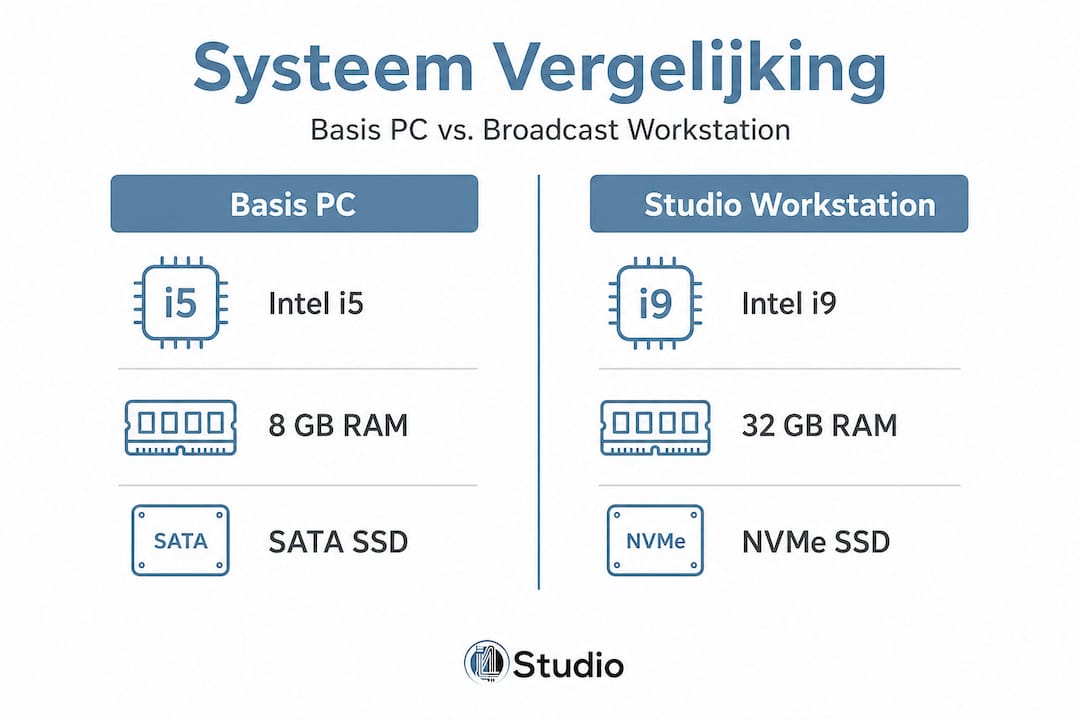
| Specification | Average PC | Specialized studio workstation |
|---|---|---|
| CPU | Intel i5, mid-range | Intel i7/i9 or AMD Ryzen 7/9 |
| RAM | 8-16 GB | 32 GB or more |
| Storage | SATA SSD or HDD | NVMe SSD (primary) + archive HDD |
| Network | Wi-Fi + Ethernet | Wired gigabit ethernet only |
| GPU | Integrated graphics card | Certified discrete GPU |
| Cooling | Standard fan | Silent cooling, soundproofed enclosure |
| Driver support | Generic | Optimized for audio/broadcast software |
Pro-tip: For Dante workflows, always use a managed switch with Quality of Service (QoS) settings. This prioritizes audio data packets over other network traffic and prevents jitter.
Concrete specifications and components: what to look out for?
Now that the technical lower limits are known, concrete recommendations for each component follow. These are not theoretical minimums, but practical starting points for a reliable broadcast setup.
1. Processor (CPU).
The processor coordinates all tasks: audio processing, network traffic, driver communication and software rendering. For audio-only workflows, an Intel Core i7 (9th generation or newer) will suffice. For heavy playout or video workflows, choose an i9 or an AMD Ryzen 9. More details on processor selection can be found on our page on the best Intel processor for audio PC.
2. Working memory (RAM).
- 16 GB: Minimum for simple audio recording with a limited number of tracks.
- 32 GB: Recommended standard for multitrack recording, Dante networking and light video.
- 64 GB or more: Necessary for heavy playout software, multiple simultaneous video streams or large sample libraries.
3. Storage
NVMe SSD is the standard. An NVMe drive reads and writes data up to 10 times faster than a traditional SATA SSD, which is essential when recording multiple high-resolution audio tracks simultaneously. Add a secondary HDD or additional SSD for archiving projects.
4. GPU (graphics card).
Broadcast software such as Cinegy Desktop has specific requirements: Windows certification, recommended NVIDIA GeForce cards and minimum RAM requirements of 4 GB for standard definition and 6 GB or more for HD workflows. Do not use a random GPU; always check your playout software’s certification list.
5. Network
Always wired gigabit Ethernet. No exceptions. With Dante or other AV-over-IP protocols, a dedicated network card per protocol is recommended to separate traffic.
Minimum specifications overview
| Component | Minimum (audio) | Recommended (broadcast/video) |
|---|---|---|
| CPU | Intel i7 9th gen | Intel i9 / Ryzen 9 |
| RAM | 16 GB | 32-64 GB |
| Storage | NVMe SSD 512 GB | NVMe SSD 1 TB + archive |
| GPU | Integrated | NVIDIA GeForce (certified) |
| Network | Gigabit Ethernet | Gigabit ethernet, managed switch |
A detailed explanation of all components can be found in our guide on studio PC components for music production.
The perfect work setup: tips for a quiet and reliable studio PC
You now have a complete technical picture. The next step is to set up a setup that remains reliable over the long term. Silence and cooling are the two most underestimated factors here.
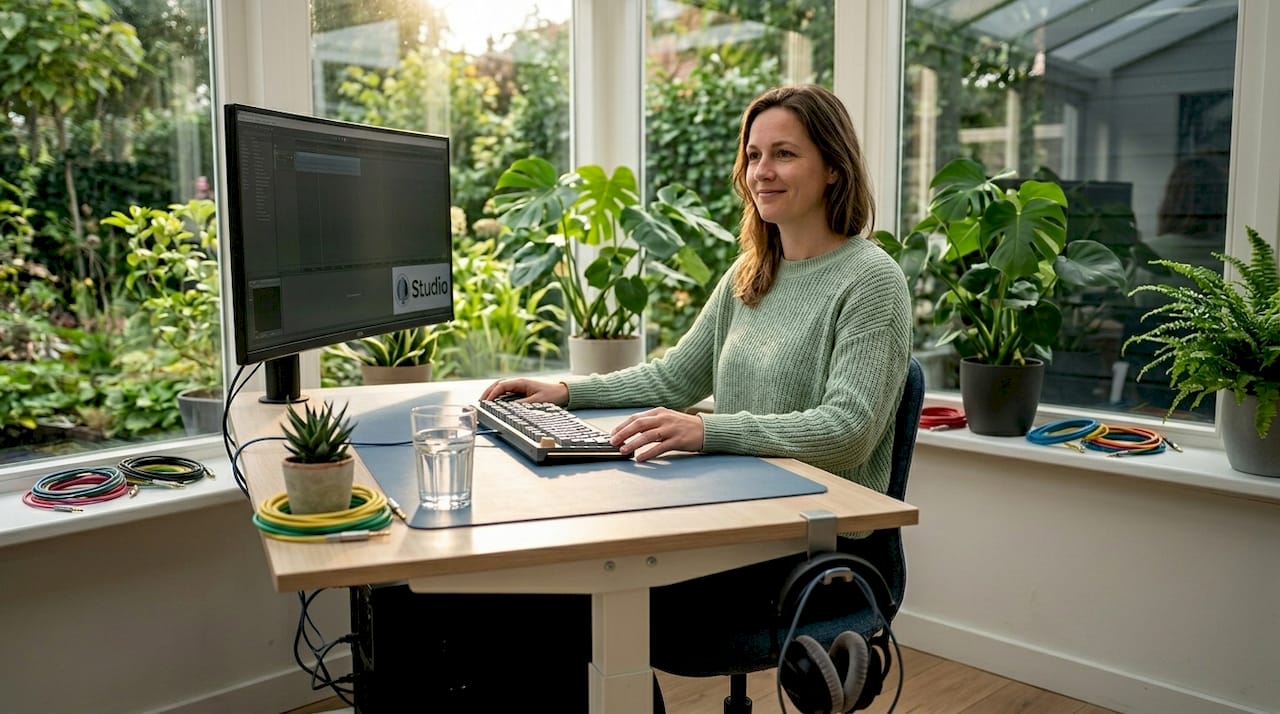
Enclosure and sound insulation
Choose a case with built-in sound dampening panels or foam inserts. Many studio-oriented cases also offer fan controllers that allow you to adjust fan speed according to workload. A lower fan speed means less noise, but requires good airflow planning.
A PC that produces 30 decibels sounds quiet in an office, but is audible on a condenser microphone a meter and a half away. In a studio, every decibel counts.
Cooling: active and passive
- Active cooling: CPU coolers with large, slow-spinning fans are quieter than small, fast models.
- Passive cooling: Some components, such as certain SSDs and GPUs, can be passively cooled with fanless heatsinks.
- Water cooling: An enclosed water cooling (AIO) system is quieter than most air coolers at high loads.
Desktops offer better cooling capabilities than laptops, making them more practical for long-term recording and broadcast environments. We discuss the choice between a desktop and laptop for studio use in detail on our page on desktop or laptop for studio.
Cable and airflow management
Poor cable organization blocks airflow inside the enclosure, leading to higher temperatures and increased fan noise. Use cable ties and route cables along the edges of the enclosure. Good airflow significantly extends the life of all components.
Maintenance
Dust is the enemy of cooling. Clean the filters of your case every two to three months. Remove dust from CPU cooler and GPU with compressed air. A dust-free PC runs cooler, quieter and longer.
Pro-tip: For remote collaboration with other studios or voice-over artists, consider checking out the remote audio collaboration tips. A stable, properly configured studio PC is also the foundation for error-free remote sessions.
Our vision: why ‘the best’ means choosing stability and integration
There is a persistent misconception in the broadcast world: that a more expensive system is automatically a better system. We see it differently. The most expensive processor won’t help you if your audio interface has bad drivers. A fast GPU won’t solve anything if your network is not stably configured.
What we see time and again in studio setups that fail is not a lack of computing power. It’s a lack of integration. Components that do not work well together, software that is not certified for the hardware, networks set up without regard to audio traffic.
Choosing the right hardware depends heavily on your entire chain: audio interface, network and playout software each have their own requirements. Building a system without knowing that chain is building on quicksand.
Our recommendation is always: start with the software and work back to the hardware. What playout application are you using? What audio protocol? Which interface? Only then do you choose the processor, RAM and GPU. A structured approach prevents problems when growing and makes expansion much easier later.
Less patchwork means fewer errors. A system built as a whole, with components tested and certified for your specific workflow, is more reliable than one put together piecemeal. And in the long run, service and support is just as important as the hardware itself. A vendor that understands what you do is worth more than the cheapest provider.
Check out our range of studio PCs for music production and broadcast for systems put together with this philosophy in mind.
Next step: your ideal studio PC in practice
Ready to move from theory to practice? At i4Studio, you’ll find complete studio solutions put together for radio and broadcast professionals.
Whether you’re starting with your first professional setup or looking to upgrade an existing studio, we have ready-made options and the knowledge to guide you. Check out our studio recording bundle for a complete starter setup, read the detailed explanation on studio PC components if you want to put together your own, or use our guide on desktop or laptop for studio to choose the right form factor. Personal advice? Contact us and we’ll be happy to think with you.
Frequently asked questions about studio computers for radio and broadcast
What is more important: processor power or low latency in a radio or broadcast studio?
Low latency and stable drivers are more important for radio and broadcast than pure processor power. Workable, stable low-latency determines whether a live broadcast is error-free, not processor speed alone.
Can I use a standard laptop for live broadcast or multitrack recording?
A standard laptop often lacks stable drivers, sufficient RAM and low-latency connectivity for professional broadcast workflows. Workstations with at least 32 GB of RAM and fast SSDs are considered standard for serious broadcast workflows.
Why shouldn’t Wi-Fi be used for Dante or AV-over-IP workflows?
Wi-Fi is not stable enough for Dante or AV networks because of variable latency and packet loss. Dante networks do not support Wi-Fi; only wired gigabit Ethernet guarantees the stability required by professional audio-over-IP.
What are the minimum requirements for a PC in a radio and broadcast studio?
Minimum of an Intel i7 (9th generation), 16 GB RAM for audio and 32 GB for video, plus an NVMe SSD as the primary drive. Heavy playout software has additional requirements, such as certified NVIDIA GeForce cards and minimum RAM requirements depending on resolution.
How do I avoid distracting noises when recording in my studio PC?
Choose a desktop with quiet cooling, SSDs and a soundproofed enclosure, and optimize internal airflow. Desktops are more practical for recording environments thanks to better cooling capabilities and more room for quiet components than laptops.