
Coil whine is the high-pitched squeal or hum that coils in your graphics card or power supply make when current flows through them. You can address it in three steps. First, determine whether it’s actually coil whine and where the sound is coming from: only in the room, through your microphone, or from your monitors. Next, reduce the peaks in power draw by setting a frame rate limit and a lower power limit. Finally, isolate the PC from your recording space. For a studio, it works best if the PC is built and tuned from the start for quiet operation and a stable power supply. That’s what we focus on at I4studio with our custom-built studio PCs.
In a nutshell
- Coil whine is not fan noise. It is an electronic whine that changes pitch immediately when the load changes. It usually comes from the graphics card or the power supply.
- First, determine the source of the noise. Can you hear it only in the room, or also in your recording or your monitors? A buzzing sound in your monitors is often caused by a ground loop, not by coil whine.
- A frame rate limit is the quickest and safest solution. Setting the graphics card’s power limit slightly lower often helps as well.
- Don’t use glue or a screwdriver. Securing the coils or opening a power supply can damage your hardware and void your warranty.
- For a studio, the real solution lies in the build: high-quality components, a quiet chassis, and audio-optimized tuning.
Table of contents
- What Coil Whine Is and Why Your Studio PC Is Making a Whining Noise
- Recognize the sound: coil whine, fan, or hum?
- Is it in the room or in your recording?
- Reducing coil whine: a step-by-step guide
- What You Should Avoid Doing
- Warranty: When Should You Report the Issue to the Seller?
- A studio PC that starts up quietly
- Our take on coil whine in the studio
- Frequently Asked Questions
- Sources
What Coil Whine Is and Why Your Studio PC Makes a Whining Noise
A PC contains dozens of coils (inductors). They convert the current from the power supply to the voltage required by the processor and graphics card. According to component manufacturer TDK, the cores of these coils vibrate audibly as soon as alternating currents and pulses between 20 Hz and 20 kHz pass through them. That is precisely the range of human hearing.
TDK cites three causes for those vibrations:
- Magnetostriction: The magnetic core undergoes a minimal change in shape when subjected to an alternating magnetic field.
- Attraction due to magnetization: parts of the core attract and then repel each other.
- Leakage flux: the magnetic field causes the winding itself to vibrate.
That change in shape is minuscule—according to TDK, between one ten-thousandth and one millionth of the original size. Yet it becomes audible when it coincides with the circuit board’s natural resonance frequency. That’s why one video card may make a squeaking noise, while an identical one from the same batch barely does.
ASUS describes coil whine on graphics cards as high-frequency noise caused by resonance that occurs when the system load changes. According to that support page, it’s a characteristic of the component and doesn’t affect the hardware. That’s reassuring: it won’t break your PC. In a studio, however, it is definitely a problem. A continuous beep around a few kilohertz is particularly noticeable when you’re mixing quiet passages or recording acoustic instruments.
When Things Get Worse
- High frame rates. A graphics card that renders hundreds of frames per second—for example, in a menu, a light game, or a plugin window with no limit—consumes rapidly fluctuating power.
- Fluctuating load. Scrubbing through a timeline in your video editing software, rendering, and exporting cause the power demand to constantly fluctuate.
- The power supply. The power supply also contains coils. A power supply that beeps under light or heavy load can be heard even when the graphics card is silent.
Identify the sound: coil whine, fan, or hum?
Before you make any changes, you need to know what you’re supposed to hear. Use this table as a first check:
| Sound | How It Sounds | When it changes | Probable source |
|---|---|---|---|
| Coil whine | High-pitched electronic beep or buzz, sometimes with a singing quality | Occurs immediately when performing other tasks, such as opening a window, scrolling, or rendering | Coils in the graphics card, power supply, or motherboard |
| Fan | Blowing, humming, sometimes ticking or rattling | Gradually, as the system gets warmer or cooler | CPU cooler, case fans, graphics card fans |
| Hard drive | Clicking, soft humming, or whirring | During reading and writing | Mechanical HDD |
| Ground loop | A 50 Hz hum with harmonics, or beeps and clicks | Synchronized with computer activity, even if the PC is in another room | Cables and grounding between the PC, interface, and monitors |
The most important test is speed. Coil whine reacts within a fraction of a second. Open a heavy plugin window, start an export, or move your mouse over the timeline, and the tone follows right along. A fan always takes a few seconds to rev up.
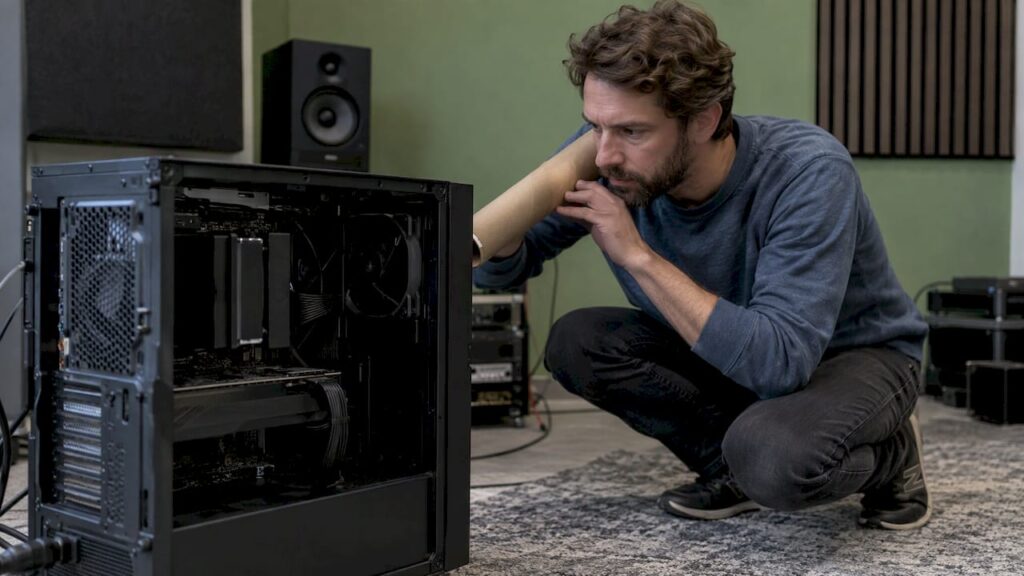
Want to know which component it is? Hold a cardboard tube or a rolled-up stack of paper up to your ear and move the other end along the side of the open case. That way, without touching anything, you can tell whether the noise is coming from the video card, the power supply, or the area around the processor. Do not touch any components while the PC is turned on.
Is it in the room or in your recording?
For a producer or video editor, this is the question that matters. There are three approaches, and each one requires a different solution.
1. Audible only in the room
You can hear the beep with your ears, but not through your monitors or headphones. This is true, acoustic coil whine. It only becomes a problem when a microphone picks it up.
2. Audible in your microphone recording
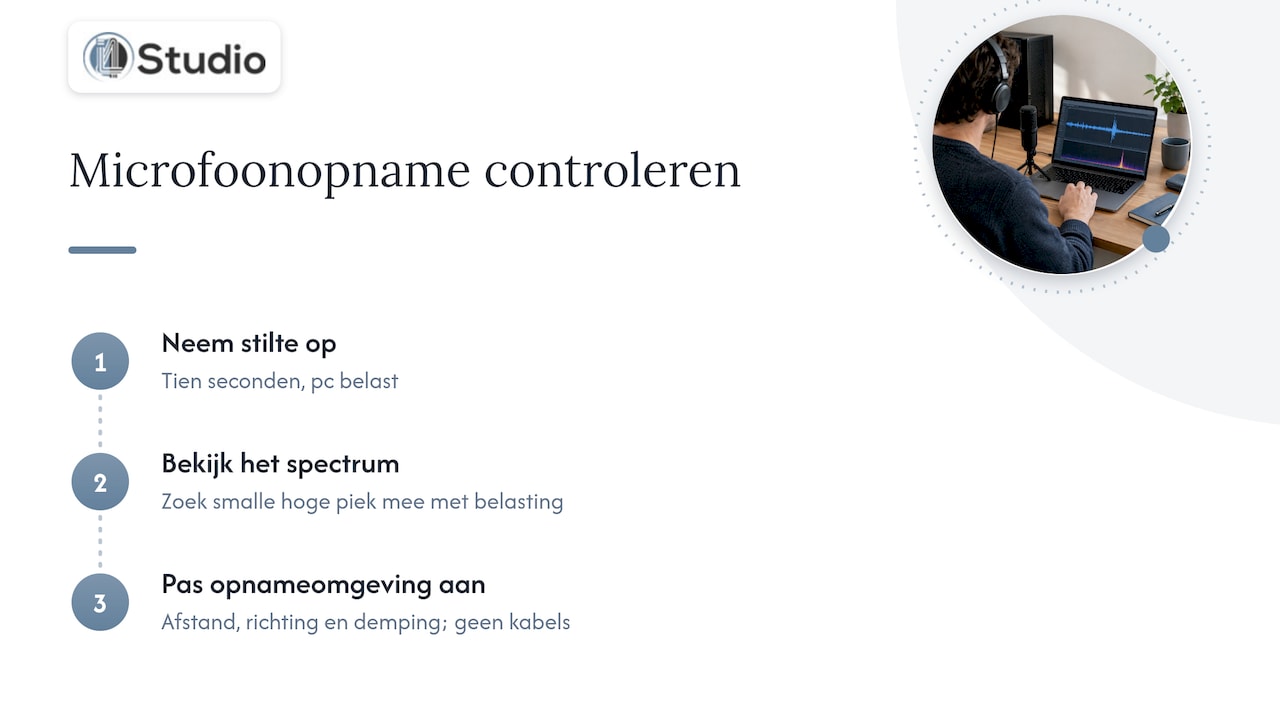
Record ten seconds of silence with your microphone in its usual position while the PC is under load. View the recording in a spectrum analyzer. Do you see a narrow peak in the high frequencies that fluctuates with the load? If so, your microphone is picking up noise from the PC. The solution then lies in distance, direction, and damping—not in your cables.
3. Audible through your audio output
Do you hear a beep or buzz in your monitors or headphones, even when all microphones are muted? If so, it’s not acoustic coil whine but electrical interference in your signal path. According to Sound on Sound, ground loops in a production environment can cause high-pitched whistling, whines, and clicks that coincide with computer activity. The magazine recommends disconnecting all audio cables and reconnecting them one by one until you find the source. It cites balanced TRS or XLR cables as the cheapest and best solution for most ground loop problems.
Does this sound like your situation? If so, be sure to read our article on how to fix noise on your audio interface and the step-by-step guide to hum-free cables in your studio. If you’re using a USB interface and hear glitches in addition to noise, check out our article on USB audio glitches in Windows.

Reducing Coil Whine: A Step-by-Step Guide
Are you sure it’s acoustic coil whine? If so, follow these steps in order. Start with something that costs nothing and involves no risk.
Record when it occurs. Note which action triggers the beep: playback, rendering, opening a plugin GUI, or idle mode. This will tell you whether the graphics card, the processor, or the power supply is the source of the problem. This is where things often go wrong: if you guess, you’ll adjust the settings for the wrong component.
Limit your graphics card’s frame rate. A DAW or editor doesn’t need hundreds of frames per second. In your graphics card’s driver software, set the maximum frame rate to or just below your monitor’s refresh rate—for example, 60 or 144 fps. Extra frames above your screen’s refresh rate are just a waste of power with no benefit. This is usually the step that makes the biggest difference.
Lower the power limit slightly. You can lower the power limit using your graphics card’s tuning software. For audio work, a small reduction has a barely noticeable impact on performance, and less current flowing through the coils often means less buzzing. Do this in small increments and test after each step to make sure your software remains stable. You’ll notice the effect of a reduction more quickly during video export than during mixing.
Take a look at your power management. A system that constantly switches between power-saving mode and full power creates a fluctuating load, and that fluctuation causes the beeping sound. A fixed power profile for audio also results in more stable latency. To learn more about what else goes into a well-tuned studio PC, check out our guide on building a quiet studio PC.
Move the PC farther away from the microphone. High-frequency sounds drop off quickly over distance and are easily blocked. Place the PC under or behind the desk, with the side of the case facing away from your microphone. For vocals, use a microphone with a specific polar pattern, such as a cardioid, and point the back of the capsule toward the computer. In our microphones category, you’ll find models with a distinct polar pattern.
Choose a sound-dampened case. A case with solid panels and sound-dampening material keeps high frequencies inside better than a case with a lot of mesh. This won’t eliminate coil whine, but it will significantly reduce the audible level at your desk. In our top 5 quiet PC cases for your home studio, we compare the options. The same logic applies to your listening area: the less PC noise surrounding your monitors, the better you’ll hear the details. When choosing your new speakers, be sure to read this overview of studio monitors for home recording.
Tackle the room. Hard walls bounce high frequencies back toward your microphone. Acoustic panels near the PC and behind the recording area dampen those reflections. At the same time, they reduce reverberation throughout your entire mixing environment. More techniques are covered in “Minimizing Noise in Your Studio.”
Balance cooling and noise effectively. A quiet PC with a loud fan is of little use. Lower fan speeds actually make coil whine more audible because the background noise is reduced. That’s why cooling and component selection go hand in hand. You can read about how to approach this in “Quiet Studio PC Cooling.”
Things You Should Avoid Doing
On forums, you come across solutions that cause more problems than they solve.
- Glue or paint the heat sinks in place. To do this, you’ll need to remove the cooler from the graphics card. This will often void the manufacturer’s warranty, and if you use the wrong materials, you risk a short circuit or overheating.
- Opening a power supply. Power supplies contain capacitors that can retain a dangerous voltage even after the power has been turned off. Never open a power supply yourself.
- Extremely undervolted. Too low a voltage causes crashes and audio dropouts in the middle of a session. A slight reduction in the power limit is safer and keeps your system stable.
- Just swapping out parts. A different power supply or video card might help, but it could also result in a new one that makes a whining noise. Coil whine varies from unit to unit, even within the same model.
Warranty: When Should You Notify the Seller?
Manufacturers generally consider a slight coil whine to be a characteristic of the component rather than a defect. Is the noise so loud that you can’t use the PC for the purpose for which you bought it, or has a new noise appeared that wasn’t audible before? If so, contact the seller. In the Netherlands, as a consumer, you always have a statutory warranty in addition to the manufacturer’s warranty. According to ConsuWijzer from the ACM, you must file a complaint with the seller within 2 months of discovering the problem.
Before submitting your report, make a short recording with your phone held close to the cabinet. Note which action causes the noise and which steps from the troubleshooting guide you’ve already tried. This will help the salesperson quickly assess the problem. Any part that you have soldered or glued yourself is often not covered by the warranty. That’s another reason to avoid making such modifications.
A studio PC that starts up quietly
Adjusting settings after the fact helps, but it’s still just a Band-Aid solution for hardware that wasn’t designed for studio use. Our custom-built studio PCs are engineered for audio and video, with a focus on stability, low latency, and personalized support from industry experts. Our studio PCs start at €1,099.
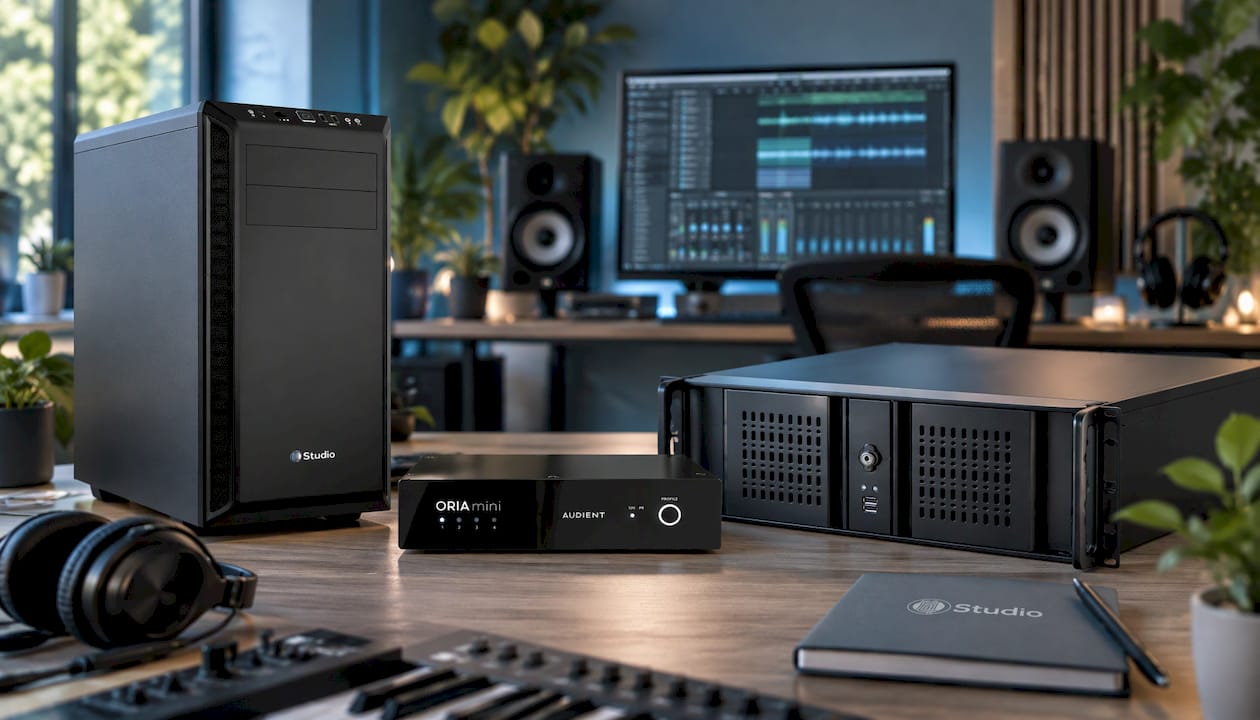
Do you mainly work on large projects, with lots of plugins or virtual instruments? Then check out the DAW Power Producer studio computer. Want to get your signal chain set up right away? You’ll find the rest of your setup in our audio interfaces and studio monitors categories. For the room itself, we offer advice on acoustic panels.
Our Take on Coil Whine in the Studio
Coil whine is a nuisance for gamers. For a producer, it’s a sound that can end up in your recordings and influence your judgment when mixing. That’s why we believe that a quiet studio PC should be a design choice, not a problem you have to fix after the fact.
That’s why we build an audio PC differently than a regular PC. Stability and low latency are paramount, and sound quality is a key consideration for every component: the power supply, the graphics card, the cooling system, and the case. A studio doesn’t need a graphics card that can push hundreds of frames per second. What it does need is a system that runs for hours without dropouts and remains as quiet as possible.
We also look beyond the cabinet. Coil whine, noise on your interface, and a reverberant room all amplify each other. That’s why we combine hardware recommendations with acoustic advice. This way, you address the entire chain rather than just a single link.
Harold
Frequently Asked Questions
Is coil whine harmful to my PC?
No. According to ASUS’s support information, coil whine is a characteristic of the component and does not affect the hardware. The noise does not indicate anything about the lifespan of your graphics card or power supply. In a studio, you address it because it interferes with your recordings and your concentration.
Does coil whine go away on its own?
Sometimes performance drops slightly after a period of use. You can’t count on that happening. A frame rate limit, a slightly lower power limit, and a dampened case will give you immediate results.
Why do I hear a beep in my headphones when my computer is doing something?
That’s usually not acoustic coil whine, but electrical interference in your signal path, such as a ground loop. Disconnect your audio cables one by one to find the source. Where possible, switch to balanced cables between the interface and the monitors.
Does a more powerful power supply help reduce coil whine?
Not automatically. Coil whine varies from unit to unit and depends on the coils and the load, not just the power rating. A power supply that’s compatible with the system and designed for quiet power delivery makes a bigger difference than just more watts.
Can I filter out coil whine in my DAW?
A narrow EQ notch can soften a constant beep in a recording. Coil whine changes only with the load and therefore shifts in pitch. As a result, you’ll also affect your source material. It’s better to prevent the microphone from picking up the sound in the first place.
Sources
- TDK: Measures Against Acoustic Noise in Power Inductors
- ASUS Netherlands: High-Frequency Noise on the Graphics Card
- Sound on Sound: How can I get rid of annoying background noises on my PC?
- ACM ConsuWijzer: Warranty
- Tellingbeatzz: Best Studio Monitors for Home Recording