Is the audio from your USB audio interface, headset, or DAC stuttering in Windows? This is almost always because the audio stream isn’t reaching the USB bus in time. The problem is often one of five things: a mismatched sample rate, a buffer that’s too small, USB power-saving mode, a driver that’s taking up too much CPU time, or a Windows update that changed something. In this guide, you’ll troubleshoot the issue in the order we follow in practice. Start with what’s quickest to check, and change one thing at a time so you can pinpoint what actually fixes the problem.
In a nutshell
- Set the sample rate to the same value everywhere: in Windows, in your DAW, and in your interface’s control panel. A difference between 44.1 and 48 kHz is one of the most common causes of crackling and stuttering.
- Increase the buffer size if you hear a ticking sound while mixing. Use a small buffer for recording and a large one for mixing.
- Turn off USB power-saving mode and connect your interface directly to the computer, without using a passive hub.
- Did this start happening after an update? Install the latest driver from the manufacturer or use System Restore to roll Windows back to an earlier point in time.
- Test after every change using the same project and the same settings; otherwise, you won’t know what worked.
Table of contents
- Why USB Audio Can Stutter
- First, pinpoint the source: device, program, or system?
- Step 1: Match the sample rate and buffer
- Step 2: USB port, hub, cable, and power management
- Step 3: Drivers and Windows updates
- Step 4: Background processes and system load
- Test after every change
- Here’s how we troubleshoot USB audio issues
- A studio PC that runs stably right from the start
- Frequently Asked Questions
- Sources
Why USB Audio Stutters
A USB audio device receives its audio in small packets at a steady rhythm. Windows and your audio software fill a buffer for this purpose: a small cache of audio ready to be sent. If that buffer is empty just as the USB bus expects the next packet, there’s a gap in the audio stream. You’ll hear this as a tap, a click, a brief silence, or a robotic stutter.
The buffer empties when the processor is temporarily unable to process audio. This can be caused by:
- A buffer that’s too small for what your computer needs to do at that moment.
- Drivers that tie up the processor. Network, Wi-Fi, graphics, and storage drivers can briefly take over the processor. You won’t notice this during regular tasks, but for real-time audio, it’s too long.
- Power-saving features that temporarily put a USB port or the processor into “sleep” mode.
- A conversion between two sample rates that causes extra processing and timing issues.
- A physical issue: a faulty cable, an overloaded hub, or a port that doesn’t provide enough power.
The good news: in most cases, it’s not due to faulty hardware. It’s due to settings that you can adjust yourself.
First, pinpoint the source: device, program, or system?
Before you start adjusting your settings, you’ll want to know where the problem lies. This table will help you match the symptom to its most likely cause.
| What you hear or see | Probable cause | Where to start |
|---|---|---|
| Stuttering only in your DAW; YouTube plays back fine | Buffer is too small or the project’s sample rate is different | DAW settings and buffer |
| Glitches in all programs | Driver, power management, or USB port | Power management and driver |
| Sound is too fast, too slow, or distorted | The sample rate does not match | Windows sound settings and interface |
| Slows down after 5 to 15 minutes of inactivity | USB or processor power-saving mode | Power management |
| Beeps whenever you use Wi-Fi or download files | The network driver is keeping the processor busy | Temporarily disable the network driver |
| Device Disappears or Displays an Error Code in Device Manager | Driver issue, often after an update | Drivers and updates |
| Only on one USB port or with one cable | Physical problem | Different port and cable |
Two quick tests will give you a lot of information:
- Play the same sound in a different program. If only your DAW is glitching, the problem lies in the DAW settings. If everything is glitching, the problem lies in Windows, the driver, or the hardware.
- Connect a different audio device, or try your interface on another computer. If the interface works perfectly elsewhere, then your system is the cause, not the device.
Also open Task Manager (Ctrl+Shift+Esc) while the problem is occurring. If the total CPU usage is close to 100%, your computer simply doesn’t have enough processing power left to keep the buffer filled. If usage is low but the system is still stuttering, that’s more likely due to a driver or power management issue.
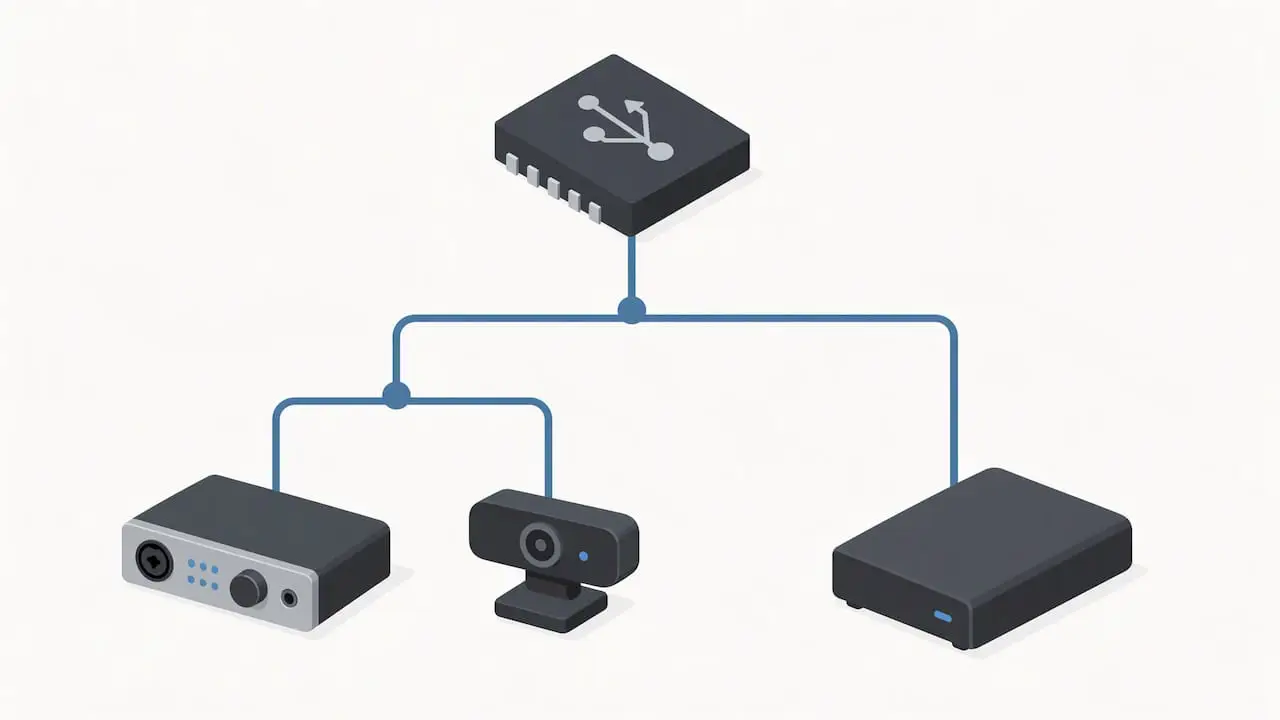
For more in-depth USB diagnostics, you can use the USBView utility. This allows you to see how your devices are connected in the USB tree, even if a driver hasn’t been installed yet, as described in Klippel’s technical note on dropouts. For example, you can see whether your interface shares a controller with a webcam or an external drive.
Step 1: Set the sample frequency and buffer to the same value
This is the quickest fix. There are three places where the sample rate is specified, and all three must be set to the same value.
In Windows
- Open Settings > System > Sound.
- Click on your USB device and select Properties.
- Under Format, set the value to match that of your project, for example, 24-bit, 48,000 Hz.
- Play back audio to test it.
In its official help article on audio issues, Microsoft also recommends testing immediately after changing the audio format and running the audio troubleshooter in the Ask for Help app.
In the same window, check the option to give programs exclusive control over the device. For a DAW with an ASIO driver, this usually doesn’t make much difference, but for programs that use Windows Audio, it can either help or cause problems. Try both.
In your audio interface
Many interfaces have their own control panel where you can set the sample rate and buffer size. When using an ASIO driver, the settings in that control panel often take precedence. If the interface is set to 44.1 kHz and your project is set to 48 kHz, you’ll experience distortion, incorrect pitch, or glitches.
In your DAW
- In the audio settings, select the manufacturer’s ASIO driver, not a generic driver.
- Set the project’s sample rate to match that of the interface.
- Set the buffer size according to what you’re doing.
A handy rule of thumb for the buffer:
| Situation | Buffer | Delay at 48 kHz (one-way) |
|---|---|---|
| Recording Vocals or Guitar with Monitoring | 64 to 128 samples | approximately 1.3 to 2.7 ms |
| Producing with a Handful of Plug-Ins | 256 samples | approximately 5.3 ms |
| Mixing with Resource-Intensive Plug-Ins | 512 to 1024 samples | approximately 10.7 to 21.3 ms |
You can easily calculate the latency: buffer size divided by sample rate. If you hear clicking while mixing, double the buffer size. If that solves the problem, you’ll know that your system is running out of processing time at those moments. If you want to dive deeper into the DAW side of things, be sure to read our guide on Windows 11 and your DAW.
Step 2: USB port, hub, cable, and power management
Is the audio glitching in all programs, or only after a while? If so, power-saving mode is a prime suspect. Windows tends to temporarily disable USB ports to conserve power. That’s not a problem for a mouse, but it is for an audio stream.
Disable USB Power Saving
- Open Control Panel > Power Options, and under your active plan, select ” Change plan settings.”
- Go to ” Change advanced power settings.”
- Under USB Settings, set the ” Selectively Suspend USB ” option to ” Disabled.”
- Select ” High Performance ” as your plan, or ” Ultimate Performance” if it is available.
Next, in Device Manager:
- Expand ” Universal Serial Bus controllers.”
- For each USB root hub and USB host controller, open the Power Management tab.
- Uncheck the option that allows the computer to turn off this device to save power.
Port, hub, and cable
- Connect your interface directly, not through a passive hub or the keyboard.
- Use a port on the back of a desktop computer. That port is connected directly to the motherboard; the front ports are connected via an internal cable.
- If your interface is a USB 2.0 device, try using a USB 2.0 port. Some older interfaces run more reliably on a USB 2.0 controller than on a USB 3.x port.
- Replace the cable. A cable that’s too long or of poor quality can lose contact temporarily. Stick with a short, sturdy cable.
- Connect other high-power USB devices to a different controller. A webcam or external drive connected to the same controller can interfere with bandwidth and timing. With USBView, you can see which devices are sharing a controller.
- Is your interface powered via USB? If so, use the included adapter, if one is provided. A bus-powered interface connected to a laptop battery can become unstable.
Step 3: Drivers and Windows Updates
Did things suddenly start glitching, even though you didn’t change anything in your studio? Then an update or a new driver is the likely culprit.
Installing the Right Driver
In its troubleshooting guide for audio issues, Microsoft recommends installing the latest driver from the manufacturer if the standard steps do not resolve the problem. For an audio interface, this means: download the driver and control panel from the manufacturer’s website, not through Windows Update.
Also check Device Manager to see if your device shows a yellow exclamation mark or an error code such as Code 10. This means the device isn’t starting up properly and is often a driver issue, not a hardware defect. If so, uninstall the device, restart your computer, and reinstall the driver.
An update that affected USB audio
Windows updates can really affect USB audio. Microsoft fixed an issue with the February 11, 2025, update KB5052000 for Windows 10 (build 17763), Microsoft resolved an issue in which USB audio devices—especially those with a USB 1.0 DAC driver—stopped working and playback ceased. Check your own update history to see if the onset of your problem coincides with an update.
Back to a functional situation
If everything has stopped working after a driver or Windows update, you can use System Restore to revert your computer to an earlier point in time. Your personal files will be preserved, but any programs and drivers installed after that restore point will be removed. To be on the safe side, first back up your projects and plugin licenses, and make a note of which software you’ll need to reinstall afterward.
Are you planning to upgrade your studio computer to Windows 11? If so, be sure to read our guide on upgrading a studio computer to Windows 11 first.
Step 4: Background Processes and System Load
If your sample rate, buffer, power management, and driver are all set up correctly but it’s still glitching, then something else in your system is probably keeping the processor busy for too long.
Common culprits:
- Network and Wi-Fi drivers. Temporarily disable Wi-Fi and Bluetooth, then test again. If the problem goes away, update those drivers or keep them disabled during sessions.
- Graphics drivers, especially on laptops with two graphics chips.
- Cloud synchronization and virus scans that scan files during a session. Pause synchronization and exclude your project folder from real-time scanning.
- Overlays and recording software for games and video calls.
- RGB and manufacturer software that constantly reads hardware data.
Use a DPC latency meter to see which driver is causing the most delay. That way, you won’t have to guess. Remove one thing at a time, test again, and write down what you did.
In our comprehensive guides on optimizing Windows 11 for audio and optimizing your PC for audio and DAWs, you’ll learn what each setting does and which ones you’re better off leaving alone.
Test after every change
The pitfall with audio issues is that you end up changing ten things at once. If it works afterward, you don’t know what fixed the problem. If it goes wrong again later, you don’t know where to look.
So here’s how to do it:
- Choose one test project that reliably reproduces the problem, using the same plug-ins and the same buffer.
- Change one setting at a time.
- Test for at least 15 to 20 minutes. Problems caused by power management often don’t show up until after a while.
- Record the results in a simple list: what you changed, when, and whether it helped.
- Revert any changes that didn’t work, so your system doesn’t get cluttered with unnecessary adjustments.
When should you contact the manufacturer? If your interface also malfunctions on a second computer, if the latest driver causes the problem but an older one does not, or if the device keeps disappearing from Device Manager. In that case, the manufacturer may have a known bug or a beta driver. By the way, noise and humming—as opposed to glitches—often have a different cause: check out our guide on fixing noise on your audio interface or our more general tips for troubleshooting audio interface issues.
Here’s how we troubleshoot glitchy USB audio
In practice, we see that audio glitches almost never have a single cause. It’s usually a combination of factors: a motherboard with a busy USB controller, a network driver that briefly ties up the processor, default power management settings, and a buffer that’s just a little too small. Individually, none of these is a problem. Together, they cause that one glitch right in the middle of your best take.
That’s why, when it comes to a studio PC, we don’t just look at speed. A fast processor says little about stability at low latency. What matters is how the components work together: which USB controller your interface uses, which drivers are running, how power management is configured, and whether the system boots up without unnecessary background software. That configuration determines whether you can record with a small buffer without any stuttering.
Our advice: Don’t think of the steps in this guide as “tricks,” but rather as a way to learn what your system needs. And if you can’t get it to work, ask someone who works with audio on Windows every day to take a look.
– harold
A studio PC that runs smoothly right from the start
Are you tired of fiddling with settings and just want a computer where your interface runs smoothly and reliably? We build custom studio PCs for audio and video, configured for stability and low latency, with personalized support from people who work in studios themselves. Our studio PCs start at €1,099.
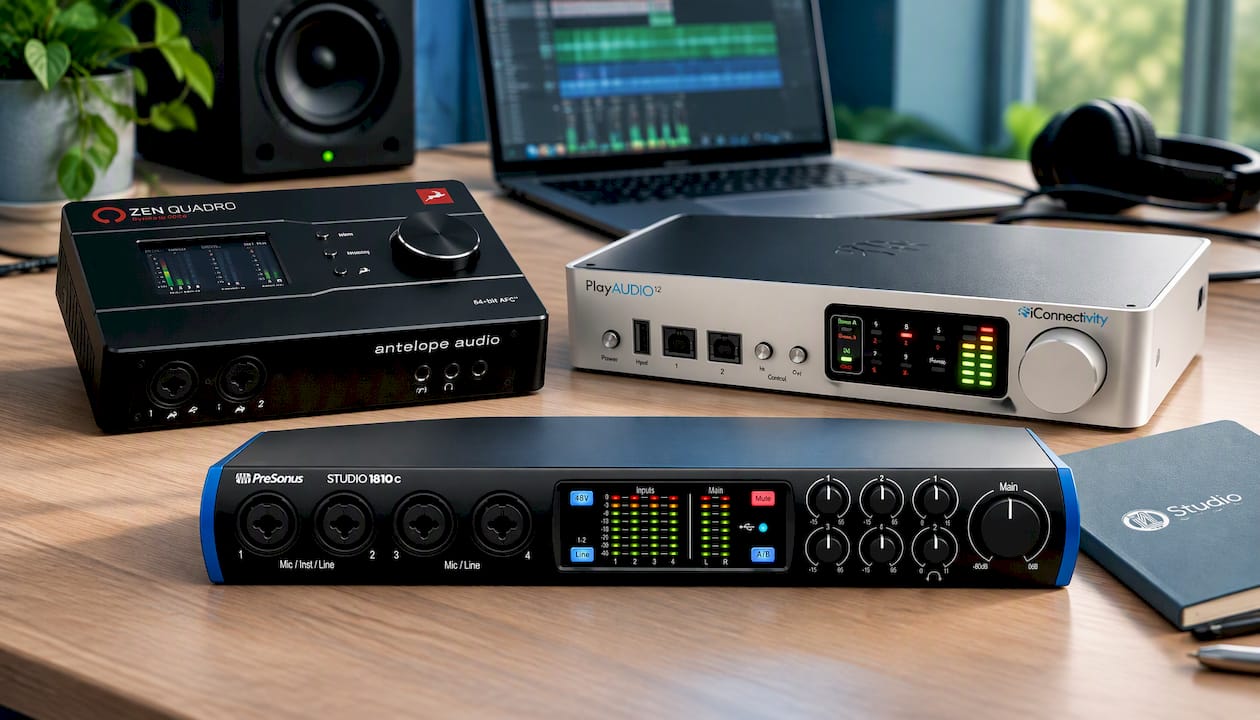
Are you looking to replace or expand your audio interface? Our selection of audio interfaces includes the compact Universal Audio Volt 2, the more feature-rich Universal Audio Volt 876, and the Antelope Audio Zen Quadro Synergy Core. If you’re looking for an affordable entry-level option, check out the PreSonus Studio 1810c as a trade-in model. You can also come to us for studio equipment, studio monitors, and microphones.
Frequently Asked Questions
Why does my USB audio only stutter in my DAW?
In that case, it’s almost always due to the buffer or the sample rate of your project. Check to make sure you’re using the manufacturer’s ASIO driver and that your project, interface, and Windows are all set to the same sample rate. Then double the buffer size and test again.
Can a USB hub cause audio glitches?
Yes. A passive hub shares power and bandwidth with other devices, which can disrupt the fixed timing of an audio stream. Therefore, connect your interface directly to the computer, preferably to a port on the back of a desktop.
My audio doesn’t start cutting out until 15 minutes in—why is that?
This strongly suggests energy savings. Windows puts USB ports or the processor into a more power-efficient mode after a while, and the audio stream is temporarily deprioritized. Disable selective suspend for USB, uncheck the power-saving box for the USB hubs in Device Manager, and select a performance power plan.
Should I replace my audio interface if the sound is choppy?
Usually not. First, test the interface on another computer: if it works there without any issues, the problem lies with your system and not with the device. Only if it causes problems everywhere—even with the latest driver—does it make sense to replace it or contact the manufacturer.
Will System Restore help if the problem started after an update?
Often, yes. With System Restore, you can roll back Windows to a point before the update or driver change, without losing your personal files. However, you’ll need to reinstall any software and drivers you installed afterward.
Sources
- Troubleshoot sound or audio problems in Windows, Microsoft Support
- System Restore, Microsoft Support
- February 11, 2025, KB5052000 (OS build 17763.6893), Microsoft Support
- Identification and Repair of Drop-Out Problems (TN04), Klippel