
For 8K video, you’ll need an NVMe SSD that can handle at least twice the data throughput of your most demanding timeline, with enough space for source material, cache, and renders. A single stream of 8K ProRes 422 HQ alone requires around 470 MB/s. With multicam or 60p, you’ll quickly exceed a few thousand MB/s. However, the bottleneck in 8K is rarely limited to the SSD alone. It involves the entire chain: the internal NVMe slots, the Thunderbolt port, the processor, and how you configure your drives. A studio PC built from the ground up with an 8K-optimized chain will therefore run more smoothly than a single fast drive in a system that was never intended for that purpose. In this guide, we’ll break it down for you.
In a nutshell
- Speed: A single 8K ProRes 422 HQ stream at 30p requires about 470 MB/s. Plan for double that as a buffer, and double again for 60p.
- Drive type: Choose NVMe for active 8K work. SATA SSDs and hard drives are too slow for multicam and heavy codecs.
- Capacity: 8K RAW can take up to about 1.5 TB per hour of footage. Calculate in terabytes per project, not per clip.
- Organization: Use separate drives for the system, media, cache, and export. Archive completed work to an HDD or a server.
- The system matters: the SSD is only as fast as its connection and the computer it’s installed in.
Table of contents
- Why 8K Places Such High Demands on Your Storage
- How fast does an SSD need to be for 8K?
- How much storage space do you need?
- NVMe, SATA, or external: where’s the bottleneck?
- How to set up your storage for 8K
- Here’s how to check if your current system can handle 8K
- A studio PC built around your 8K storage
- Our take on 8K storage
- Frequently Asked Questions
- Sources
Why 8K Places Such High Demands on Your Storage
An 8K image (8192 × 4320 or 7680 × 4320 pixels) contains four times as many pixels as 4K UHD. Every frame your NLE plays must be retrieved from the drive in a fraction of a second. An NLE is your editing software, such as DaVinci Resolve, Premiere Pro, or Final Cut Pro. If your storage can’t keep up with that pace, you’ll experience choppy playback, skipped frames, and a timeline that pauses to think every time you scrub.
On top of that, your storage never does just one thing while you’re editing. It reads your source clips, writes render and cache files, stores proxies, and automatically saves your project all at the same time. All those tasks share the same bandwidth. That’s why the speed listed on the box (the “up to 7,000 MB/s” you see on many NVMe drives) is an upper limit and not a guarantee for your timeline.
So the question isn’t “Which SSD is the fastest?”, but “How much data does my workflow need to transfer per second, and can my entire system consistently deliver that?”
How fast does an SSD need to be for 8K?
Always base your calculations on your codec and the number of streams playing simultaneously. A codec is the way your camera or editing software compresses the video. According to Apple’s ProRes figures, as cited in this guide on SSD speeds for 8K, 8K ProRes 422 HQ at 30 fps comes out to 3,771 Mb/s, or about 470 MB/s per stream. Note the difference between megabit (Mb) and megabyte (MB): eight bits make up one byte.
Codec and Frame Rate
Three settings determine the majority of your data stream: codec, image size, and frame rate. The frame rate has a linear effect. A storage guide from The Post Flow shows that 59.94 fps uses about twice as much data as 29.97 fps, and 50p uses twice as much as 25p, with all other settings held constant.
The codec family also makes a big difference. In terms of data stream, ProRes RAW falls roughly between ProRes 422 and 422 HQ, and ProRes RAW HQ falls between 422 HQ and ProRes 4444. ProRes also uses a variable bitrate: highly detailed or noisy footage can exceed the specified value. That’s another reason to build in a margin.
Video editor Larry Jordan recommends doubling single-stream bitrates if you want to leave room for standard single-camera editing. That’s a practical rule of thumb that we follow ourselves.
Multicam and stacking
With multicam, you simply add up the streams. Four camera angles at 8K ProRes 422 HQ at 30p together require about 4 × 470 = 1,880 MB/s, before the margin. If you play that back at 60p, you’ll be looking at around 3,760 MB/s. That’s where you’ll notice the difference between a good and an excellent storage format.
| Workflow (8K ProRes 422 HQ) | Approximate data rate | With a double margin | Recommended storage |
|---|---|---|---|
| 1 stream, 30p | 470 MB/s | approx. 940 MB/s | Fast NVMe, internal or via Thunderbolt |
| 1 stream, 60p | 940 MB/s | approx. 1,880 MB/s | Internal NVMe or NVMe via Thunderbolt |
| 4 multicam streams, 30p | 1,880 MB/s | approx. 3,760 MB/s | Internal NVMe or SSD RAID |
| 4 multicam streams, 60p | 3,760 MB/s | approx. 7,520 MB/s | Multiple internal NVMe drives in RAID |
The numbers in the table are a starting point and not actual measurement results from your camera. If you want to know the exact figure, record 60 seconds using your exact camera settings, check the file size, and do the math. The Post Flow recommends this method for a more reliable estimate.
How much storage space do you need?
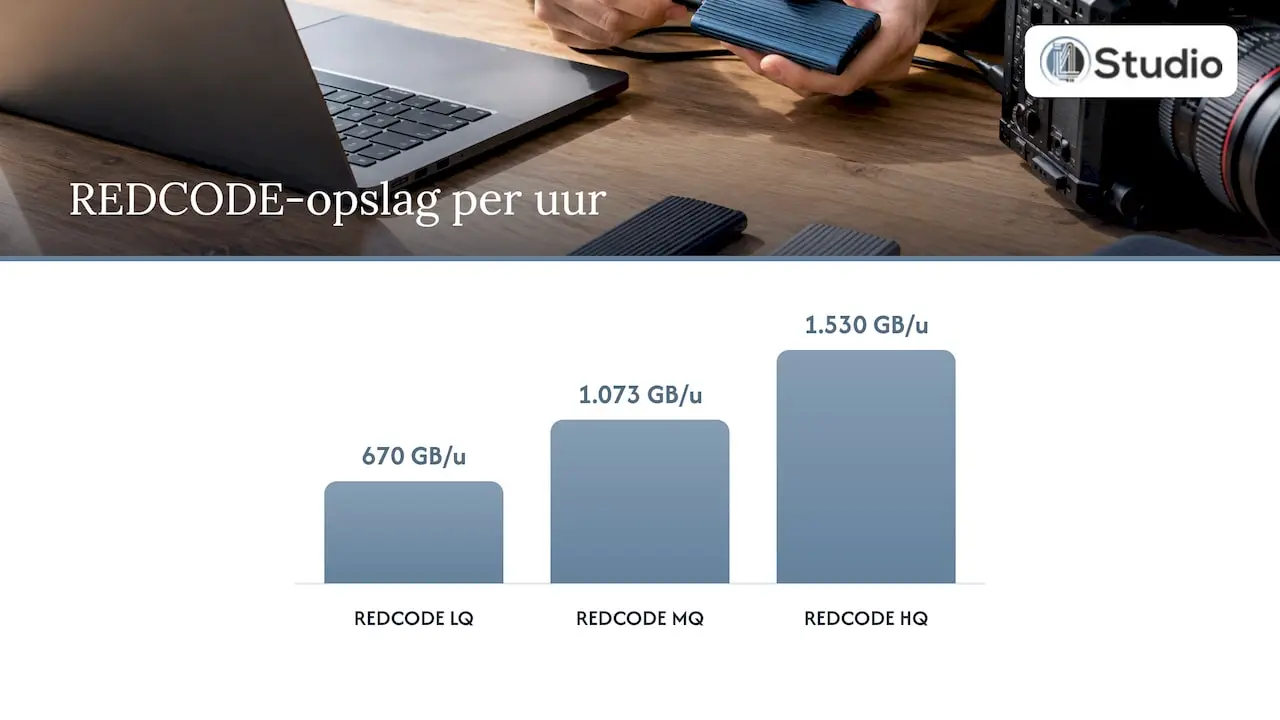
Speed is one thing; capacity is another. 8K fills drives faster than most people expect. The Post Flow estimates 8K REDCODE at approximately 670 GB per hour in LQ, 1,073 GB per hour in MQ, and 1,530 GB per hour in HQ. These are maximum values for variable modes, so in practice, the actual rates may be slightly lower.
For ProRes, you can do the math yourself: 470 MB/s × 3,600 seconds equals about 1.7 TB per hour of 8K ProRes 422 HQ at 30p.
Calculation example. You’re filming a day of shooting with two cameras and recording 90 minutes of 8K REDCODE HQ footage per camera.
- Source material: 2 × 1.5 hours × 1,530 GB = approximately 4.6 TB.
- Proxies and optimized media: expect a significant additional amount, depending on the proxy format.
- Render and cache files: These grow with every correction and every effect. Set aside at least several hundred GB.
- Exports and intermediate versions: another few hundred GB per project.
- Backup: at least one complete copy of the source material on a separate drive.
For a single day of shooting, you’ll quickly need 6 to 8 TB of workspace, plus the backup. That’s why most 8K editors use multiple drives instead of one large one. In our guide to storage for video projects, you can learn how to organize this by project phase.
Also, don’t fill an SSD to capacity. A full drive has less space to manage data internally, and your cache files need free space to grow.
NVMe, SATA, or external: Where’s the bottleneck?
An SSD is only as fast as the path along which the data travels. Larry Jordan makes a clear distinction: hard drives have an access time that makes them unsuitable for multicam, and SATA SSDs are significantly slower than NVMe SSDs. NVMe is the protocol that allows an SSD to communicate directly through the motherboard’s high-speed PCIe lanes. SATA is an older interface originally designed for hard drives.
| Storage | Approximate yield | Suitable for |
|---|---|---|
| Hard Disk Drive (HDD) | Low, with slow access time | Archive and backup |
| SATA SSD | Faster, but significantly slower than NVMe | Proxies, light 4K, project files |
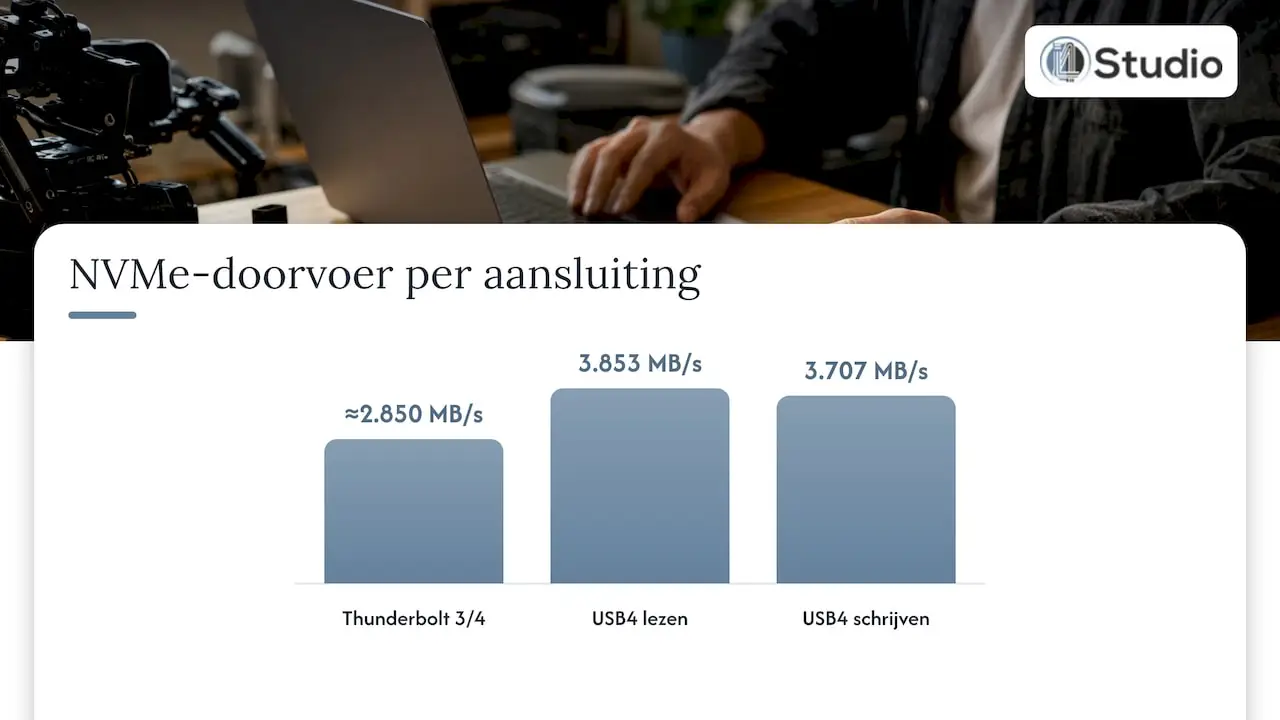
| NVMe via Thunderbolt 3/4 | Up to approx. 2,850 MB/s | 8K single-camera, limited multicamera |
| NVMe via USB4 enclosure | Approx. 3,850 MB/s read speed in a test | 8K single-camera, transferring between systems |
| Internal NVMe (PCIe) | Maximum speed per drive | Active 8K media, cache, multicam |
| Multiple NVMe Drives in RAID 0 | Combined, exceeding a single drive | Heavy 8K multicam |
A few notes on those figures. Larry Jordan estimates the usable throughput of Thunderbolt 3/4 at approximately 2,850 MB/s with an NVMe SSD or SSD RAID. According to his analysis, that’s enough for quite a few streams, but more than eight 8K ProRes 422 streams at 30p will exceed that limit. In a review, Neowin measured 3,853 MB/s read and 3,707 MB/s write speeds using a 4 TB NVMe drive in a USB4 enclosure. That’s one specific combination on a single test system.
The lesson: the connection and the drive together determine your actual performance. A lightning-fast NVMe SSD in a slow enclosure or connected to a shared port loses most of its performance advantage.
RAID: Multiple SSDs in a Array
RAID 0 distributes your data across multiple drives so they can read and write simultaneously. In a test by Larry Jordan, a RAID 0 array of three SSDs played back ten 4K ProRes 4444 clips simultaneously at full resolution in Final Cut Pro, with no dropped frames and a measured throughput of over 2 GB/s. Parallel storage is therefore particularly valuable for multicam work. Because with RAID 0, all data is lost if a single drive fails, a backup is always essential.
How to Set Up Your Storage for 8K
A good disk layout distributes the work across multiple disks so that read and write operations do not interfere with each other. This setup works for most 8K workflows:
- System drive (NVMe, 1 to 2 TB). Operating system, NLE, plug-ins, and your project files. Larry Jordan recommends 1 to 2 TB of internal storage as a baseline. Do not store 8K media here, otherwise your source material will compete with the operating system.
- Media drive (high-speed NVMe, 4 TB or more). Your active 8K source clips. This is the drive that must deliver the streams listed in the table. For multicam setups, use multiple NVMe drives in a RAID configuration.
- Cache and Render Drive (NVMe). Render, cache, and optimized media files are constantly being written. When stored on a separate drive, they do not interfere with the playback of your source material.
- Export drive. Having a separate destination for exports prevents the write operation from slowing down your timeline.
- Backup and archiving (HDD, HDD-RAID, or server). Completed projects should not be stored on expensive NVMe storage. Larry Jordan recommends storing active projects on SSDs and completed work on HDDs, HDD-RAID, or a server.
Where things often go wrong: storing everything on a single large drive, or using external drives that share the same port via a hub. Internal NVMe slots have an advantage here. A computer with enough M.2 slots and PCIe lanes can drive multiple fast drives simultaneously at full speed, without them having to share bandwidth.
Do you also work with audio on the same machine—for example, for dubbing or adding music to your edits? If so, be sure to read about the role of SSDs in music production. In that article, we explain how to separate sample libraries and projects.
Here’s how to check if your current system can handle 8K
Before you make a purchase, you can take half an hour to assess where you stand.
- Determine your most demanding timeline. Which codec, which frame rate, and how many simultaneous streams? Add up the data stream of all simultaneous streams.
- Add the administrative tasks to that. Renders, cache, and automatic backups use the same drive if they’re stored there.
- Double it to calculate the margin. The result is the throughput your warehouse must consistently achieve.
- Test your drive. Run a speed test on the drive where your media is stored, using the connection you actually use. An external NVMe drive connected to a slow USB port will immediately be identified as “slow.”
- Compare and look beyond the SSD. Does your drive meet the throughput requirements, but does playback still stutter? If so, the bottleneck is often the processor, the graphics card, or the memory. Decoding 8K codecs is a demanding task.
For the rest of your system, we’ve outlined the requirements in our video editing hardware recommendations and, as a starting point, in the system requirements for 4K video editing. For 8K, all of those requirements apply, but with higher specifications.
A studio PC built around your 8K storage
A fast SSD is only as good as the system it’s part of. That’s why we build custom studio PCs for audio and video, with an emphasis on stability, low latency, and a configuration that fits your workflow. Our studio PCs start at €1,099. With every order, our specialists work with you to plan your storage setup: how many NVMe drives, what capacity, and how to allocate space for your system, media, and cache.
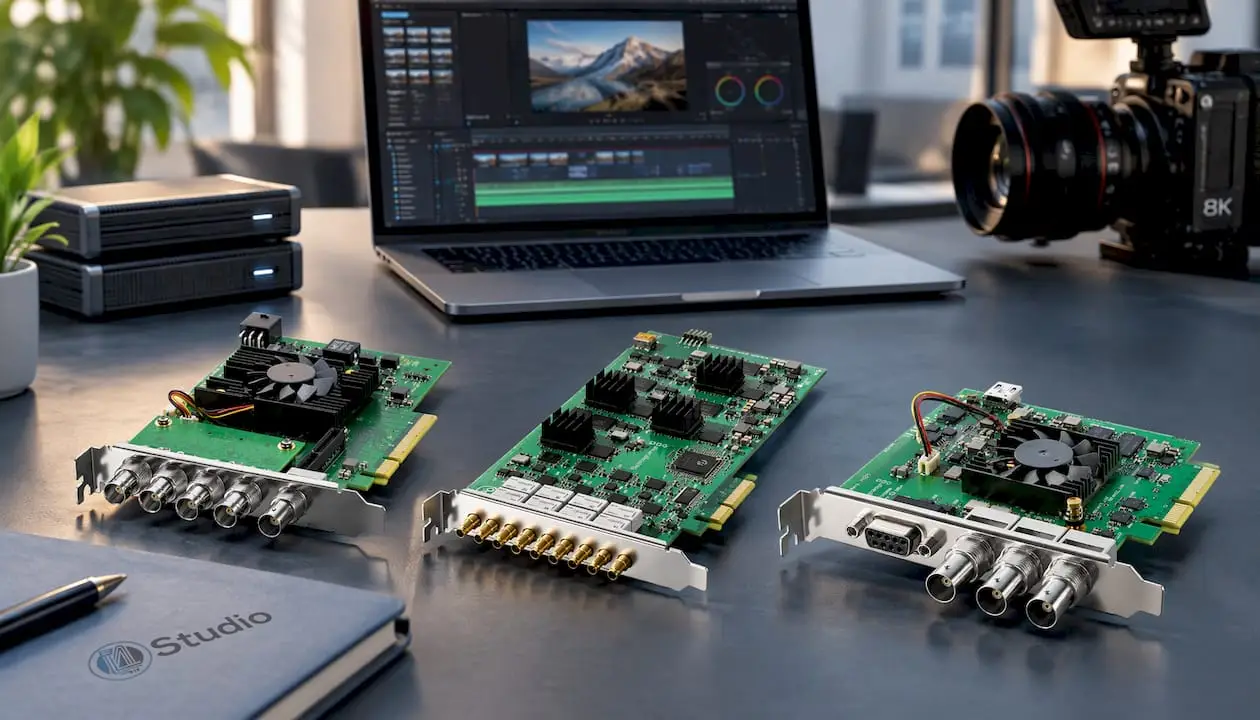
Do you work a lot with external drives or camera media? If so, the Thunderbolt studio PC with an i9 24-core processor is a logical starting point. If you’re looking for a powerful combination for both music and video, check out the Power Producer Ultra 9. If you want to view 8K footage on a professional monitor, you’ll find the Blackmagic DeckLink 8K Pro in our lineup. An overview of all our systems is available on our studio PCs page. Want to compare them first? Then check out the top 3 desktops for video editing.
Our Take on 8K Storage
We’re often asked which SSD is best for 8K. Our answer is always a counter-question: what’s on your timeline? One camera shooting in ProRes is a completely different story than four angles in RAW at 60p.
In practice, what we consider more important than the fastest drive is a system in which everything is optimized to work together. Fast NVMe drives on their own PCIe lanes, a separate drive for cache, sufficient memory, and a processor that can handle the codec. Only when that chain is right will you get the speed you’re paying for.
That’s why we build our studio PCs to order and discuss the storage configuration in advance. That way, you won’t have to worry about whether your drive can keep up—you’ll just be able to focus on your editing. And if you run into any issues, you can turn to people who know the system inside and out because they built it themselves.
Harold
Frequently Asked Questions
Is an external SSD fast enough for 8K video?
For a single 8K stream in ProRes 422 HQ at 30p, it usually does, provided it’s an NVMe SSD connected via Thunderbolt or USB4. With multicam or 60p, you’ll reach the connection’s limit more quickly—around 2,850 MB/s for Thunderbolt 3/4. For demanding workflows, internal NVMe drives, possibly in a RAID configuration, are the better choice.
How many TB do I need for 8K editing?
That depends on your codec and the number of hours of footage. 8K ProRes 422 HQ takes up about 1.7 TB per hour, and 8K REDCODE HQ takes up up to about 1.5 TB per hour. For a single day of shooting with multiple cameras, you can easily expect to need 6 to 8 TB of workspace, plus a backup.
Which is more reliable for 8K footage, an SSD or an HDD?
For active editing, an SSD is the only practical choice, because an HDD is too slow for 8K and multicam. For archiving and backup, however, an HDD or HDD RAID is ideal: plenty of capacity for a low cost. The safest setup combines both and always keeps at least two copies of your source material.
Do I need RAID for 8K?
For single-camera work, this isn’t necessarily the case: a single fast NVMe SSD is often sufficient. For multi-camera setups or high frame rates, RAID 0 is helpful because multiple drives provide data simultaneously. Always make sure to have a separate backup, because with RAID 0, you’ll lose everything if a single drive fails.
Sources
What SSD Speed Do You Need for 4K and 8K Video Editing? (CaretakerMac)
How Much Storage Does an Hour of Video Take? (The Post Flow)
Speed Requirements for Video Editing Storage (Larry Jordan)
Does Video Editing Require the Speed of the Mac’s Internal Drive? (Larry Jordan)
For Video Editing Storage: How Fast Is Fast Enough? (Larry Jordan)
TerraMaster D1 SSD Plus review (Neowin)