TL;DR:
- The choice and optimal use of a DAW determine the professional look of your production and speed.
- By mastering workflow techniques such as automation, punch-in and gain staging, you improve efficiency and results.
The choice and deployment of your digital audio workstation makes the difference between a production that sounds amateurish and one that comes across as professional. Many studio owners invest thousands of dollars in hardware, but barely pay attention to how they optimally deploy their DAW. That’s a mistake. The software you work with, the workflows you build and the habits you develop ultimately determine the quality and speed of your output. In this article, we explain step by step how to set up your DAW environment as efficiently as possible.
Table of contents
- What is a digital audio workstation?
- How DAW workflows speed up your production
- Common pitfalls and nuances
- Workflow optimization for home studios
- Our view: choose workflow over hype
- The next step: your ideal studio setup
- Frequently Asked Questions
Key Insights
| Item | Details |
|---|---|
| DAW central in studio | A digital audio workstation is the heart of every modern studio and determines workflow and results. |
| Workflow optimizes production | Efficient use of timeline, comping and automation speeds up the production process. |
| Edge cases and pitfalls. | Solo mixing, phase issues and CPU load are crucial issues to manage. |
| No universal best DAW | Your workflow and musical style determine which DAW is the best fit – not the hype. |
| Concrete optimization tips | Templates, shortcuts, project organization and smart breaks help improve your performance. |
What is a digital audio workstation?
A DAW is the beating heart of any modern studio. Whether you’re making beats, recording bands or composing film scores, everything revolves around this software. But what exactly does a DAW do, and why is it so critical to your workflow?
Home studio software has evolved tremendously over the past two decades. Where full hardware studios used to be required for professional recording, today you can achieve results with a single laptop and the right DAW that used to be possible only in expensive commercial studios.
A DAW is software for recording, editing, arrangement, mixing and production. It is the centerpiece of modern home studios. It sounds simple, but behind that definition is a huge amount of functionality.
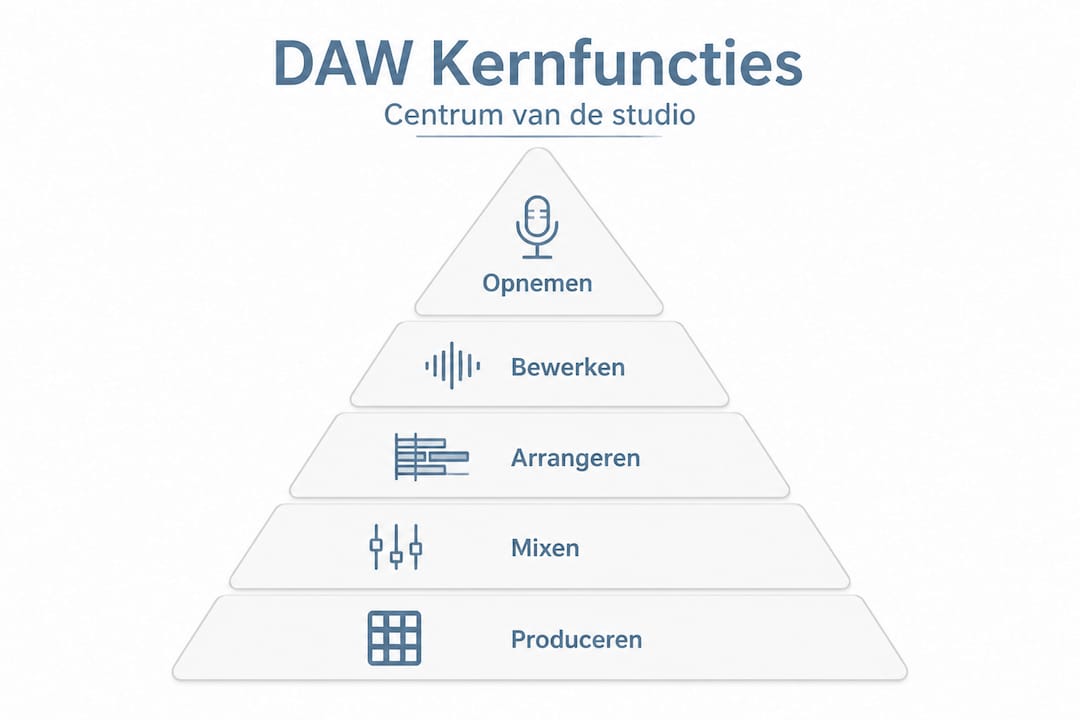
Core functions of a DAW
Most DAWs offer the following basic functions:
- Audio tracks: record and playback sound files, from one microphone to dozens of simultaneous channels
- MIDI tracks: programming and editing notes for virtual instruments and synthesizers
- Virtual instruments (VST/AU plugins): software-based synthesizers, samplers and drum machines that run directly in the DAW
- Mixer/console: a digital mixer with channel strips, EQ, compression and routing
- Effects and plugins: reverb, delay, distortion, and hundreds of other audio treatments
- Automation: automatically moving parameters such as volume, pan and effect settings over time
- Bounce/export: rendering your project to a final audio file
Overview of popular DAWs
| DAW | Primary use case | Operating system | Price |
|---|---|---|---|
| Ableton Live | Electronic music, live performance | Windows / macOS | Paid |
| FL Studio | Beats, hip-hop, EDM | Windows / macOS | Paid |
| Logic Pro | Singer-songwriter, band, film | macOS | Paid |
| Studio One | Linear recording, mixing | Windows / macOS | Paid / free |
| Pro Tools | Professional studio, post-production | Windows / macOS | Subscription |
| Reaper | Flexible, budget, podcasting | Windows / macOS | Paid (cheap) |
| Cubase | Classical, MIDI, film | Windows / macOS | Paid |
Each DAW has its own philosophy and approach. This is not only a matter of taste, but also of workflow. Some DAWs are built around a linear timeline, others around a session view with individual clips. That choice directly affects how quickly and creatively you can work.
Now that the basics are clear, let’s look at how DAWs work in practice.
How DAW workflows speed up your production
A DAW is only as powerful as the workflow you build around it. Many producers use only a fraction of the tools available, resulting in unnecessarily slow work or missing creative opportunities. The core DAW methodology consists of timeline arrangement, grid/snap, looping, non-destructive work, crossfades, punch-recording, comping, quantization and gain staging.
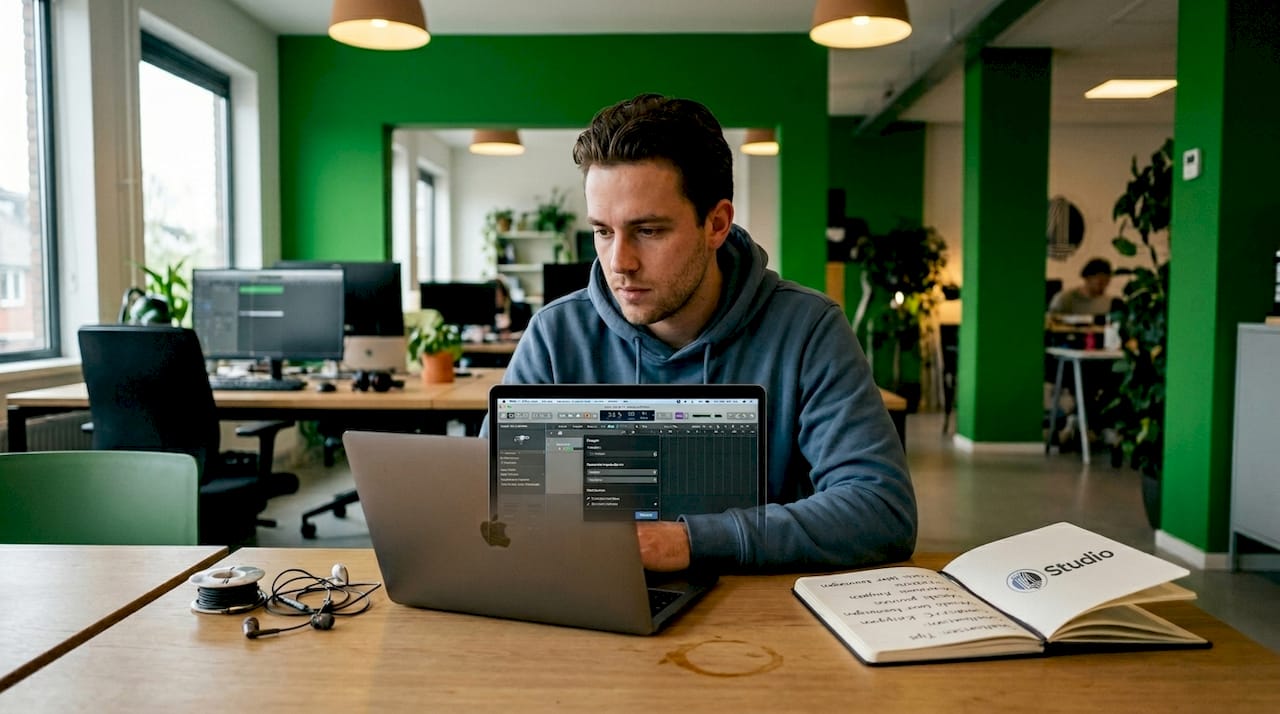
Let’s go through these methods step by step.
The main DAW working methods.
- Timeline arrangement: You work on a horizontal timeline where clips, regions and MIDI patterns are placed. A well-organized timeline makes it easier to see structure and make quick adjustments.
- Grid and snap: The grid is a grid of sizes and beats on which you can snap clips. Snap causes elements to automatically land on the nearest grid position. This prevents timing errors and speeds up arranging tremendously.
- Non-destructive working: This means that your original audio files are never overwritten, no matter how many edits you make. You can always go back to the original recording. This gives freedom to experiment without risk.
- Punch-recording: Allows you to re-sing or re-tune a specific part of a recording without touching the rest. Ideal for minor corrections in an otherwise perfect take.
- Comping: Multiple takes of the same passage are stacked, then you select the best pieces from each take and compile them into one perfect version. This is standard in vocal recordings.
- Quantization: MIDI notes are automatically placed on the nearest beat or subdivision. Useful for tight beats, but beware of overuse that takes away from the human feel.
- Gain staging: Setting the correct signal strength at each point in the signal routing. Poor gain staging leads to noise, clipping or a flat mix.
- Automation: Parameters such as volume, pan and effect settings are programmed to move automatically. This enables dynamic mixing without manual intervention during playback.
Pro-tip: Use DAW performance optimization as a starting point to tailor your buffer size, samplerate and plugin management to your specific project needs.
Comparison of workflow approaches
| Method | Advantage | Disadvantage | Best for |
|---|---|---|---|
| Linear timeline | Clear, fast arranging | Less flexible for loop-based music | Bands, singer-songwriters |
| Sessionview (clips) | Creative, testing ideas quickly | Less intuitive for long compositions | Electronic music, live |
| Pattern-based | Build beats quickly | Limited for complex arrangements | Beats, hip-hop |
| Hybrid approach | Flexible, best of both worlds | Learning curve | Advanced producers |
A well-appointed DAW setup starts with choosing the right mode for your style of music. Only then does it make sense to dive deeper into the details.
If you apply these workflows properly, you can vastly improve process and results. But there are nuances and pitfalls to be aware of.
Common pitfalls and nuances
Even experienced producers make mistakes that undermine their mix or workflow. Some of those mistakes are subtle and only noticeable after the fact. Here are the most common problems and how to avoid them.
Mixing in solo
Solo-mode mixing often causes problems in the final mix. It sounds logical: you want to hear one instrument well, so you put the rest on mute. But what sounds good in solo rarely sounds good in the full mix.
A bass guitar that seems perfect in solo may clash in the mix with the kick drum. A vocal that sounds clear in solo may disappear behind the guitars. Always mix in context is the golden rule.
- Use solo only for technical checks such as detecting noise or clicks
- Always make decisions about EQ and compression while all tracks are playing
- Regularly compare your mix to reference numbers at the same volume
Mono compatibility and phase problems
Many producers mix exclusively in stereo, but forget that their music is also played in mono. Consider telephone speakers, some club systems and streaming platforms that use mono downmixing.
Phase problems occur when two signals are partially out of phase, causing them to partially cancel each other in mono. The result is a thin, hollow sound. Check your mix regularly in mono by using a mono knob or plug-in.
Pro-tip: At the end of each mix session, set your master bus to mono and listen to see if all the elements still sound right. If anything drops out or sounds thin, you probably have a phase problem.
CPU load and plugin selection
A full plugin chain sounds impressive, but it can bring your system to a halt at the most inopportune time.
The CPU efficiency of plugins varies enormously by manufacturer and type. Some reverb plugins use ten times as much processor power as comparable alternatives. This directly affects how big your projects can get.
Practical advice for CPU management:
- Use VST3 or CLAP plugins instead of older VST2 versions, as they are more efficient in CPU usage
- Freeze tracks that are finished: this temporarily renders the track to audio, eliminating the plugin CPU load
- Use offline bouncing for heavy effects such as convolution reverb
- Limit the number of real-time plugins on the master bus during recording
The right DAW hardware recommendations can make the difference between a smoothly running project and constant dropouts. A fast CPU with many cores, sufficient RAM and a fast SSD are not luxuries but necessities.
Multi-core latency as an edge case
Modern DAWs distribute audio calculations across multiple CPU cores. This is efficient, but introduces a subtle problem: multi-core latency. When tracks are computed on different cores, there can be a slight time shift between channels.
Most DAWs compensate for this automatically, but with complex routing schemes or the use of hardware inserts, this can still cause problems. Check your PC optimization for audio settings and make sure your DAW is using the correct compensation mode.
Also consider DAW storage capacity: large projects with many audio files require fast storage. A slow hard drive causes buffer underruns and clicks in your audio, even if your CPU is ample.
You now know where most DAW users go wrong. But how do you get the most out of it?
Workflow optimization for home studios
Working efficiently in a home studio goes beyond just choosing the right software. It’s about habits, organization and smart settings that save you time and produce better results day after day.
Producers who work systematically make fewer mix errors and achieve better results more consistently. Here are the most effective optimizations.
Step-by-step optimization guide
- Create project templates: Start each new project from a template with preset tracks, routings, plugins and color coding. This saves an average of 20 to 30 minutes per project and ensures consistency.
- Learn keyboard shortcuts: The most commonly used actions such as cutting, pasting, quantizing and soloing should feel like second nature. Invest one week in learning your DAW’s ten most important shortcuts.
- Organize with folders and color coding: Group related tracks into folders. Use color consistently: red for drums, blue for bass, green for guitars, yellow for vocals. This makes navigating large projects lightning fast.
- Mix at low volume: Research shows that the human ear is more likely to hear balance at lower volumes than at high volumes. Mix most of your session at a volume where you can talk normally. Check occasionally at high volume for impact and at very low volume for balance.
- Use reference tracks: Load a commercial song in the same genre as a reference. Regularly compare your mix to this reference at the same volume. This will prevent you from getting tunneled and losing objectivity.
- Schedule ear-fatigue breaks: After 45 to 60 minutes of intense listening, your ear fatigue increases and your decisions become less reliable. Plan short 10-minute breaks where you do not listen to music.
- Export without master bus: When sending a mix to mastering, always export without master bus limiting or heavy compression. Leave 1 to 3 dB of headroom. The mastering engineer needs that headroom.
- Automate repetitive tasks: Use macros or DAW-proprietary automation tools for tasks you perform over and over, such as setting gain, applying default EQ curves or exporting voices.
Statistics: Producers who work with templates and an established organizational structure report on average 35% shorter project times and significantly higher satisfaction with their end result, compared to producers who start each project from scratch.
The best computer for DAW use is one that supports your workflow without imposing limitations. That means plenty of RAM for large sample libraries, a fast CPU for heavy plugins and an SSD for fast project loading.
With these optimizations, you can not only work faster, but also significantly improve your results.
Our view: choose workflow over hype
There is one misconception we encounter time and again among studio owners: the belief that there is one best DAW. There isn’t.
No single DAW is universally the best: FL Studio and Ableton are strong for beats and electronic music, while Logic Pro and Studio One are better suited to linear recording. Workflow is more important than popularity.
But there is a deeper truth that is rarely spoken: most producers would get better from fully mastering one DAW than from experimenting with five different ones. The learning curve of a new DAW takes weeks to months. That time is better invested in deepening your knowledge of the tool you already have.
We regularly see this pattern with studio owners who come to us for advice. They’ve just switched from Ableton to Logic, or from Logic to Studio One, because they thought the new DAW would solve their problems. Almost always, however, those problems are not DAW problems, but workflow problems. And you take those with you to any new tool.
Our recommendation is clear: choose the DAW that best suits your musical style and workflow, get to know that tool thoroughly, and invest the time saved in building strong workflows. The music production computer you use should support that choice without imposing restrictions.
There is also a practical argument for stability. Every DAW update brings potential compatibility problems with plugins and project files. The more you change DAWs, the greater the chance of problems with old projects. Consistency protects your archive.
Finally, the best DAW is the one you actually use. A perfect tool that you don’t understand yields less than a good tool that you fully master. This is true for software, but also for hardware. Build a studio that fits how you work, not how others work.
The next step: your ideal studio setup
Now that you know how DAWs define your workflow, you can make targeted investments in your studio. The right hardware makes the difference between a system that supports your workflow and one that works against you.
At i4studio, we help producers and musicians put together a studio setup that suits their DAW and workflow. Whether you are looking for a powerful studio PC that can handle large projects with hundreds of tracks, or a complete music production PC that is plug-and-play ready for your favorite DAW, we have the expertise to advise you. Check out our purpose-built DAW PC systems optimized for low latency, high stability and maximum performance in every popular DAW.
Frequently Asked Questions
What are the main functions of a DAW?
A DAW offers recording, editing and mixing of audio and MIDI, complemented by virtual instruments, effect plug-ins and automation for a complete production environment.
Which DAW is best suited for electronic music?
FL Studio and Ableton Live are chosen most often for beats and electronic music due to their pattern and session view. Workflow fits better than popularity as a criterion for your choice.
How can I reduce CPU load during mixing?
Using VST3 plugins and freezing tracks significantly reduces CPU load, allowing you to work on larger projects without dropouts or clicks.
Why is mono-check important when mixing?
Mono compatibility checking helps detect phase problems so your mix sounds good anywhere from telephone speakers to club systems.
Recommendation
- DAW Setup Tips: Practical Guide For An Efficient Studio – https://i4studio.nl/
- Optimizing DAW Performance: Practical Strategies For Fast, Stable Studio Workflows – https://i4studio.nl/
- Home Studio Setup Tips: Complete Guide To A Professional Studio At Home – https://i4studio.nl/
- Music studio setup: step by step the best sound
- Get the most out of your TV sound: speakers explained
- Remote audio collaboration tips for flawless results – Audome