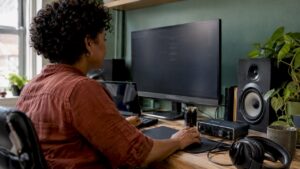
A singer-songwriter sets up a demo at night, a podcaster edits episodes between meetings and a video editor renders clips for the weekend – all with a home studio with software at its core. This guide covers everything an audio professional, musician or content creator needs to set up and use a functional, efficient and creative home studio. From the right DAW and plugins to computer configuration, acoustics and workflows, practical tips and examples help step by step.
Why choose a home studio with software?
A software-based home studio offers flexibility, affordability and creative freedom. Instead of large, expensive hardware-driven studios, one relies on digital tools that continuously improve. Some obvious advantages:
- Cost efficiency: many powerful tools are cheaper or even free compared to hardware equivalents.
- Set up and adjust quickly: virtual instruments and effects change places in seconds without moving cables.
- Automation and recall: settings are always retrievable via project files and presets.
- Portability: sessions are easy to share and open on different systems.
Still, a home studio with software does require attention to hardware, acoustics and workflow to achieve professional results.
What are the essential components of a home studio with software?
A functional home studio consists of five main groups: computer, digital audio workstation (DAW), audio interface and microphones, monitoring (speakers/headphones) and acoustic treatment. These components are detailed below.
1. The DAW: the heart of the studio
A Digital Audio Workstation (DAW) is the software in which to record, edit and mix. Popular choices are:
- Ableton Live – ideal for electronic music and live performances.
- Logic Pro – widely used by singer-songwriters and producers on macOS.
- Pro Tools – the industry standard for audio post-production and large studio sessions.
- Reaper – lightweight, highly customizable and affordable.
- Cubase and Studio One – strong all-rounders for composition and production.
Important is not only which DAW is chosen, but that it fits the workflow and intended genre. Many DAWs offer trial versions – trying them out first prevents regrets.
2. Plugins and virtual instruments
Plugins make up the toolbox: EQs, compressors, reverbs, delays and virtual instruments (synths, samplers). Some tips:
- Start with a solid stock collection from the DAW; invest in specific third-party plugins later.
- Use high-quality convolution reverb for realistic spaces or plate reverb for vocals.
- Get to know one or two synthesizers very well instead of 20 superficially.
- Free plugins such as TDR Nova (EQ/compressor) or Voxengo SPAN (spectrum analyzer) are excellent additions.
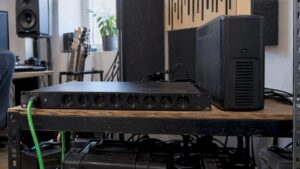
3. Audio interface
The audio interface is the bridge between microphones/instruments and the computer. Important features:
- AD/DA quality: determines the sound clarity.
- Preamp quality: especially relevant for vocals and acoustic instruments.
- I/O number: how many microphones or instruments do you want to record at once?
- Drivers: stable ASIO or Core Audio drivers are crucial to minimize latency.
For most home studios, a 2-in/2-out or 4-in/4-out interface with good preamps and low latency is a sensible choice.
4. Monitors and headphones
Good monitors are essential. Studio monitors give relatively neutral reproduction, while headphones are useful for detail work and tracking. Some considerations:
- Choose monitors that fit the room size; compact nearfields for smaller rooms.
- Invest in a reliable reference headphone for mixing (open vs. closed type depending on tracking).
- Use reference speakers or consumer speakers to check mixes on different systems.
5. Microphones and accessories
For vocals and acoustic instruments, good condenser mics are often a first choice, but dynamic mics have their place, too. Accessories such as a shockmount, pop filter and a solid mic stand are musts.
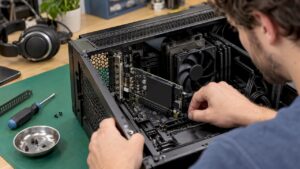
6. Computer and storage
The computer is the workhorse of a home studio with software. Key components:
- CPU: multicore performance important for plugin instances and virtual instruments.
- RAM: 16 GB is the minimum starting point; 32 GB or more for large sample libraries.
- SSD: fast NVMe SSDs for OS and project files; external SSDs for sample libraries.
- Cooling and reliable power supply: essential during intensive rendering or real-time sessions.
Specialist vendors such as I4studio provide audio and video-optimized computers tailored to studio work, with configuration advice and support for specific workflows.
7. Acoustic treatment
Even with great software and hardware, a recording sounds bad without basic acoustic treatment. Focus on:
- Bass absorption in corners (bass traps).
- Treat first reflection points with panels or diffusers.
- A reflection-free recording position (e.g., an improvised vocal-booth).
A cheap doormat and a few foam boards are better than nothing, but investing in proper handling pays off in less time spent mixing.
Choosing the right software for a home studio with software
Choice of software depends on goals and personal workflow. Some guidelines:
- Do they work primarily with electronics or live performance? Choose Ableton Live.
- Is one mix/post-oriented and works with large sessions? Consider Pro Tools or Cubase.
- Budget and flexibility important? Reaper offers an enormous amount for little cost.
- macOS user who wants a complete toolset: Logic Pro is often attractive.
Also note integration with hardware (control surfaces, MIDI controllers) and support for features such as Time Stretching, Comping, ARA (for integration with Melodyne) and native multithreading.
Plugins and sound design: which tools are indispensable?
A basic set of plugins that every home studio with software should have:
- Parametric EQ (surgical and musical).
- Compressor (VCA, opto, FET variants).
- De-esser for sibilance in singing.
- Reverb and Delay for space and depth.
- Limiter for mastering and output-level control.
Furthermore, it is useful to have a good sampler/synth (e.g. Serum, Native Instruments Kontakt) and utilities such as spectrum analyzers, metering plugins and meters for stereo imaging.
Computer optimization for audio
A home studio with software runs smoothly if the computer is optimized for real-time audio. Key steps:
- Set power management to highest performance (Windows) or disable Power Nap (macOS).
- Use stable, audio-optimized drivers (ASIO for Windows).
- Avoid heavy background tasks during recording (cloud sync, disable antivirus scans temporarily).
- Manage buffer size: low buffers during tracking (64-256 samples), higher buffers during mixing (512-2048).
- Use freeze/bounce-in-place to relieve CPU on large projects.
Professional studio computers often feature special tuning and components for audio and video production. I4studio builds systems with quality component choices and guaranteed compatibility with popular DAWs and audio interfaces.
Practical tips to reduce latency
- Use direct monitoring via the audio interface when real-time monitoring is required.
- Update firmware and drivers of interface and MIDI devices.
- Avoid USB hubs for audio devices; connect devices directly to the machine.
- Lower plugin quality during recording (some synths and reverbs have ‘eco’ mode).
Practical setup examples by budget
Below are three common setups: entry, midrange and pro. Each example puts accents where it has the most effect.
Entry Level (for beginners/hobbyists)
- Computer: modern laptop or desktop with 8-16 GB RAM, SSD 500 GB.
- Interface: 2-in/2-out USB interface (e.g., Focusrite Scarlett 2i2).
- Microphone: cardioid condenser (budget: Rode NT1-A or similar).
- Monitors: compact nearfields (JBL LSR305 or KRK Rokit).
- DAW: Reaper (affordable) or free trials of larger DAWs.
- Basic plugins: stock plugins + a few free high-quality plugins.
Midrange (serious hobbyist / semi-pro)
- Computer: desktop with 16-32 GB RAM, fast NVMe SSD, multicore CPU.
- Interface: 4-in/4-out with good preamps and AD/DA (e.g. Focusrite Clarett or Universal Audio Apollo Twin).
- Microphone: high-quality condenser (Neumann TLM 102 or similar) + dynamic microphone for vocals/overdrive.
- Monitors: reliable nearfield monitors + reference speakers.
- DAW: Logic, Studio One or Cubase.
- Plugins: paid bundle (FabFilter, Waves, Universal Audio plugins).
Pro / Broadcast (content creators, producers, studio setups)
- Computer: workstations with 32-128 GB RAM, professional cooling solutions, redundant storage.
- Interface: multi-channel AD/DA, low jitter, optical connections and digital sync.
- Microphones: collection of classics and specific tools (Neumann U87, Sennheiser MD 421, ribbon mics).
- Monitors: nearfields + main monitors, calibration with measurement software.
- DAW: Pro Tools or a fully configured Studio One/Cubase workflow.
- Plugins: industry-standard suites and hardware emulations, external DSP (UAD) if needed.
Vendors such as I4studio can help put together a system that exactly fits these levels, including advice on redundancy and support for broadcast applications.
Step-by-step: recording a vocal part in a home studio with software
A concrete example helps bring the theory to life. Below is a practical roadmap:
- Preparation: choose the right microphone and place it about 15-30 cm from the singer, use a pop filter and shockmount.
- Room and positioning: position the singer so that reflections are minimal; if the ceiling is high, a blanket or vocal-booth works great.
- Gain staging: set input gain so that the highest peak level comes out around -6 dBFS – enough headroom for peaks.
- Monitor mix: create a comfortable headphone mix for the singer with the right amount of reference and effects (subtle reverb can help).
- Recording: take multiple takes; focus on emotion and timing rather than perfection. Use punch-in for minor corrections.
- Comping: select the best parts of multiple takes and create a composite (comp) track.
- Editing: timing corrections, remove sibilance with de-esser, small gain rides where needed.
- Mix-prep: add basic EQ and compression, remove unwanted frequencies, and make room in the spectrum.
This workflow is easily adapted to instrument recordings or overdubs in a home studio with software.
Mixing and mastering: tips for consistent results
Mixing and mastering are subjects in their own right. Here are some practical rules that every home studio owner can apply:
- Reference materials: check the mix against several commercial tracks to test balance and frequency response.
- Gain staging: keep enough headroom by not maxing out everywhere during the mix.
- EQ with purpose: cut unwanted frequencies first before deploying added colors.
- Automation: use volume and effect automation to maintain dynamics and interest.
- Mono check: check regularly in mono to detect phase problems.
- Mastering: don’t rely 100% on the mastering chain – the mix should already be solid.
There are specialized plugins and services for mastering; many producers hire a mastering engineer for the final polish, especially on commercial releases.
Organization, backups and deliverables
A home studio with software requires good organization to avoid chaos and secure work. Examples of a project structure:
/ProjectNaam
  /Audio
    /RAW_Takes
    /Bounces
  /MIDI
  /ProjectFiles
  /Samples
  /Mixes
  /Masters
  /Documentation
    notes.txt
    bpm_tempo.txt
Some best practices:
- Use clear file names with date and version (e.g.
Song_V1_20260219.proj). - Make daily backups, preferably combined: local RAID/external HDD + cloud backup.
- Document tempo, sample rate, plugins used and special routing.
Collaboration and remote production
Remote collaboration is now commonplace. Ways to collaborate effectively in a home studio with software:
- Export voices (e.g. 24-bit WAV) and share via WeTransfer, Dropbox or Google Drive.
- Use DAW-compatible project sharing or platforms such as Splice for sample synchronization.
- For high-end broadcast or post: Source-Connect or OTTIAUDIO for real-time connectivity.
- Send clear notes and references; a good workflow shortens revision rounds.
Common mistakes and how to avoid them
- Too many tricks on monitors in an untreated room: do regular check on different speakers.
- Too little headroom: avoid clipping; keep peaks neatly within -6 dBFS.
- Overuse plugins: minimize; less is often more.
- Bad backups: set up at least one automatic backup to another location.
- Unorganized project files: maintain structure and naming conventions.
Recommendations and services from I4studio
For professionals who are serious about setting up a home studio with software, I4studio offers tailored solutions: from audio and video-optimized computers to complete studio installations and acoustic solutions. I4studio helps with:
- Customized advice for computer configurations tailored to DAW and plugins.
- Custom-built workstations where stability and audio performance are priorities.
- Acoustical treatment packages and installation advice for small to medium-sized control rooms.
- Support for integration of audio interfaces and broadcast workflows.
A conversation with a specialist can save a lot of time: from the right balance between CPU and DSP to recommendations for redundant storage when live broadcasting or demanding video pr oducts.
Practical checklist for setting up a home studio with software
- Define purpose and budget: music production, podcasting, video editing or broadcast.
- Choose a DAW and test the workflow with trial versions.
- First, invest in a reliable audio interface and monitoring.
- Provide basic acoustic treatment before major monitor investments.
- Optimize the computer for audio: SSD, sufficient RAM, proper drivers.
- Create a backup and archiving strategy.
- Document project settings and use consistent naming conventions.
Summary
A well-equipped home studio with software combines the right mix of hardware, software and acoustics with smart workflows. The DAW and plugins are the creative center, but without a stable computer, reliable audio interface and good monitors, professional results are difficult to achieve. Organization, backups and collaboration tools ensure that projects run smoothly and safely. For those looking to scale up to broadcast or pro-level setups, specialized support – such as that provided by I4studio – adds value through custom computers and advice on acoustics and integration. With smart choices and consistent workflows, one gets the most out of one’s home studio.
Frequently Asked Questions
Which DAW is best for a beginning home studio with software?
There is no universally best DAW; it depends on workflow and goals. Reaper is an excellent affordable choice, Logic Pro is strong on macOS for song-based production, and Ableton Live is a favorite for electronic music and performance. Try trial versions and choose based on intuitiveness and plug-in compatibility.
How much RAM does a studio computer really need?
For basic recording and small projects, 16 GB of RAM is sufficient. For extensive sample libraries, orchestral work or large templates, 32 GB or more are recommended. When working with many virtual instruments, additional RAM is an immediate performance gain.
Is acoustic treatment more important than better monitors?
Basic acoustic treatment (bass traps, reflection panels) often has a greater positive impact on monitoring quality than an upgrade of monitors alone. A neutral listening environment helps make reliable mixing decisions.
How to reduce latency during recording?
Use low buffer settings during tracking, choose an interface with good drivers, turn on direct monitoring, close unnecessary background processes and update drivers/firmware. If CPU limits occur, one can freeze plugins or choose less taxing settings.
Should we outsource mastering or do it ourselves in a home studio with software?
Mastering yourself can be fine for demos and small releases, but for commercial releases it is often valuable to hire a specialized mastering engineer. A fresh set of ears and specialized tools usually produce a more objective and competitive end result.