A home studio with a laptop can effortlessly serve as the creative heart for musicians, producers and content creators. With the right combination of hardware, software and working methods, one produces not only demos but also commercially viable tracks and professional video productions on a laptop. This guide takes the reader step by step: from essential specifications and smart workflow tips to acoustics and concrete setup examples.
Why choose a home studio with laptop?
The choice of a home studio with laptop is often practical and economical. A laptop is portable, takes up little space, and today offers computing power that ten years ago could only be found in studio towers. For many creators, this is ideal: one works at home, on location or on the road without compromising on quality.
Key Benefits:
- Mobility: easy to take to sessions or live recordings.
- Space saving: perfect for small rooms or attic studios.
- Cost-effective: relatively little equipment needed to sound professional.
- Flexibility: quick setups with controllers and interfaces.
There are also disadvantages: laptops can throttle thermally, ports are limited, and some powerful plug-ins require hardware that a desktop sometimes handles more efficiently. A well-chosen laptop and smart practices minimize these drawbacks.
Laptop Specifications: What Really Counts
Not all laptops are created equal when it comes to audio and video. The following specifications deserve special attention when building a home studio with a laptop.
Processor (CPU)
The CPU is the workhorse of the DAW. For simple to moderate use, a modern quad-core will suffice, but for large sessions with many virtual instruments and real-time effects, it is better to opt for a 6- or 8-core (or more). Both recent Intel Core i7/i9 and AMD Ryzen 7/9 perform excellently. Apple Silicon (M1/M2/M3) delivers impressive performance and energy efficiency for many DAW tasks.
Working memory (RAM)
RAM directly affects how many sample libraries and plug-ins run simultaneously. For basic tasks, 16 GB is often sufficient; serious music and video projects require 32 GB or more. For sample-heavy orchestral libraries, head toward 64 GB or external RAM management via a dedicated sample server.
Storage (SSD)
Fast storage and loading of project files and sample libraries requires an NVMe SSD with good read/write speeds. A recommended base is 1 TB NVMe internally, supplemented by one or more external SSDs for project and sample archives. For video rendering, a larger and faster SSD pays off.
Connectivity: Thunderbolt, USB-C and Ports
Thunderbolt 3/4 or USB4 offers low-latency connections to audio interfaces and eGPUs. At least two fast ports gives flexibility; furthermore, an SD card slot and HDMI/DisplayPort are welcome for video. Also make sure there are enough USB-A/USB-C ports or a reliable hub.
Graphic Card (GPU)
For pure audio, a heavy GPU is not crucial. For video editing and real-time effects, a good GPU (or integrated powerful GPU with Apple Silicon) helps tremendously with rendering and hardware acceleration.
Cooling and Portability
A thin ultrabook wins in terms of portability, but can be thermally constrained faster. For a permanent home studio, a laptop with decent cooling is preferable to the lightest models.
Essential Hardware Around The Laptop
The laptop alone is not enough. The right external hardware makes the difference between a hobby room and a professional home studio with laptop.
Audio Interface
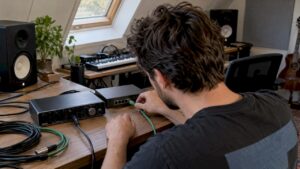
The audio interface is often the heart of the setup: converting analog signals to digital and back to monitors/headphones. Key features:
- High quality AD/DA converters
- low latency drivers (ASIO for Windows / Core Audio for Mac)
- sufficient inputs/outputs for instruments and microphones
- ADAT/S/PDIF for expandability
Microphones and Preamplifiers
Choose mics based on source and style: condenser mics for vocal details, dynamic mics for loud sources. A good preamp or interface with quality mic pres makes a big difference.
Headphones and Monitors
For accurate mixes, good nearfield monitors are ideal, combined with reliable reference headphones. In small spaces, people often rely more on headphone mixes; correction via reference monitors remains crucial.
MIDI Controllers and Footswitches
A compact MIDI keyboard and/or pad controller speeds up workflow and performance. Footswitches are indispensable for live recordings or one-person sessions.
External Storage and Backup
Regular backups prevent hard work from being lost. Use a combination of local remote SSDs and cloud backups for redundancy.
eGPU and DSP Accelerators
Those doing a lot of video rendering or needing GPU acceleration might consider an eGPU (with compatible laptops). For audio-intensive plug-ins, there are also external DSP systems (such as UAD) that lighten CPU load.
Software and Workflows
The right software and an efficient workflow make a home studio with laptop run smoothly.
DAW selection
Popular choices are Ableton Live, Logic Pro (Mac), Pro Tools, Cubase, Studio One and Reaper. The DAW must match the creator’s workflow: some want fast loop-based creation (Ableton), others in-depth editing (Pro Tools, Cubase).
Plug-ins and Virtual Instruments
Invest in reliable plug-ins and organize libraries rationally. Many sample libraries fit better on an external SSD to keep the laptop SSD from filling up.
Drivers and Latency
On Windows, ASIO is crucial for low latency. On Mac, Core Audio is used. A properly configured audio interface and stable drivers prevent xruns and dropouts.
Buffer Size, Sample Rate and Bit Depth
During recording, people often choose a low buffer (64-256 samples) for minimal latency. During mixing, the buffer can be raised for stability. Standards: 44.1/48 kHz are common; 24-bit offers good dynamics; 96 kHz or higher is chosen for hi-res projects, but increases CPU and storage pressure.
Project Templates and Organization
A template with routings, buses and favorite plug-ins saves time. Devise a consistent folder structure and file name convention to avoid chaos.
Acoustics and Physical Setup
Good acoustics compensate for many limitations of small spaces. Even minimal treatment significantly improves mix decisions.
Basic elements of room treatment
- Absorbers at reflection points for mid and high frequencies.
- Basstraps in corners for low frequencies.
- Diffusers behind the listening position for natural afterglow.
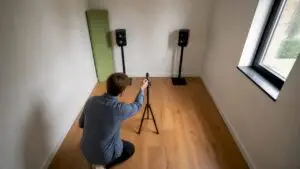
The listening position and monitor setup are the key: monitores at ear height, equilateral triangle between monitors and listener, and sufficient distance from walls.
Positioning the laptop
The laptop screen is often between monitors; this causes resonances and reflections. Place the laptop slightly below or next to the monitor line, use an external monitor if possible, and move the laptop away from microphones to avoid noise.
Recording and Mixing with a Laptop – Practical Tips
Working with a home studio with a laptop requires practical routines that minimize interference and maximize creative flow.
Recording vocals
- Make sure you have a good preamp and an optional pop filter.
- Use low buffer and direct monitoring through the interface for zero-latency monitoring.
- Take multiple takes and use comping to combine the best performance.
Guitar and Electric Instruments
Direct-in (DI) recording on the interface, plus one microphone on the amp gives flexibility. For modeling, a physical or software amp sim can suffice and move CPU-intensive IR loads to external drives.
Drums and Percussion
Multi-microphone sets require many inputs; consider interfaces with ADAT extension or a submixer. For beats, a combination of electronics and sample-based drums can be efficient.
Latency Management
If the CPU peaks: freeze/track bounce, offline bounce-in-place, or reduce the use of plugin oversampling. External DSP or reducing tempo (in virtual orchestration) also helps.
CPU-Heavy Sessions
- Freeze or bounce heavy virtual instruments and effect buses.
- Use voice readers/proxies for large sample libraries.
- Turn off background processes and choose a power management profile for maximum performance.
Video Editing and Rendering on Laptop
For creators combining video and audio, it is important that the laptop runs well and does not crash during export.
Proxy Workflow
Working with lower resolution proxies speeds up editing and previewing. Only the end renderer uses the original high resolution media.
Hardware Acceleration
GPU acceleration (via NVENC, Quick Sync or Metal/Vulkan) sometimes halves render time. Choose codecs wisely: ProRes for quality, H.264/H.265 for compression and distribution.
Render Settings
For audio export as wav/AIFF 24-bit, and for streaming or social media 16-bit/44.1-48 kHz with appropriate bitrate is common. Batch renders can run overnight on the laptop or on a dedicated I4studio render system.
Common Problems and Solutions
Some common issues in a home studio with laptop and how to solve them:
Audio Dropouts / Xruns
- Decrease CPU load or increase buffer size.
- Update audio interface drivers and firmware.
- Make sure USB or Thunderbolt cables are of good quality and not run through unreliable hubs.
Overheating and Throttling
Use the laptop on a flat, well-ventilated surface; avoid blankets and pillows. Consider a cooling stand or model with better cooling solution.
USB/Thunderbolt Compatibility
Some devices work stably only with direct port connections. Test accessories for compatibility and use powered hubs where appropriate.
Plug-in Crashes
Work with authorized plug-ins, update to the latest versions and use plugin sandboxes or crash-protect features of the DAW.
Examples of Home Studio Setups
Here are concrete setups for different budgets-handy as inspiration for those looking to build a home studio with a laptop.
Budget Setup (€700-€1,500)
- Midrange laptop with quad-core CPU and 16 GB RAM
- Entry-level audio interface (2-in/2-out) with good preamps
- Entry-level condenser microphone + dynamic microphone
- Reference headphones and inexpensive nearfield monitors
- 1 TB external SSD for samples/backup
Mid-Range Setup (€1,500-€3,500)
- Fast laptop (6-8 core), 32 GB RAM, 1-2 TB NVMe
- Interface with multiple mic-ins and ADAT
- Quality condenser + boost with an external preamp
- Nearfield monitors with bass straps and base isolation
- MIDI controller and optimized room treatment
Pro Setup (€3,500+)
- High-end laptop (more cores/Apple Silicon) with 64+ GB of RAM or a dedicated I/O workstation from I4studio
- Top-tier converters and outboard gear (compressors, EQs)
- Full acoustic treatment and reference monitoring
- External DSP and/or eGPU for heavy duty workflows
Mobile / On-Location Setup
- Ultraportable laptop (good cooling model)
- Compact USB interface, mobile condenser, and closed-back headphones
- Backups via portable SSD and cloud-sync
How I4studio Can Help
I4studio specializes in computers and equipment for audio, video and broadcast – exactly the expertise essential for a reliable laptop home studio. One can turn to I4studio for:
- Customized advice: which laptop model and interface fits the workflow and performance level?
- Custom-built systems: desktops and mobile workstations optimized for DAW and rendering performance.
- Acoustic solutions: from bass traps to complete room treatment concepts for home studios.
- Installation and troubleshooting support so that sessions do not stall due to technical issues.
For creators who want to deliver serious work, I4studio also offers configurations tailored specifically for audio processing and video rendering – with attention to IO, latency and thermal stability.
Checklist before buying: what to bring
- Laptop specifications: CPU cores, RAM (min. 16 GB), NVMe SSD.
- Ports and connectivity: Thunderbolt/USB-C, HDMI/DisplayPort.
- Audio interface: sufficient inputs, stable drivers, good converters.
- Head and monitoring: reference monitors + closed headphones.
- Storage and backup: external SSD and cloud sync.
- Acoustic treatment: reflection points and bass traps.
- Support and warranty: service contract or consulting role of a specialist (such as I4studio).
Frequently Asked Questions
Is a laptop powerful enough for professional projects?
Yes. With modern CPUs, sufficient RAM and an NVMe SSD, a laptop is perfectly capable of running professional audio and video projects. For extremely large orchestrations or multi-camera 8K editing, a more powerful desktop or a specialized rendering solution may still offer advantages.
Which port is better: USB or Thunderbolt?
Thunderbolt typically offers lower latency and higher bandwidth, which is especially useful for multi-channel interfaces and eGPU solutions. USB-C (USB 3.2) can also work fine, but pay attention to quality cables and compatibility.
How does one reduce latency in live recordings?
Use an interface with direct monitoring, set a low buffer during recording, and use efficient drivers (ASIO/Core Audio). If CPU peaks, freeze heavy tracks or use external DSP.
How important is acoustic treatment in a small room?
Extremely important. Even simple measures such as absorbers at reflection points and bass traps in corners significantly improve the reliability of mix decisions.
What are good first steps for those looking to invest in a home studio with a laptop?
Start with a decent laptop (focus on CPU and SSD), a stable audio interface, reference headphones and basic acoustic measures. Build from there with better converters, mic pres and monitoring as the budget and needs grow.
Conclusion
A home studio with laptop today offers exceptional possibilities for creators of all skill levels. With a thoughtful choice of laptop, interface, monitors and acoustics, one produces sounding results that once required a full, expensive studio. Practical workflows — such as project templates, proxy workflows for video and smart resource-management techniques — keep the laptop running smoothly. For those who want extra security, professional configurations and support are recommended; I4studio provides that expertise, from custom computers to acoustic solutions and ongoing support. Knowledge of hardware, software and acoustics transforms a compact setup into a reliable production studio where creativity is key.