Is your audio interface not being recognized? If so, the cause is almost always one of four things: the cable or USB port, insufficient power, a missing or improperly loaded driver, or a setting in your DAW that’s pointing to the wrong device. Check these areas in that order. Start with the hardware, because trying a different cable or port takes just a minute. Reinstalling a driver takes half an hour. In this article, you’ll find step-by-step instructions on what to check in Windows, macOS, and your DAW, and how to pinpoint exactly where the problem lies.
In a nutshell
- Start with the cable and port. Using a different USB cable and a port on the back of your PC will immediately solve many recognition issues.
- Power matters. A USB hub without its own power supply distributes the power from a single port among all connected devices. Therefore, connect your interface directly to the computer.
- Windows: Open Device Manager, show hidden devices, check for hardware changes, and install the latest driver from the manufacturer.
- Mac: In Audio/MIDI Setup, check to see if the interface is listed as an input and output device.
- Does your computer recognize the interface but your DAW doesn’t? If so, select the correct driver (ASIO on Windows) in your DAW’s audio settings and close any other audio apps.
Table of contents
- What exactly do you see? Here’s how to figure out where to look
- Step 1: Check the cable, port, and power
- Step 2: Windows doesn’t recognize the interface
- Step 3: Your Mac doesn’t recognize the interface
- Step 4: The computer recognizes the interface, but your DAW doesn’t
- Step 5: Recognized, but no sound or not all inputs
- Is it the interface or the computer?
- Our perspective: recognition starts with the system
- A studio setup that just works
- Frequently Asked Questions
- Sources
What exactly do you see? Here’s how to figure out where to look
“Not recognized” can mean a lot of things. So first, take a good look at what’s happening. That way, you’ll take the right step right away.
| What You See | Probable cause | Where you’re looking |
|---|---|---|
| The interface lights remain off | No power, faulty cable, or faulty port | Step 1: Cable, port, and power |
| Lights are on, but the computer isn’t responding | Cable, port, or missing driver | Step 1 and Step 2 or 3 |
| Windows reports, “No audio device is installed” | The driver is missing, outdated, or disabled | Step 2 |
| Mac doesn’t recognize the interface in Audio/MIDI Setup | Cable, hub, or manufacturer’s driver | Step 3 |
| The computer recognizes the interface, but the DAW does not | Wrong driver selected or driver in use by another app | Step 4 |
| The interface appears, but there is no sound or only two inputs | Output or Input Settings | Step 5 |
| The interface occasionally disconnects | Power management, power supply, or cable | Step 1 and Step 2 |
Is the sound stuttering or crackling, even though the interface is recognized properly? If so, the cause is often something else. Read our article “USB Audio Stuttering in Windows” for more information. If you’re hearing mostly static, check out “Troubleshooting Static on Your Audio Interface.”
Step 1: Check the cable, port, and power
Most recognition issues are physical in nature. Perform these checks before you uninstall or reinstall software.
Try a different USB cable
If you’re experiencing random connection issues, a faulty USB cable may be the cause. So check that first. Keep the following points in mind:
- Preferably, use the cable that came with the interface.
- Don’t use a charging cable from your phone. Some of those cables are for charging only and don’t transfer data.
- Avoid adapters and loose extension cords while you’re testing.
- Push the plug all the way in on both ends. A plug that’s only partially connected causes exactly this kind of problem.
Switch between front and rear gates
On a desktop computer, the USB ports on the back are usually connected directly to the motherboard’s chipset. The ports on the front often run through an additional controller or a built-in hub. As a result, they may behave differently. Sound on Sound therefore recommends that, if you encounter USB issues, you first try switching from a front-panel port to a rear-panel port—or vice versa. Want to troubleshoot your computer’s USB ports yourself? See the section on fixing non-functioning USB ports.
Be mindful of power and USB hubs
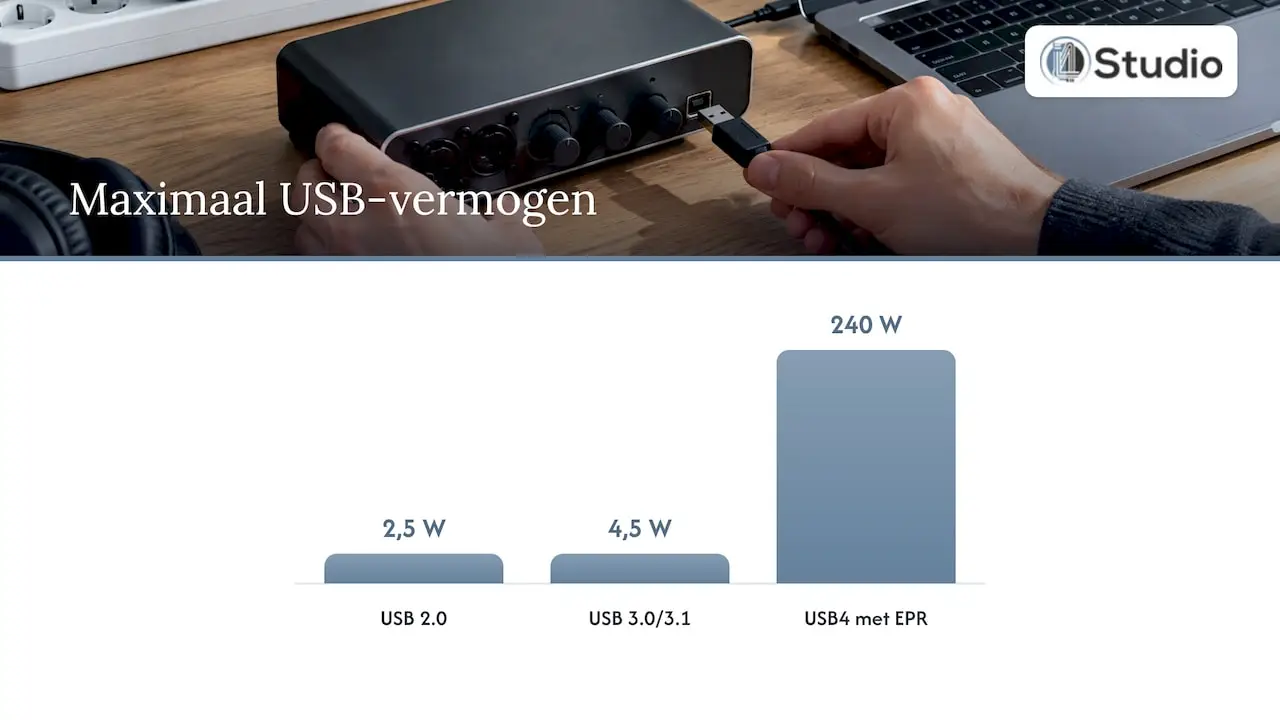
Many compact interfaces are powered via the USB cable. The amount of power a port delivers varies by standard. According to Sound on Sound, USB 2.0 delivers a maximum of 2.5 W, USB 3.0/3.1 up to 4.5 W, and USB4 with EPR up to 240 W. A USB hub without its own power supply distributes the power from a single port among all the devices connected to it. As a result, your interface may not receive enough power and may fail to start up properly.
MusicRadar also cites insufficient power from the USB port as a common cause, for example, when other devices are drawing power from the same hub. Apple offers the same advice for the Mac: if a device without a power cable is connected to another device without a power cable, connect it directly to the computer or to a hub with its own power supply.
Practical guidelines:
- Connect the interface directly to the computer, without a hub.
- Does your interface have its own power adapter? If so, always use it.
- Temporarily disconnect other USB devices to see if it makes a difference.
Step 2: Windows doesn’t recognize the interface
If the cable, port, and power are working properly and Windows still doesn’t recognize the interface, the problem is usually with the driver.
Here’s how to check the driver in Device Manager
- Press Windows + R at the same time, type
devmgmt.msc, and click OK. Device Manager will open. - Check under “Sound, video, and game controllers ” and under ” USB controllers (Universal Serial Bus) ” to see if your interface is listed there. A yellow exclamation mark means the driver isn’t working properly.
- Select View > Show hidden devices. This will also show you devices that Windows recognizes but are not currently active.
- Select Action > Scan for hardware changes. Microsoft lists this as one of the first steps to take when an audio device is missing or cannot be found.
- Install the latest driver from your interface’s manufacturer, and then restart your computer.
Microsoft recommends Windows Update as the preferred method for updating audio drivers. You can also update the device in Device Manager or uninstall it so that Windows reinstalls the driver. For a studio interface, the manufacturer’s driver is usually the most important one: it often also provides the ASIO driver and the control panel that allow your DAW to use the interface with low latency. Updating a driver can cause the interface to reappear in the system settings.
Restart after each update
Did Windows just install an update? If so, restart your computer. According to Microsoft, audio updates are often not applied until after a restart. Do the same after installing a new driver or firmware for your interface.
Turn off selective USB interrupts
Does your interface occasionally disappear, or does it stop being recognized after a pause? If so, power management might be the culprit. Windows may disable USB ports to save energy. Sound on Sound recommends disabling the “Selective USB Suspend” setting in Windows Power Options. You can find it by going to Control Panel > Power Options > Change plan settings > Change advanced power settings > USB settings.
The message “No audio device is installed”
This message means that Windows cannot find a working output device. According to Microsoft, this can happen if the required driver is missing, outdated, or disabled, or if it does not load properly. This can also occur after a Windows update or a driver change.
Here’s how to test whether the notification is coming through your interface:
- Disconnect the interface and see if the notification remains.
- Does the notification only appear when the interface is connected? If so, check Device Manager to see if the interface has an exclamation mark or is disabled.
- Is the device disabled? Right-click it and select ” Enable device.”
- Reinstall the manufacturer’s driver and restart the computer.
Step 3: Your Mac doesn’t recognize the interface
On a Mac, many interfaces are ready to use right away. Other models require software or a driver from the manufacturer. The most important place to check is the Audio/MIDI Configuration app.
Check Audio/MIDI Configuration
Audio/MIDI Configuration is the macOS app that lets you set up audio input and output devices, including multichannel interfaces. You can find it in Applications > Utilities.
- Open Audio/MIDI Configuration and check the list on the left to see if your interface is listed.
- If it’s not there, go back to step 1: try a different cable, a different port, and avoid using a hub.
- Is it listed? Select the interface and choose “Use this device for audio input ” or “Use this device for audio output” from the context menu.
- On the Input and Output tabs, check to make sure the number of channels and the sample rate are correct.
Do you use a hub? Apple recommends pairing devices and hubs with the same speed: USB 3.0 devices on a USB 3.0 hub, and USB 2.0 devices on a USB 2.0 hub.
Manufacturer’s driver and software
Does your interface require a driver or control app from the manufacturer? If so, install the version that matches your macOS version. If the installer asks for permission in System Preferences, complete that step and restart your Mac.
Will everything stop working after that? Apple warns that third-party audio drivers may sometimes conflict with other apps that use macOS’s standard audio features. In that case, download the latest driver from your interface’s manufacturer.
Does the computer recognize the interface but not the manufacturer’s app? In that case, it often helps to completely close the app, disconnect the interface, reconnect it, and then restart the app.
Step 4: The computer recognizes the interface, but your DAW doesn’t
Is the interface listed in Device Manager or Audio/MIDI Configuration, but you can’t select it in your DAW? Then it’s in your DAW’s audio settings.
- Select the correct driver type. On Windows, select your interface’s ASIO driver in your DAW—not a generic Windows driver. A DAW only displays ASIO drivers that Windows currently recognizes as functioning devices. If your interface’s driver is missing from the list, go back to step 2.
- Close other audio apps. An ASIO driver can often only be used by one program at a time. If your browser, a second DAW, or a video editing program is open, close it and restart your DAW.
- Same sample rate. Set the sample rate to the same value—for example, 48 kHz—in your DAW, in the interface’s control panel, and in your system settings.
- Start up in the correct order. Connect the interface and turn it on before launching the DAW. Many DAWs only scan for audio devices during startup.
- Select it again. In the audio settings, first select a different device, and then select your interface again. This forces the DAW to reload the driver.
Would you like to go over the entire setup process again at your own pace? Our step-by-step guide to connecting an audio interface lists each step in detail.
Step 5: Recognized, but no sound or not all inputs
Sometimes your interface is recognized, but you don’t hear anything or you only see a few inputs. In that case, it’s usually a setting.
No sound coming from your monitors
- Windows: Go to Settings > System > Sound and select your interface as the output device. It will then become the default device for system sound.
- Mac: In Audio/MIDI Setup, select “Use this device for audio output,” or select the interface in System Preferences > Sound.
- Hardware: Check that your monitors are turned on, that the interface’s volume knob is turned up, and that the cables from the interface to the monitors are plugged into the correct outputs.
You only see two inputs
In many DAWs, you first have to enable inputs in the audio settings, even if the interface has more than that. In Ableton Live, you do this using the Input Configuration and Output Configuration buttons in the Audio preferences window. There, you can enable mono or stereo for each pair of channels. Other DAWs have a similar screen for I/O or audio routing.
Your microphone isn’t sending a signal
- Are you using a condenser microphone? If so, turn on phantom power (48V) on the channel where the microphone is connected.
- Turn up the gain knob on that channel and see if the signal meter moves.
- In your DAW track, select the correct input as the source and set the track to record or monitor.
Is it still difficult, or are you experiencing multiple issues at once? In our guide to troubleshooting audio interface problems, you’ll also find other issues and how to resolve them.
Is the problem with the interface or the computer?
Have you followed all the steps, and is the interface still not being recognized? If so, you’ll want to know whether the problem is with the interface or the computer. This test will help you find out quickly:
- Connect the interface to a second computer that has the manufacturer’s driver installed. If it works there, then the problem is with your own system.
- Plug another USB device into the same port on your own computer. If that doesn’t work either, then the port or the USB controller is the problem.
- Test with a new user account on your computer. If the interface works there, then the issue lies in your settings or in software that runs at startup.
Does the interface not work on a second computer either? If so, contact the seller or the manufacturer about the warranty. If it works everywhere except on your own computer, it’s worth checking your system itself: USB controllers, power management, and the software running in the background.
Our Perspective: Recognition Starts with the System
We see the same pattern over and over again with our customers. An audio interface that isn’t recognized is rarely broken. Usually, it’s due to the environment: a USB port routed through an additional controller, power management that disables ports, or a computer loaded with software that conflicts with the audio driver.
That’s why we build our studio PCs with a focus on stability and low latency. We configure the system for audio, so your interface has a stable foundation. And if something doesn’t work as expected, our experts will personally assist you, drawing on their knowledge of both the hardware and the software.
Our advice: Choose your interface and your computer as a single unit. An interface that fits your workflow, on a system set up for audio, will save you hours of searching in Device Manager and let you focus on what really matters: making music.
Harold
A studio setup that just works
Ready for a new interface, or do you want a computer that’s optimized for audio right from day one? At i4studio, you’ll find both. Our studio PCs start at €1,099 and are custom-built with a focus on stability, low latency, and personalized support.
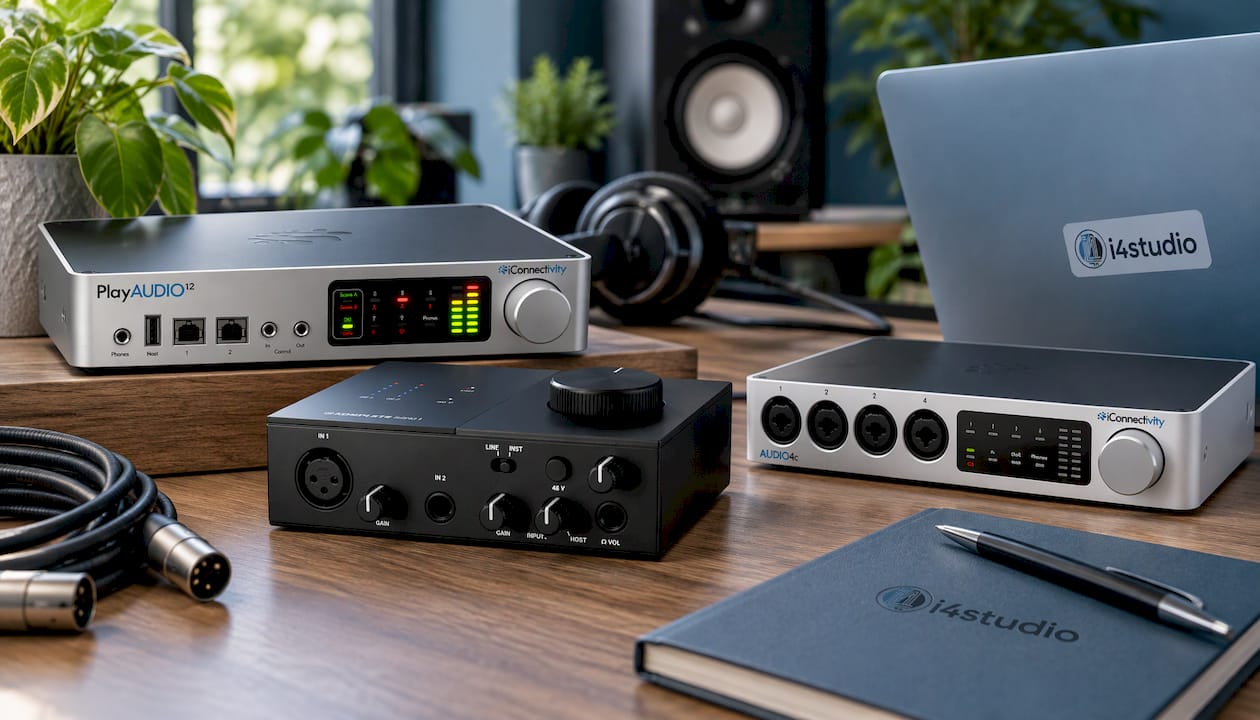
In our audio interfaces category, you’ll find models for every setup, from a compact interface like the Native Instruments Komplete Audio 1 to an audio and MIDI interface like the iConnectivity AUDIO4c. Complete your setup with microphones, studio monitors, and software.
Frequently Asked Questions
Why is my audio interface suddenly no longer recognized?
Did this happen suddenly, after a period when everything was working fine? If so, a recent Windows or macOS update is often the cause, or a driver that is no longer loading properly. Restart the computer, check if there’s a newer driver available from the manufacturer, and try a different cable and port. Power management settings can also disable a USB port after a period of inactivity.
Can I connect my audio interface through a USB hub?
That’s possible, but it’s the first thing to check if the interface isn’t recognized. A hub without its own power supply distributes the power from a single port to all the devices connected to it. If you’re unsure, connect your interface directly to the computer, or use a hub with its own power supply.
Do I always need to install a driver for my audio interface?
That depends on the model and the operating system. Many interfaces work on a Mac without an additional driver. On Windows, the manufacturer’s ASIO driver is usually required for low-latency operation in your DAW. Check the manufacturer’s support page to see which software is compatible with your model and system.
My interface works in Windows, but not in my DAW. What should I do?
In your DAW’s audio settings, select your interface’s ASIO driver and close all other programs that use audio. Set the sample rate to the same value everywhere. Restart the DAW after the interface has been connected and powered on.
Sources
- MusicRadar: How to Troubleshoot Common Audio Interface Issues
- Sound on Sound: Solving USB Problems
- Microsoft: Update Audio Drivers in Windows
- Microsoft: Fix a missing or undetected audio output device in Windows
- Microsoft: Troubleshooting sound or audio problems in Windows
- Apple: Set up audio devices in Audio MIDI Setup on Mac
- Apple: If your audio apps stop working while using Audio MIDI Setup on a Mac
- Apple: If a USB device doesn’t work with a Mac
- Apple: A USB device isn’t working with the Mac
- tppc.be: USB ports aren’t working