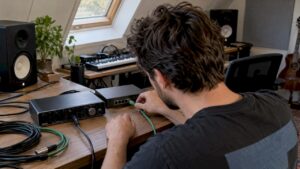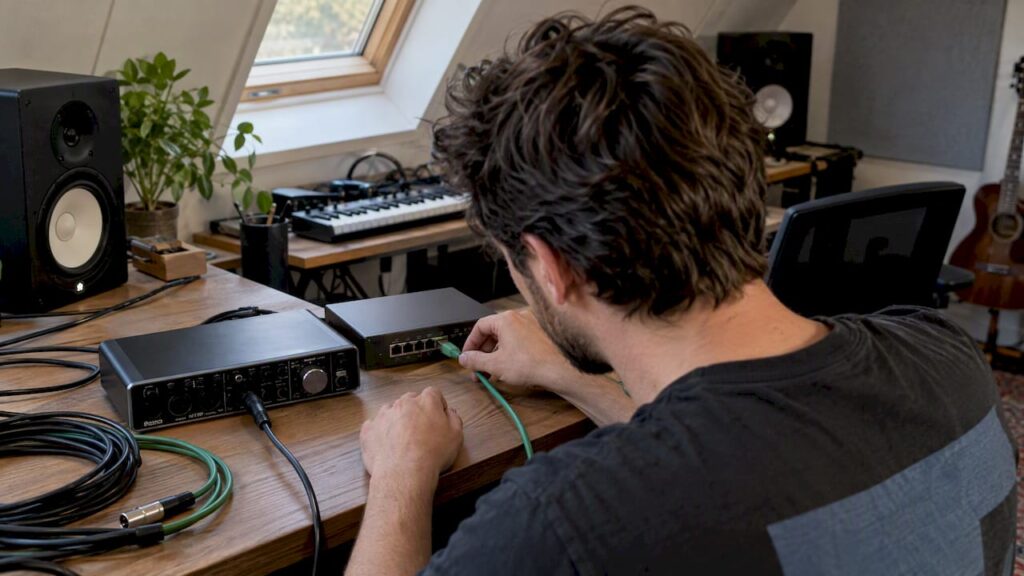
Yes, Dante is suitable for most home studios that require multichannel routing and low latency, provided you set up the network correctly. Be sure to go through the checklist in this article before you invest.
Briefly:
- A Dante network requires a well-configured network, with a managed switch that supports IGMP snooping and QoS, and a subnet that connects all devices.
- For a home studio, a simple setup with a single device and a Cat6 cable is usually sufficient; more servers or multiple rooms require additional network management and professional switches.
- The optimal latency setting is between 4 and 10 milliseconds, depending on the power of your hardware and the number of devices; higher latency prevents dropouts.
- When problems arise, the cause is often physical network errors or incorrect device discoverability, which you can resolve by checking the cables, verifying the subnet, and configuring the correct IGMP settings.
- For larger systems or multi-room setups, comprehensive network planning and, in some cases, Dante Domain Manager may be required to ensure stability and scalability.
Table of contents
- What Is Dante and How Does It Benefit Your Workflow
- Checklist: Hardware, Cables, and Software You Really Need
- Three Simple Dante Setups for Home Studios
- Network design rules that ensure stability and scalability
- Troubleshooting: Common Issues and Quick Fixes
- Advice from i4studio: Tests, Purchase Criteria, and Services
- When Dante Really Adds Value
- How i4studio helps with purchase and installation
- Frequently Asked Questions
- Sources
What is Dante, and how does it benefit your workflow?
Dante transmits uncompressed, low-latency, multichannel audio over a standard Gigabit Ethernet network. Instead of separate XLR and jack cables between each device, all audio is transmitted over a single network cable, digitally and in sync. For a home studio, this means fewer cable runs, fewer sources of noise, and the ability to connect devices in multiple rooms without analog signal loss.
The practical benefits are clear:
- Centralized routing: You can change signal paths using software in Dante Controller instead of rerouting cables.
- Accessibility: Multiple computers can access the same audio sources, which is useful in a control room with a separate recording room.
- Scalability: Adding an extra microphone or monitor doesn’t require a new cable run—just a new connection to the network.
There are also practical limitations. Latency remains a concern as soon as you combine multiple devices and software instances. As your network grows, you’ll need a deeper understanding of subnets and clock leaders. And anyone who wants to work entirely in software will run into the channel limit of the standard version: Dante Virtual Soundcard Pro expands that to 128×128 channels at 96 kHz, with unicast clocking and full VM compatibility, for an annual license with periodic validation.
Checklist: Hardware, Cables, and Software You Really Need
Before purchasing a Dante setup, it’s best to review the points below. An incomplete foundation is the most common cause of unstable audio later on.
- Dante interface or stage box: Choose an interface with a native Dante chip if you prioritize hardware reliability over software flexibility.
- Managed Gigabit switch: A consumer-grade switch might work sometimes, but a managed switch gives you control over QoS and IGMP snooping.
- Ethernet cables: Cat6 is sufficient for most home studios; Cat6A is recommended for cable lengths over thirty meters or when the cables are near power cables.
- Dante Controller: free software from Audinate for device discovery, routing, and subscriptions—essential regardless of your choice of hardware.
- Dante Virtual Soundcard or DVS Pro: The standard version is sufficient for simple single-room setups; DVS Pro is required as soon as you want to use more channels, unicast clocking, or a virtual machine.
At the network level, there are a few basic rules you must not overlook. Keep all Dante devices on the same subnet: native device discovery works via multicast DNS, and devices on different subnets cannot find each other without Dante Domain Manager or Director. Whenever possible, use a dedicated network interface card (NIC) exclusively for Dante traffic, disable Energy Efficient Ethernet (EEE) on every port serving Dante devices, and enable IGMP snooping as soon as you start working with multiple multicast streams.
Pro tip: Buy a switch that explicitly supports “EEE disable per port”: not every managed switch offers that option, and without that feature, power-saving ports remain a hidden source of dropouts.
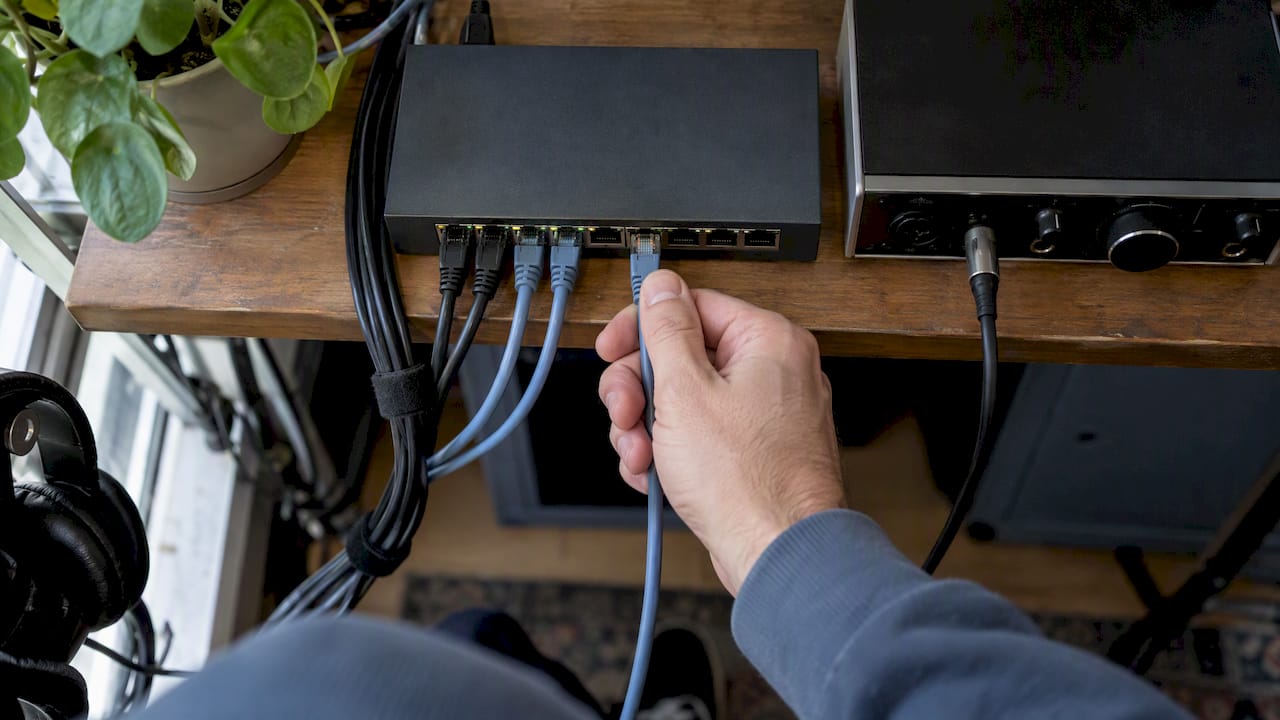
Three Simple Dante Setups for Home Studios
The right setup depends on your space and goals. Below are three options that work well in practice for small studios.
- Single-room setup: Your computer connects directly to a Dante interface via a Gigabit switch or, if there are only two devices, even directly via a cable. Set the Dante latency to 4 ms if your machine has sufficient processing power; increase it to 6 to 10 ms if you notice CPU spikes or jitter. This is the simplest configuration and requires no advanced networking knowledge.
- Control room plus live room: Here, you use a stage box or AVIO adapters in the recording room, connected via the switch to your interface in the control room. You route cues and monitoring splits via Dante Controller, so the artist gets their own mix without having to run extra cables. This setup does, however, require careful channel assignment to ensure that monitor buses don’t conflict with recording channels.
- Software-only workflow with DVS Pro: If you don’t want to purchase physical Dante hardware, Dante Virtual Soundcard Pro will suffice. Please note: Two standard DVS installations will not work together without an external clock leader or without at least one machine running DVS Pro. For a simple home studio with one computer and a few plugins, the free version is often sufficient; as soon as you want to combine multiple machines or incorporate video production, DVS Pro is the more stable choice thanks to unicast clocking.
No matter which option you choose, always test with a limited number of channels first before setting up the full session. That way, you can immediately tell whether a latency issue is caused by the network or by your DAW settings.
Network design rules that ensure stability and scalability
A Dante network that starts small often grows faster than expected. The rules in place from day one determine whether that growth proceeds smoothly or results in dropouts.
A dedicated Gigabit switch with EEE disabled is not an excessive precaution, but a direct cause-and-effect relationship: power-saving ports switch to low-power modes that slow down time-sensitive PTP packets, which directly results in audible audio dropouts. That makes choosing a switch less trivial than it seems.
Here are a few guidelines to help you design your network:
- Stay on a single subnet for native discoverability, unless you deliberately choose a managed solution.
- Enable IGMP snooping as soon as you combine multiple Dante devices with multicast traffic; otherwise, the network will become overwhelmed.
- Configure QoS (DSCP) on managed switches so that Dante packets take priority over other network traffic.
- Isolate the Dante network physically or via VLAN from regular office or internet traffic.
For systems that grow beyond a handful of devices, designing your own network is no longer a luxury but a necessity. Audinate and Yamaha emphasize that simple Dante setups can be plug-and-play, but that expansion requires IT knowledge, such as subnetting and a well-thought-out clock leader hierarchy. As soon as you spread devices across multiple subnets or physical locations, Dante Domain Manager or Dante Director is the tool needed to maintain centralized discoverability and management—something that isn’t yet necessary for most home studios, but becomes relevant as soon as you connect a second room or an external team.
Troubleshooting: Common Errors and Quick Fixes
Most Dante issues in a home studio can be traced back to three causes: a physical network error, an incorrectly configured subscription, or a latency setting that is too low.
- First, check the physical layer: are the cables securely connected, is the correct LED pattern lit on the switch port, and are you using a damaged Cat6 cable?
- Open Dante Controller to see if all devices are visible and if the subscriptions are set up correctly; a missing device often indicates a subnet issue or a disabled multicast setting.
- Increase the latency gradually if you hear dropouts, close unnecessary background processes, and check your network card’s power settings.
A common yet lesser-known problem arises when a single machine has multiple network interfaces and Dante traffic accidentally routes through a shared path. In that case, do not use shared routing for Dante traffic: isolating the interface prevents conflicts between multiple clock leaders and invisible devices. These types of conflicts are difficult to detect because, at first glance, the network appears normal, while Dante Controller causes devices to disappear intermittently.
Pro tip: Explicitly label each network adapter in Windows as “Dante” or “other”: this prevents a software update from accidentally activating the wrong interface for Dante traffic.
If the problem persists, also check out our guide on troubleshooting audio interface issues, and see which Windows settings actually affect latency before replacing your hardware.
Advice from i4studio: tests, purchasing criteria, and services
We always recommend testing first before you invest: run a DAW latency test, check the device’s visibility in Dante Controller, and verify the entire signal path end-to-end.
When purchasing, we focus on three things: a switch with adjustable EEE, sufficient processing power for your chosen latency setting, and interfaces that meet your channel requirements.
- We provide custom-built studio PCs optimized for stable, low-latency Dante workflows.
- We offer audio interfaces with native Dante support for hardware-based setups.
- We provide acoustic consulting to ensure your network upgrade sounds exactly as intended.
When Dante Truly Adds Value
Dante really pays off once you start combining multiple channels, rooms, or devices and cable management becomes an issue. For a simple two-channel recording project, it’s often overkill. Feel free to build simple systems yourself, but seek professional advice as soon as you start moving toward multi-room installations or a larger number of channels.
– harold
How i4studio Helps with Purchase and Installation
We’ll help you coordinate the right hardware, network setup, and acoustics, without you having to figure out all the technical details yourself.
Check out our selection of studio PCs for a stable foundation for your Dante network, or ask for advice on acoustic panels to ensure your new setup is acoustically optimized.
Frequently Asked Questions
Is Dante suitable for a small home studio with one computer?
Yes, for a single-room setup with one computer, the free Dante Virtual Soundcard, combined with a managed Gigabit switch, is often sufficient. However, if you want to connect multiple machines or integrate video production, DVS Pro with unicast clocking is the more stable choice.
What is the difference between Dante Virtual Soundcard and DVS Pro?
The standard version of Dante Virtual Soundcard has limited channels and clocking options, while DVS Pro scales up to 128×128 channels at 96 kHz with unicast clocking and full support for virtual machines. DVS Pro is offered as an annual license with periodic validation.
What latency setting should I use for Dante in my DAW?
A setting of 4 ms usually works well on powerful machines, but increase it to 6 to 10 ms if you experience dropouts or jitter on less powerful systems. Higher latency provides greater stability at the expense of response speed.
Why doesn’t Dante Controller recognize my device?
The problem is usually caused by a device on a different subnet, since native discoverability works via multicast DNS, and devices on different subnets do not automatically find each other. Also check that IGMP snooping is configured correctly on your switch.
Do I need an expensive switch for Dante?
You don’t need a premium brand, but you do need a managed switch on which you can disable Energy Efficient Ethernet and configure IGMP snooping. Unmanaged or “green” switches can cause problems due to power-saving modes.
Sources
- Dante Virtual Soundcard v4.5.0.5 Release Notes
- Audinate Dante Network Design Guide | Yamaha Pro Audio