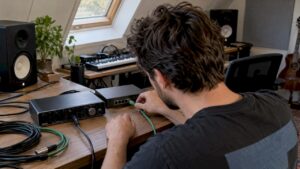
A videographer working on an edit on the go, then seamlessly switching to color correction and audio finesse: that’s exactly what laptop video editing is all about. This guide covers everything that matters – from which hardware really helps with heavy projects, to smart workflows and studio-friendly accessories. The information is aimed at audio professionals, musicians and content creators seeking reliable, performance-oriented solutions without unnecessary frills.
Why choose video editing with laptop?
Laptops offer mobility and flexibility: a producer can record on site, edit in the studio and fine-tune later on location. For artists who travel from studio to stage, or broadcast engineers who need to deliver on site, a laptop is often indispensable. At the same time, it is important to understand the trade-offs: thermal, expandability and price per performance vary widely among models.
Benefits at a glance
- Mobility: edit where the project is located.
- Fast transfer between recording and editing, especially with Thunderbolt/USB-C.
- Many modern laptops offer powerful CPUs and GPUs that speed up rendering.
- Perfect for hybrid workflows: record + mix + edit on one device.
Important specifications for video editing with laptop
Not all laptops are created equal. In video editing, certain components are decisive. Here is a practical overview of which components have priority and why.
Processor (CPU)
The CPU determines how fast clips are decoded, effects are calculated and export tasks are handled. For simple editing, a quad core is sufficient, but for 4K, multicam and heavy effects, a powerful CPU is preferable.
- Recommendation light work: 4-6 cores (Intel i5/i7 or similar AMD).
- Recommendation average work: 6-8 cores (Intel i7/i9, AMD Ryzen 7/9, or Apple M-series’s M2 Pro).
- Recommendation heavy work: 12+ cores for 4K RAW, VFX and color correction.
Graphics card (GPU).
Modern NLEs (nonlinear editors) such as DaVinci Resolve and Premiere Pro use GPU acceleration for real-time playback, effects and color correction. For Windows machines, NVIDIA cards are often the best choice because of broad CUDA support; on Mac, Apple Silicon GPUs perform excellently thanks to Metal optimization.
- Resolutions up to 1080p: integrated GPU or entry-level discrete GPU is often sufficient.
- 4K and color correction: powerful discrete GPU with plenty of VRAM (6-12 GB or more).
- High-end workflows: 12+ GB VRAM for RAW/8K and heavy grading.
Working memory (RAM)
RAM affects how many layers, tracks and effects can be used simultaneously without swaps to disk. For audio professionals who also run plugins and virtual instruments, sufficient RAM is crucial.
- Entry-level: 16 GB – suitable for light assembly work and simple audio.
- Recommended for most creators: 32 GB – comfortable margin for 4K and multitrack audio.
- Professional level: 64 GB or more – for heavy VFX, 8K and large projects.
Storage: NVMe and scratch disks
Fast storage is essential. An NVMe SSD for the OS and software ensures that applications start quickly and media files load quickly. In addition, a separate scratch disk (spacious and fast) or external NVMe SSD is recommended.
- Boot drive: NVMe SSD of at least 512 GB.
- Active media: external NVMe SSD (Thunderbolt 3/4 or USB-C 3.2 Gen2x2) for fast access.
- Archiving: HDD or NAS for long-term storage/backups.
Screen and color accuracy
For color-critical tasks, the screen is immensely important. Many laptops have fine screens, but often external calibrated monitors are the difference between good and professional color matching.
- Choose a high-resolution screen (at least 1920×1080; preferably 2560×1600 or more).
- Look for coverage of the DCI-P3 or Adobe RGB color range.
- Use a calibrator and consider an external reference monitor for grading.
Ports and connectivity
For studio work, sufficient and fast ports are indispensable. Thunderbolt 3/4 opens up many possibilities: external GPUs, fast NVMe drives and professional capture equipment can work through a single cable.
- Thunderbolt 3/4 or USB4
- USB-A (for older hardware)
- HDMI or DisplayPort for external monitors
- SD card reader – useful for cameras
- Gigabit Ethernet (via adapter if not onboard)
Which laptop to choose? Practical recommendations by usage level
Below are practical options for different budgets and workflows. These are intended as guidelines: exact models evolve quickly.
Entry level: novice creators and quick edits
- CPU: modern 6-core
- RAM: 16 GB
- Storage: 512 GB NVMe
- GPU: integrated or entry-level discrete
- Benefit: affordable, light and mobile
- Disadvantage: limited at 4K and heavy effects
Middle class: serious creators and musicians
- CPU: 8-12 cores
- RAM: 32 GB
- Storage: 1 TB NVMe + external NVMe for scratch
- GPU: strong discrete card or Apple M-series (M2 Pro/Max)
- Benefit: smooth 4K workflows and good multitasking
Pro-level: broadcast, VFX and heavy grading
- CPU: 12+ cores (or Apple M-series high-end)
- RAM: 64 GB or more
- Storage: large NVMe and redundant backups (NAS)
- GPU: professional GPU with lots of VRAM or powerful Apple GPU
- Benefit: high performance, reliable in pro environments
Software selection and optimization
Which NLE someone chooses depends on workflow, team and budget. Each software has strengths and specific optimizations.
Popular NLEs and their characteristics.
- Adobe Premiere Pro: widely used, good integration with After Effects and Audition. Works well with CUDA acceleration on NVIDIA GPUs and with hardware encoders.
- DaVinci Resolve: excellent for color correction and grading; heavily GPU-dependent. Many studios use Resolve for final grading.
- Final Cut Pro: optimized for macOS and Apple Silicon; highly efficient with ProRes and native Apple workflows.
- Avid Media Composer: favorite of broadcast and longform editors; robust media management tools.
Workflow tips to improve performance
- Use proxy files for smooth editing at high resolutions.
- Transcode to edit-friendly codecs (ProRes, DNxHR) when possible.
- Enable hardware acceleration in the NLE’s settings.
- Set up a fast external NVMe as a scratch disk for render files and cache.
- Keep media files and project files on separate volumes for better IO parallelization.
Audio in video editing with laptop: what audio professionals look out for
For musicians and audio engineers who also edit video, specific requirements often arise: low latency, stable drivers, timing and sample rate consistency.
Audio interfaces and drivers
A reliable audio interface is crucial. In pro environments, interfaces from brands such as RME, Focusrite and Universal Audio are prized for stable drivers and low latency. I4studio often recommends custom studio setups and can help select interfaces that work well with DAWs as well as video workflows.
- Provide ASIO drivers on Windows for low latency.
- Use a Thunderbolt interface if low latency and high bandwidth are important.
- Keep sample rates and clocking consistent when rendering audio to video.
Syncing audio and video
When recording outdoors, jitter and drift between devices can cause problems. Use timecode or hardware sync whenever possible, and maintain a clear workflow for recording and post.
Connecting externally: capture, monitoring and storage
Laptops can work with powerful external hardware to provide desktop-like capabilities. Some common scenarios:
External capture and broadcast
For live broadcast and capture, Thunderbolt/USB capture units exist, such as Blackmagic UltraStudio or ATEM Mini (HDMI). These devices enable professional input/output and hardware encoding without a full desktop server.
eGPU and Thunderbolt docking
External GPUs can breathe new life into older laptops, but depend on Thunderbolt bandwidth and involve additional cost and configuration. For those who need maximum GPU power and want to maintain mobility, this is an option to consider.
Backup and NAS
A good backup strategy is crucial. At a minimum, use a two-tier backup (local disk + offsite/NAS). For teams, a NAS with 10GbE connectivity is a solid solution for shared media and archiving.
Thermal management, longevity and reliability
Laptops get hot during prolonged rendering. Thermal throttling reduces performance, so one must consider cooling and choices when purchasing.
- Pay attention to cooling design and vents when choosing a model.
- Use a cooling pad for longer rendering sessions in the studio or at home.
- Consider mobile workflows with short bursts on the laptop and intensive renders on a powerful workstation from I4studio when time and stability are important.
Practical workflows and examples
Concrete workflows help put theory into practice. Below are three scenarios commonly encountered in studio and broadcast environments.
Scenario 1: Editing music video on the go
- Device: 14″ laptop with M2 Pro or modern Intel/AMD 8-core and 32 GB RAM.
- Workflow: import camera SD to external NVMe; create proxies in ProRes Proxy or H.264; edit in Premiere Pro or Final Cut; use a Thunderbolt audio interface for sound design and reference mixing.
- Tip: export a quick reference render for approval and store original media on a NAS for later archiving.
Scenario 2: Broadcast relay on location.
- Device: laptop with Thunderbolt, external capture unit and 4G/5G bonding solution or direct Ethernet.
- Workflow: encode live feed via hardware accelerated encoder, monitor audio with reference headset, and archive in real time to a RAID or NAS.
- Tip: test connections and fallback routes in advance; I4studio can advise on suitable capture hardware and configuration.
Scenario 3: Studio-grade finishing and rendering
- Device: laptop for conforming, metness & editing; final renders performed on a workstation or render server.
- Workflow: use timeline conforming, EDL/XML/AAF to grading workstation (e.g. DaVinci Resolve), finalize audio in DAW, and render on dedicated hardware for speed and reliability.
- Tip: keep a consistent color workflow (LUTs, OCIO) and separate audio deliverables (voices) for broadcast or mastering.
Budget considerations and cost-effectiveness
A laptop for video editing is an investment. Sometimes it is smarter to choose a mid-range laptop plus an affordable external NVMe and a good audio interface rather than a very expensive mobile workstation. For teams and studios, a combination of mobile laptops and a central I4studio workstation can offer the best ROI: mobile for recording and quick edits, desktop for final renders and archiving.
How I4studio can help
I4studio supplies audio, video, rendering and broadcast computers and offers customized advice for studio environments. For those unsure which laptop or combination of accessories is needed, specialized advice can save a lot of time and mistakes. Some of the ways I4studio adds value:
- Advice on choice: which laptop model fits the user’s workflow and budget?
- Studio integration: which interfaces, capture units and storage are compatible with the current studio setup?
- Rendering solutions: when rendering on a mobile device is less efficient, I4studio can help set up a rendering workstation or server.
- Support: assistance with installation, calibration and optimization of systems and drivers.
Checklist at purchase: 15 points to check
- Does the CPU meet the expected workload (cores/threads)?
- Is there enough RAM (32 GB recommended for 4K)?
- Does the laptop have a fast NVMe SSD and room for expansion?
- Is the GPU suitable for the chosen NLE (CUDA vs. Metal)?
- Are there enough Thunderbolt/USB-C ports?
- Does the laptop have an SD card reader?
- Is the screen suitable for color work (P3/Adobe RGB)?
- How is the thermal solution for long renders?
- Is there support for external capture hardware and audio interfaces?
- What is the warranty and service (business support)?
- Are drivers and firmware updated regularly by the manufacturer?
- Are there any references or reviews from users in similar workflows?
- Is there a reliable backup or NAS solution available?
- Does the laptop fit within the total budget including accessories?
- Can the device be integrated into the existing studio setup?
Common mistakes and how to avoid them
Some pitfalls creators often encounter:
- Too little RAM: leads to swapping and slow performance. Always prefer too much to too little.
- Rely on internal storage alone: without external backup, work is at risk.
- Insufficient ports: adapters pile up quickly and create friction in workflows.
- No attention to color management: leads to mismatch between screen and end-deliverable.
- Wrong expectations of laptop thermals: mobile CPUs can throttle; for long-term renders, a desktop is often better.
Future-proofing: what to look out for in the coming years
Technology is changing rapidly. Some things that are smart to consider:
- Broadband for cloud workflows and remote collaboration.
- Thunderbolt/USB4 for future external hardware.
- Support for hardware-accelerated codecs such as AV1 and future ProRes/HEVC variants.
- Modular storage and NAS solutions for scalability.
- Invest in a good audio interface and monitoring that will last.
Final word
Video editing with laptop offers a lot of freedom, but requires smart choices. For audio professionals and content creators, it’s all about the balance between mobility, performance and reliability. With the right CPU, GPU, sufficient RAM, fast NVMe storage and the right external accessories, a laptop is a full-fledged tool for professional workflows. When tasks get heavier – for finals, rendering and mass archiving – desktop workstations or render servers are a valuable addition.
I4studio can help with advice, customized systems and integration into existing studio environments. Whether one is a musician working on clips on the go or a broadcast engineer who needs to manage live feeds, the right combination of laptop and studio hardware makes the difference between frustration and smooth production.
Frequently Asked Questions
What minimum specifications are required for 4K editing on a laptop?
For 4K getting started, at least a modern 8-core CPU, 32 GB RAM, NVMe SSD and a strong GPU is recommended. For professional workflows and RAW footage, 64 GB of RAM and plenty of VRAM is preferable.
Is an external GPU (eGPU) worth it?
An eGPU can significantly speed up older laptops for GPU-intensive tasks, but the benefits depend on Thunderbolt bandwidth and the investment in the case and card. For maximum performance, a native discrete GPU or Apple Silicon is often more efficient.
How does one handle color management on a laptop?
Use a calibrated external reference monitor for grading. Calibrate the laptop screen with a colorimeter and work with LUTs and consistent color profiles (e.g., Rec.709, DCI-P3, ACES) throughout the workflow.
What is the difference between edit proxies and transcode to ProRes/DNxHR?
Proxies are lower resolution versions for smooth playback during editing; transcoding to ProRes/DNxHR makes files more edit-friendly and stable in performance during color correction and finishing. People often combine both: proxies for fast editing, ProRes for finishing.
How can I4studio support choosing a laptop for video editing?
I4studio offers custom consulting, knowledge of audio and video workflows, and solutions for integration with studio equipment. They can help choose laptops, interfaces, storage and, where necessary, set up rendering workstations.