A proper DAW setup tips approach begins with smart planning of space and workflow: smart monitor placement, thoughtful audio computer selection and attention to acoustics often determine the difference between a cluttered setup and a productive studio. This article covers concrete, applicable advice for producers, audio engineers and content creators who want to optimize their digital audio workstation – from cable management to system settings and from monitor placement to backup strategies.
Why a good DAW setup is essential
A DAW setup is more than just a computer with software. It is the nervous system of a production environment: performance, stability and ergonomics affect creativity and efficiency. A poorly set-up workstation leads to latency problems, technical interruptions and listening errors. With the right DAW setup tips, the user will have fewer distractions and more time for music or image editing.
Planning: analyze space and workflow
Space inventory
The first step is practical: measuring. What are the dimensions of the room, where are windows and doors, and where are electrical outlets located? These details determine monitor placement, cable routes and where acoustic treatment is most needed.
Define purpose and workflow
Not every studio is the same. A producer doing mostly beatmaking has different needs than a mix engineer or a video editor. The user must establish first:
- What tasks take place daily (recording, mixing, editing, rendering)?
- What equipment should be continuously connected (microphones, controllers, synths)?
- How many concurrent tracks and plugins are typically used?
Computers and performance: what to look out for
CPU and cores
CPU is the heart of DAW performance. For modern projects, more cores help run many plugins and virtual instruments. For mixing and sampling-intensive sessions, a CPU with high single-core speed plus multiple cores is ideal.
- For hobby and project studio: quad- to hexa-core CPU with high clock speed
- For professional mixes and sessions with many virtual instruments: 8 cores or more
- For rendering video/DAW hybrid projects: higher core count and strong single-core performance
RAM
RAM determines how many sample libraries and plugins can be held in memory at the same time. Recommendations:
- 16 GB: basic to semi-professional use
- 32 GB: professional work with large sample libraries
- 64 GB or more: heavy orchestral samples and intensive video senders
Storage: SSDs and RAID
Speed and reliability of storage affect sample streaming and load times. SSDs are essential for DAW setups.
- OS/DAW on an NVMe SSD: extremely fast load times
- Projects and sample libraries on a second NVMe or SATA SSD
- Backups and archives on external NAS or RAID setup
Thunderbolt, USB-C and PCIe
External audio interfaces and hard drives perform better with Thunderbolt or USB-C (USB 3.1/3.2). Internal PCIe cards are an option for additional I/O or DSP acceleration.
Audio interfaces and I/O: choose wisely
Key features
When choosing an audio interface, the user should pay attention to:
- Number of inputs/outputs (for microphones, instruments, outboard gear)
- Preamp quality and headroom
- AD/DA conversion quality
- Clocking and sync capabilities (word clock, SPDIF, ADAT)
- Latency and driver stability (ASIO for Windows, CoreAudio for macOS)
Examples of setups
- Solo producer: 2-in/4-out interface with good preamps and direct monitoring
- Band recording: 8-in or 16-in interface with ADAT expandability
- Hybrid video/audio: multi-output interface for reference monitoring and surround
Monitoring: speakers, placement and reference
Choosing speakers
Monitor choice is related to room size and budget. Nearfield monitors are common for small to medium-sized rooms. More important than brand is that the monitors sound good in the room.
Correct placement
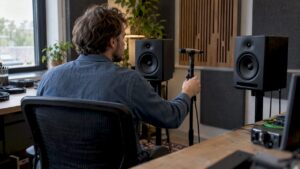
A simple, effective placement rule: speaker and listening position form an equilateral triangle. Ideally, monitors should be at ear height and pointed flat toward the listening position. Distance from walls affects low frequencies: experiment between 0.5 and 1 meter from the back wall.
Reference levels and multiple monitors
Consistent reference levels help with neutral mixing. Use an SPL meter or smartphone app to set a standard reference level (e.g., 83-85 dB SPL). For cross-checking, consumer speakers and headphones are useful to assess mixes on real listening devices.
Acoustics: the silent hero of any mix
Why acoustics are a priority
Even the best monitors sound bad in an untreated room. Room response, standing waves and early reflections distort the sound. Simple treatments often give the greatest improvement.
Basic treatment – where to start
- Basstraps in corners: tackles low frequencies and reduces modulation
- First reflection points on walls and ceiling: reduces inaccurate stereo images
- Diffusion behind the listening position: prevents sharp flutter echoes without overdamping
Measurement methods
An easy way to find problem frequencies is with a test tone sweep or RTA software. For accurate analysis, one can use a measurement microphone and software such as Room EQ Wizard.
Professional Solutions
For a fully customized approach, I4studio offers both acoustic products and on-site consulting. They combine hardware selection and acoustic treatment to create stable monitoring conditions to suit project needs.
Cable management, grounding issues and power
Cable management basics
Cleanliness reduces breakdowns and makes maintenance faster. Some practical rules:
- Use short, quality cables whenever possible
- Run audio and power cables separately to avoid noise
- Mark cables and create fixed routing with cable ties
Grounding and ground loops
Brumming due to ground loops is a common problem. Possible solutions:
- Feeding devices from the same power group
- Using ground elevator on DI boxes (with caution)
- In difficult cases: use of isolation transformers or power conditioners
Power supply
Power surges can damage audio equipment or lead to data corruption. A good practice is to use uninterruptible power supply (UPS) for the DAW computer and critical audio interfaces, and power conditioning for noise reduction.
Latency, buffer settings and drivers
Understand latency
Latency is the delay between input and output in a DAW. For recording, one wants as low a latency as possible; for mixing, the buffer can be larger for stability.
Practical settings
- During recording: buffer size between 64-256 samples (depending on hardware)
- During mixing: increase buffer size to 512-2048 samples for stability
- Use ASIO or proprietary drivers (e.g. Thunderbolt drivers) for low latency
High latency troubleshooting
If latency is too high, check:
- Driver updates and firmware of audio interface
- Background processes on the computer that load CPU
- Samplerate settings (44.1 kHz vs. 48 kHz vs. 96 kHz) – higher rates increase CPU load
DAW settings and plugin management
Optimal DAW settings
Each DAW has its own preferences, but general rules are:
- Use project-specific sample rates and maintain consistency within a project
- Disable unnecessary features (visualizers, auto-scan of plugins on startup) to save startup time and CPU
- Limit the number of simultaneous plugin instances where possible and render heavy tracks to audio when appropriate (bounce-in-place)
Plugin management
A well-organized plugin policy prevents crashes and confusion:
- Keep plugin folders separate and clean
- Use plugin managers or the DAW’s plugin scan function wisely
- Consider sandboxing tools for untrusted plugins
Workflow optimization and templates
Setting up templates
A template that matches the workflow saves a lot of time. Examples of what can be in a template:
- Tracks with routings (drums bussing, vocal chains)
- Reverb and delay aauxes with preset send levels
- Track names, colors and markers for quick navigation
Fast gain structure and metering
Consistent gainstaging prevents clipping and preserves headroom. Standardize levels (e.g. peak -6 dBFS as a starting point) and use reliable meters.
Version control
Versions are important. A simple workflow is:
- Save incrementals (song_v01, song_v02)
- Use a changelog in the project or in an external note
- For teams: consider Git-like systems for project files or use cloud-based DAW collaboration tools
Backups, redundancy and archiving
Backup routine
A solid backup strategy prevents nightmares. The 3-2-1 rule is useful:
- 3 copies of data
- 2 different storage media (local SSD + NAS)
- 1 offsite copy (cloud or physical storage at another location)
Automate
Automate backups with software or NAS schedules. For large projects, daily or per-session backups may be desired.
System images and recovery
Periodically create a full system image of the DAW computer. This speeds recovery in case of hardware failure and makes migration to new machines easier.
Collaboration and remote workflows
Project Sharing
When collaborating, clarity on sample locations and plugin lists deserves attention. Recommendations:
- Consolidate audio files into one folder per project
- Use offline-bounced votes for participants without the same plugins
Real-time remote session tips
Real-time collaborations over the Internet require stable connections and low latency facilities. Consider dedicated services or hardware acceleration for real-time audio-over-IP.
Ergonomics and comfort
Furniture selection and monitor arm
A good chair, a desk at the right height and monitor arms make long sessions less stressful. A monitor arm helps find the right height and angle without losing desk space.
Keys and controllers
MIDI controllers, fader controllers and hardware controllers can speed up workflow tremendously. The user must determine which physical controls are used most often and invest accordingly.
Mobile and compact DAW setups
Mobile requirements
For those working on the go, reliability and compact products are crucial. A mobile setup usually includes:
- Powerful laptop with Thunderbolt
- Compact audio interface with bus power
- Solid headphones and foldable monitors or minimal monitor solutions
Tips for road protection
Protect devices with flight cases, store drivers and installers offline, and create portable templates for quick startups.
Examples of DAW setups
Home project studio (single producer)
- Mid-range multi-core CPU, 32 GB RAM, NVMe SSD
- 2-in/4-out audio interface with good preamps
- Nearfield monitors and reference headphones
- Bassstraps and two absorbers at first-reflection points
Professional mixing room
- High core-count workstation with high-speed storage (NVMe RAID)
- 16+ in/outs, ADAT and digital sync
- Full acoustic treatment, diffusers and active monitor controllers
- Redundant backups and UPS
Post-production / Video
- Workstation with powerful GPU for video rendering
- Fast network NAS for shared media files
- Calibration of reference levels for broadcast
Practical checklist for installation
A step-by-step checklist one can use when setting up a DAW setup:
- Measure the space and determine monitor positions
- Select and install audio interface and associated drivers
- Install DAW and plugins, organize plugin folders
- Furnish cables and power supply; test for grounding problems
- Perform basic acoustic treatment (bassstraps, absorbers)
- Set buffer and sample rate settings and test latency
- Create template and test workflow with real projects
- Implement backup and recovery strategy
I4studio: how technical expertise and customization help
I4studio supplies customized audio and video workstations and offers advice on studio setups. For many users, the combination of a high-performance computer and targeted acoustic solutions is exactly what is needed to increase productivity. I4studio can help with:
- Advice on CPU/RAM/SSD configurations tailored to the type of projects
- Audio interface and I/O recommendations appropriate to recording needs
- On-site measurement work and custom acoustic treatments
- Installation and optimization of drivers, DAW settings and backup systems
Case in point: a small post-production studio asked I4studio to optimize its workflow for simultaneous running of video rendering and multitrack audio. By providing a higher-core-count workstation, fast NVMe storage and NAS backup, plus minimal repositioning of monitors and bass traps, the client was able to cut render times in half and achieve consistent mixes.
Maintenance and troubleshooting
Regular maintenance routines
- Update OS, drivers and firmware periodically (but not immediately after each update; test first)
- Clear temp files and cache
- Check cable connections and replace faulty cables
- Create regular system images and backup projects
Common problems and solutions
- Crashes on plugin load: recovery by re-running plugin scan or isolating unwanted plugins
- Audio artifacts: check buffer, drivers and CPU overload
- Brummen: check grounding and power routes
- Inaccurate monitoring: evaluate acoustics and replay with reference recordings
Final word
A well-thought-out DAW setup increases creativity and reduces technical frustration. With attention to hardware, monitoring, acoustics and workflow, many problems can be avoided. Practical implementation – from correct monitor placement to systemic backups and professional advice – makes the difference between a studio where things just work and one that inspires. For producers and professionals looking for integrated solutions, I4studio offers the technical expertise and products to build a stable, high-performance studio.
Frequently Asked Questions
What is the first step in setting up a DAW setup?
The first step is room and workflow analysis: measuring the room, determining the primary tasks and identifying what hardware is needed continuously. This creates a plan for monitor placement, I/O needs and acoustic treatment.
How much RAM does a typical DAW computer need?
For basic tasks, 16 GB are often sufficient. For professional use with large sample libraries and many plugins, 32 GB is recommended; for heavy orchestral or hybrid video projects, 64 GB or more is preferable.
Should one invest in acoustic treatment for home studios?
Yes. Even simple measures (bass traps in corners, absorbers on first reflections) significantly improve the listening environment and lead to better mixes. Professional treatment often pays off in more reliable results.
Which interface connection is most reliable for low latency?
Thunderbolt typically offers the best combination of low latency and high bandwidth, followed by USB-C/USB 3.1 for many modern interfaces. More important than the connector is driver quality and operating system compatibility.
When is it smart to seek professional help?
When projects grow in complexity – for example, when video rendering, multiple recording channels and critical monitoring come together – professional help makes sense. I4studio can provide advice and customization for both hardware and acoustics, saving time and costs in the long run.