Audio sync problems remain one of the most frustrating obstacles for audio professionals, musicians and videographers. Whether it’s a slight lip-sync anomaly in a music video, a choppy live stream or drifting tracks during a multitrack recording, solving sync errors requires an understanding of hardware, software and workflows. This article dissects the main causes of synchronization problems, provides concrete solutions for each situation and offers practical tips to avoid them in the future.
What Are Audio Synchronization Problems?
By audio synchronization problems we mean any situation in which sound and picture or multiple audio channels are not correctly aligned in time. This can be subtle – a delay of 50-100 ms is enough to disrupt the perception of lip-sync – or extreme, such as audio tracks slowly drifting apart during a long recording. For studio professionals and broadcasters, it is essential to understand both the cause and what solutions work in what context.
Common Causes
Synchronization problems can arise from different layers of the production chain. Here are the most common causes:
Sample Rate Mismatch
When devices use different sample rates (e.g., 44.1 kHz vs. 48 kHz), it results in subtle to severe drift between recording and playback. Even if conversion occurs, incorrect sample rate conversion can cause timing problems.
Clock problems (Clocking)
Audio interfaces and digital devices rely on a stable clock. When multiple devices are not synchronized on one master clock, jitter and drift occur. In professional environments, people often use word clock or SMPTE time code to keep devices “in sync.
Latency and Buffer Settings
Excessive buffer settings in a DAW or incorrect ASIO/drivers result in noticeable delays between input and monitoring. Conversely, buffer settings that are too low can result in dropouts and irregular timing.
Driver and Firmware Issues
Outdated or baby carriage drivers for audio interfaces cause unpredictable behavior. Firmware incompatibility between mixers, interfaces and converters can also undermine synchronicity.
Video Playback Delay and Codec Issues
In video post-production, mis-sync often occurs because video decoding and audio decoding take different paths on a system, or because GPU acceleration delivers frames with a different delay than audio buffering. Variable frame-rates and complicated codecs (such as VFR MP4) also cause problems.
Network Delay for Networked Audio
With Dante, AVB, AES67 or OPUS streams, packetloss, jitter or network congestion can cause delays and temporary desynchronization between nodes.
Human Errors and Workflows
Incorrect project settings (wrong sample rate), recording with different reference clocks, or forgotten timecode during movie shooting are common human causes.
How Does One Detect Sync Errors?
Before embarking on solutions, it is important to accurately measure and reproduce the problem.
Visual Inspection of Waveforms
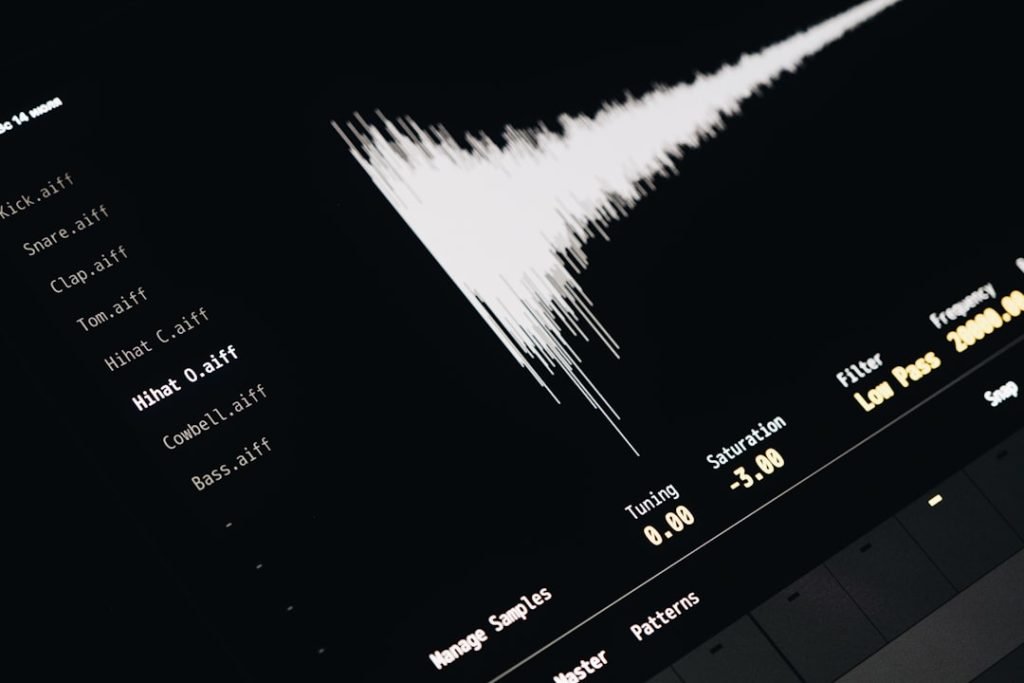
A simple, effective method: put audio and video into an editor and zoom in on transients (e.g., handclap, word beginnings). Placing peaks in the waveform next to the video frame often shows the offset immediately.
Use Of A Clapperboard Or Markers
Shooting on location traditionally uses a clapperboard. In studios, one can use digital markers or SMPTE time code to create reference points.
Latency Measurement Tools
Some DAWs offer a built-in latency meter. In addition, one can use measurement tools such as RTL Utility, Audio Hijack (Mac), or simple test recordings to calculate round-trip latency.
Command Line Example (FFmpeg)
For video files, FFmpeg can help test and correct offset. An example to shift an audio file forward by 0.1 second:
ffmpeg -i video.mp4 -itsoffset 0.1 -i audio.wav -map 0:v -map 1:a -c:v copy -c:a aac output.mp4This makes it easy to experiment different offsets and find the right delay.
Solutions Per Situation
Not every solution fits every workflow. Below are concrete steps for each common context.
Studio Recordings (Multitrack) – Drift Between Tracks
- Check sample rates: set all interfaces and DAW to the same sample rate (e.g., 48 kHz).
- Use one master clock: If one has multiple digital devices, designate one device as the master clock or use a dedicated word clock generator.
- Update drivers and firmware: Outdated firmware can cause subtle timing errors.
- Record reference channel: Record a reference (clap/click) on a separate channel; this makes later alignment easier.
Post-production (Video editing) – Lip-Sync Problems
- Establish offset: Compare sound transients with image. Write down the offset found (in ms).
- Correct in the editor: Most editors (Premiere, Final Cut, DaVinci Resolve) allow audio clips to shift or time-stretch easily.
- Use constant frame rate: Convert variable frame rate (VFR) video to constant frame rate (CFR) to reduce drift.
- Render presets check: Make sure the export profile does not do a sample-rate conversion without explicit checking.
Live Monitoring and Tracking
- Lag in monitoring: Use direct monitoring on the interface (hardware) rather than through the DAW monitor, if real-time feedback is needed.
- Buffer management: Increase buffer during mixdown, decrease during tracking if latency should be acceptable.
- Redundancy in broadcast: For live broadcast: use synchronized ingest and redundant timecode so that failover has minimal impact.
Streaming and Webcast
- Verify encoder settings: OBS and hardware encoders should set audio and video to the same timing; use hardware audio capture if possible.
- Network buffering: Ensure sufficient upstream bandwidth and configure jitter buffers where possible.
- NDI/RTMP latency: NDI offers low-latency network audio but requires a well-equipped network; for RTMP, expect more variable latency.
Networked Audio (Dante, AVB, AES67)
- QoS and dedicated network: use separate network for audio traffic, with Quality of Service and sufficient bandwidth.
- Synchronization via PTP: Make sure all nodes support PTP (Precision Time Protocol) and are properly configured.
- Monitor packet loss: Use network monitoring tools and set buffers adaptively in case of congestion.
Practical Checklist For Quick Troubleshooting
- Check that all devices use the same sample rate.
- Verify that there is one master clock; enable external clock if necessary.
- Update audio interface drivers and firmware.
- Test with direct monitoring to rule out latency from the DAW.
- Convert video files to CFR if VFR is suspected.
- Use a clapperboard or built-in markers for accurate reference points.
- Take a short test shot and measure offset with waveform zoom.
- If network audio is used: check PTP/Dante configuration and packetloss.
Timecode, Word Clock And Professional Synchronization
For high-end workflows, timecode and word clock are crucial.
SMPTE Timecode
SMPTE (SMPTE time code) is the standard in film and television for synchronizing picture and sound frame-by-frame. In multi-camera shoots and ADR sessions, SMPTE is indispensable.
Word Clock
Word clock synchronizes digital audio converters at the sample level. In studios with multiple converters and interfaces, it prevents sample drift.
Practical Tips
- Use a dedicated word clock generator or let one high-end interface be the master.
- For long recording session: periodically check time code integrity to detect drift early.
- For remote recording: use genlock or send a precise LTC stream to all units.
When Is It Time For New Hardware Or Professional Help?
Not all synchronization problems can be solved with a setting. If one frequently encounters the same issues, hardware and infrastructure may be the culprits.
- Older interfaces without stable clock: Consider replacement with a modern interface with reliable word clock and low jitter.
- Smarter workflow needed: For live broadcast and large multitrack setups, a specialized broadcast computer can add a lot of stability.
- Network issues: If the team is working with Dante or AVB and one experiences packetloss or jitter, an evaluation of network architecture is necessary.
I4studio can support this: with purpose-built audio and broadcast computers optimized for low latency, consistent drivers and compatibility with professional clocking systems. In addition, I4studio offers advice on rack setup, redundancies and acoustic solutions that contribute to reliability during recording and broadcast.
Examples From Practice
Example 1: Musician Experiencing Intermittent Drift
A singer-songwriter records a long live tracking session with an external recorder and a DAW. Halfway through, he notices that the backing audio is slowly lagging. Solution: sample rate mismatch discovered (recorder was at 44.1 kHz, DAW at 48 kHz). After correction and resampling, the drift was gone.
Example 2: Video Project With Lip-Sync Problems
A videographer delivers an interview where the lips lag 80 ms. Upon inspection, the camera was found to be using VFR; converting to CFR and shifting audio by 80 ms in the editor solved the problem. Lesson: always check frame rate and audio sample rate before import.
Example 3: Live Broadcast With Networked Audio
A small broadcaster was using Dante over the same office network as Wi-Fi and had interruptions. A dedicated VLAN, QoS and PTP configuration eliminated the audio dropouts and synchronization problems.
Useful Tools And Software
- DAWs: Pro Tools, Logic Pro, Reaper – all offer latency compensation and sample-rate tools.
- Monitoring tools: RTL Utility, Audio Hijack, Dante Controller.
- Video tools: DaVinci Resolve, Adobe Premiere, FFmpeg for batch editing.
- Network tools: Wireshark (for packet analysis), Dante Controller, PTP monitors.
Preventive Best Practices For a Stable Workflow
A consistent setup prevents a lot of hassle afterwards. Some best practices:
- Standardize settings: Choose one sample rate and keep it for the entire project.
- Document clock architecture: Put in the patch log which device is master and which converters are slaves.
- Create preflight checklist: Check drivers, firmware, sample rate, timecode and cables before each recording or broadcast.
- Use reliable cables and connectors: Poor S/PDIF or ADAT cables cause unexpected dropouts.
- Backups and redundancy: For live production, double record and work with redundant encoders.
Why a Specialized Workstation Can Help
Many problems arise because computers are not optimized for audio workloads. Specific concerns for audio workstations:
- Stable drivers and minimal background processes.
- Guaranteed low latency and sufficient I/O (Thunderbolt/PCIe/USB support).
- Ability for custom configuration: audio professionals often need multiple DSP cards, AD/DA converters and network cards.
I4studio provides computers specifically tuned for audio, video and broadcasting. Those machines come with preconfigured settings, tested driver sets and advice on clock and timecode integration. For studios that repeatedly experience synchronization problems, such an investment is often the fastest path to reliable workflows.
Summary
Audio synchronization problems arise from an interplay of sample rate mismatch, poor clock distribution, latency, drivers, codecs and network conditions. Identifying the source requires systematic measurement: waveform inspection, timecode/clapperboard and latency measurements. Solutions range from simple corrections in the DAW and video editor to deploying master clocks, PTP and network optimizations. Prevention is just as important: standardize sample rates, keep firmware up-to-date, use reliable cables and consider a specialized audio/broadcast workstation for critical production environments.
If the reader is looking for practical support, I4studio offers advice and hardware solutions for studios and broadcast environments, including customized workstations, clocking advice and installation help – just what one needs to tackle synchronization problems for good.
Frequently Asked Questions
What is the most common cause of audio synchronization problems?
The most common cause is a sample rate mismatch or incorrect clock setting between devices. Both cause subtle drift that quickly becomes noticeable during longer recordings or in video post-production.
How many milliseconds of delay is noticeable for lip-sync?
A delay of around 40-80 ms is often well audible with lip-sync. In video, it can be perceived as disturbing even at 20-30 ms, depending on human perception and the type of footage.
Can an update of drivers solve synchronization problems?
Yes. Outdated or corrupt drivers cause unpredictable behavior and latency. Updating drivers and firmware is one of the first steps in troubleshooting.
When is a word clock or SMPTE time code necessary?
For professional multi-device setups, live broadcasts and film productions, a master clock (word clock) and/or SMPTE time code is essential to prevent drift and frame-by-frame desynchronization.
What can one do if networked audio (e.g., Dante) is unreliable?
Use a dedicated audio network, set up QoS, disable unnecessary network services and monitor packetloss. If PTP is not working correctly, network switches and cables should be checked and possibly replaced.