UltraViewer is a small Windows program that allows someone else, with your permission, to view your screen and control your mouse and keyboard. For producers, video editors, and studio owners, this is especially useful when something goes wrong—such as an audio interface that’s crackling, a DAW that can’t find the driver, or a render that freezes halfway through. A specialist can usually fix these issues in a single session, without you having to pack up your PC. We also use UltraViewer ourselves to provide remote support to our clients. In this article, you’ll learn how to install it, establish a connection, transfer files, and properly end a session. You’ll also learn how to keep it secure, because your studio PC is your workplace—and you don’t just let anyone in there.
In a nutshell
- UltraViewer is remote control software. It runs on Windows, and you connect using an ID and a password.
- Always install the EXE file from the official download page. The portable ZIP version has fewer features.
- You can transfer files via the chat window (F1). To transfer multiple files, first compress them into a ZIP or RAR file.
- When you close UltraViewer, the session ends and the other person can no longer control your PC.
- Only give your ID and password to someone you’ve called yourself, such as your regular studio PC service provider. Never give them to an unknown caller.
Table of contents
- What exactly is UltraViewer?
- Why remote support is especially beneficial for a studio PC
- Installing UltraViewer and establishing a connection
- Transferring files during a session
- Ending a session properly
- Working Safely with UltraViewer
- Having trouble connecting?
- Free or paid license?
- A studio PC with support from professionals
- Our Approach to Remote Support
- Frequently Asked Questions About UltraViewer
- Resources
What exactly is UltraViewer?
UltraViewer is remote desktop software for Windows. According to the official download page, it works on Windows XP through Windows 11. The installation file is about 3.5 MB, so you can download it in just a few seconds.
The principle is simple. UltraViewer is running on both computers. Each installation displays its own ID and password. Anyone who wants to view the screen enters the other person’s ID and password and clicks Connect. The other PC’s screen then appears, and the helper can use the mouse and keyboard remotely.
In addition to remote control, UltraViewer has two other features that you’ll often use in practice:
- Chat: a window where you and the helper can type messages. This is useful if you don’t have a headset handy or if your studio monitors are on.
- File transfer: You drag a file into the chat, and the other person saves it. Examples include a log file, a driver, or a project file.
You don’t need an account for a standard username-and-password connection. Just install it, share your information, and the helper is ready to go.
Why Remote Support Is Especially Worth It for a Studio PC
A studio PC isn’t just an ordinary office computer. Audio and video place heavy demands on your system, and the root cause of a problem often lies in how the components work together. Here are a few examples that every producer or editor will recognize:
- Pops and clicks during recording: often a matter of buffer size, driver settings, or a power-management scheme that throttles the processor.
- High latency during live recording: you hear your own voice or synth just a split second too late, which makes recording nearly impossible.
- An interface that isn’t recognized after a Windows update: the driver needs to be reconfigured properly.
- Plugins that crash or fail to load: licenses, scan paths, or 32/64-bit issues.
Problems like this are hard to explain over the phone. A specialist who can see your screen can immediately check your DAW, your audio settings, and your device manager. That saves you from having to exchange emails back and forth with screenshots. And your PC stays right there in your studio, with all the cables and peripherals connected—exactly as you use it.
This is also where the big difference lies compared to endlessly searching forums on your own. A tip that works for a different setup might actually cause new problems with your specific combination of hardware, interface, and software. Someone who knows how a studio PC is built for low latency and stability looks at the entire system—not just a single symptom.
Installing UltraViewer and Connecting
The installation is quick, but there are a few places where things can go wrong. Follow these steps.
Step 1: Download the correct version
Go to the official UltraViewer download page and select the EXE installer. There’s also a portable ZIP file there, but it’s not officially supported and has fewer features than the EXE. Don’t download the program from random download sites. You can never be sure you’re getting a clean and up-to-date version.
Step 2: Install the program
Run the downloaded file and follow the installation wizard: select “Install” and then “Finish.” Windows may ask for permission to make changes. Grant that permission, because without it, UltraViewer won’t be able to connect properly.
Step 3: Write down your ID and password
Open UltraViewer. On the left side of the window, you’ll see your ID and password. Give these to the person who is helping you, for example, by phone or email. You don’t need to type anything yourself—the helper will establish the connection.
Step 4: Have the helper connect
The helper will enter your ID and password and click “Connect.” You’ll then see a notification that someone is connected. From that point on, the helper can view and control your screen. Stay with it so you can see exactly what’s happening and ask questions via chat.
Step 5: Set up your studio PC
Here’s another tip that applies specifically to studios: Save your open projects and close any sessions you don’t need before the helper connects. If the issue only occurs in a specific project, leave that project open. And turn down your monitor volume, because unexpected sounds may come through while testing audio settings. Did you just create your own backup? Then be sure to read about the difference between System Restore and a full backup, so you know what’s safely backed up before work is done on your system.
Transferring Files During a Session
Sometimes you need to transfer a file from one PC to another. For example, a crash log from your DAW, a new driver, or a short test project. According to the official instructions on sending files, here’s how it works:
- While connected, press F1 to open the chat window.
- Drag the file into the chat window.
- The recipient clicks Save to save it.
If you want to send multiple files or an entire folder, first compress them into a ZIP or RAR archive. This is faster and prevents individual files from being missing.
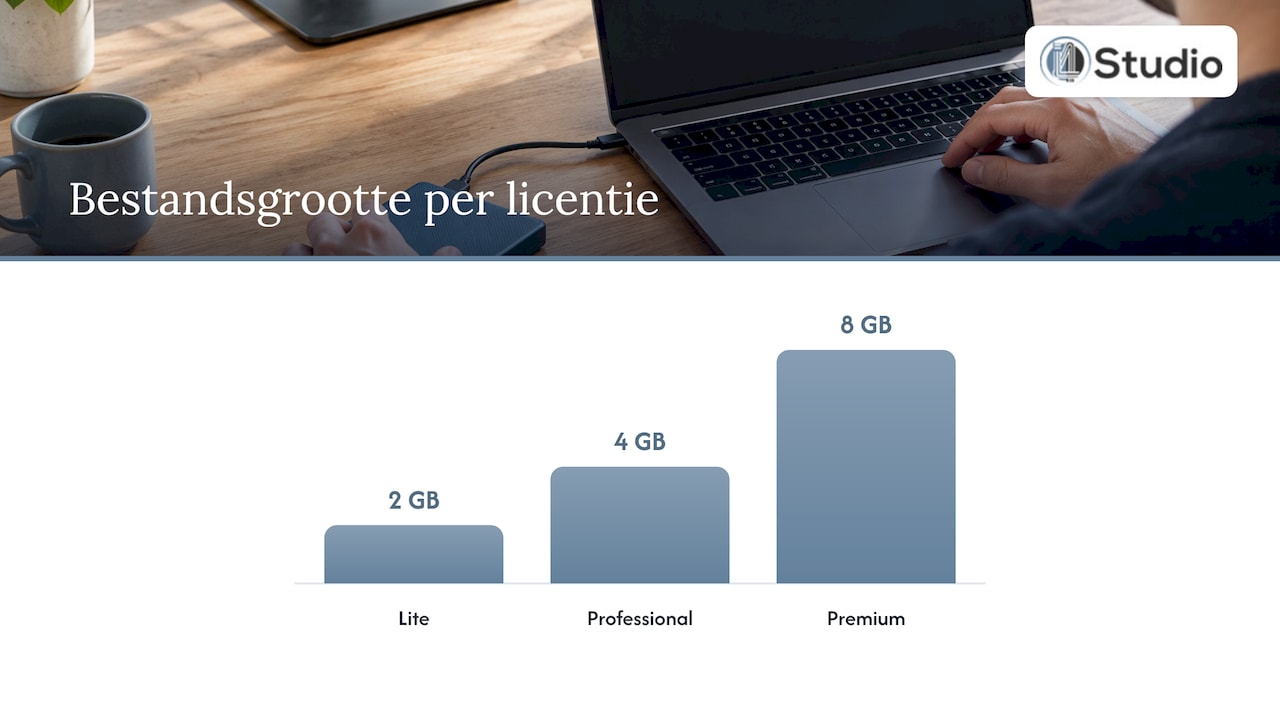
Be mindful of the file size. A complete project with audio recordings or video footage can quickly reach several gigabytes in size. Paid licenses have fixed limits per file: 2 GB for Lite, 4 GB for Professional, and 8 GB for Premium. A large project is rarely necessary for support. Usually, a log file or a small test session is sufficient.
Ending a Session Properly
Are you ready? If so, close UltraViewer. According to the official FAQ, your partner will no longer be able to control your computer after that. This is because a normal session only works as long as the program is running on both ends.
If you want to be sure that the program is really closed and does not hang in the system tray, select File from the menu. >Exit . The next time you start UltraViewer, it will generate a new password, unless you have set a permanent password yourself. An old password that you previously shared will therefore no longer work.
Working Safely with UltraViewer
UltraViewer is legitimate software. Still, it’s good to know how scammers exploit these types of programs. The Fraud Help Desk describes help desk fraud as follows: scammers pose as help desk employees of a well-known company and ask you to download a program so they can “repair” your computer remotely.
Follow these guidelines to keep your studio PC safe:
- You take the initiative. Only share your ID and password with someone you’ve contacted yourself, such as the supplier of your studio PC. An unsolicited caller or a pop-up claiming your PC is infected will never gain access.
- Be careful with fixed passwords and unattended access. PCRisk warns that a fixed password or access without you being present could allow repeated access. You don’t need that for a one-time support session.
- Stay connected during the session. You’ll see everything that happens on your screen, and you can log out at any time.
- Block file transfers if you wish. With an advanced license, you can disable the retrieval of files from your PC. Close UltraViewer via File > Exit, restart it as an administrator, and under Settings > Security, disable the “Allow get a file from my device” option.
Do you think an unauthorized person may have gained access? If so, immediately disconnect your computer from the internet, uninstall the software, and contact your bank if you logged into online banking during that session. Also report it to the Fraud Help Desk.
Having trouble connecting?
A failed connection is usually due to one of these three things:
- Outdated information. The password changes after restarting UltraViewer. Please provide the current ID and password.
- The firewall. Windows or your antivirus program may be blocking the connection. UltraViewer recommends allowing the program in Windows Security under Firewall & Network Security > Allow an app through the firewall, for both private and public networks.
- Does it get stuck on “getting my ID”? According to the official solution, go to Settings > Option, set “Connect using port” to port 2112, and restart the program. Also, make sure your firewall isn’t blocking port 2112 or the UltraViewer_desktop.exe process.
Also, just make sure your internet connection is working. A studio PC that you intentionally keep offline to prevent disruptions during recordings will need to be temporarily brought back online for a support session.
Free or paid license?
For a support session where someone helps you, the free version is sufficient. You install it, share your ID, and the helper connects. The paid licenses are intended for people who frequently manage other computers themselves. They remove the ads and increase the limits.
The official price list showed the following monthly fees in 2026:
| License | Price per month (2026) | Max. file size |
|---|---|---|
| Free | $0 | Not listed |
| Lite | $3.99 | 2 GB |
| Professional | $5.99 | 4 GB |
| Premium | $7.99 | 8 GB |
Prices are subject to change. Therefore, always check the UltraViewer pricing page for the current rates and terms.
A studio PC with support from professionals
Remote support works best when the technician knows your system inside and out. That’s why we build custom studio PCs for audio and video, with a focus on stability and low latency. Our studio PCs start at €1,099. If you want more processing power for large sessions or 4K editing, check out the Power Producer Ultra 9 for DAW and video or the Power Producer Gold Ultra 7.
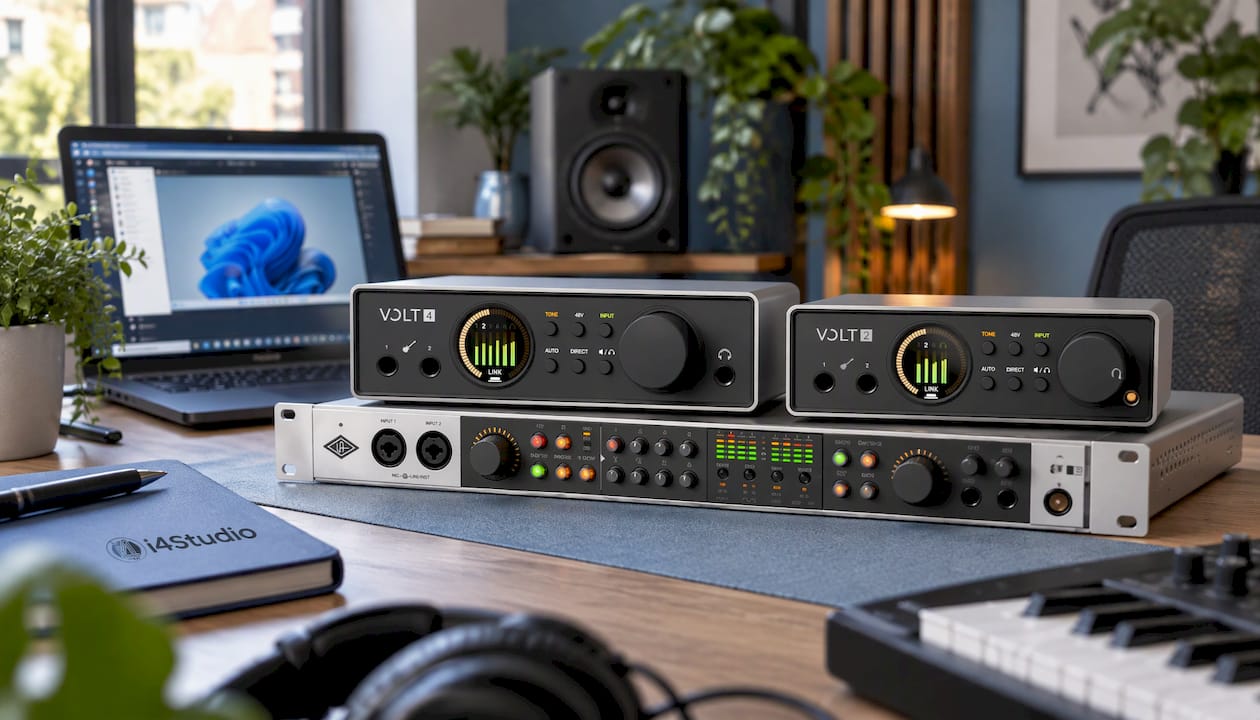
Do you already have a system that needs more power? Then check out our computer upgrade options. We also carry everything else you need for your setup: from audio interfaces like the Volt 4 Gen 2 to studio monitors, microphones, software, and acoustic panels.
Our Approach to Remote Support
A studio PC just has to work. When you’re in the middle of a recording or have a deadline for an edit, you don’t want to spend hours trying to figure out why your monitors are crackling or why a plugin won’t load.
That’s why we believe in combining a well-configured system with personalized support from experts in the field. A PC built from the ground up for stability and low latency causes fewer problems. And if something does go wrong, we’ll take a look at your system remotely via UltraViewer. That way, you don’t have to take your setup apart, and you can see exactly what we’re adjusting.
What we often notice is that problems in a studio rarely stem from a single component. The computer, the audio interface, the drivers, and the software all work together. If you understand the whole system, you can pinpoint the cause more quickly. That’s also why we don’t just build computers—we also provide the equipment and acoustics that go along with them. Do you prefer to use a different remote access program? We also have setup instructions for TeamViewer.
Harold
Frequently Asked Questions About UltraViewer
Is UltraViewer free?
Yes, you can download and use UltraViewer for free for remote sessions. There are paid licenses (Lite, Professional, and Premium) that remove ads and increase limits, such as for large files. You don’t need one of these for a support session where someone is helping you.
Does UltraViewer work on a Mac?
UltraViewer is software for Windows. The official download page lists Windows XP through Windows 11 as supported versions. So if you’re working on a Windows studio PC, you’re all set.
Can someone still access my computer after the session?
Not during a normal session. As soon as you close UltraViewer, the other person can no longer control your PC. If you’ve set up a fixed password or unattended access yourself, be sure to change or remove it afterward if you no longer want to grant that access.
How do I send a large project file?
Open the chat with F1 and drag the file into it, or first compress multiple files into a ZIP file. Paid licenses allow files ranging from 2 GB to 8 GB per file. For support, a log file or a small test project is usually sufficient.
Does UltraViewer slow down my DAW?
During a session, your screen is streamed, which uses some processing power and bandwidth. When you’re done, close the program so it doesn’t run in the background while you’re recording. This ensures your system remains fully available for your audio and video.
Sources
UltraViewer: Official Download Page
UltraViewer: Sending Files
UltraViewer: Price List
UltraViewer: Frequently Asked Questions
UltraViewer: Block File Transfers
UltraViewer: Troubleshooting Connection Timeouts
UltraViewer: Stuck on “getting my ID”
Fraud Help Desk: Contacted a help desk
PCRisk: UltraViewer Tech Support Scam