For a reliable DaVinci Resolve workstation, a discrete GPU with sufficient VRAM is the most important investment. You’ll also need at least 16 to 32 GB of RAM and fast NVMe drives for media and cache. Keep your drivers and firmware up to date: this prevents most freezes and crashes before they occur.
Briefly:
- A GPU with at least 12 to 16 GB of VRAM is required for stable 4K and 8K editing, especially when using Studio AI and Fusion features.
- For a smooth workflow, a minimum of 16 GB of RAM is required on Windows and 8 GB on macOS, with higher requirements for more complex projects or when using Fusion.
- Fast NVMe storage of at least 500 GB, supplemented by a separate media file drive, prevents stuttering and speeds up rendering for large projects.
- A processor with 6 to 8 cores is sufficient for light editing, but a 12+ core CPU is recommended for Fusion-intensive work and multicam projects.
- Regular driver and firmware updates, along with proper cooling, prevent most crashes and recurring issues while working in Resolve.
Table of contents
- Official System Requirements vs. Real-World Resolve Hardware Requirements
- Which processor is right for your editing workflow?
- How much VRAM do you need for 4K, 8K, and Studio AI?
- RAM and Storage: How to Set Up Your Drives Smartly?
- Which configuration fits your budget and workflow?
- What should you do if you encounter crashes or stop codes while editing?
- Why experience with custom builds makes all the difference
- What You Really Need to Do Differently from What Most Guides Recommend
- Need help putting together your Resolve workstation?
- Resources
- Frequently Asked Questions
Official system requirements versus the reality of hardware requirements
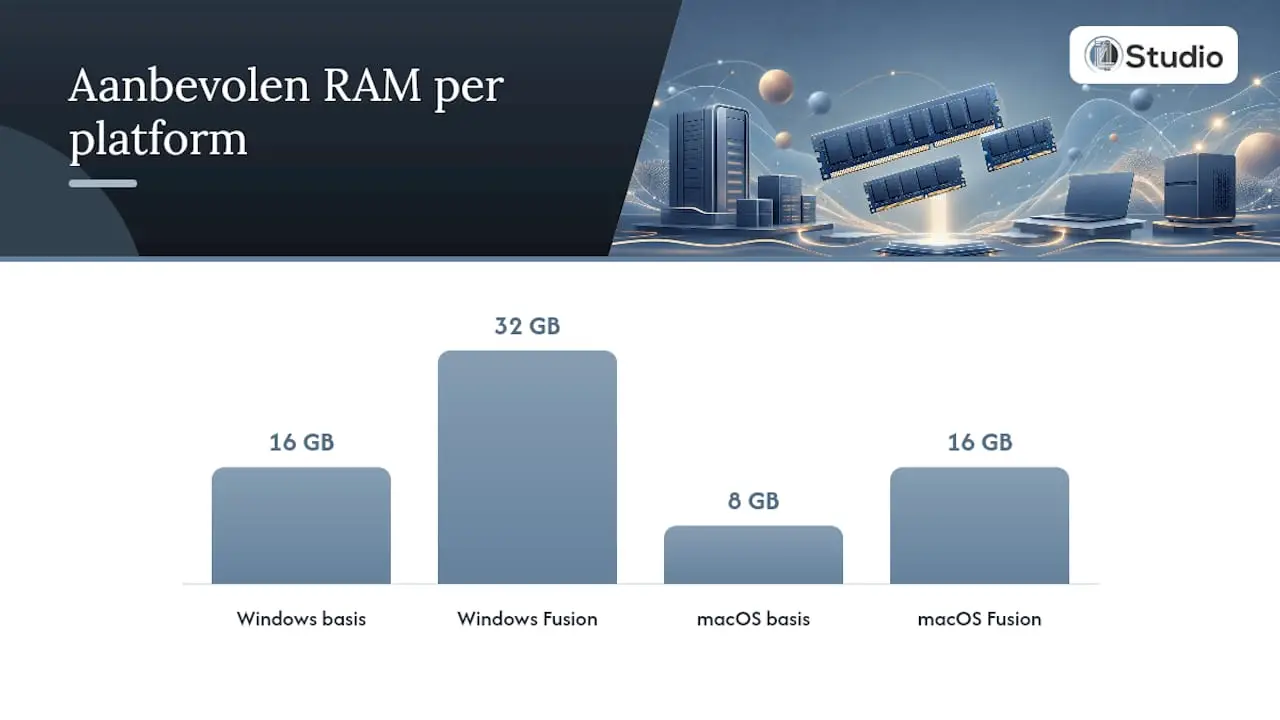
Blackmagic Design publishes a minimum list for each platform, but that list is a lower limit, not a working recommendation. On Windows, the official readme typically lists 16 GB of RAM as the baseline and 32 GB when working with Fusion. On macOS with Apple Silicon, 8 GB is the baseline and 16 GB is required for Fusion use. These figures are a starting point, not a target.
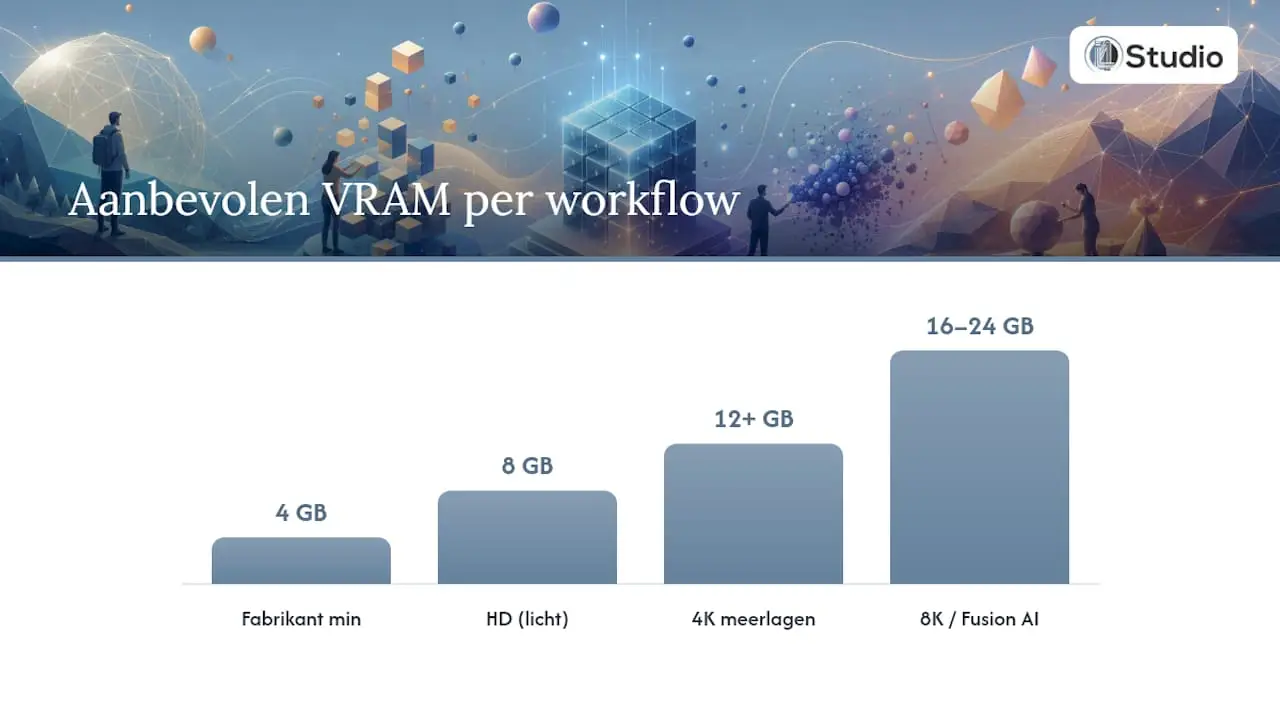
The mentioned 4 GB GPU minimum is primarily a compatibility threshold, not a guarantee of a smooth workflow. In practice, you’ll quickly reach the limits of such a card when working with 4K timelines or Fusion compositions. Studio AI features, such as facial recognition and automatic color correction, require additional GPU memory and processing power on top of the basic requirements.
Practical guidelines to follow for a consistent approach to hardware requirements:
- Windows: at least 16 GB of RAM; 32 GB for Fusion or multiple layers of effects.
- macOS (Apple Silicon): 8 GB as an absolute minimum, 16 GB for comfortable Fusion work.
- Linux: Similar requirements to Windows, with extra attention to driver support for your GPU brand.
- Studio AI features: Expect to need at least 12 GB of VRAM for stable, lag-free performance.
- Storage: a system drive of at least 500 GB, separate from your media volumes.
If you’re only editing HD projects, the official minimums will suffice for a while. As soon as you combine 4K, multicam, or color grading with many nodes, upgrading isn’t a luxury—it’s a necessity.
Which processor is right for your editing workflow?
DaVinci Resolve relies more on the GPU than on the CPU, but that doesn’t mean your processor isn’t important. Fusion compositions, noise reduction, and exporting to certain codecs (especially H.264 and H.265 without hardware encoding) place a heavy load on your processor cores. Multicam projects with many simultaneous streams also benefit from more cores.
For edit-only work that doesn’t involve heavy Fusion tasks, a processor with 6 to 8 fast cores is more than enough. As soon as you start using Fusion intensively or working with complex VFX compositions, a processor with 12 cores or more is worth the investment. Laptops are great for editing on the go, but a desktop remains the better choice once you’re regularly working with 4K or 8K footage: they simply offer better cooling and more power.
Practical choices for each workflow:
- Edit-only (HD/4K, few effects): 6 to 8 cores, high clock speed.
- Multicam projects: More cores matter more than pure clock speed.
- Fusion-heavy compositions: 12+ cores, large cache, stable cooling.
- Laptop use: Choose a model with good thermal management; otherwise, the CPU will throttle quickly.
Pro tip: In your BIOS, set the power profile to “Performance” instead of “Balanced.” During long-term exports, this prevents unnecessary clock speed drops caused by aggressive power management.
Firmware updates for your motherboard are important as soon as you notice that new generations of processors aren’t running stably, or when manufacturers release an update that improves memory timing. Check for updates a few times a year, not just when you’re having problems.
How much VRAM do you need for 4K, 8K, and Studio AI?
The GPU is the engine of Resolve. Decoding modern codecs, color correction via OpenCL, CUDA, or Metal, Fusion rendering, and OpenFX plug-ins all rely heavily on your graphics card. Studio AI features such as automatic reframing and speech recognition also run primarily on the GPU.
A VRAM shortage is the most common bottleneck in professional video editing. Vendors often cite 4 GB as the minimum requirement, but practical tests show that this is often insufficient for a stable 4K or Fusion workflow. Guidelines that hold up in practice:
- HD editing, light color correction: 8 GB of VRAM is a good starting point.
- 4K editing with multiple layers: plan on 12 GB or more.
- 8K projects: 16 to 24 GB of VRAM prevents your timeline from stuttering.
- Fusion-heavy or Studio AI workflows: 16 to 24 GB or more, depending on the complexity of your compositions.
Studio AI features such as automatic object recognition and speech transcription may experience noticeable slowdowns on graphics cards with less than 12 GB of VRAM, especially when used simultaneously with other GPU tasks such as background rendering.
Driver management is just as important as the hardware itself. Outdated or corrupted GPU drivers are one of the most common causes of crashes and stop codes during editing. Stop codes such as PAGE_FAULT_IN_NONPAGED_AREA and MEMORY_MANAGEMENT often indicate driver conflicts or memory issues, and Microsoft recommends ruling out software-related causes first before considering hardware replacement. Errors such as Code 43 are also not hardware defects in most cases: a clean driver installation using an uninstaller resolves the majority of these issues.
Want to learn more about optimizing your system settings related to drivers? Check out our guide on optimizing DAW performance.
RAM and Storage: How to Set Up Your Drives Smartly?
Memory and disk architecture together determine whether your timeline scrolls smoothly or stutters with every node you add. Both require a different approach than most editors realize.
There’s a simple rule of thumb for RAM:
- 16 GB is sufficient for light HD editing without Fusion or heavy color correction.
- 32 GB is a realistic baseline for multi-layered 4K projects with moderate use of Fusion.
- 64 GB becomes necessary as soon as you combine Studio AI features with complex Fusion compositions or run multiple rendering processes simultaneously.
For storage, a tiered setup works best: an NVMe drive for your operating system and cache files, and a separate NVMe or fast SSD drive for your media files. Never combine these on a single volume if you regularly work with 4K or 8K, as read and write operations will interfere with each other.
Keep at least 10 to 15% of free space on each drive. Windows documentation states that this margin is necessary for system functions such as the paging file, and a full drive is an often-underestimated cause of slowdowns during rendering.
Pro tip: Update the firmware on your SSDs regularly using the manufacturer’s tool. Outdated firmware can noticeably slow down write speeds—something you’ll only notice if you run specific benchmarks.
Which configuration fits your budget and workflow?
A well-balanced build doesn’t depend on the most expensive component, but on the right balance between the CPU, GPU, RAM, and storage. Three guidelines that work well in practice:
- Entry-level: a 6- to 8-core processor, a GPU with 8 GB of VRAM, 16 GB of RAM, and a single 1 TB NVMe drive. Great for HD and light 4K editing, but Fusion remains limited.
- Professional: 12 cores, a GPU with 12 to 16 GB of VRAM, 32 GB of RAM, and a split storage configuration (NVMe for the system, a fast SSD for media). This is the sweet spot for most freelance editors and small studios.
- High-end: 16+ cores, a GPU with 24 GB of VRAM or more, 64 GB of RAM, multiple NVMe volumes, and a well-sized power supply of at least 850 watts with ample cooling capacity. Required for 8K projects and demanding Studio AI or Fusion workflows.
With every step up in performance, cooling and power supply become more important than most people expect. A powerful GPU that’s thermally throttled performs worse than a cheaper card that can keep running at full speed. Choose cases with sufficient airflow, and err on the side of a power supply that’s too large rather than too small.
Purchasing and Installation Checklist:
- Make sure your power supply has enough headroom for future GPU upgrades.
- Install drivers and firmware immediately after the first boot, not only when problems arise.
- Test your storage and memory before you start working on important projects.
- Match peripherals such as monitors and audio interfaces to the available ports on your motherboard.
You can find concrete, tested examples of this type of setup in our studio PC examples.
What should you do if you encounter crashes or stop codes during editing?
A crash while rendering an important project is frustrating, but the cause is more often software than hardware. Follow these steps in order, and only replace hardware components once you’ve ruled out all the previous steps:
- Basic check: Check power cables, data cables, and make sure all components are properly connected.
- Disconnect peripheral devices: disconnect docking stations, external drives, and USB hubs. External USB controllers are a common, often underestimated cause of system crashes.
- Check Device Manager and logs: Look for exclamation marks next to drivers and check the stop code in the Windows log.
- Clean up drivers: Completely remove GPU drivers using an uninstaller and reinstall the latest version.
- Run disk tests: Run “
chkdsk C: /r” to detect and repair storage errors. - Run a memory test: Use a memory testing tool to rule out faulty RAM modules.
- Updating the BIOS and firmware: Update the motherboard and GPU firmware to the latest stable version.
It turns out that about 60 to 80% of recurring issues in professional setups can be traced back to outdated drivers or firmware conflicts, not to defective parts. That’s exactly why Step 4 so often solves the problem long before you even think about replacing anything.
Stop codes such as PAGE_FAULT_IN_NONPAGED_AREA and MEMORY_MANAGEMENT specifically indicate memory or driver issues, so they’re a good place to start your investigation. Seek professional help as soon as you can provide the exact stop code, a system log export, and the results of your memory and disk tests—this will save a technician hours of troubleshooting. For driver issues specific to audio equipment, our guide on troubleshooting audio interface problems can help.
Why Experience with Custom Builds Makes the Difference
We have years of experience building custom workstations for audio and video professionals, with various models serving as examples of well-optimized configurations. That experience translates directly to Resolve builds: the balance between GPU VRAM, RAM, and storage isn’t chosen in isolation, but is tailored to the editor’s actual workflow.
What that means in practice:
- Each configuration is tailored to the type of projects: HD editing, 4K color correction, or Fusion-intensive composites.
- Cooling and power supplies are pre-configured to handle the most demanding GPU that is realistically used.
- Drivers and firmware are updated to the latest stable version upon delivery, not the default out-of-the-box version.
For those who’d rather see examples first before having a conversation: the page on PCs for video editing shows how these principles are reflected in ready-to-use options.
What You Really Need to Do Differently from What Most Guides Recommend
Most hardware guides for Resolve simply repeat the official minimum requirements, and that’s exactly the problem. A 4 GB GPU minimum is technically true, but in practice, it’s a trap for anyone who does more than just edit individual HD clips. I see this happen time and time again: someone buys a system based on the readme, and within a few months runs into VRAM limits as soon as they add a Fusion node or a Studio AI feature.
The underestimated factor isn’t the processor or the GPU itself, but the combination of cooling, power supply, and driver management. A high-end card that’s thermally throttled performs worse than a mid-range card that can keep running at full speed. And a system that runs for months without a driver update accumulates exactly the kind of conflicts that lead to unexplained crashes.
My advice: Start with the GPU and VRAM, then build around them with sufficient RAM and a tiered storage setup, and treat driver and firmware maintenance not as a one-time task at the time of purchase but as a recurring ritual. That’s less exciting than talking about the latest processor, but it prevents most of the problems editors actually run into.
– harold
Need help building your Resolve workstation?
There are alternatives to researching and assembling components yourself: custom studio PCs that are pre-configured for specific Resolve workflows, including the correct versions of drivers and firmware already installed. Instead of running into VRAM limits and driver conflicts on your own, you’ll start right away with a system built for stability and low latency, with personalized support from industry experts.

Whether you need an entry-level model for HD editing or a high-end workstation for 8K and Fusion-heavy composites: check out the options on the video editing PC page or get inspired by the studio PC examples. Request a custom configuration and kick off your next project on hardware that’s already tailored to your workflow—instead of just hoping for the best.
Sources
- Bug Checks (Blue Screens) – Microsoft Learn
- DaVinci Resolve System Requirements (2026) – DaVinci Resolve Club
- How to Use CHKDSK in Windows – AVG Signal
Frequently Asked Questions
What are the minimum hardware requirements for DaVinci Resolve?
The official minimums are 16 GB of RAM on Windows (32 GB for Fusion), 8 GB on macOS with Apple Silicon (16 GB for Fusion), and a GPU with at least 4 GB of VRAM. For 4K editing or Studio AI features, the realistic minimum is significantly higher, as shown in the official system requirements.
How much VRAM do I need for 4K editing in Resolve?
For stable 4K editing with multiple layers, you’ll need at least 12 GB of VRAM. For 8K projects or demanding Fusion and Studio AI workflows, that increases to 16 to 24 GB or more.
What are the most common causes of stop codes during editing?
Stop codes such as PAGE_FAULT_IN_NONPAGED_AREA and MEMORY_MANAGEMENT usually indicate outdated drivers or memory conflicts, not faulty hardware. Always start by ruling out driver and software issues before replacing hardware.
How much free disk space should I keep available for Resolve?
Make sure to leave plenty of free space on every drive you use for the system and media. This space is needed for system functions such as the swap file and helps prevent glitches during rendering.
Can I have a custom PC built for Resolve at i4studio?
Yes, i4studio provides custom studio PCs that can be tailored to Resolve workflows, starting with the Studio PCs at a one-time cost of €1,099. Check out the options at I4studio for a configuration based on your specific project.