TL;DR:
- Latency in recording results from the combination of input, processing and output delays, with buffer size and sample rate being key influencers. Excessive buffer size slows down monitoring and can frustrate musicians, while direct hardware monitoring keeps delays minimal. Correct settings and good hardware ensure an optimal recording experience without time loss or glitching.
Latency in recording is the time delay between when you make a sound and when you hear that sound through your monitors or headphones. That delay may sound small, but for a drummer playing on the click or a singer monitoring his intonation, even a few milliseconds makes a difference. The delay results from a series of technical steps: analog-to-digital conversion, buffering in your DAW, plug-in processing and digital-to-analog conversion back to your speakers. Those who understand how latency works in recording processes make better decisions about buffer size, sample rate and monitoring workflow.
What causes latency when recording?
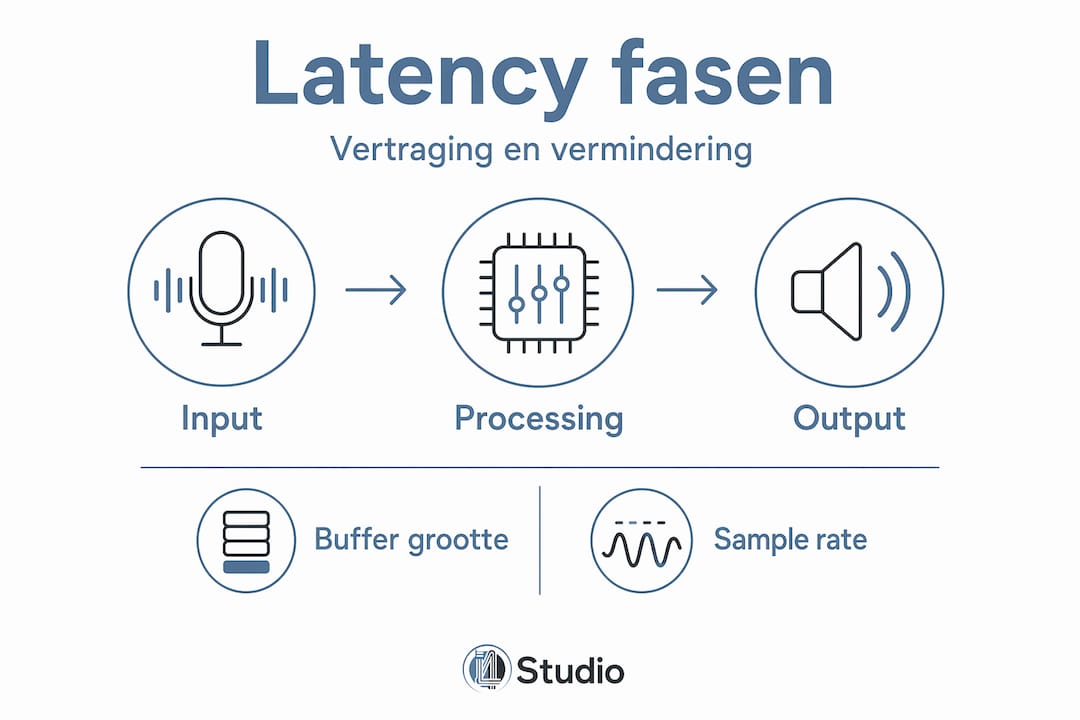
Round-trip latency is the sum of all the delays that occur between the time a signal comes in and the time you hear it back. That sounds like one problem, but it consists of three separate stages, each contributing to the overall delay.
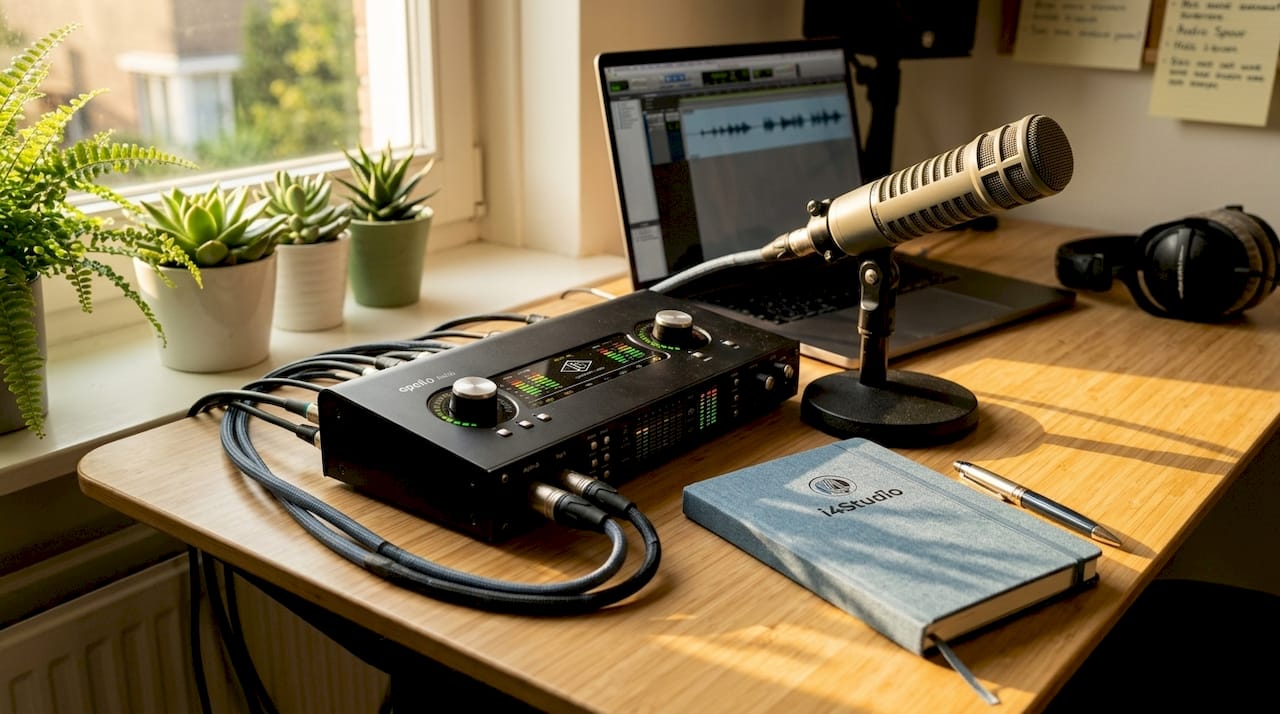
Input latency is the time it takes to convert your analog signal, say from a microphone or guitar, to digital data and send that data to your DAW. The speed of your audio interface and the quality of the driver play the biggest role here.
Processing latency occurs in your DAW itself. Each plugin you have on a track adds a small delay. The more plugins are active during recording, the greater the overall processing latency. Buffer size is the main control knob here: a larger buffer gives the processor more time to calculate, but also increases the latency.
Output latency is the time it takes for the processed digital data to be converted back to an analog signal and sent through your interface to your monitors or headphones.
The three stages together make up the round-trip latency. This is the number you have to deal with as a musician during recording. The difference between hardware and software latency is relevant here: a good audio interface with low driver latency can keep the input and output phases short, but if your DAW is full of plug-ins, the processing phase still determines the total delay.
- Input latency: A/D conversion and signal transfer to the DAW
- Processing latency: buffer size, DAW processing and active plugins
- Output latency: D/A conversion and signal transfer to monitors
- Round-trip latency: the sum of all three phases
- Hardware vs. software: interface and driver determine input/output, DAW and plugins determine processing
How do buffer size and sample rate affect latency?
Buffer size is the most direct setting by which you control latency in your recording process. A buffer is a temporary area of memory that your DAW stores audio in before it is processed. Smaller buffers lower latency but increase CPU load and the risk of clicks and pops. Larger buffers give more stability but noticeably increase latency.
| Buffer size (samples) | Latency (at 44.1 kHz) | CPU load | Stability |
|---|---|---|---|
| 32 | ~0.7 ms | Very high | Low |
| 64 | ~1.5 ms | High | Moderate |
| 128 | ~2.9 ms | Average | Good |
| 256 | ~5.8 ms | Low | High |
| 512 | ~11.6 ms | Very low | Very high |
| 1024 | ~23.2 ms | Minimum | Maximum |
Pro Tools works with a hardware buffer between 32 and 1024 samples, with the low-latency domain using 32 to 128 samples and the high-latency domain fixed at 1024 samples at 44.1 or 48 kHz. This dual-domain system makes it possible to stay low during tracking and give more space to heavy plugins during mixing.
Sample rate also affects latency, but in a different way. Higher sample rates theoretically halve latency but at the same time double the CPU load. Recording at 96 kHz gives slightly less latency than 48 kHz at the same buffer size, but your processor has twice as much work. For most home studios, 48 kHz with a low buffer size is the wisest choice.
Pro-tip: Set your buffer size as low as stable as possible during tracking. Then increase the buffer before the mix phase so that you can use heavy plugins without glitches.
How does latency affect musicians?
Latency above 20 ms becomes noticeable and leads to timing problems for musicians. That’s the limit to keep an eye on. Anything below 10 to 20 ms is acceptable to most people while monitoring through the DAW.
The effects are not the same for everyone. A guitarist playing chords is less likely to notice latency than a drummer playing on the click or a pianist playing fast runs. Rhythmic instruments are most sensitive to latency because the timing of each note is immediately visible and audible in the recording.
- Drums and percussion: even 10 ms delay can shift the groove audibly relative to the click
- Piano and keyboard: fast passages sound unnatural when the monitoring signal lags
- Vocals: a singer who hears his own voice with a delay is going to unconsciously adjust his intonation, leading to pitch problems in the recording
- Guitar and bass: less sensitive to small delays, but at high latency, playing loses its natural feel
- Wind instruments: the feedback of their own sound is crucial for tone formation; delay directly disrupts this
High latency also causes frustration. Musicians who cannot monitor comfortably play less relaxed and make more mistakes. The recording experience deteriorates, and you hear it in the results. So latency is not just a technical problem. It’s a performance problem.
What techniques help reduce latency when recording?
The most effective way to reduce latency is to use hardware direct monitoring. In this, you hear your signal directly through the audio interface, without having to go through the DAW. The latency is then virtually zero. Most modern interfaces, such as models from Focusrite, Audient and Universal Audio, have a direct monitoring feature built in.
- Turn on hardware direct monitoring on your audio interface while recording. This way you bypass DAW buffering completely and hear yourself without noticeable delay.
- Lower the buffer size to the lowest stable setting for your system. Start at 128 samples and go lower step by step until you hear glitches. Then go back up one step.
- Limit active plugins during tracking. Each plugin adds processing latency. During recording, use only what is needed, such as a compressor or EQ for monitoring. Add the rest after tracking.
- Use a hybrid workflow. Low-latency monitoring during tracking and applying plugins afterwards via bounce or overdub prevents CPU overload and keeps latency low.
- Optimize your system. Close unnecessary programs during recording sessions. Use a dedicated audio PC or optimize Windows for audio through proper power management settings. I4studio has a comprehensive guide on PC optimizing for audio in Windows 11.
- Choose the right driver. On Windows, ASIO gives the lowest latency. Always use your interface’s ASIO driver, not the generic Windows driver.
Pro-tip: For busy sessions with lots of plugins, use a separate monitoring bus without heavy effects. Send your recording signal there and keep the main mix heavily loaded. That way you combine low monitoring latency with a full mix.
For home studios, the combination of direct monitoring and low buffer size is the most practical approach. You don’t need to buy expensive hardware to reduce latency. Good settings and a tidy system already do a lot.
How do you recognize latency problems and what do you do about them?
Latency problems manifest themselves in two ways: as audible delays during monitoring, or as audio glitches in the recording. Both have a different cause and a different solution.
Buffers that are too small cause clicks, pops and audio glitches due to CPU overload. These are called xruns: times when the processor cannot fill the buffer in time. You hear this as crackling or dropping audio. The solution is to increase the buffer size until the glitches disappear.
| Symptom | Cause | Solution |
|---|---|---|
| Clicks and pops during recording | Buffer too small, CPU overloaded | Increase buffer size to 256 or 512 |
| Audible delay in monitoring | Buffer too large or many plugins active | Lower buffer, enable direct monitoring |
| Audio outage | Driver conflict or background processes | ASIO driver check, system cleanup |
| Tracks are out of sync | Automatic delay compensation disabled | Enable ADC in DAW |
| Irregular glitches | Thermal throttling of CPU | Checking cooling, adjusting power management |
DAWs such as Pro Tools use automatic delay compensation to keep tracks in sync despite different plugin latencies. Make sure this feature is on, otherwise tracks in the mix can get out of sync without you noticing it right away.
Diagnostic steps for persistent problems:
- Check the latency meter in your DAW or interface software
- Reduce the number of active plugins step by step and test again
- Make sure you are using the correct ASIO driver and that it is up-to-date
- Test with an empty session without plugins to measure the basic latency of your system
- Check out I4studio’s audio interface troubleshooting guide for specific diagnostic steps
If your system cannot lower latency further due to hardware limits, investing in a faster CPU or a better audio interface is the next step. An interface with low driver latency makes a bigger difference than many people expect.
Key insights
Latency in recording is manageable once you know which three stages cause the delay and what settings you can adjust to reduce it.
| Item | Details |
|---|---|
| Round-trip latency | Total latency is the sum of input, processing and output latency combined. |
| Buffer size as a control knob | Smaller buffers give less delay but more chance of glitches; look for the lowest stable setting. |
| Limit of 20 ms | Latency above 20 ms becomes noticeable and disrupts timing and performance in musicians. |
| Direct monitoring | Hardware direct monitoring bypasses the DAW completely and provides virtually zero delay during tracking. |
| Hybrid workflow | Use low latency during tracking and add heavy plugins only after recording via bounce. |
My take on latency after years in the studio
Latency is one of those topics that many musicians don’t get serious about until they’ve really suffered from it. I see it regularly: someone buys a good microphone and interface, turns everything on, and then wonders why his recordings don’t feel right. The technology is right, but the monitoring feels slow. The joy of playing disappears.
What I’ve learned in practice is that most people leave the buffer size too high out of caution. They don’t want glitches, so they choose 512 or 1024 samples. That gives stability, but also a delay of more than 20 ms. For a guitarist that may be survivable, but for a drummer or pianist it is disastrous.
My advice is always: start low and work up. Set your buffer to 128 samples, enable direct monitoring on your interface, and limit plugins during tracking to the absolute minimum. Most modern interfaces, even mid-range ones, can handle this just fine. You don’t have to have top-of-the-line equipment to record comfortably.
What I also see is that people forget that their computer plays a big role. A slow CPU or a system full of background programs makes low buffer sizes impossible. A properly configured studio PC makes the difference between running 128 samples stably or constantly hearing glitches. That’s not a luxury. That’s the basics.
Technical knowledge about latency is not an end in itself. It is a means to better and more comfortable recording. Once you know how the three stages work and which knobs to turn, you won’t waste time on frustration and focus on what matters: the music.
– harold
Studio hardware that addresses latency at the source
Good recording hardware solves latency before it becomes a problem. An audio interface with low driver latency and direct monitoring function gives you the control you need during tracking. A powerful studio PC allows you to keep buffer size low without glitches, even in complex sessions with multiple tracks and plugins.
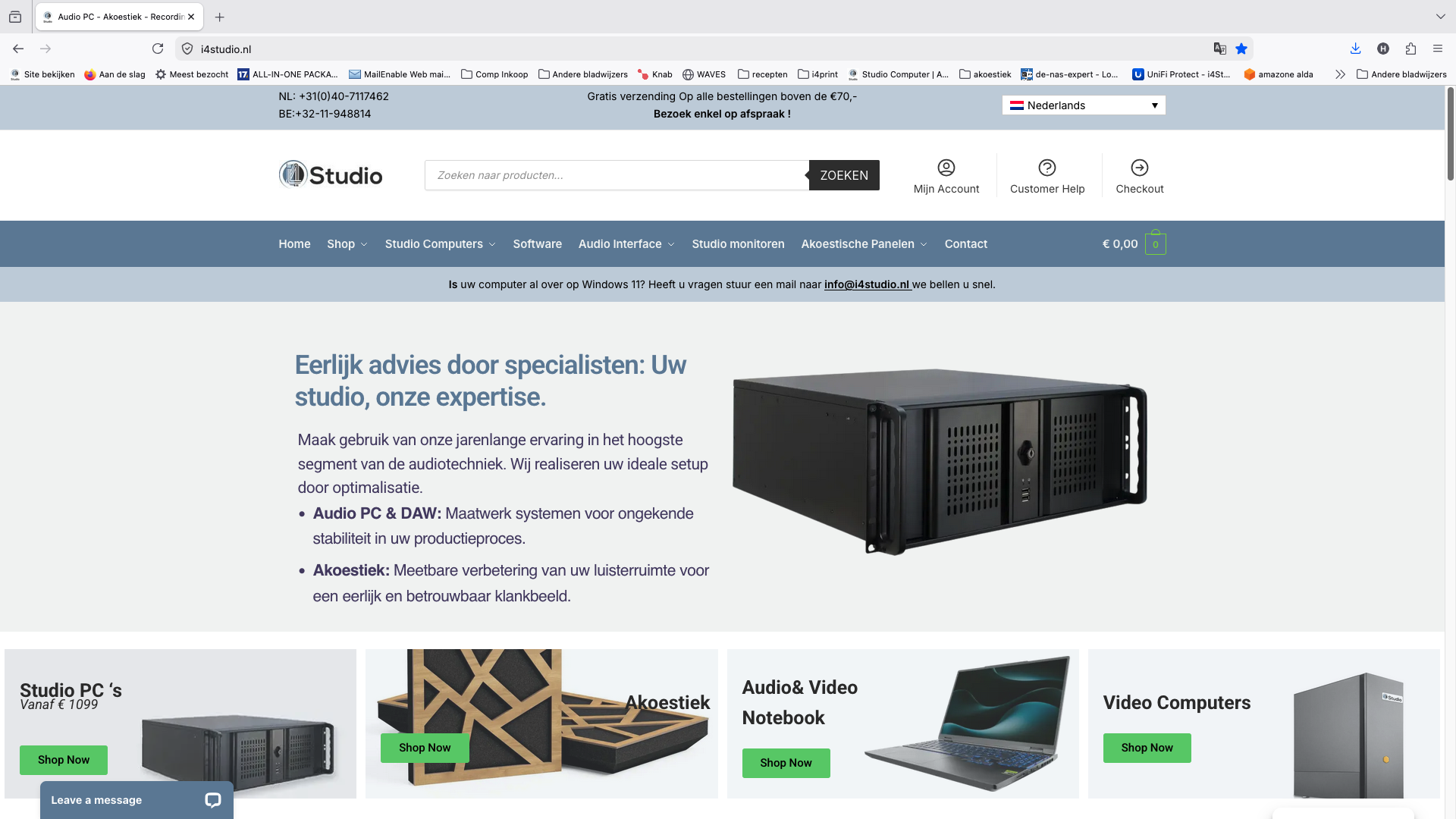
I4studio provides studio PCs for music production that are specially configured for low latency and stable audio performance. In addition to PCs, at I4studio you will also find audio interfaces like the Audient EVO 16 that combine direct monitoring and low driver latency. If you want to record seriously without suffering from latency, start with the right hardware.
FAQ
What is an acceptable latency when recording?
Latency below 10 to 20 ms is considered acceptable for monitoring during recording. Anything over 20 ms is noticeable and can lead to timing problems.
How do I lower the latency in my DAW?
Lower the buffer size to the lowest stable setting, limit active plugins during tracking, and enable hardware direct monitoring on your audio interface. On Windows, always use an ASIO driver.
What is the difference between input latency and round-trip latency?
Input latency is just the delay from signal input to the DAW. Round-trip latency is the total delay including processing and output, that is, what you hear when you monitor yourself through the DAW.
Why do I hear clicks and pops at low buffer size?
Clicks and pops at low buffers occur because the CPU cannot process the buffer in time. Increase the buffer size or close background programs to fix this.
Does sample rate make much difference to latency?
A higher sample rate theoretically lowers latency, but also doubles the CPU load. For most home studios, 48 kHz with a low buffer size is the best balance between latency and system stability.