Waarom Videobewerking Zo Populair Is
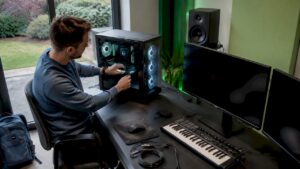
Photo and Video Editing is one of the most popular activities on a computer or workstation today. Whether you are a YouTuber, creating social media content, working on promotional videos or even editing a short film – video editing is everywhere.
What used to be reserved only for professional studios with expensive equipment is now accessible to everyone. Thanks to powerful laptops and desktops, easy-to-use software and endless online tutorials, almost anyone can start editing videos today.
Why You Need a Specialized Computer for Photo and Video Editing
Bespaar Tijd, Frustratie en Geld met de Juiste Configuratie
A computer optimized for video editing can save you an awful lot of time and frustration. Just try editing 4K video on an old laptop – you’re guaranteed to experience crashes, slowdowns and long load times.
With the right computer, you run your projects smoothly and smoothly, without hiccups. And ultimately, this also means higher productivity, less stress and therefore more value for your investment. It doesn’t matter whether you’re a novice video editor or a professional – the right hardware makes all the difference.
Welke Software Gebruik Je?
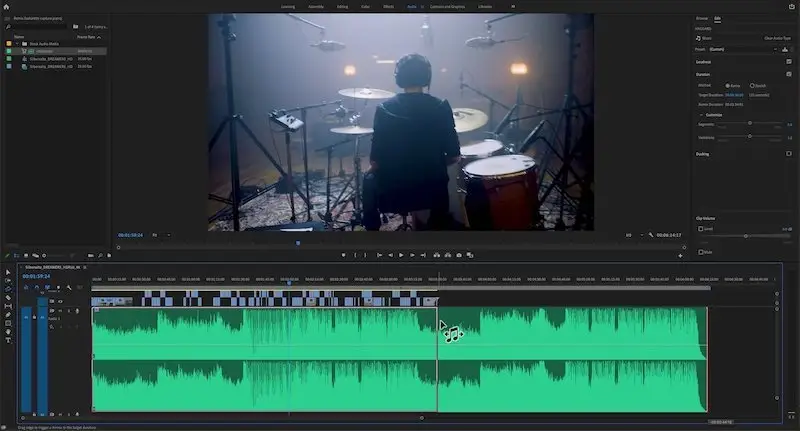
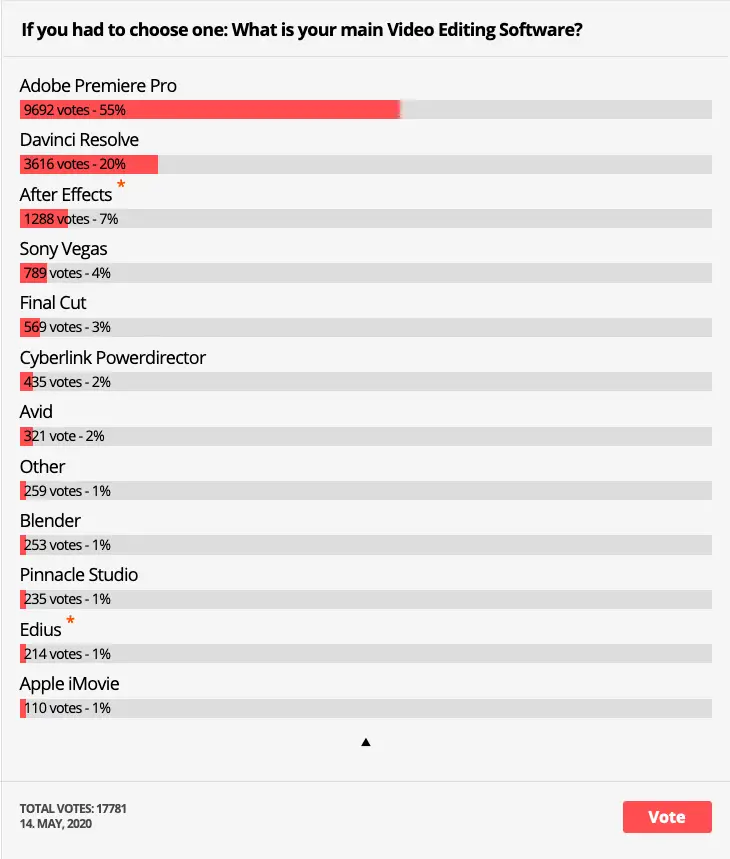
Not every video editing software places the same demands on your system. Basic software such as iMovie or Windows Video Editor does not require much power, while programs such as Adobe Premiere Pro or DaVinci Resolve are quite demanding of your hardware.
Therefore, it is essential to know what software you want to work with. Based on that, choose a computer that offers just enough power without wasting money unnecessarily on parts you don’t need.
Modern Photo and Video Editing is Accessible to Everyone
Van Beginner tot Professional: Iedereen Kan aan de Slag
Video editing was once reserved for expensive production studios and skilled editors, but that has completely changed. You no longer need an expensive film education to create professional-looking videos. All you need is a good PC, the right software, and a little willingness to learn.
You can learn through YouTube, online courses or just by doing. Whether you are editing birthday videos, making commercials or putting together a documentary – there is a suitable machine for every purpose and budget.
Waarom Software Keuze Je Hardware Bepaalt
For example, if you use Adobe Premiere Pro, it is smart to choose a computer with a powerful Nvidia card. This is because Premiere Pro uses CUDA technology, which is available exclusively on Nvidia GPUs and has a lot of impact on performance.
Do you prefer to use DaVinci Resolve? Then a powerful AMD card may also suffice just fine, since that software also supports open standards. So the software you use determines which components are most important in your setup.
How Video Editing Uses Your Hardware
Wat Gebeurt er Achter de Schermen Tijdens het Bewerken?
When you edit a video, your computer goes through several steps. Understanding these steps helps you make targeted choices when putting together your ideal workstation.
A typical workflow in a program such as Adobe Premiere Pro consists of the following steps:
-
Loading video files (possibly with proxies)
-
Rough editing and setting up the timeline
-
Frequent playback of the timeline to make adjustments
-
Adding transitions, effects and titles
-
Add music and sound effects
-
Rendering the final result with original footage
Each step places specific demands on your system: storage, processor, working memory and graphics card all play a role.
Overzicht: Welke Hardware Doet Wat?
Let’s link the six core activities of video editing to the responsible hardware components:
| Bewerkingstaak | Belangrijkste Hardware |
|---|---|
| Inladen van beelden | SSD / Opslag |
| Decoderen van bestanden | CPU |
| Effecten toepassen | CPU + GPU |
| Tijdlijn bufferen | RAM |
| Video renderen en coderen | CPU |
| Opslaan van eindbestand | SSD |
If any one of these components fails, your entire workflow becomes slower and more frustrating.
1. Beelden Inladen – De Rol van Opslag
The first step in your workflow is to load your video footage. This seems simple, but it requires fast storage to avoid running into delays. There are three main types of storage:
HDD (Hard Disk Drive)
-
Cheap but slow (~150 MB/s)
-
Bad at random reading/writing
-
Ideal for archiving, not for active editing
SATA SSD
-
Approximately 4x faster than HDD
-
Perfect for everyday video editing
-
Recommended models: Samsung 870 EVO/QVO
NVMe SSD
-
Up to 10x faster than SATA SSDs
-
Uses PCIe connections
-
Can even process 4K RAW images in real time
-
Recommendations: Samsung 980 Pro, Kingston KC3000, Seagate FireCuda
An NVMe SSD is the best investment you can make for speed and efficiency.
2. Decoderen – De Kracht van je Processor (CPU)
Almost all video images are compressed. That means they must first be decompressed (decoded) before they can be played or edited. That’s where your CPU comes into play.
Wat Heeft Een Goede CPU Nodig Voor Video Editing?
-
High clock speed for real-time effect processing
-
Many cores for parallel tasks such as rendering
Good choices are:
-
Intel Core i9 14900K (5.3 GHz Turbo)
-
AMD Ryzen 7950X
-
AMD Ryzen 7900X
A balance between clock speed and number of cores is ideal for smooth editing as well as fast rendering.
3. Effecten en Overgangen – Teamwerk van CPU, GPU en RAM
As soon as you add effects, titles or transitions, your project gets a lot heavier. Your system has to perform multiple tasks at once:
-
CPU handles serial effects and general operations
-
GPU speeds up visual effects and rendering processes
-
RAM temporarily stores edited frames for smooth playback
For 4K projects, 64 GB of RAM is highly recommended. Too little RAM forces your software to store data on the SSD, which slows down speed significantly.