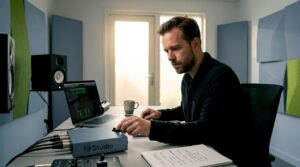
A common frustrating moment in the studio or during a recording is when the microphone doesn’t work. For audio professionals, musicians and content creators, that can cut right into the workflow: missing takes, pushing deadlines and losing concentration. This guide helps quickly diagnose and fix microphone problems – from simple cable issues to complex driver or power supply issues – and provides practical tips to avoid future mistakes.
Quick checklist: first steps if microphone doesn’t work
Before diving deep into technical options, a quick check can often reveal the problem. This checklist is handy to run down right away:
- Is the microphone physically connected (cables, USB, XLR, TRRS)?
- Is the microphone on or is a mute switch active?
- Is the recording source selected in the operating system or recording app?
- Is phantom power required and activated with condenser microphones?
- Is the cable working? Test with another cable or other microphone on the same input.
- Are drivers and firmware up to date (for USB mics and audio interfaces)?
- Is the gain or volume set too low on the preamp or interface?
Why the microphone doesn’t work: common causes
Problems with microphones typically arise in one of the following areas. Identifying the problem area allows for targeted solutions.
1. Physical and connection problems
- Defective cables: broken wires, bad solder joints or broken connectors.
- Wrong connector: TRS vs TRRS, XLR vs 1/4″, USB-A vs USB-C adapters.
- Loose connections: poor plug-in causes intermittent signals.
2. Power supply and electrical problems
- No phantom power (48V) for condenser microphones.
- Diminished battery (in wireless microphones) or dead batteries in transmitters/receivers.
- Current spikes, noise due to poor grounding or ground loops.
3. Software, drivers and settings
- Microphone not selected as recording device in Windows/macOS/DAW.
- Wrong sample rate or bit depth (sample rate mismatch) between interface and DAW.
- Outdated or corrupt drivers (especially ASIO/drivers of audio interfaces).
- Privacy and permission settings in operating systems or browsers (microphone access disabled).
4. Hardware and component failure
- Damaged microphone capsule or internal electronics.
- Faulty preamp or audio interface input.
- Problems in wireless systems: interference, broken antenna or faulty receiver.
5. Workflow control and configuration errors.
- Input monitoring disabled or routed incorrectly in the DAW.
- Automatic gain control or software noise reduction that filters out the signal.
- Use of incorrect adapters or cables that change impedance and signal level.
Step-by-step troubleshooting: a practical approach
A structured approach helps avoid going in circles. These steps are logically structured from simple to complex.
-
Visual and physical inspection
Check for visible damage to cables, connectors and the microphone. Loose XLR pins or cracked cable insulation are often the culprit.
-
Basic test with other device
Connect the microphone to another obvious input (other interface, camera, mixer or even smartphone with suitable adapter). If the problem moves with you, it’s probably the microphone or cable; otherwise, the interface or computer.
-
Check settings in OS and app
In Windows: Go to Settings > System > Sound and check recording devices. Make sure privacy settings allow microphone access. In macOS: System Preferences > Sound and check Security & privacy.
-
Drivers and firmware
Update audio interface drivers and firmware. For USB microphones, sometimes it helps to flash the firmware or install the manufacturer’s drivers.
-
Phantom power and current
Turn on 48V for condenser microphones. Note that some vintage or tape recording microphones do not tolerate 48V.
-
Test with other cables and adapters
A different XLR or USB cable may suddenly solve the problem. Do not use cheap adapters that swap TRRS wiring.
-
Check gain/stereo routing and DAW settings
Turn up the input gain on the interface, check that input monitoring is working and see if the track in the DAW is armed (record arm).
-
Last resort: hardware reset
Some USB microphones and interfaces can be reset by power discharge or by the manufacturer-controlled reset procedure. Please refer to the manual.
Platform-specific solutions
Windows
Windows users often run into permission or driver problems.
- Check Device Manager for audio device error messages.
- Install ASIO4ALL only if really necessary; native audio interface drivers are often more stable.
- For problems with USB microphones: swap USB port (avoid hubs), install chipset and USB controller updates.
macOS
macOS is mostly plug-and-play, but there are pitfalls.
- Check Security & Privacy > Microphone for permissions for apps (e.g. Zoom, Logic Pro).
- Use Audio MIDI Setup to check sample frequency and channel settings.
- If a device is not recognized: try SMC/PRAM reset or connect the device to another port.
Mobile devices (iOS and Android)
For mobile recording, special rules around adapters and TRRS pins apply.
- Many external microphones require a TRRS or digital Lightning/USB-C connection. Use appropriate, quality adapters.
- Check app permissions and try another recording app to rule out hardware problems.
Type microphone problems: solutions by microphone type
Condenser microphone (studio condenser)
Condenser microphones are sensitive and often require 48V phantom power:
- Make sure 48V is activated. Without 48V, the signal is often extremely weak or absent.
- Use balanced XLR cables to a reliable preamp or interface. Unbalanced cables can introduce noise and signal loss.
- Note that cheap or improperly connected phantom power can damage internal electronics – always connect with device off before turning on 48V.
Dynamic microphone (e.g., Shure SM58)
Dynamic mics are more robust, don’t need 48V, but can seem too quiet if the preamp gain is low.
- Check gain and turn up the preamp; expected levels are -50 dBV to -60 dBV depending on voice/instrument.
- Use good microphone clamps and observe distance rules (proximity effect when singing close by).
USB microphone
USB microphones combine microphone + ADC + USB connection. Many problems are driver- or port-related.
- Try a different USB port and avoid hubs. Preferably use USB 3.0 ports that provide adequate power.
- Update firmware and drivers from the manufacturer.
- If multiple USB audio devices are used, be aware of sample rate and sync issues (Windows cannot always sample-sync devices).
Wireless (cordless) microphones
Wireless systems have problems of their own: frequency interference, dead batteries, or poor antenna position.
- Check battery status and replace batteries regularly.
- Scan for a free frequency and put transmitter/receiver on the same channel.
- Be mindful of obstacles and antennas; sometimes a slight adjustment in receiver position helps.
Signal is audible but distorted or soft
If the microphone gives sound but that sound is too soft, distorted or full of noise, then systematic research will help:
Distortion
- Too much gain on the preamp? Lower the input gain and check that the peak meters don’t go into the red.
- Clipping possible in the DAW: reduce the recording level.
- Broken capsule or electronics can also cause distortion; test with a different preamp/interface.
Low volume or noise
- Check impedance match: some vintage or high-end mics work better with a high-quality preamp.
- Check cables for interference and replace cheap, long cables that can pick up noise.
- Ground loops: if a hum is present, try putting devices on the same power group or use a DI box with ground-lift.
Software and DAW problems
If everything seems fine hardware-wise, it’s often down to routing, drivers or settings in the DAW.
- Make sure the interface is selected as the audio device in the DAW and that the correct input channel is assigned.
- Check sample rate and buffer size: too low buffer can cause excessive CPU load and dropouts, too high latency gives monitoring problems.
- Use direct monitoring on the interface to bypass latency when recording.
Practical examples and case studies
Concrete examples help make the abstract tangible. Below are some common scenarios.
Case 1: The studio singer who suddenly has no signal
Situation: During a take, the signal drops out. Solution: check whether a mute on the mixer or interface is accidentally on; check whether the singer is pushing against the switch on a microphone holder; test cable, then preamp, then microphone on another setup.
Case 2: USB microphone works on laptop but not in DAW
Situation: In Windows, the USB mic sounds like a recording device, but no input in the DAW. Solution: in the DAW, select the audio device (sometimes USB-mic appears as “USB Audio Device”), match sample rate, and check app permissions. If the DAW does not support ASIO, ASIO4ALL can help – but prefer to use official drivers.
Case 3: Condenser microphone not working after relocation
Situation: After transport, condenser mic gives no signal. Solution: check switch for pad/low-cut, check 48V, and check for physical damage to capsule (noiseless capsule or rustling internal coil indicates mechanical damage).
Preventive steps: how does one prevent microphone failure?
Prevention is better than repair. A few professional habits save a lot of time:
- Use professional quality cables and spare cables in the studio case.
- Establish a simple pre-op checklist for recordings: cables, power supply, drivers, gain settings and app permissions.
- Schedule firmware and driver updates outside of critical recording sessions.
- Label inputs and outputs on interface and mixer to avoid routing errors.
- Invest in a reliable audio workstation: I4studio provides custom-built computers and audio solutions that perform stably at high loads.
When is professional repair or replacement needed?
Some problems indicate hardware failure and require specialized help:
- Internal electrical damage (smell of burning, visible damage to components).
- Capsule damaged: audible difference in character or complete silence.
- Intermittent signals that do not disappear when changing cables and devices – often internal connector or solder problems.
In such cases, it is wise to contact an authorized repair service or the vendor directly. Vendors such as I4studio provide support, can recommend reliable repair partners, and help select replacement equipment or replacement microphones to suit studio needs.
Tools and accessories that help with troubleshooting
A few handy tools speed diagnosis and increase reliability:
- Multimeter: useful for measuring continuity and voltages (e.g., 48V).
- Signal generator or test oscillator: useful for checking whether preamps and meters respond to an input signal.
- Reference headphones: reliable monitoring to detect noise and distortion.
- Carry kit with spare cables, adapters and batteries for wireless systems.
Recommendations for studio and broadcast environments
For professionals, reliability and predictability are essential. Here are some recommendations to minimize downtime:
- Invest in high-quality audio interfaces with stable drivers and sufficient headroom. I4studio provides workstation computers and audio hardware tested for professional workloads.
- Use balanced signal chains (XLR) and good preamps for critical microphones.
- Enable redundant routes: secondary microphone or backup recorder in important live productions.
- Document setup settings and snapshots in the DAW so that when returning to a session the correct settings can be quickly restored.
Checklists for specific situations
Recording studio checklist
- Testing cables prior to session
- Spare cables and microphones available
- Interface drivers up-to-date
- 48V controlled for condenser mics
- Gain staging set
Live broadcast or broadcast checklist
- Batteries checked/replaced
- Antennas and receivers tuned
- Backup recording device active
- Ground-lift solutions ready
When the microphone works, but the recording sounds different than expected
Sometimes it’s not that the microphone doesn’t work, but that the recording doesn’t meet expectations. This can stem from acoustics, placement or processing:
- Placement: small changes in angle and distance affect a lot. A vocal microphone 10 cm closer can sound much warmer due to proximity effect.
- Acoustics: reflections and modal resonances distort the signal; simple solutions are screens, gobos or bass traps.
- EQ and compression: too aggressive processing can alter microphone characteristics; always start with zero settings.
Case study: I4studio solution for a broadcast customer
A regional broadcaster was experiencing occasional drop-outs and noise during live broadcasts. Inspection revealed that multiple USB devices and an outdated computer USB controller were causing conflicts. I4studio provided a dedicated audio workstation with quality audio interfaces and separate USB controllers, performed driver optimization and provided redundant recording paths. Result: stable broadcasts without drop-outs and lower latency in live monitoring.
Conclusion: systematic thinking prevents a lot of frustration
When microphone work did not stop a user, a structured approach helps: first simple physical checks, then software and drivers, followed by deeper hardware diagnostics. For professional studios and broadcast environments, it pays to invest in quality interfaces, reliable workstations and a good support partner. I4studio combines hardware expertise with custom workstations and advice on acoustics – a combination that reduces problems and increases uptime.
Summary
Solving microphone problems requires attention to connections, power supply, drivers and workflow. With a logical checklist and knowledge of specific microphone types, most problems can be fixed quickly. For more complex cases or when stability is crucial, professional support – such as that provided by I4studio – provides valuable help and robust solutions.
Frequently Asked Questions
Why is my USB microphone not recognized by the computer?
Usually it is due to a driver or port problem. Try another USB port (preferably not a hub), update drivers/firmware from the manufacturer, and check if the device is visible in Device Manager (Windows) or System Information (macOS). Sometimes an old chipset driver also blocks proper operation.
The microphone gives sound, but the recording is very soft – now what?
Check the preamp gain and input levels in the interface/DAW. For condenser mics, 48V should also be present. Test with another preamp or interface to determine if the microphone itself is giving adequate output.
What to do if a condenser microphone gives no signal at all?
Check that 48V phantom power is on and that the XLR cable is working properly. If after changing cable and preamp still no signal, there is a possibility of capsule or internal electronic damage; have the unit professionally checked.
Can app or browser settings cause the microphone to not work in Zoom or Teams?
Yes. Both operating systems (Windows/macOS) and browsers require explicit permission for microphone access. Check privacy settings and app-specific audio settings in Zoom/Teams and choose the appropriate recording device.
When should one seek professional help?
If physical damage is suspected, if internal electronics fail, or if all simple tests fail, professional repair or replacement is recommended. For studio or broadcast environments, a technical audit by a specialist (such as I4studio) can prevent many future problems.